As an Admin, you can access and review owned assets of your users within your organization directly from the Admin Console. This guide explains how to locate and view assets associated with your users.
Accessing Owned Assets of Your Users
You can view and access the assets of your users from two different locations—starting from your User Management screen or within the Asset Tab located in a specific user’s profile. We’ll walk through the steps for both options together, down below:
From the User Management Screen
- Starting in the Admin Console, click on Users in the menu on the left side of the page.
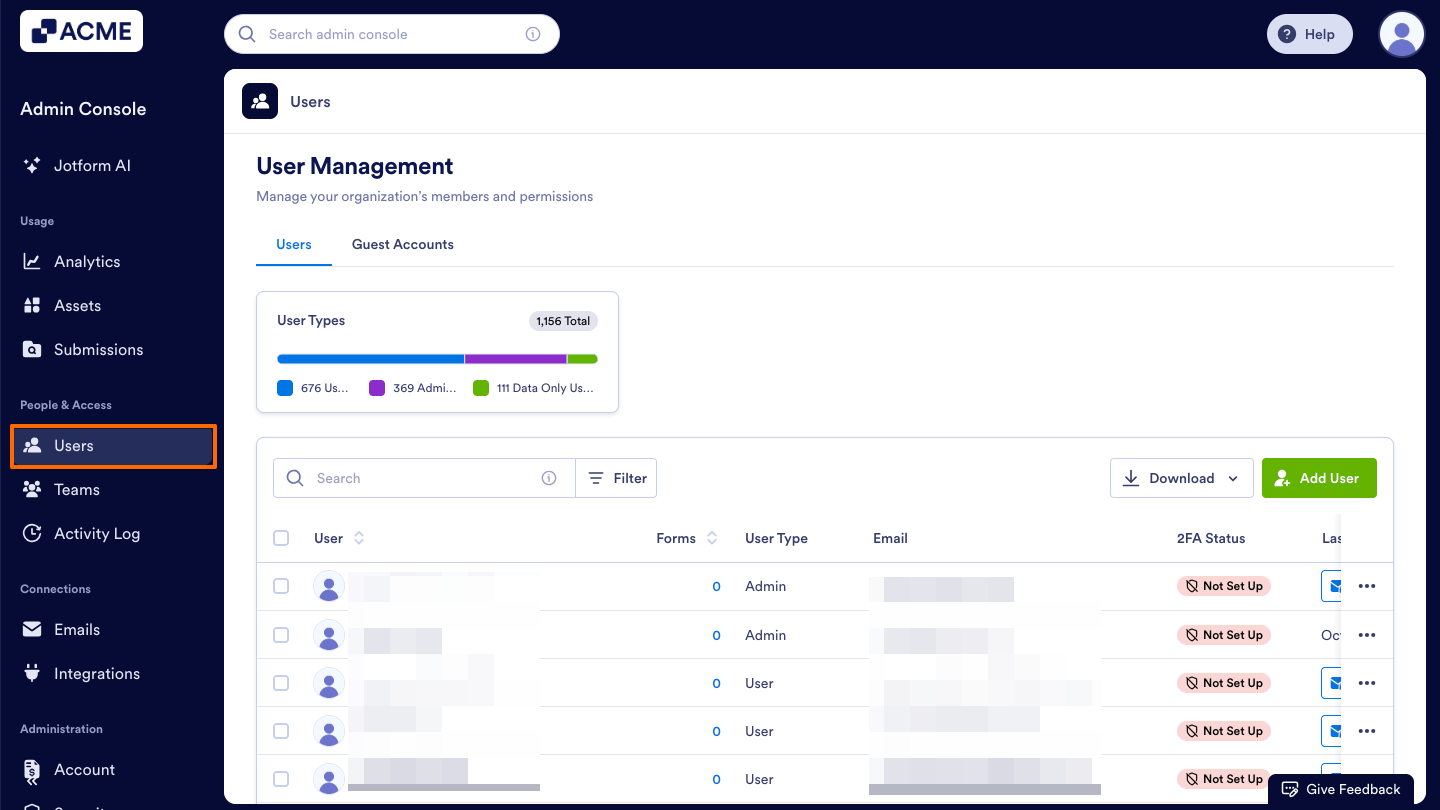
- Next, click on the Users tab located at the top of the User Management page.
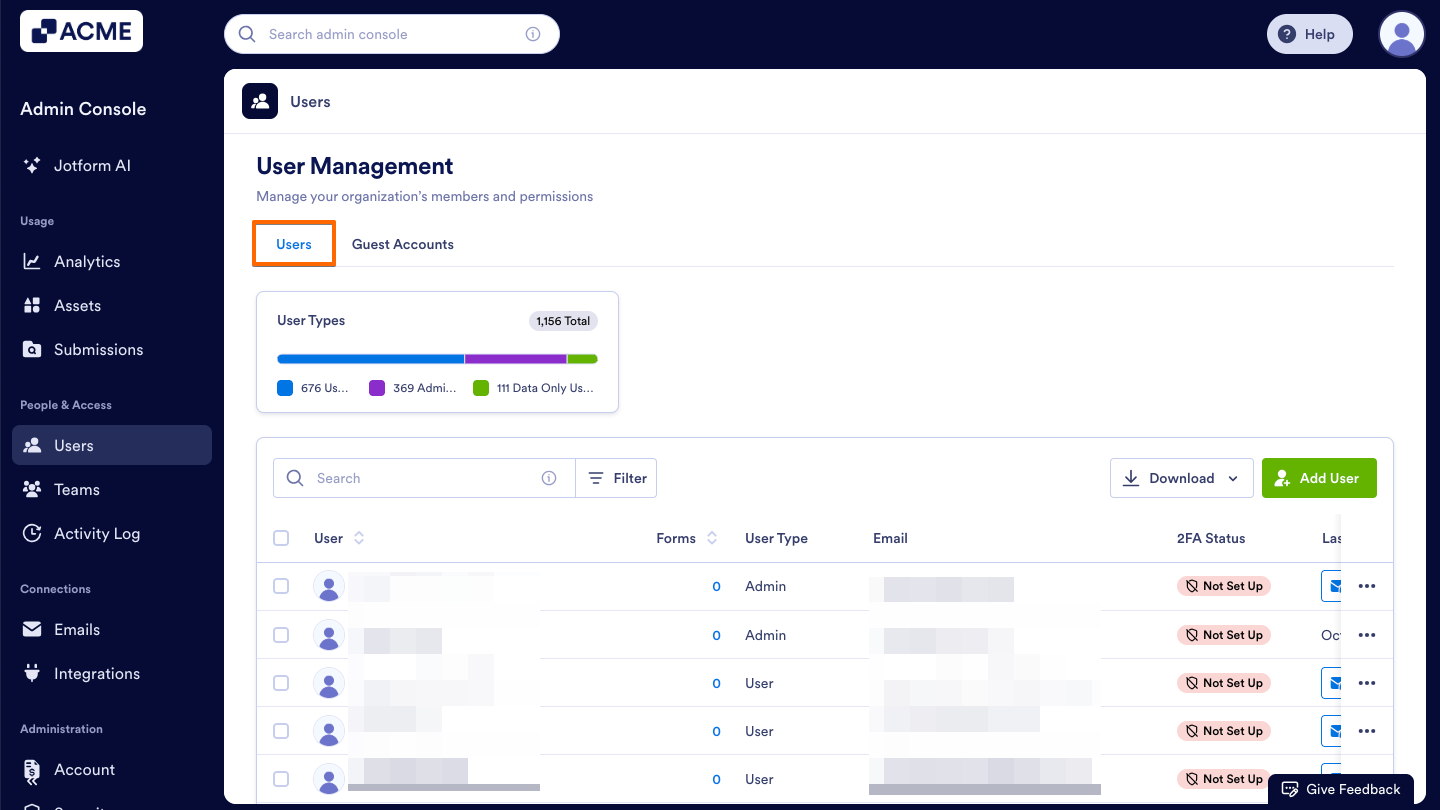
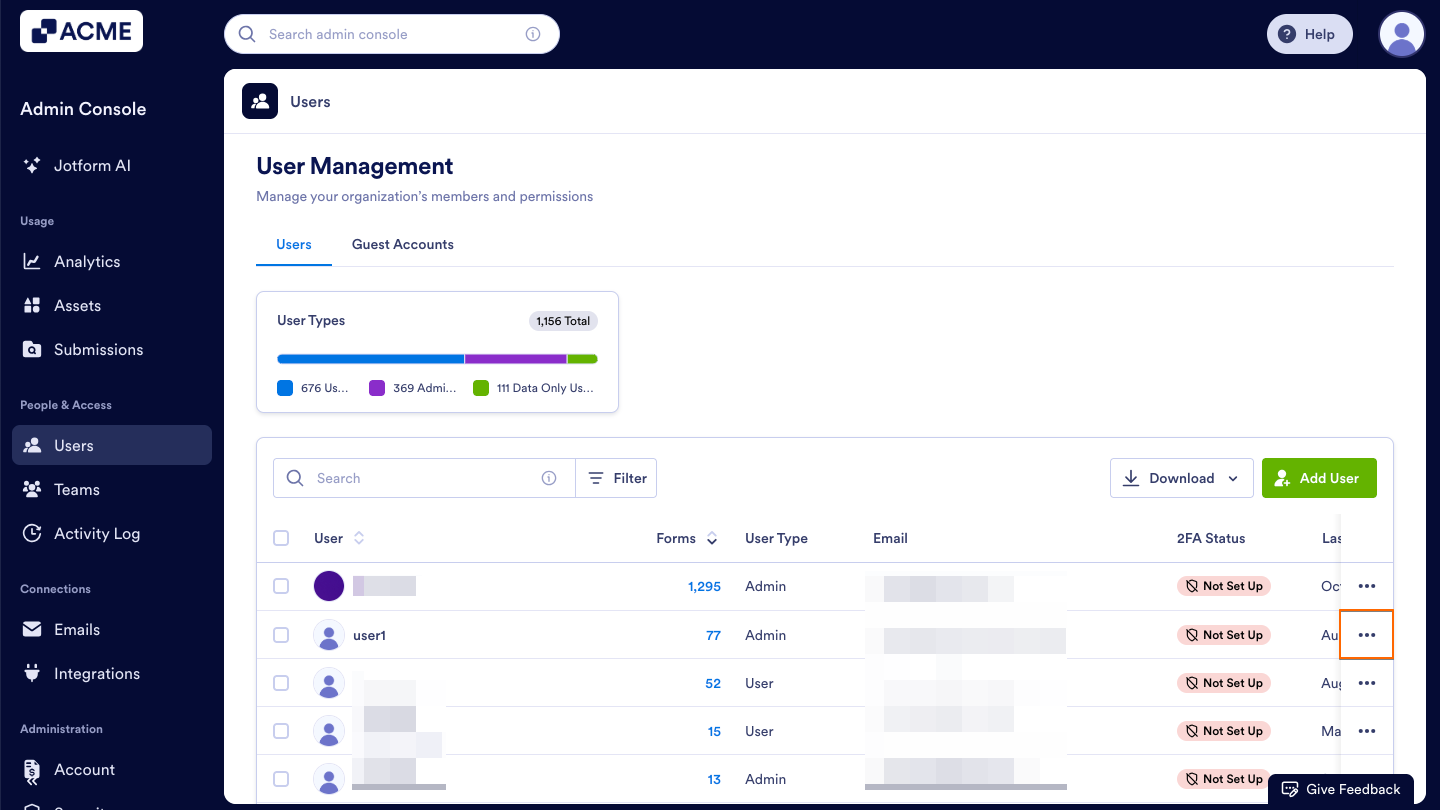
- Then, decide which user’s assets you’d like to view and click the Three Dots icon to the right of their name.
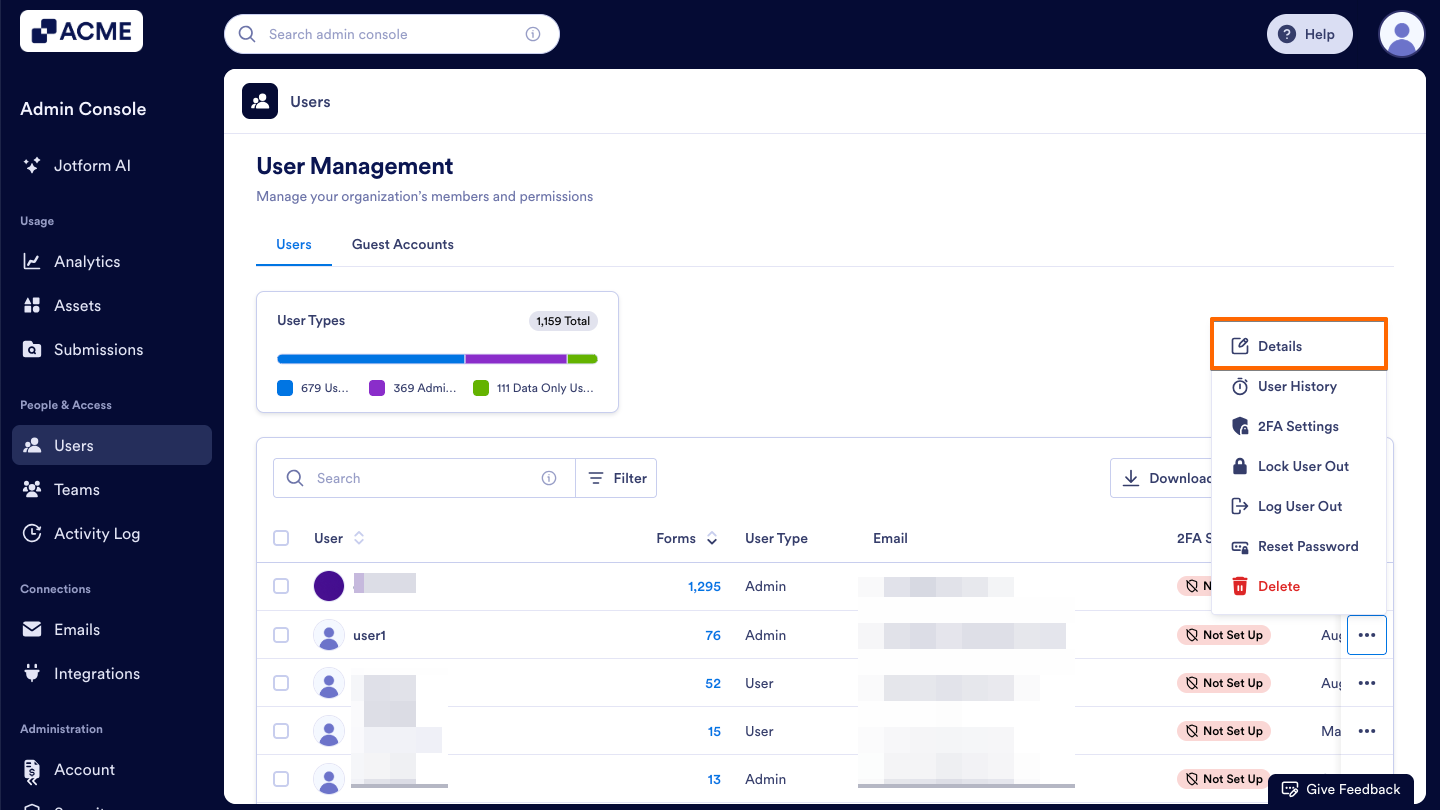
- Now, select Details in the dropdown menu.
- From here, click on the Assets tab in the sidebar on the right side of the page.
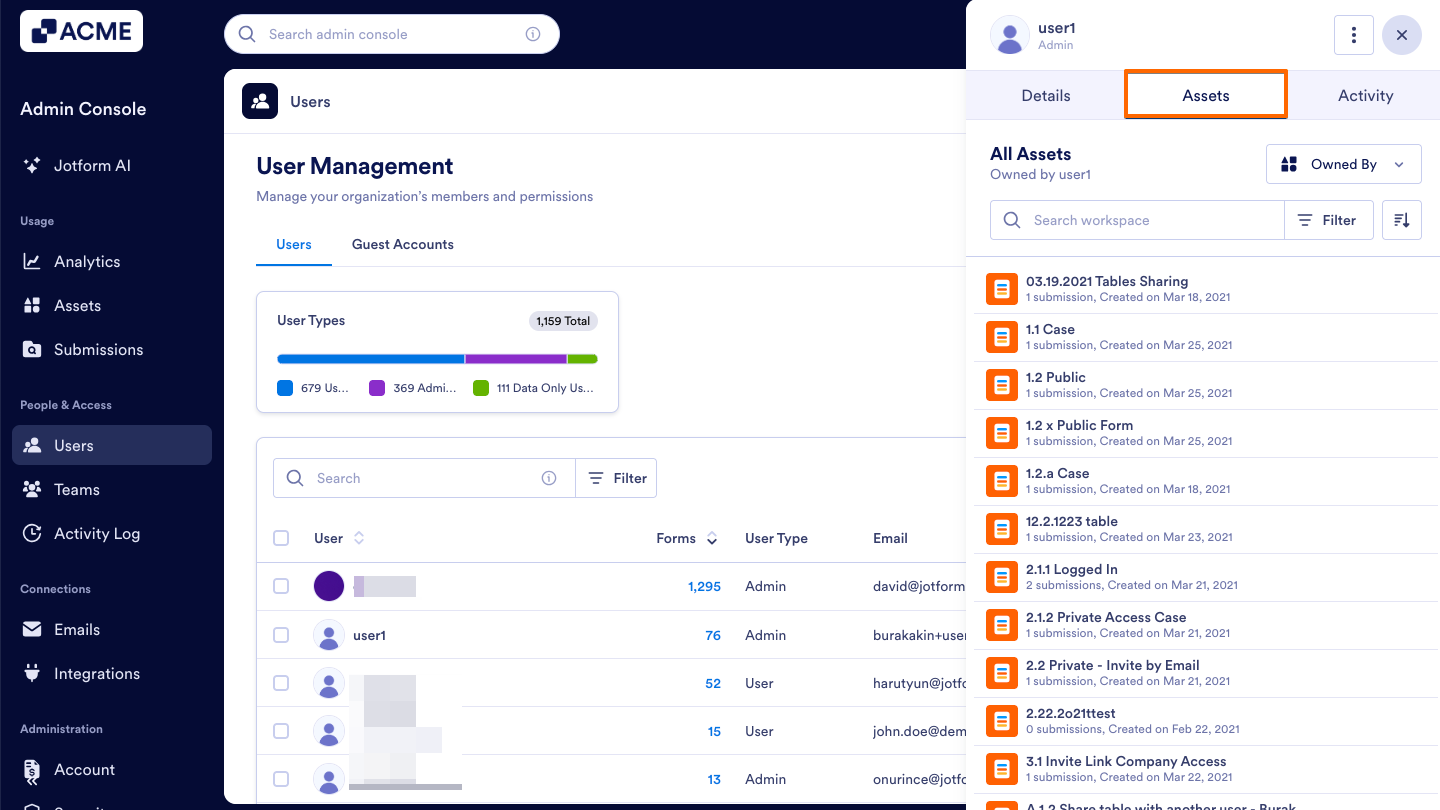
- Finally, make sure that Owned by is selected in the dropdown menu on the right.
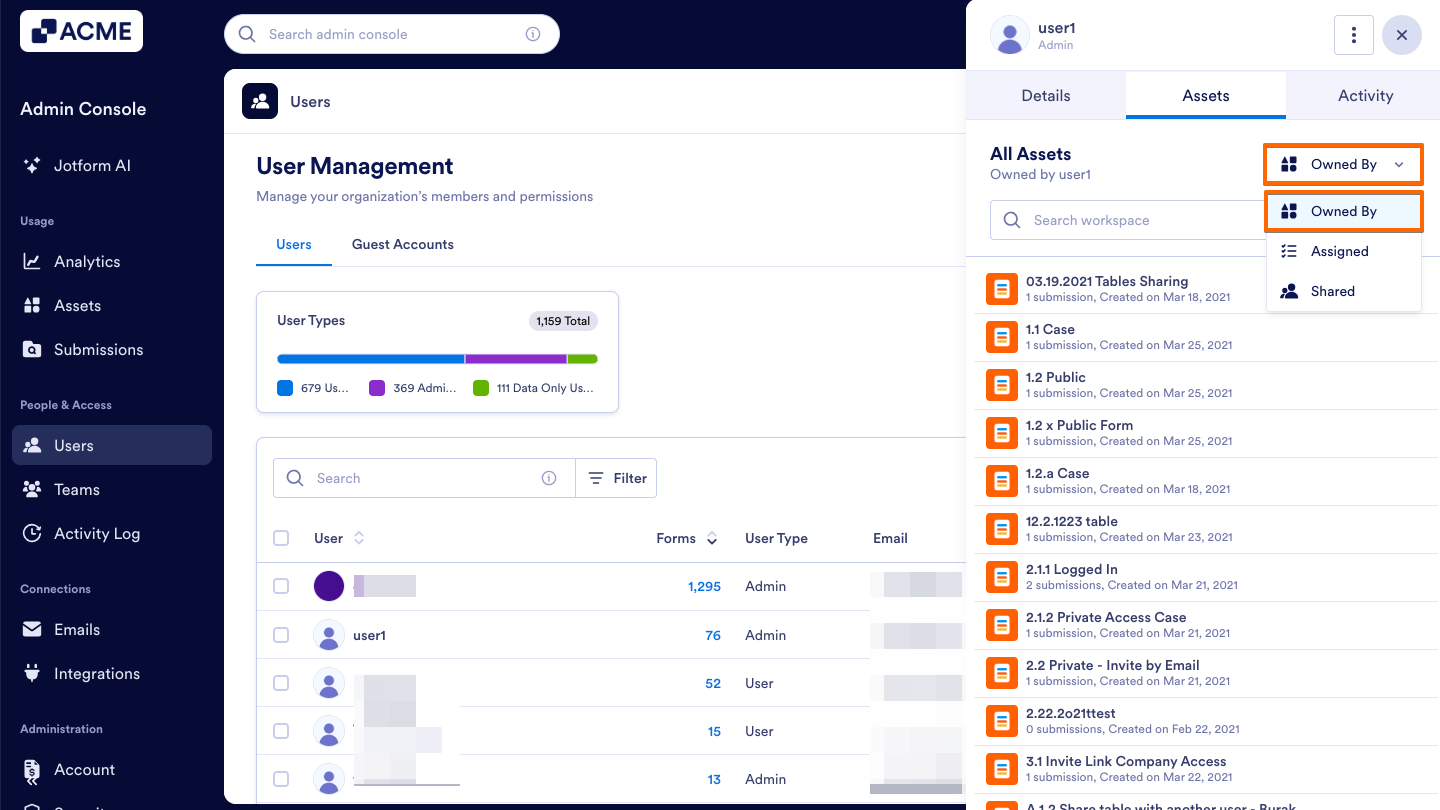
You will now see a list of the assets owned by that user, below:
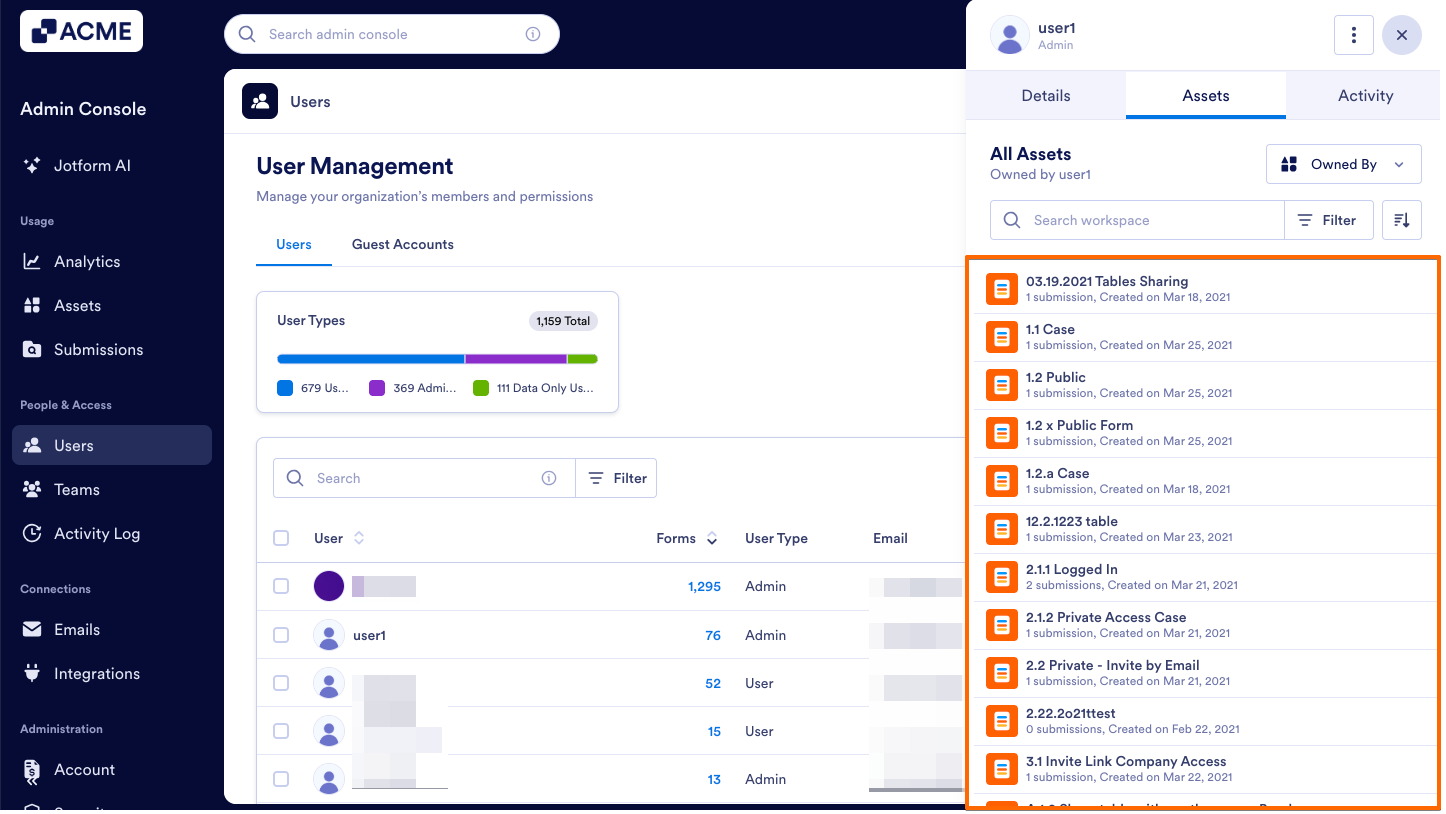
From the Assets Tab within a Specific User’s Profile
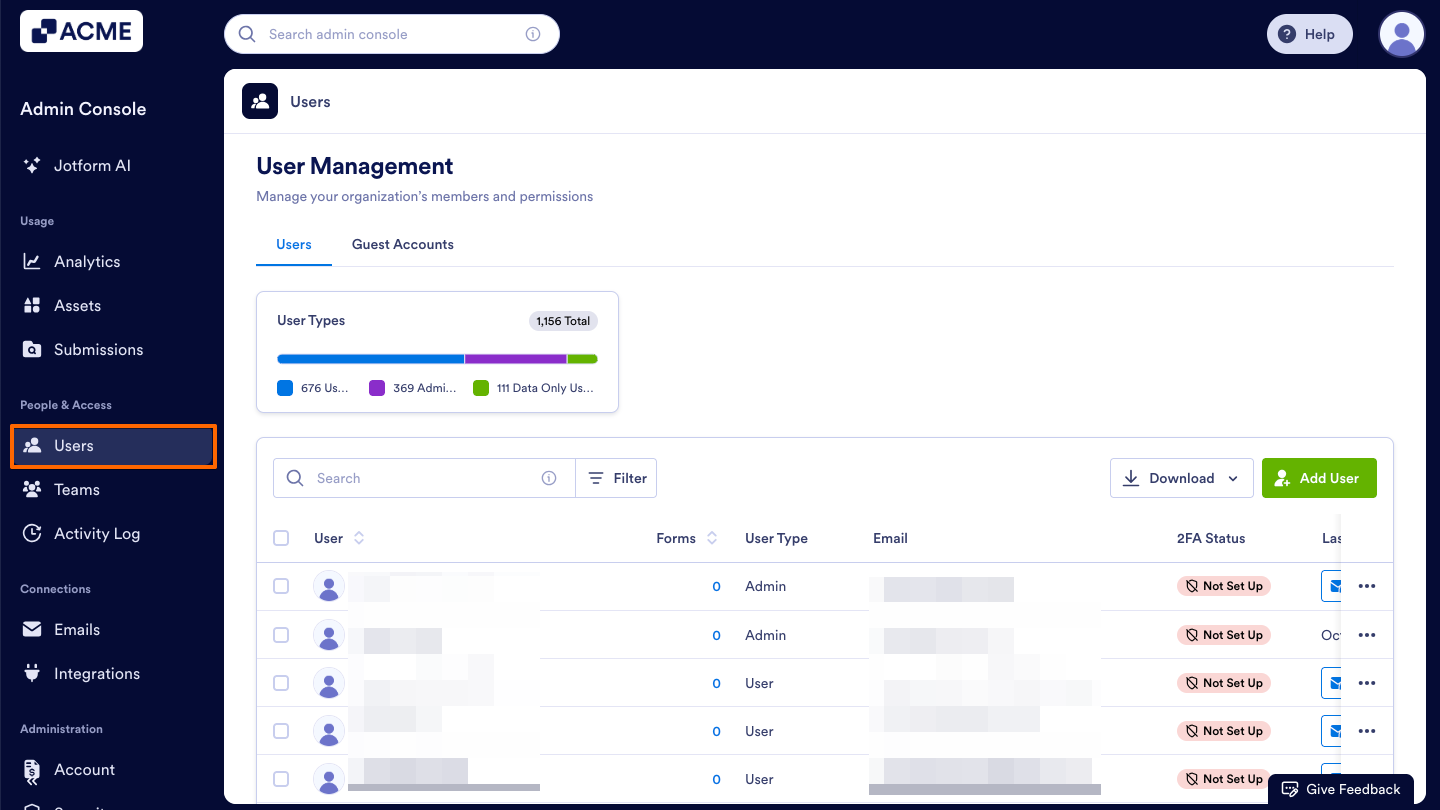
- Starting in the Admin Console, click on Users in the menu on the left side of the page.
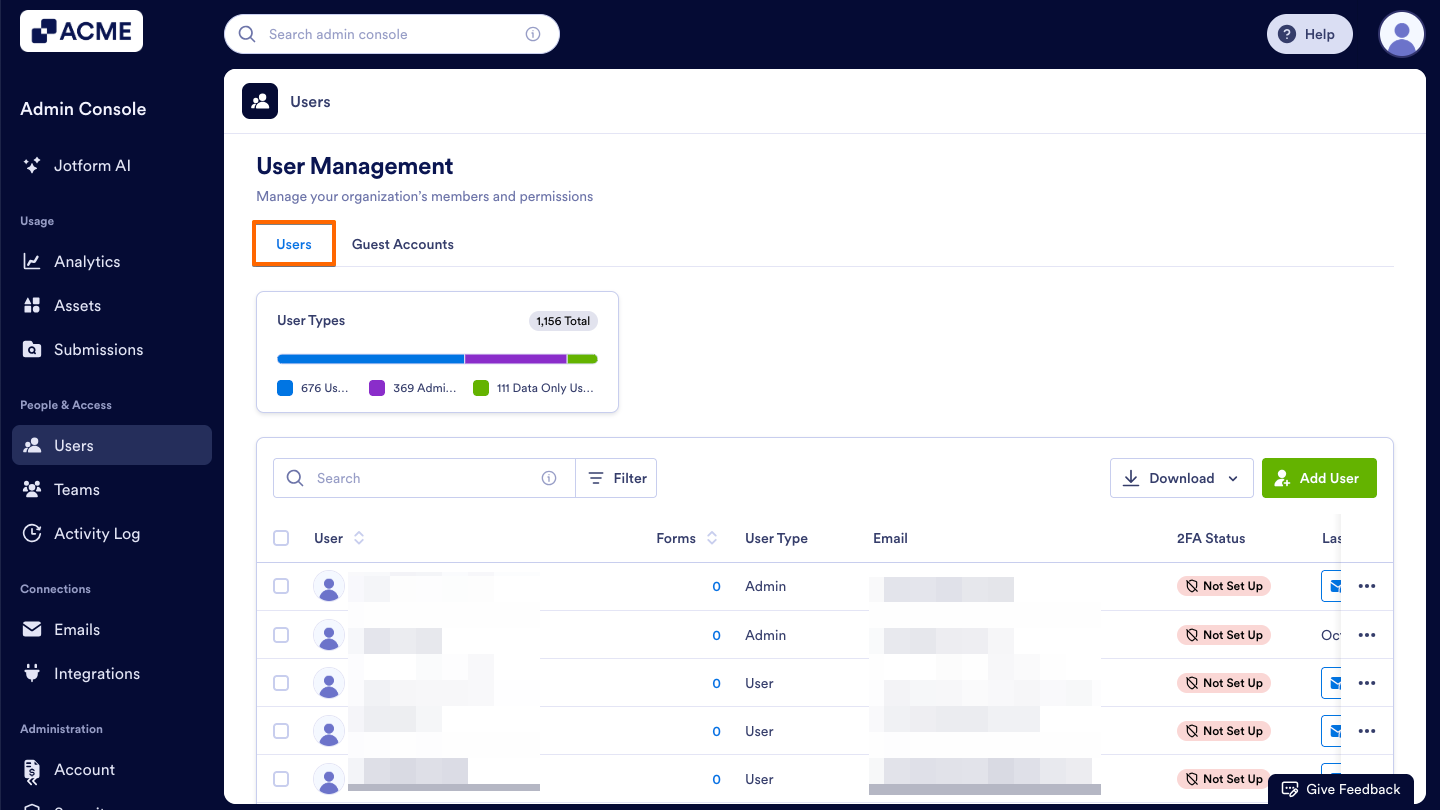
- Next, click on the Users tab located at the top of the User Management page.
- Then, decide which user’s assets you’d like to view and click on their username.This opens a sidebar on the right side of the screen that contains several tabs, such as Details, Assets, and Activity.
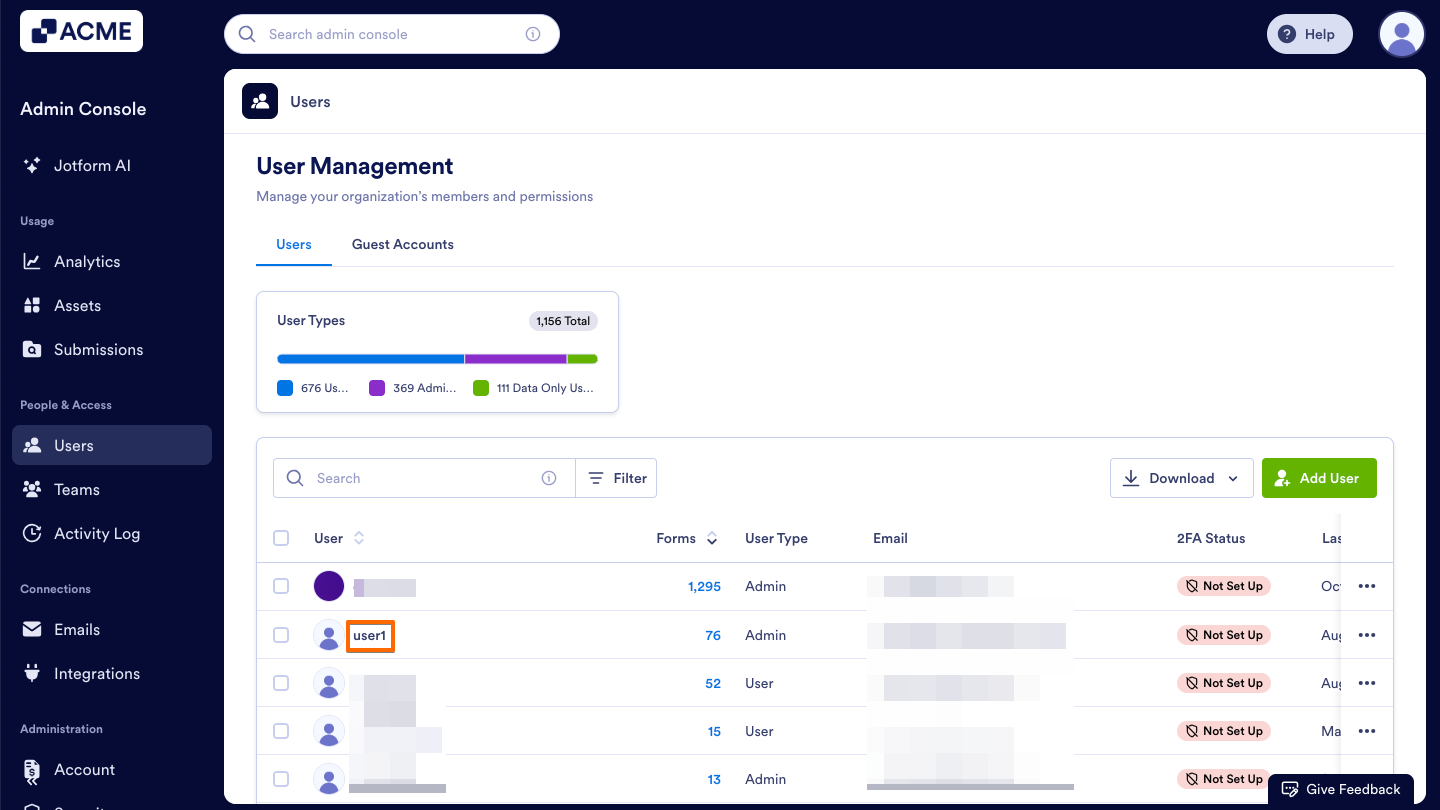
- In that sidebar, select the Assets tab to view that user’s assets.
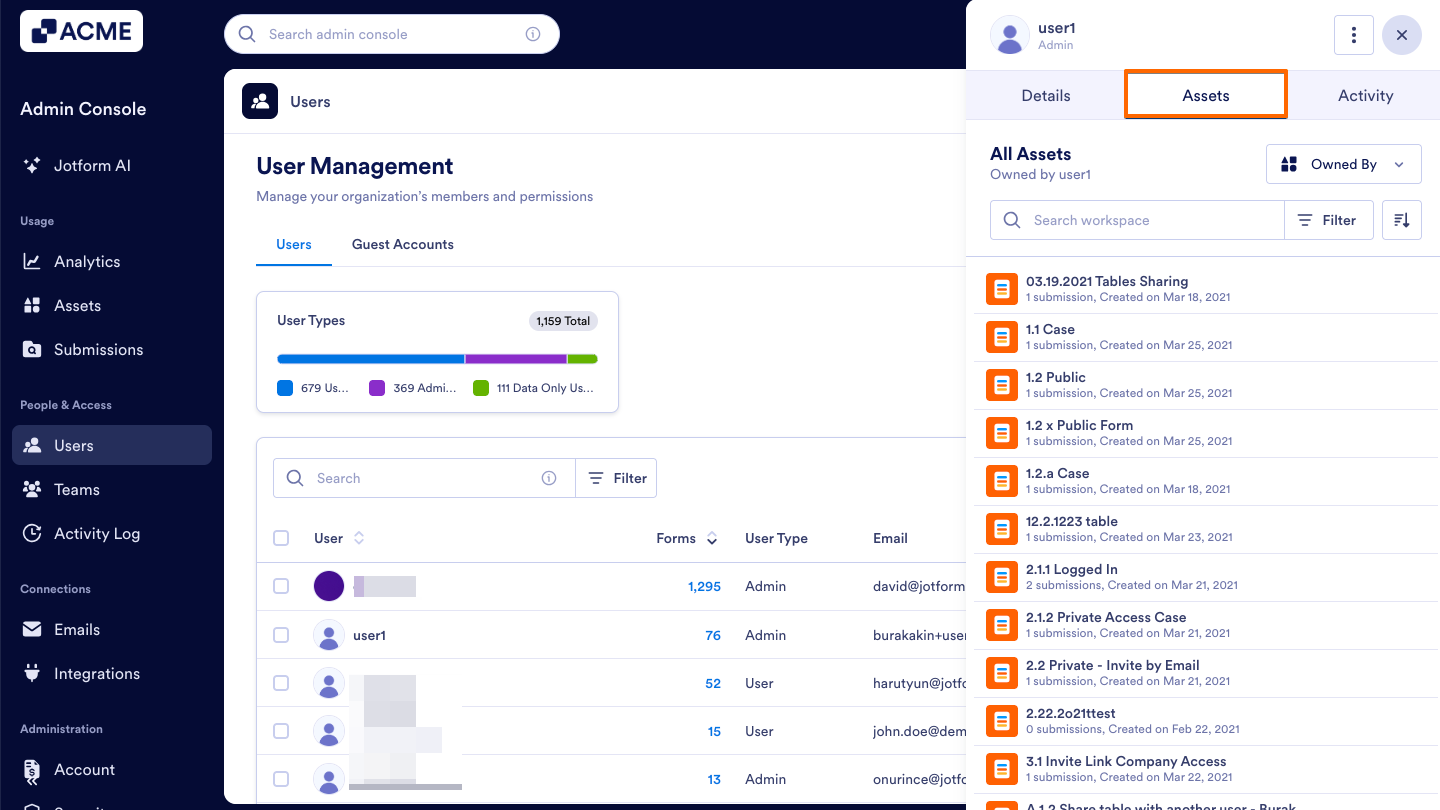
- Now, make sure that Owned by is selected in the dropdown menu on the right.
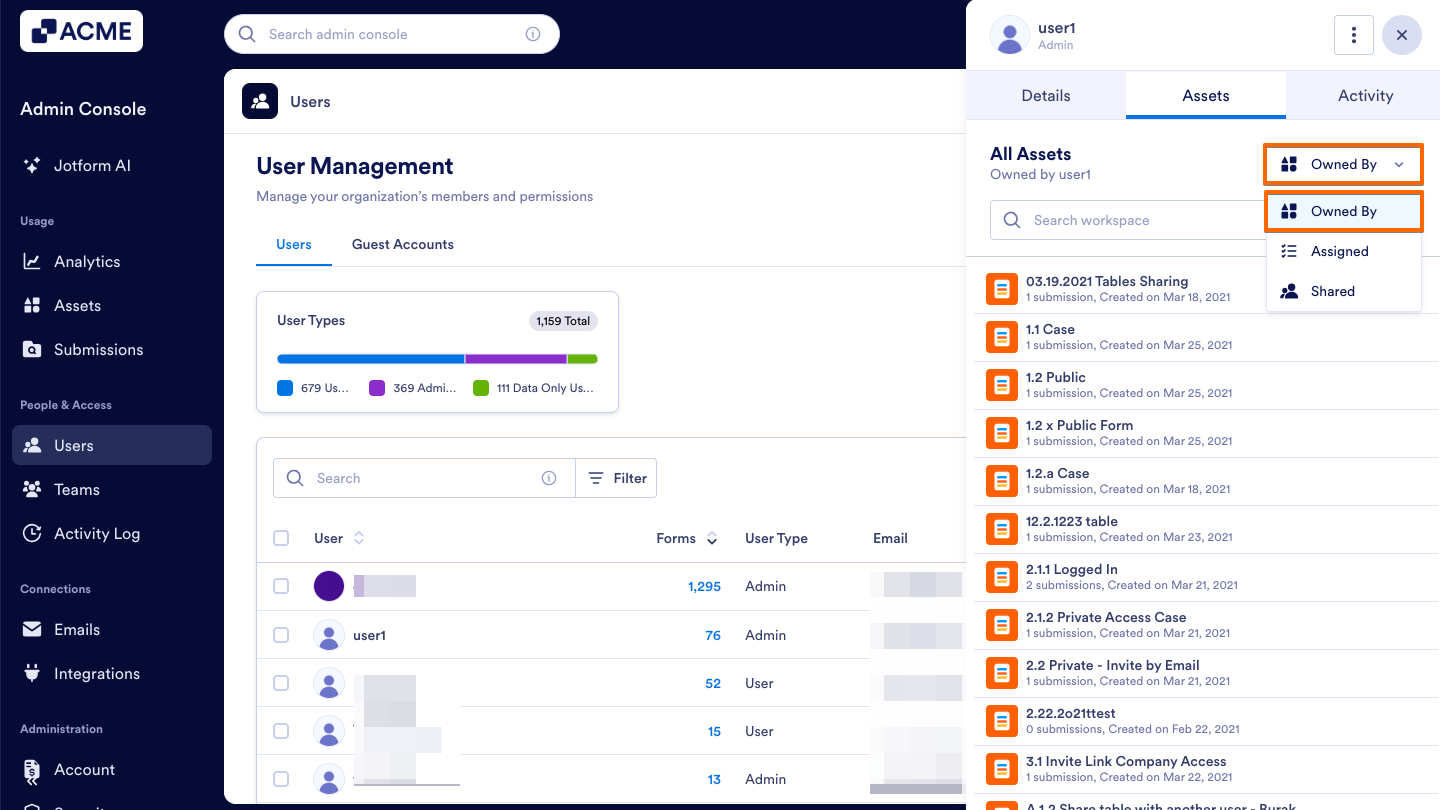
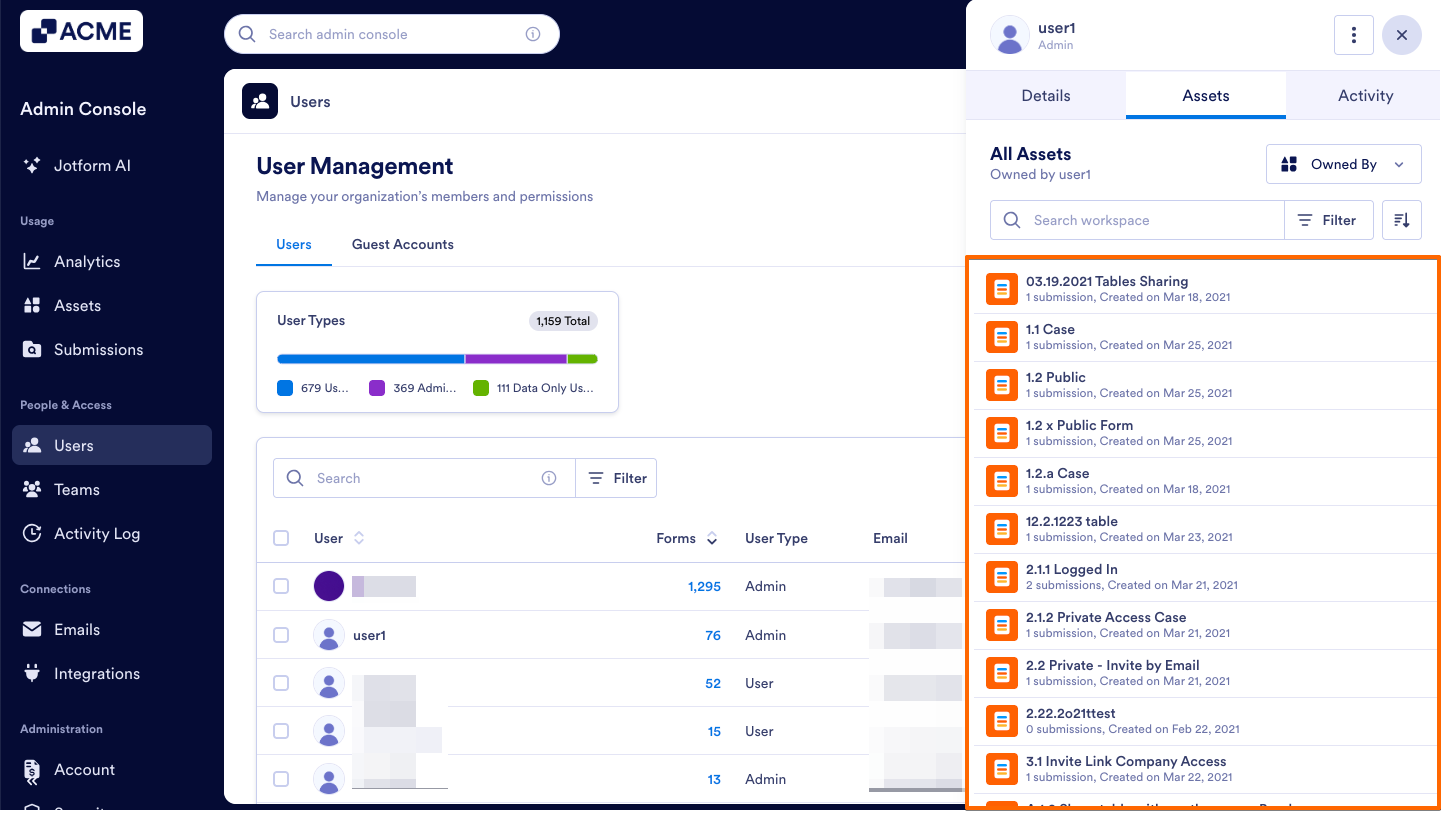
You will now see a list of assets owned by that user, below:
What Else Can You View?
On the Assets tab, you can see all workspace assets owned by the selected user. Each item in the list displays:
- Asset Type: Represented by an icon to the left of the asset name, indicating which kind of asset is listed (for example, a form, table, or workflow).
- Asset Name: The title of the asset as it appears in the user’s workspace.
- Submission Count: If the user has any forms in their workspace, you will see the form’s submission count listed below the form’s name.
- Creation Date: Also displayed below the asset’s name, this shows when the asset was created.
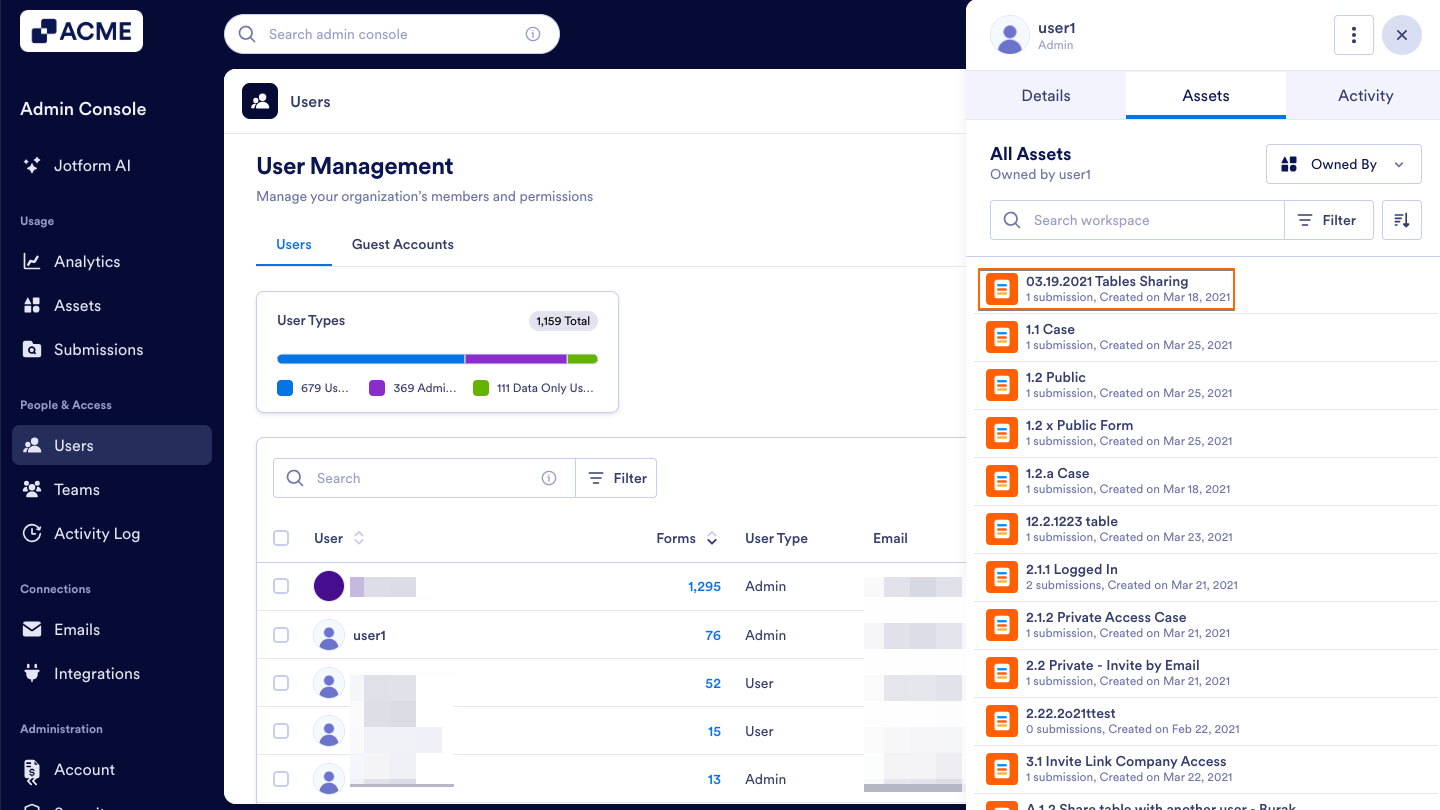
Tip: You can click on any asset in this list to open it directly in the builder, where you can view its details, make edits, or manage its settings as needed.
Managing Asset Visibility
You can use the Filter menu, Search bar, and Sort dropdown located on this page to help refine and organize your results or locate specific assets.
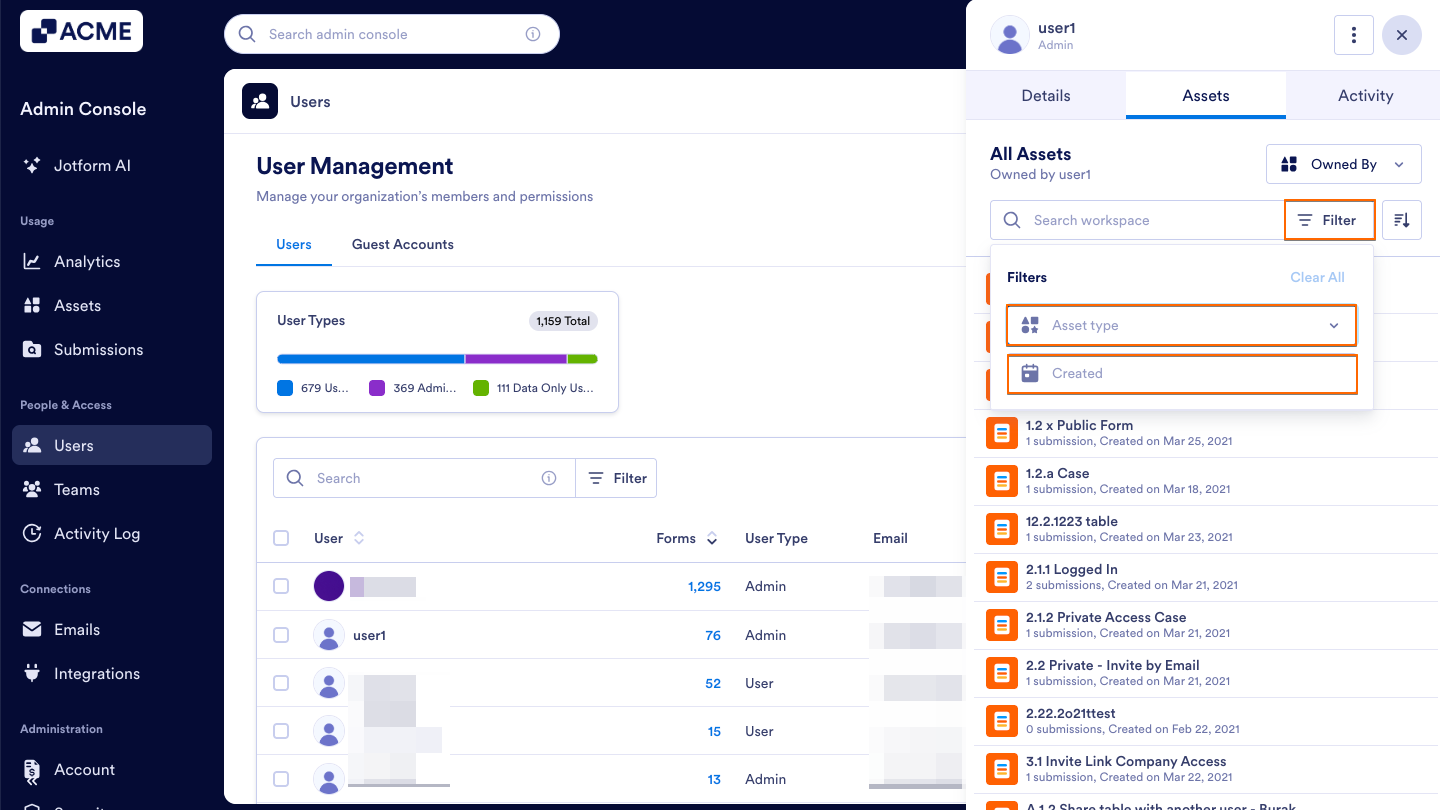
Filter menu
You can use the Filter button to narrow these results down by asset type and creation date.
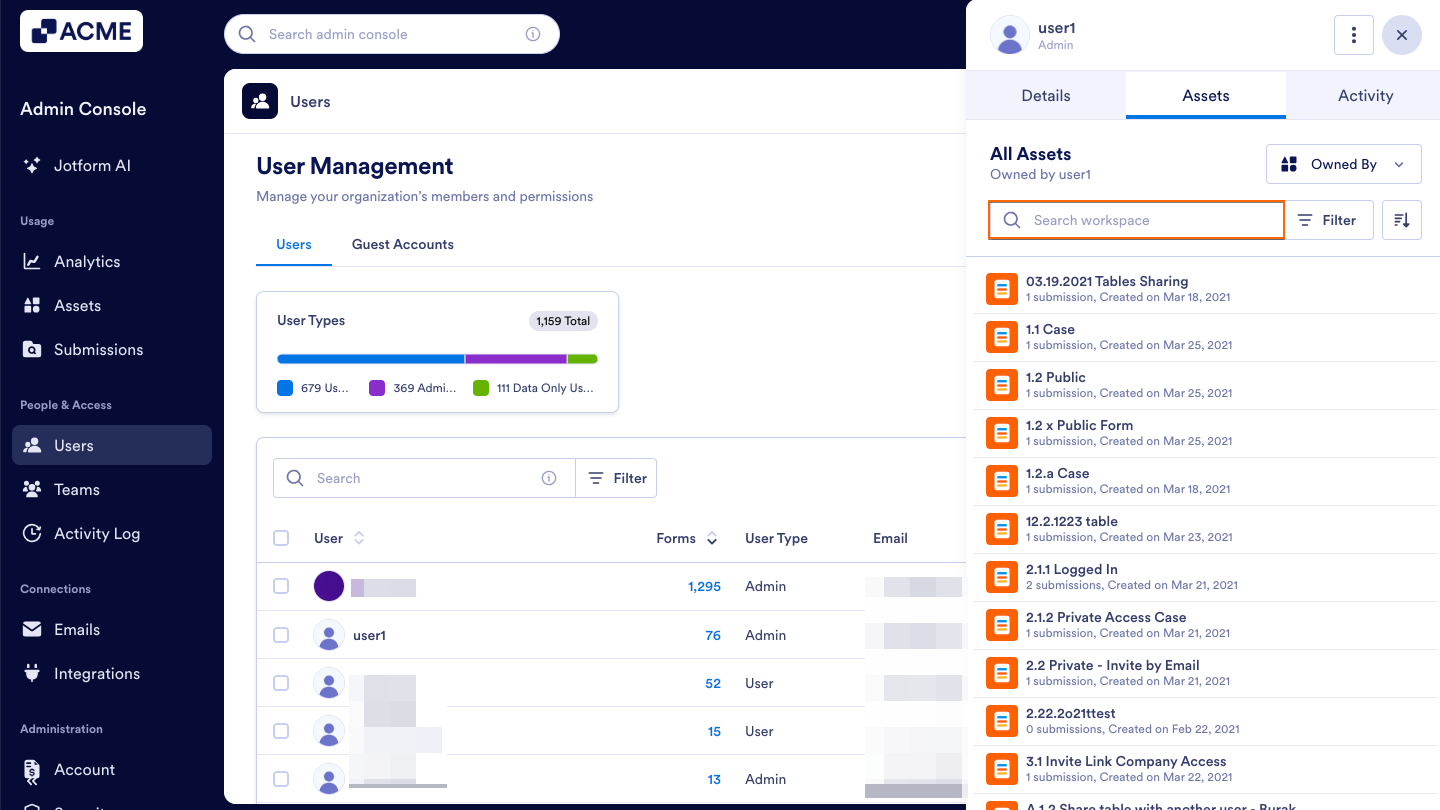
Search by name
Start typing part of any asset’s name into the Search bar, to help locate specific forms, apps, or tables.
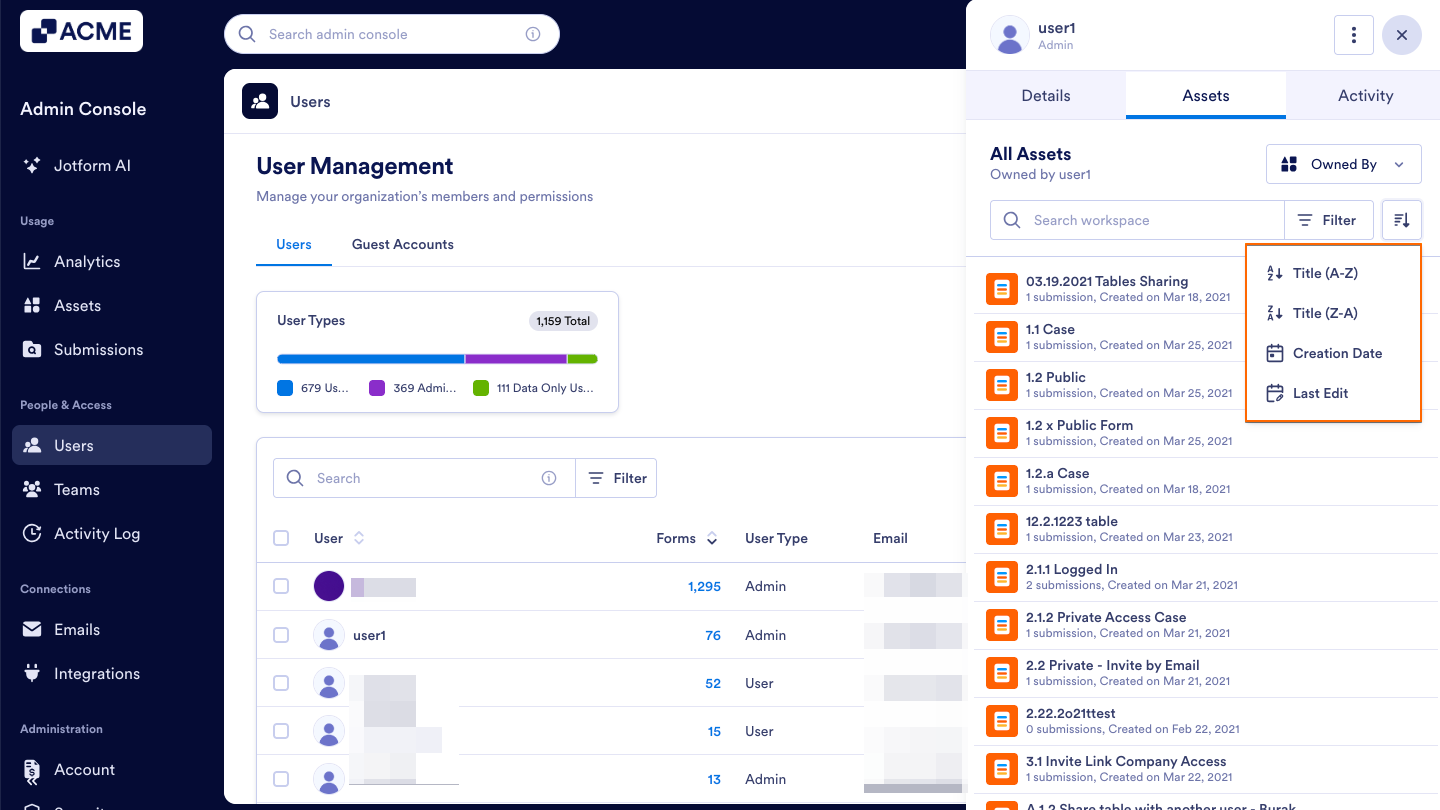
Sort dropdown
Click on the Sort icon to sort these results by alphabetical order (both ascending and descending), creation date, or last edit date.
See also:
- How to View and Manage Assigned Assets in Your Organization from the Admin Console
- How to View and Manage Shared Assets in Your Organization from the Admin Console
- How to Unassign Assets in Your Organization from the Admin Console
- How to Revoke Users Access to Assets in Your Organization from the Admin Console
- How to View Individual User Activities in Your Organization from the Admin Console

Send Comment: