As an admin, you can view your organization’s integration logs from the Admin Console to monitor and track all integration-related activities. Integration logs provide detailed information about connected services, data transfer events, and any errors or connection issues that may have occurred.
From the Integrations section in the Admin Console, you can review each integration’s activity history to ensure connections are functioning properly and troubleshoot any failed tasks or syncs.
Accessing Integration Logs
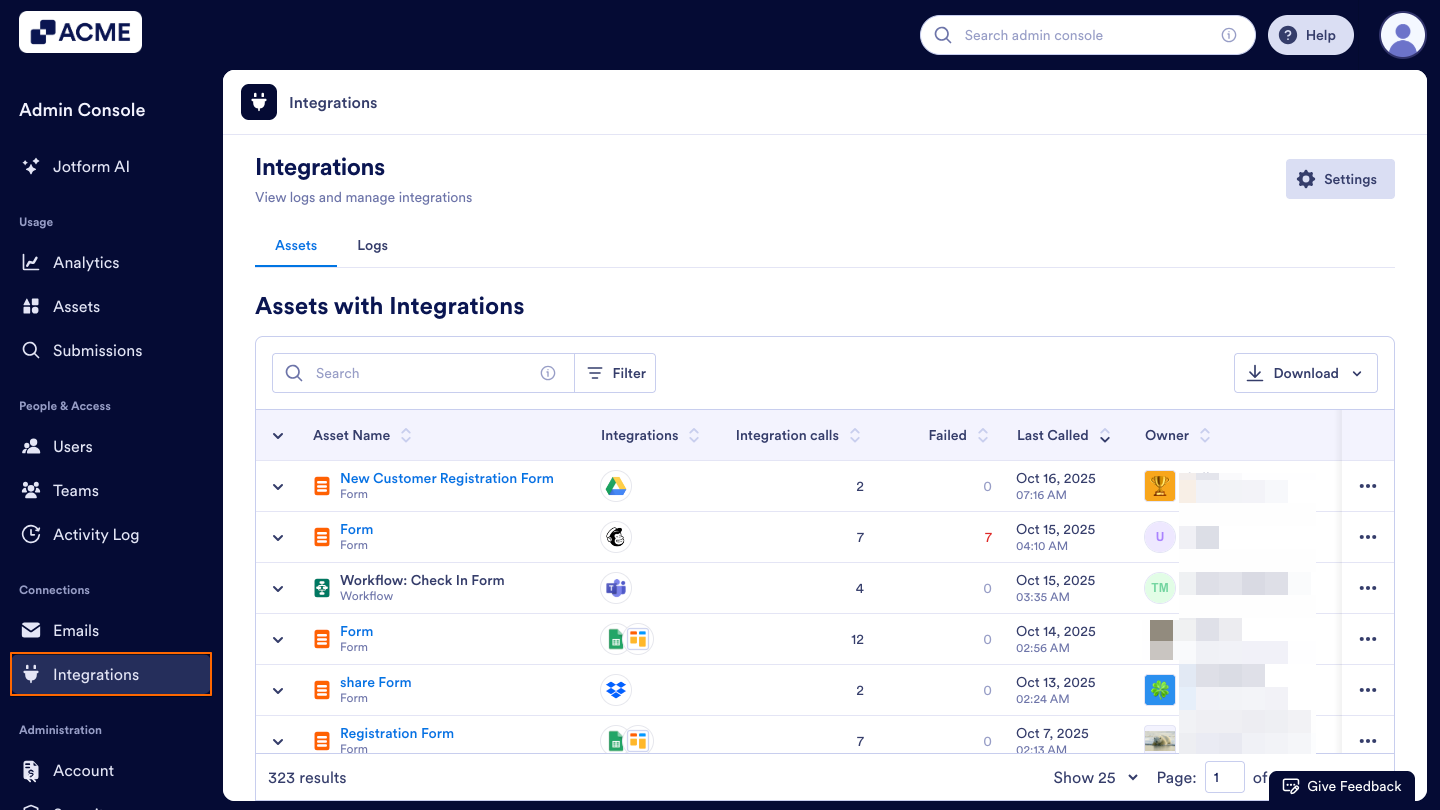
- In the Admin Console, in the menu on the left side of the screen, click on Integrations.
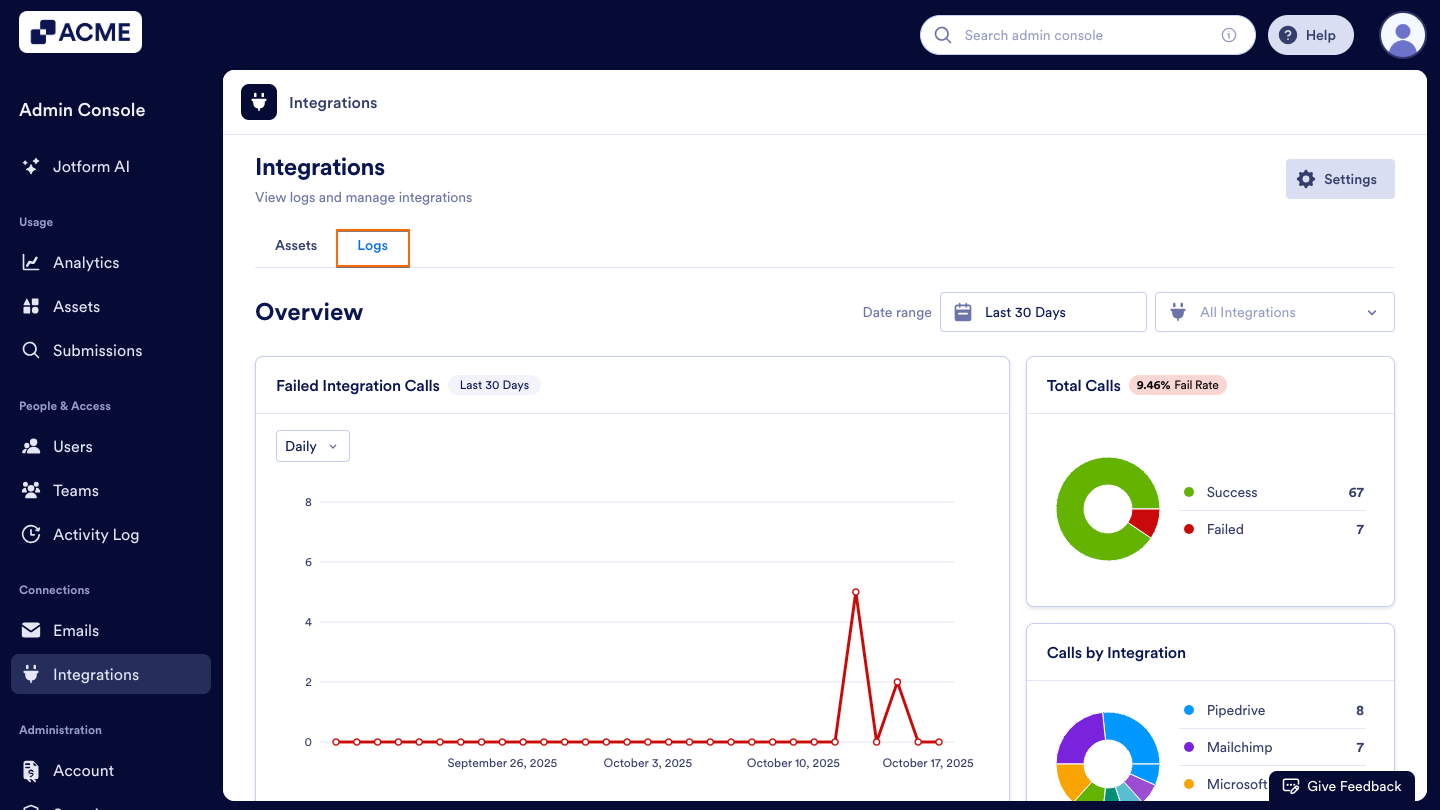
- Then, click on the Logs tab under Integrations at the top of the screen.
Overview Section
Once you’ve opened the Logs tab, you’ll see a detailed overview of your organization’s integration activity. This section provides both visual aids and summaries of the data to help you assess performance and identify potential issues. Integrations includes three main components:
Failed Integration Calls
A line chart that visualizes the number of failed integration calls over time.
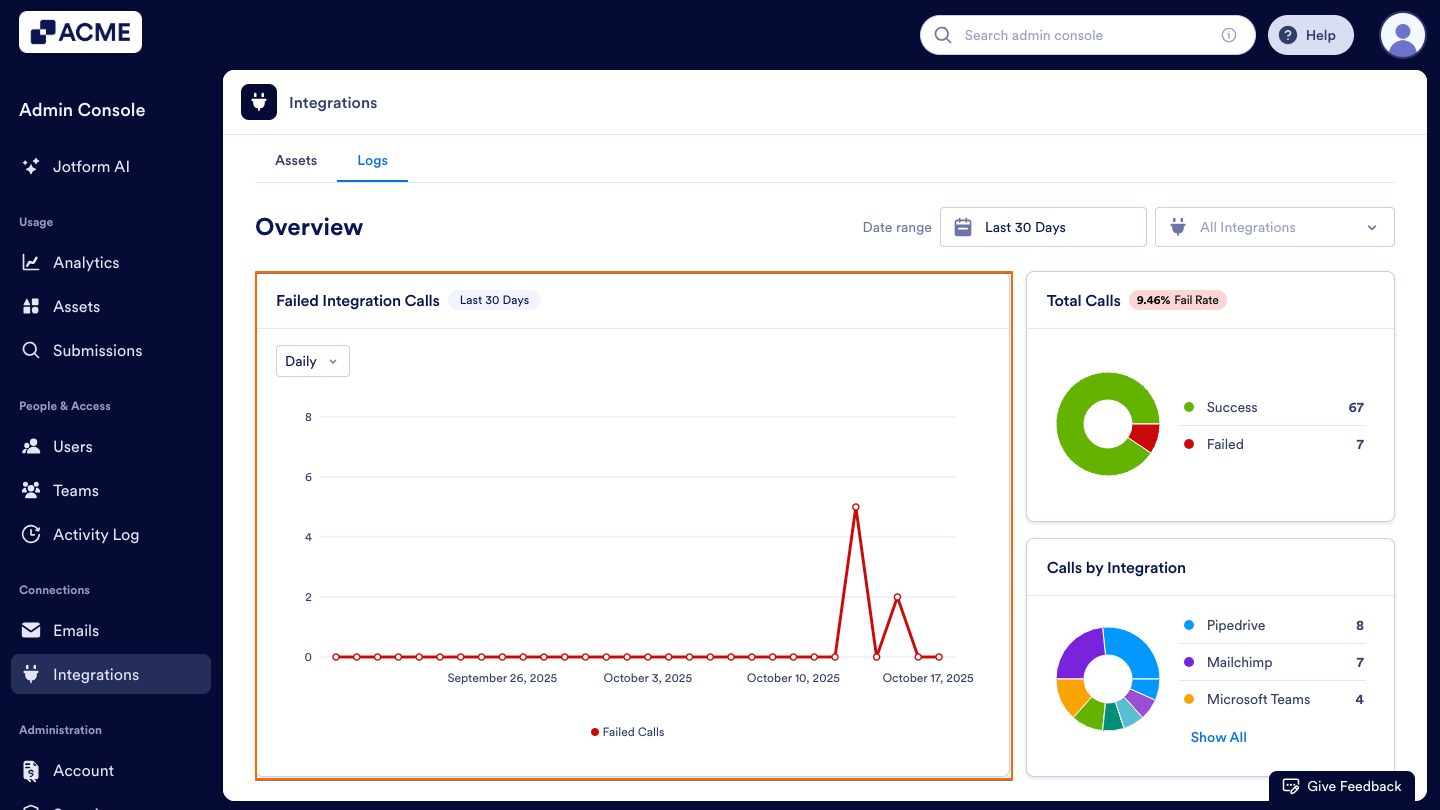
You can toggle between daily, weekly, monthly and yearly views using the dropdown in the upper left corner of the chart.
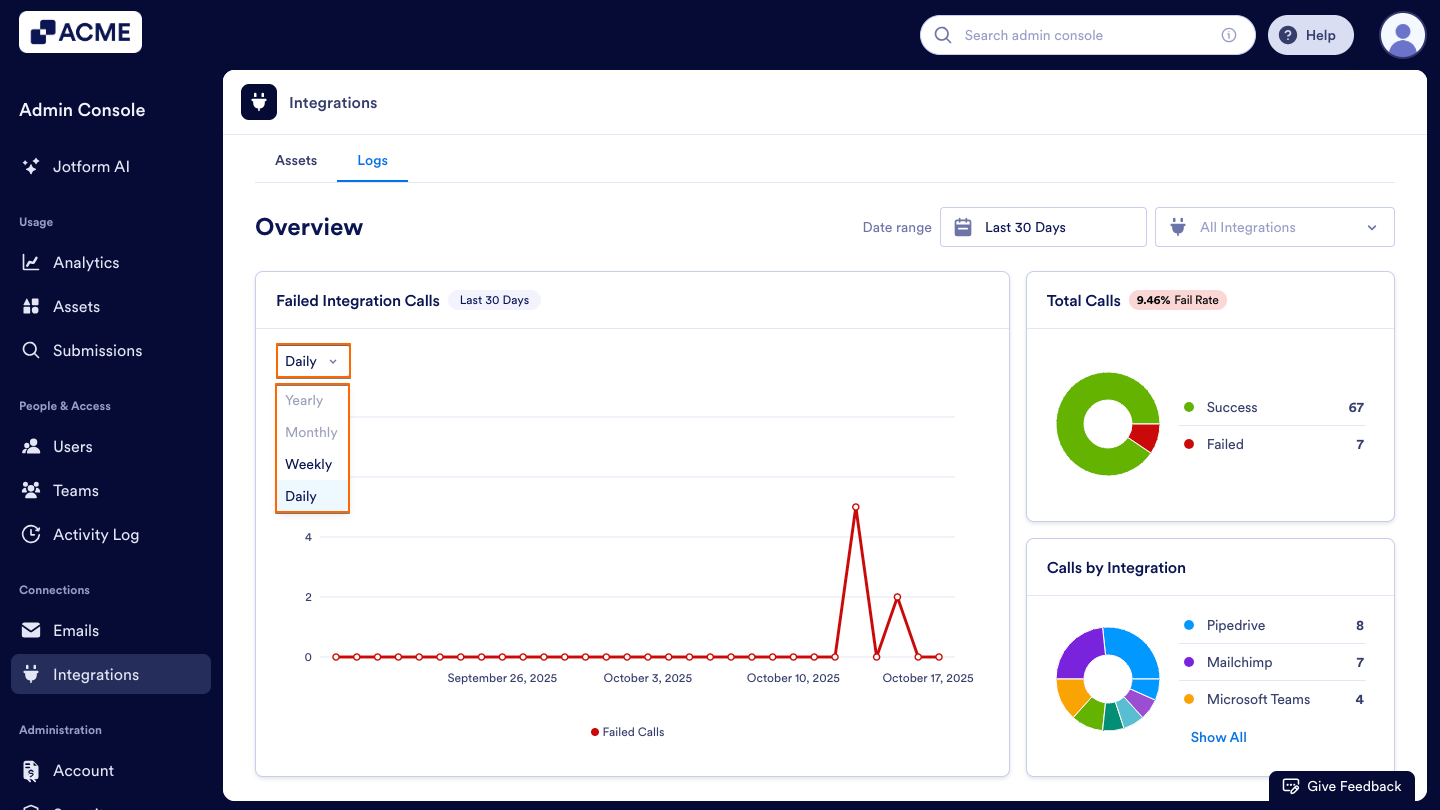
Note: Depending on the date range you’ve selected, some options might not be available. For example, if your date range for the tab is set to last seven days, you won’t be able to select monthly or yearly.
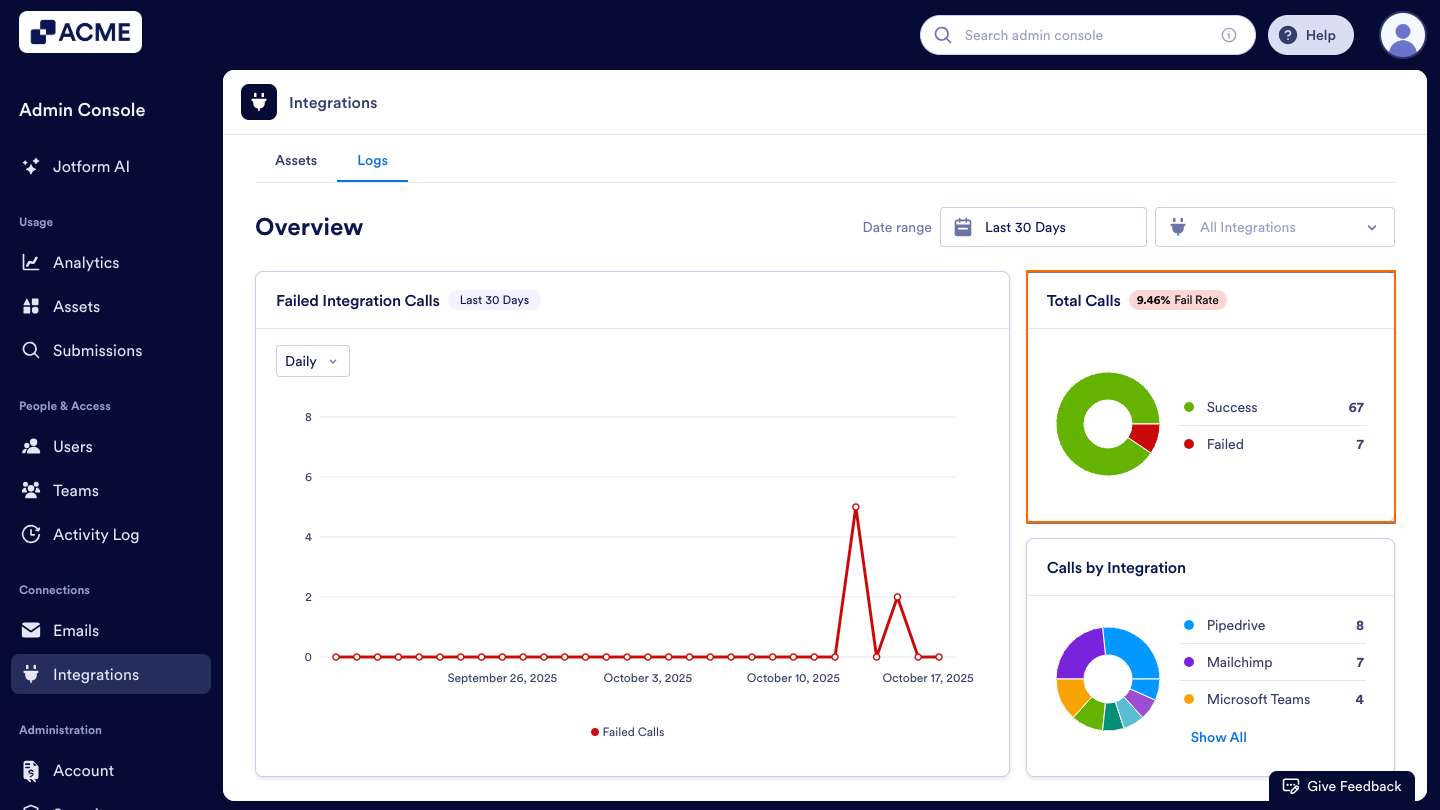
Total Calls
A donut chart showing the total number of integration calls, broken down by their statuses — Success and Failed — along with the overall fail rate percentage displayed at the top.
- Success: Indicates that the integration call completed successfully, meaning data was transferred or synced without any issues.
- Failed: Indicates that the integration call encountered an issue. This could be due to an invalid connection, expired credentials, permission errors, or temporary service downtime.
Calls by Integration
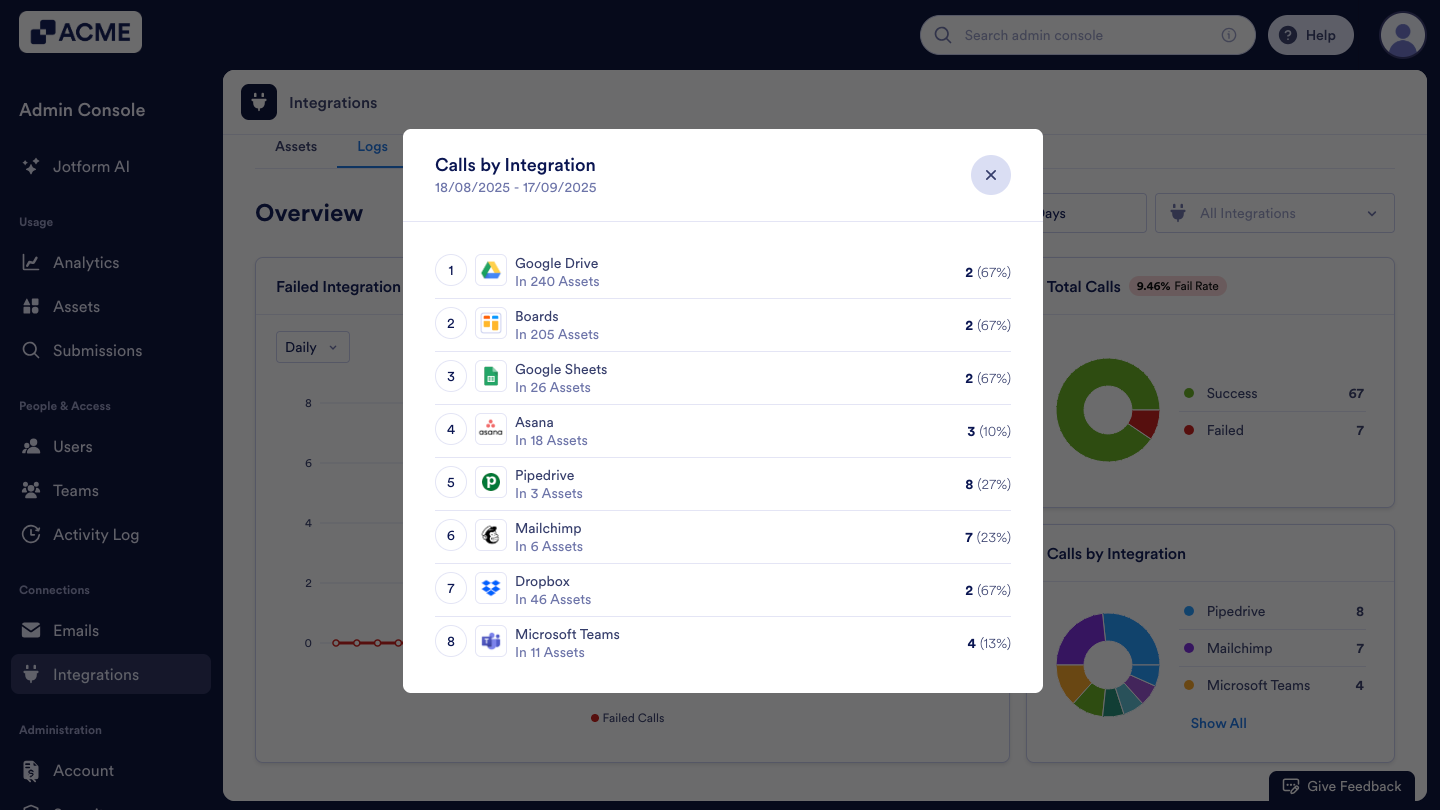
A visual breakdown of how many calls each integration has made (e.g., Pipedrive, Mailchimp, Google Sheets), helping you identify which integrations are most active or contributing to errors.
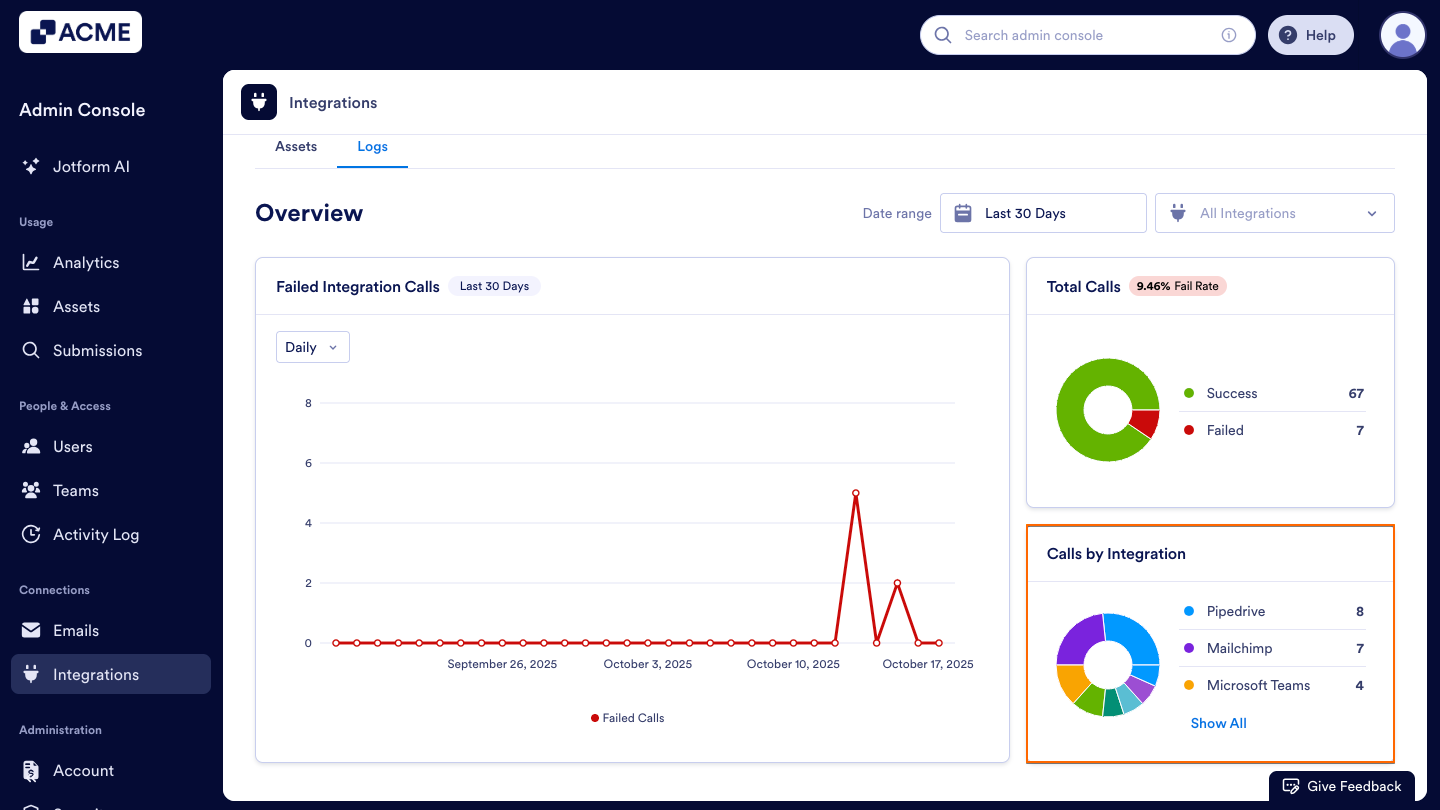
For assets that have more than three integrations that made a call, you can click on the Show All button to see a more in depth analysis of the calls.
Integration Call Logs
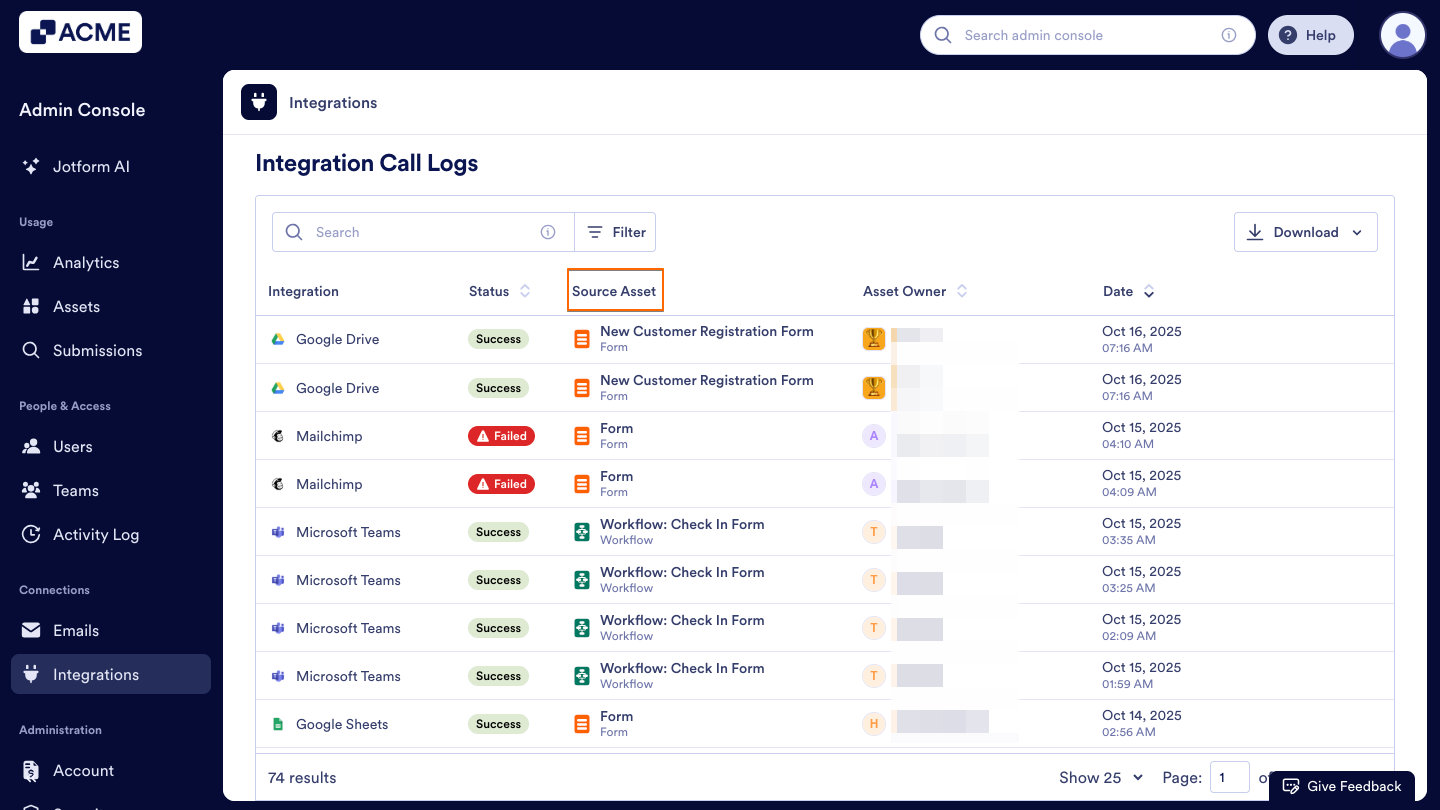
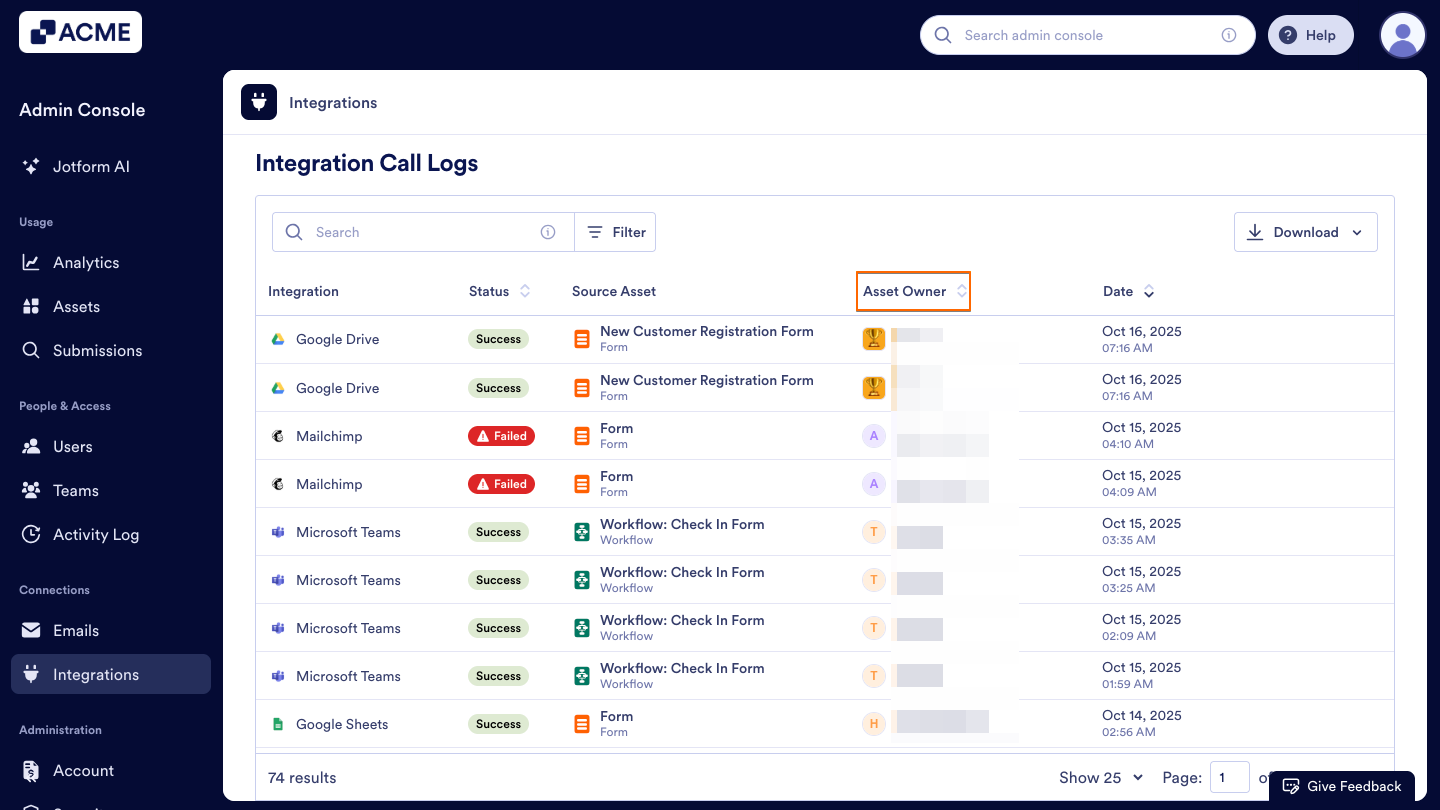
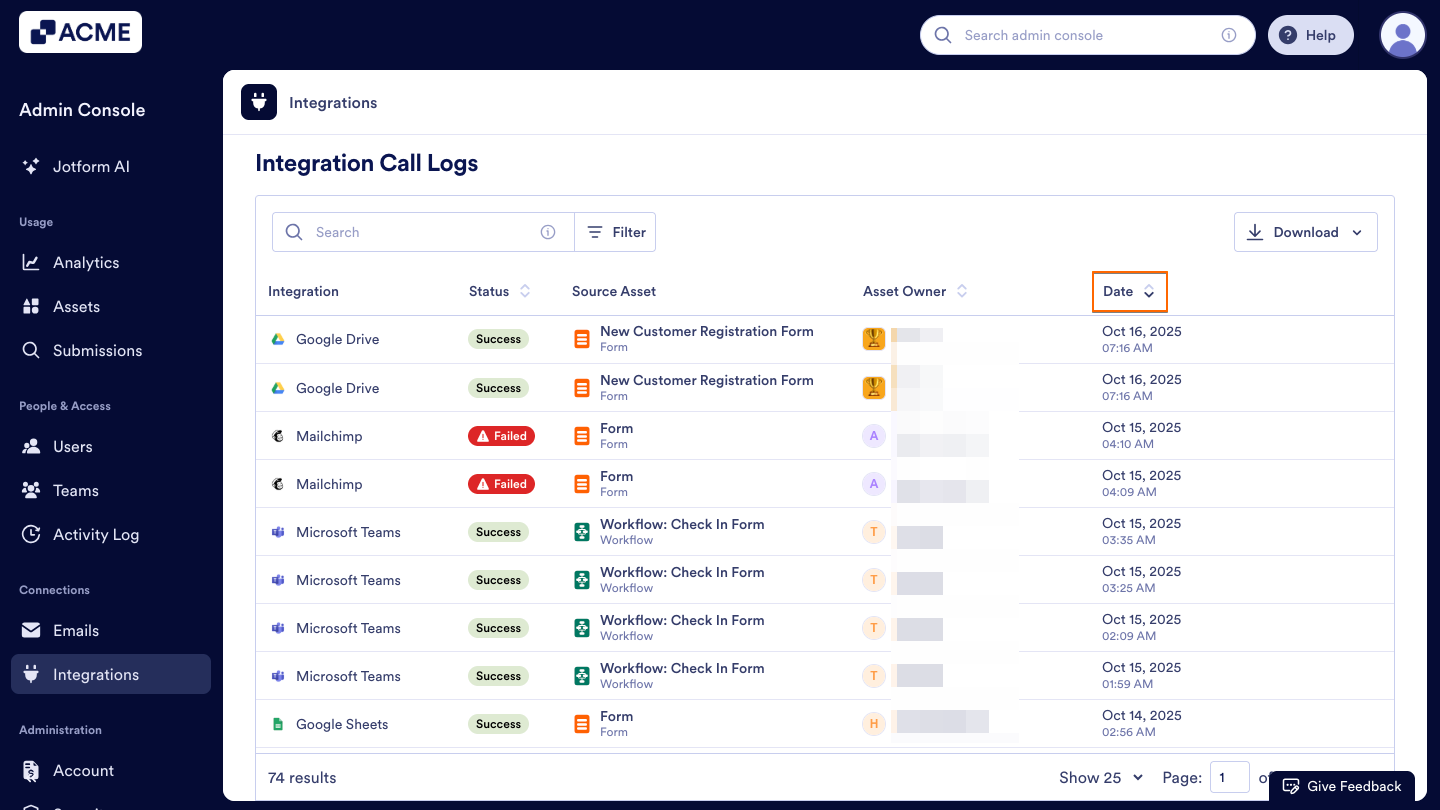
You can view what each column in the Integration Call Logs list represents below:
- Integration: Displays the name of the connected service involved in each call, for example, Mailchimp, Microsoft Teams, or Google Sheets.
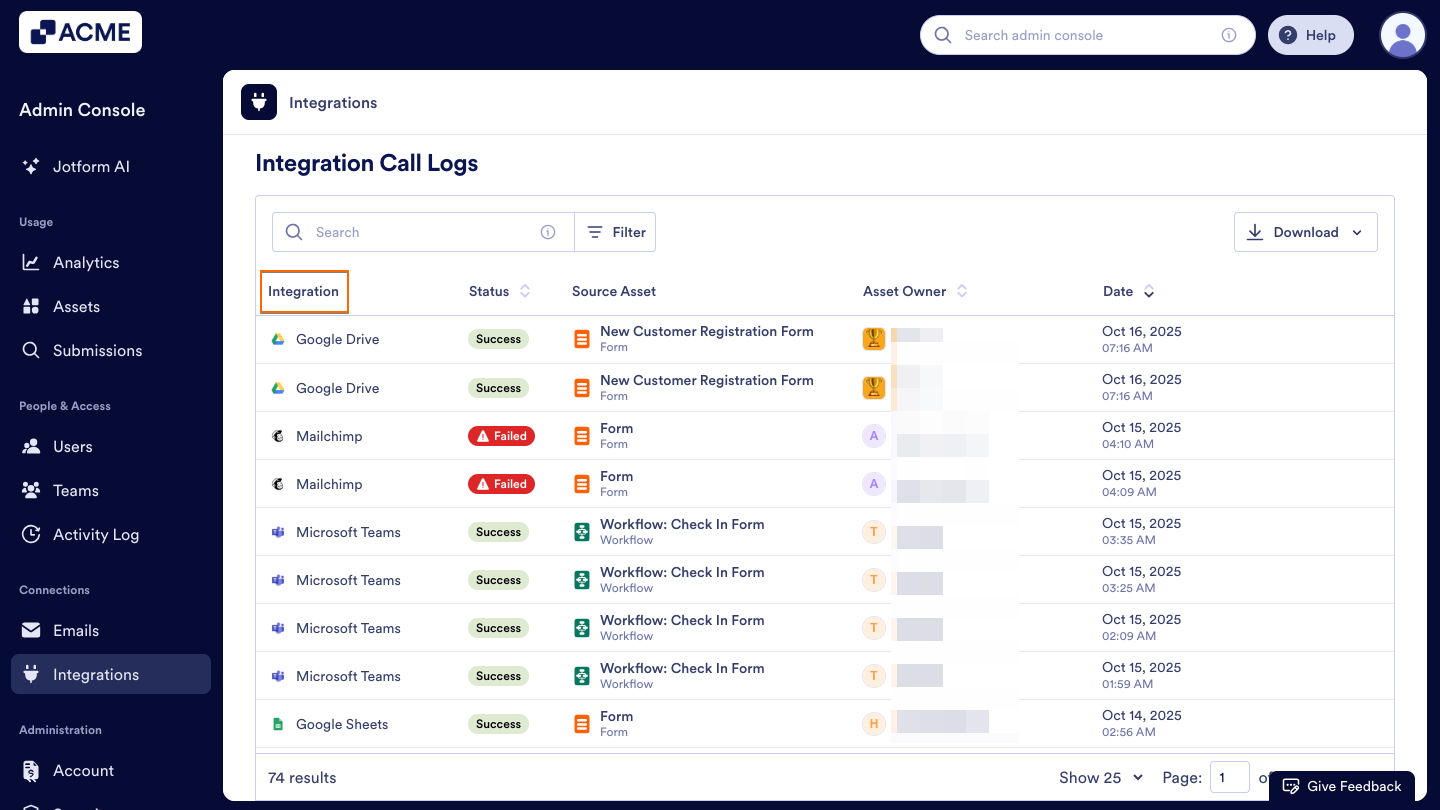
- Status: Indicates whether the integration call was successful or failed.
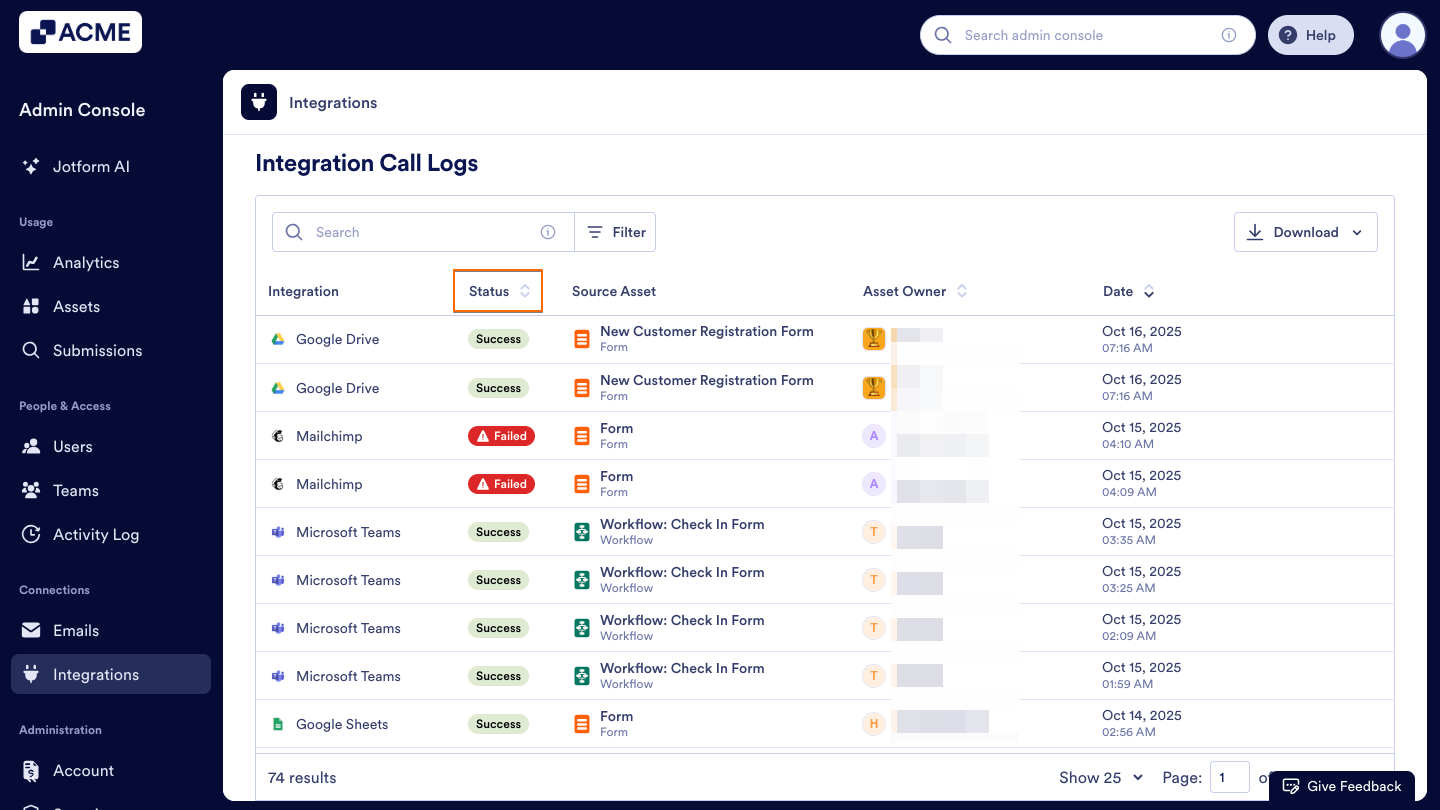
- Source Asset: Shows which form, workflow, or other asset triggered the integration call.
- Asset Owner: Lists the user or Team responsible for the connected asset.
- Date: Displays the exact date and time when the integration call occurred.
Filtering Integration Call Logs
You can use the filtering options in the Integration Call Logs list to narrow down results and locate specific integration activities.
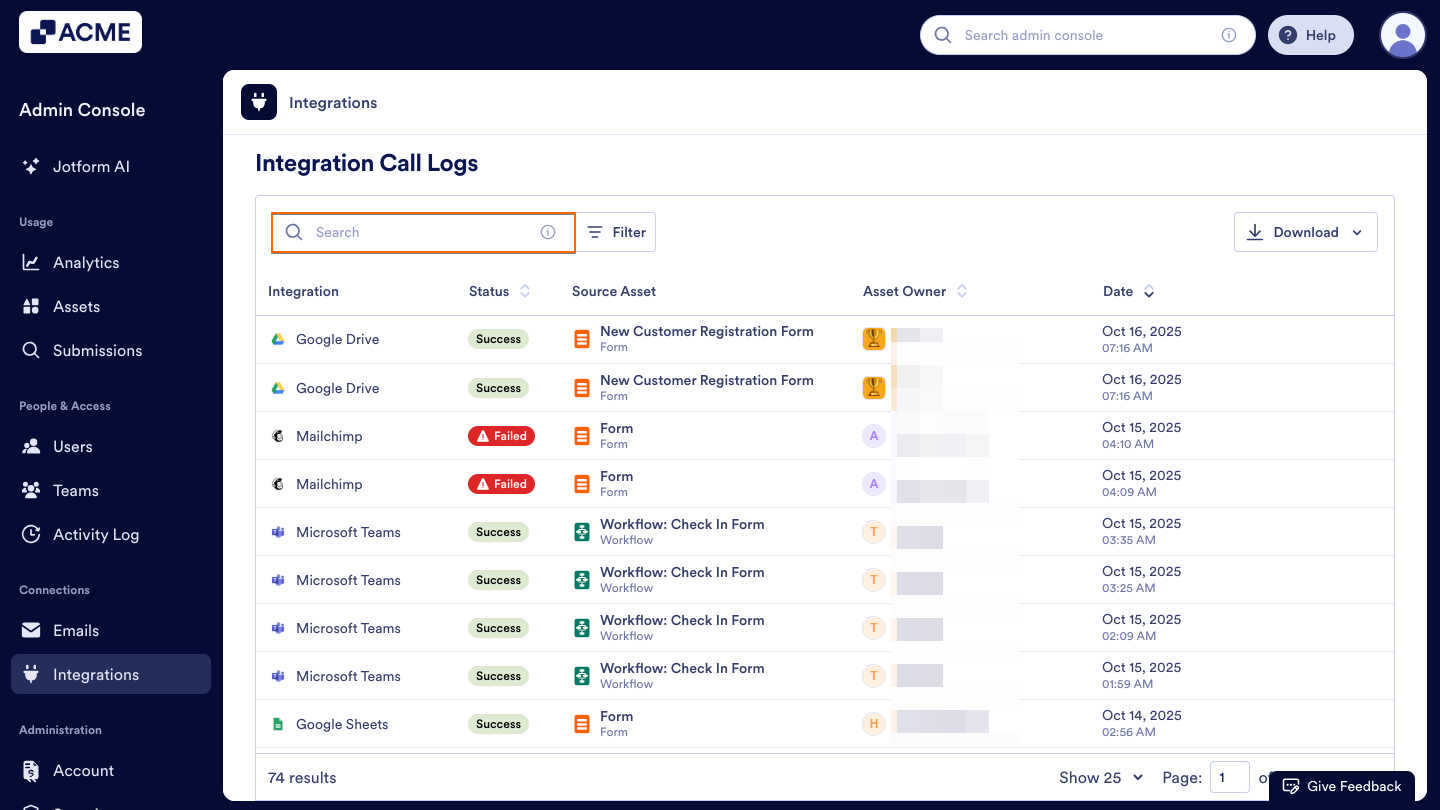
Search Bar
Use the Search bar to quickly locate specific integration calls. You can search by Integration Name, Asset Name, Asset ID, or Username to find relevant activity logs.
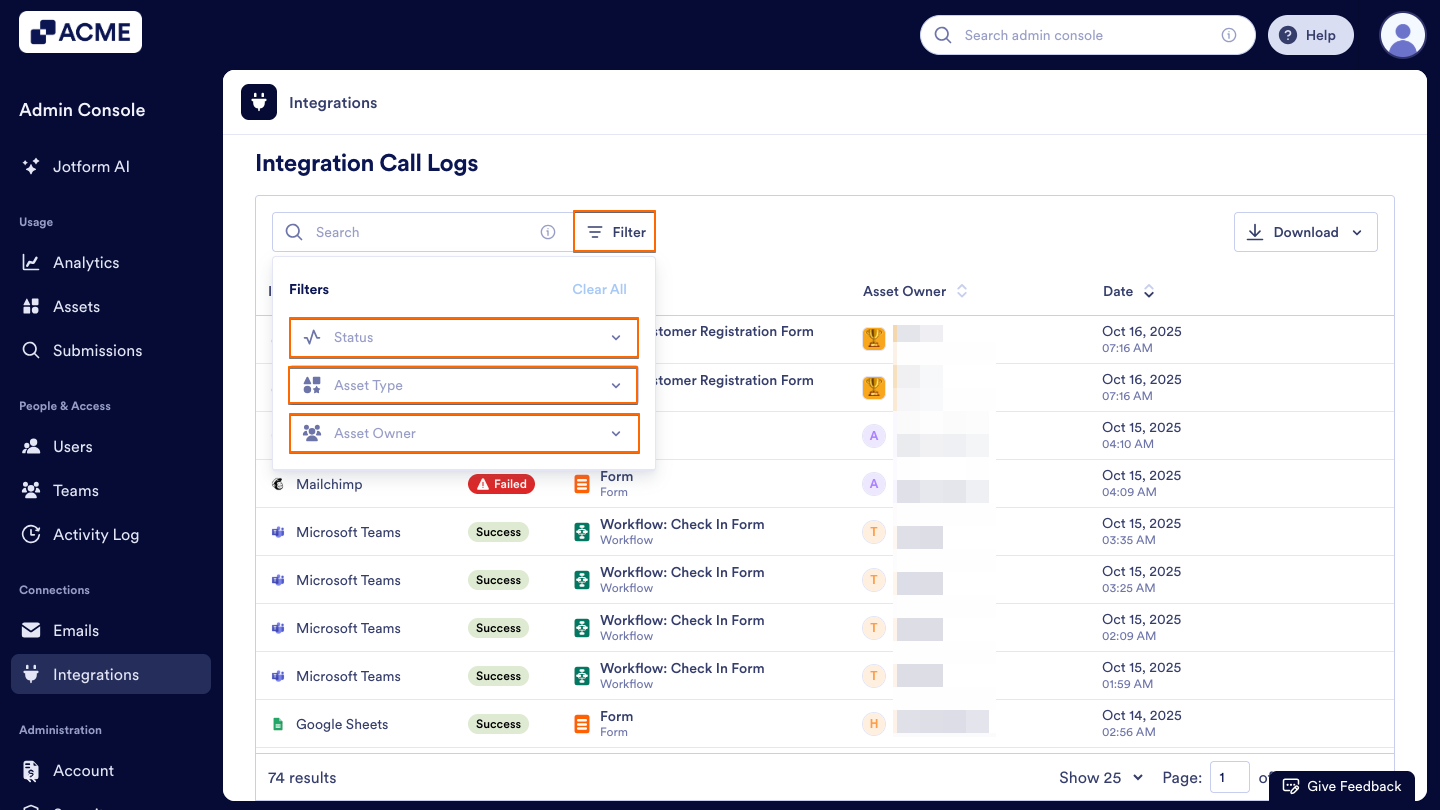
Filter Button
Opens advanced filtering options to refine your results.
- Status: Filter logs by their status: Failed or Success.
- Asset Type: Filter by the type of asset that triggered the integration cal, such as Forms, AI Agents, Tables, Sign Documents, or Workflows.
- Asset Owners: Filter results based on the User or Team that owns the asset.
Downloading Integration Call Logs
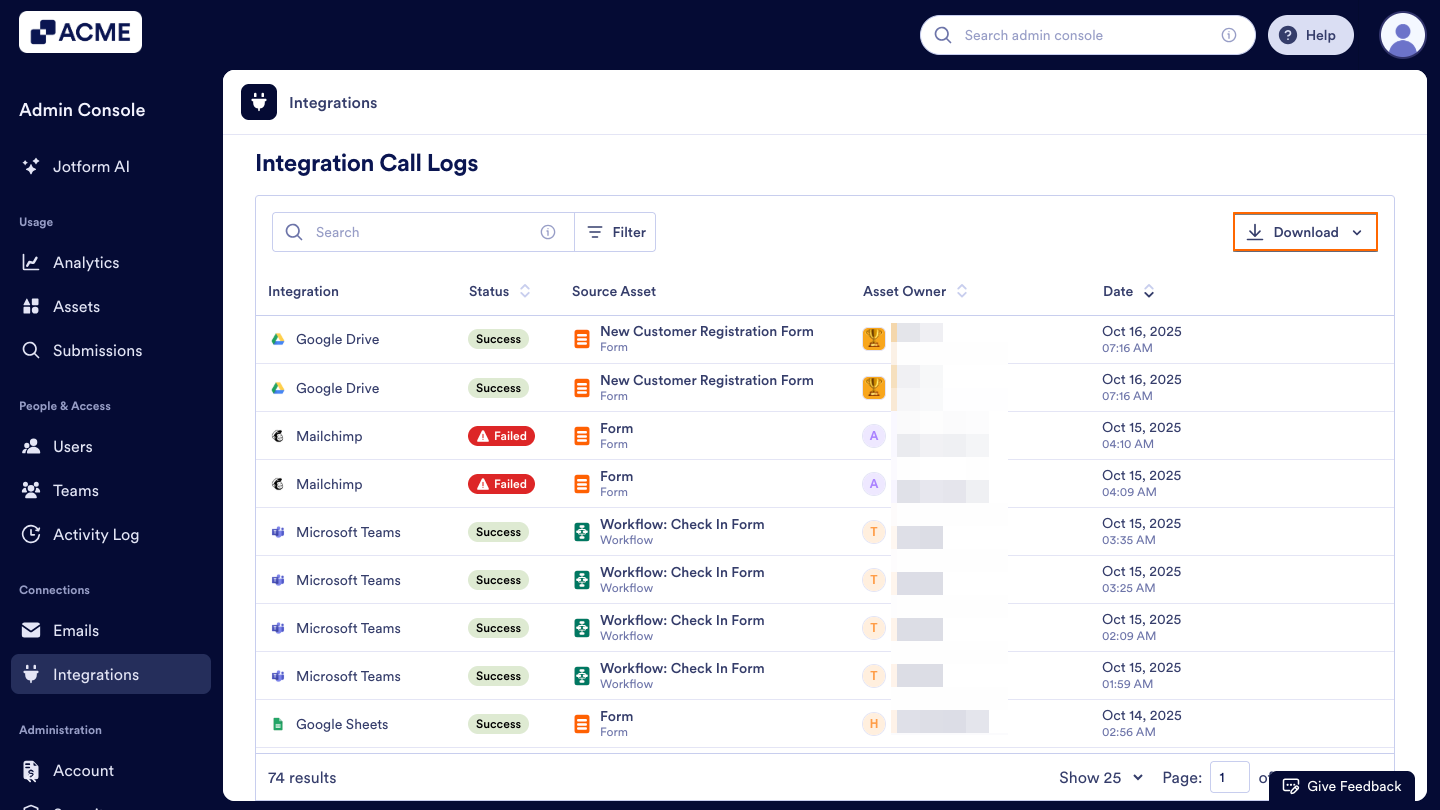
You can download your integration logs to keep a record of all activity or analyze them outside the Admin Console. Here’s how you can download:
- Click on the Download button in the top-right corner of the Integration Call Logs table.
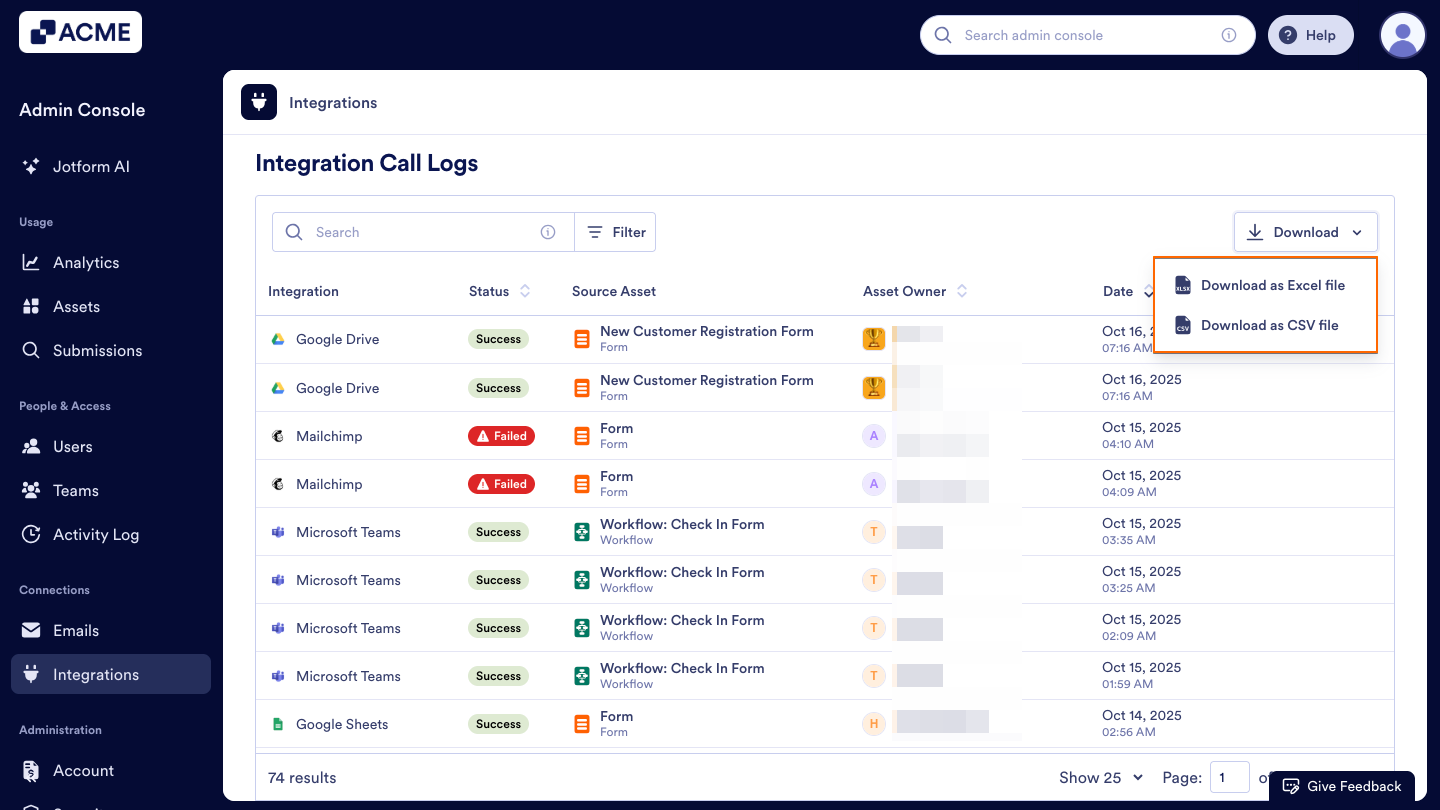
- Select the document format you want to export: Excel or CSV.
Filtering Integration Logs
You can filter the data in the Integration Logs page to view specific integration activity over time or focus on a particular integration.
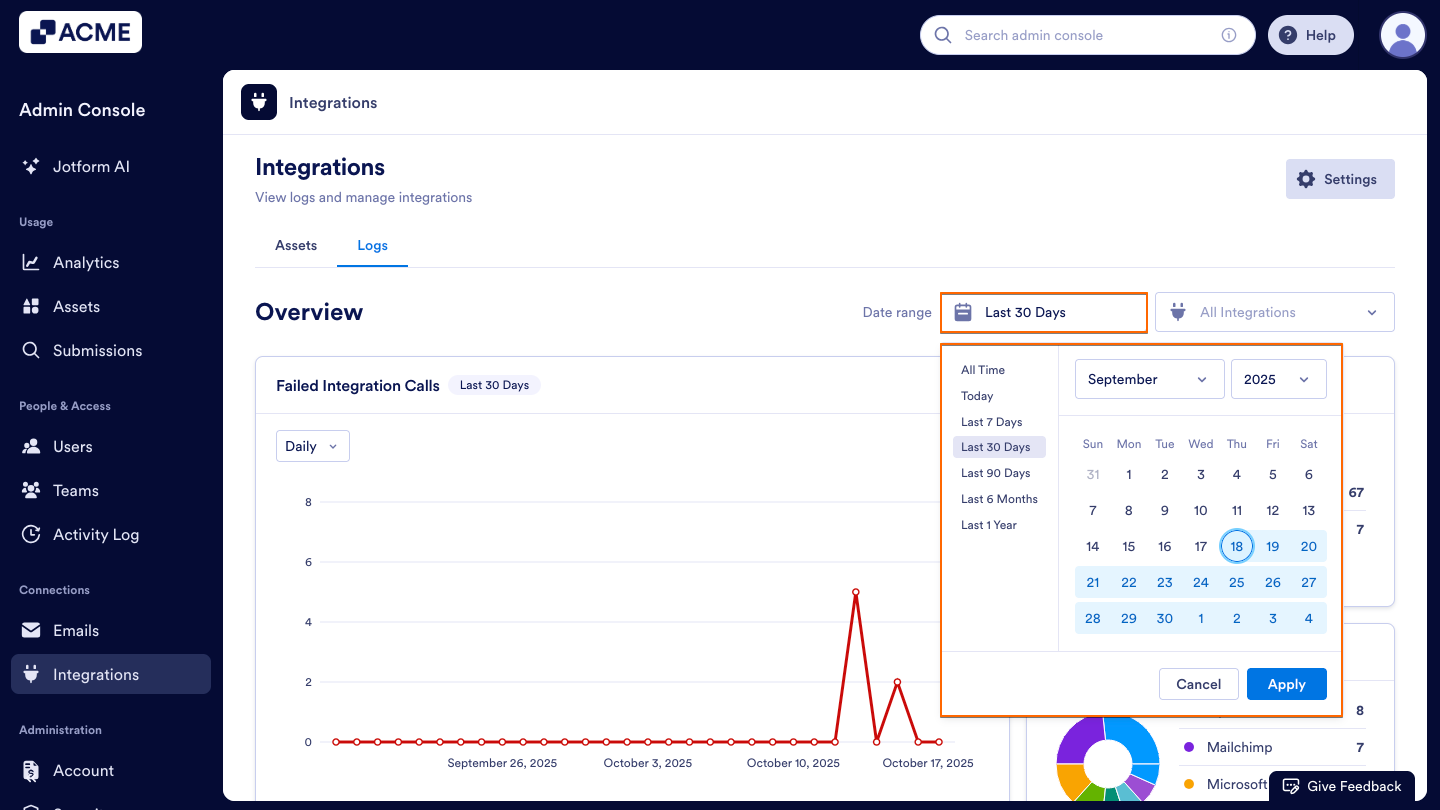
By Date Range
Use the Date range selector to choose the period of activity you want to review. You can select preset options such as Last 7 Days, Last 30 Days, or define a custom range. The charts and tables will automatically update to display only the integration logs within the selected timeframe.
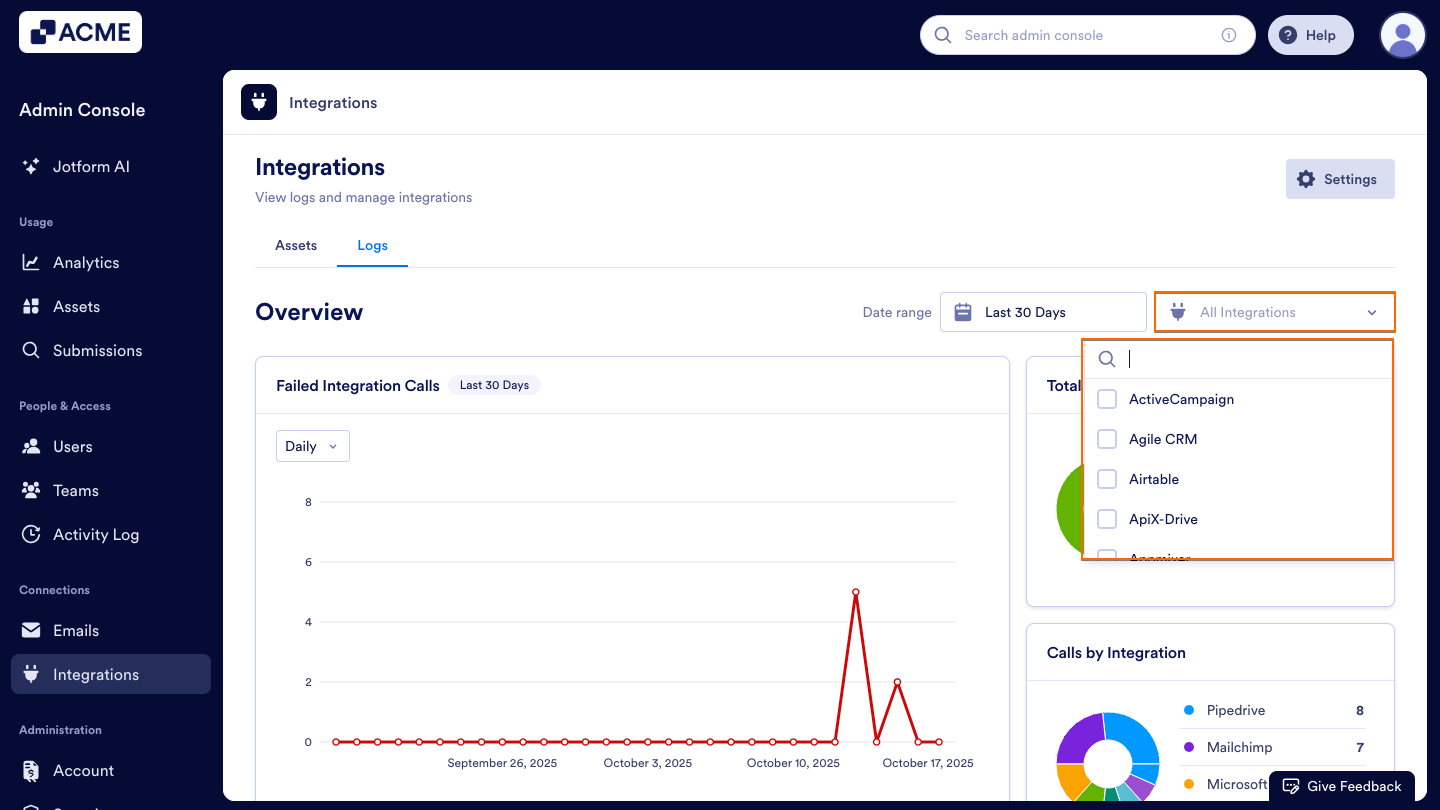
By Integration
Use the All Integrations dropdown to view activity for a specific integration. Selecting a single integration filters all charts, including Failed Integration Calls, Total Calls, and Calls by Integration, to show only that integration’s performance data.
See Also:
- How to Access and Manage Each Asset’s Integration List in Your Organization from the Admin Console
- How to Show or Hide Integrations in Your Organization from the Admin Console
- How to Manage Payment Integration Settings Organization-Wide in the Admin Console
- How to View Organization-Wide Logs in the Admin Console
- How to Create Organization-Wide Reports for a Specific Email Address in the Admin Console

Send Comment: