Sign Documents help you send, manage, and track documents that need legally binding signatures. View and organize Sign Documents in a workspace using the Filter and Sort menus, or search for a specific one using the Search Bar.
Tip
Only Sign Documents will appear in the Workspace. Forms with the Sign Automation Widget can be viewed using the steps in How to View Your Forms.
Using the Filter Menu
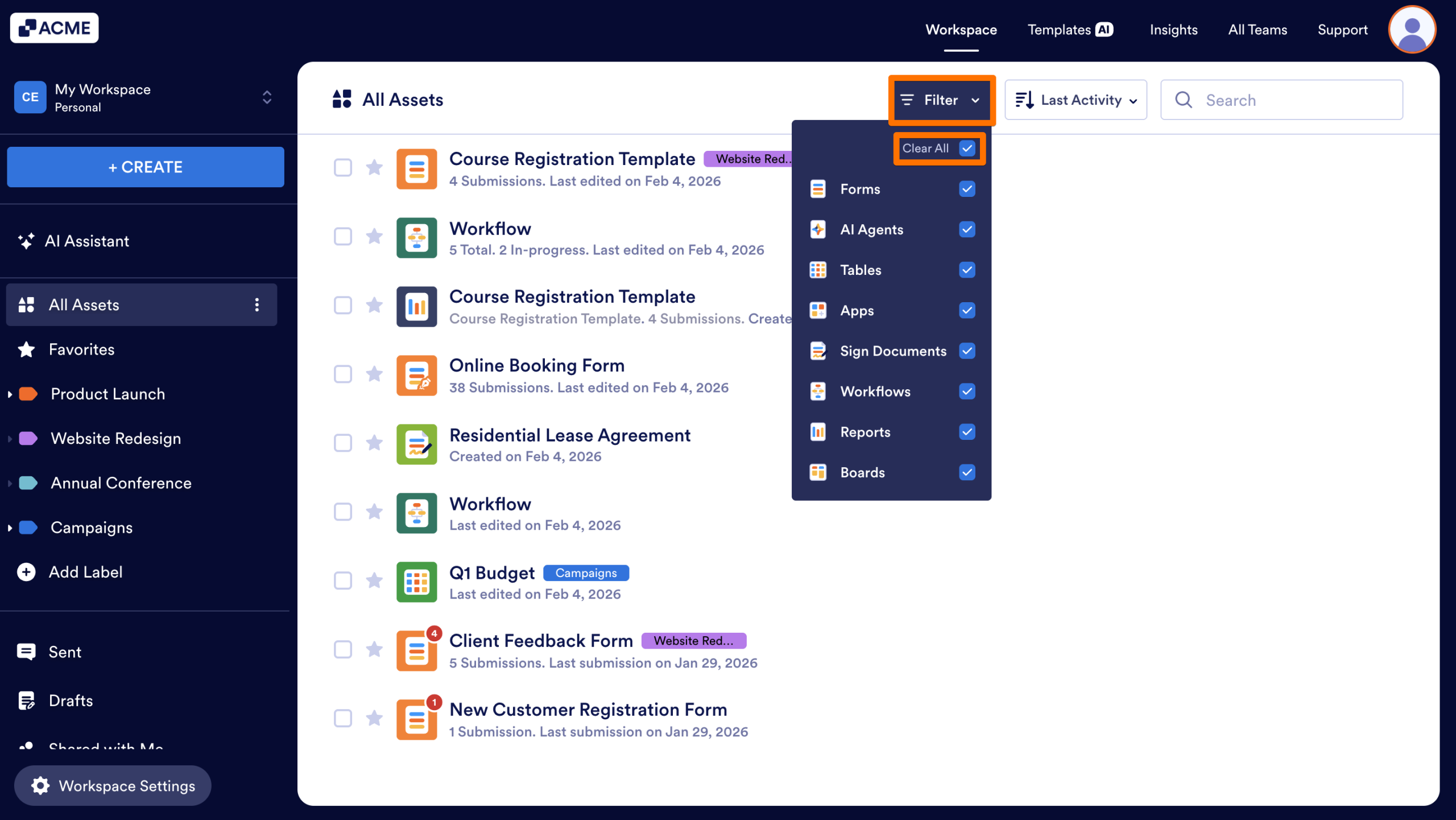
The Filter menu can be used to show all of the Sign Documents in the workspace you’re currently viewing. Let’s walk through this together:
- In the Workspace, click on the Filter menu on the right-hand side of the Toolbar at the top of the page.
- Then, click on the checkbox next to Clear All to remove any selections.
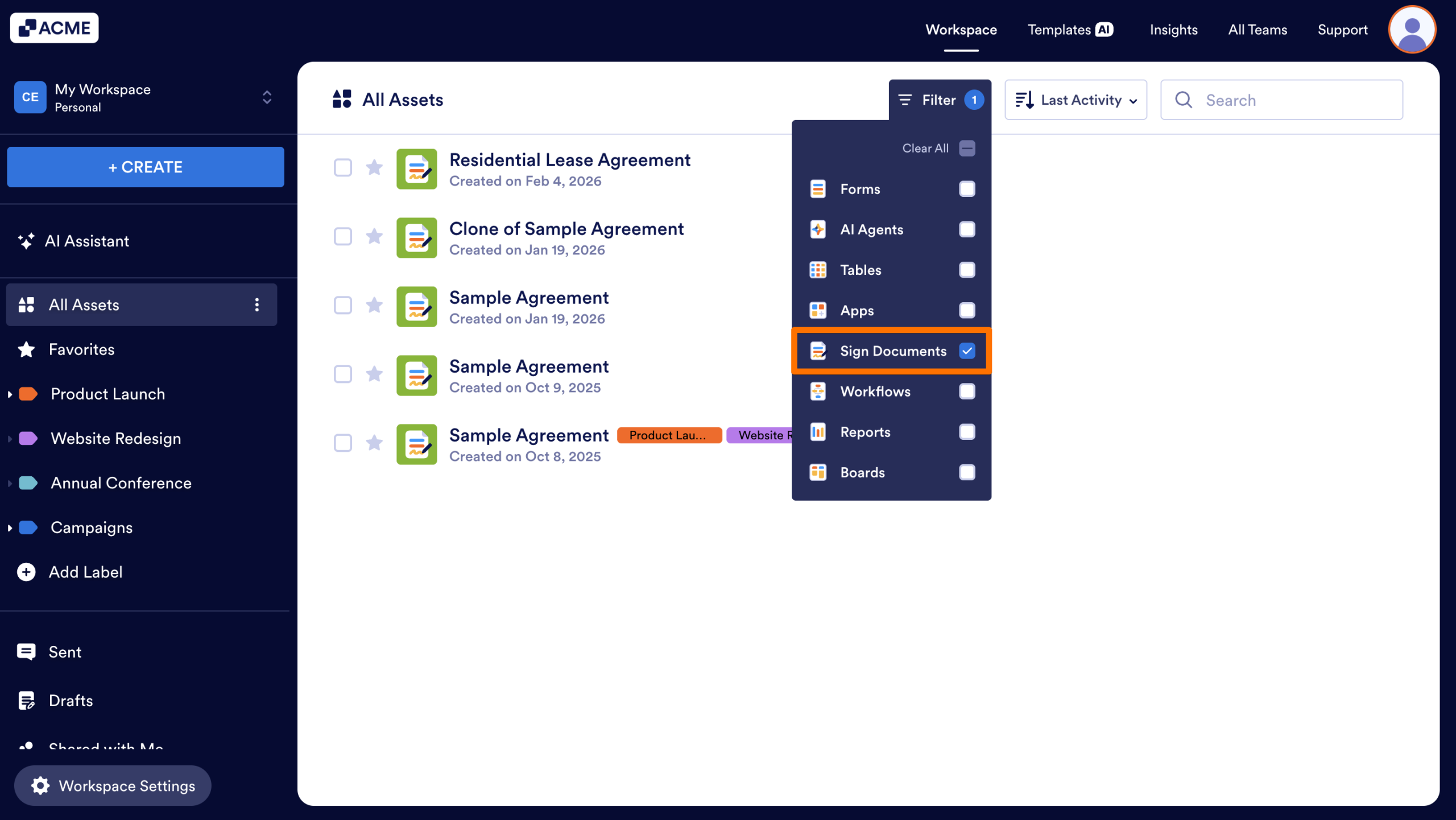
- Finally, click on the checkbox next to Sign Documents and click out of the dropdown. The list will refresh and show only Sign Documents in the workspace.
Tip
The Filter Menu is designed to remember your settings. This means that your selection will appear the next time you login or access the workspace, so you can jump back into your work without adjusting the filter every time.
Using the Sort Menu
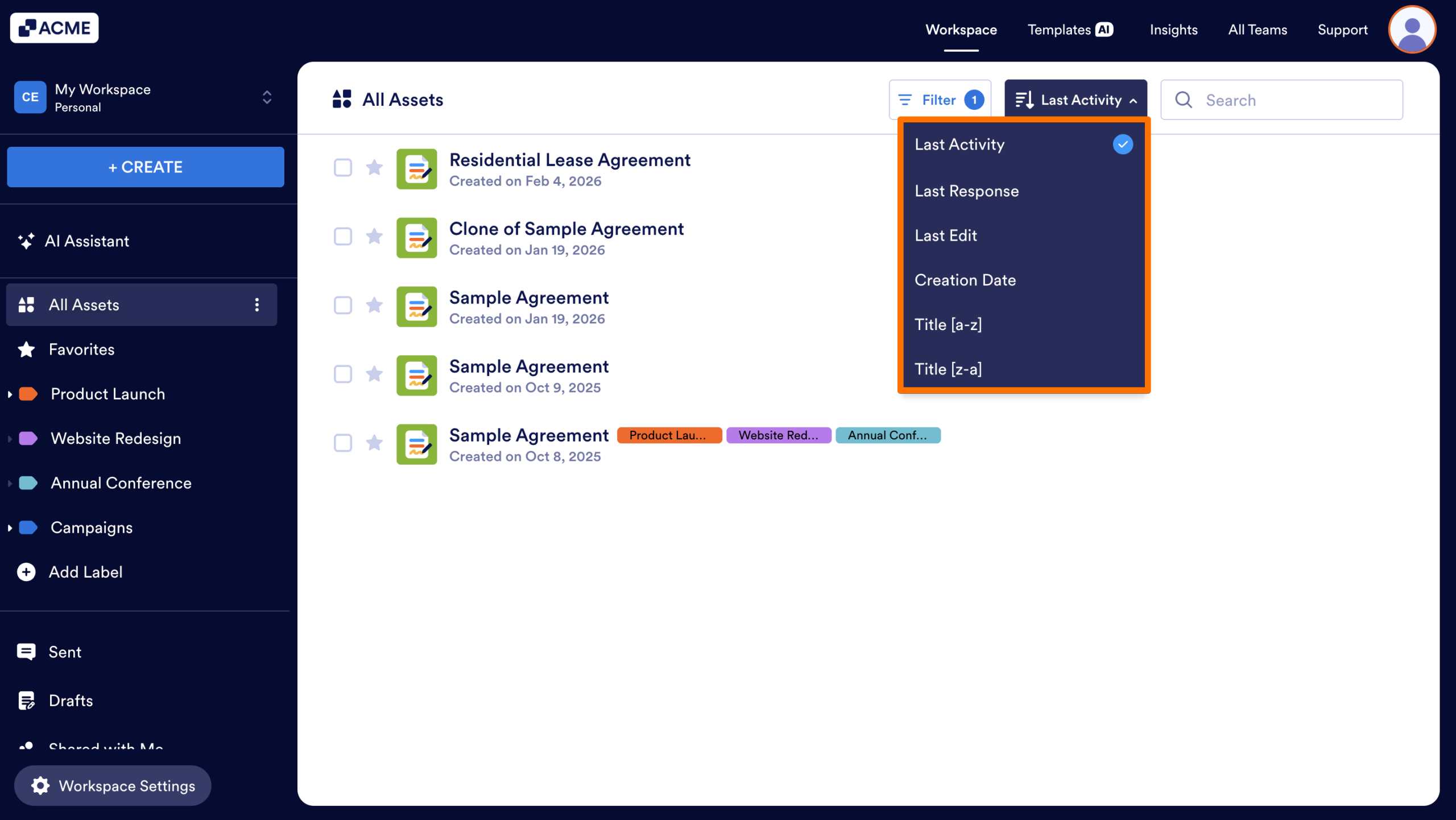
To organize how your Sign Documents are listed, use the Sort menu. Depending on what filters are selected, the Sort options may be different. The following options are available when only Sign Documents are selected in the Filter:
- Last Activity: Sort Sign Documents based on the most recent activity.
- Last Response: Sort Sign Documents based on the time of the most recent response.
- Last Edit: Sort Sign Documents based on the time of the last edit.
- Creation Date: Sort Sign Documents by the date they were created, from newest to oldest.
- Title [a-z] / [z-a]: Sort Sign Documents alphabetically or in reverse alphabetical order by name.
Let’s walk through the process of applying a Sort option together:
- In the Workspace, make sure the Filter menu is set to only Sign Documents.
- Then, click on the Sort dropdown next to the Filter.
- Finally, select the Sort option you’d like to apply and click out of the dropdown.
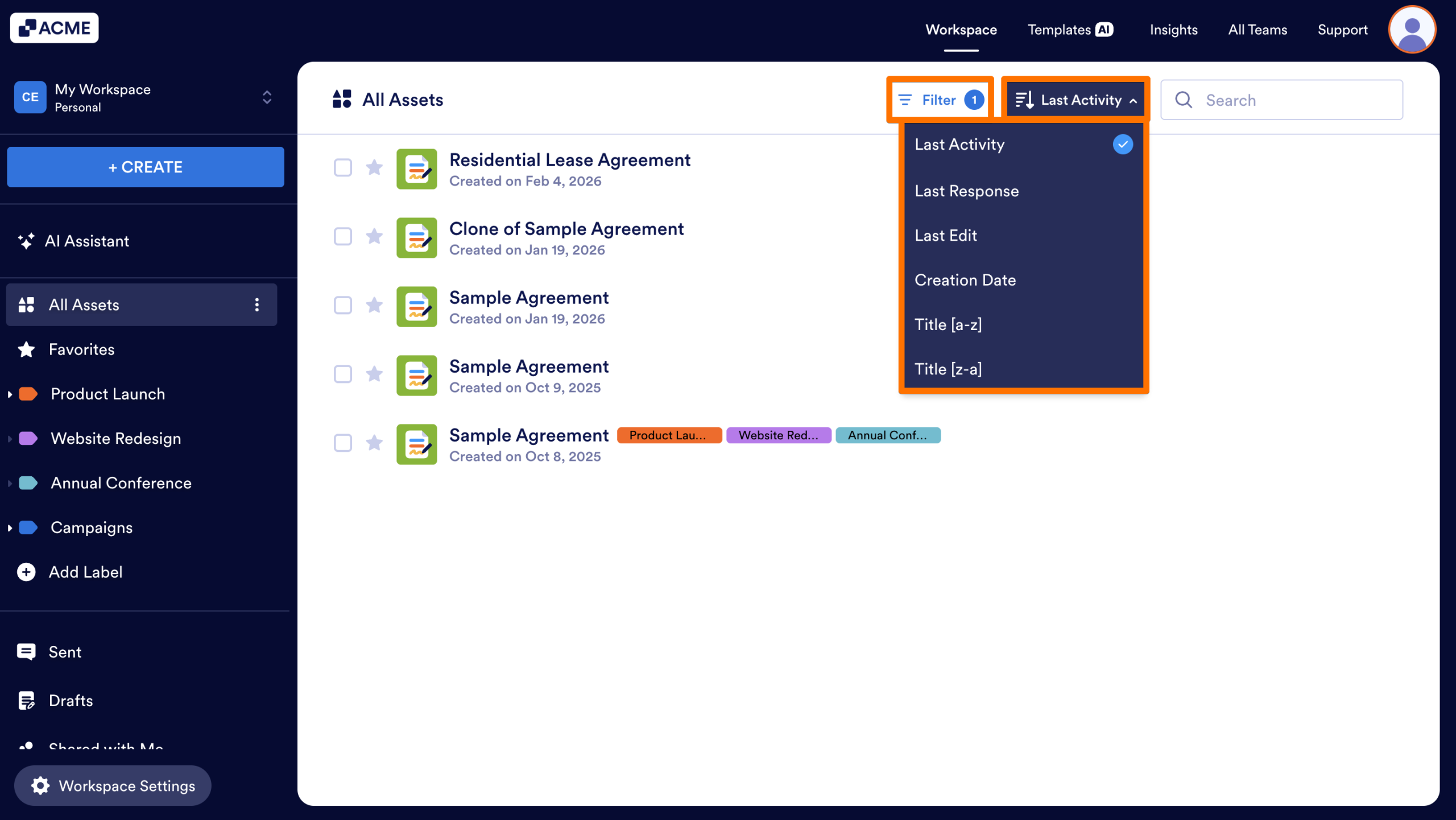
Your list will automatically refresh based on the filter and sort options you’ve applied. For more information about the Sort menu, check out our guide How to Sort Your Assets.
Tip
Like the Filter menu, your Sort selection is persistent. This means that once a sorting option is selected, the workspace will remember it the next time you log in or access the workspace.
Using the Search Bar
The Search Bar can be used to find specific Sign Documents in a workspace, based on their name, title, or asset ID. Enter one of the following in the Search Bar to find what you’re looking for, based on the filters applied to the current workspace:
- Name: Enter the Sign Document Name or Sign Document Title in the search bar.
- Asset ID: Enter the Sign Document ID in the search bar.
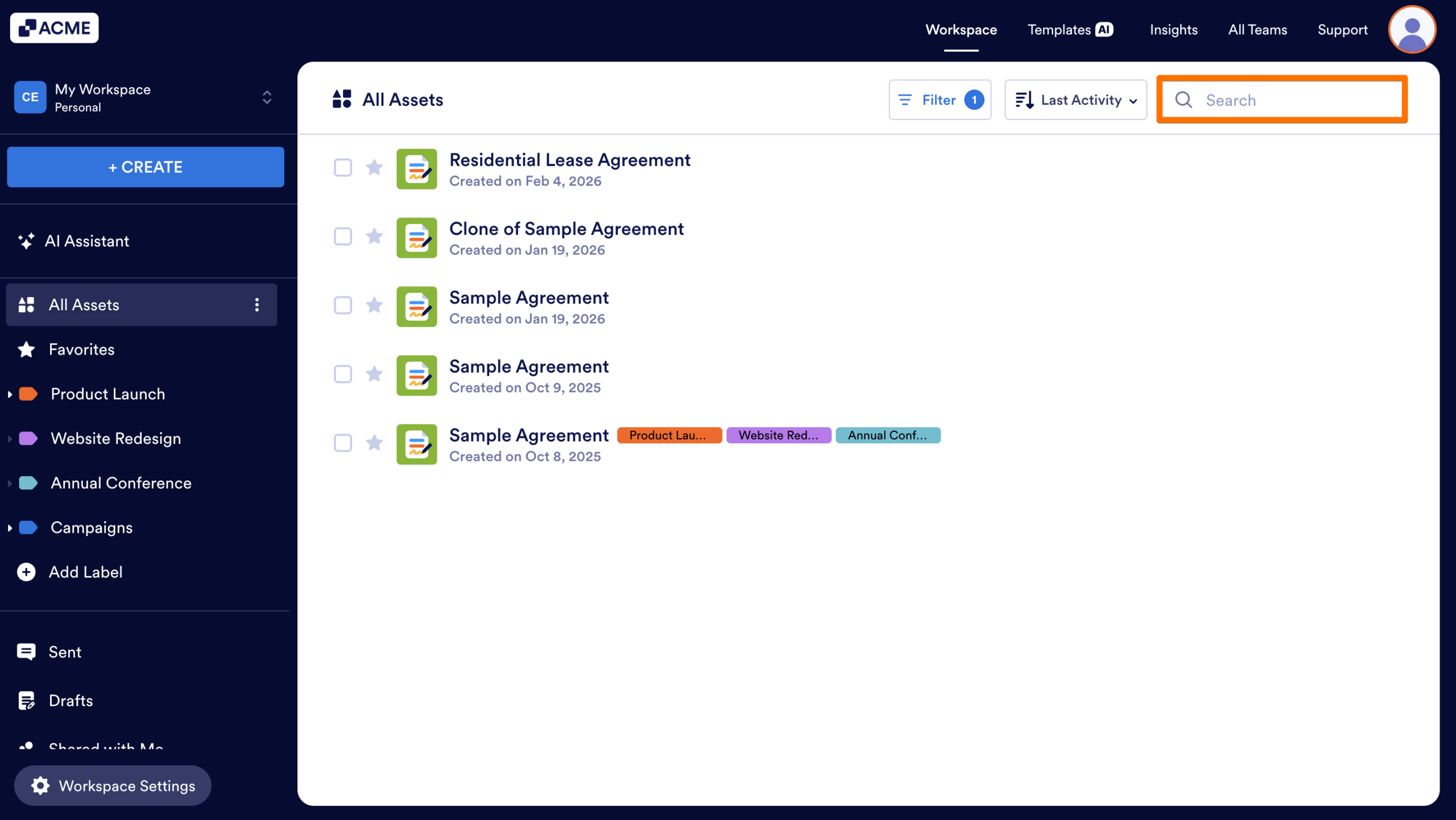
For more information about the Search bar, you can check out our guide How to Use Search on Your Workspace.
Limitations
When using the Filter, Sort, and Search Bar, keep the following limitations in mind:
- Asset Ownership: Only Sign Documents owned by the current workspace will appear when using these tools. If a Sign Document is in a Team, you’ll need to follow these steps inside the Team Workspace.
- Page Limits: Only Sign Documents on the page you’re viewing will appear when using these tools. For example, if you’re in a specific label, only Sign Documents tied to the label will appear.
- Filter/Search Dependency: Information in the filter or in the search bar will determine what Sign Documents appear. For example, if the search bar contains “Contract” and the filter is set to Sign Documents, only Sign Documents that contain “Contract” will appear in the list.
- Sign Automation: Only Sign Documents will appear in the Workspace. Forms with Sign Automation can be viewed and found using the steps in How to View Your Forms.
Viewing a Sign Document from the Workspace
Once you’ve located your Sign Document, you can use Quick Actions to open the Sign Document Builder or preview the document.
Viewing the Sign Document Builder
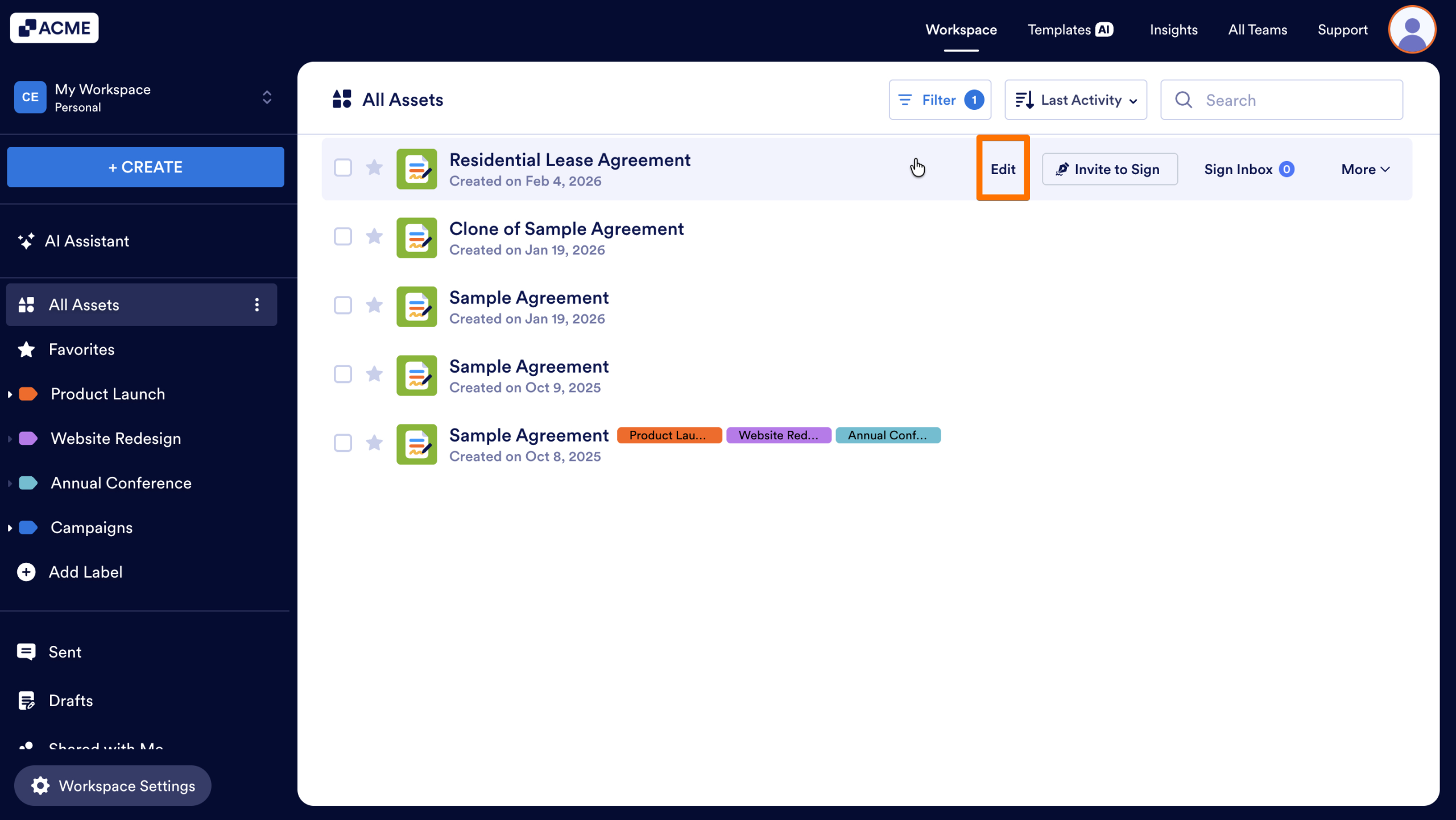
- In the Workspace, hover over the Sign Document you’d like to open.
- Then, click on Edit on the right-hand side of the page.
- Alternatively, click on More and select Edit from the dropdown menu.
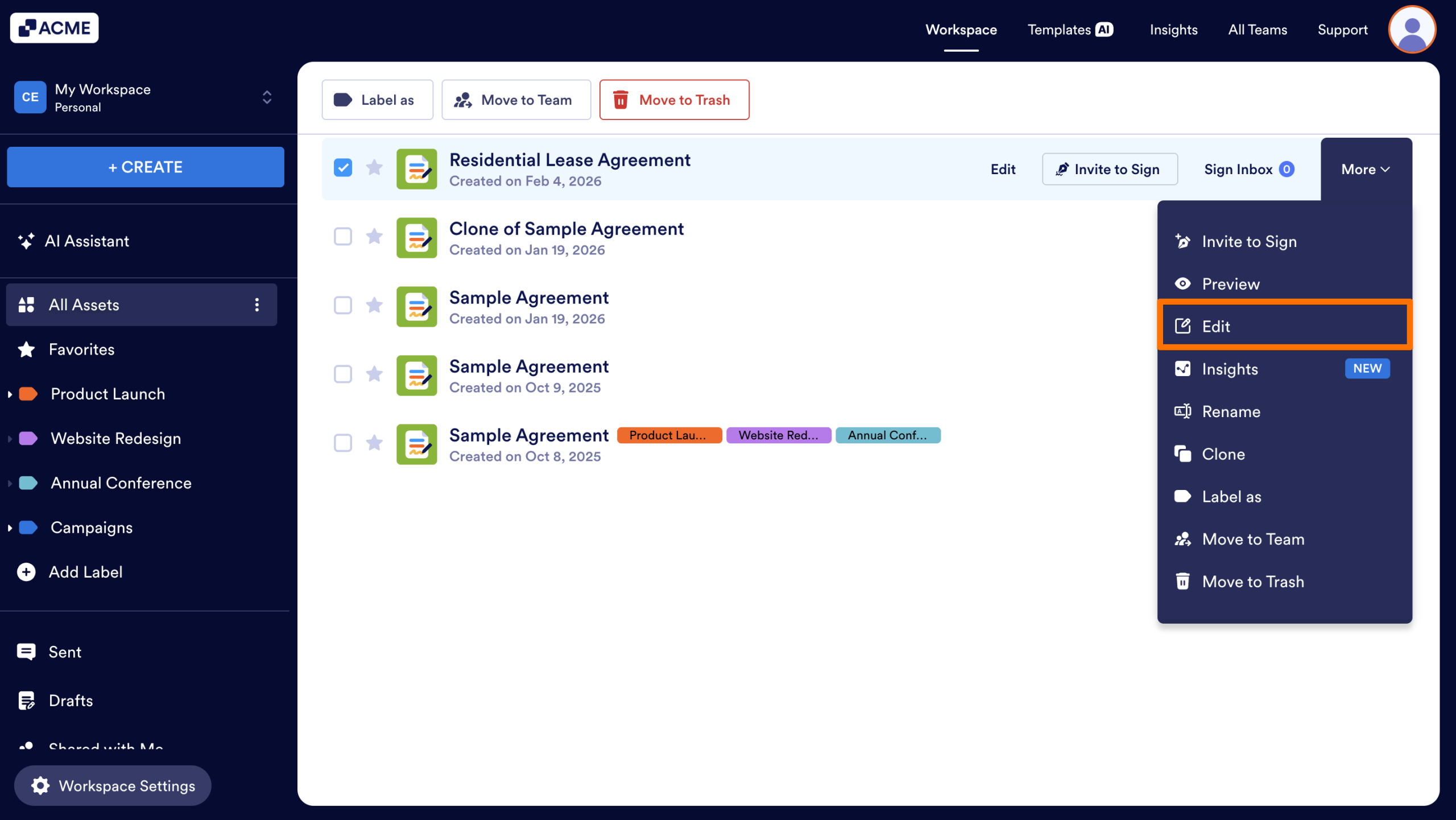
The Sign Document Builder will open, where you can edit and send out the document.
Previewing the Sign Document
- In the Workspace, hover over the Sign Document you’d like to preview.
- Then, click on the More dropdown menu on the right-hand side of the page.
- Finally, click Preview.
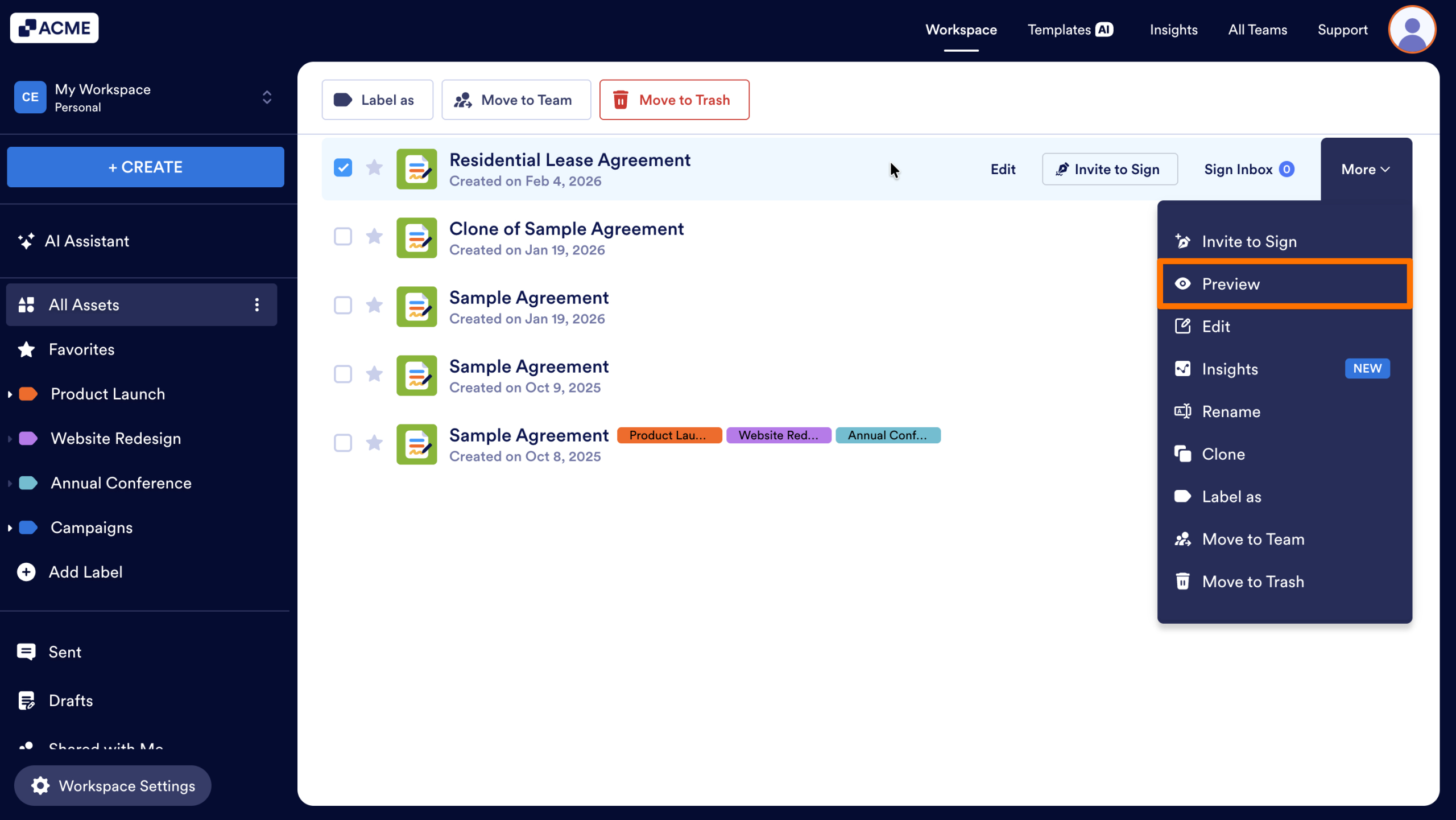
Your Sign Document will appear in Preview mode, so you can see how it looks before sending it out.

Send Comment: