

Tracker Vorlagen

Bestellübersicht
Egal, ob Sie einen Online-Shop oder ein Restaurant mit Online-Bestellmöglichkeiten betreiben, diese kostenlose Online Bestellübersicht wird Ihnen helfen, Ihre Bestellungen besser als je zuvor zu verwalten! Um loszulegen, passen Sie einfach das beigefügte Bestellformular an und veröffentlichen es für Ihre Kunden. Erteilte Bestellungen werden automatisch in der Bestellübersicht angezeigt, mit Kundeninformationen, Bestelldetails, Zahlungsbestätigungen und mehr. Sie werden in Echtzeit auf dem Laufenden gehalten, so dass Sie jede Bestellung, die über Ihre Website eingeht, im Auge behalten können! Diese Bestellübersichts-Tabellenvorlage können Sie so verwenden, wie sie ist, aber Sie können sie auch anpassen, um sie besser an Ihre Geschäftsanforderungen anzupassen. Keine Programmierung erforderlich - fügen Sie einfach per Drag & Drop neue Spalten oder Tabs hinzu, erstellen Sie Datenfilter und farbcodierte Tags, und wechseln Sie zwischen Tabellen-, Kalender- und Kartenansicht. Sobald Sie mit der Online-Bearbeitung von Bestellungen begonnen haben, können Sie Ihre Bestellübersicht herunterladen und mit anderen Mitarbeitern gemeinsam nutzen. Mit einer individuellen Online-Bestellübersicht verbringen Sie weniger Zeit mit der manuellen Überprüfung von Bestellungen und mehr Zeit mit der Lieferung von Qualitätsprodukten an zufriedene Kunden!
Zur Kategorie:Tracker Vorlagen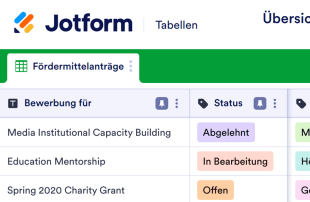
Übersicht über Fördermittelanträge
Eine Übersicht über Fördermittelanträge ist ein Dokument, das dazu dient, den Überblick über Fördermittelanträge zu behalten. Mit der kostenlosen Online-Tabelle von Jotform überwachen Sie den Status laufender Förderanträge, verwalten Kontaktdaten und organisieren die Informationen, die Sie für die Beantragung von Fördermitteln benötigen, um den richtigen Betrag zu erhalten. Sie können sogar zu einer Kalenderansicht wechseln, um sicherzustellen, dass Sie keine wichtige Frist verpassen! Passen Sie diese Tabelle zur Nachverfolgung von Fördermittelanträgen so an, dass sie alle Ihre Informationen perfekt enthält. Fügen Sie Zeilen und Spalten hinzu, aktualisieren Sie Beschriftungen und Farben, und ordnen Sie das Layout nach Ihren Wünschen neu an. Sie können sogar unsere Schnellberechnungsfunktion verwenden, um automatisch die Summen für beantragte und erhaltene Fördermittel zu addieren! Indem Sie Ihre Informationen über Zuschüsse in einer professionellen Online-Tabelle organisieren, können Sie Ihre gemeinnützige Organisation effizienter machen, mehr Zuschüsse beantragen und mehr Mittel für Ihr Anliegen sichern.
Zur Kategorie:Tracker Vorlagen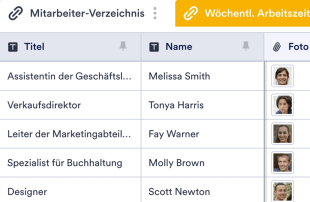
Mitarbeiter Arbeitszeittabelle
Eine Mitarbeiter Arbeitszeittabelle ist ein Dokument, das für die Lohn- und Gehaltsabrechnung verwendet wird und die Zeit, die ein Mitarbeiter gearbeitet hat, aufzeichnet und verfolgt. Wenn Sie ein HR-Profi sind und nach einer besseren Möglichkeit suchen, den Überblick über die Arbeitszeiten Ihrer Mitarbeiter zu behalten, hilft Ihnen unsere kostenlose Vorlage für Mitarbeiter Arbeitszeittabelle dabei, die Arbeitszeiten Ihrer Mitarbeiter zu protokollieren und diese Informationen in einem beeindruckenden Blatt anzuzeigen, das perfekt auf Ihre Bedürfnisse zugeschnitten ist. Die Mitarbeiter müssen nur ihre Stunden über Ihr Online-Formular erfassen, indem sie ihre Informationen und Fotos von einem beliebigen Gerät einreichen. Dann erhalten Sie alle Daten in Ihrem Jotform-Konto als leicht lesbare Tabelle, die Sie im Ist-Zustand oder im Kalenderformat anzeigen können. Beginnen Sie, indem Sie Ihr Arbeitszeiterfassungsformular für Mitarbeiter an Ihr Unternehmen und Ihre Bedürfnisse anpassen. Mit unserem Form-Builder müssen Sie keine Codierung vornehmen, um Formularfelder hinzuzufügen, das Vorlagenlayout neu anzuordnen oder Schriftarten und Farben zu ändern. Sie können auch Ihre Arbeitszeitblattvorlage für Mitarbeiter anpassen, indem Sie Registerkarten für zusätzliche Informationen hinzufügen, z. B. ein Mitarbeiterverzeichnis. Wenn Sie mit dem Anpassen fertig sind, können Sie die Arbeitszeiten Ihrer Mitarbeiter effizienter als je zuvor verfolgen! Verwenden Sie unsere Arbeitszeitblattvorlage, um die von Ihnen benötigten Informationen zu sammeln und zu organisieren, ohne dass Sie sich auf mehrere Werkzeuge verlassen müssen, um die Arbeit zu erledigen.
Zur Kategorie:Tracker Vorlagen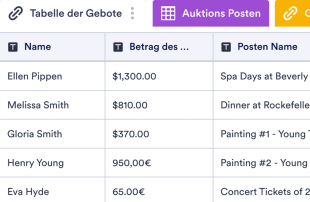
Gebotsübersicht für Auktionen
Mit der kostenlosen Jotform-Vorlage für eine Gebotsübersicht für Auktionen behalten Sie immer den Überblick. Egal, ob Sie als Auktionshaus verschiedenste Auktionen betreuen oder als Verein ein wenig Einkommen erwirtschaften wollen. Sie können die Kontaktdaten der Bieter, die Gebote und Posten sowie den Standort der Posten nahtlos verwalten und benutzerdefinierte Listen für die einzelnen Posten oder Standorte anlegen und verwalten. Erfassens Sie Mindestgebot und Beschreibung der Posten über das zugehörige Formular und lassen Sie Ihre Spender so mehr Posten eingeben. Mit der benutzerfreundlichen Oberfläche von Jotform können Sie Ihren Bietern einen einfachen Weg geben, online für die Posten zu bieten. Sie können Ihre Gebotsliste sogar mit einem einzigen Klick als PDF-, CSV- oder Excel-Datei herunterladen oder Ihre Tabellenkalkulation automatisch mit anderen Konten wie Google Drive, Dropbox und anderen synchronisieren. Mit einer kostenlosen Gebotsübersicht für Auktionen können Sie die Posten und Bieter online besser verwalten - und Sie haben mehr Zeit, sich auf die Maximierung Ihres Gewinns zu konzentrieren.
Zur Kategorie:Tracker Vorlagen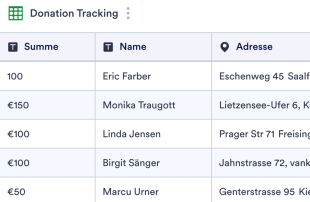
Spendentracker
Verfolgen Sie online Spenderinformationen für Ihre Wohltätigkeitsorganisation oder gemeinnützige Organisation. Verfügbar in Tabellen-, Karten- oder Kalenderansicht. Einfaches Anpassen, Herunterladen und Weitergeben.
Zur Kategorie:Tracker Vorlagen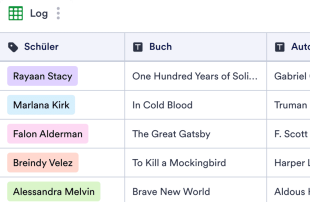
Lese-Protokoll
Ihre Schülerinnen und Schüler täglich lesen zu lassen, ist eine großartige Möglichkeit, ihr Leseverständnis und ihre akademische Leistung insgesamt zu stärken. Unabhängig von der Klassenstufe, die Sie unterrichten, können Sie den Fortschritt Ihrer Schüler mit diesem kostenlosen Online-Lese-Protokoll verfolgen. Die Schüler können das beigefügte Formular zu Hause ausfüllen, indem sie festhalten, welches Buch sie gerade lesen und wie viele Seiten sie an diesem Abend gelesen haben, bestätigt durch die elektronische Unterschrift ihrer Eltern. Sie erhalten sofort Antworten in Ihrem Lese-Protokoll, das Sie von jedem Computer oder Mobilgerät aus leicht einsehen, als PDF-, CSV- oder Excel-Datei herunterladen oder für Ihre Schülerunterlagen ausdrucken können. Sie müssen nicht zwischen den Zeilen lesen, um zu erfahren, wie Sie Ihr Lese-Protokoll anpassen können. Es ist ganz einfach - durch einfaches Ziehen und Ablegen können Sie Registerkarten für verschiedene Klassen erstellen oder eine Spalte für Notizen der Schüler hinzufügen. Sie können die Antworten sogar als separate Karten für jeden Schüler anzeigen. Mit einem benutzerdefinierten Online-Lese-Protokoll erhalten Sie ein besseres Verständnis dafür, was und wie viel Ihre Schüler jeden Abend lesen, sodass Sie sich besser darauf vorbereiten können, die Lektüre am nächsten Tag durchzugehen.
Zur Kategorie:Tracker Vorlagen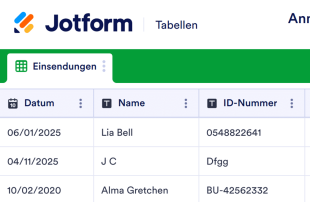
Anmeldeblatt für die Klasse
Erfassen Sie die Anwesenheit Ihrer Studierenden online mit dieser kostenlosen Online-Anwesenheitsliste! Teilen Sie einfach das beigefügte Formular per QR-Code und lassen Sie Ihre Studierenden es während des Unterrichts ausfüllen – oder teilen Sie es per Link, wenn Sie online unterrichten. Sobald Ihre Studierenden das Formular ausgefüllt und unterschrieben haben, werden ihre Daten automatisch in Ihre Anwesenheitsliste eingetragen. Sie können verschiedene Tabellenblätter erstellen, um die Anwesenheit in unterschiedlichen Sitzungen oder Semestern separat zu erfassen. Passen Sie Ihre Online-Anwesenheitsliste und das beigefügte Formular ganz einfach an Ihre Bedürfnisse an. Fügen Sie weitere Spalten und Tabellenblätter hinzu, berechnen Sie die Anwesenheitssummen mit vorgefertigten Formeln und ordnen Sie die Tabelle mit der benutzerfreundlichen Oberfläche von Jotform neu an. Schluss mit Papierkram – teilen Sie einfach das beigefügte Formular und erfassen Sie die Anwesenheit Ihrer Studierenden online mit dieser kostenlosen Anwesenheitsliste.
Zur Kategorie:Bildung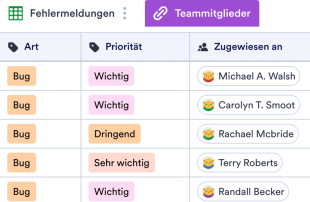
Nachverfolung von Fehlermeldungen
Eine Vorlage zur Nachverfolgung von Fehlermeldungen wird verwendet, um Fehler und Funktionsprobleme zu verfolgen, sie Teammitgliedern zuzuweisen und ihren Fortschritt zu überwachen. Mit dieser kostenlosen Online-Vorlage zur Fehlerüberwachung kann Ihre IT-Firma oder -Abteilung Fehlerberichte oder Funktionen, die nicht richtig funktionieren, eingeben, sie Teammitgliedern zuweisen, sie nach Prioritäten ordnen und ihren Status als "In Bearbeitung", "In Bearbeitung" oder "Behoben" kennzeichnen. Die Einträge werden sicher in Ihrem Jotform-Konto gespeichert und können einfach in einem Tabellen-, Kalender- oder Kartenformat angezeigt werden. Unsere kostenlose Vorlage für die Nachverfolung von Fehlern verfügt bereits über einen Tab für Fehlermeldungen und einen Tab für Teammitglieder. Wenn Sie Ihre Informationen auf eine andere Art und Weise verfolgen möchten, fügen Sie einfach einen neuen Tab hinzu, um loszulegen! Sie können auch die Spaltennamen ändern, farbige Beschriftungen hinzufügen und vieles mehr, um Aussehen und Funktion anzupassen. Mit der kostenlosen Jotform Online-Vorlage für die Nachverfolgung von Fehlermeldungen und Funktionsproblemen können Sie Ihr gesamtes Team auf dem Laufenden halten, sicherstellen, dass keine Aufgabe übersehen wird, und die Prioritäten in Ihrem Arbeitsablauf leichter setzen.
Zur Kategorie:Tracker Vorlagen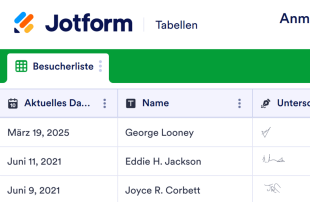
Anmeldeformular für Besucher
Eine Besucherliste dient der Erfassung von Besuchern. Ob Krankenhaus, Schule, Unternehmen oder Organisation – mit der kostenlosen Besucherliste von Jotform behalten Sie Besucherinformationen ganz einfach und geräteunabhängig im Blick! Füllen Sie das beigefügte Formular aus, um Kontaktdaten, Ankunfts- und Abfahrtszeit sowie den Besuchsgrund zu erfassen – oder lassen Sie Ihre Besucher dies selbst auf Tablet, Smartphone oder Computer erledigen! Die Informationen lassen sich anschließend als Tabelle, Kalender oder einzelne Karten anzeigen. Teilen Sie die Informationen in separate Registerkarten auf, fügen Sie Zeilen und Spalten hinzu, verwenden Sie farbcodierte Etiketten und vieles mehr – mit dem benutzerfreundlichen Editor von Jotform gestalten Sie Ihre Besucherliste im Handumdrehen. Passen Sie das beigefügte Formular an Ihre Bedürfnisse und Ihr Branding an, konvertieren Sie Eingaben automatisch in PDFs oder synchronisieren Sie Besucherinformationen mit anderen Apps – dank über 100 kostenloser Integrationen. Steigen Sie von unübersichtlichen Papierformularen auf eine kostenlose Online-Besucherliste um und optimieren Sie Ihren Anmeldeprozess.
Zur Kategorie:Listen Vorlagen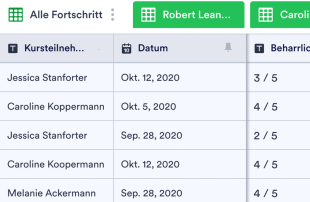
Datenblatt zur Verfolgung der Fortschritte von Studenten
Verfolgen und erfassen Sie die Fortschritte Ihrer Schüler online. Kostenloser, benutzerfreundlicher Beobachtungsbogen für Lehrer. Herunterladen, drucken und weitergeben. Funktioniert von jedem Gerät aus. Keine Programmierkenntnisse erforderlich.
Zur Kategorie:Tracker Vorlagen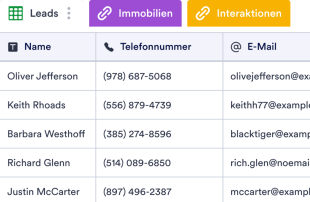
Tracker für Immobilien-Transaktionen
Ein Tracker für Immobilien-Transaktionen wird von Immobilienmaklern verwendet, um Informationen zum Hauskauf – wie Leads, Interaktionen und Immobilien – zu organisieren, damit Kunden die perfekten Häuser finden, die für sie ein Zuhause sein sollen. Behalten Sie mit dem Tracker für Immobilien-Transaktionen von Jotform den Überblick über die Präferenzen Ihrer Kunden beim Hauskauf! Durch die Organisation aller Informationen und die Überwachung des Status von Hauskauf-Leads in einer professionellen Tabellenkalkulationstabelle sind Sie organisiert genug, um Ihren Kunden den bestmöglichen Service zu bieten. Müssen Sie das Layout dieser Tracker für Immobilien-Transaktionen neu organisieren? Fügen Sie einfach Spalten, Registerkarten und Beschriftungen hinzu oder benennen Sie sie um, um das von Ihnen gewünschte Aussehen zu erhalten. Sie können sogar zu einem Karten- oder Kalenderformat wechseln, um Ihre Informationen so hilfreich wie möglich anzuzeigen. Da alle Ihre Informationen effizient organisiert sind, können Sie verfügbare Häuser mit Ihren potenziellen Leads vergleichen und so leichter die perfekten Immobilien für Ihre Kunden finden. Und was noch besser ist: Unser Tracker für Immobilien-Transaktionen ist kostenlos!
Zur Kategorie:Tracker Vorlagen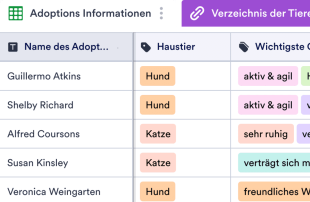
Informationsblatt zur Haustier-Adoption
Sind Sie bereit, ein liebevolles Zuhause für die Ihnen anvertrauten Tiere zu finden? Als Leiter eines Tierheims oder einer Tierrettungsorganisation unterstützt Sie unser kostenloses Informationsblatt zur Haustieradoption dabei, Informationen effizienter zu organisieren. Um zu beginnen, passen Sie das entsprechende Formular einfach an Ihre Bedürfnisse an – es ist bereits so formatiert, dass Sie Kontaktdaten der Adoptierenden erfassen, Fragen zu ihrer aktuellen Lebenssituation stellen, sich über die Vorlieben ihrer Haustiere informieren und Online-Unterschriften akzeptieren können. Sobald potenzielle neue Haustierbesitzer Ihr Formular ausfüllen, werden ihre Eingaben direkt in Ihr Informationsblatt zur Haustieradoption übertragen, wodurch der Zugriff und die Organisation wichtiger Informationen ohne mehrere Hilfsmittel einfacher denn je wird. Sollte Ihre Organisation zusätzliche Informationen für den Adoptionsprozess benötigen, nutzen Sie einfach unseren benutzerfreundlichen Drag-and-drop-Formular-Builder, um weitere Fragen und Felder hinzuzufügen. Jedes Formularfeld generiert automatisch eine neue Spalte in Ihrem Informationsblatt zur Haustieradoption. Sie können sogar zusätzliche Registerkarten erstellen, die Ihnen helfen, die Antwortdaten in verschiedene Tabellenkalkulationen aufzuteilen oder die Einreichungen in einem Kalender oder einem leicht lesbaren Kartenformat anzuzeigen – ideal für Interviews und Termine! Unabhängig davon, ob Ihr Tierheim Hunde, Katzen oder Tauben betreut, nutzen Sie unser Informationsblatt zur Haustieradoption, um die benötigten Informationen zu sammeln, die Unterlagen Ihres Tierheims zu strukturieren und die perfekten Besitzer für Ihre Schützlinge zu finden – alles in einem Schritt.
Zur Kategorie:Tracker VorlagenÜber Tracker Vorlagen
Tracker-Vorlagen sind kategoriespezifische Tabellenvorlagen, die Formularbesitzern und ihren Teams dabei helfen, die über Jotform-Formulare erfassten Datensätze zu organisieren und zu verwalten. Organisationen bearbeiten mit diesen Vorlagen Antworten wie Datensätze, Anfragen, Anträge, Anmeldungen, Rückmeldungen, Bestellungen und Inspektionen effizient. Diese Funktion hilft Fachleuten in Bildung, Gesundheitswesen, Veranstaltungsmanagement und Kundenservice. Mit Tracker-Vorlagen verwalten Sie die erfassten Informationen effizient und optimieren das Einreichungsmanagement, ohne die Tabelle in ein Formular, eine App oder einen Aufgaben-Tracker umzuwandeln.
Jotform Tabellen dienen als primäre Plattform, in die die Antworten aus verbundenen Jotform-Formularen automatisch übernommen werden, was eine nahtlose Verwaltung der eingehenden Daten ermöglicht. Jede über ein Jotform-Formular übermittelte Antwort wird zu einem Eintrag in der verbundenen Tabelle. Sie können den Eintrag in der Tabellenansicht oder Detailansicht einsehen. Nutzer können Eingaben mithilfe von Suchfunktionen, Filtern, Gruppierungen, Spaltentypen, der Kalenderansicht, der Berichtsansicht oder der Upload-Ansicht organisieren und analysieren. Manuelle Eingabe sowie der Import aus CSV- oder Excel-Dateien stehen zum Hinzufügen bestehender Daten zur Verfügung. Der Schwerpunkt liegt auf der Automatisierung des Workflows vom Formular zur Tabelle. So wechseln Sie reibungslos von der Datenerfassung zur Datenverwaltung.
Why Use Tracker Templates?
- Tracker Templates eliminate the need for manual data transfer by automatically populating responses from Jotform Forms into Jotform Tables. This automation ensures that all submissions are captured accurately and reduces the potential for human error.
- Keeping responses together in a centralized location allows for quick and efficient access to all data. This centralized approach saves time and effort when needing to locate specific records for review or reporting.
- The ability to search, filter, and group entries in Tracker Templates simplifies the process of finding and analyzing specific data points. This functionality ensures that records can be quickly accessed based on defined criteria.
- Reviewing complete submission details, including any associated uploads, within Jotform Tables allows form owners to make informed decisions based on comprehensive data.
- Coordinating follow-up actions and tracking changes in submissions is streamlined through Jotform Tables, enhancing communication and accountability within teams.
- Reporting on collected data becomes more efficient with the use of Tracker Templates, allowing for the generation of insights and statistics necessary for informed decision-making.
Common Problems Solved by Tracker Templates
- Manually copying submissions into spreadsheets is time-consuming and prone to errors. Tracker Templates automate this process by directly importing form responses into Jotform Tables.
- Scattered responses across different platforms or documents can lead to inefficiencies. Tracker Templates centralize all submissions in one place, making them easily accessible.
- Difficulty locating records quickly is a common challenge that is addressed by Tracker Templates, which offer robust search and filtering capabilities.
- Inconsistent review processes can result from missing context or incomplete data. With Tracker Templates, all relevant information is organized and readily available for thorough review.
- Hard-to-review uploads and unclear ownership of submissions are resolved by the structured format of Tracker Templates, which supports comprehensive data analysis and clear assignment of responsibilities.
Anwendungsfälle und passende Funktionen von Jotform Tabellen
- When collecting event registration data through a Jotform Form, submissions automatically appear in the connected table, ensuring that event organizers have real-time access to attendee information.
- Submissions related to customer feedback can be organized using Table View or Detail View, allowing customer service teams to analyze responses and improve service delivery efficiently.
- Healthcare professionals can use filters and data grouping to manage patient records, ensuring that critical information is easily accessible for medical evaluations and follow-ups.
- Access settings and assignees facilitate team collaboration by allowing only authorized personnel to modify records while maintaining a clear history of changes and assignments.
- Generating reports from collected survey data is simplified through the use of Report View, enabling marketing teams to present findings in a structured and professional format.
How to Use Tracker Templates with Jotform Forms
- Start by selecting a category-relevant Jotform Tables template, a blank table, or the table connected to an existing Jotform Form. The Jotform Form will collect the category-specific information, and new responses will automatically appear in the connected table.
- Configure the table for submission review by naming columns, selecting appropriate column types, and choosing relevant views such as Table View, Detail View, Calendar View, Uploads View, or Report View to best fit the data being managed.
- Manage submissions effectively by using search, filters, grouping, formulas, access settings, assignees, revision history, linked tables, action buttons, or outputs, depending on the specific needs of your category.
Top Use Cases for Tracker Templates
- For Form Owners: Form owners benefit from Tracker Templates by having a streamlined process for reviewing incoming responses. They can edit submission data, check details or uploads, and keep records organized within Jotform Tables. This ensures that all information is up-to-date and easily accessible, aiding in decision-making and data management.
- For Teams: Authorized team members can efficiently find and maintain entries using Tracker Templates. They can coordinate responsibility with assignees, ensuring tasks are completed by the right people. Additionally, using access settings and revision history supports shared work by providing a clear audit trail of changes and maintaining data integrity.
- For Managers: Managers utilize Tracker Templates to monitor collected data and review category-specific patterns. By checking progress and ownership, they can ensure that operations run smoothly. Report View and other relevant views provide oversight, helping managers make informed decisions based on comprehensive data analysis.
Summarizing Tracker Templates
Tracker-Vorlagen bieten eine wertvolle Lösung für die Erfassung und Verwaltung kategoriespezifischer Informationen mithilfe von Jotform-Formularen und Jotform Tabellen. Durch die Automatisierung des Prozesses zur Erfassung von Antworten und die Bereitstellung leistungsfähiger Tools zur Datenorganisation und -analyse steigern diese Vorlagen Effizienz und Genauigkeit. Jotform Tabellen dienen als zentrale Drehscheibe für die Verwaltung von Antworten, sodass Nutzer ihre Workflows optimieren und sich auf datengestützte Entscheidungsfindung konzentrieren können.
Häufig gestellte Fragen
1) Ist die Verwendung von Tracker-Vorlagen mit Jotform Tabellen kostenlos?
Jotform bietet einen Starter-Tarif an. Damit nutzen Sie Tracker-Vorlagen zusammen mit Jotform Tabellen. Dieser Tarif gewährt Zugriff auf wesentliche Funktionen und ist eine erschwingliche Option für Einzelpersonen und kleine Teams. Für Nutzer mit anspruchsvolleren Anforderungen stehen weitere Tarife zur Verfügung. Einzelheiten zu Limiten und Kontingenten werden hier jedoch nicht näher erläutert.
2) Wie werden die Antworten aus Jotform-Formularen in Tracker-Vorlagen angezeigt?
Submissions from Jotform Forms automatically appear in Tracker Templates due to their connected relationship. Once a respondent submits a form, the response is recorded as an entry in the linked table, ensuring a seamless data flow. Future responses continue to auto-populate the table, maintaining an up-to-date record set.
3) Kann ich Daten in Tracker-Vorlagen bearbeiten, durchsuchen, filtern, gruppieren und berechnen?
Yes, Tracker Templates allow you to edit submissions and organize data using various tools such as search, filters, and data grouping. You can also apply formulas and calculations to process the data further. While these features enhance data management, they do not automate decision-making processes.
4) Kann ich die Daten aus den Tabellen als CSV- oder Excel-Datei exportieren?
Data within Tracker Templates can be exported as CSV or Excel files, providing flexibility in data management. This capability allows you to add existing information to the table or use the export for external analysis and reporting. The integration of connected-form submissions with manually imported data is seamless.
5) Which Jotform Tables views can I use with Tracker Templates?
Tracker Templates support several views, including Table View, Detail View, Calendar View, Report View, and Uploads View. Table View is ideal for a broad overview of all entries, while Detail View allows for in-depth analysis of individual records. Calendar View helps in tracking dates, Report View aids in generating structured reports, and Uploads View is useful for managing attachments efficiently.
6) Can teams collaborate on submissions in Tracker Templates?
Teams can collaborate effectively on submissions using Tracker Templates by leveraging access settings and assigning tasks to specific team members. Real-time tracking and revision history help manage shared work, ensuring that changes are transparent and easily traceable. This collaborative environment enhances team productivity and data accuracy.
7) Can I connect Tracker Templates to related data or other applications?
Tracker Templates support linked tables and integrations, allowing you to connect to related data or third-party applications. Action buttons provide additional functionality to trigger specific tasks, enhancing the workflow. This connectivity ensures that Tracker Templates can be part of a broader data management strategy.
8) Can I create reports, PDFs, and manage files from Tracker Templates?
You can create detailed reports using Report View and generate PDFs for sharing or archival purposes. Uploads View allows you to manage files associated with table data, ensuring that all relevant documents are easily accessible. While not every category requires all capabilities, these features enhance the management and presentation of collected data.