Connecting other forms within your account in Tables allows you to manage submission data from multiple forms in one place. This enables you to create a lookup or rollup in one of the connected tables. Records update in real-time, eliminating the need to reload the page to see new entries.
Viewing and managing data from your other forms is pretty simple. Here’s how to do it:
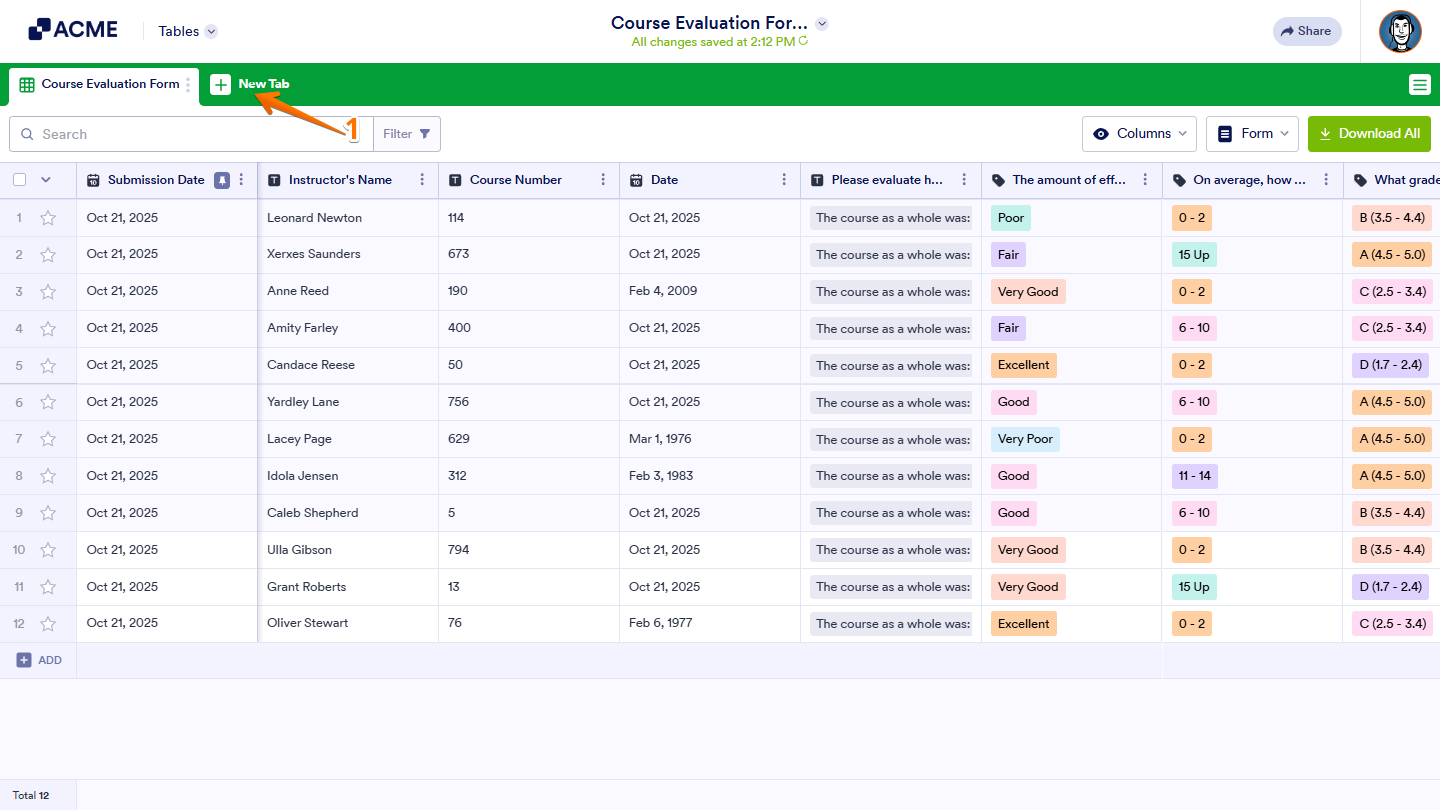
- In Tables, on the upper left side of the page, click on New tab.
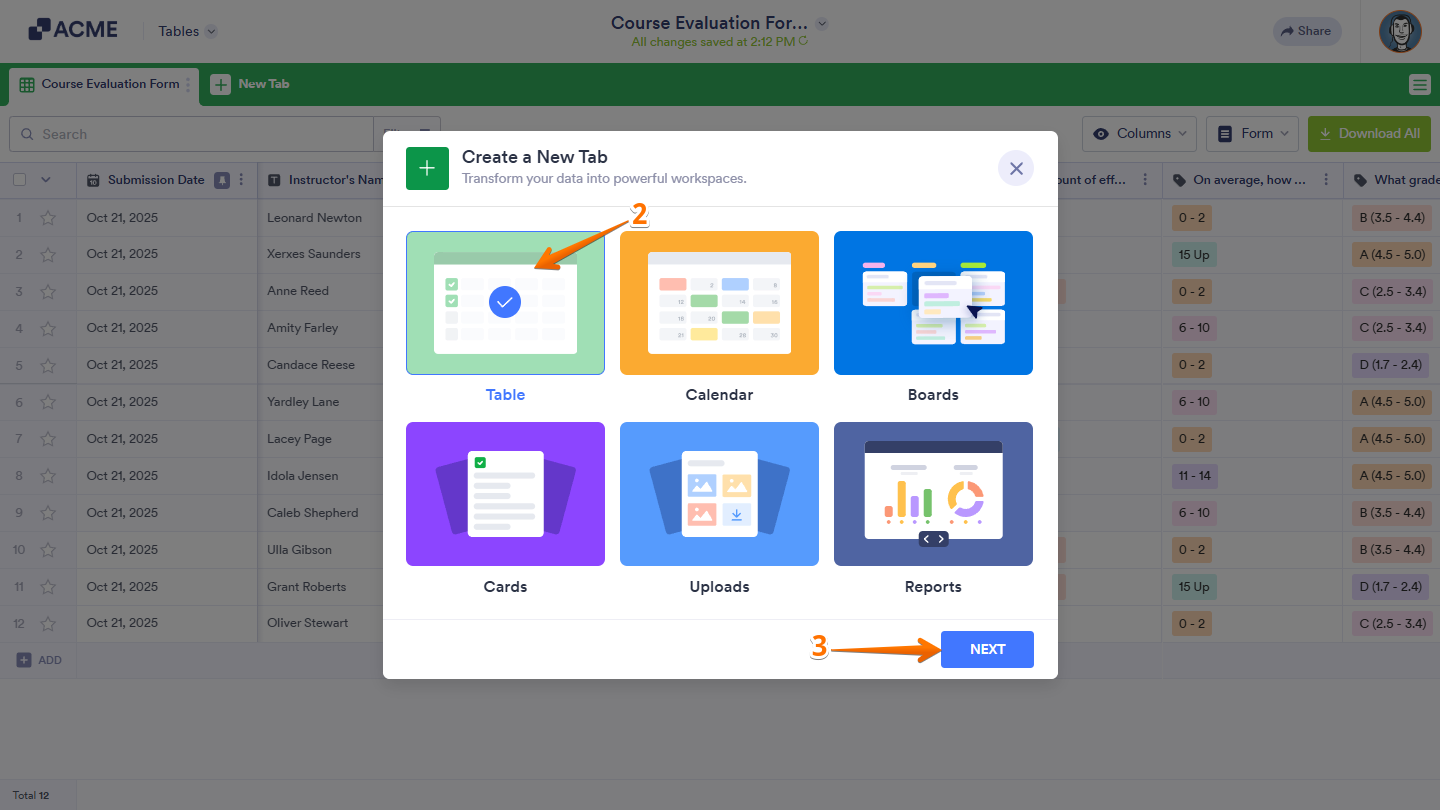
- Now, in the Create a New Tab window that opens, select on Table.
- Then, click on Next.
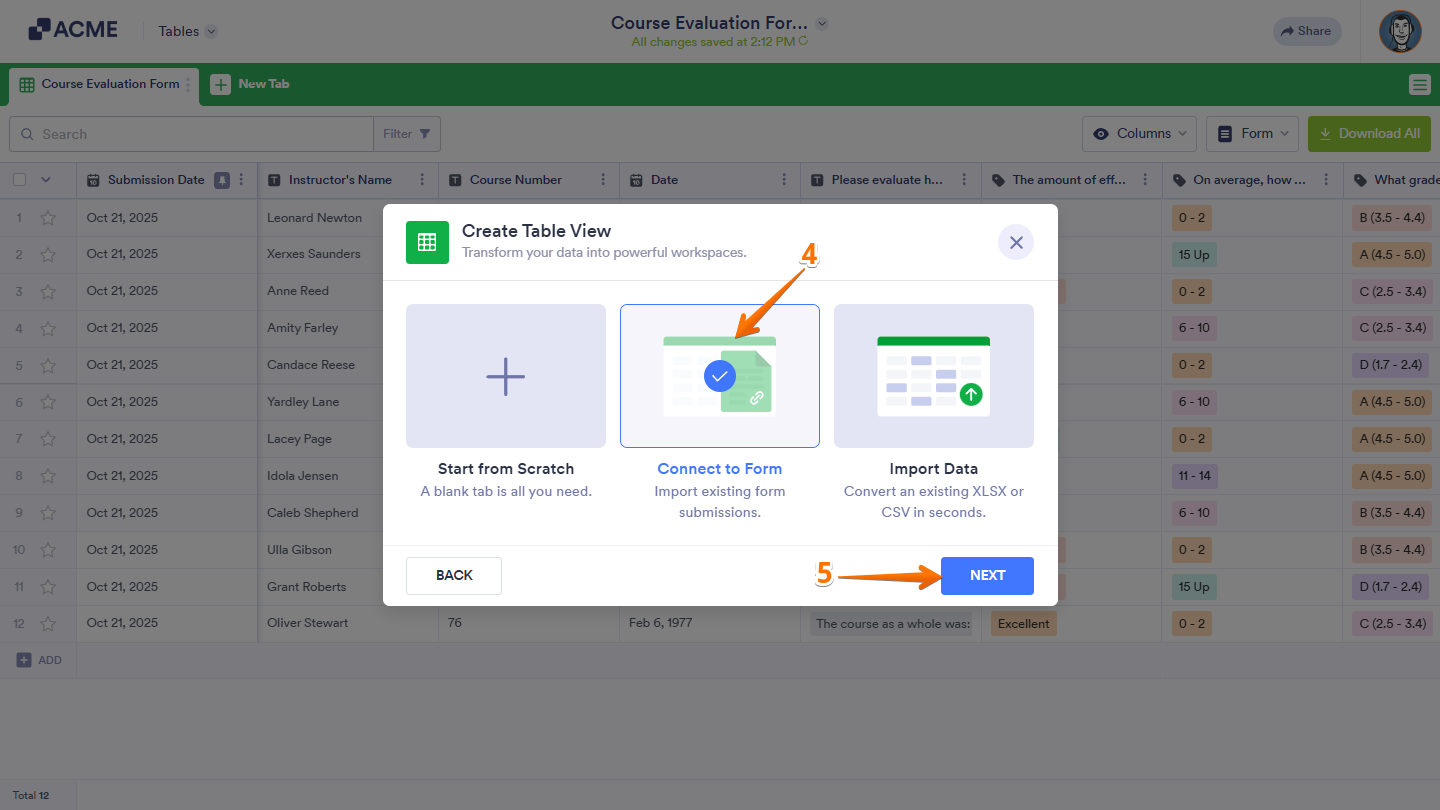
- Next, click on Connect to Form.
- Then, click on Next.
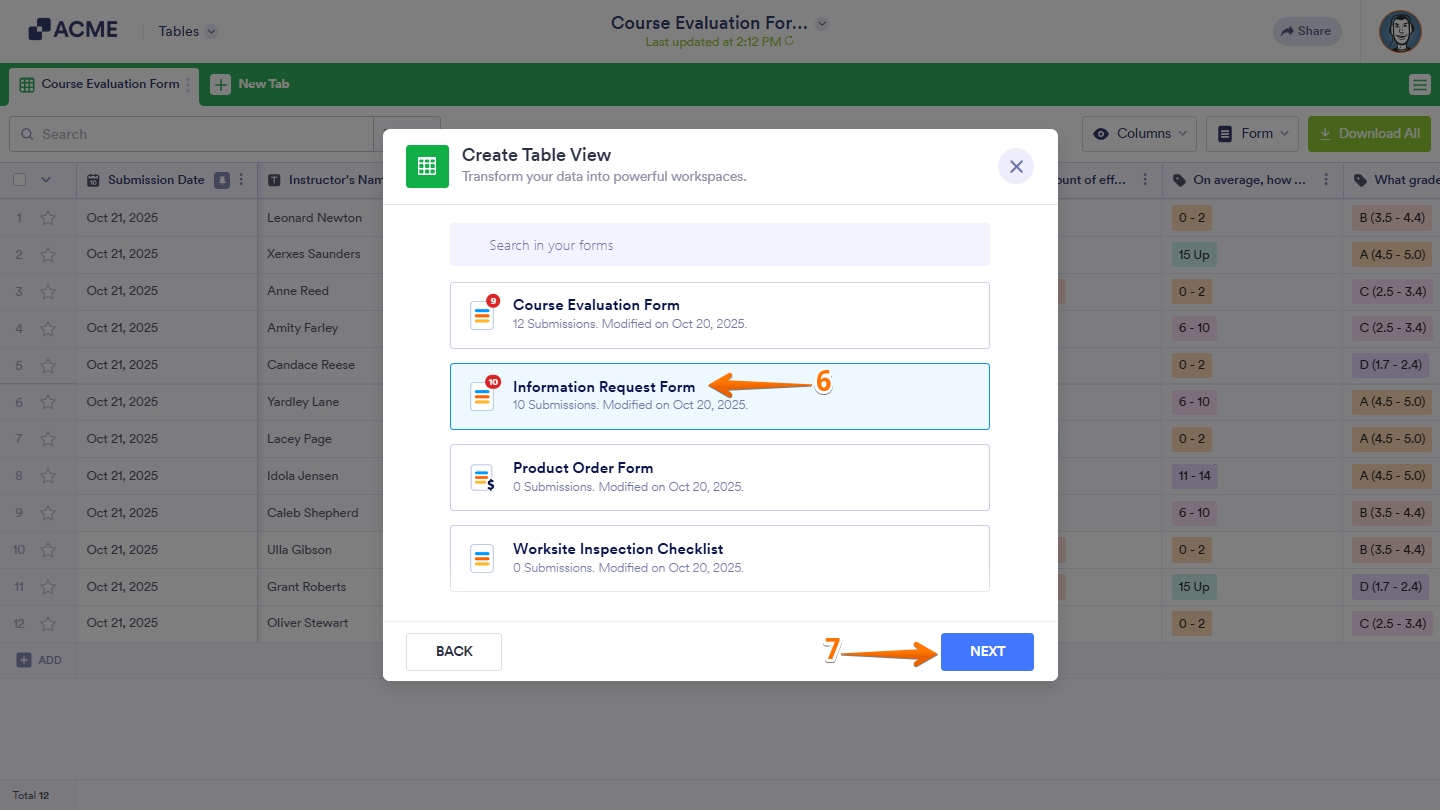
- Now, choose a form table to connect.
- Then, click on Next.
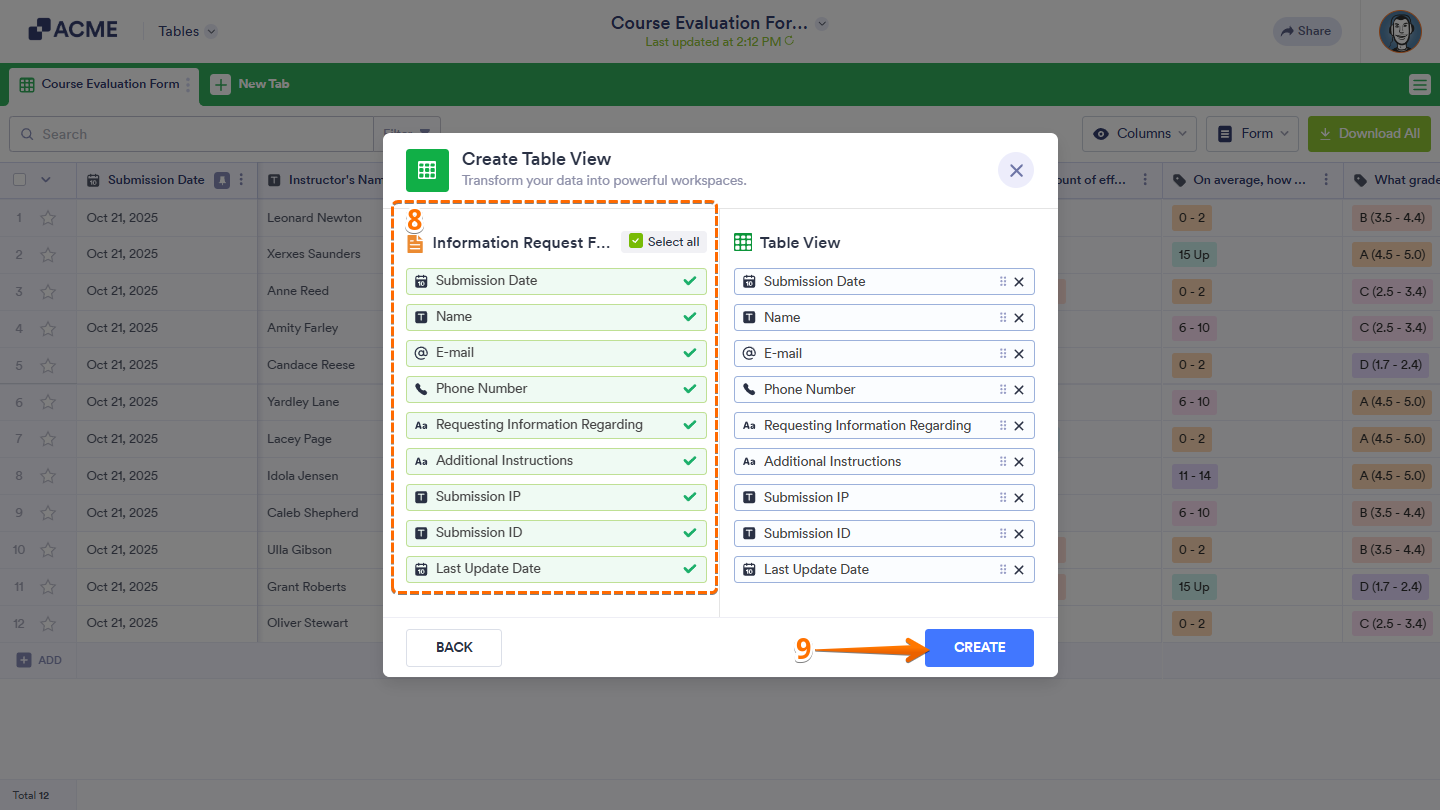
- Now, choose the columns to include in the tab.
- Then, click on Create and you’re all set.
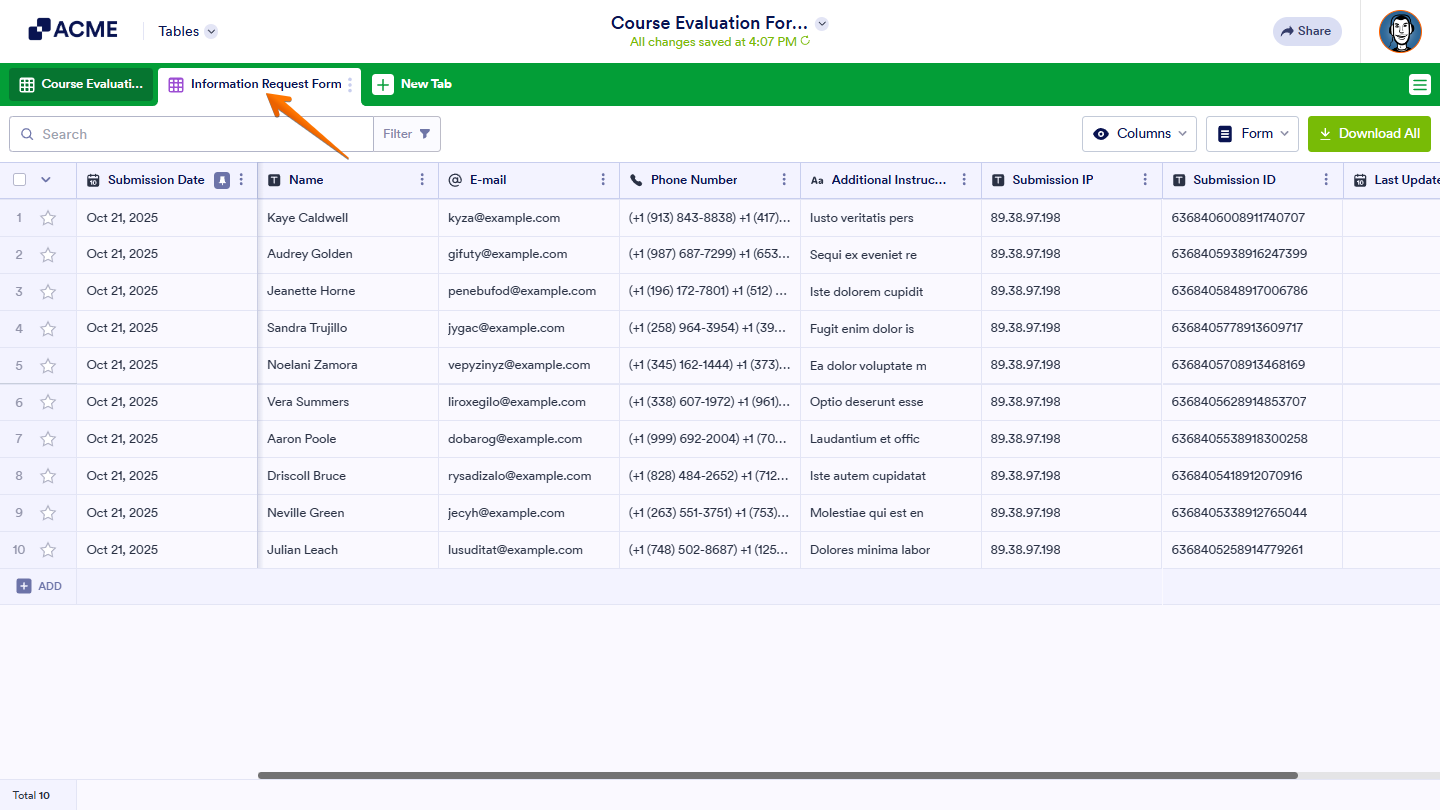
And that’s it! Once it’s set up, a new tab will appear where you can view and manage the connected form’s data. Any changes you make will be reflected in the form’s records.

Send Comment: