Each form submission is assigned a unique Submission ID, which helps you easily locate, track, or reference individual entries in your account. This identifier is especially useful when managing large volumes of submissions or when troubleshooting specific entries.
Finding the Submission ID can be done directly through your Tables and Inbox, depending on where you prefer to access your submission data.
Finding the Submission ID Through Tables
You can find the Submission ID directly from your form’s Tables view. It’s one of the hidden columns by default, but you can unhide it to display the IDs in your table. Here’s the quick way to do it:
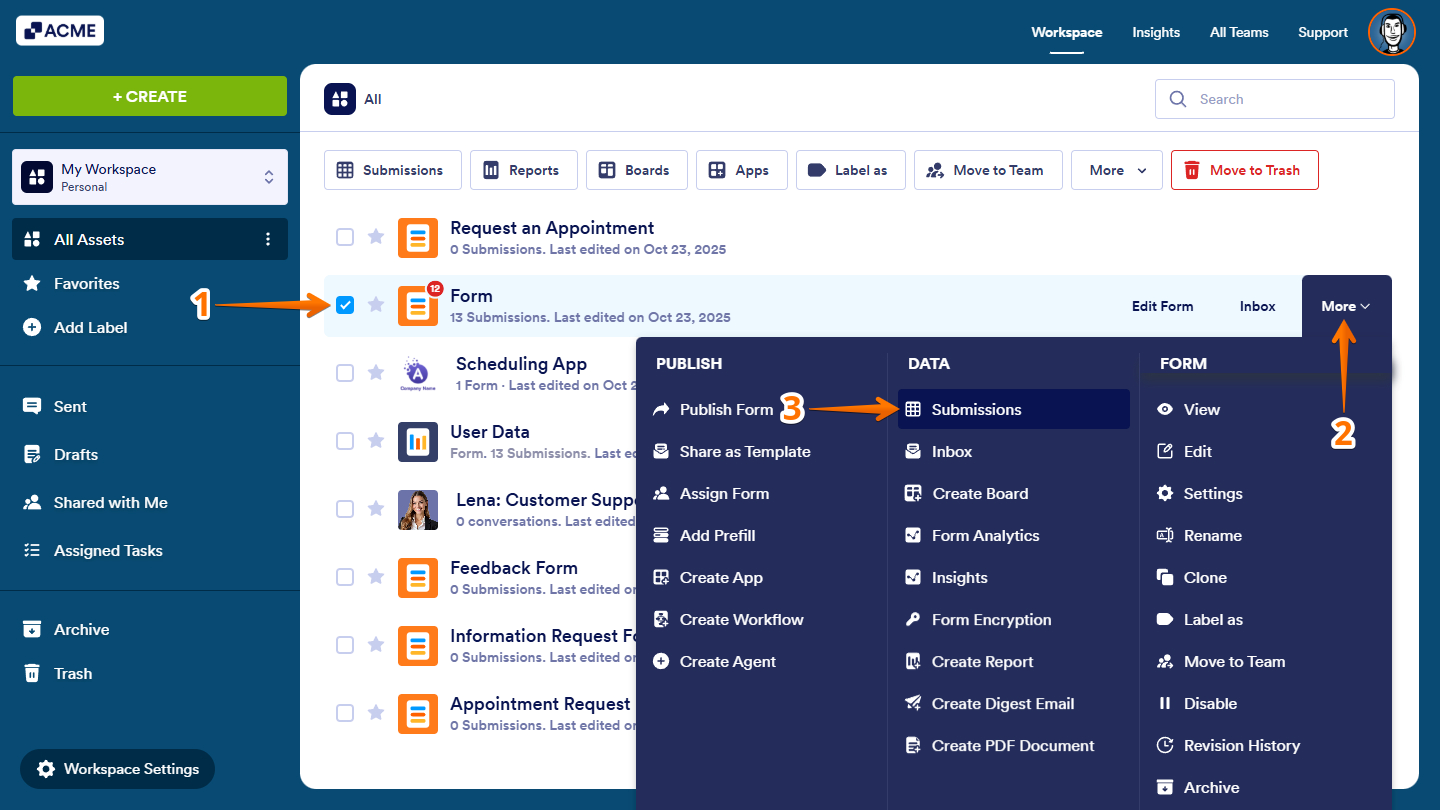
- On your Workspace page, select the form from the list.
- Then, on the right of the selected form, click on More.
- Next, under the Data column, click on Submissions.
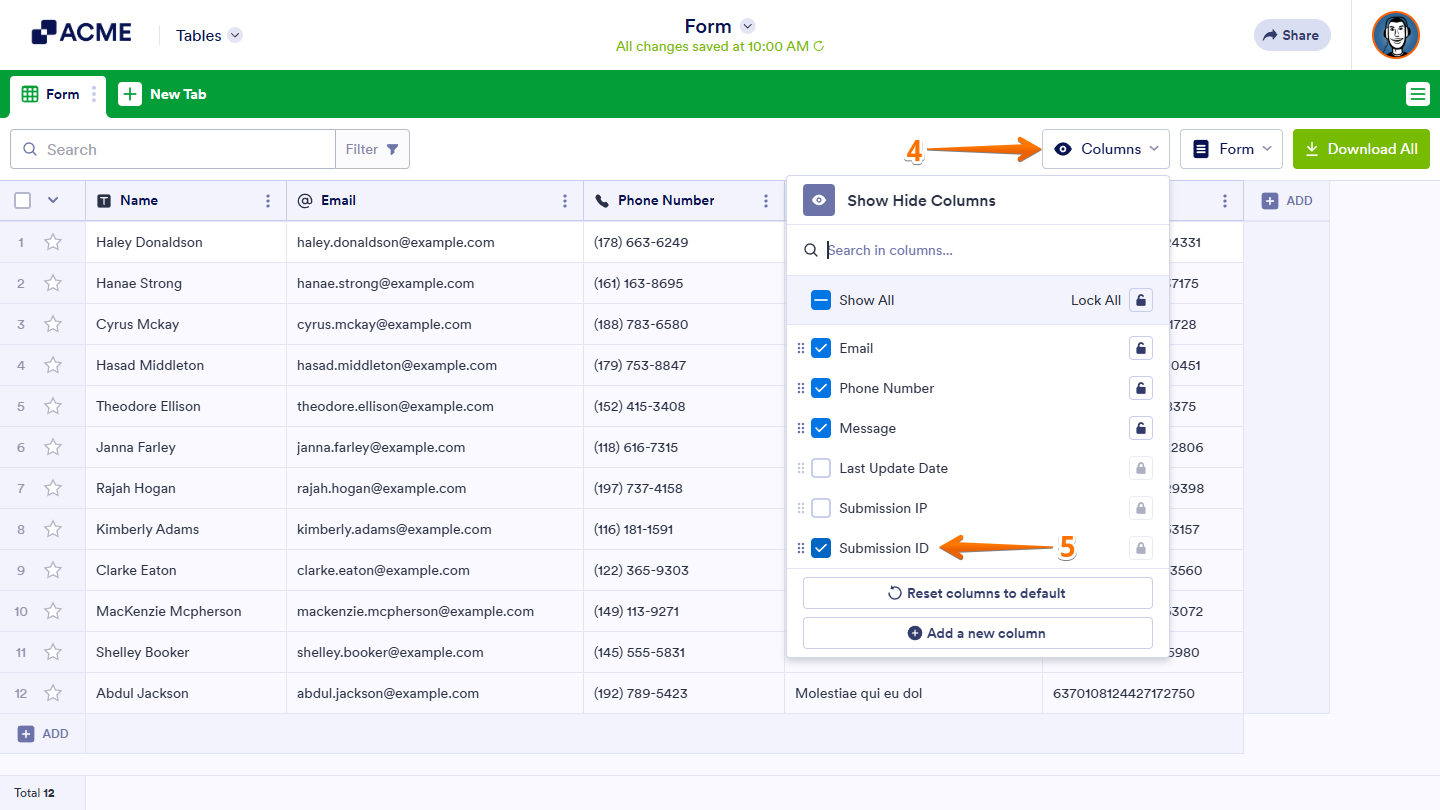
- Then, in the menu on the top-right side of Tables, click on Columns.
- Now, scroll down to the bottom of the Show Hide Columns Dropdown menu, and select Submission ID.
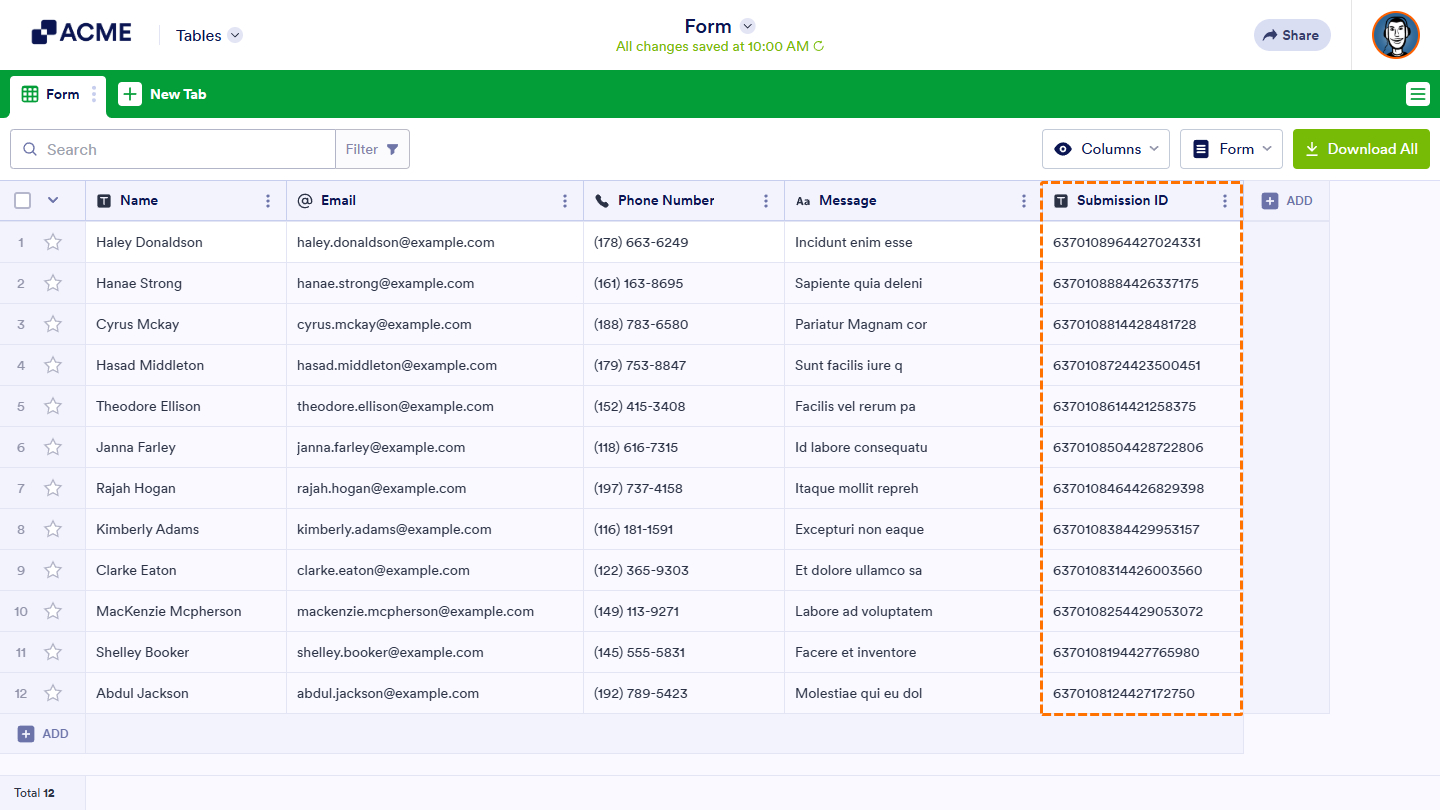
You can now view each entry’s unique identification under the Submission ID column.
Finding the Submission ID Through the Form’s Inbox
You can also find the Submission ID through your form’s Inbox view. Each submission includes its unique ID, which you can see in the submission details panel on the right side of the screen. This is how it’s done:
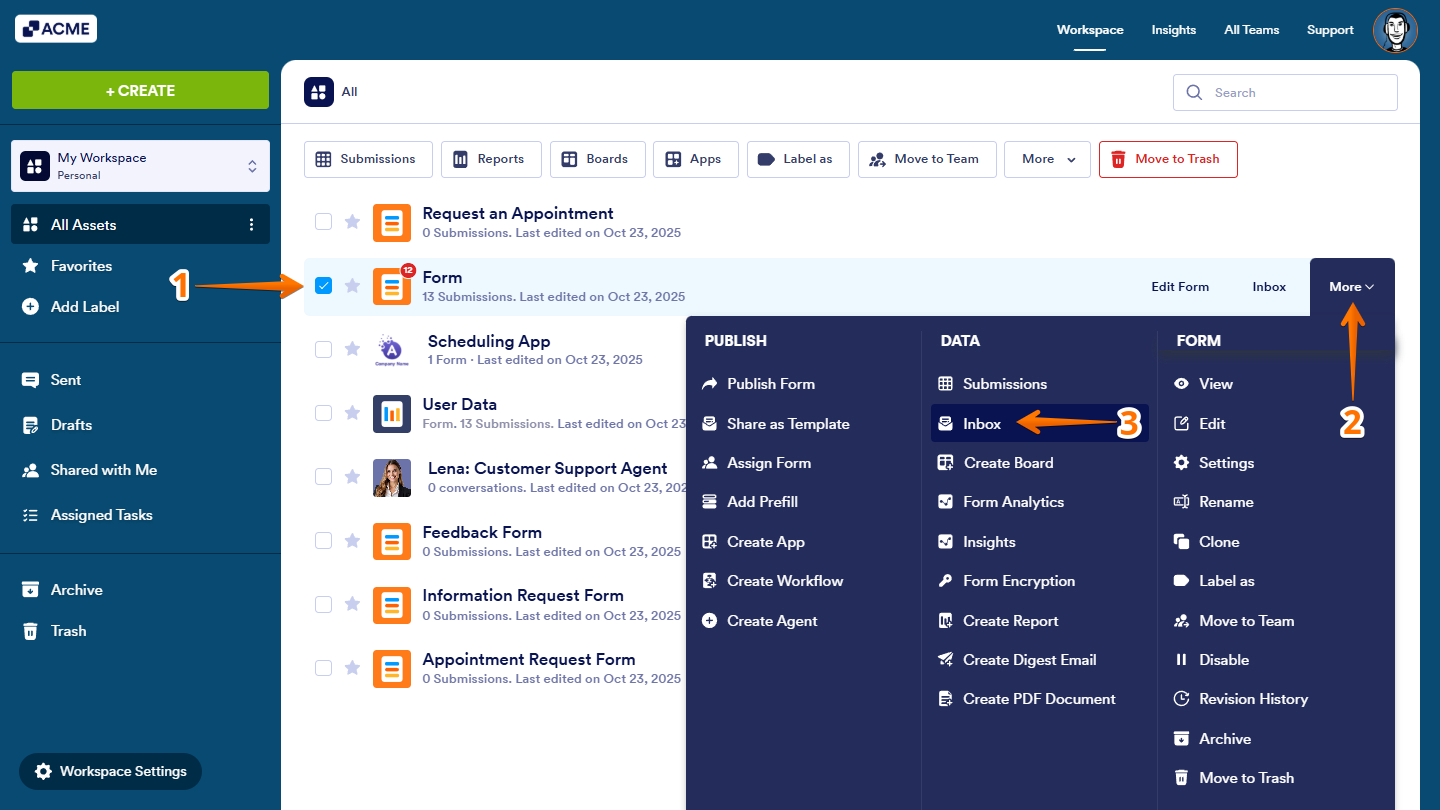
- On your Workspace page, select the form from the list.
- Then, on the right of the selected form, click on More.
- Next, under the Data column, click on Inbox.
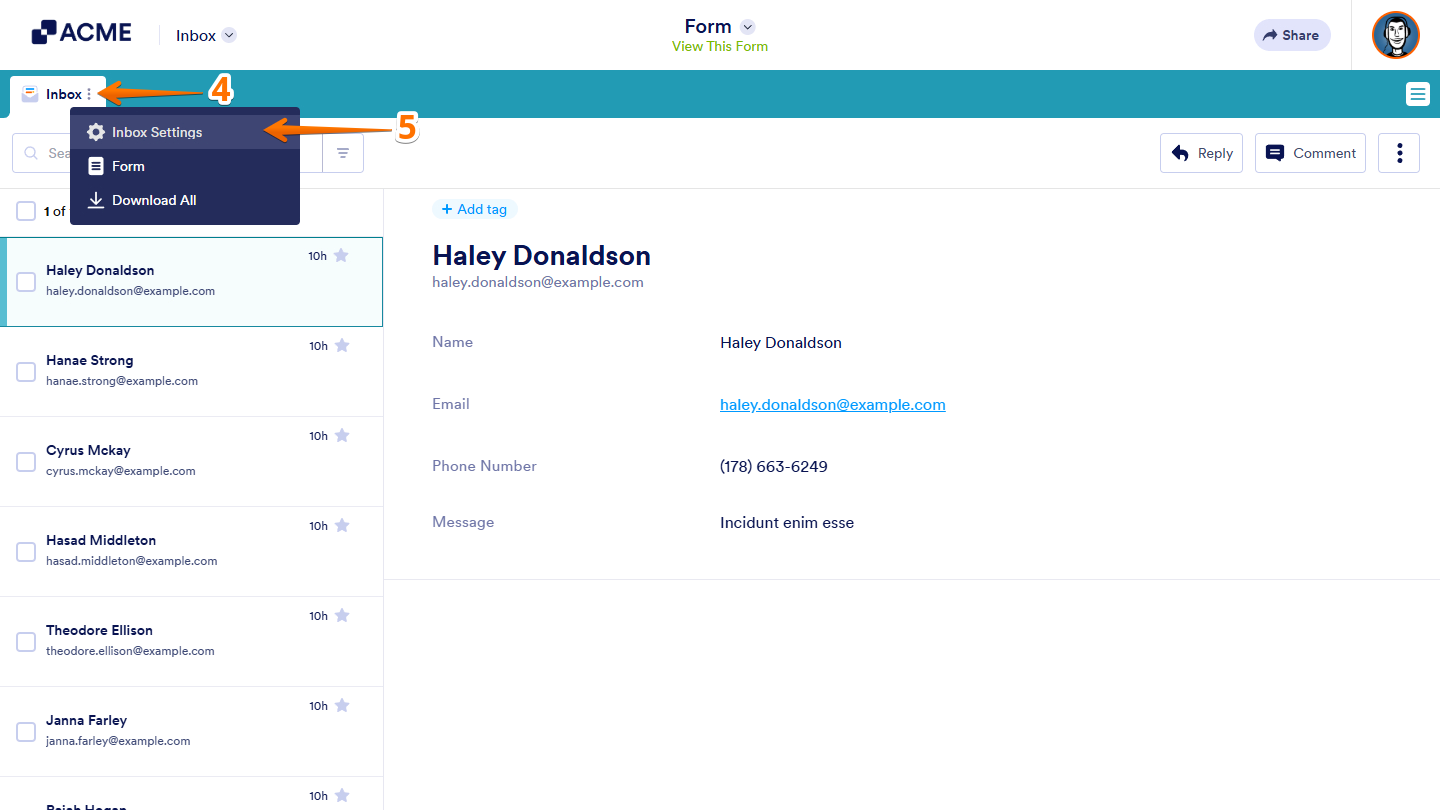
- On your form’s Inbox page, under the Inbox tab, click on the Three Dots icon.
- Then, in the Dropdown menu that comes up, click on Inbox Settings.
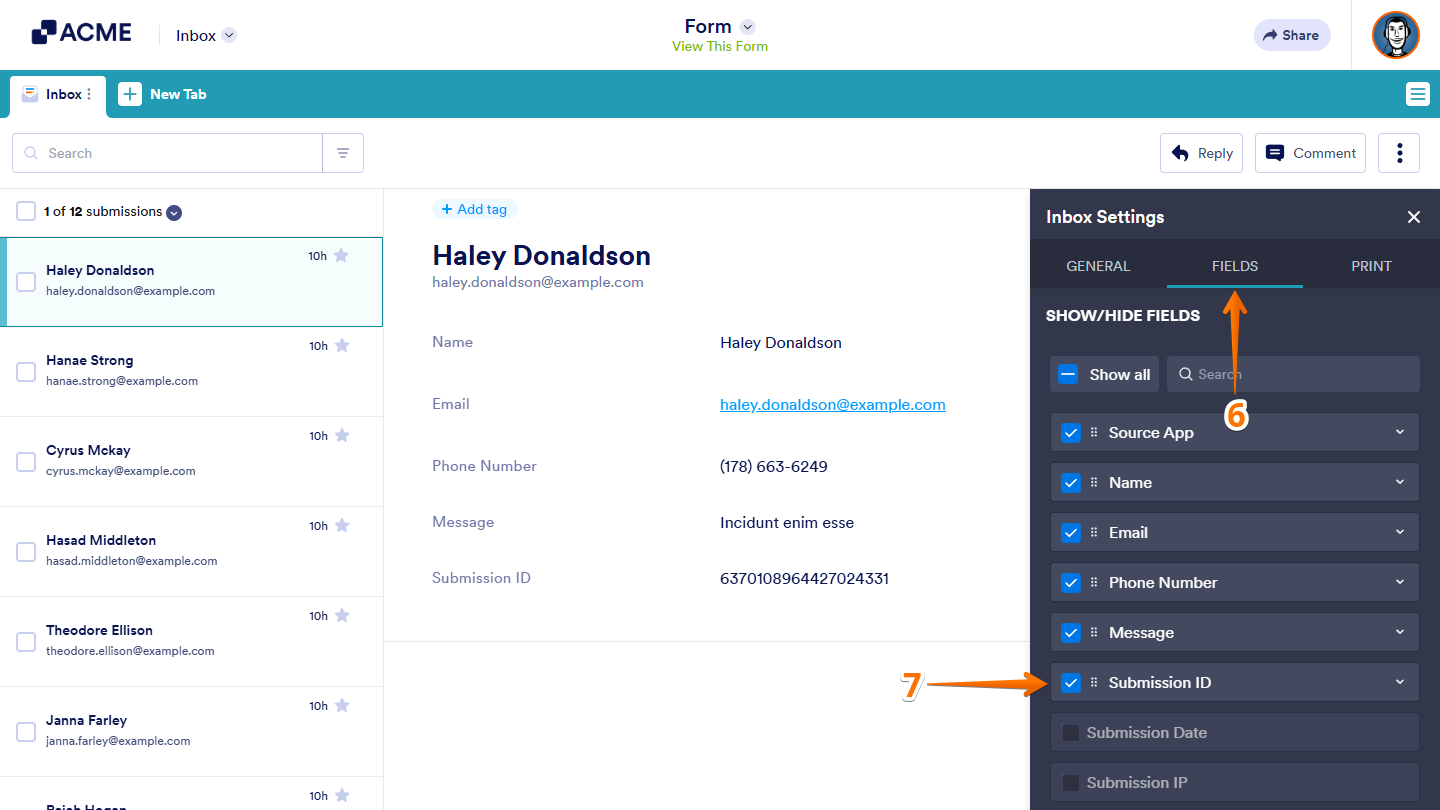
- Next, in the Inbox Settings menu on the right, click on Fields.
- Now, scroll down to the Show/Hide Fields section, and select Submission ID.
That’s it! You now know how to find the Submission ID from both the Tables and Inbox views. Having access to this unique identifier makes it easier to track, reference, and manage individual submissions whenever needed.

Send Comment: