Smart PDF Forms makes it easy to turn an existing fillable PDF into an online form while keeping the original document intact. Once responses are collected, the completed PDFs can be automatically saved to connected cloud services such as Google Drive, Dropbox, Box, OneDrive, or Egnyte. This feature is especially helpful for anyone managing forms that need to be stored securely or accessed by multiple team members.
Saving the original PDF to a cloud service keeps submissions organized, backed up, and accessible anytime without manual downloads. It’s a convenient setup for businesses, schools, and organizations that handle large volumes of digital paperwork or need a dependable way to manage official records.
Connecting your Smart PDF Form to a cloud service makes it easier to keep submissions organized and accessible. Here’s how to set it up:
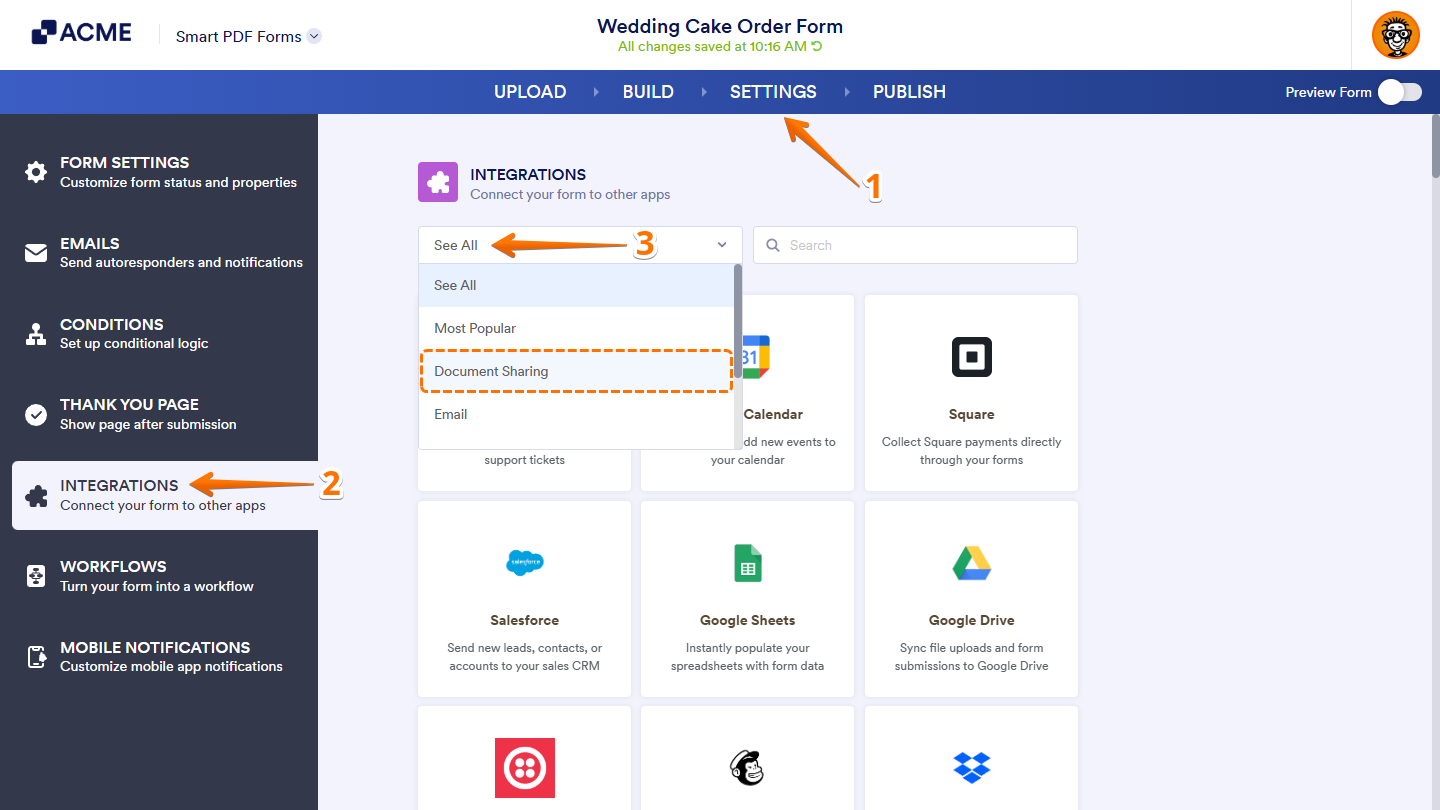
- In Smart PDF Forms, in the blue navigation bar at the top of the page, click on Settings.
- Now, in the menu on the left side of the page, click on Integrations.
- Then, in the Integrations section on the right, click on the Dropdown menu at the top and then select Document Sharing.
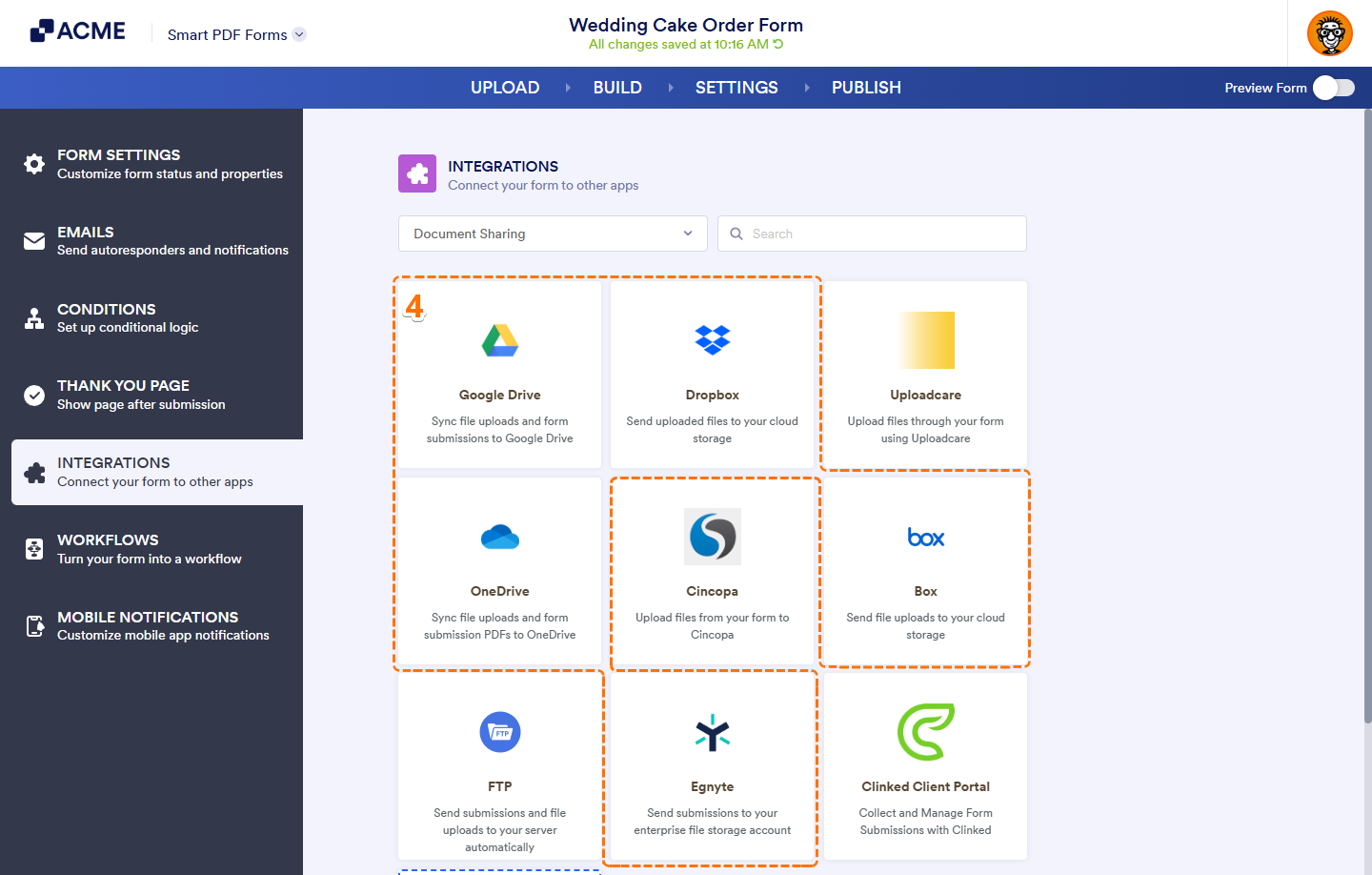
- Next, click one of the following supported integrations from the matching results:
- Google Drive
- Dropbox
- OneDrive
- Box
- Egnyte
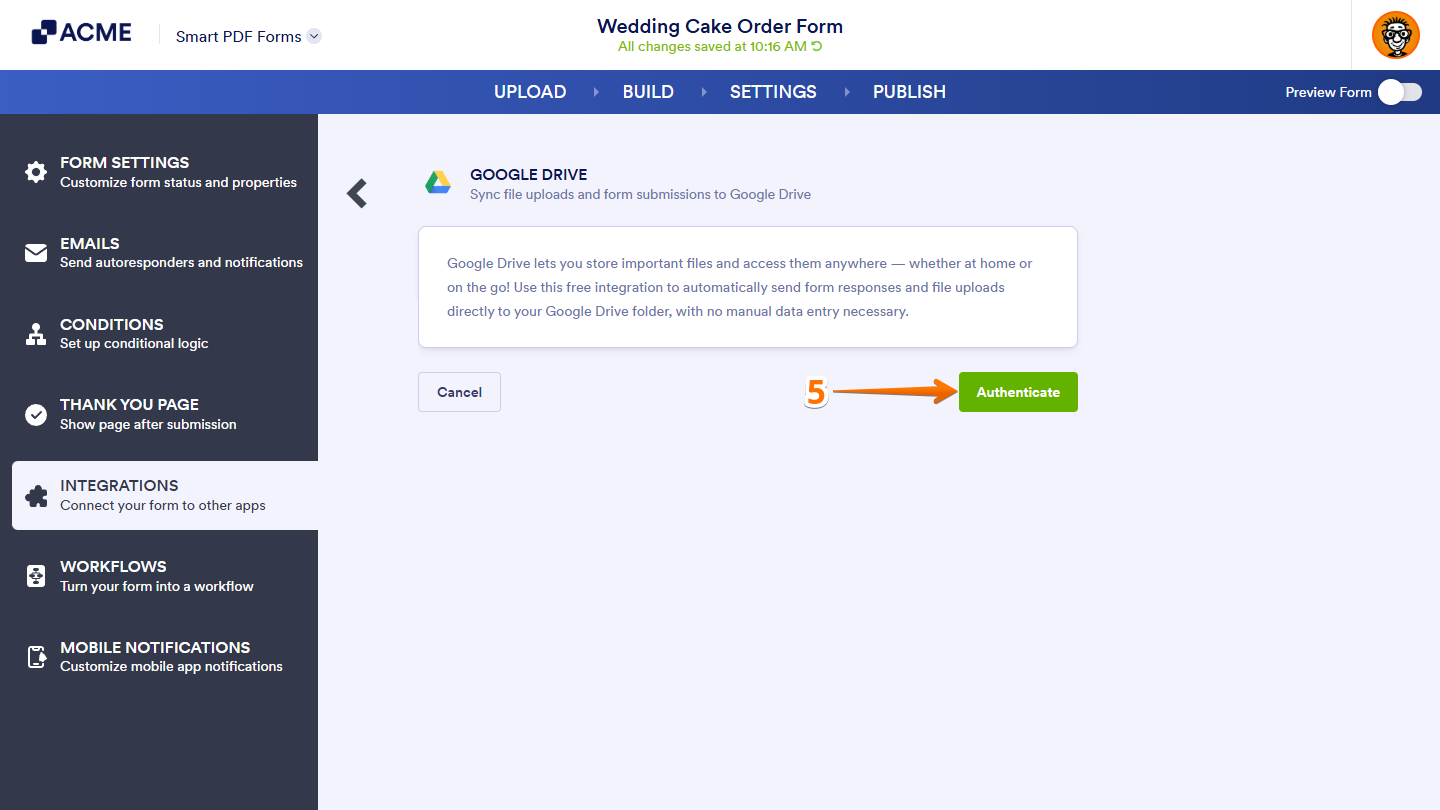
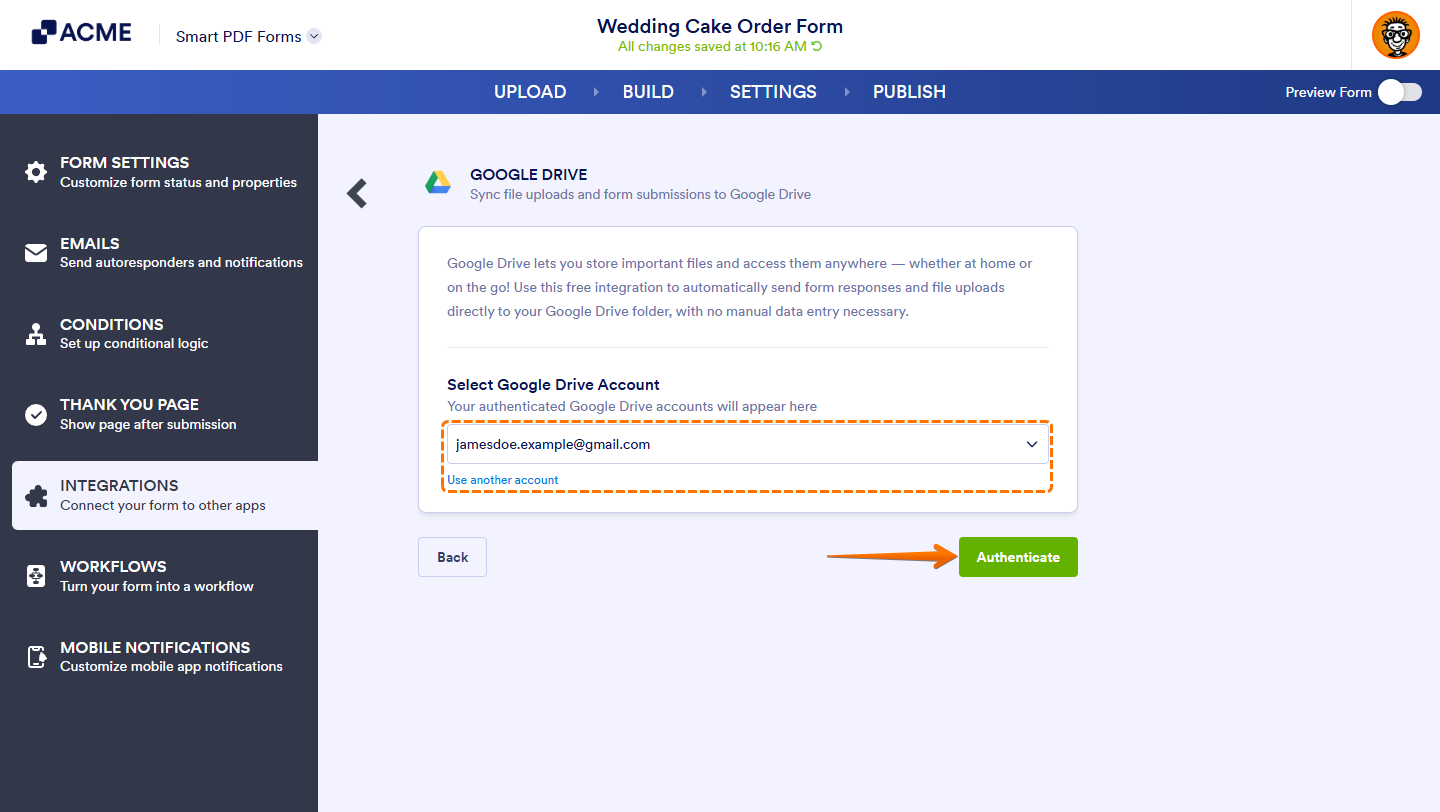
- Now, click on Authenticate. And then, in the window that pops up, log in and authorize access for the integration to your account.
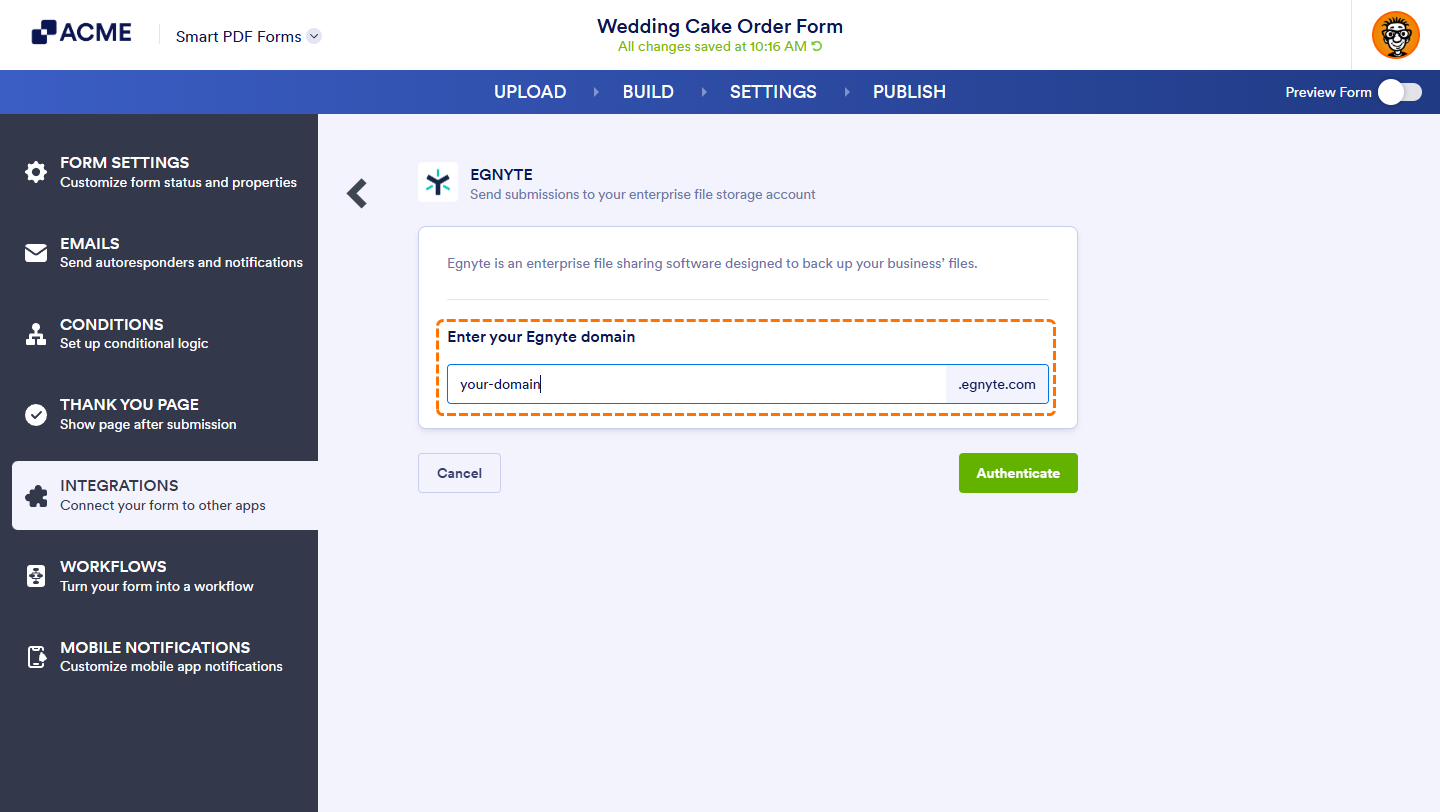
For Egnyte integration, you’d need to enter your Egnyte domain first. You can find it in the URL you use to access your account, which will be in the format your-domain.egnyte.com.
If there is a saved account you’ve integrated any of your forms with before, you can select its email address from the dropdown and click on the Authenticate button on the right to use it. Or, you can also click on Use Another Account below the dropdown to log in and authorize access for the integration to a different account.
- Next, in the Integration Settings section, depending on the integration you chose:
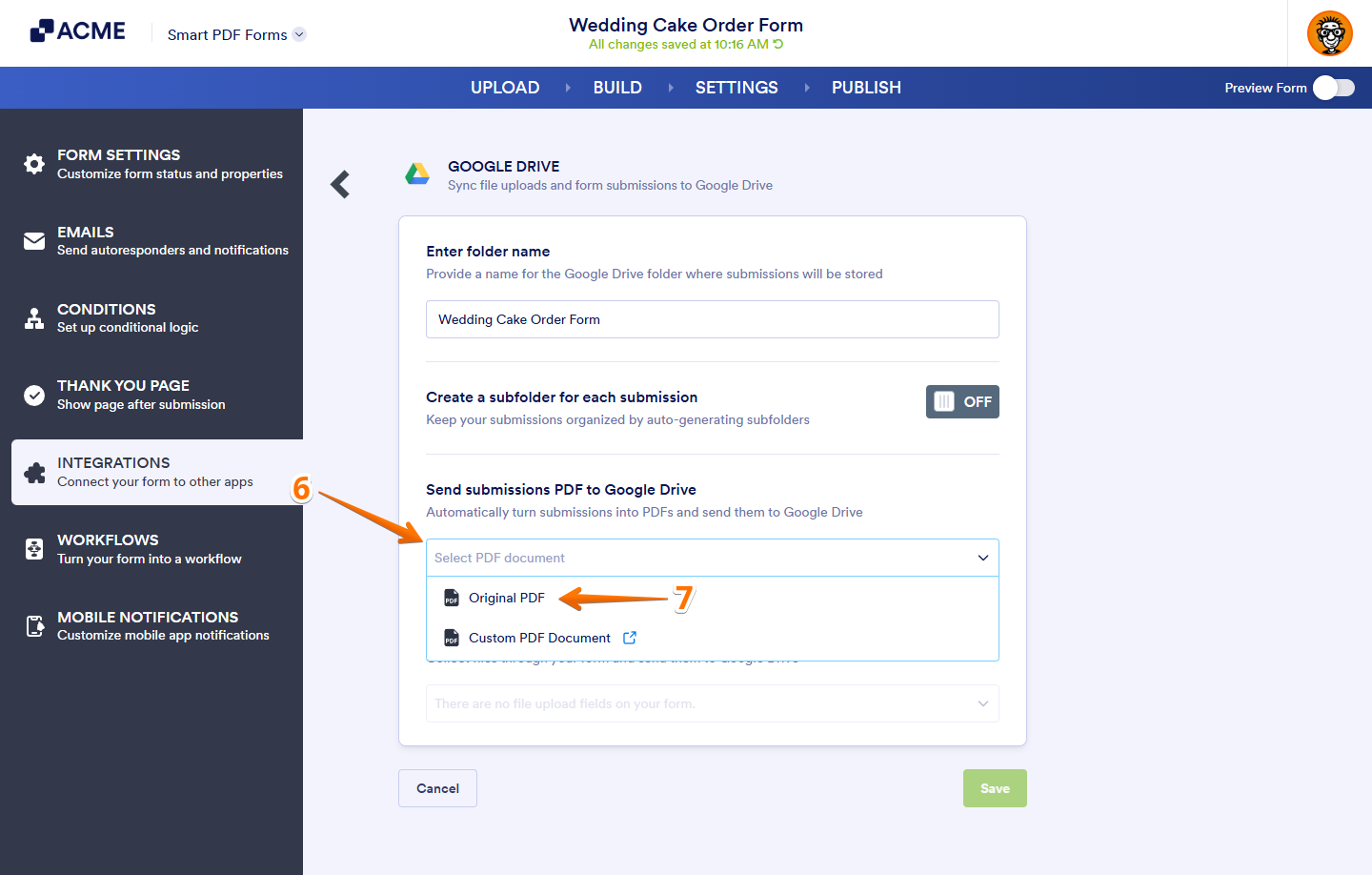
- Click on the Send submissions PDF to Google Drive Dropdown menu.
- Click on the Send submissions PDF to Dropbox Dropdown menu.
- Click on the Send submissions PDF to OneDrive Dropdown menu.
- Click on the Send submissions PDF to Box Dropdown menu.
- Click on the Send submissions PDF to Egnyte Dropdown menu.
- Then, select Original PDF.
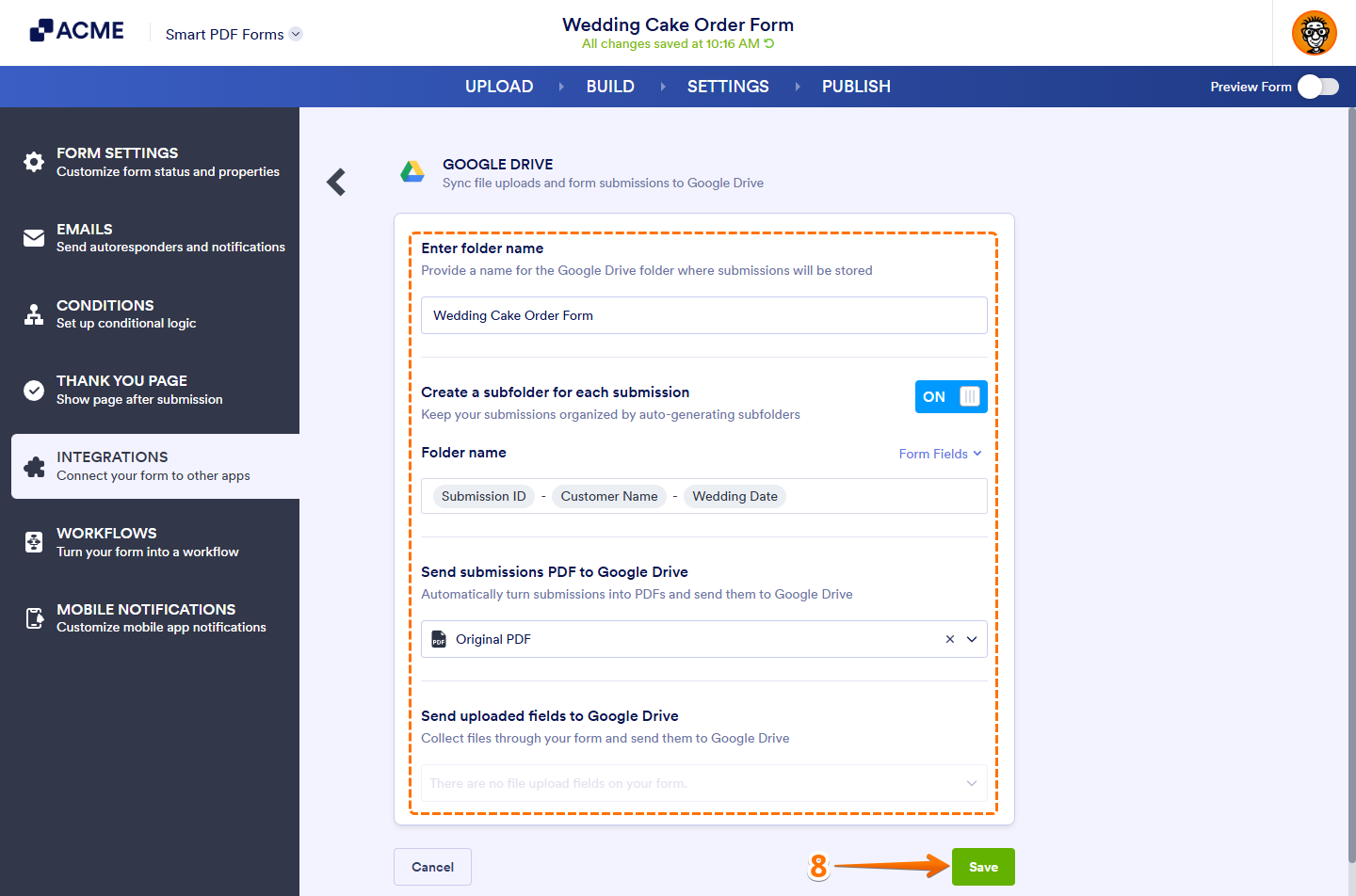
- Once you’ve configured the rest of the setting for the integration, click on Save.
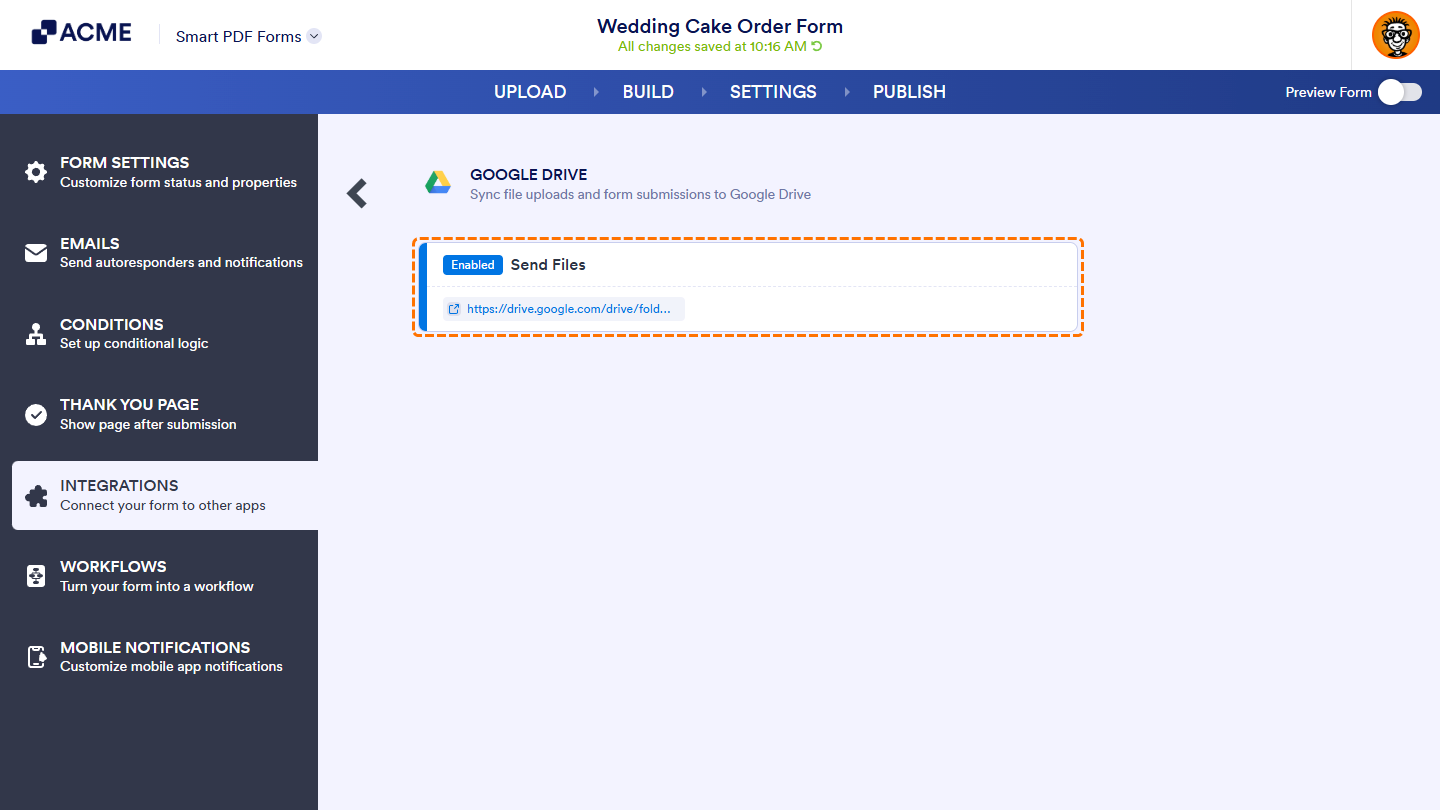
That’s it. Your original PDF will now be saved to your connected cloud service folder automatically.

Send Comment: