Inbox introduces an innovative approach to viewing and managing form submissions. It offers advanced search and filter options that make finding, sorting, and grouping your submissions easy. It also allows you to add comments or tags, reply to and forward emails, generate PDFs, share your inbox, and much more. With these features, Inbox streamlines the management of your form responses, providing a more organized and efficient workflow.
You can access Inbox to view your form’s submissions in a couple of steps. Here’s how to do it:
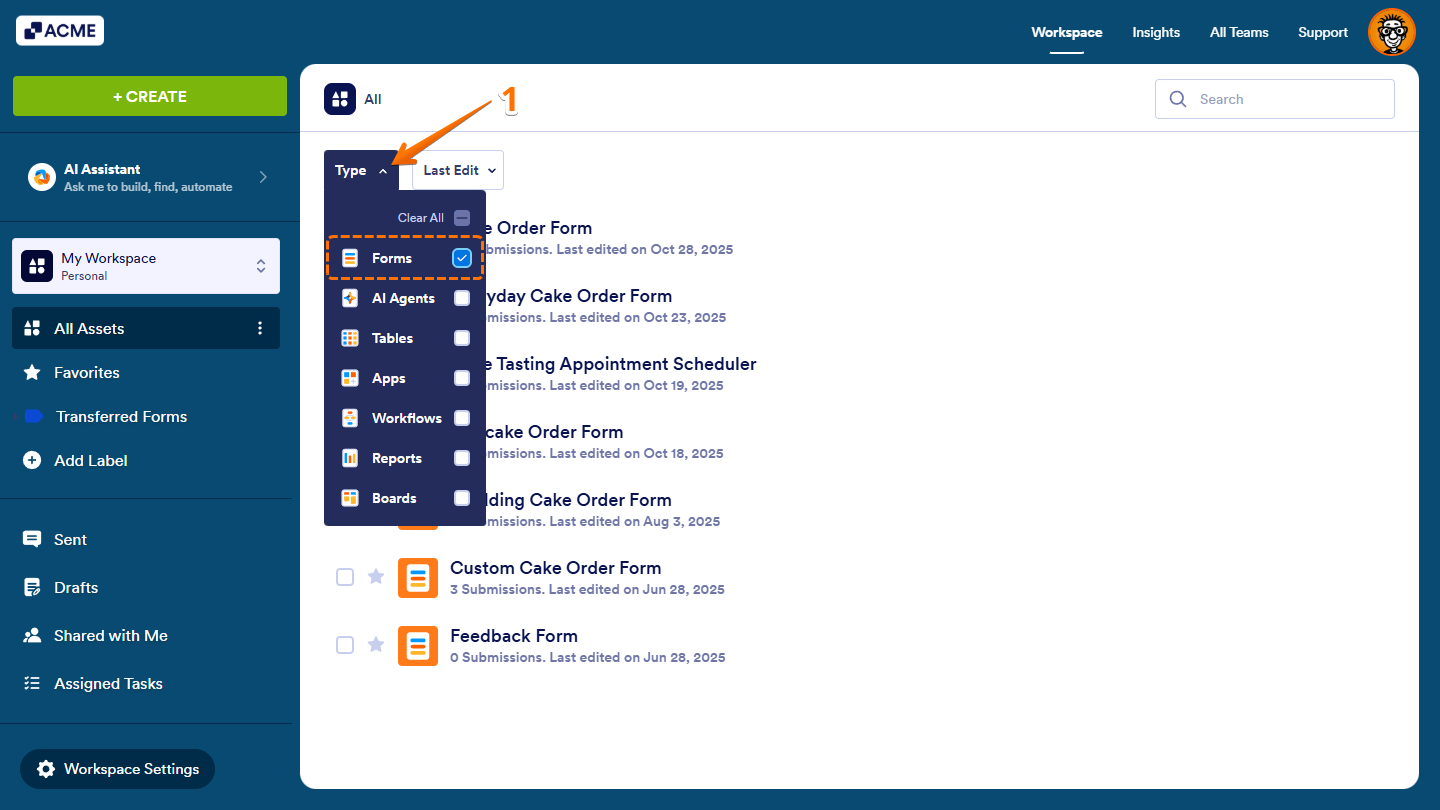
- On your Workspace page, click on Type at the top, and in the Dropdown menu that opens, uncheck the boxes next to all the assets except Forms, so only they’ll be shown on the page.
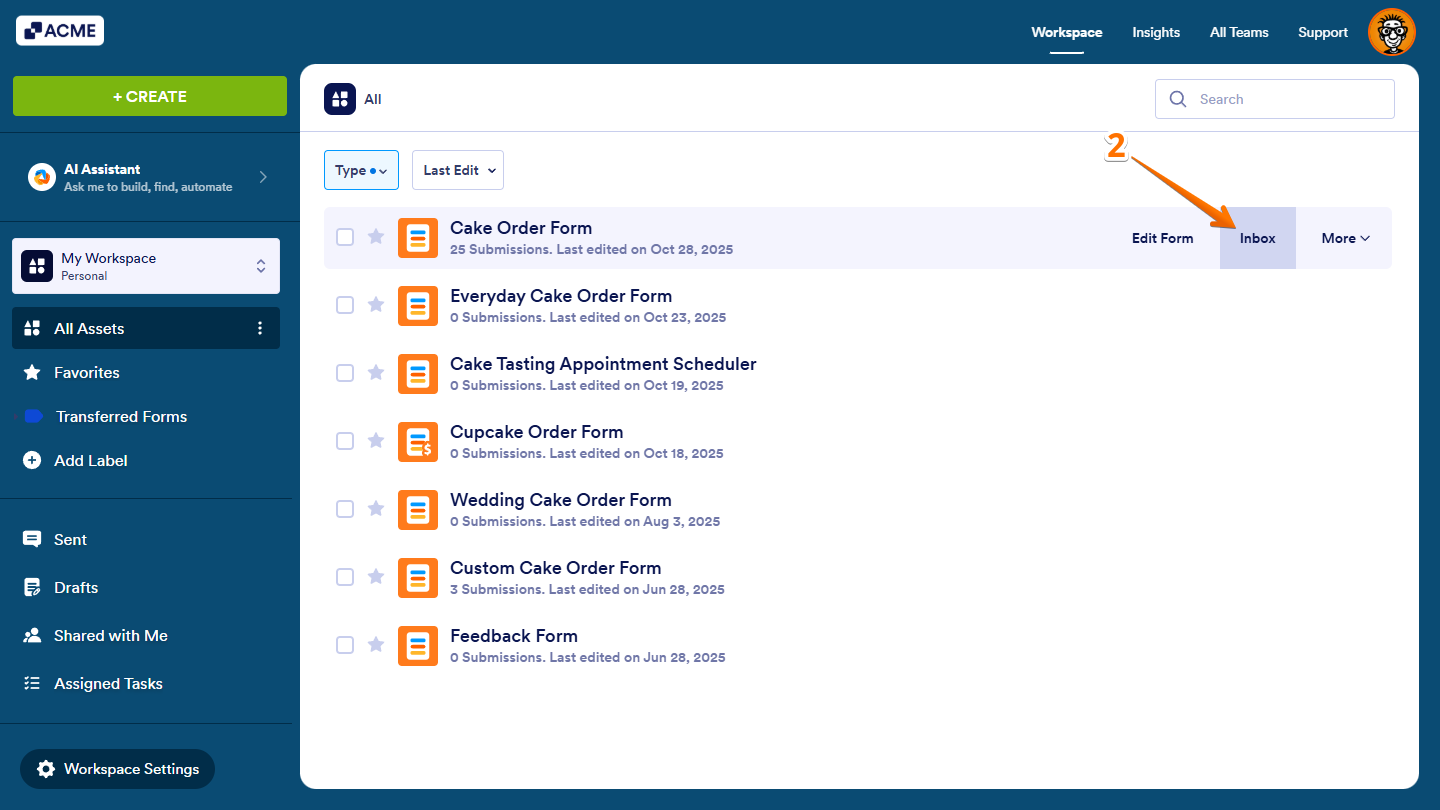
- Now, hover your mouse over the form with the submissions you want to view, and click on Inbox on the right side of the page.
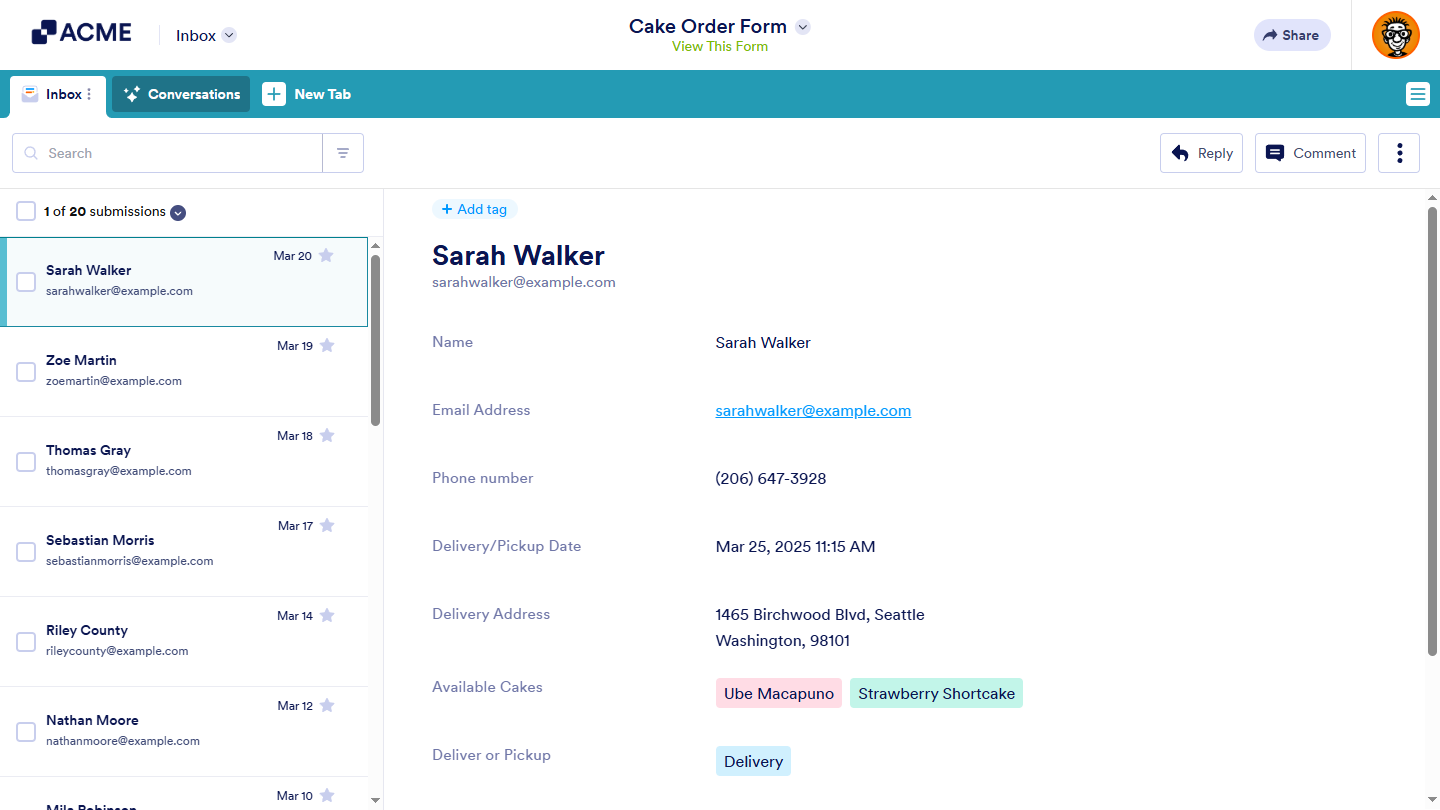
That’s it. That’ll open your Inbox with your form submissions in a new browser tab.
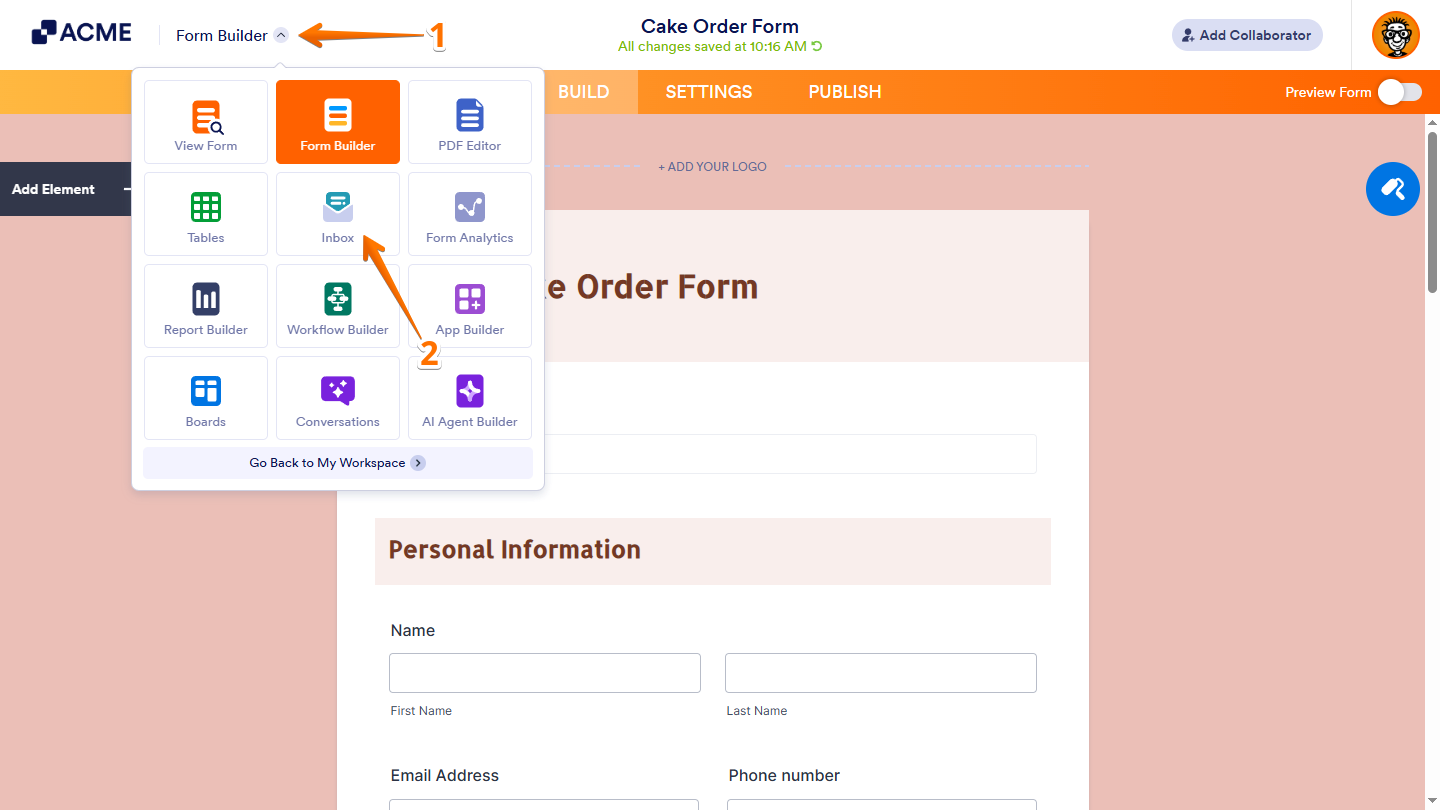
Another way to access your Inbox to view your form submissions is from any page where an asset or page linked to your form is open, such as App Builder, Workflow Builder, Form Builder, Tables, PDF Editor, Boards page, Form Analytics page, Report Builder, or AI Agent Builder. Here’s how to do it:
- Click on the App Picker menu at the top of the page next to the Organization logo.
- Now, select Inbox in the window that opens up, and that’ll redirect you to your Inbox.

Send Comment: