Comments can be added to submissions in the Inbox to keep the full context of your work in one place—from initial review to final follow-up. They’re useful when multiple team members are handling the same submissions, when updates or clarifications are needed, or when you want a running conversation tied to each response. By letting users leave notes, tag colleagues, and reply directly within each record, you’ll spend less time switching tools and more time getting things done.
Adding General Comments
Adding comments helps you and your team stay aligned when reviewing form submissions. You can do it in just a few steps:
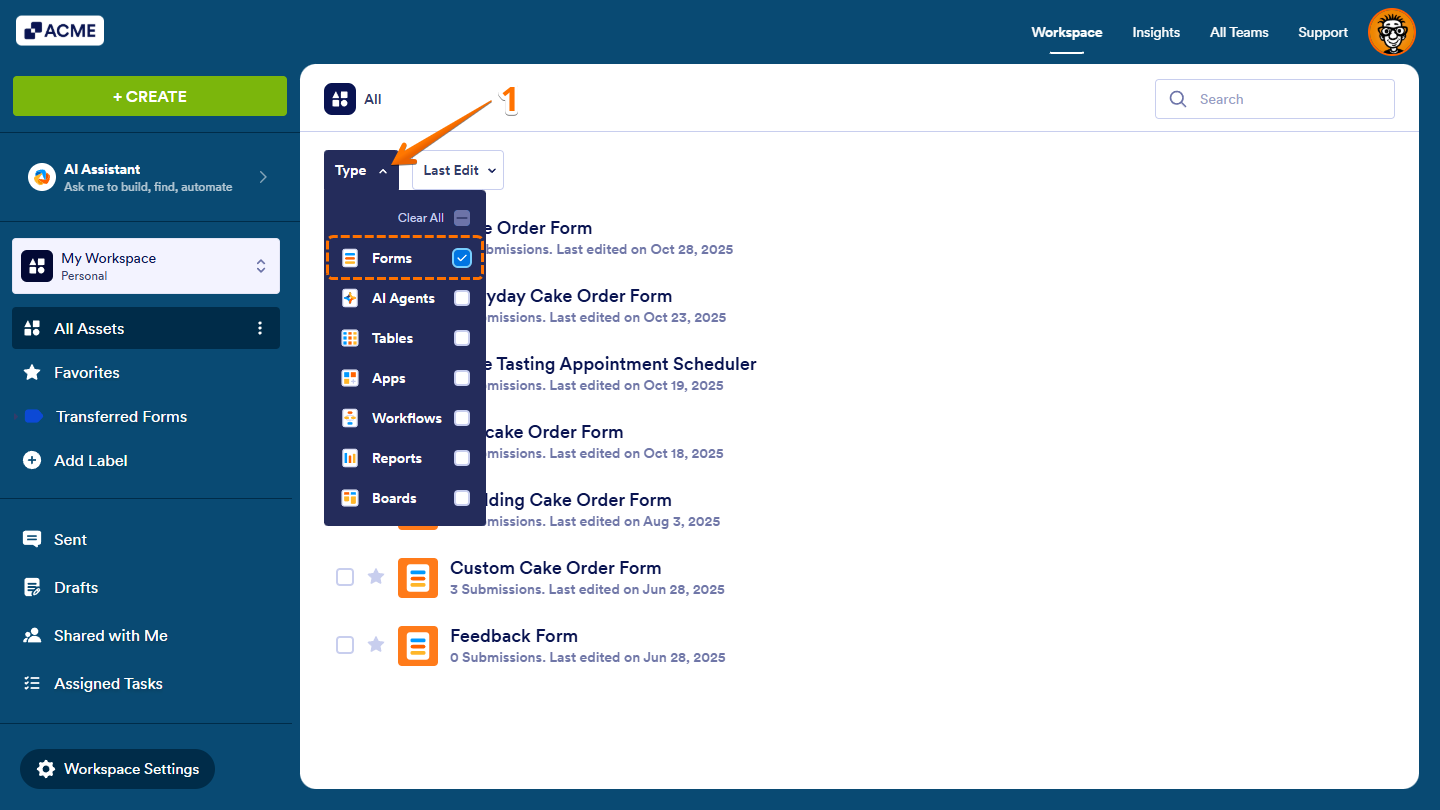
- On your Workspace page, click on Type at the top, and in the Dropdown menu that opens, uncheck the boxes next to all the assets except Forms, so only they’ll be shown on the page.
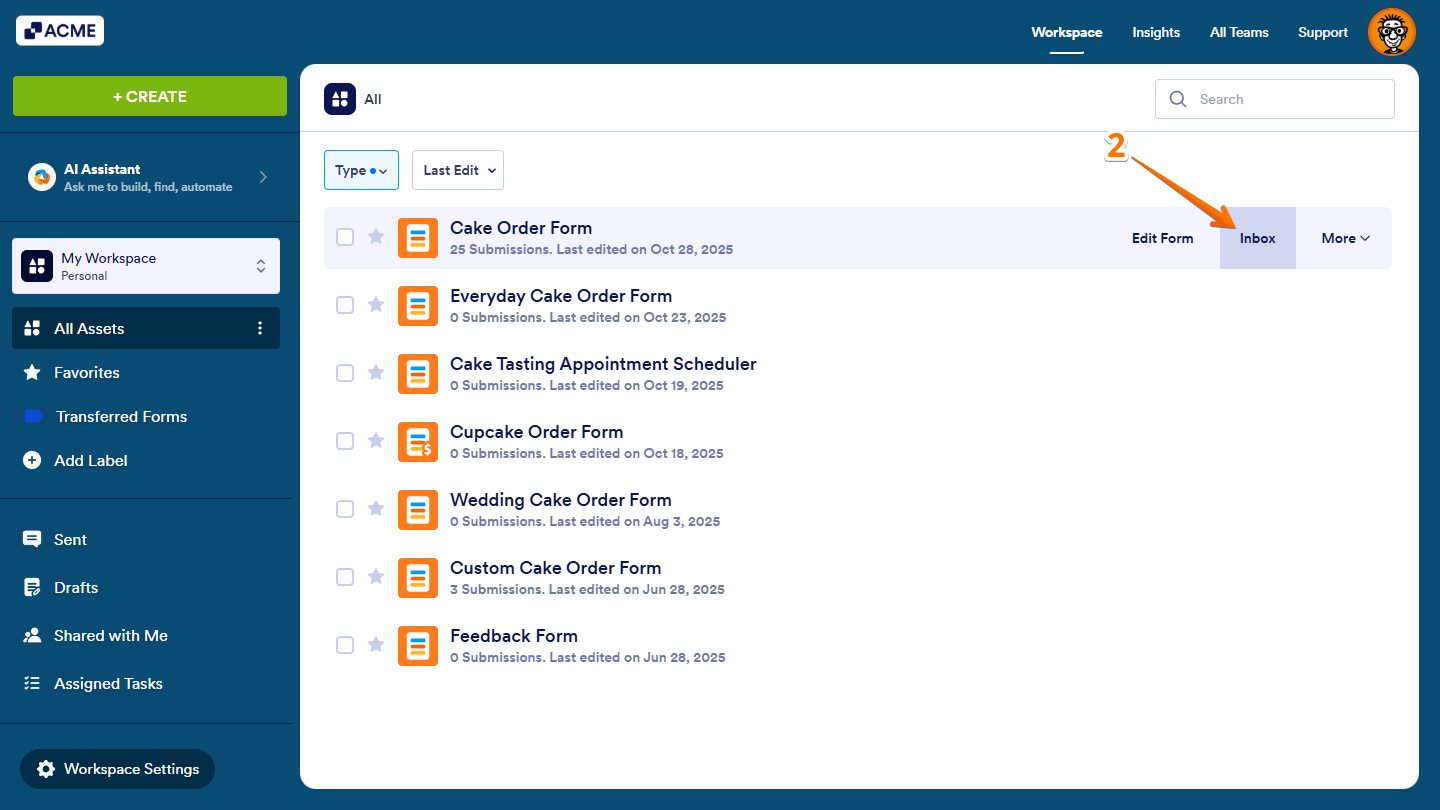
- Now, hover your mouse over the form with the submissions you want to add comments to, and click on Inbox on the right side of the page to open it in a new browser tab.
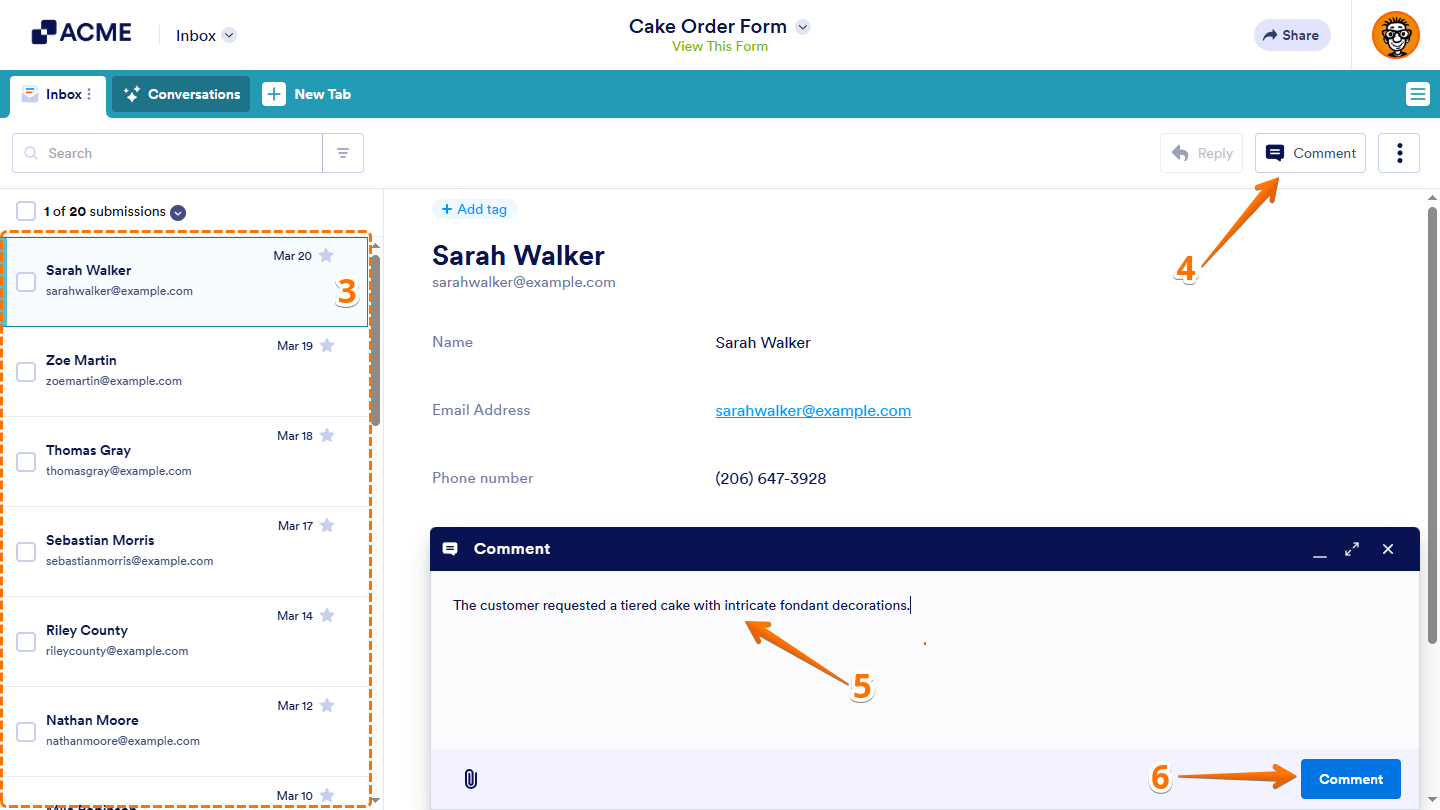
- In Inbox, click on a submission in the list on the left to view its details on the right.
- Then, on the top-right side of the page, click on Comments.
- Now, in the Comment Input box that appears at the bottom of the page, enter your comment.
- Then, click on Comment.
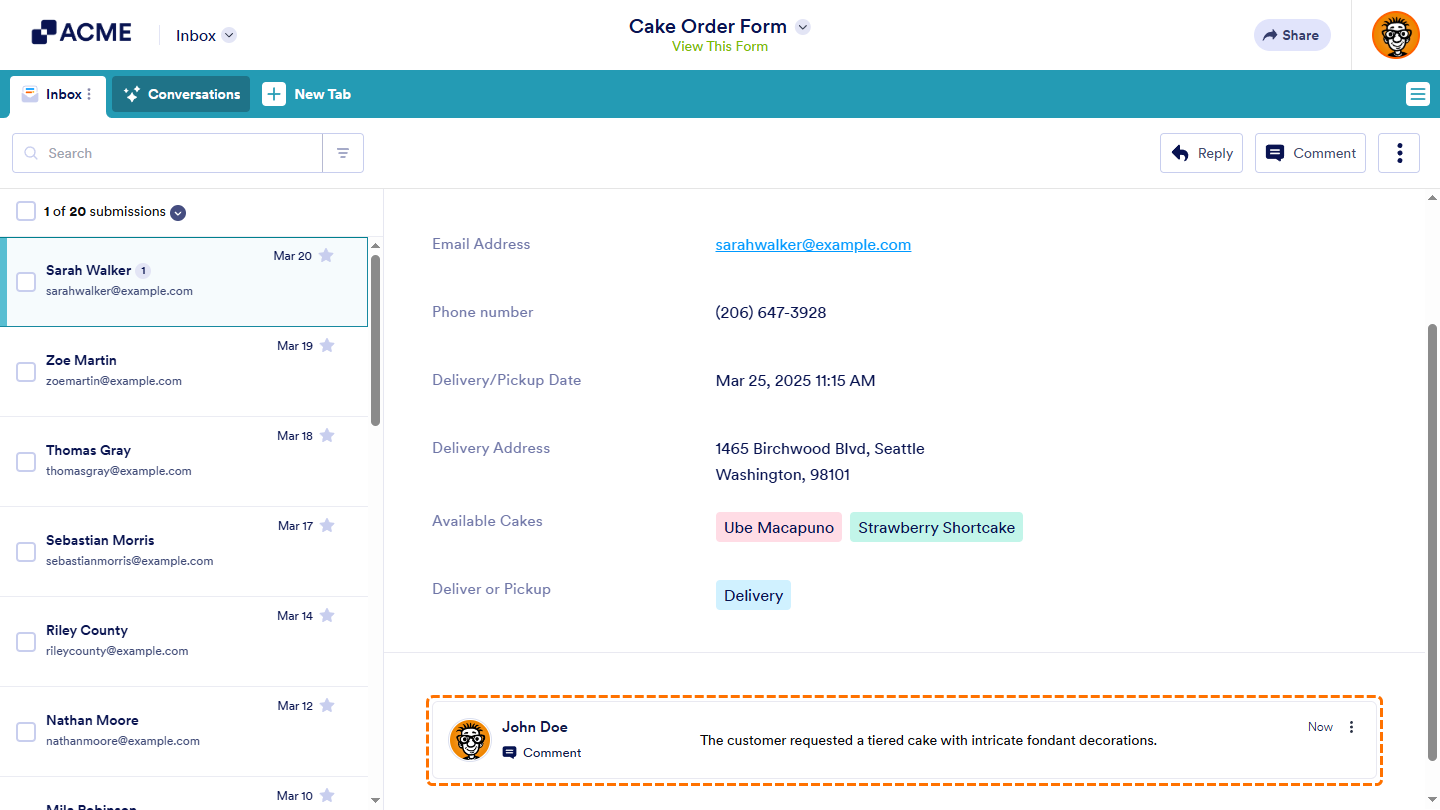
That’s it. Your comment has now been added to the submission.
Adding Inline Comments
Inline comments make it easier to leave notes or feedback directly on a specific answer within a submission. They’re useful when discussing particular responses, clarifying details, or pointing out sections that need review. You can add them in just a few steps:
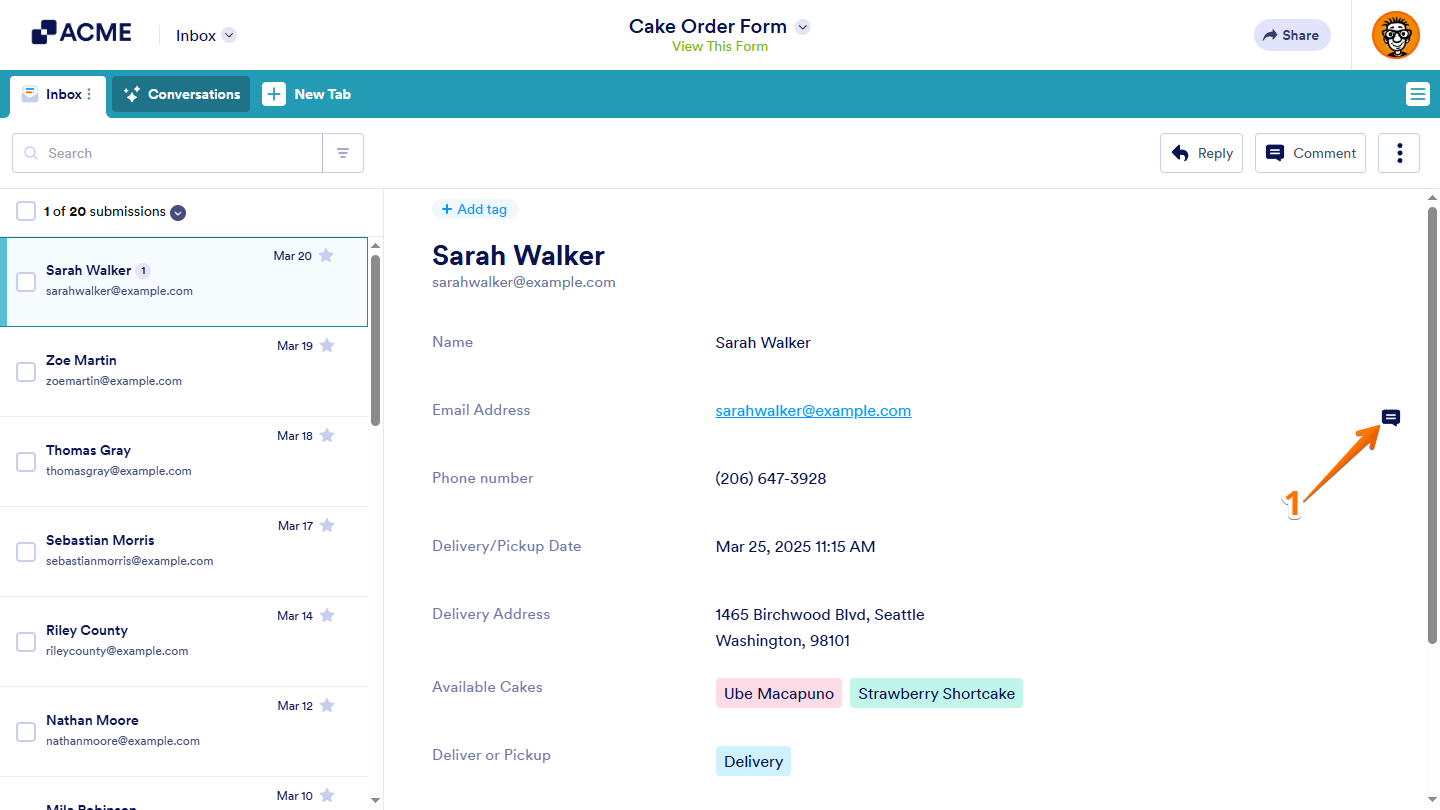
- While viewing a submission in Inbox, hover your mouse over an answer, and then click on the Message icon that appears on the right side of it.
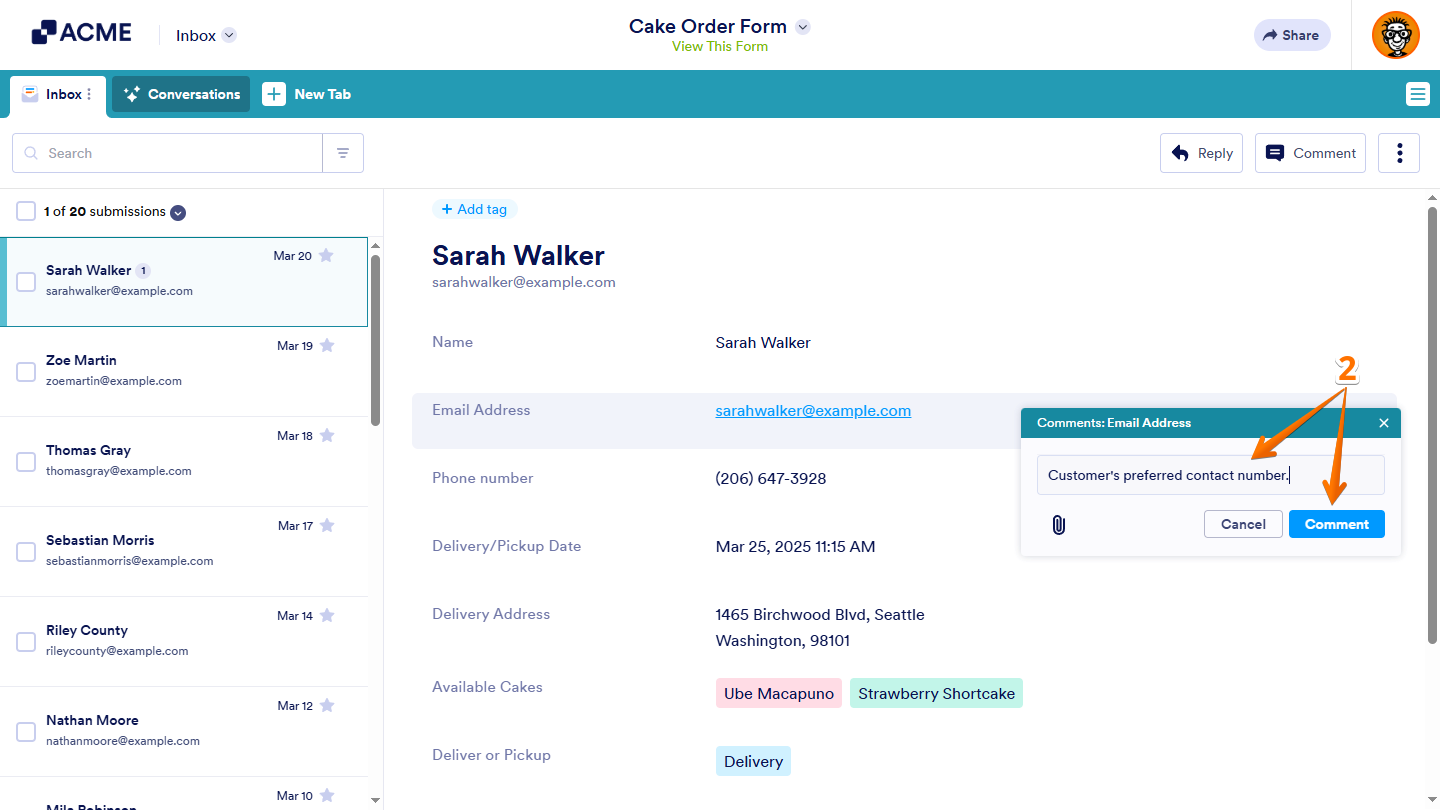
- Then, in the Comment window that opens, enter your comment in the Input box, and then click on Comment.
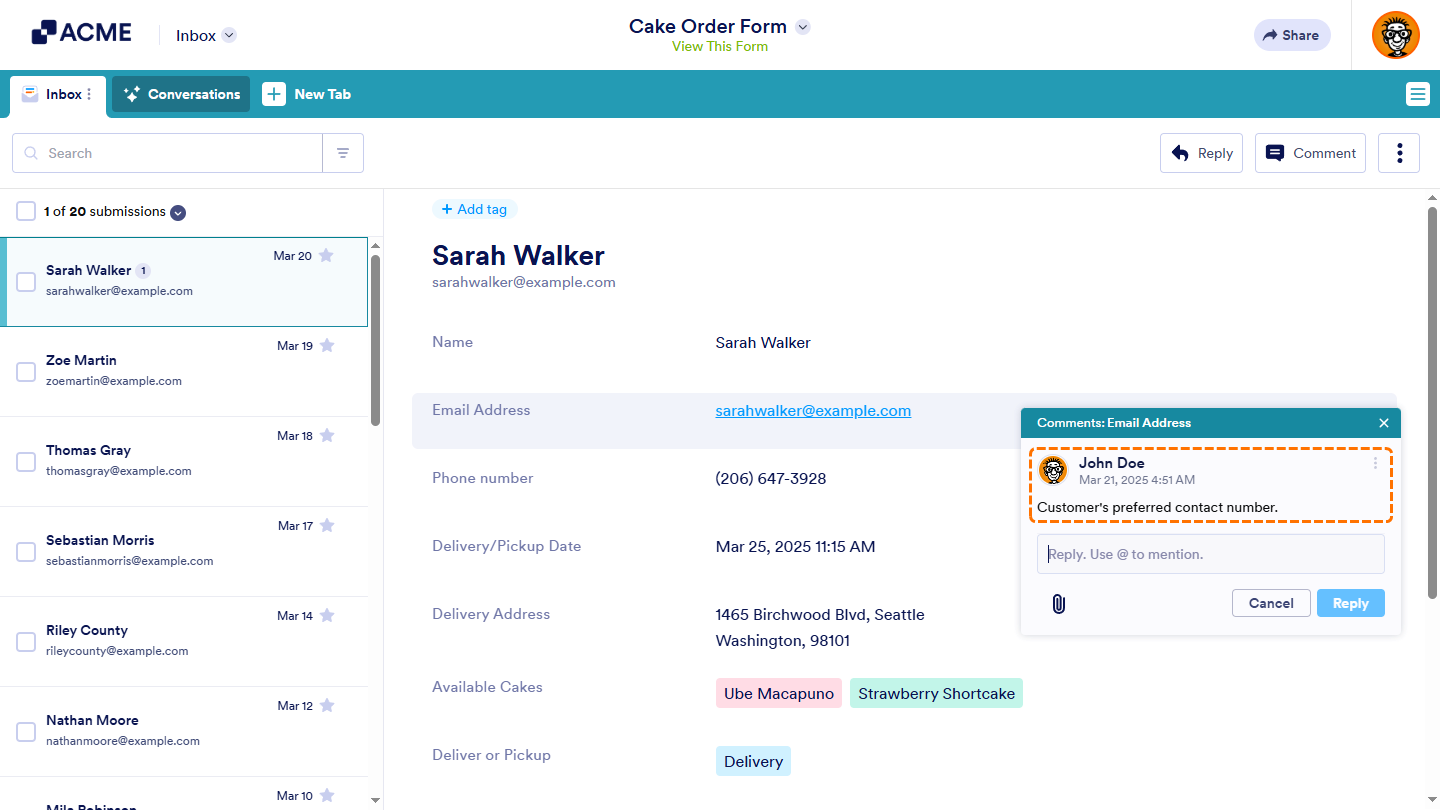
That’s it. Your comment has now been added for that specific answer.
Replying to Comments
Replying to comments helps keep conversations organized and ensures everyone stays updated within the same submission. It’s useful for form owners and team members who want to follow up, clarify details, or continue discussions directly in Inbox. Responding is quick and straightforward—here’s what to do:
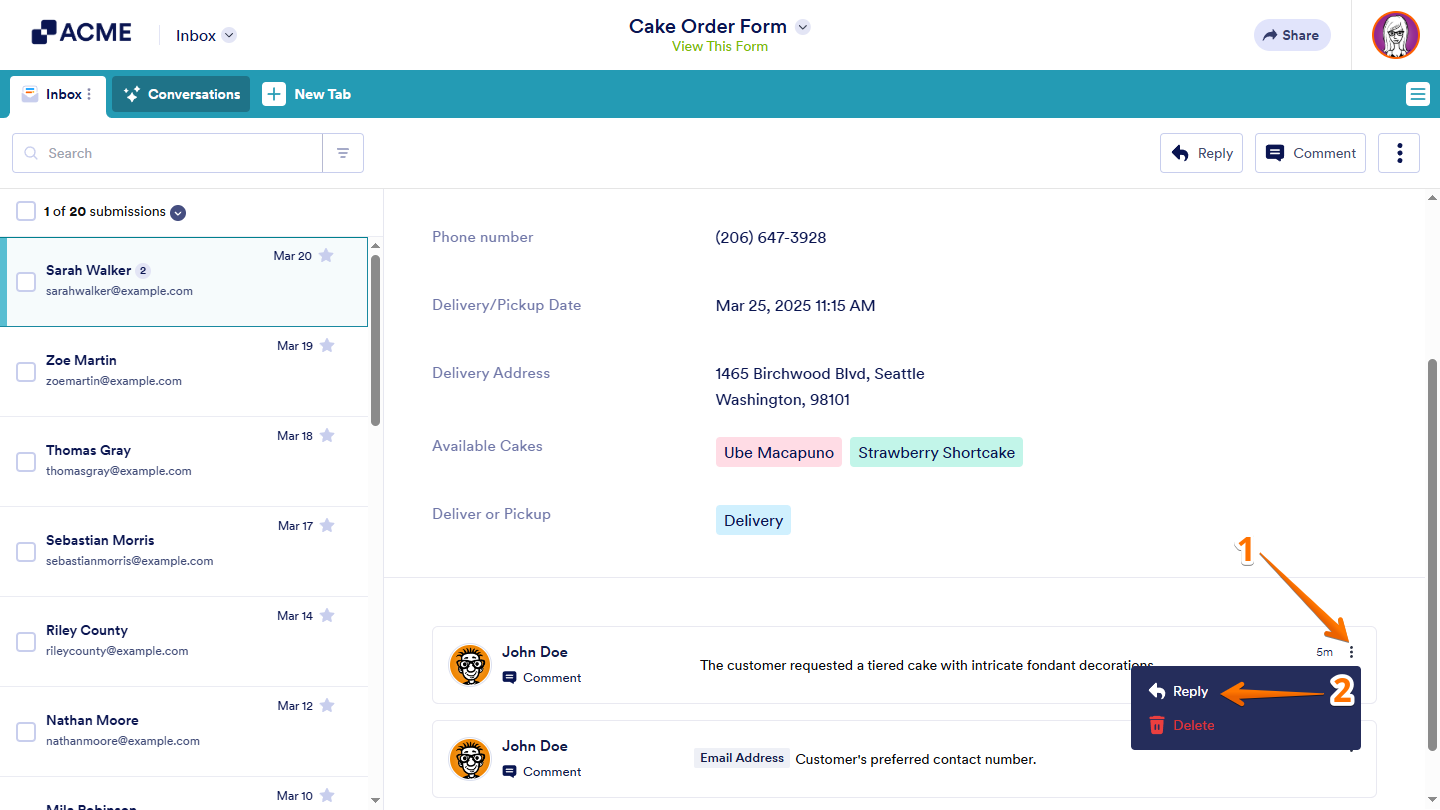
- While viewing a submission in Inbox, scroll down to see its comments, and click on the Three Dots icon on the right side of it.
- Then, in the menu that appears, click on Reply.
- Now, in the Input box that appears, enter your response.
- Then, click on Reply.
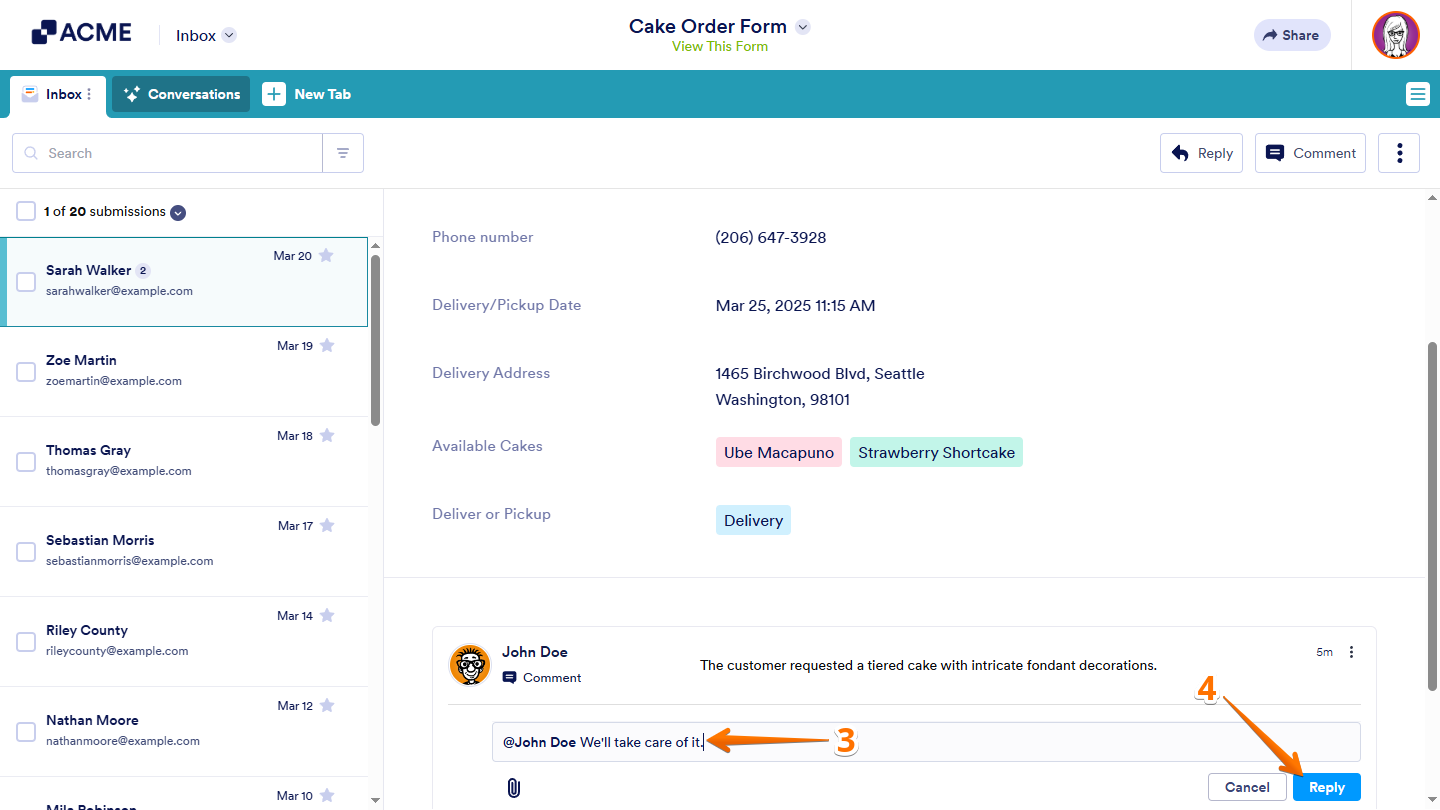
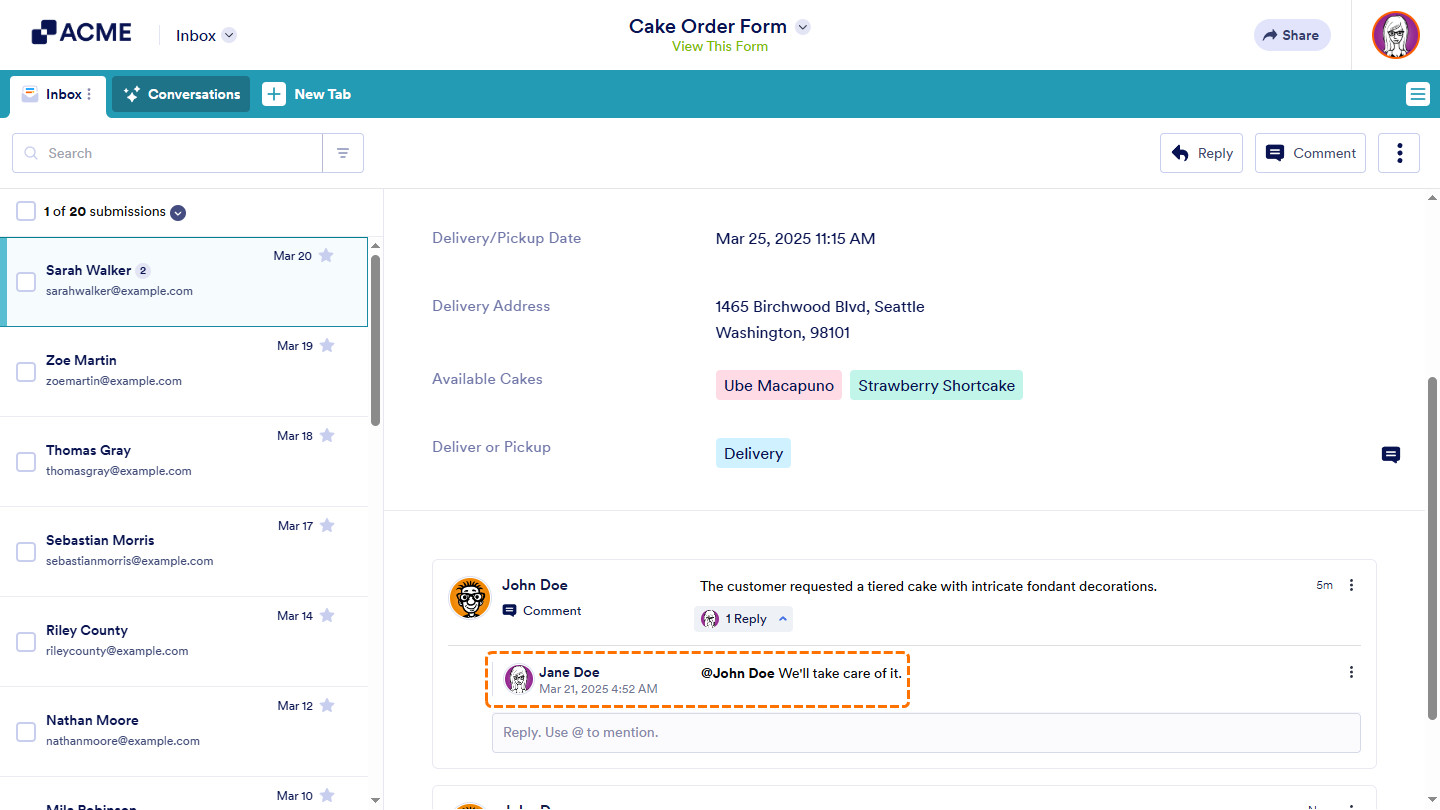
That’s it. Your reply has now been added under the original comment.

Send Comment: