Server Admins can view and manage all Team Workspaces in the organization. There are two primary ways to access and interact with teams: through the All Teams page in the workspace interface or through the Admin Console.
Managing through the All Teams Page
To access the All Teams page, go to My Workspace and click on All Teams on the right side of the bar at the top of your screen.
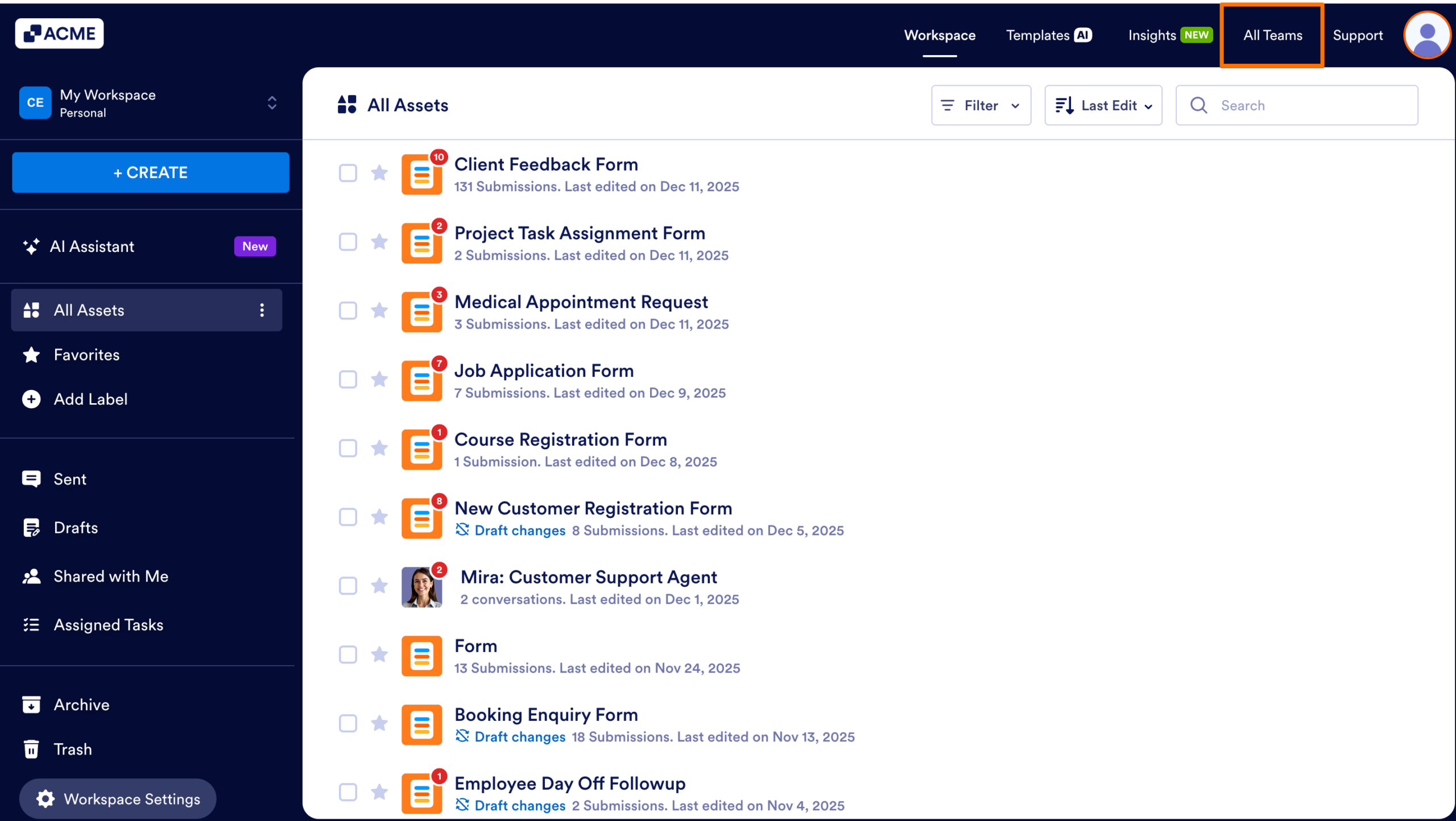
As a server Admin, you have full oversight of every team in the organization. From the All Teams page, you can:
Manage Assets of All Teams
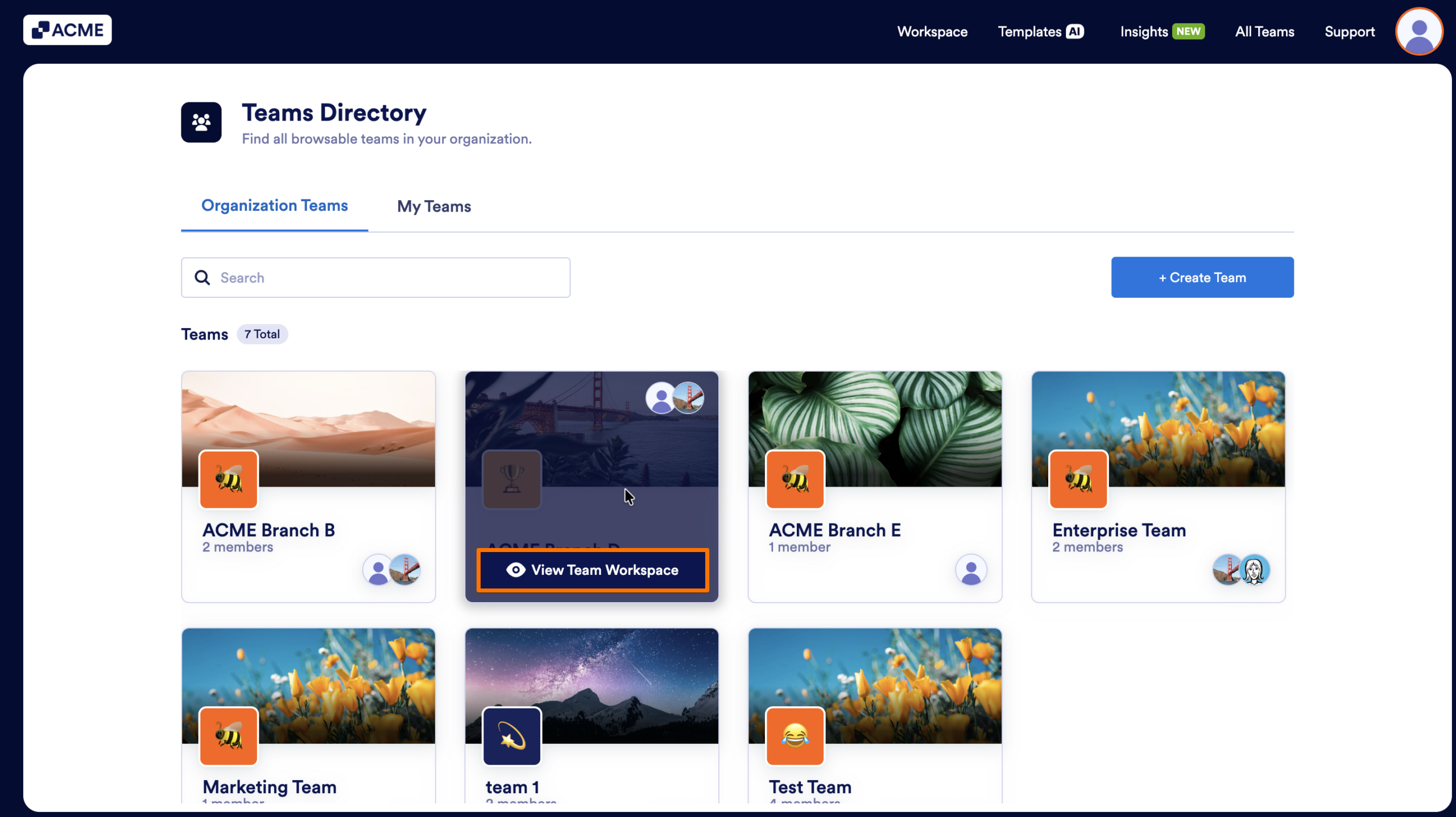
- First, in the All Teams page, hover over the team you want to manage and click on the View Team Workspace to see the assets a team has.
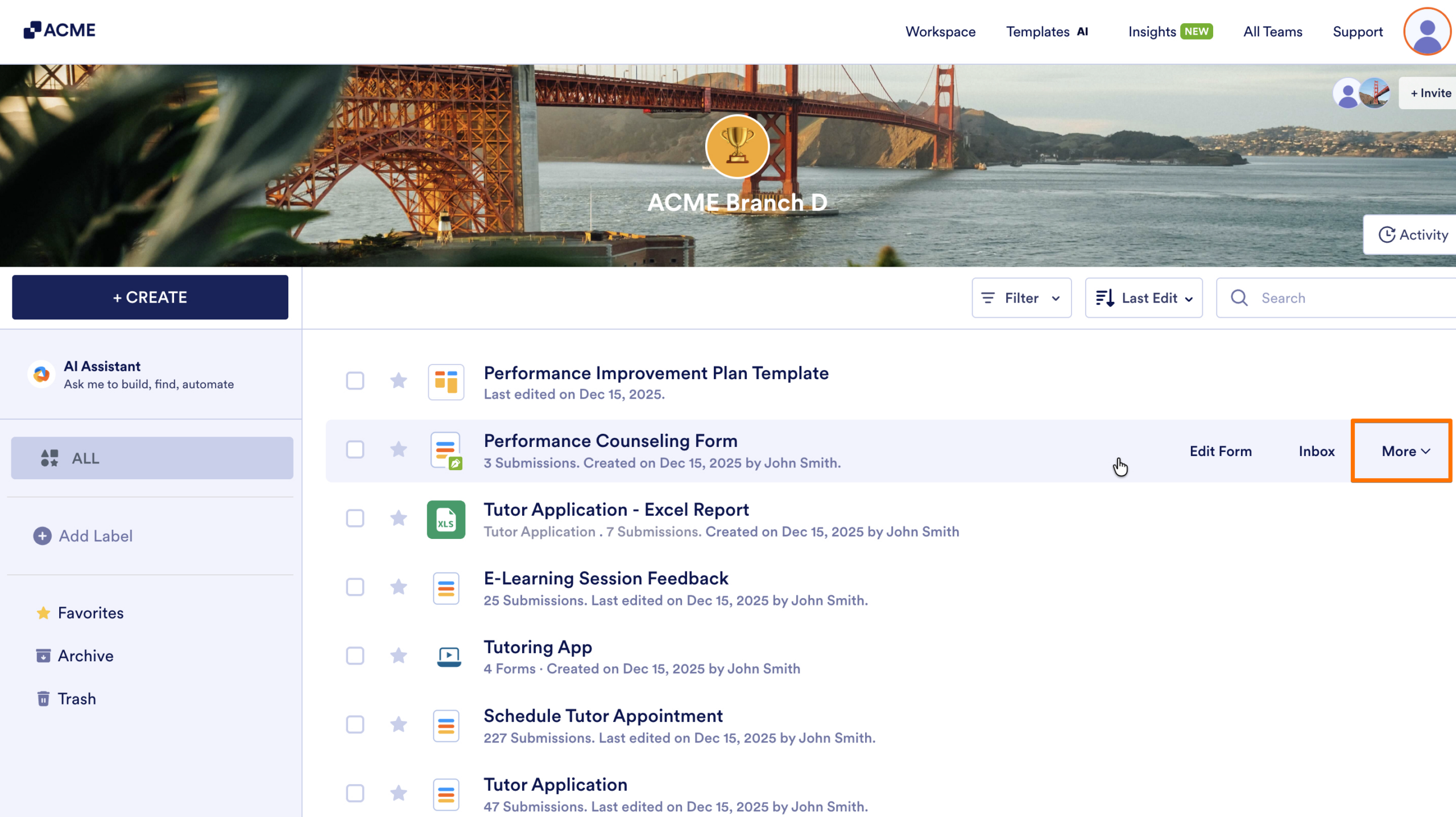
- Next, hover over the asset you want to manage.
- Finally, click on the More dropdown to see all the available actions.
Manage Team Members and Roles
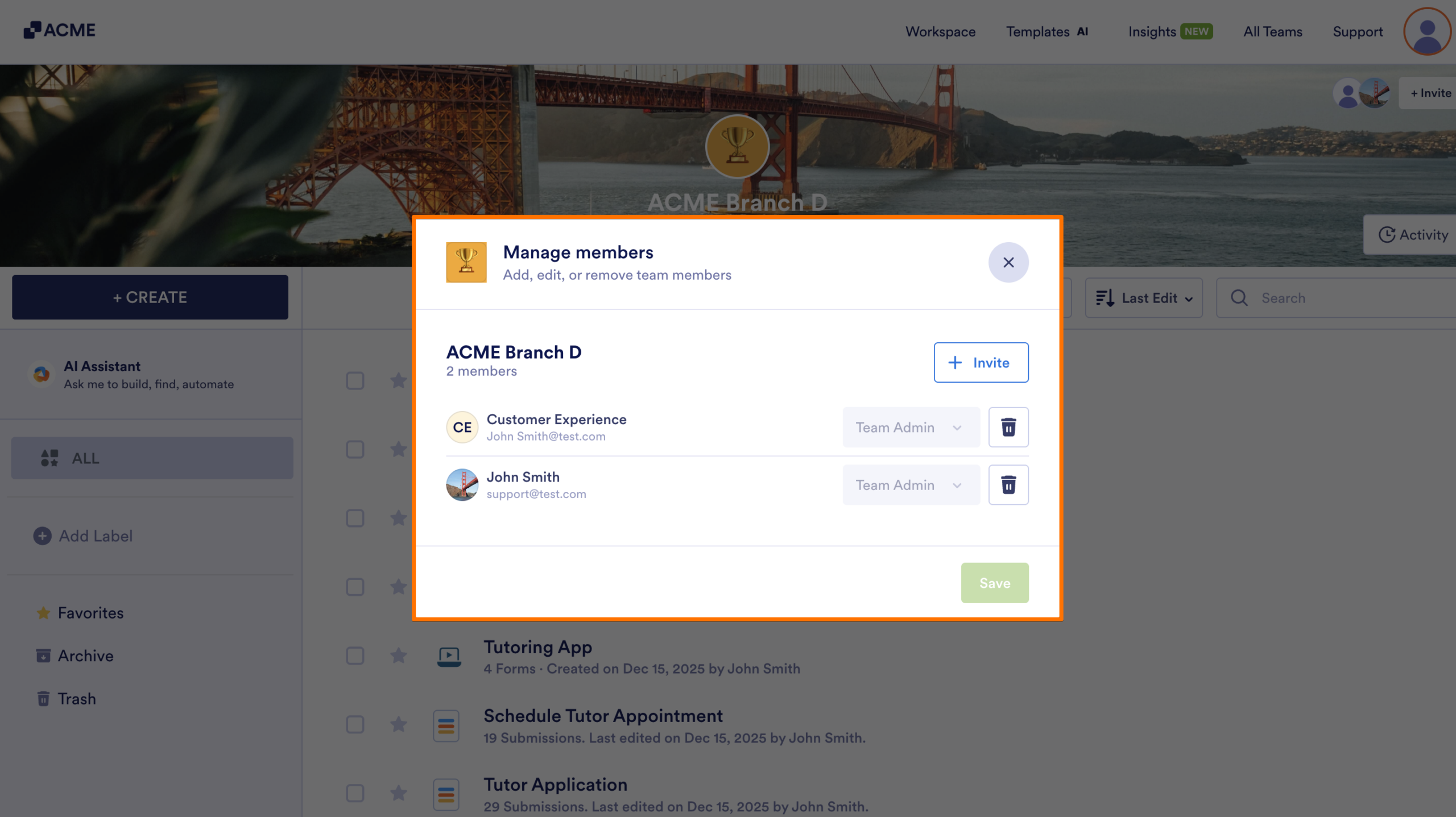
- First, in the Team Workspace, on the left of Invite Members, click on the profile pictures.
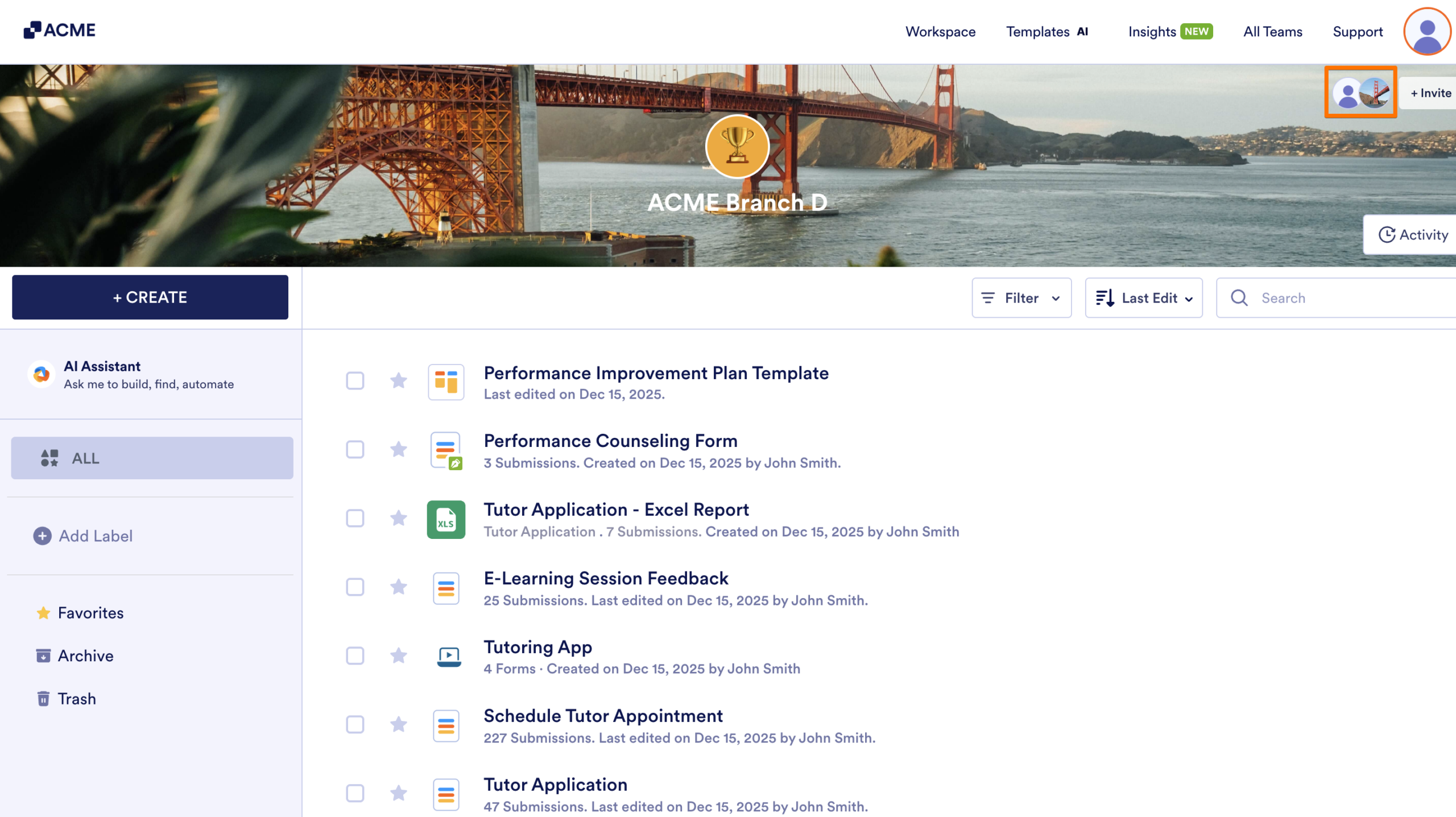
- Then, you can invite new members or manage the ones that are already in the Team.
Tip
To learn more about what each role can and cannot do, see Understanding Different Team Roles and Their Permissions.
Access Team-Level Settings
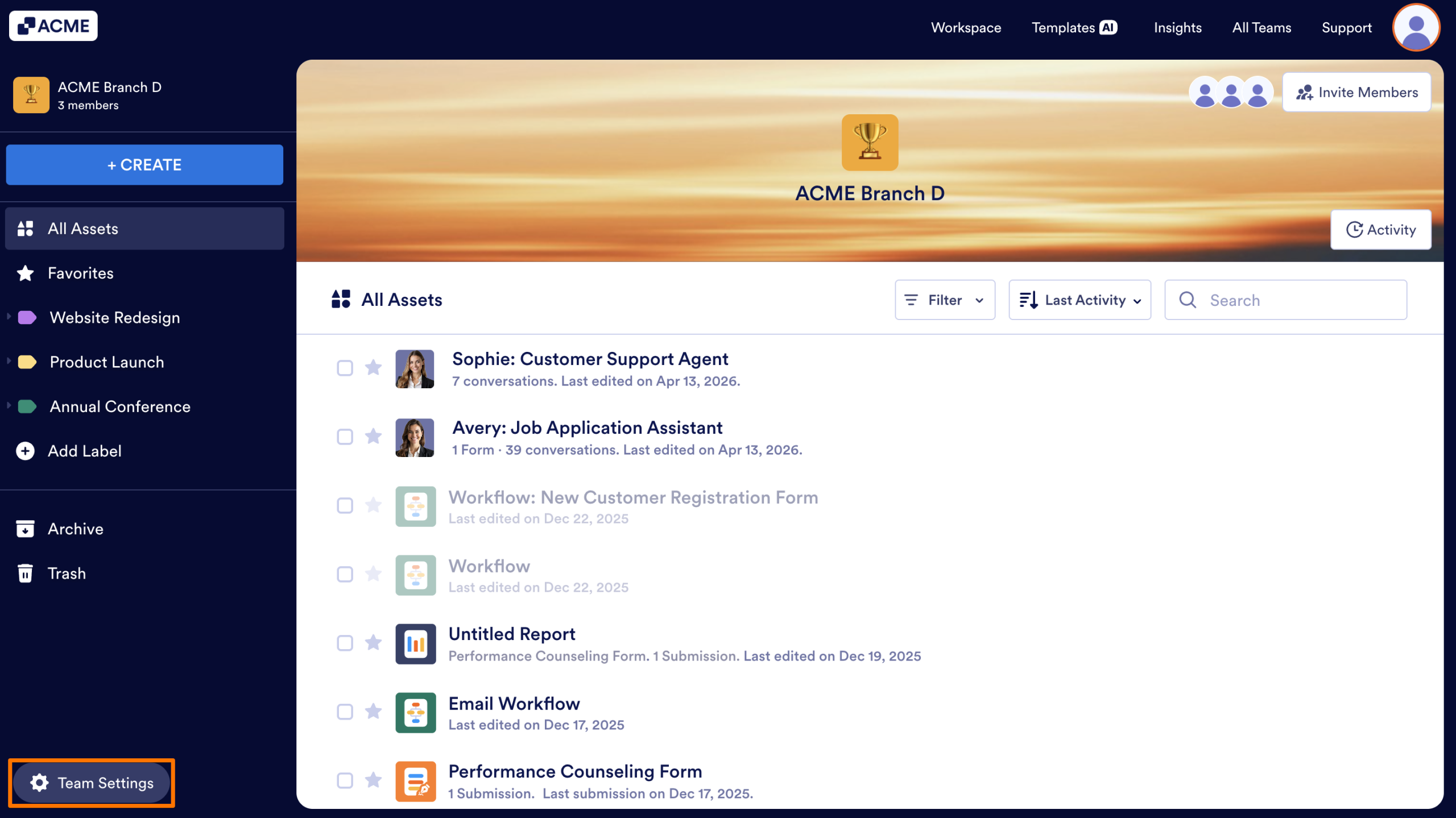
- First, in the Team Workspace, click on the Team Settings button located in the bottom left corner of the screen.
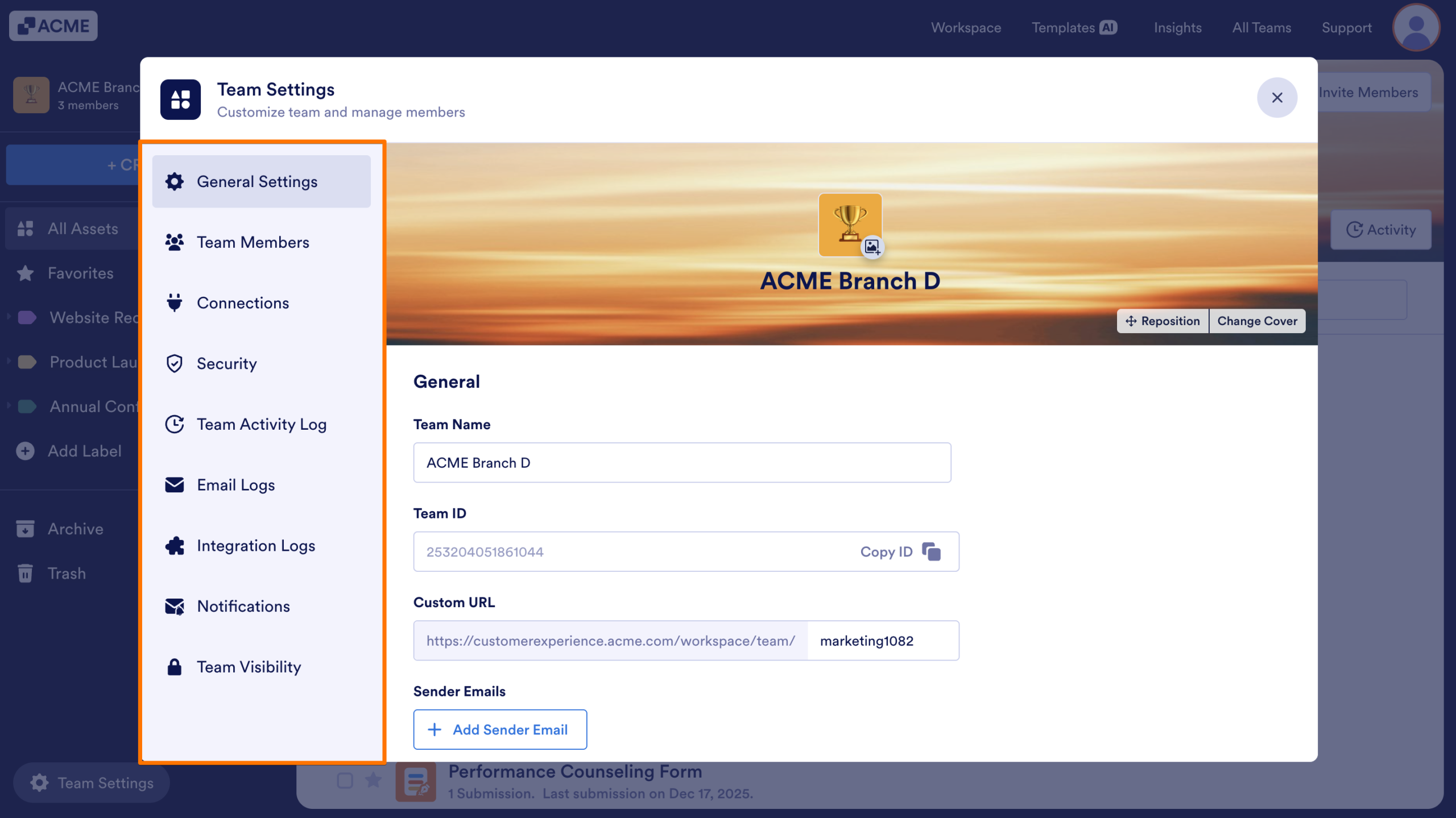
2. Next, on the Team Settings page, you’ll find the following tabs on the left where you can change the settings:
- General Settings — Manage your team’s name, custom URL, email preferences, timezone, time format, and team deletion.
- Team Members — Add, remove, or update team members and modify their roles and permissions.
- Connections — Any payment account you add here becomes available for all team members to use when creating assets.
- Security — Set login requirements for viewing submissions, uploaded files, and RSS feeds.
- Team Activity Log — Track your team’s activities and filter them by date, member, or action.
- Email Logs — Monitor outgoing emails from your team, including delivery status, source, and event details.
- Integration Logs — Track your team’s integration activities, including connection status, source assets, and related events.
- Notifications — Configure who gets notified for key team activity and document events.
- Team Visibility — Control whether your team appears in the Teams Directory and set the default member role.
Monitor Activities of the Team
As the server Admin, you can access a detailed view of each Team’s activity from the Team Activity Log.
Accessing the Activity Log
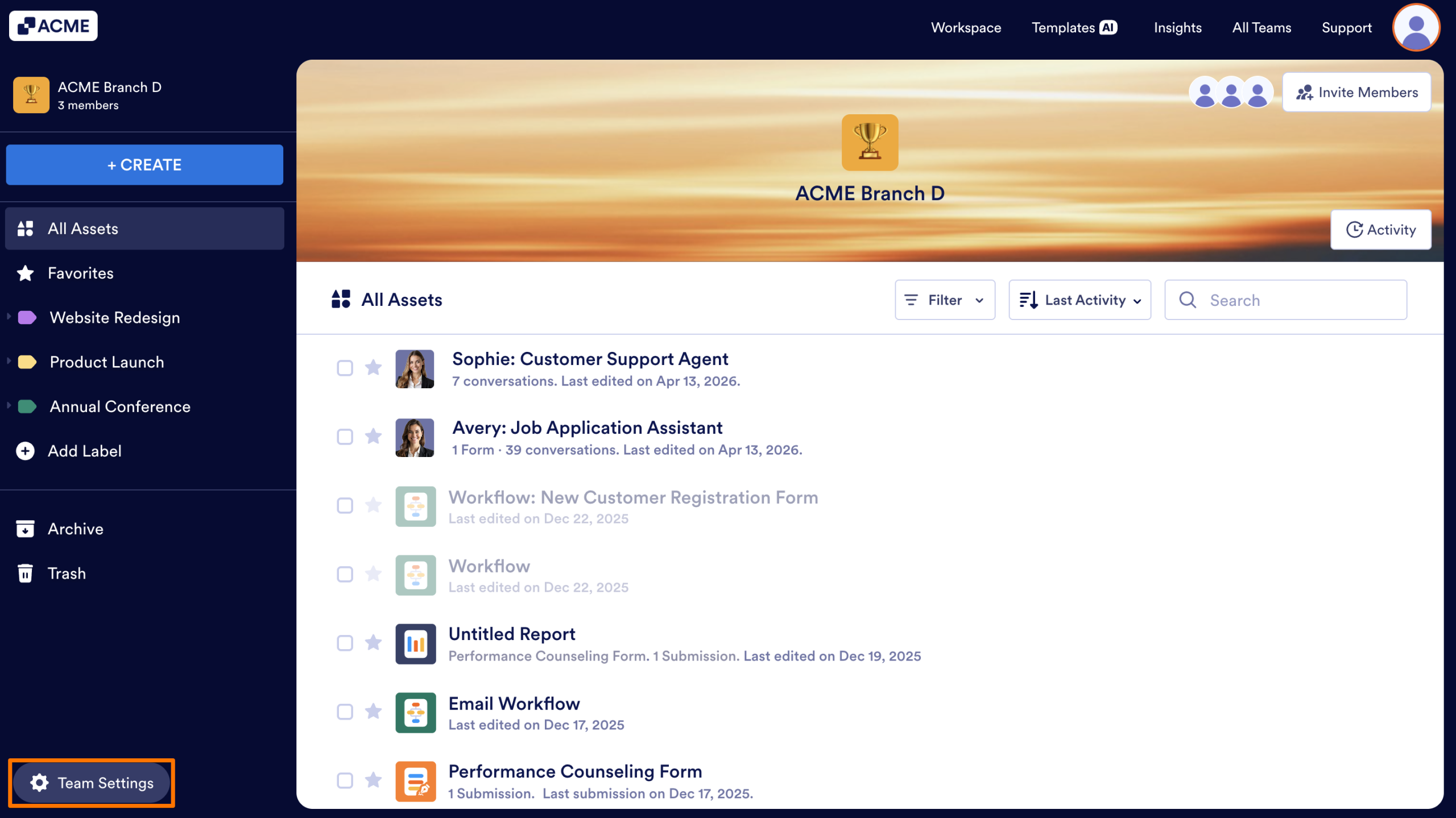
- First, in the Team Workspace, click Team Settings on the bottom left corner of the screen.
- Next, select Team Activity Log from the left panel.
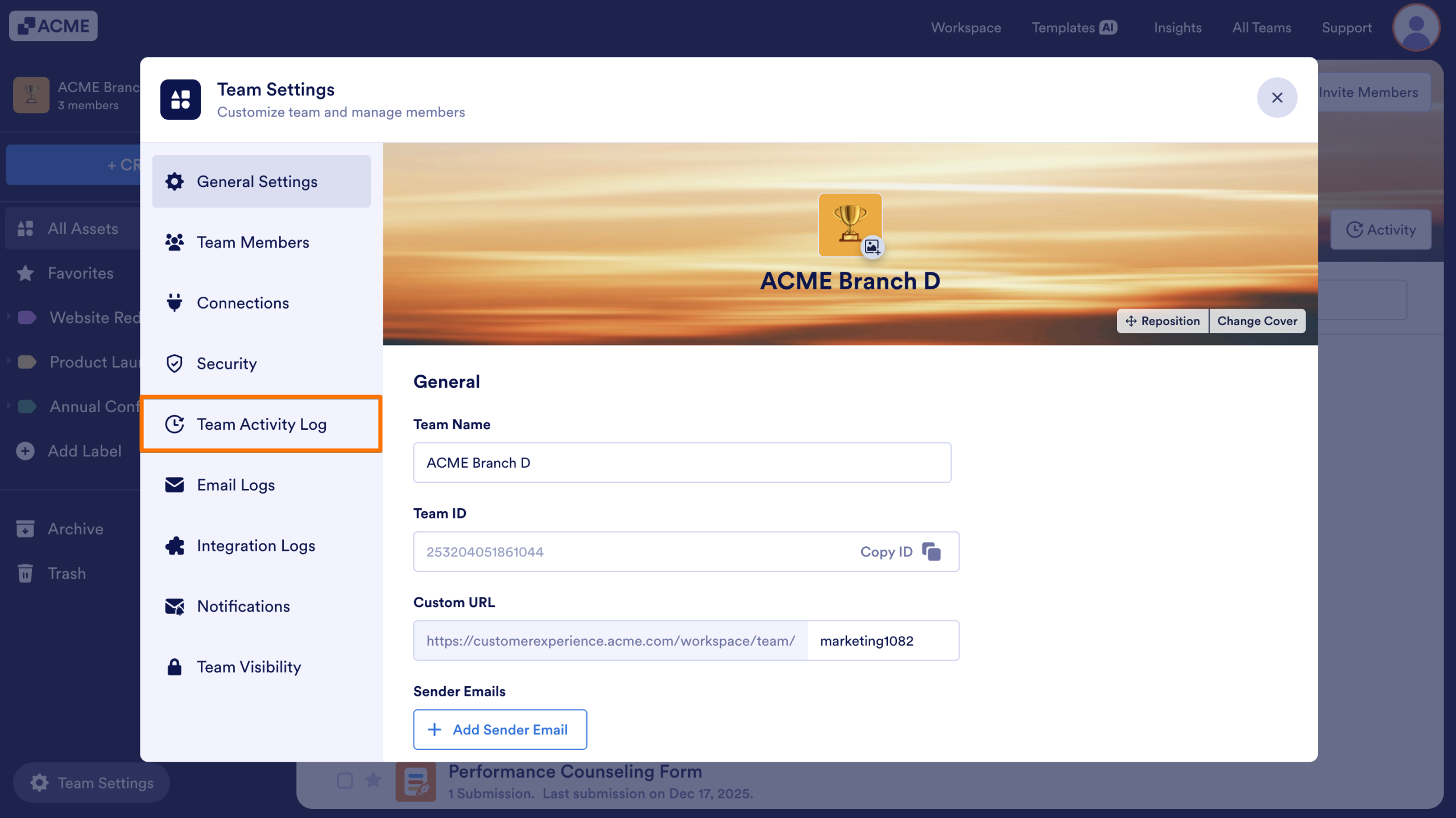
While inside the Activity Log, you can review the full history of actions performed within the Team and filter by date range, sort entries, and download the logs for auditing or reporting. For a complete overview of these features, see How to View Team Activity Logs.
Managing through the Admin Console
As the server Admin, you can also manage Teams through the Admin Console, which provides an organization-wide view of every team. To access the Teams section, select Teams in the sidebar on the left side of the screen in the Admin Console,
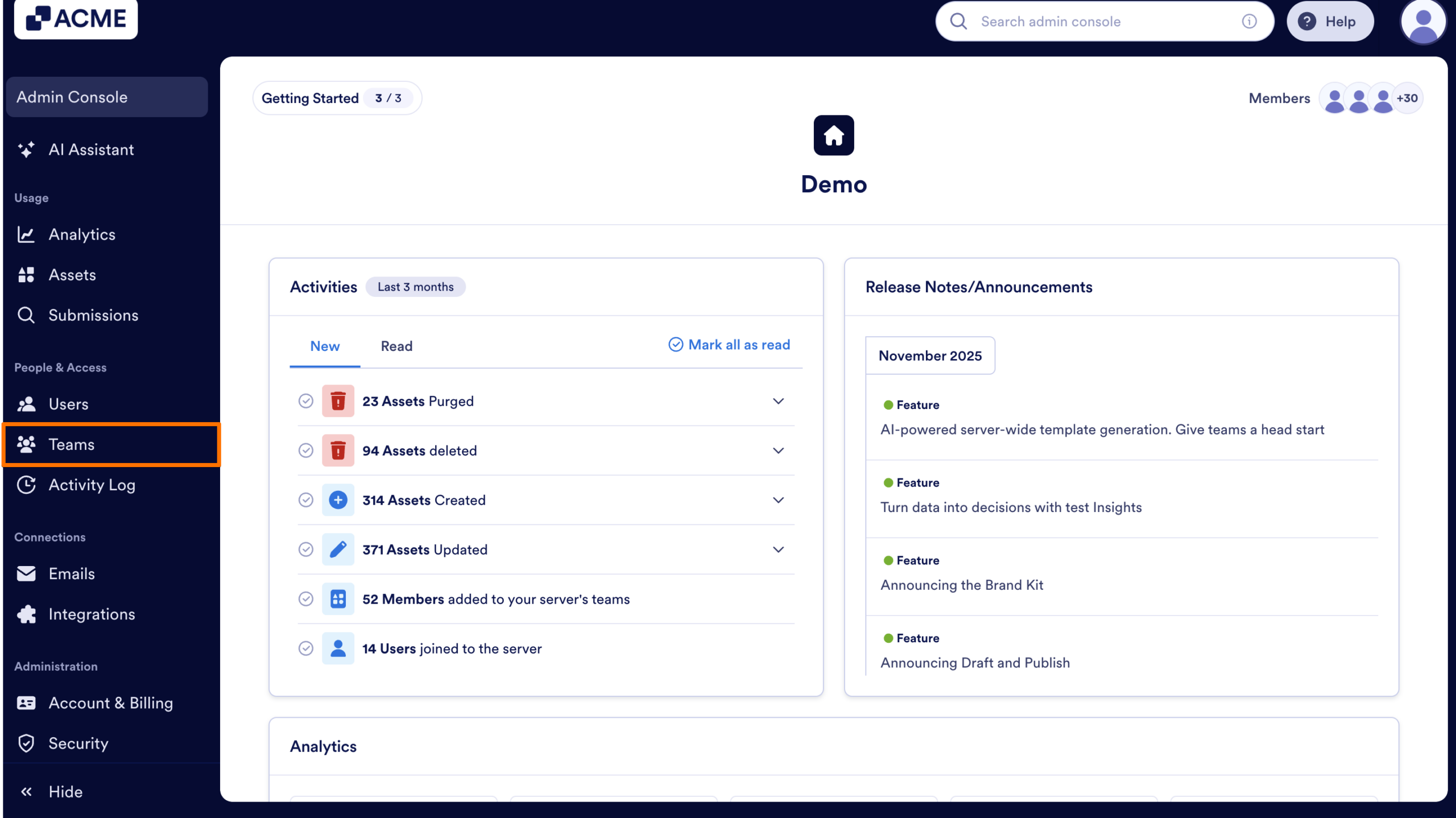
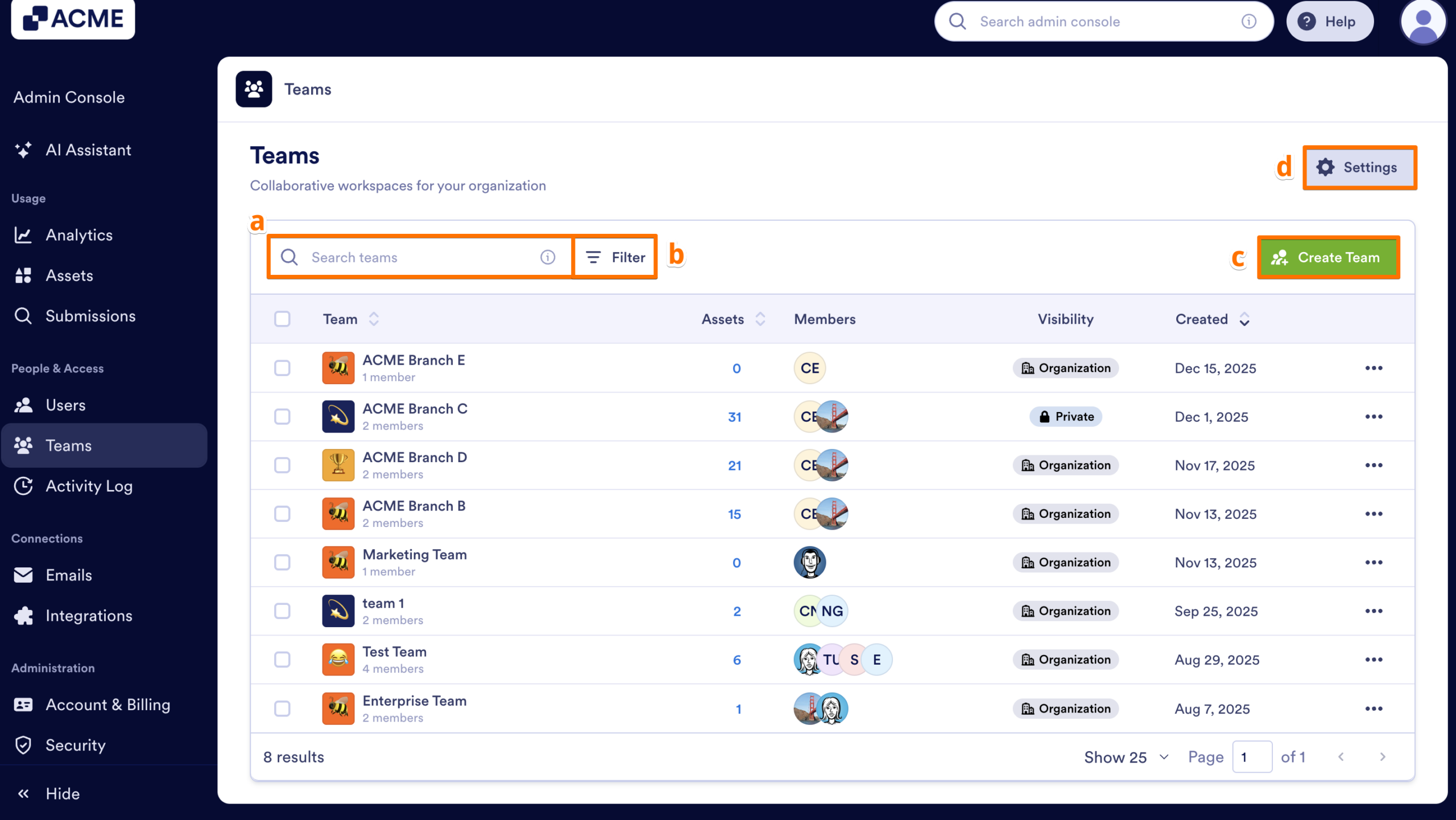
At the top of the Teams page, you’ll find tools that help you navigate and organize the list:
- Search Bar — Look up a Team by name.
- Filter — Narrow the list based on specific criteria.
- Create Team — Add a new team directly from the Admin Console.
- Settings — Access Team-related configuration options, depending on your permissions.
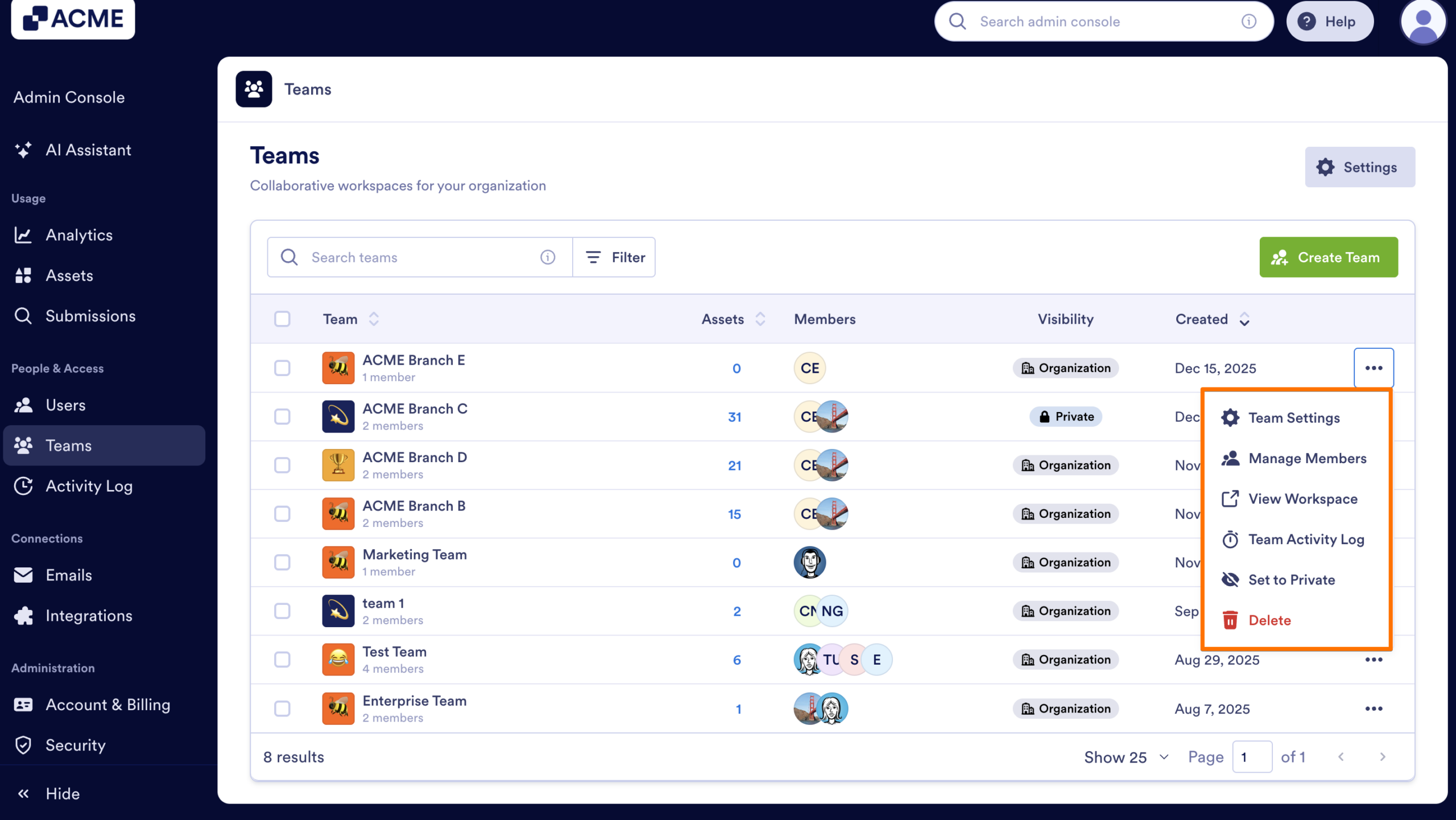
Below these controls, you’ll see a full list of Teams along with management actions. From the Teams section of the Admin Console, by clicking on the Three Dots icon for the team you want to manage, you can:
- Access a team’s settings
Select Team Settings to manage general settings, visibility, connections, security options, and more.
- Manage team members
Use Manage Members to add or remove users or change their roles.
- Open a team’s workspace
Click View Workspace to jump straight into that team’s workspace.
- Review team activity
Open Team Activity Log to see detailed actions taken within the team.
- Change team visibility
Use Set to Private or Show in Directory to control whether the team appears in the Teams Directory.
- Delete a team
Select Delete to remove the team entirely from the organization.

Send Comment: