Team Activity Logs show the actions performed by team members in the workspace, helping you track changes and understand recent updates. You can view them quickly from the workspace or access a detailed, filterable log through Team Settings.
Viewing Activity from the Team Workspace
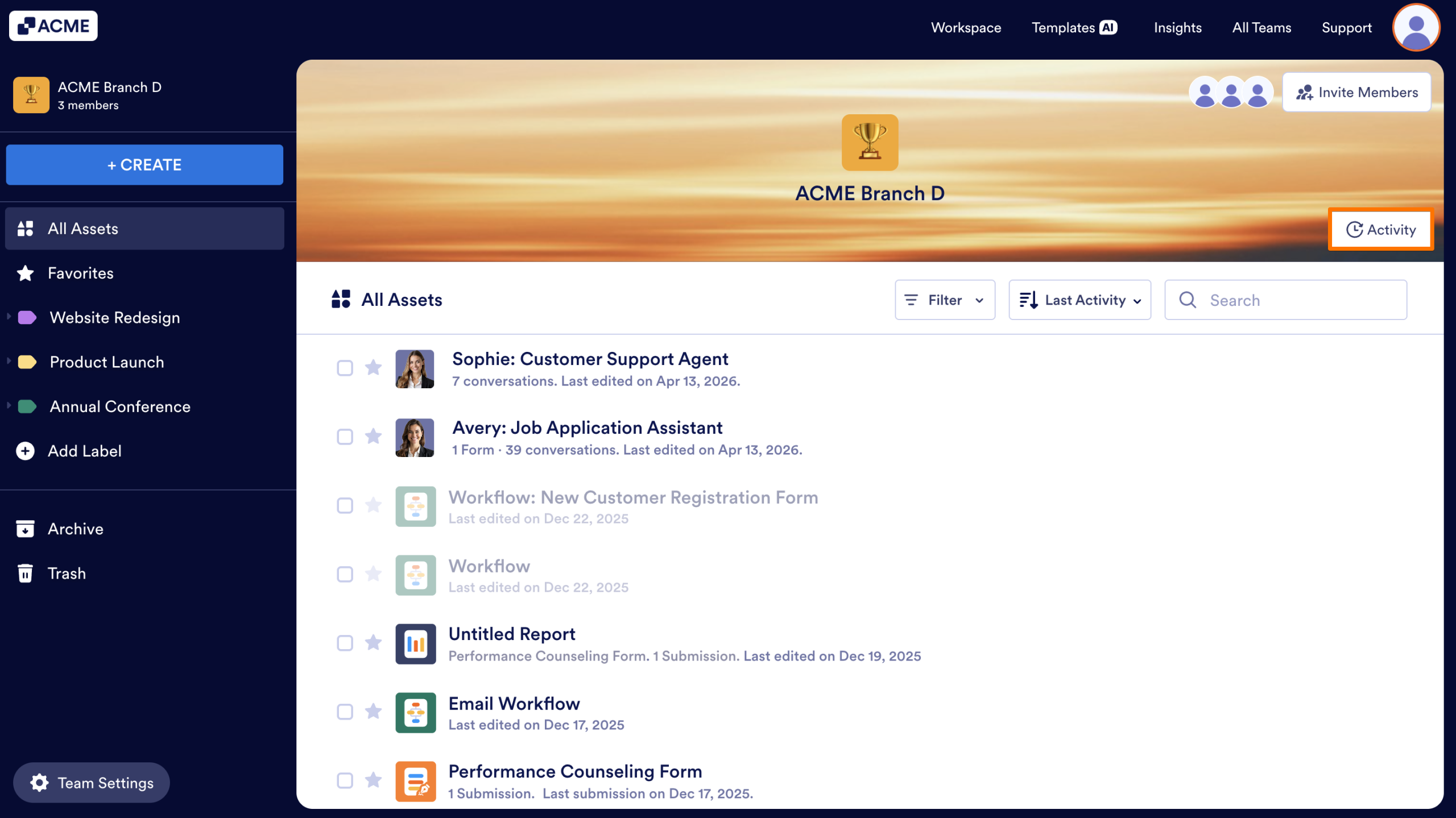
Team workspaces includes a quick-access Activity view for fast monitoring. Here’s how to access that information:
- In the Team Workspace, click on the Activity button on the right.
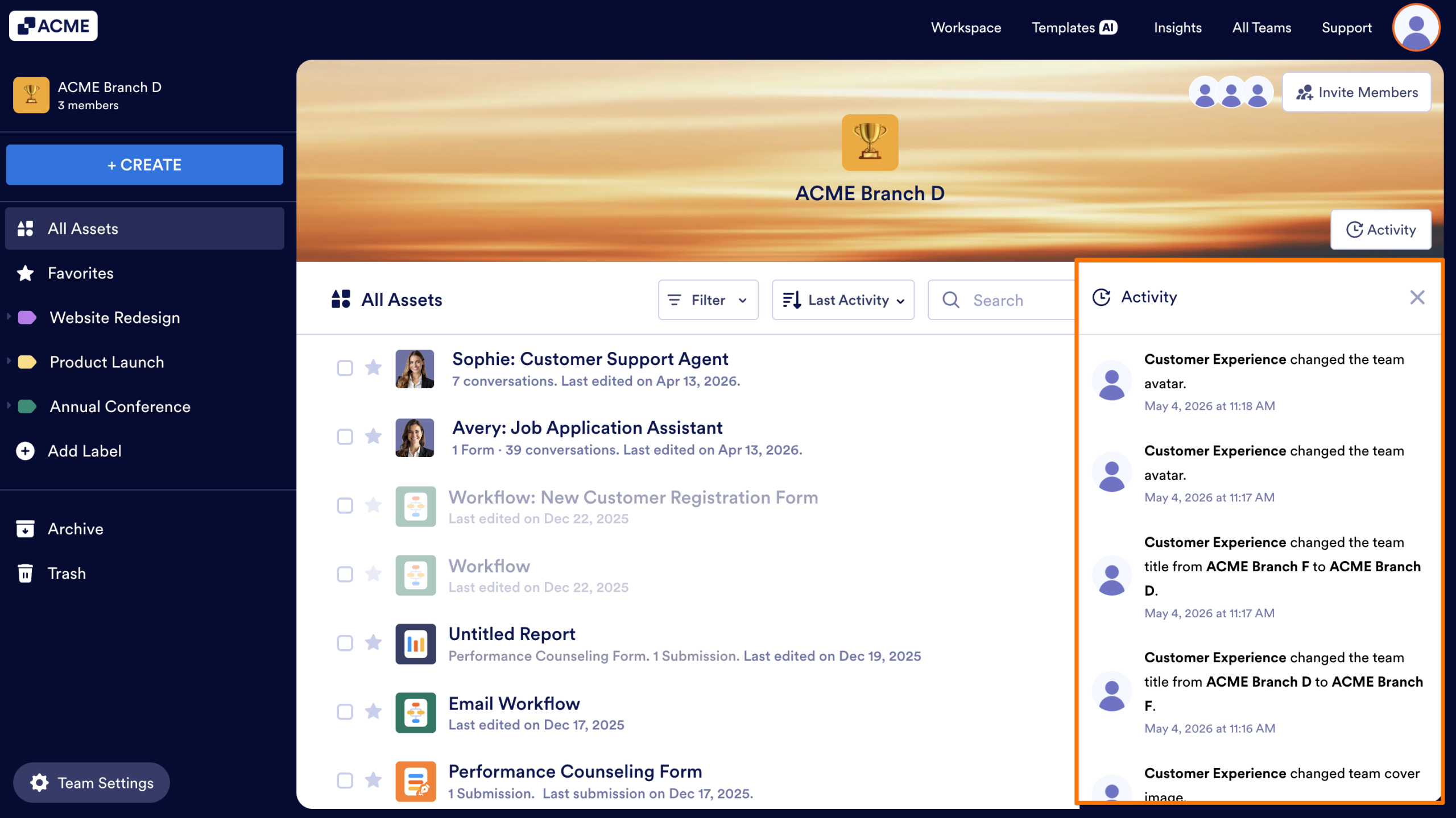
A panel will open showing recent actions such as edits, new assets, or membership changes.
Viewing Activity Logs from Team Settings
If you’d like to filter or sort your Team’s activity by date, or export the history of actions taken in the Team Workspace, you can open the Team’s Activity Log inyour Team Settings.
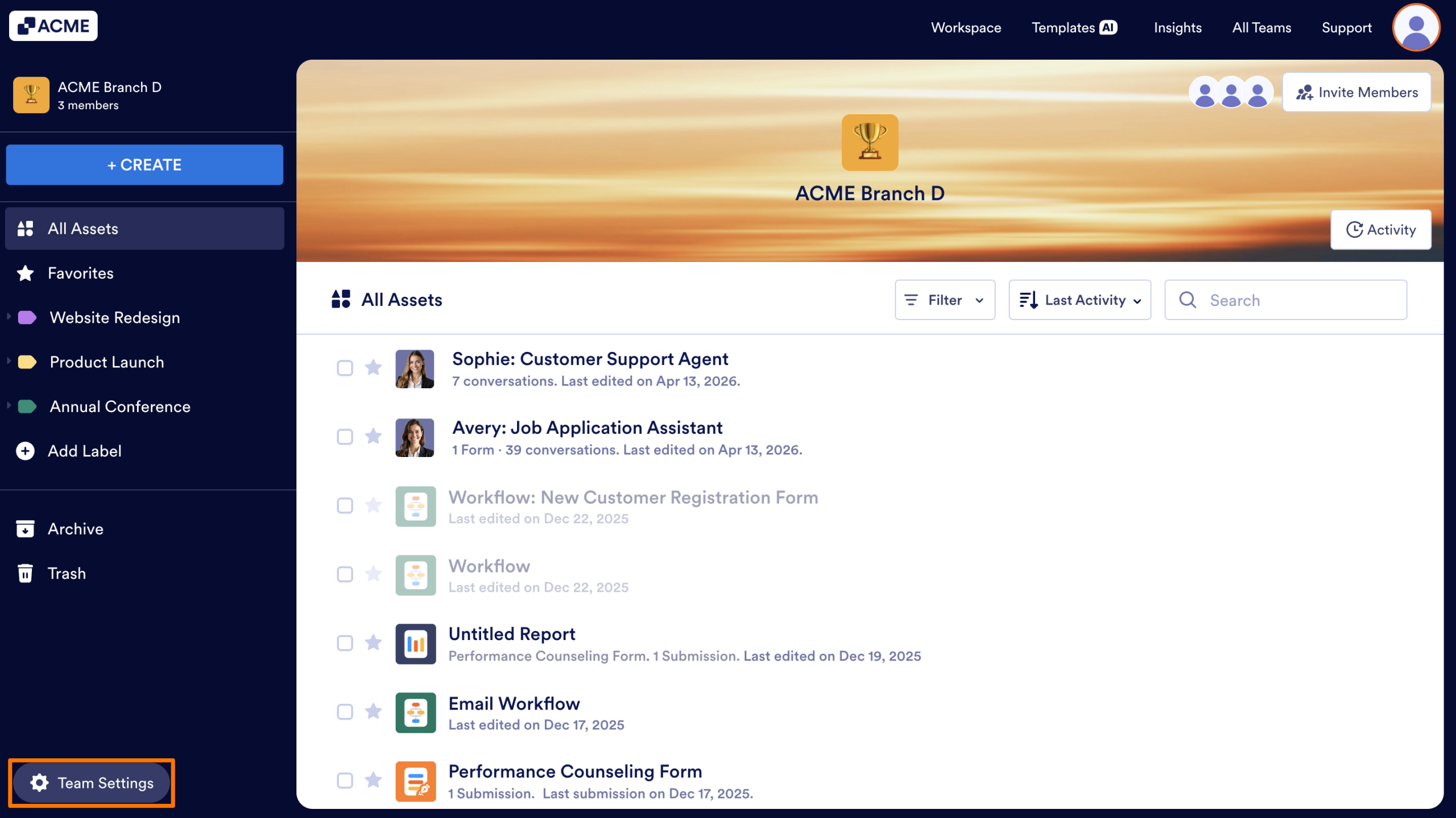
- In the Team Workspace, click Team Settings.
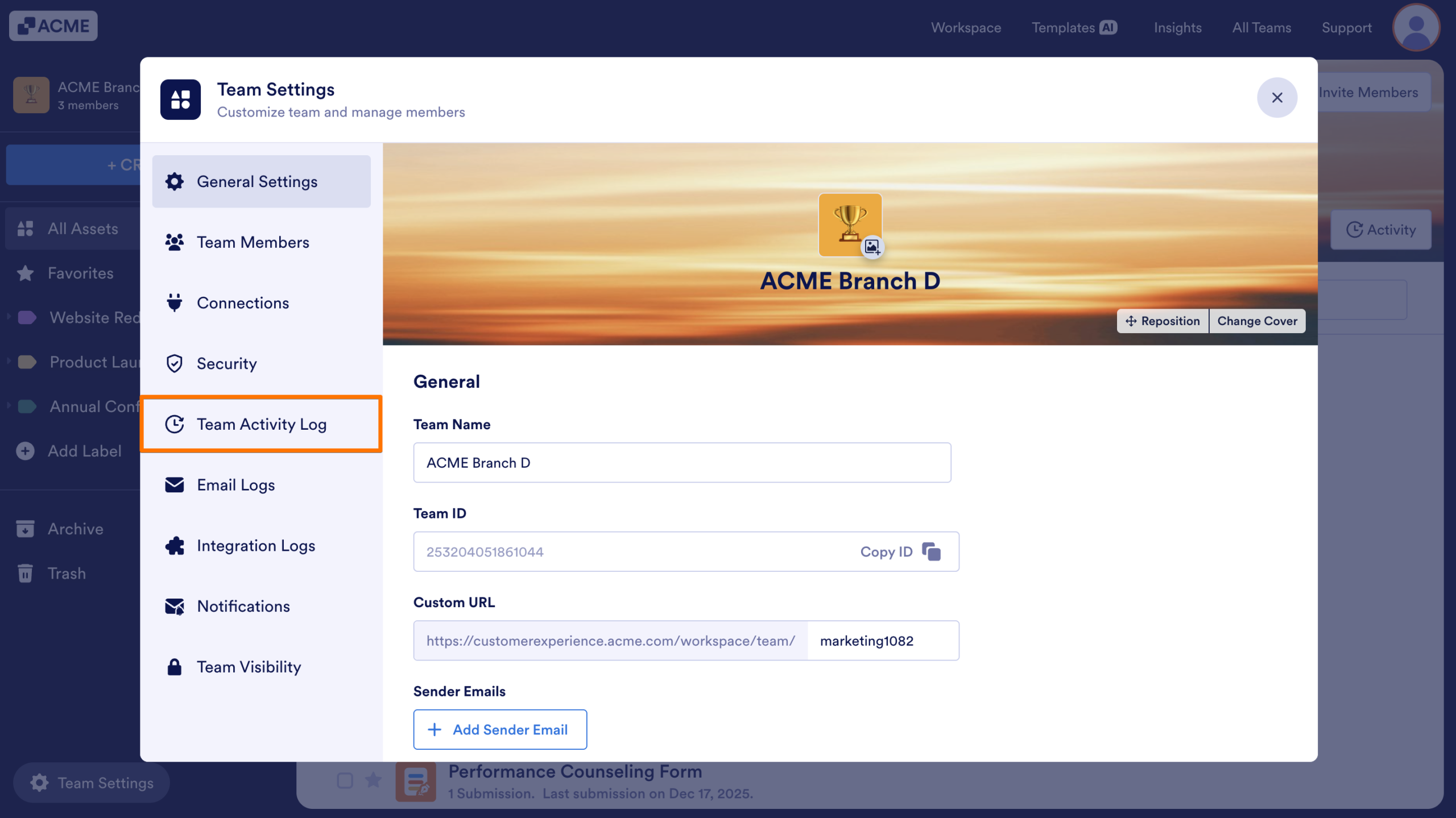
- Select Team Activity Log from the left panel.
Filtering Activity by Date Range
- In the Team Activity Log, click on the Date range dropdown.
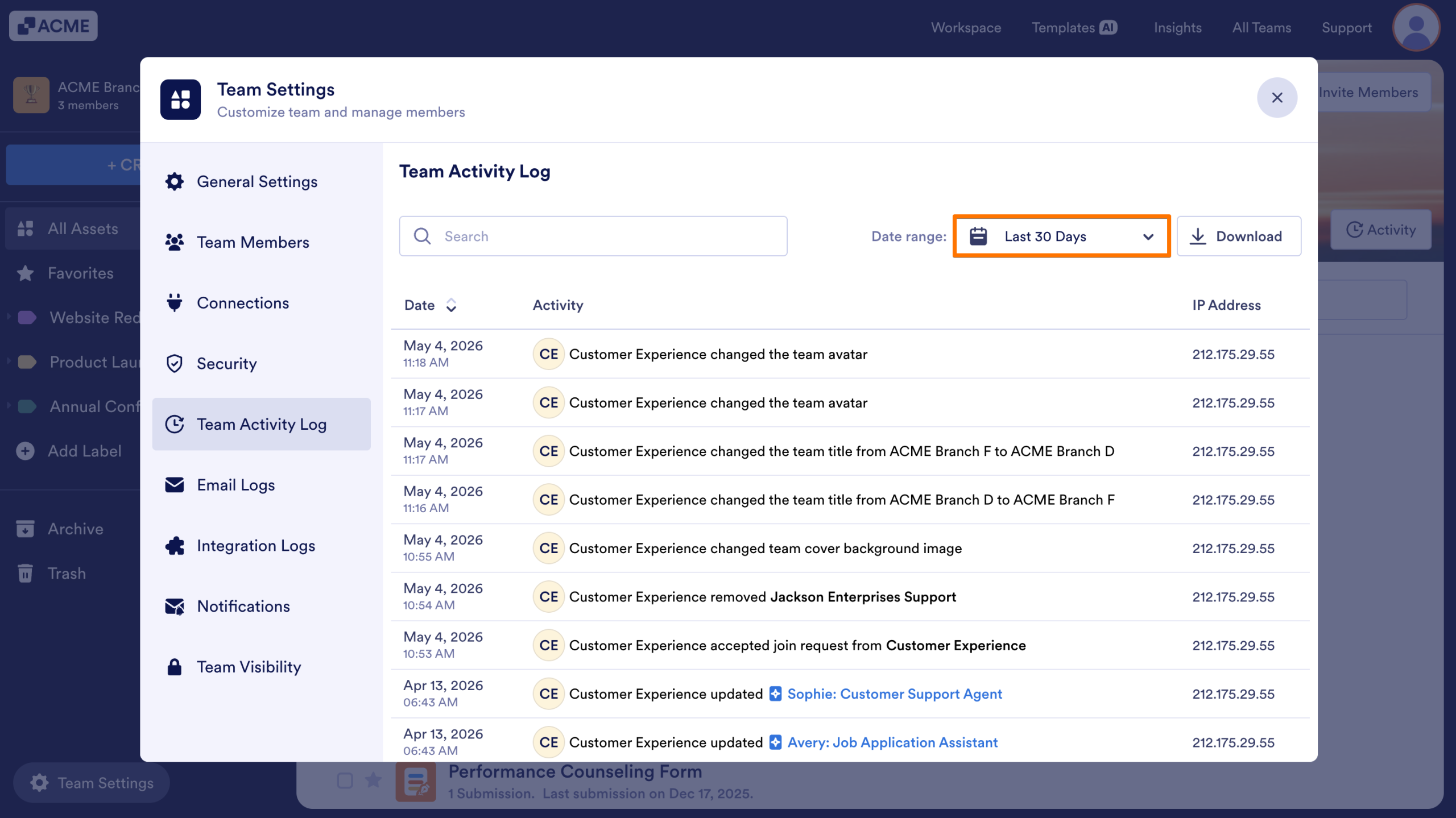
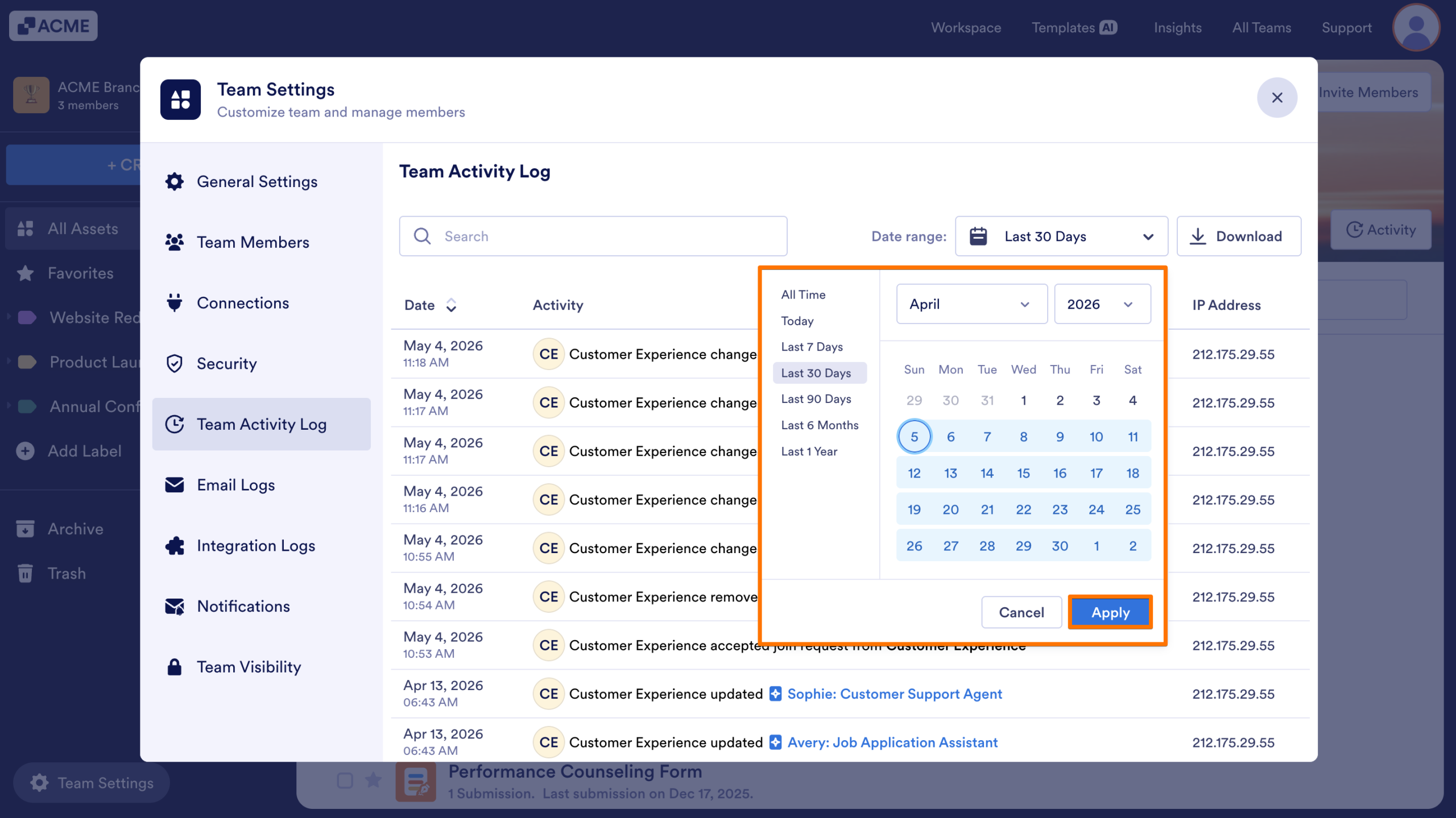
- Select the specific time period you’d like to review.
- Click Apply to update the Activity Log results to the selected date range.
Sorting Activity by Date
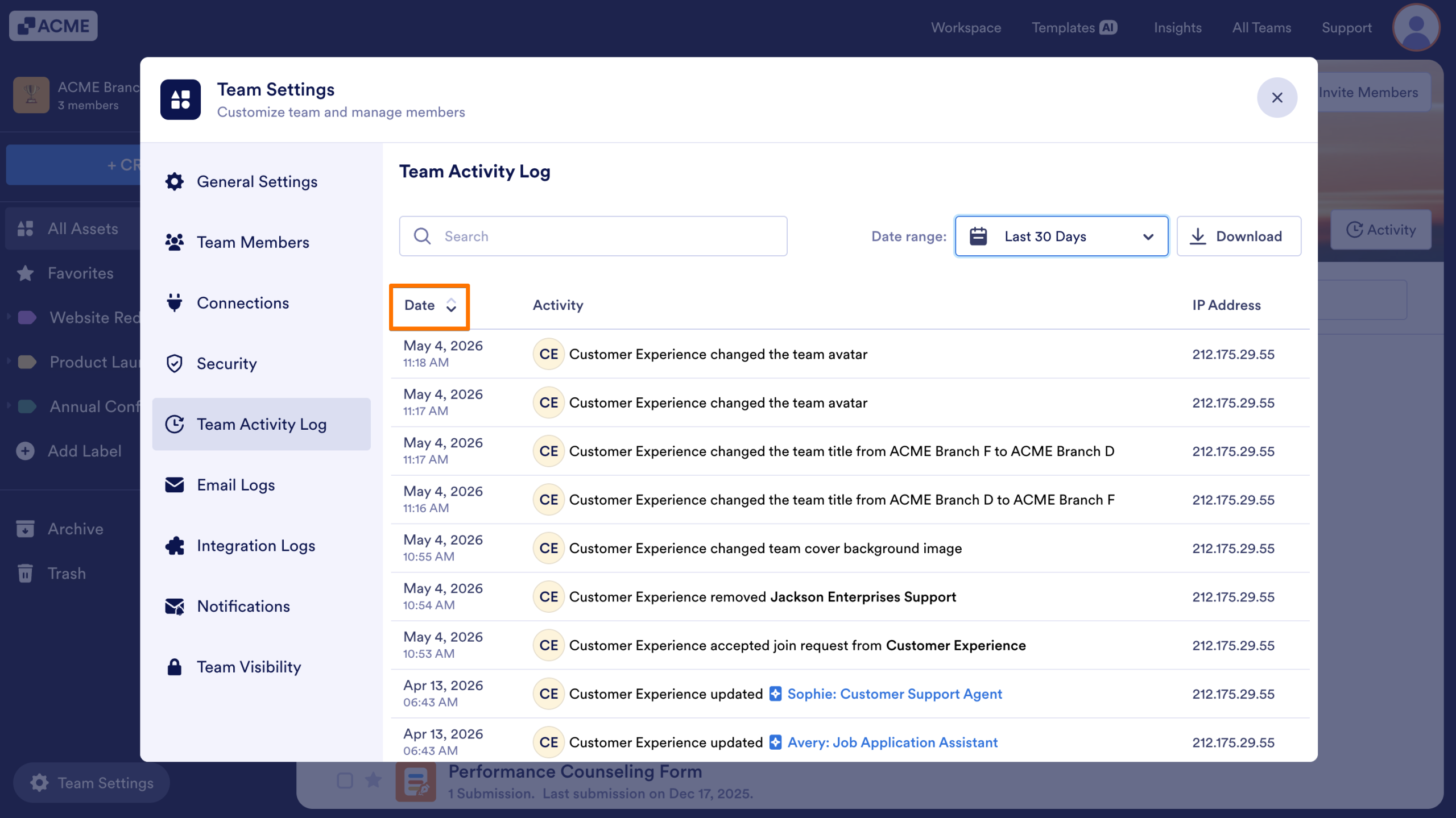
Click on the Date column header to sort the log from newest to oldest or oldest to newest.
Downloading Activity Logs
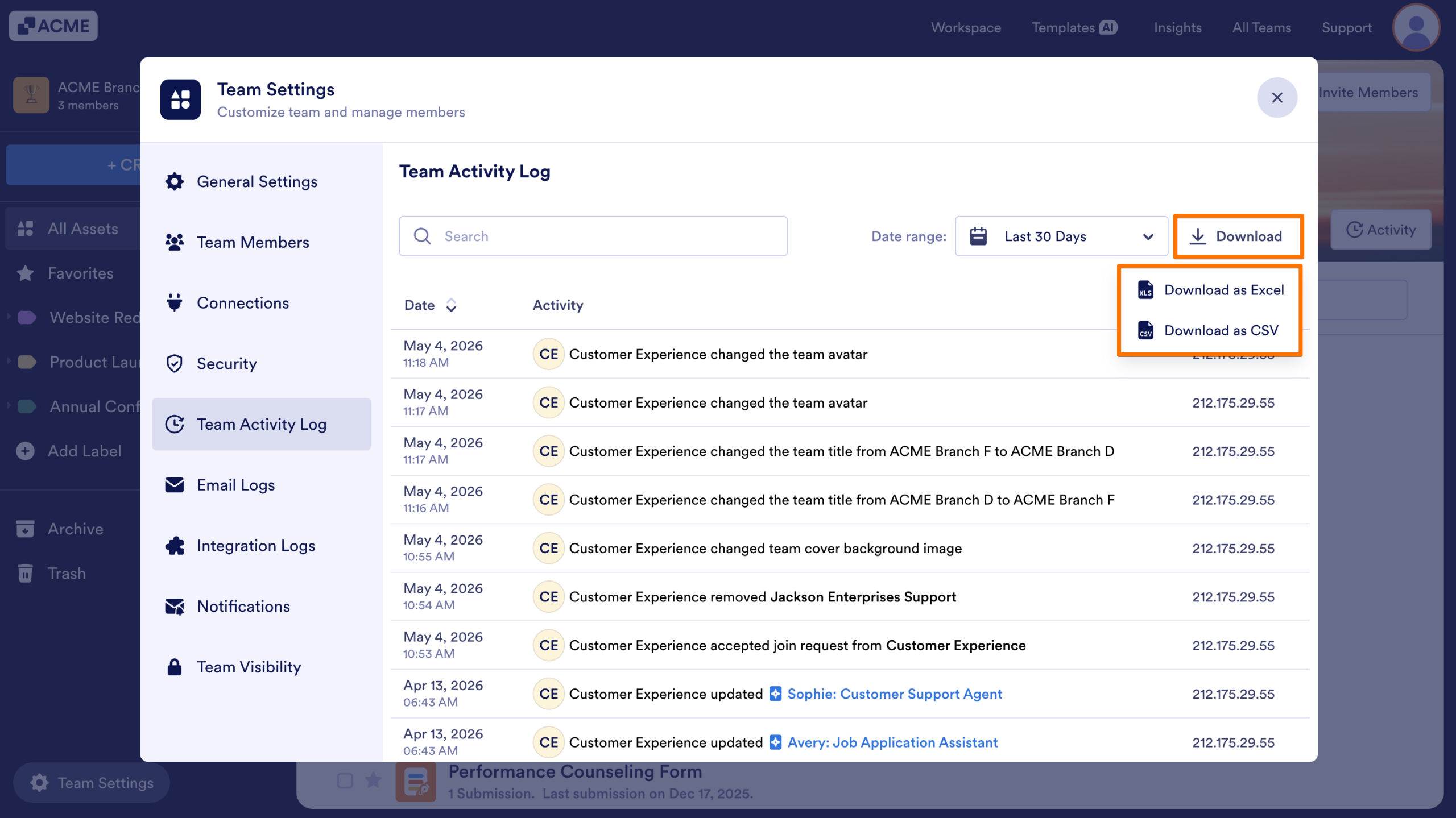
- In the Team Activity Log, click on the Download button.
- Select the file type you want to download.

Send Comment: