Handling a large number of form submissions can sometimes feel like searching for a needle in a haystack—but it doesn’t have to be that way. With built-in search and filter tools, you can easily narrow things down and find the exact submission or information you need in just a few clicks.
Whether you’re looking for a single entry, submissions from a certain time period, or responses that match specific answers, these tools help you stay on top of your data without the stress of digging through everything manually.
Searching Submissions
You can easily find the submissions you need by searching with keywords. It’s an effortless way to stay organized and focus on the information that truly matters. You can do it in just a few steps:
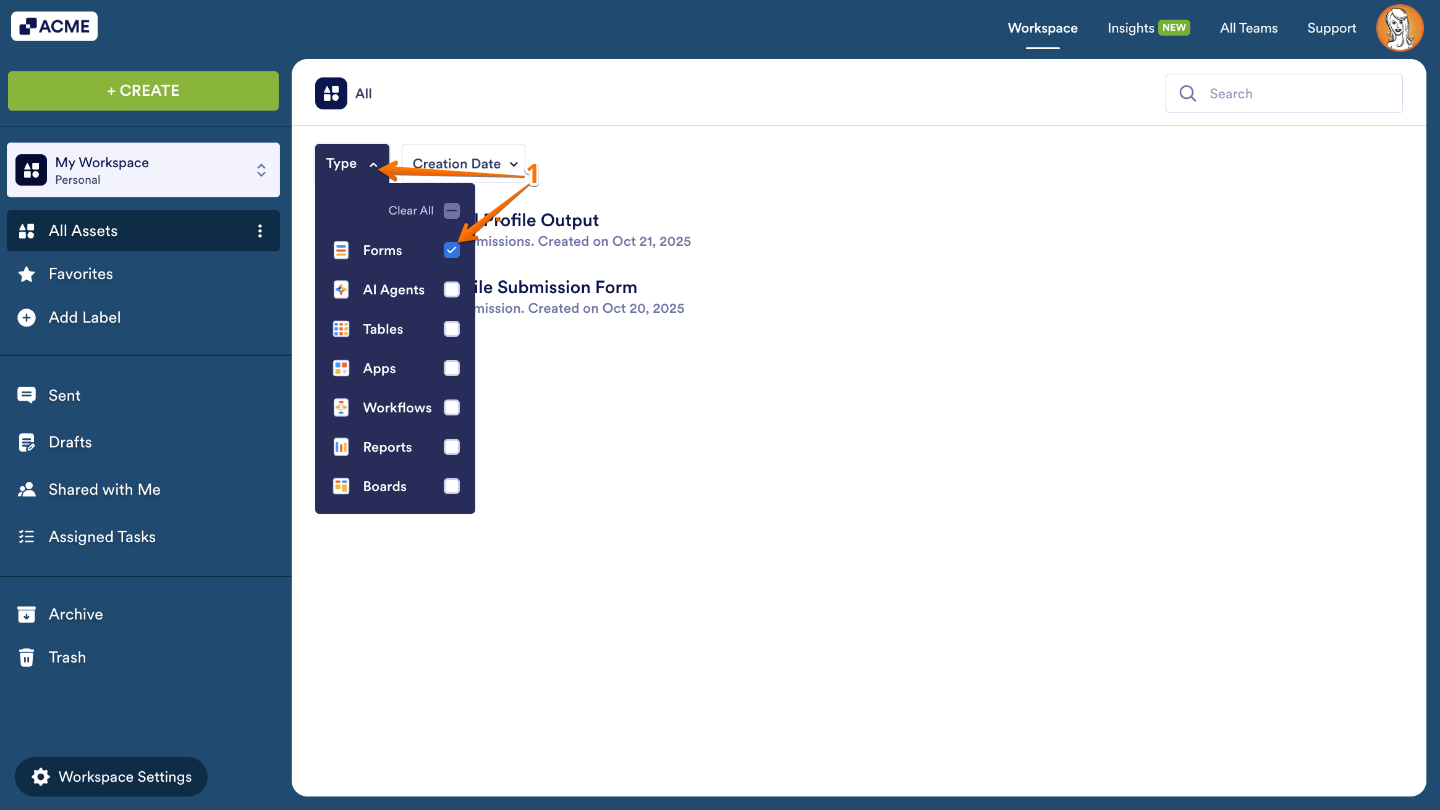
- On your Workspace page, click on Type at the top and in the Dropdown menu that opens, uncheck the boxes next to all the assets except Forms, so only they’ll be shown on the page.
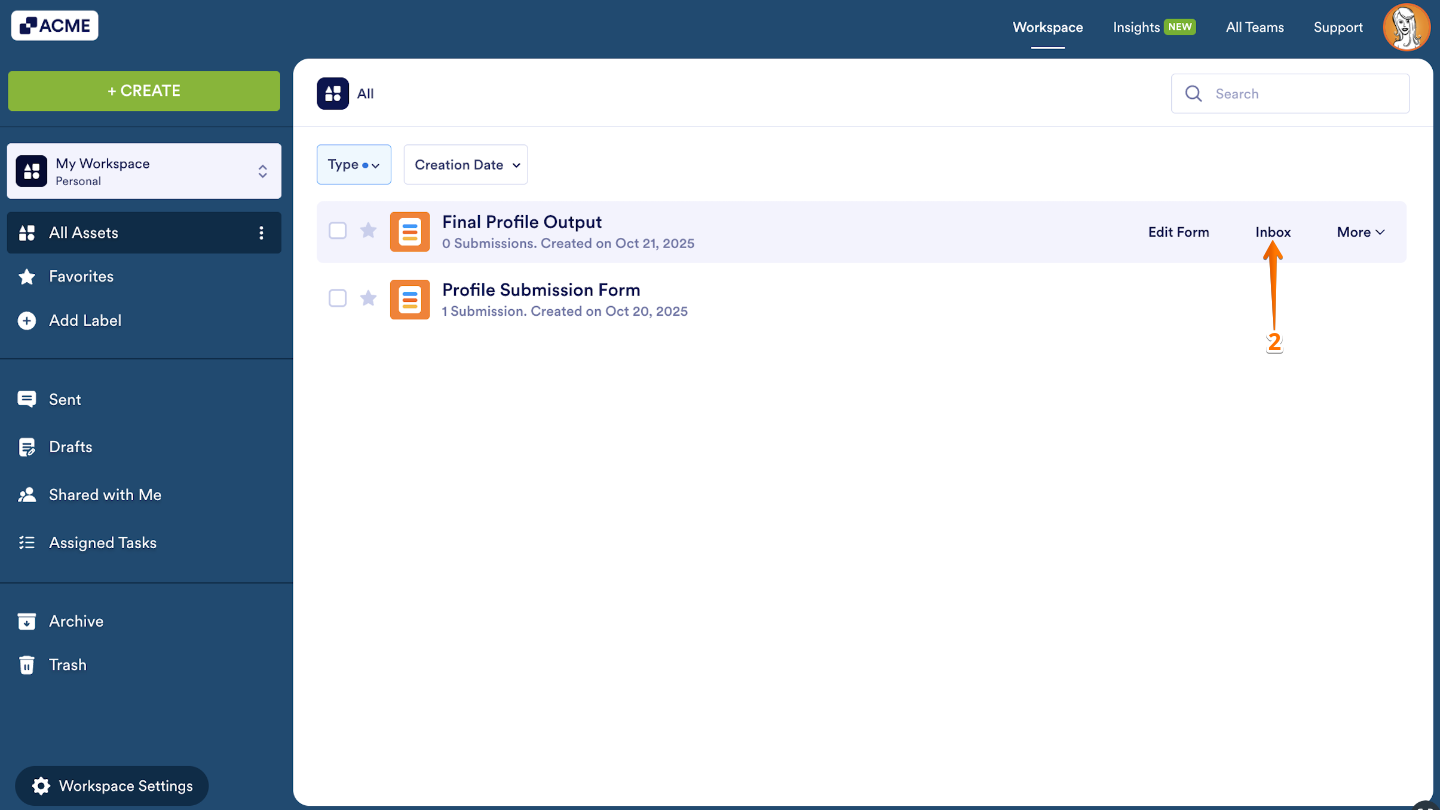
- Then, hover your mouse over the form you want to check the submissions from, and click on Inbox on the right side of the page. For example, we selected the Final Profile Output form.
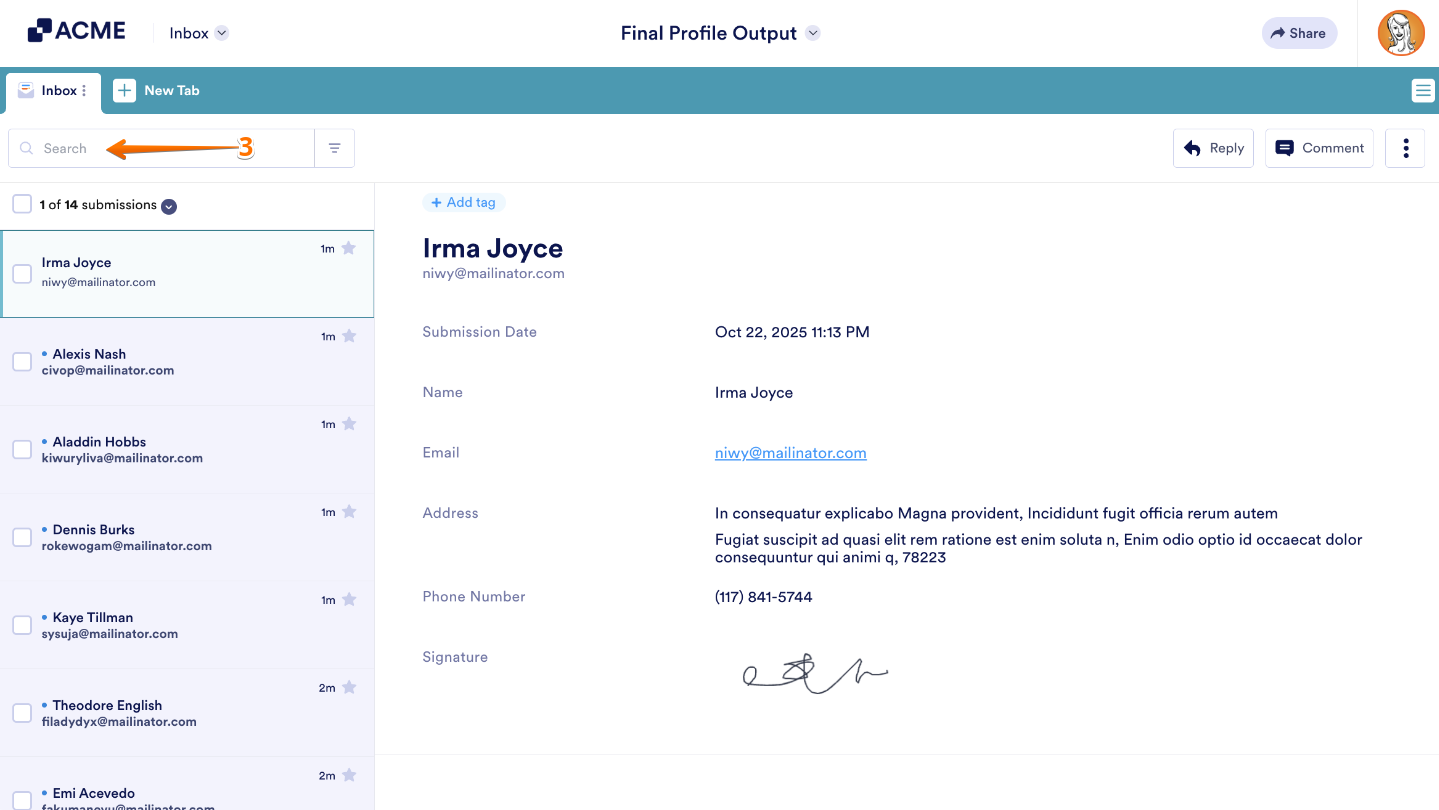
- Now, in Form Inbox, enter your keyword in the Search bar at the top to make it search for a submission containing the keyword.
Filtering Submissions
You can filter results based on dates, or even narrow them down by specific answers or statuses. It’s a simple and effective way to keep your submissions organized and make sure you’re focusing on the information that matters most. Here’s how to get going:
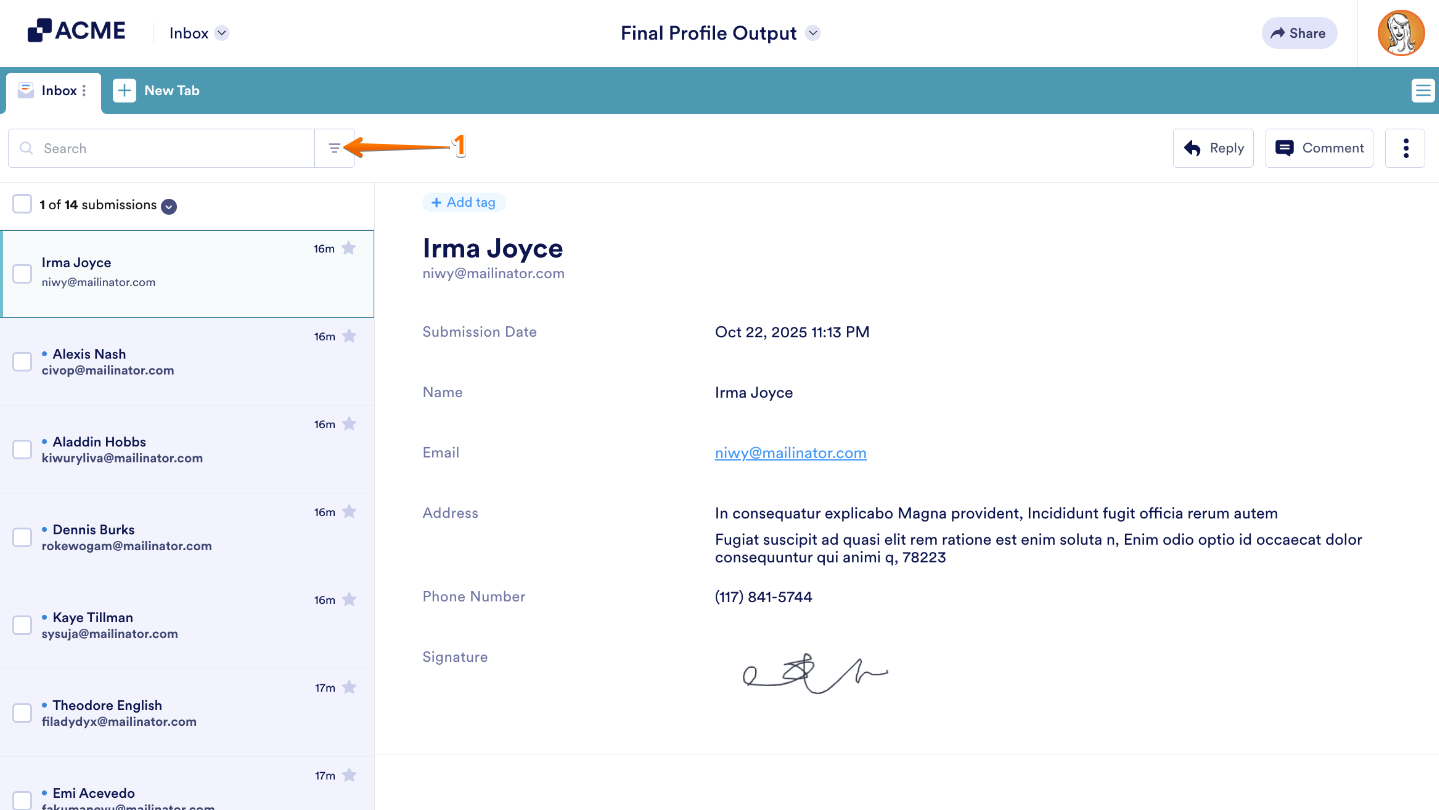
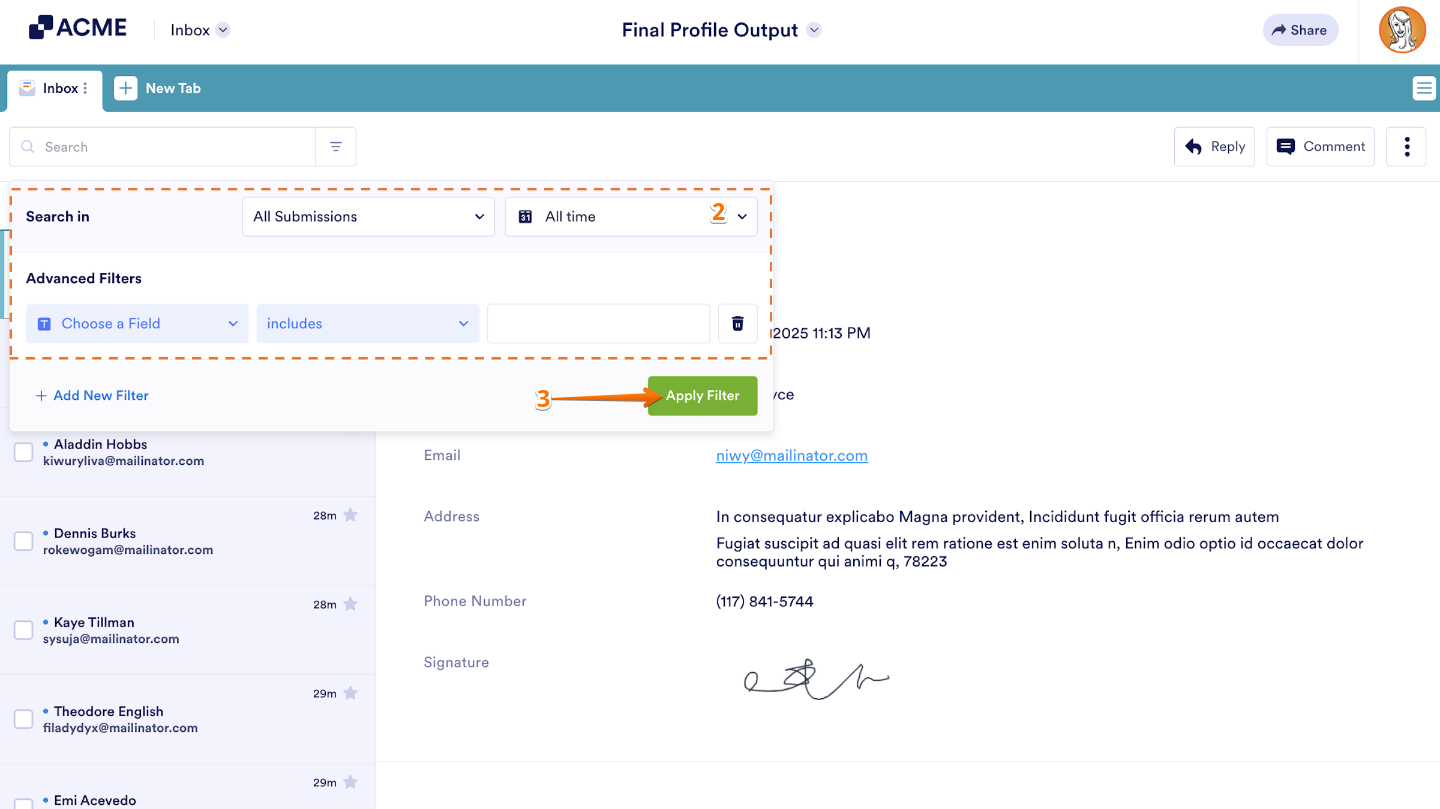
- In Form Inbox, click on Filter icon at the top.
- In the Filter box that opens, you can filter submissions using the following options:
- Search In — This option shows all the form submissions regardless of their status. It allows you to filter submissions from an Unread, Read, Starred, or Unstarred submission. You can also choose your desired range in the date picker, either use the presets on the right or choose custom dates using the calendar.
- Advanced Filter — Use this to to filter submissions by field value or answer on the form.
- Once you’re done, click on Apply Filter.
That’s it. You’ve just searched and filtered your form submissions like a pro. With these tools, you can quickly find the information you need, stay organized, and keep your workflow running smoothly.

Send Comment: