You can easily set up Single Sign-On (SSO) using OneLogin in your organization. This allows your team to log in with their OneLogin credentials in your organization, giving you greater control over account access and security. Simply connect your OneLogin account, configure your SSO settings, and you’re all set in your organization.
Note
You can now let users log in using either Single Sign-On (SSO) or their email and password. Check out How to allow licensed users to log in with email and passwords in addition to SSO to see how.
Setting Up the OneLogin SAML App
Before setting up OneLogin SSO in your organization, you’ll need to create a SAML app in your OneLogin Admin Dashboard. It’s easier than you think—here’s what to do:
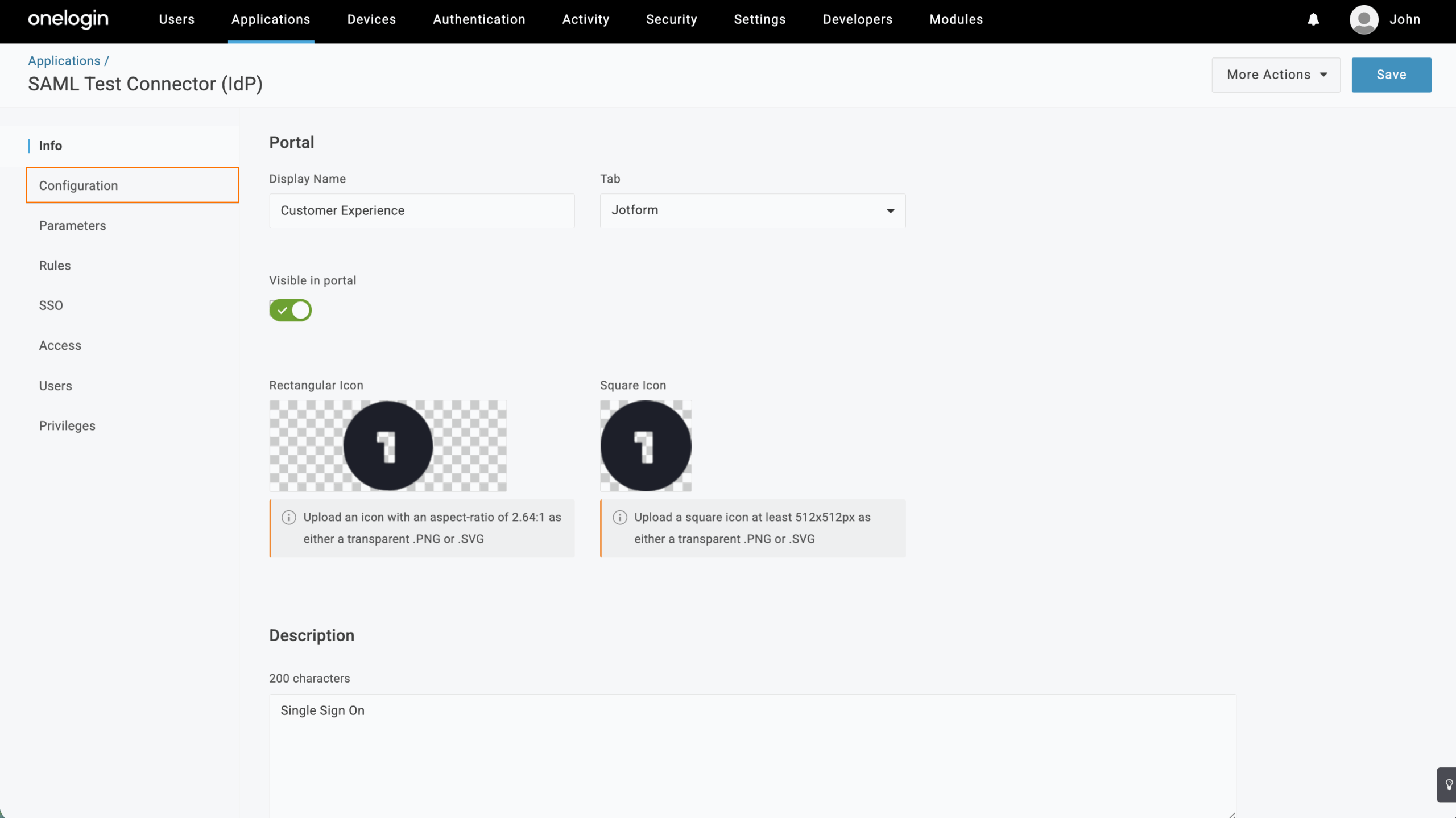
- In your OneLogin Admin Dashboard, in the black navigation bar at the top of the page, hover over Applications.
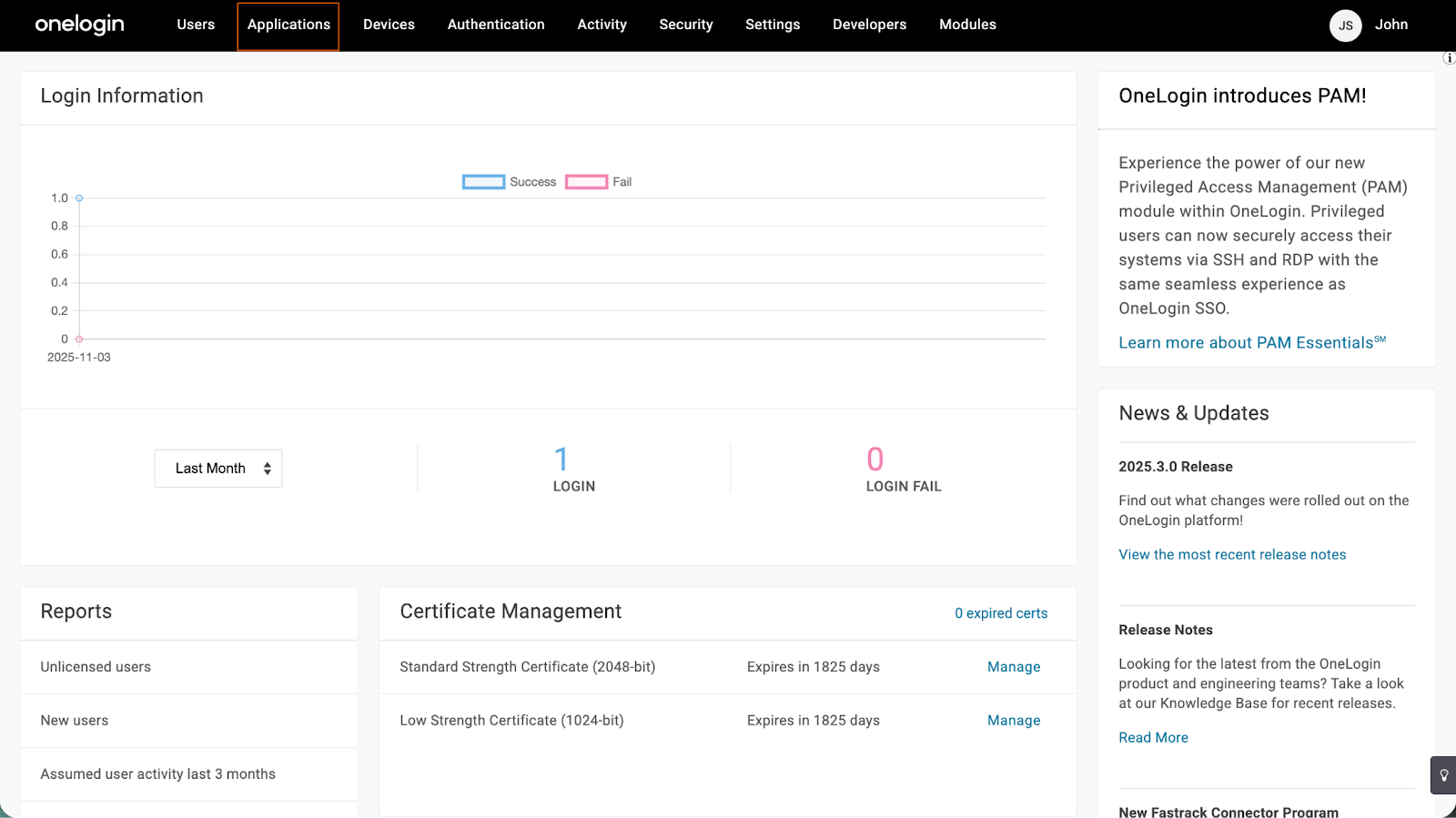
- From the dropdown, select Applications.
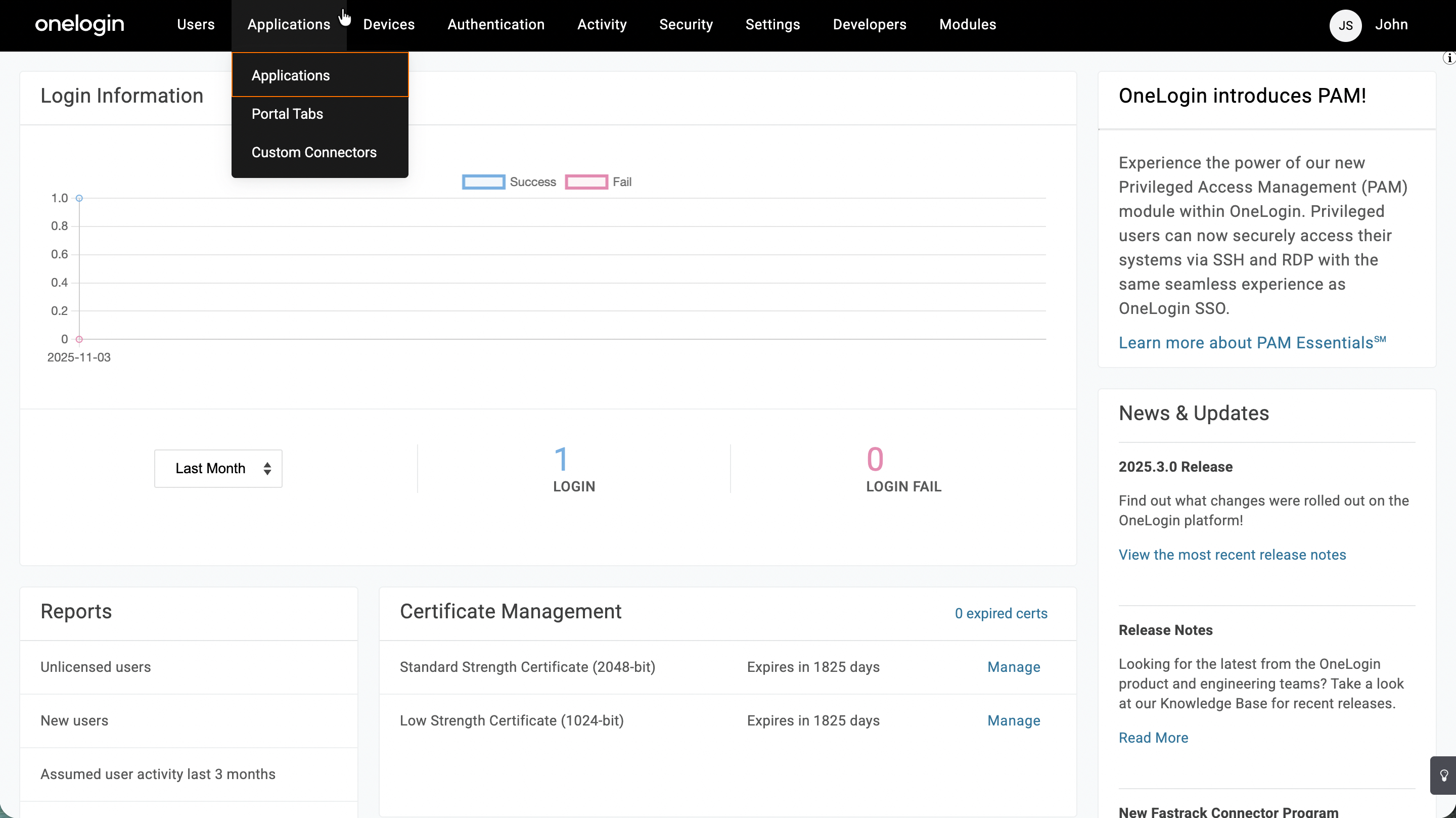
- Then, in the top-right corner of the page, click on Add App.
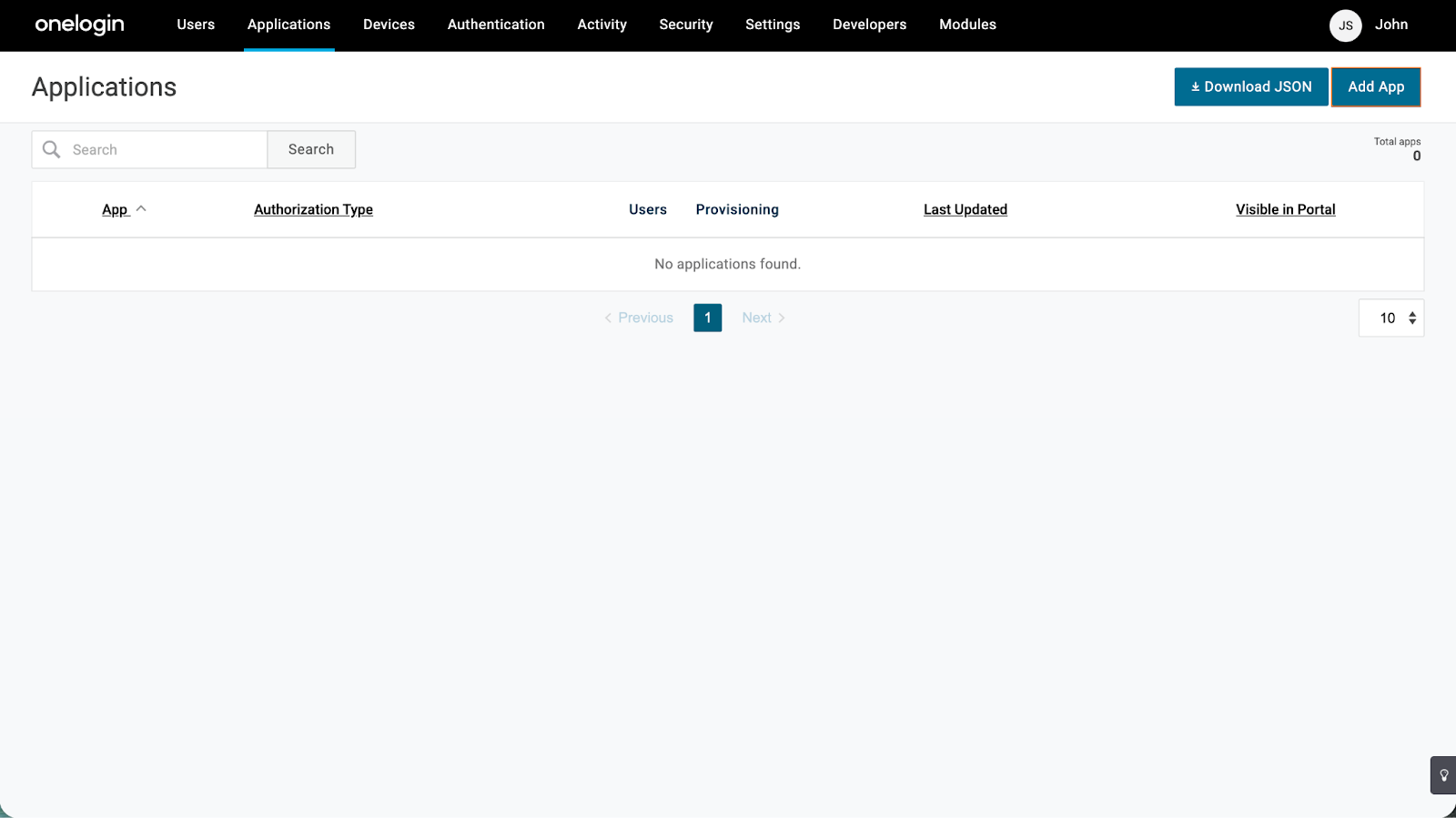
- Now, search for SAML Test Connector (IdP) and click on it.

- Next, on the Add SAML Test Connector page, set up these things:
- Display Name — Give your app a name that’s easy to recognize.
- Visible in Portal —This is turned on by default, so users will see the app in their OneLogin portal unless you switch it off.
- Rectangular Icon — Upload an icon with a 2.64:1 aspect ratio as a transparent .PNG or .SVG file.
- Square Icon — Upload a square icon at least 512 × 512 px as a transparent .PNG or .SVG file.
- Description — Add a short description of what the app’s for.
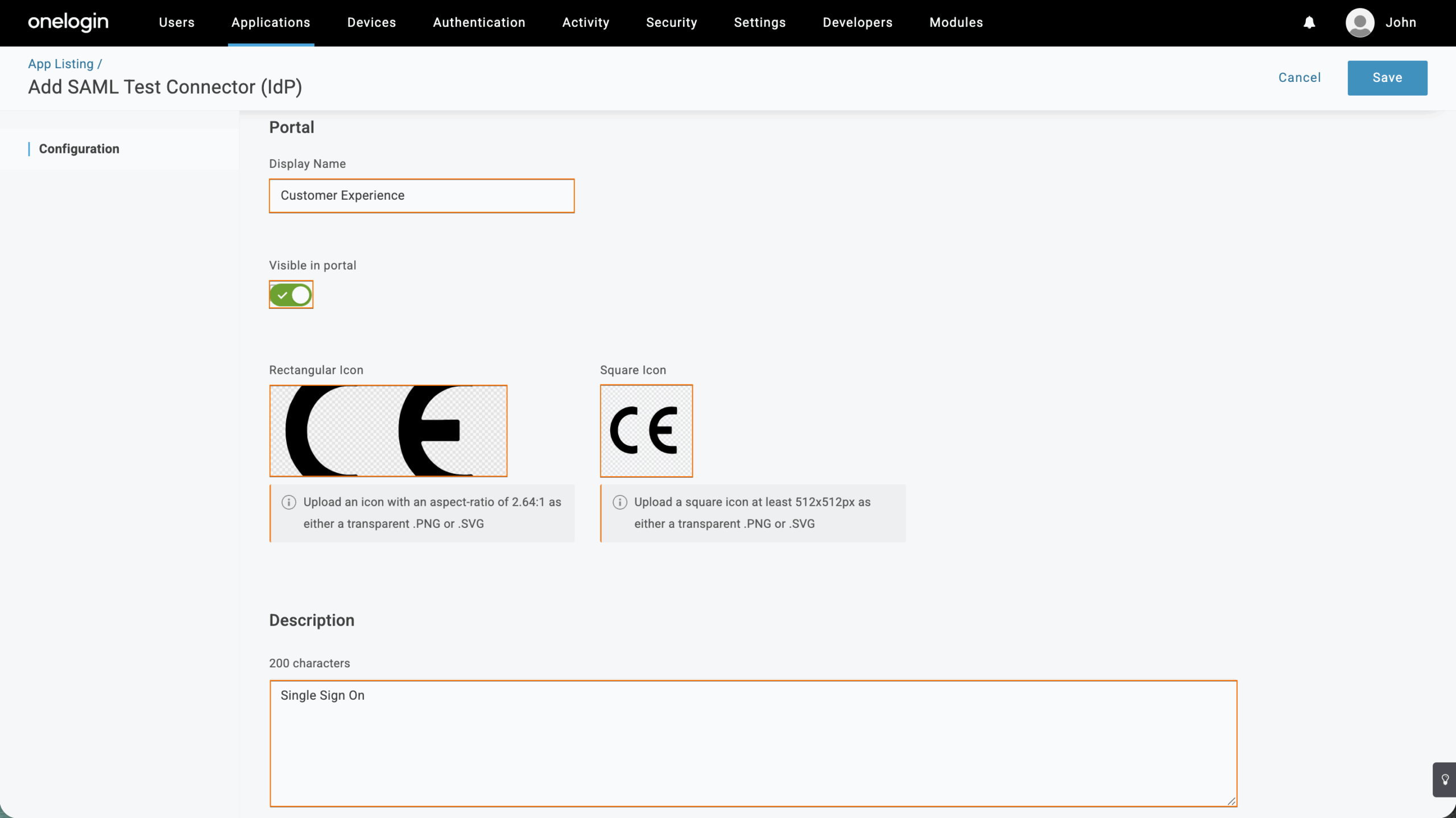
- Then, click on Save in the top-right corner of the page.

- Now, in the menu on the left, click on Configuration.
- Fill in the details under Application Details.
Take a look at our guide on How to Obtain Service Provider Metadata from Your Organization to learn more about them.
- Audience — Enter your Entity ID. For example: https://acme.example.com/sso/metadata.php
- Recipient — Enter your Service Provider Assertion Consumer Service URL without ?acs. For example: https://acme.example.com/sso/
- ACS (Consumer) URL Validator — Enter .* (a dot followed by an asterisk)
- ACS (Consumer) URL — Enter your full Assertion Consumer Service URL. For example: https://acme.example.com/sso/?acs
- Single Logout URL — Use the same URL as above, but replace ?acs with ?logout. For example: https://acme.example.com/sso/?logout

- Then, click on Save in the top-right corner of the page.

In the menu on the left, click on SSO to view your SAML App details and you’re all set. You’ll need this information to set up SSO in your organization.

Enabling and Configuring OneLogin SSO in Your Organization
Now that you’ve got your SAML details ready, log in to your organization account to set up the SSO connection. It only takes a minute—here’s how:
- In the Admin Console, in the left menu click on Security.
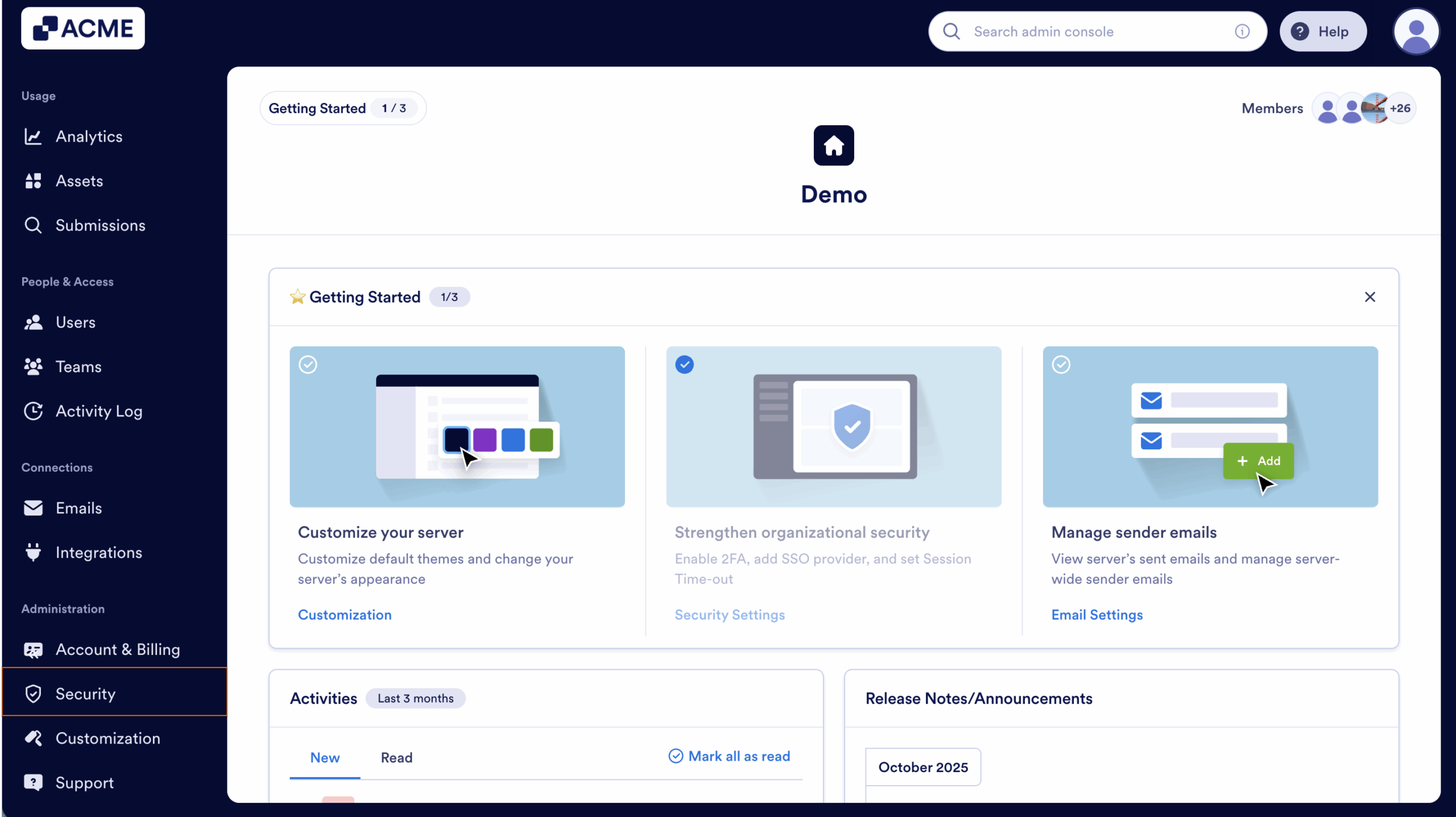
- Scroll down to the Single Sign-On (SSO) and click on Add SSO Provider.

- Select Configure Manually.

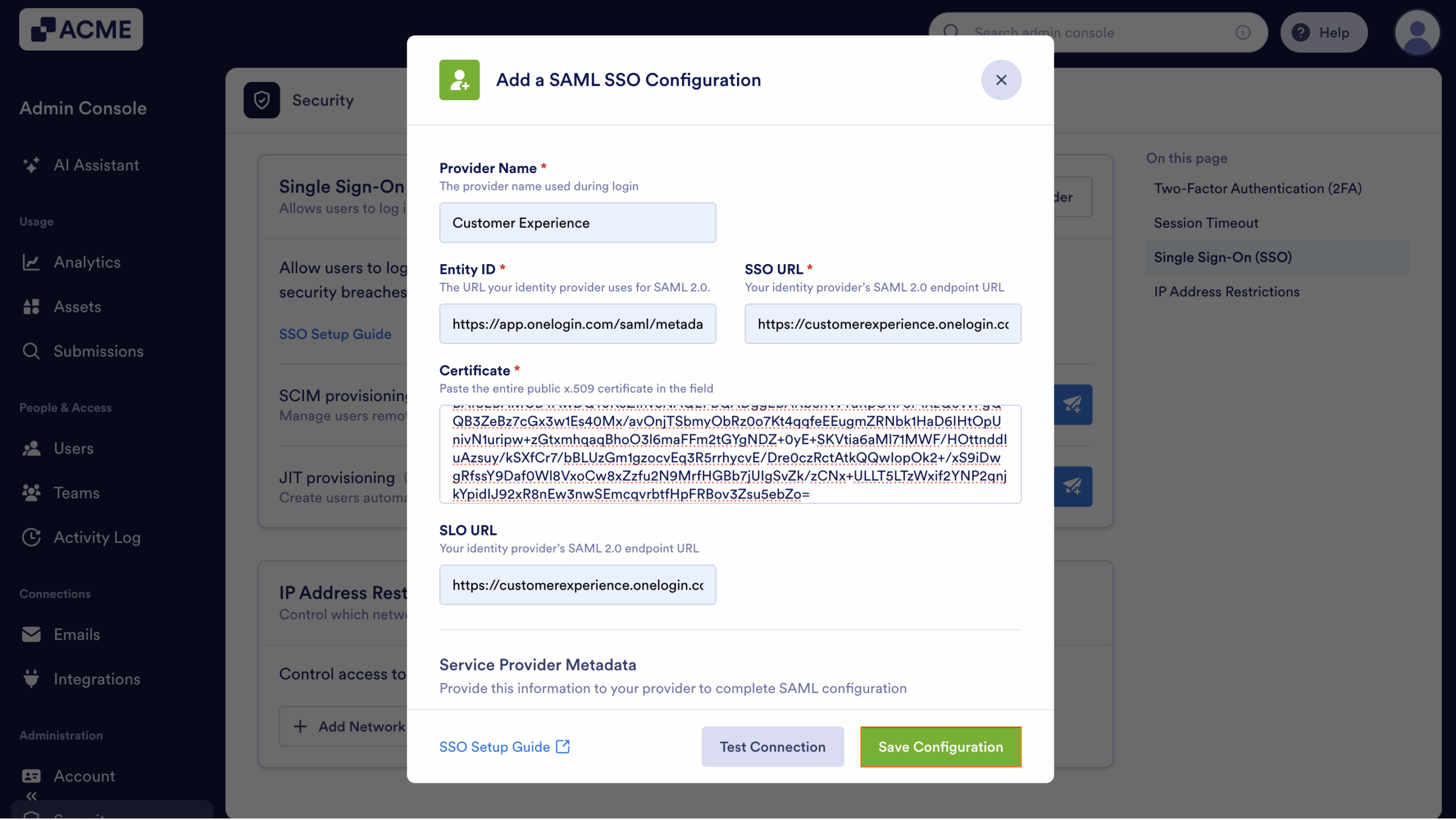
- Then, in the Provider Name field, enter the name you want users to see on the login page.

- Now, in the Identity Provider Metadata section fill in these details:
- Entity ID — Enter your OneLogin Issuer URL.
- SSO URL — Enter your OneLogin SAML 2.0 Endpoint (HTTP).
- Certificate — Paste your OneLogin X.509 Certificate.
- SLO URL — Enter your OneLogin SAML 2.0 Endpoint (HTTP) (used for logout requests).
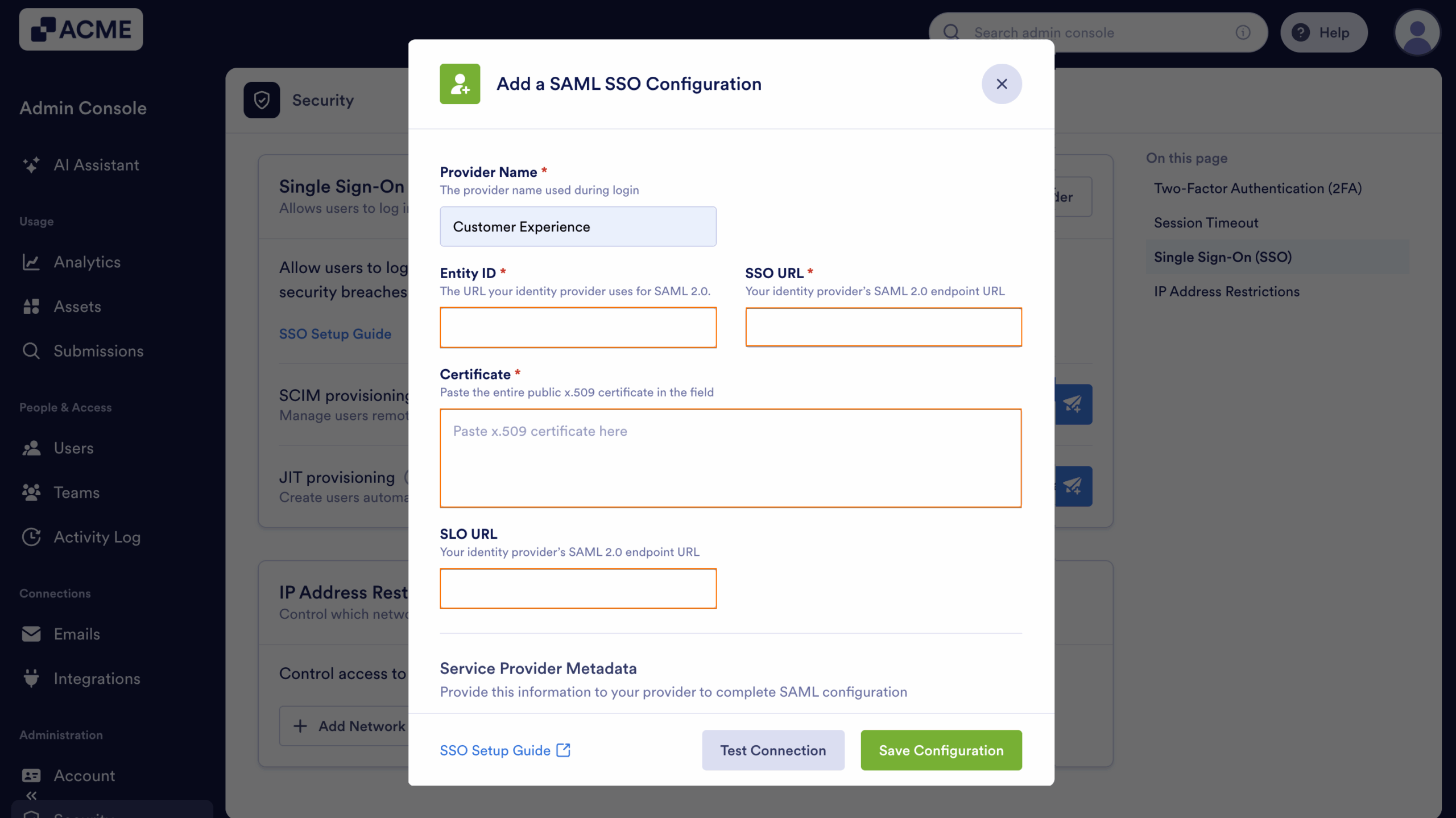
- Finally, click on Test Connection to make sure everything’s working correctly.
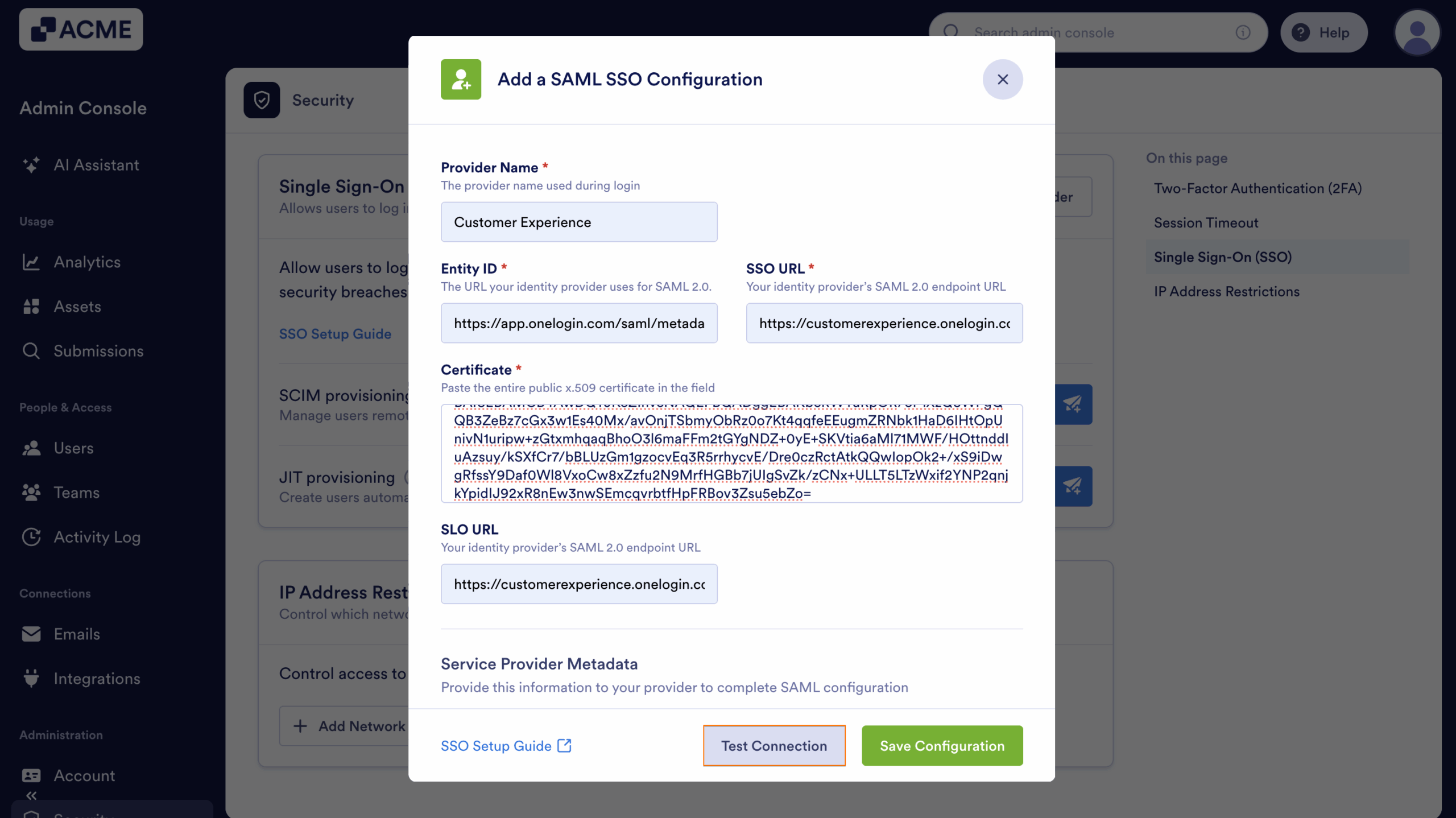
- Click on Save Configuration to apply your SSO settings—and you’re good to go.
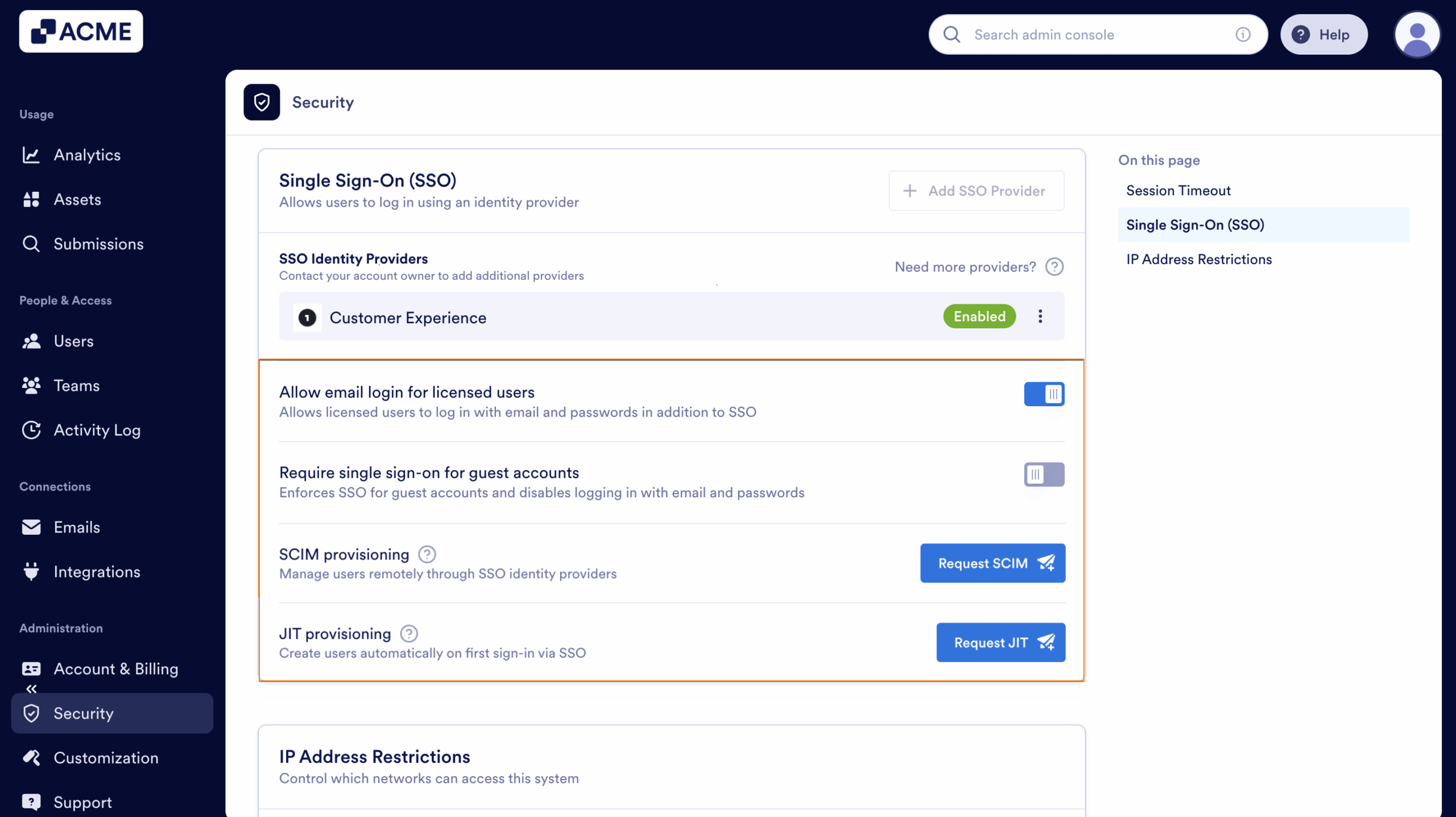
Once you turn on SSO, you’ll see these extra options under the SSO settings:
- Allow Email Login for Licensed Users — This lets licensed users log in with their email and password too, not just through SSO.
- Require Single Sign-On for Guest Accounts — This makes sure guest users can only sign in through SSO, adding a bit more security.
- SSO SCIM Provisioning Settings — This helps you automatically manage users by syncing with your identity provider, so you don’t have to update things manually.
- Just-In-Time (JIT) Access — This allows users to request temporary, time-limited access to restricted systems only when needed. It helps maintain security by granting elevated permissions on demand and automatically revoking them once the approved period ends.

Send Comment: