Advanced Formula is a column type in Tables where you can create equations or expressions to perform calculations, return information, change values, and more. To use Advanced Formula:
- In Tables, add a new column.
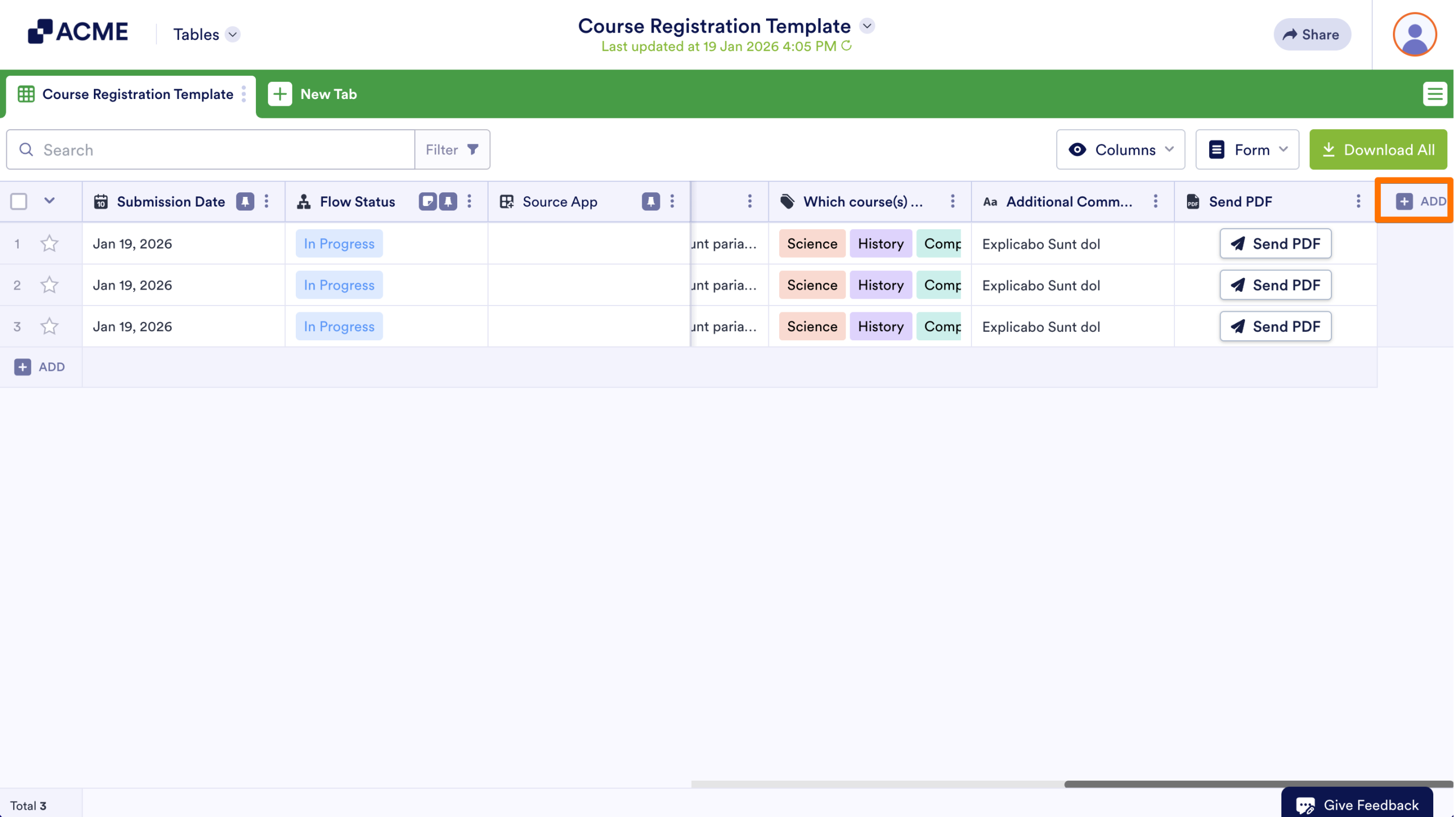
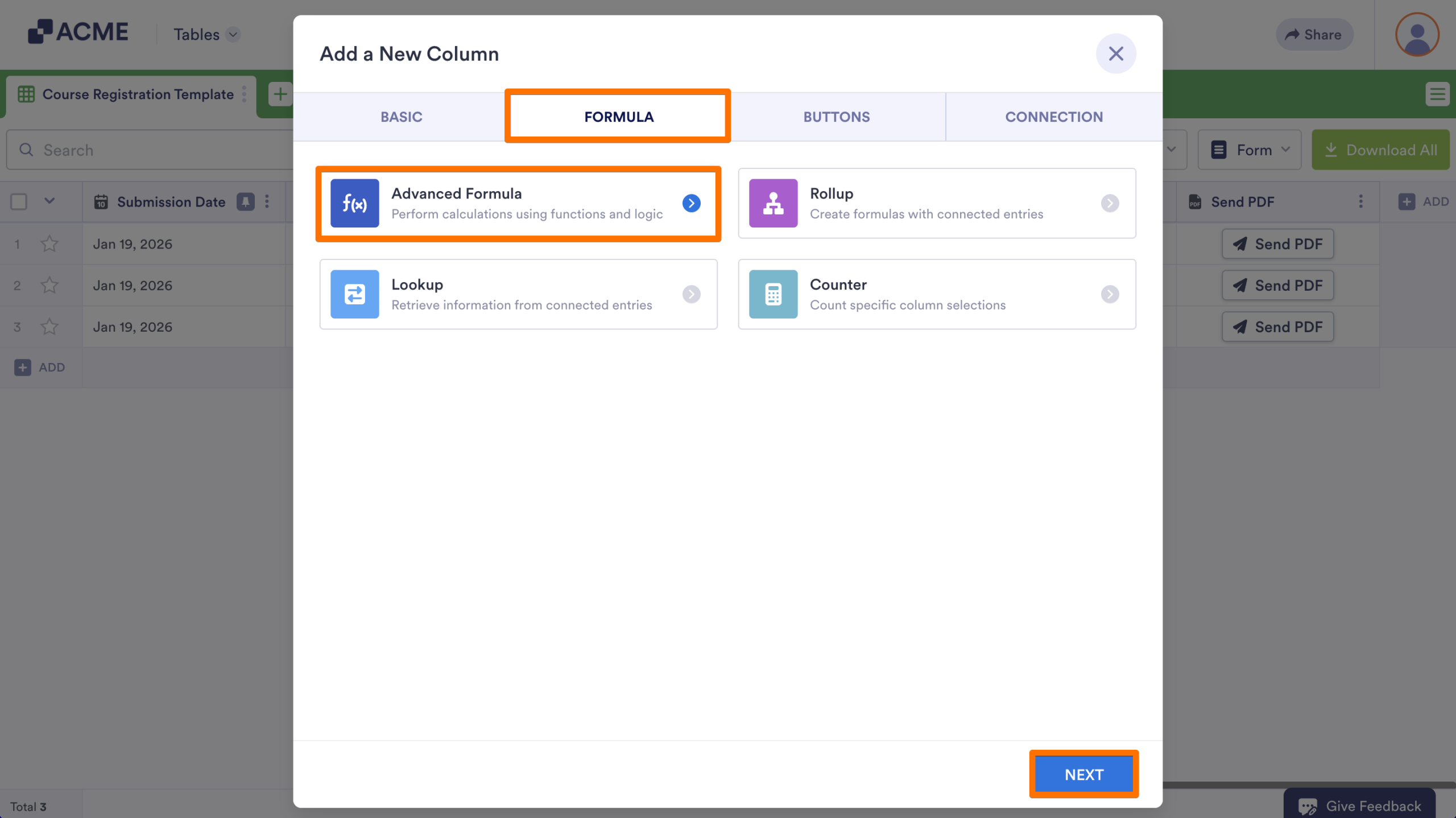
- In the window that opens, go to the Formula tab.
- Then, select Advanced Formula and click on Next.
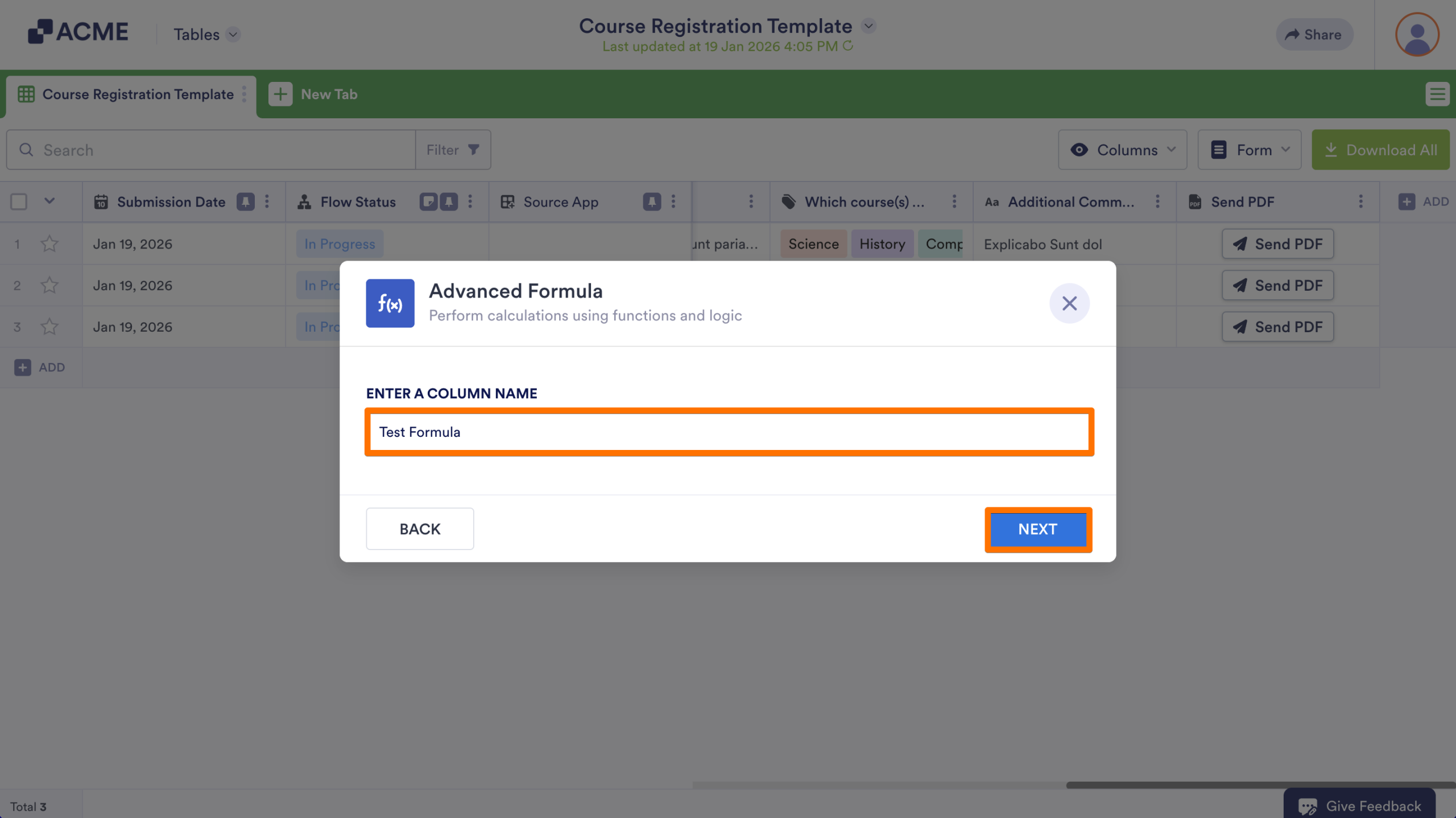
- Enter your desired column name and click on Next.
- Next, create your formula in the editor, then select Create Column when finished.
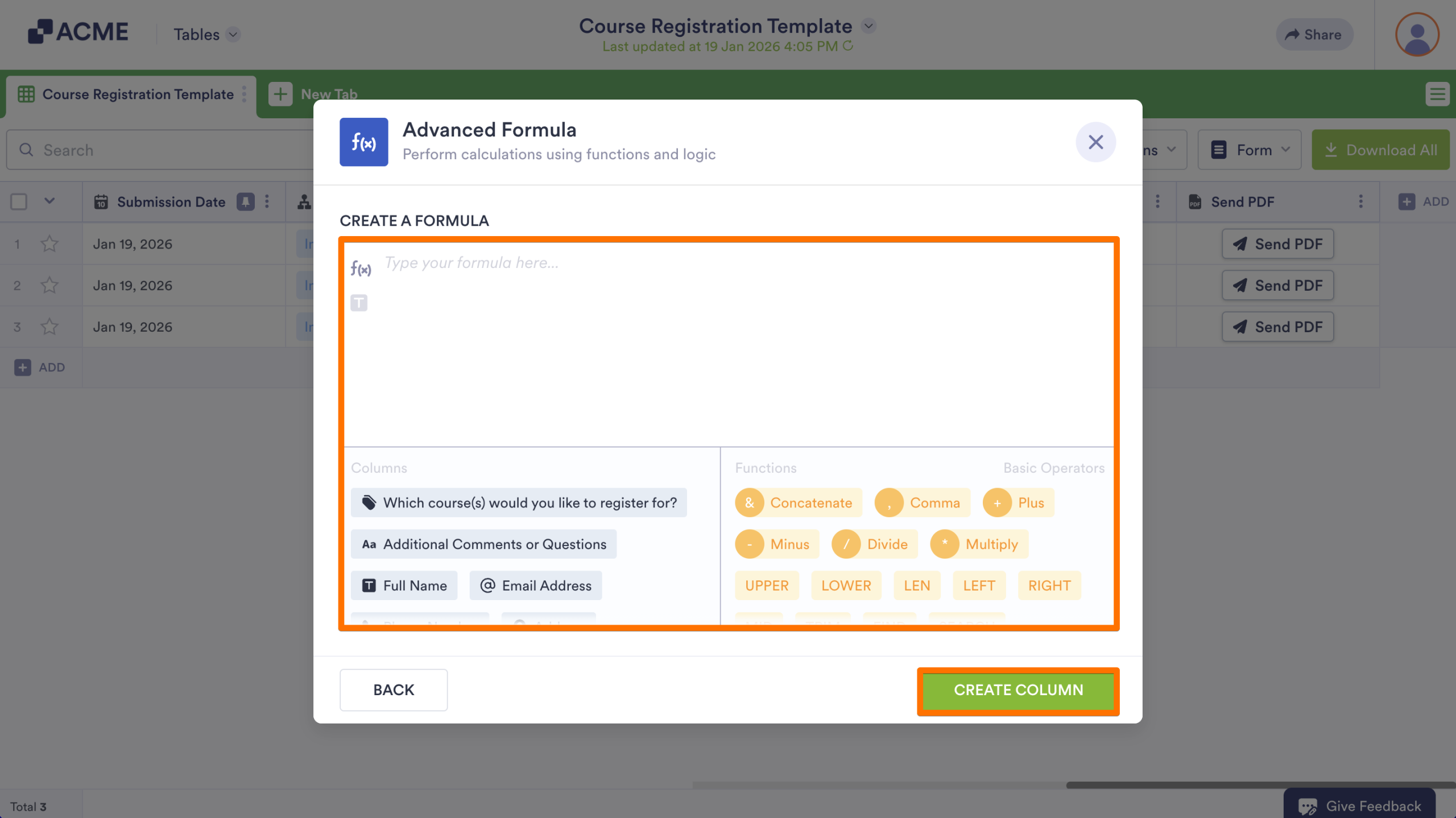
The formula editor has three major sections:
The Text Area
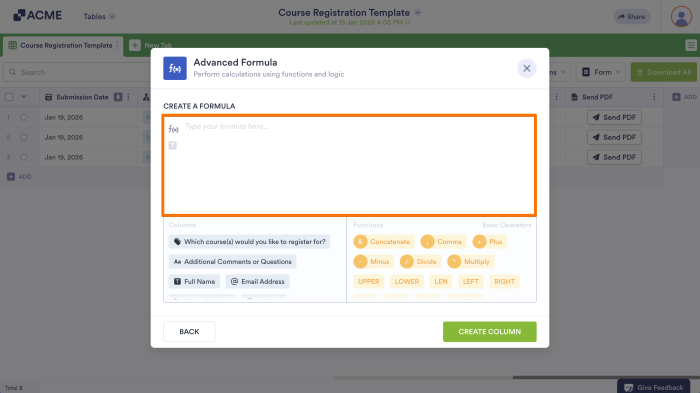
The text area is where you build your expressions. It uses a token-based system, meaning it treats form fields as interactive objects rather than just plain text.
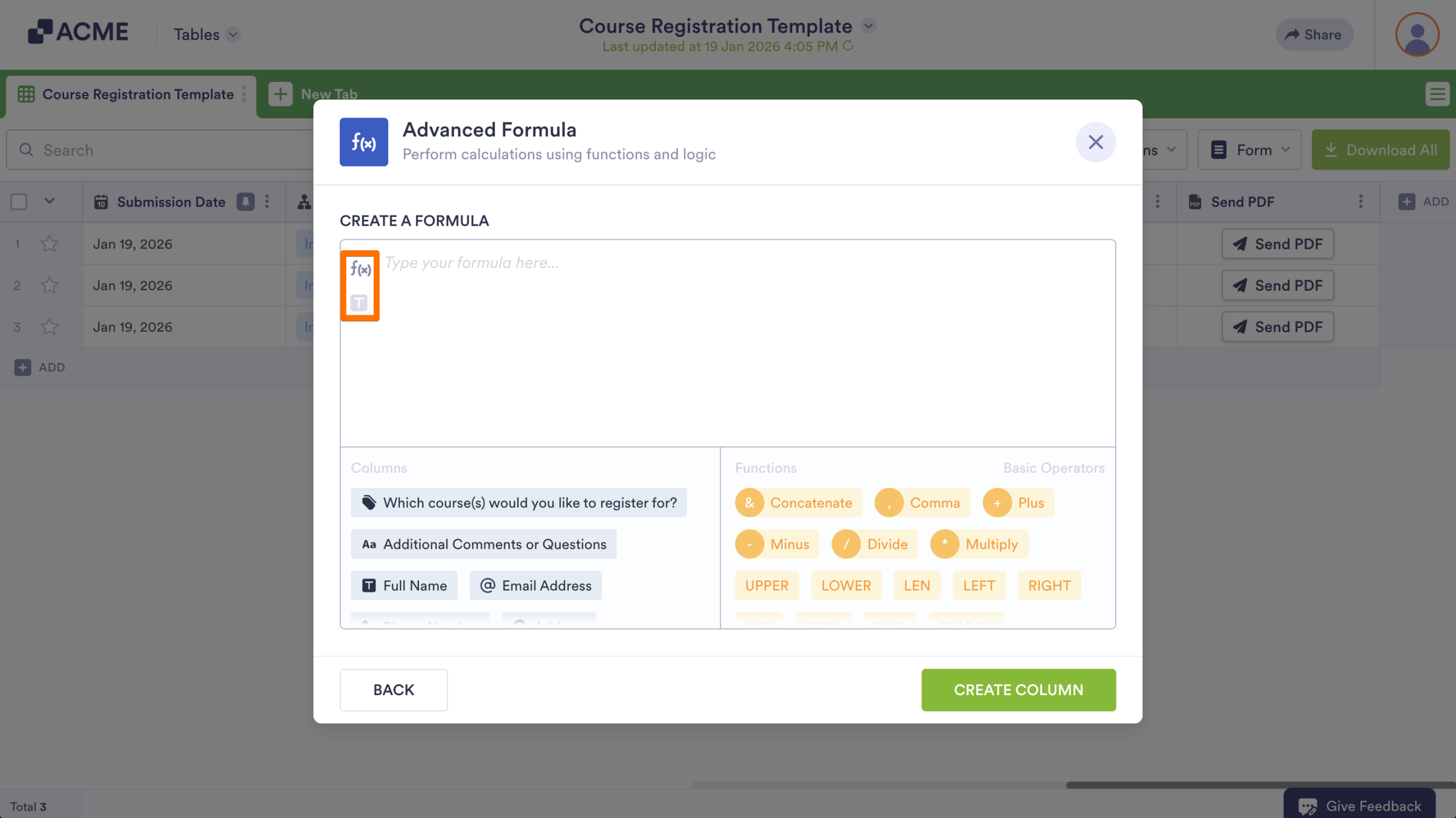
Input Mode Toggles
In the top-left corner of the text area, you will see two icons that change how the editor handles your input:
- f(x) (Formula Mode): This is the primary mode for building calculations. When active, clicking a column name inserts a Field Token. This token tells the system to pull the Value from that field.
- T (Text Mode): This mode treats inputs as literal strings. This is generally used only for advanced debugging or specific static text.
Here’s a list of keyboard keys you can use in the visual editor:
| Key | Description |
|---|---|
| Up, Down | For navigating column or function suggestions. |
| Tab | To insert a column or function suggestion or entered text. |
| Left, Right | To navigate through the formula. Also deselects the column or function suggestion. |
| Enter, Esc | For inserting entered text. |
| Backspace | For deleting preceding elements. |
Columns
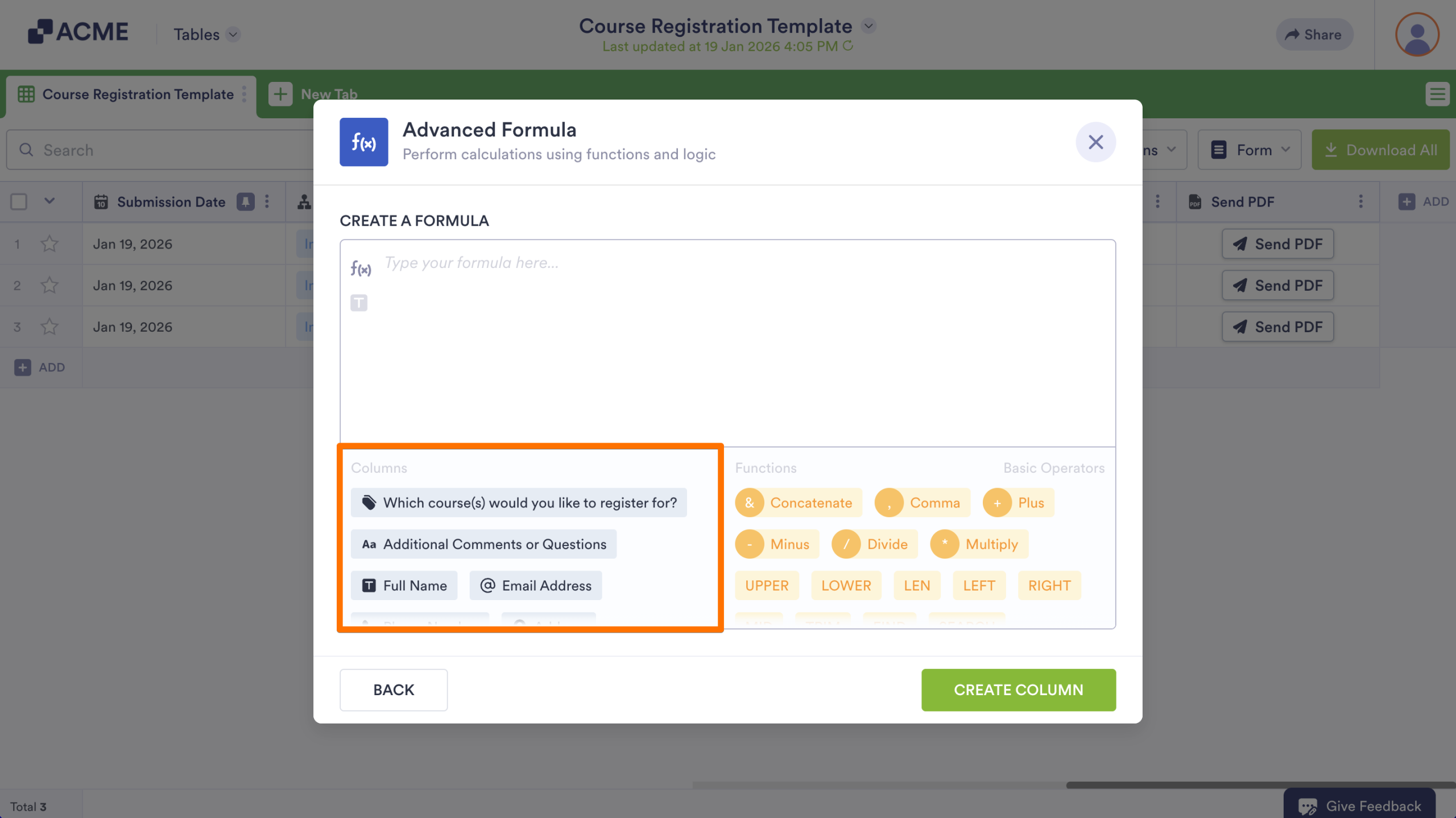
The Columns section contains the list of available columns in your tables that you can use as variables or arguments in your formula. This includes all supported column types generated from your form or manually added in Tables.
Functions
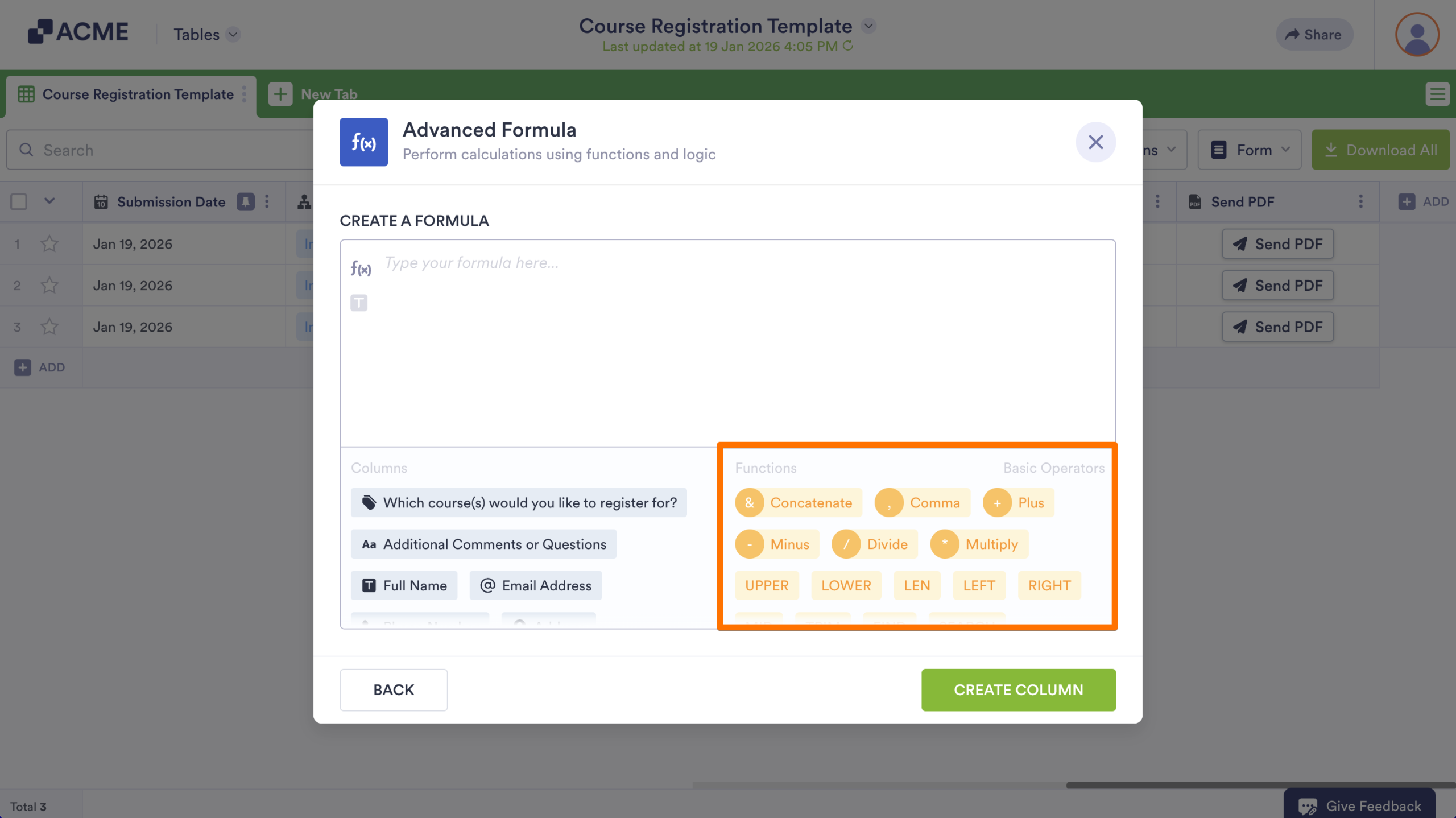
The Function section contains all the available operators and functions you can use.
For more information on how to use the operators and functions, see:
- Operators
- Text Functions
- Logical Functions
- Numeric Functions
- Date Functions
- Array and Record Functions
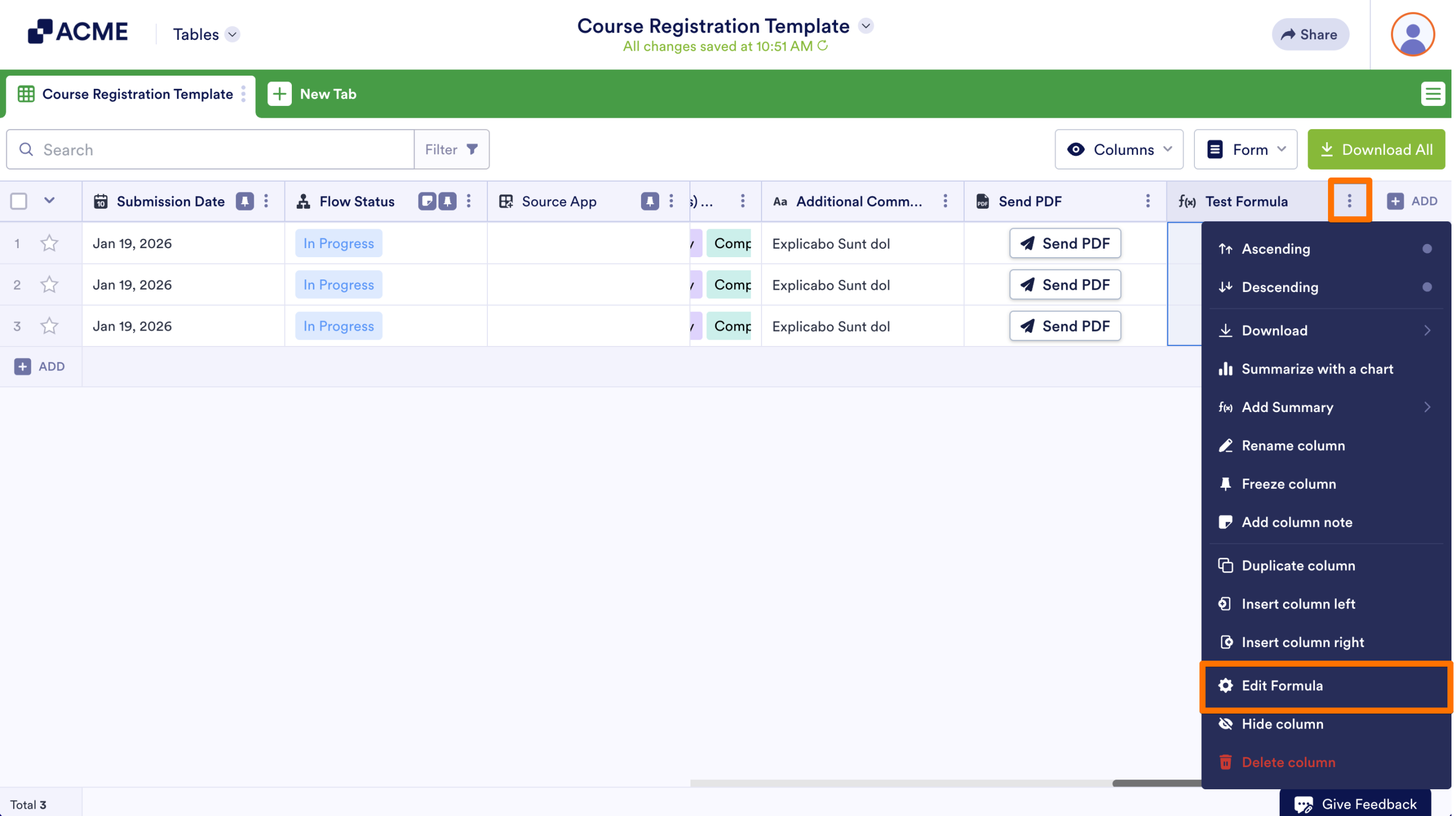
To update your formula:
- Click on the Three Dots icon in the column.
- Then, select Edit Formula.

Send Comment: