In Jotform, recovery codes act as a backup method for signing in when you can’t access your usual two-factor authentication (2FA) device. If you’ve lost your original recovery codes, used them up, or just want a fresh set for added peace of mind, you can generate new ones at any time. Doing this will replace your previous set, so be sure to save the new codes in a safe place. These codes help keep your account accessible while 2FA stays active and your account remains secure.
Getting a new set of recovery codes is quick and easy. Here’s how to do it:
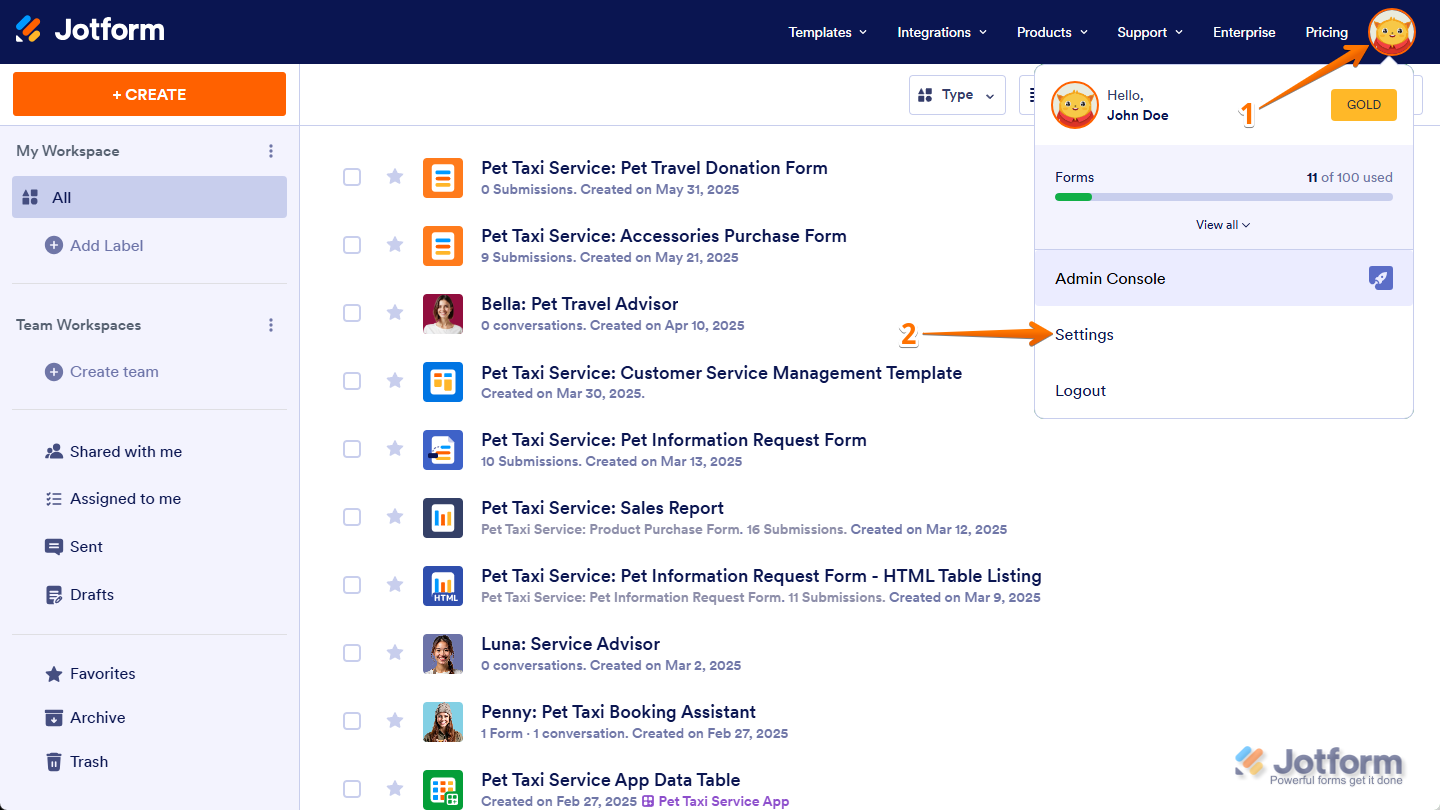
- On the top-right side of your Workspace page, click on your Profile Picture/Avatar.
- Then, in the menu that opens, click on Settings to open the Settings page in a new browser tab.
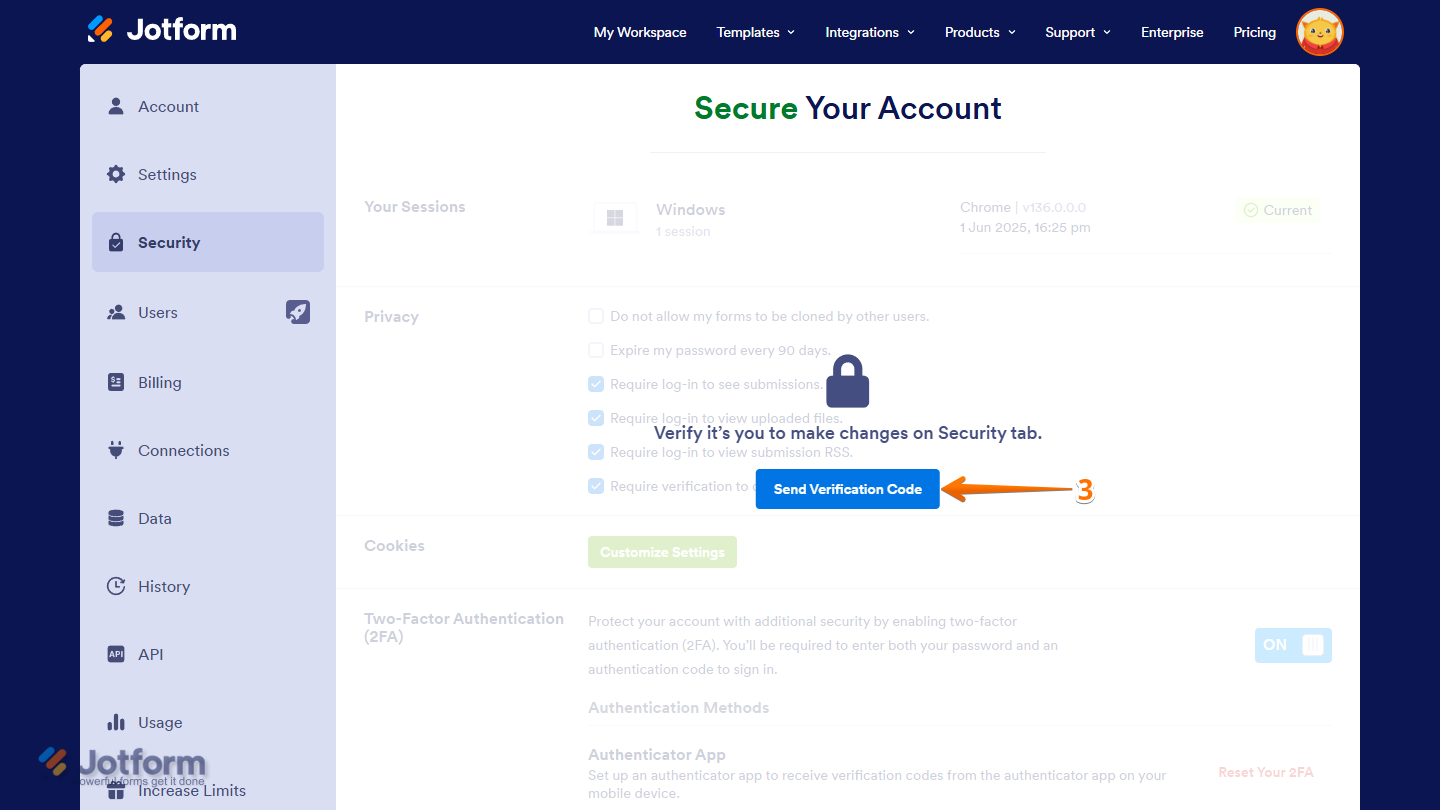
- Now, go to the Security tab on the left, and click on Send Verification Code in the Verification prompt.
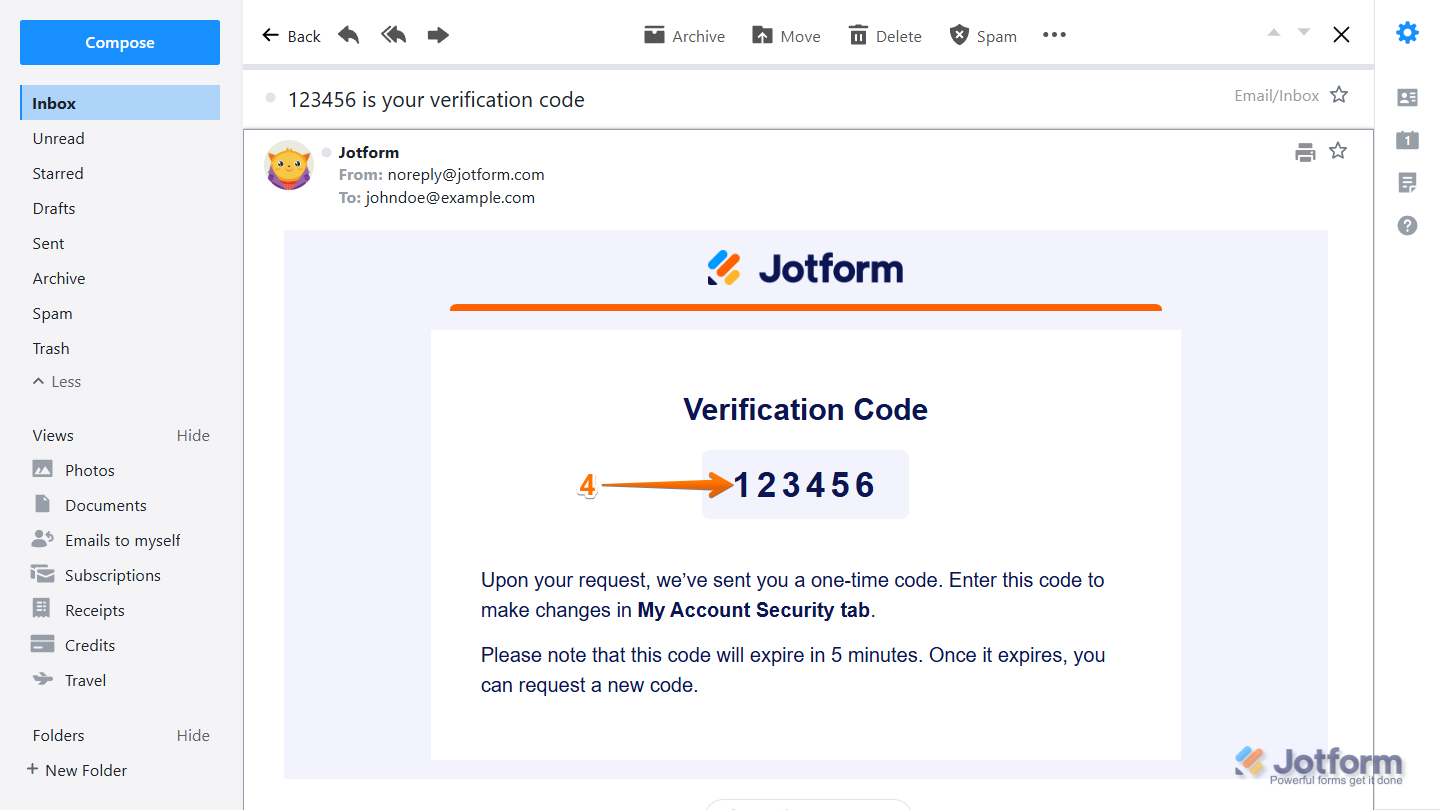
- Then, copy the Verification Code sent to the email address linked to your account.
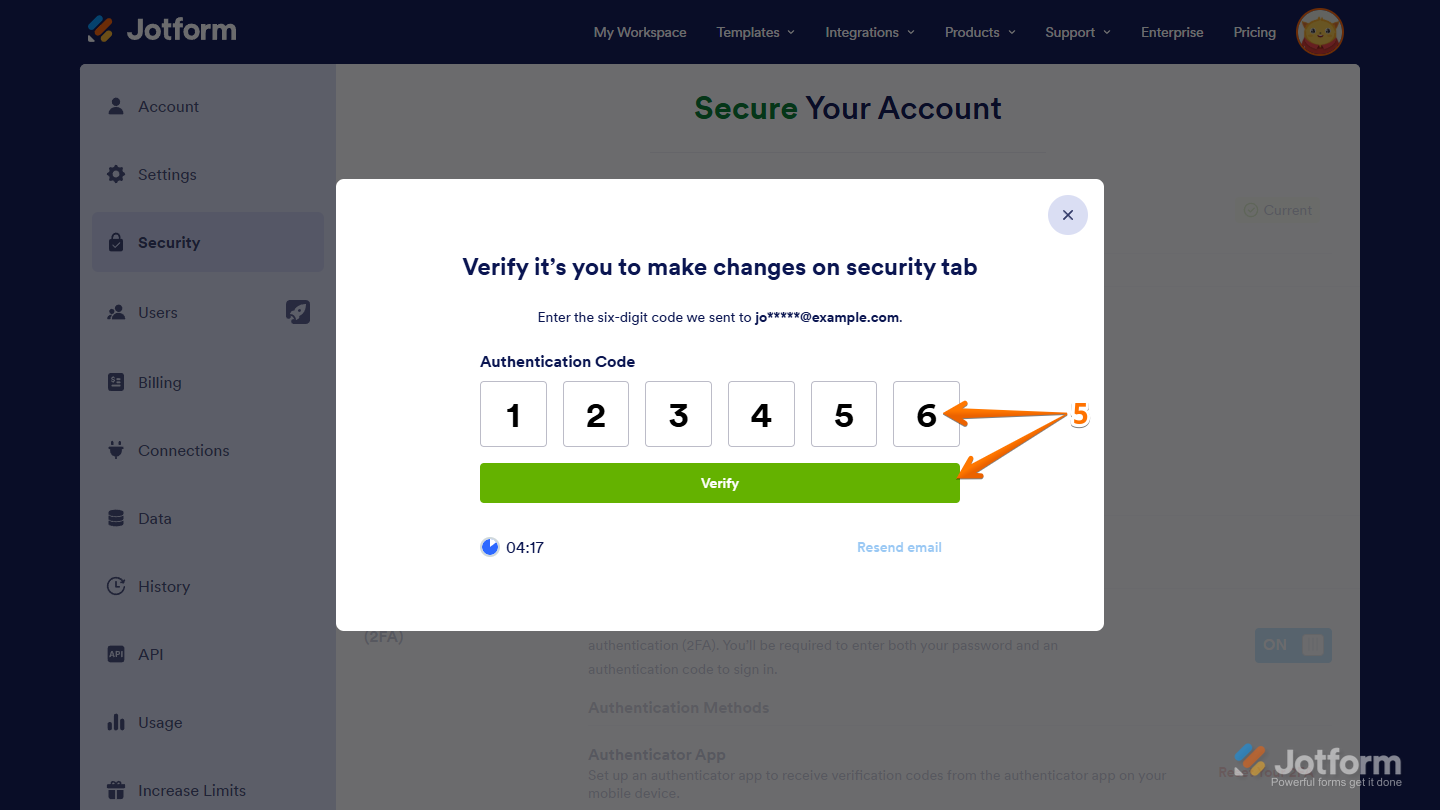
- Next, enter the code to verify you’re making changes to your account, and it’ll be accepted automatically. If it isn’t, or if you enter the wrong code, correct it and click on Verify.
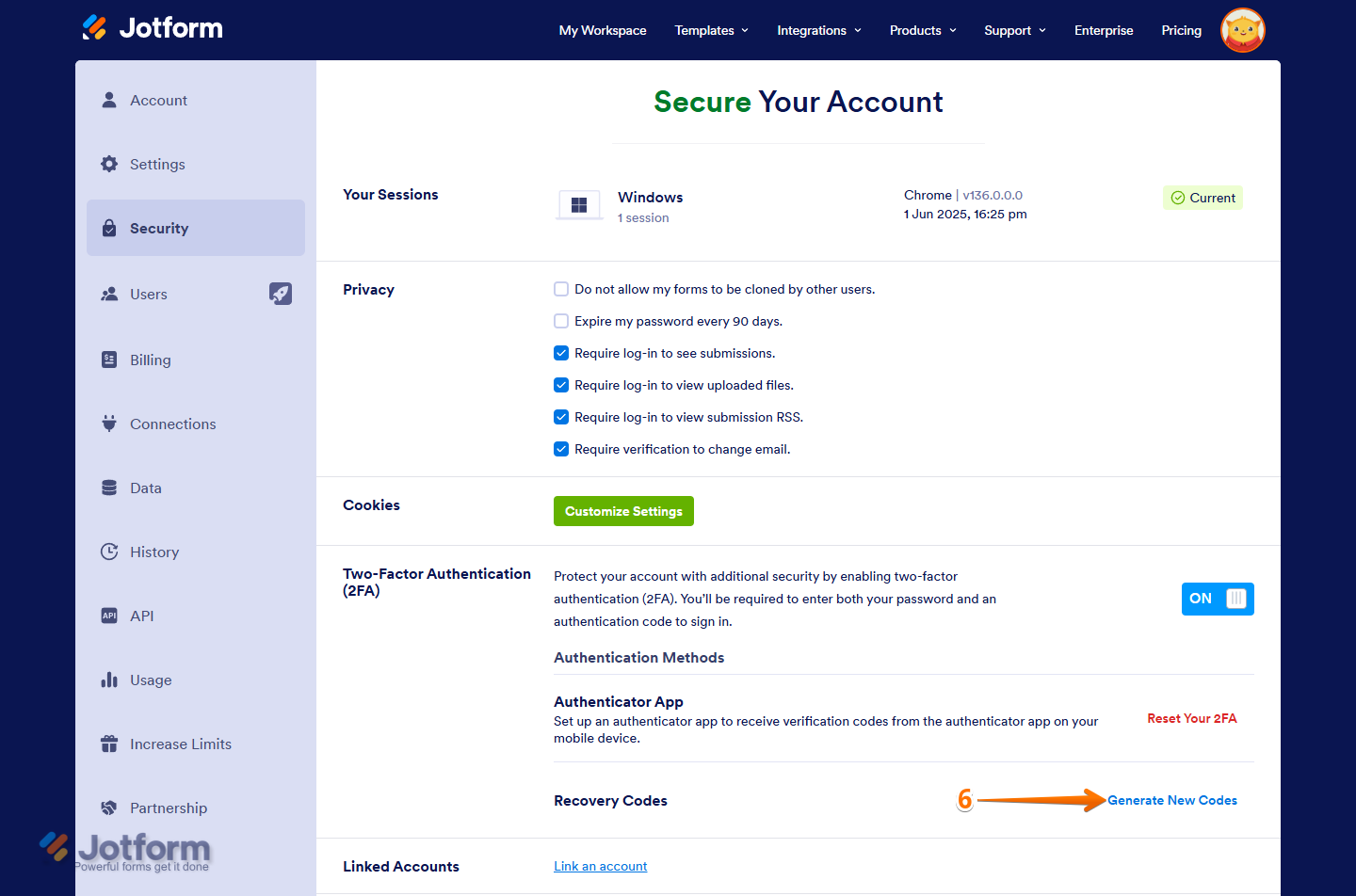
- Now, in the Two-Factor Authentication (2FA) section, on the right side of Recovery Codes, click on Generate New Codes.
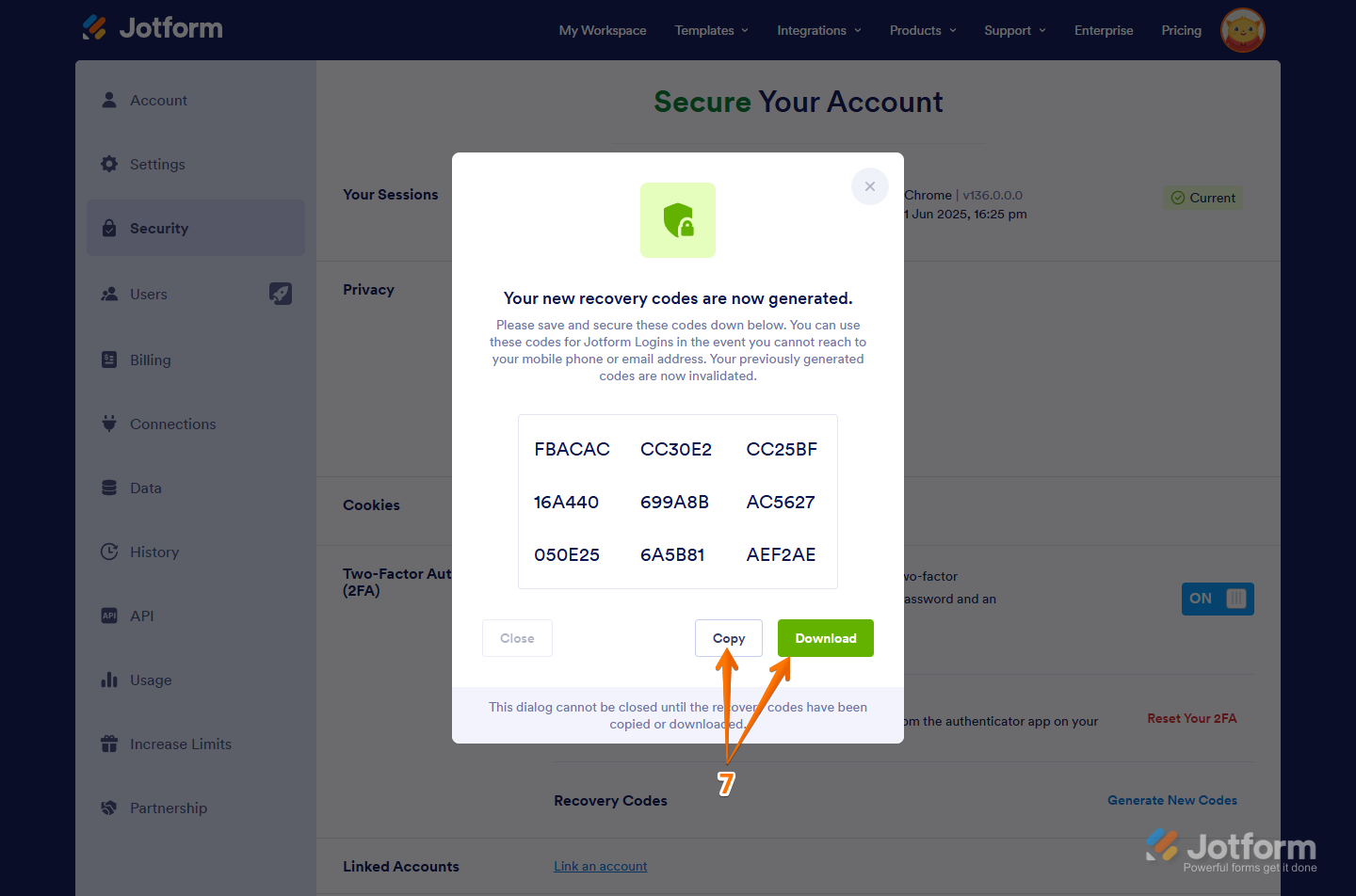
- Then, in the Dialog window that pops up, click Copy or Download to save the new recovery codes on your device. You’ll need them if you lose access to your authenticator app, so keep them somewhere safe and easy to find.
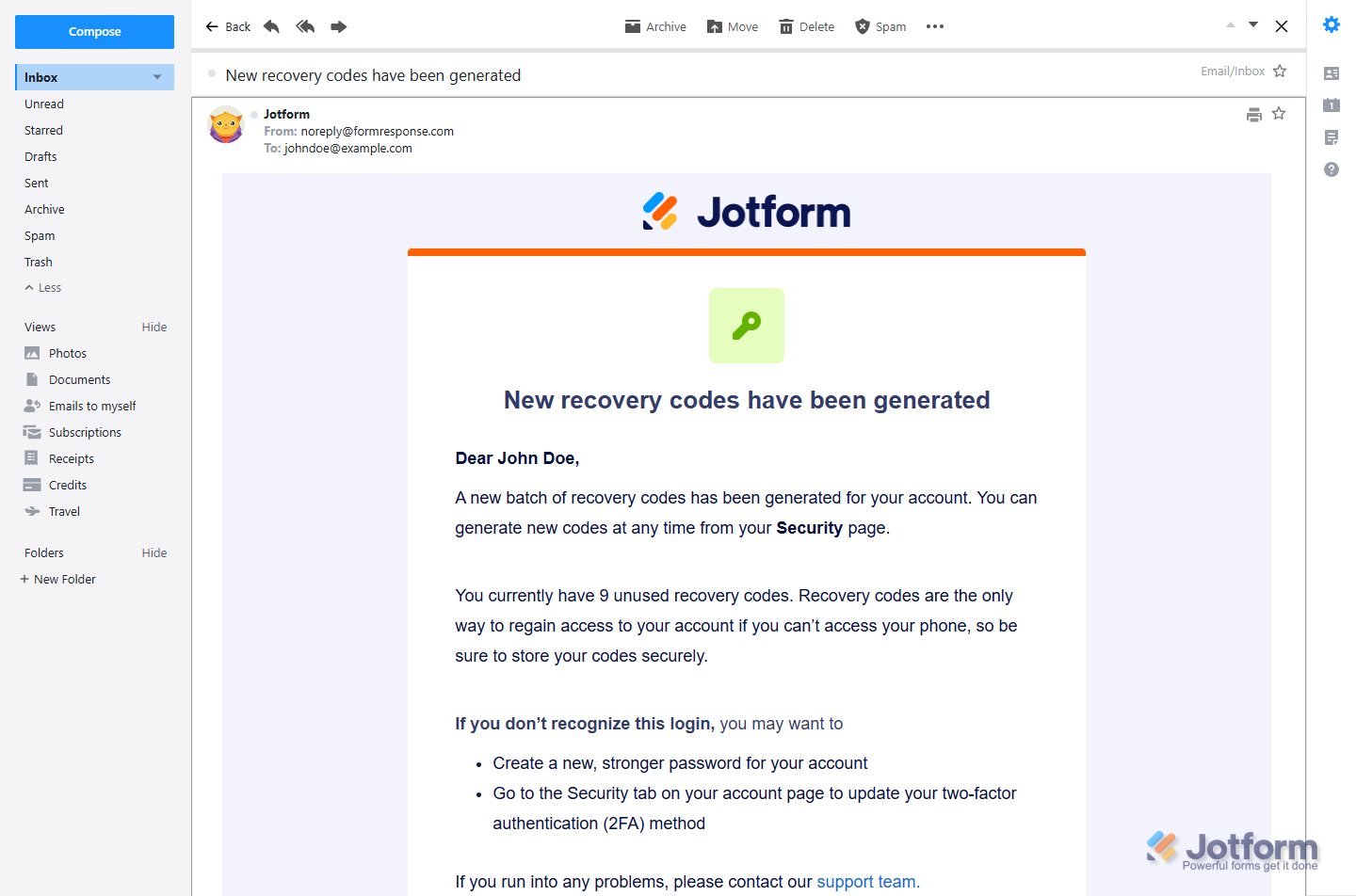
That’s it. You’ve successfully generated a new batch of recovery codes for your account. You’ll also get a confirmation email at the address linked to your account.

Send Comment: