Jotform makes it easy to bring form-building tools directly into your Trello Boards. With the Jotform Power-Up, you can create, add, and manage forms right inside your Trello cards without switching between apps.
This helps you keep everything in one place, making it easier to stay organized. Whether you’re collecting feedback, handling approvals, or tracking responses, everything stays connected so you can manage your tasks more efficiently.
Connecting and Setting Up Your Jotform Account in Trello
Before you can start using Jotform in Trello, you’ll need to connect your account using the Jotform Power-Up. It only takes a minute to set up—here’s how:
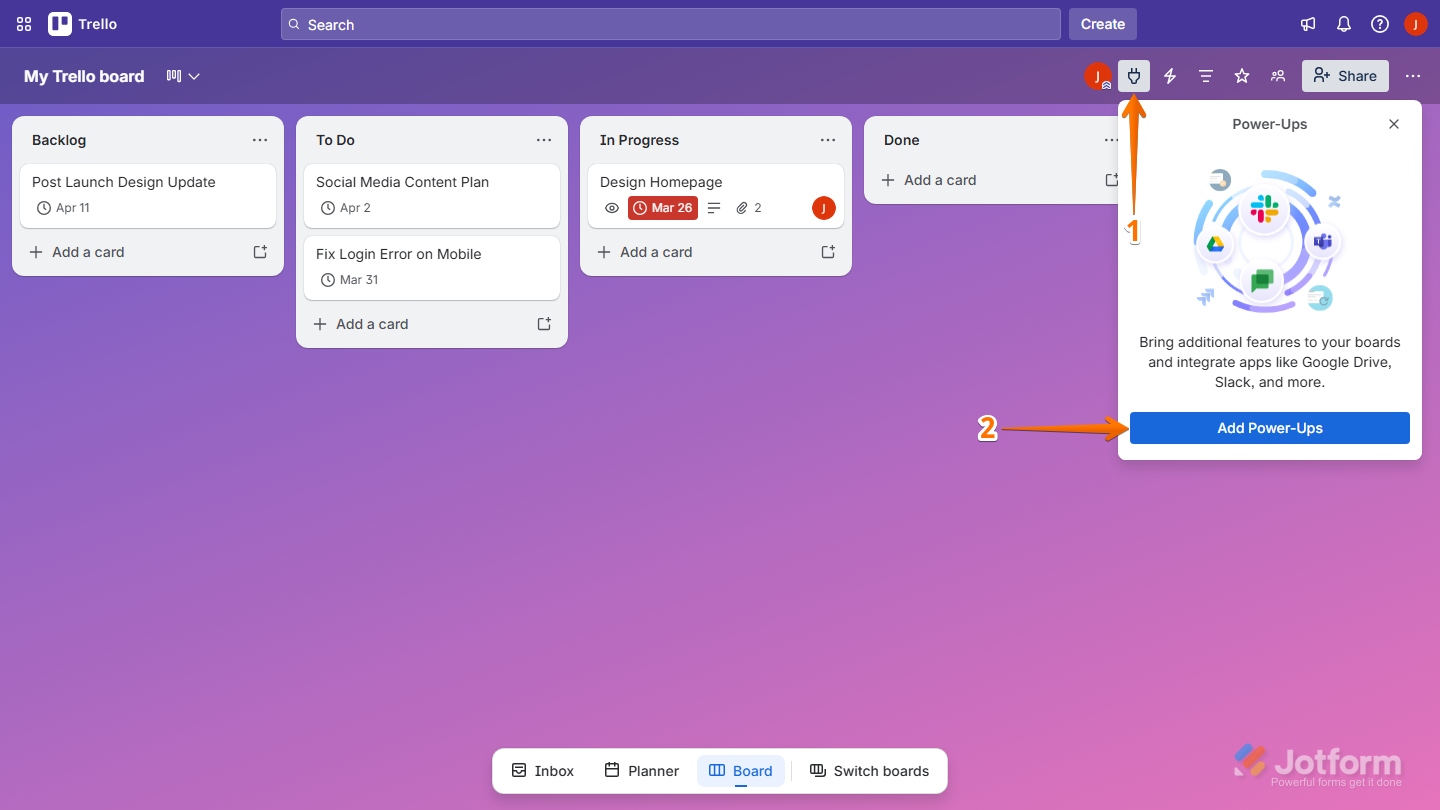
- On your Trello Board, in the top-right side of the screen, click on the Plug icon.
- Then, in the Power-Ups window that opens, click on Add Power-Ups.
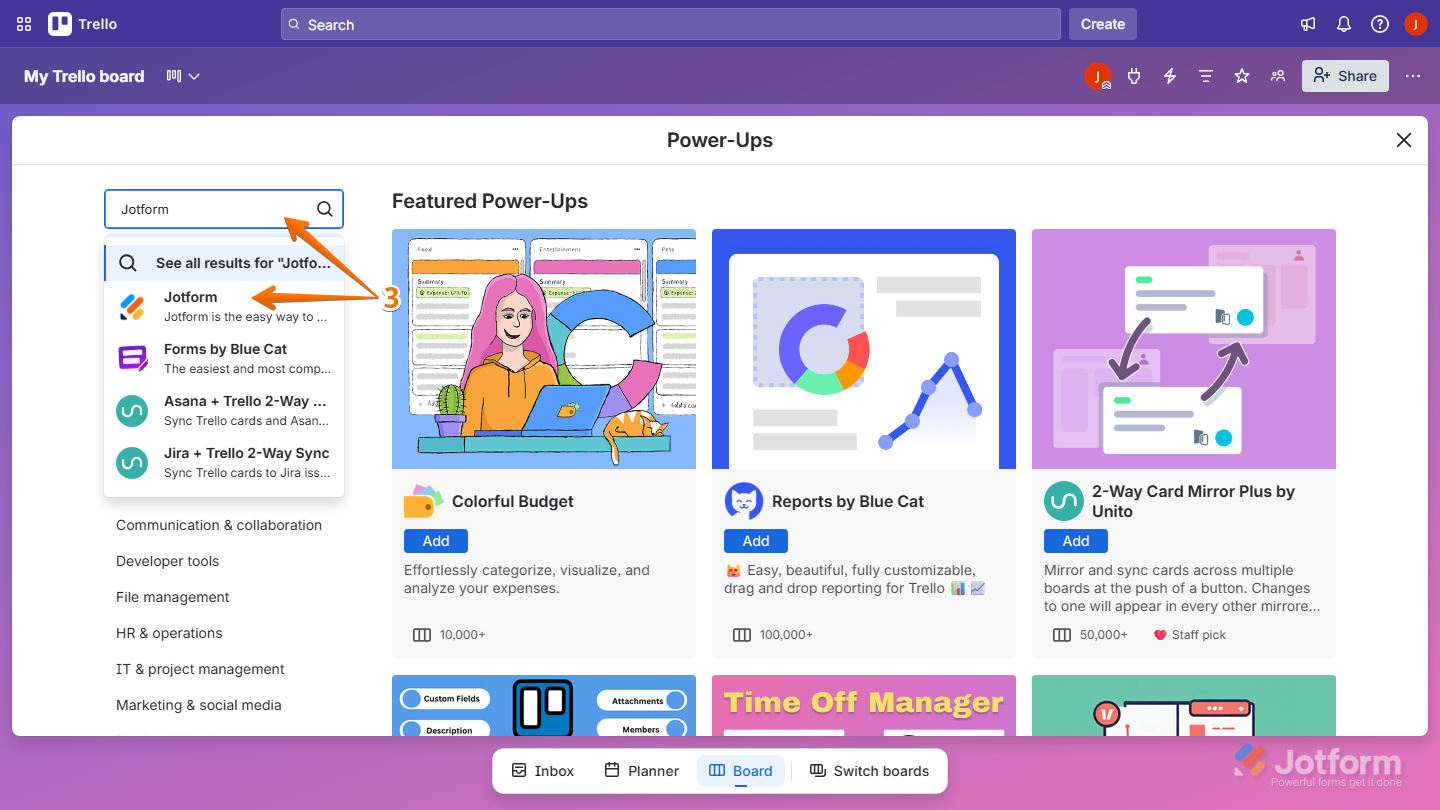
- Now, on the left side of the page, in the Search bar, enter Jotform, then click on it from the results.
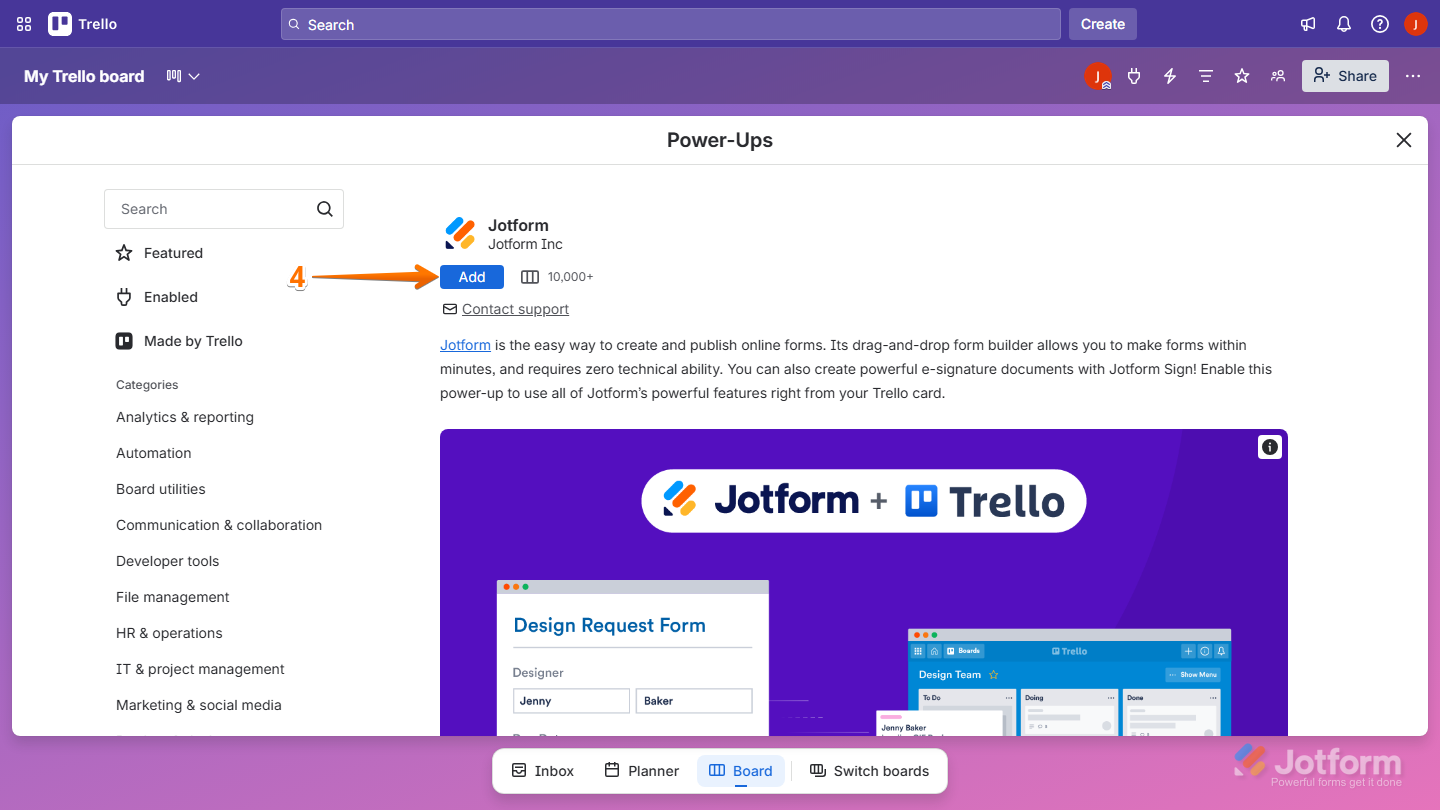
- Next, on the Jotform Power-Ups page, click on Add.
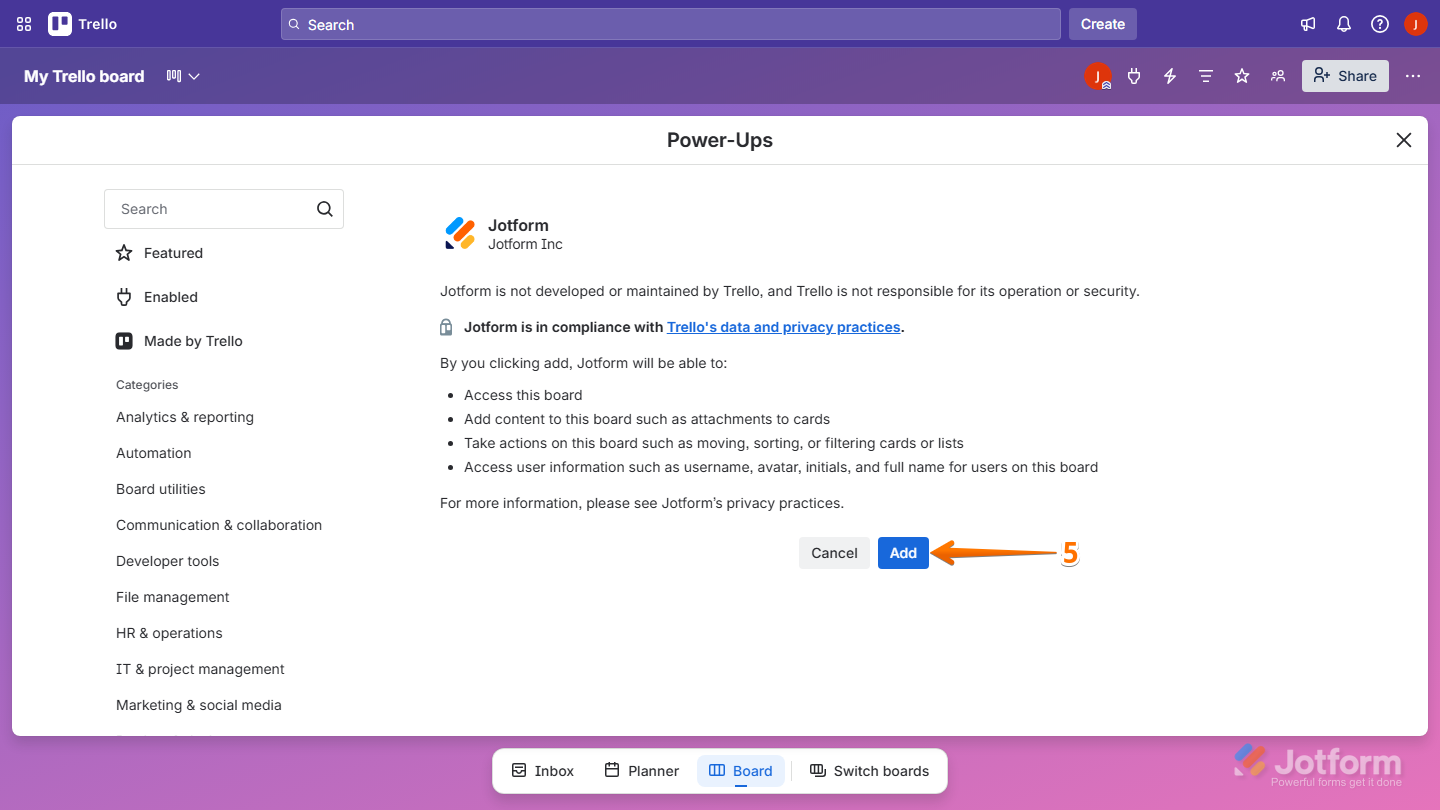
- Then, in the Confirmation window that comes up, click on Add to allow Jotform to access your Trello board.
- Next, click on Settings, then in the menu that appears, select Authorize account.
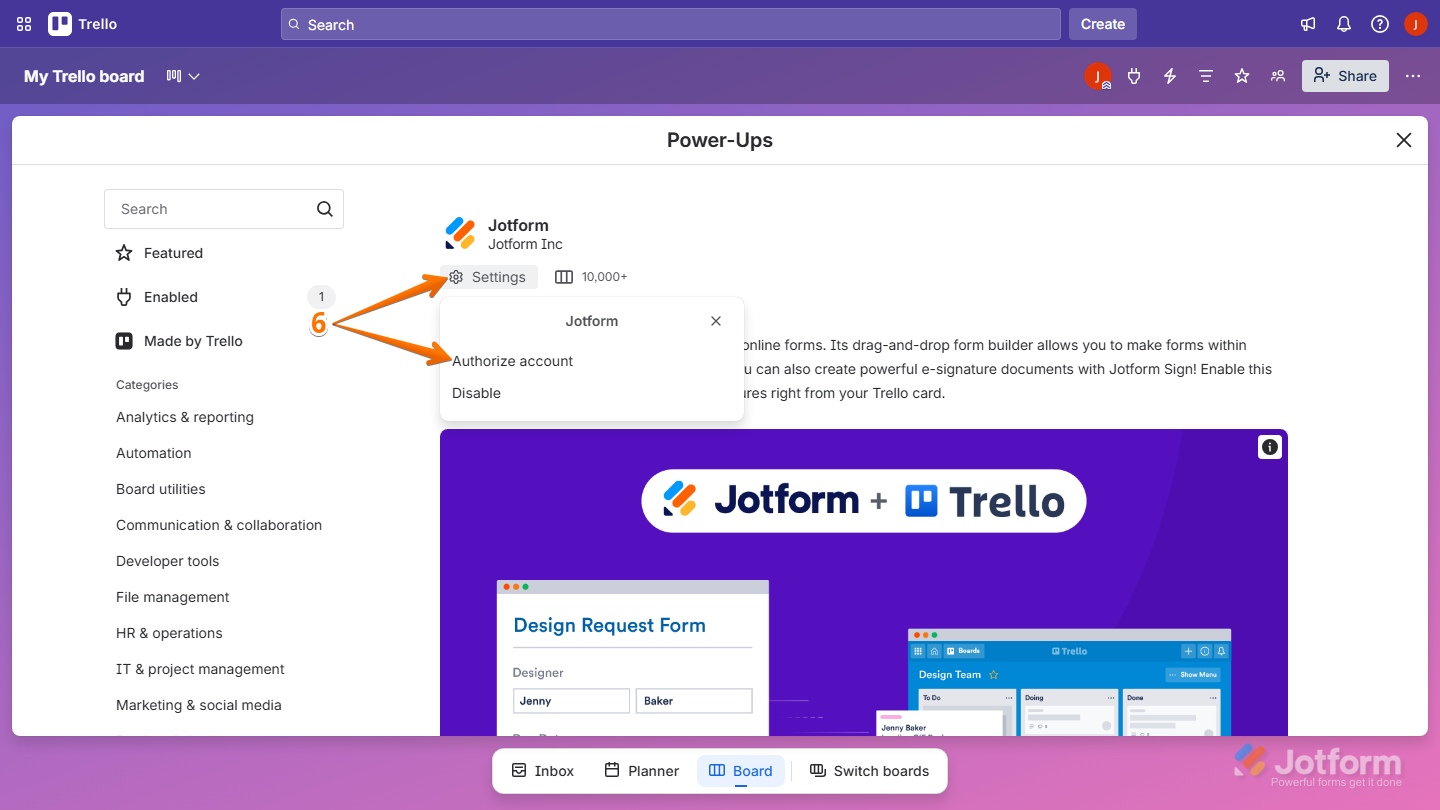
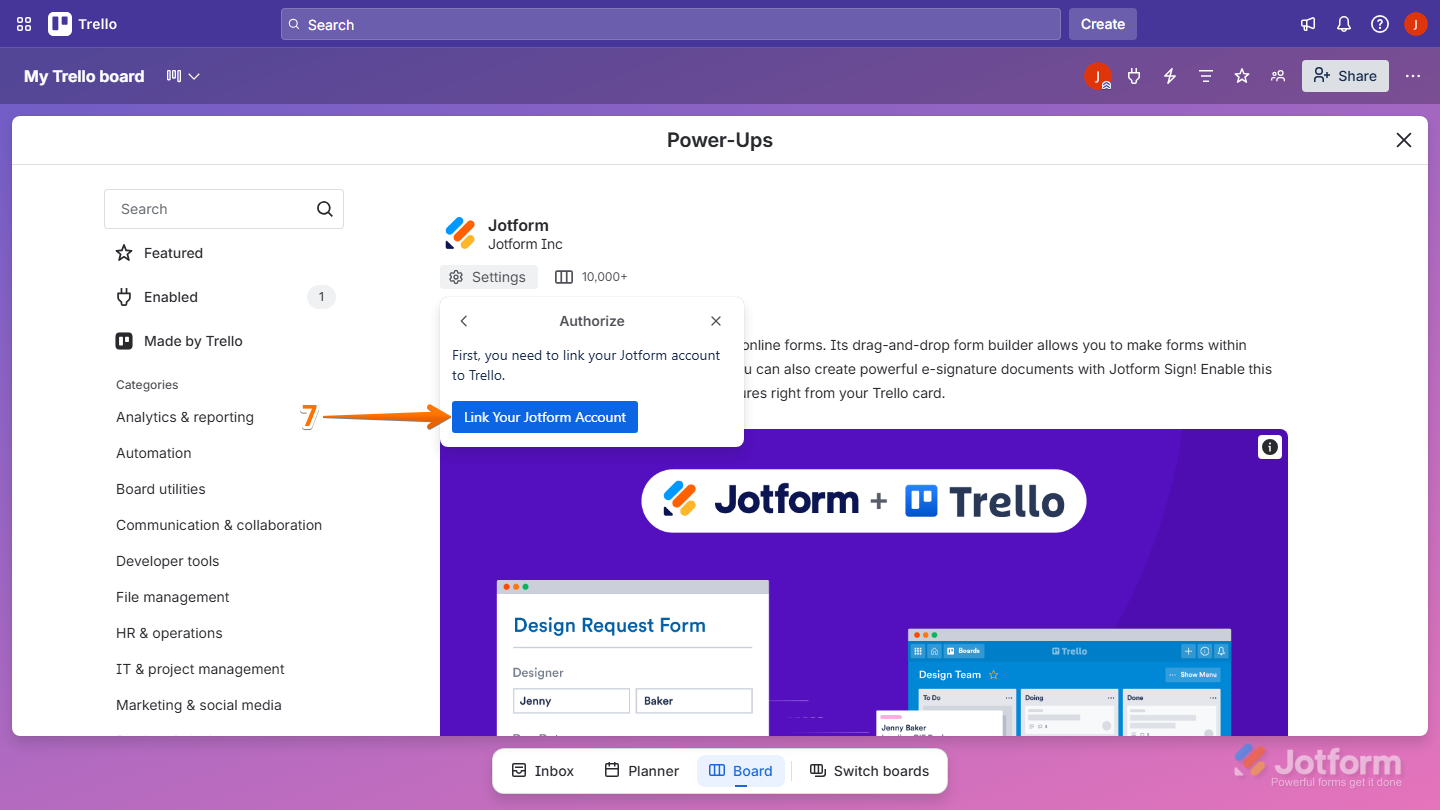
- Then, click on Link Your Jotform Account to connect your Jotform account.
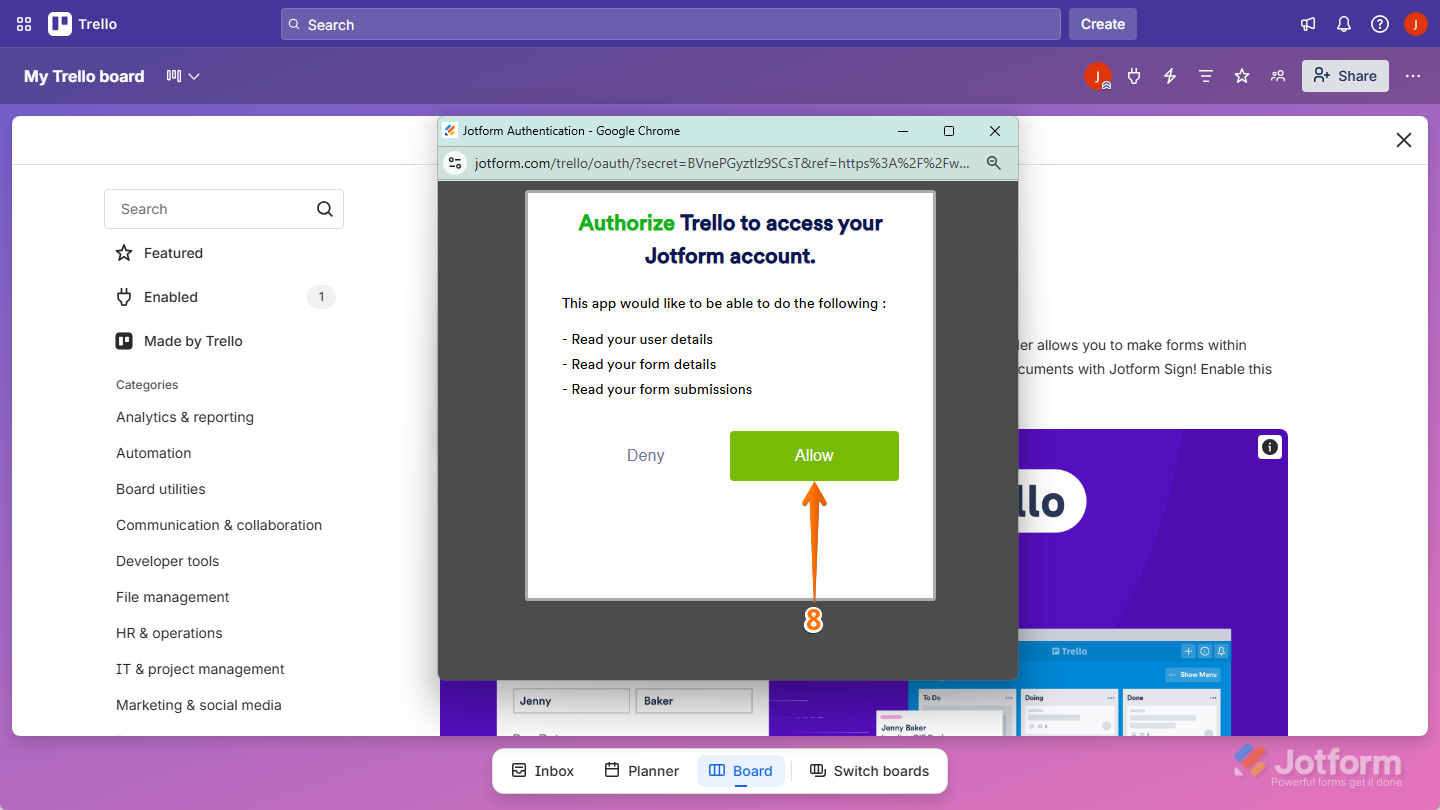
- Finally, after connecting your Jotform account, click on Allow to complete the setup and you’re done.
Using Jotform Form in Trello
Once your account is connected, you can start using Jotform directly within your Trello cards. Here’s how:
- On your Trello Board, click on any card where you want your Jotform forms. For example, Design Home page.

- Next, at the bottom of the card, click on Power-Ups, then click on Jotform.

- Now, select the action you want to perform and you’re good to go:
- Create new form — Create a new Jotform form directly from your Trello card.
- Change a form — Replace or switch the form currently attached to the card.
- Fill a form — Open and submit a form directly within the card.
- Attach Uploads — Attach uploaded files from form submissions to the card.
- Attach Reports — Attach submission reports or data from your form to the card.

That’s it! You can now create, manage, and use Jotform forms directly inside your Trello cards, helping you streamline your workflow and keep everything organized in one place.

Send Comment:
32 Comments:
March 18, 2025
I am trying to create a trello card with the trello integration but I do not see the custom fields in the cards that I have created on my board in Trello, avaialble in the section where I match the fields. A workaround would be to put all of the fields in the description box of the Trello card but I can only map one field in the form to the description box on the card. Can you help?
December 5, 2024
Is it possible to have a jotform submission move card between boards in trello?
June 25, 2024
I am trying to authorise jotform as a powerup in Trello but when the authentication window comes up it will not accept my login credentials. However it works when I log in via Jotform's own site. Can you please assist?
May 11, 2024
HELP PLEASE!! What can I do because the option ATTACH REPORTS doesn't work?
March 25, 2022
I agree that if it could be incorporated to automatically populate custom fields it would be wonderful. I'm using Bluecat forms right now for that but the layout isn't the most beautiful thing ever and when I paste a link anywhere, it shows "bluecat forms something" whereas google forms generates an image of the first page of the form itself. I moved away from google forms because of how bluecat forms populates custom fields. I'm sure there's an integration for that also, but it's a bit beyond my ability to find time for that.
If jotform could do what bluecat forms does, I'd make the switch because jotforms integrates with another platform I use.
February 1, 2022
I completed the Jotform and Trello integration to create a new card when a submission is received. This is not happening, cards are not creating from submissions. Can I please have help resolving this?
February 12, 2021
It would be amazing if Jotform could map with custom fields!
February 2, 2021
Hi,
I'm looking to have all of the data that was submitted into a form, show up in a created card in Trello. We have something like 25 questions and want all the answers to show up in one Trello card, how do I do that?
January 29, 2021
I am trying to authorize jotform as a powerup but when the authentication window comes up it will not accept my login credentials. It seems like it is requesting a single user account and does not accept the credentials from within my organization. Can you please assist?
September 2, 2020
HI!
We are starting to use Trello for our team projects but would like to add invoices to our assigned task on Trello for technicians to fill out and our customers to sign off on the work once it's completed. Can Jotform help us with that?
July 7, 2020
I connected my Jotform to my Trello account. I am now trying to figure out how to make it to where if someone fills out the form, how the submission will automatically show up on the same card in PDF format?
June 10, 2020
HI there,
is the only way to see a form someone has filled in either via a spreadsheet (with info from all submitted forms) or via the autorespond email?
Also, i have set up my integration so a Trello card is automatically created but I haven't yet been able to get it to work..
March 12, 2020
How is it possible to have automatically a new card created as soon as someone filled out a jotform? Of course I would need the information out of the jotform in the new card. Thanks!
June 4, 2019
I have linked Jotform to my Trello account. I have directed Jotform to create a card. However, this is not happening. It indicates that I have completed the integration, however when it says it is finished, it does not give me the "Finish" button. I would love to use JotForms to create cards in Trello.
March 20, 2019
It is not working well in Trello, I am trying to link it but it doesnt work
March 12, 2019
Hello,
I have added the Jotform PowerUp and authorised it but it's not working. Can you help?
Emily
February 6, 2019
Is this grid report available on the no charge version?
January 17, 2019
I'm trying to make a form that I can embed within a trello card for job tracking internally. That's what we use trello for but we'd like a form that we can just update within. I have the form made already. Is this something that can be done?
We're basically looking for a way to save paper, and this was one of my ideas.
July 27, 2018
Can you limit the forms that a team member can view and select from in the jotform powerup tab dropdown?
July 27, 2018
Can the response to a jotform populate a trello board/list/card?
July 20, 2018
When I open the "attach report" link under the Jotform power up under my card, it says there are no forms on my account, even though there clearly are. What am I doing wrong?
July 18, 2018
Trello connected to the wrong Jotform account. How can I change which jotform account it's attached to?
June 25, 2018
I can't link Trello board to Jotform account. It gave me File Not Found error.
January 26, 2018
To whom it concern. I would like to add jotform to my trello team accout.
My purpose is as follow: A form I created with jotform should be available for certain team members in order to fill it out and keep it updated. The team members should not be allowed to see any other parts of my jotform account. Is this possible? Or is it possible on any other way that people can fill out a form, save it and add entrys at any other time? Thanks
January 12, 2018
The Point of the Integration is to create a card in trello
My form has 10 questions
How Can I populate all the answers into a new card
It only gives you a 1 to 1 population
I should be able to see all my answers in description
Thoughts..?