Groups are an effective way to segment your list and reach specific audiences. When using Jotform’s Mailchimp integration, you can preselect the groups subscribers are added to — or allow users to choose their own groups as they complete your form.
Prefer to watch? Head to the end of this guide to see the video tutorial.
Note:
The integration displays Interest Groups only when they already exist in your Mailchimp audience settings, so be sure to create them there first. You can check out Mailchimp’s guide on Getting Started with Groups to learn more.
Select Groups for Subscribers
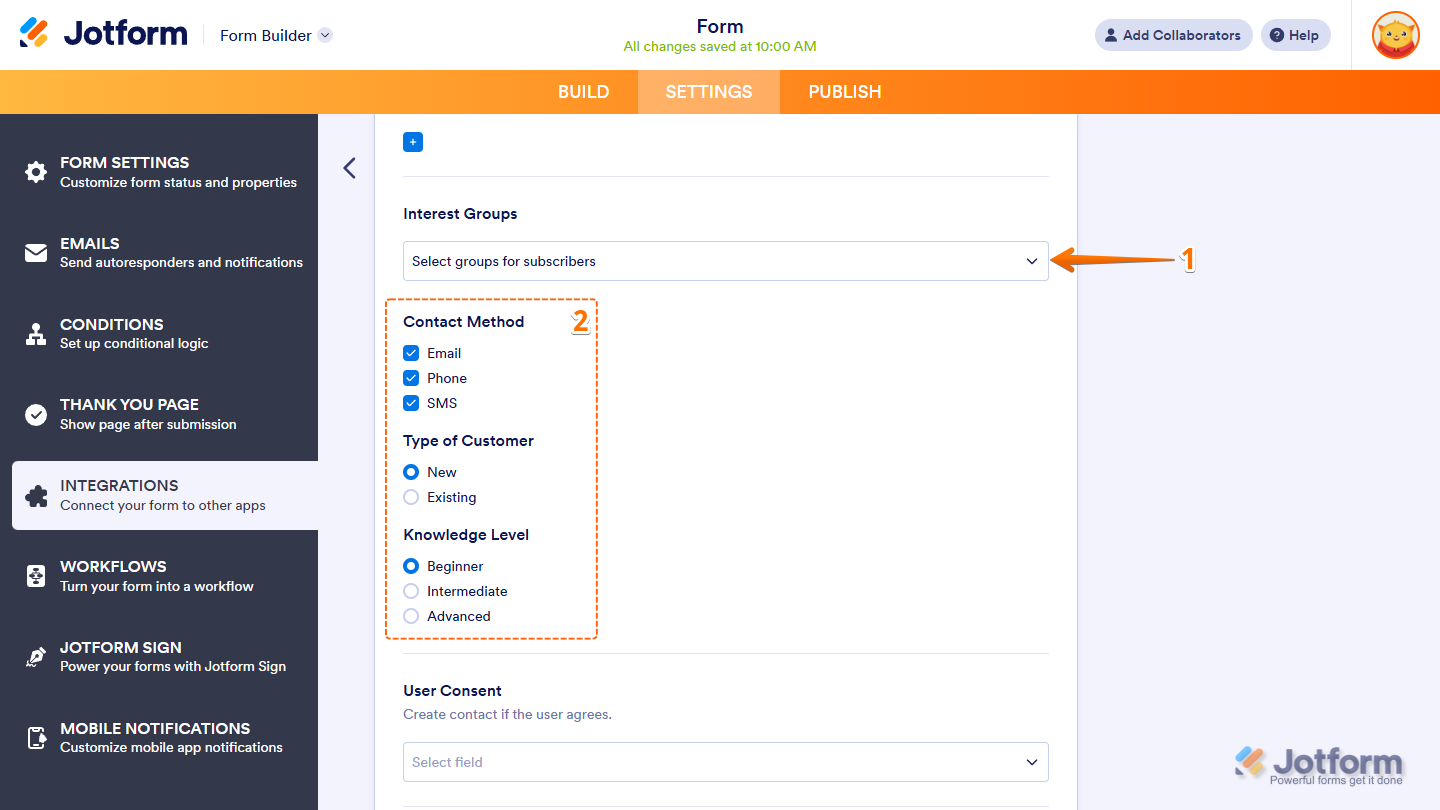
When you opt for Select Group for Subscribers, the integration will automatically display all groups you’ve added in your Mailchimp Group settings. Setting it up is quick—here’s how:
- In the Interest Groups dropdown menu of your Mailchimp integration settings, choose Select Groups for Subscribers.
- Then, from the displayed groups, select the Group Option where you want incoming subscribers added.
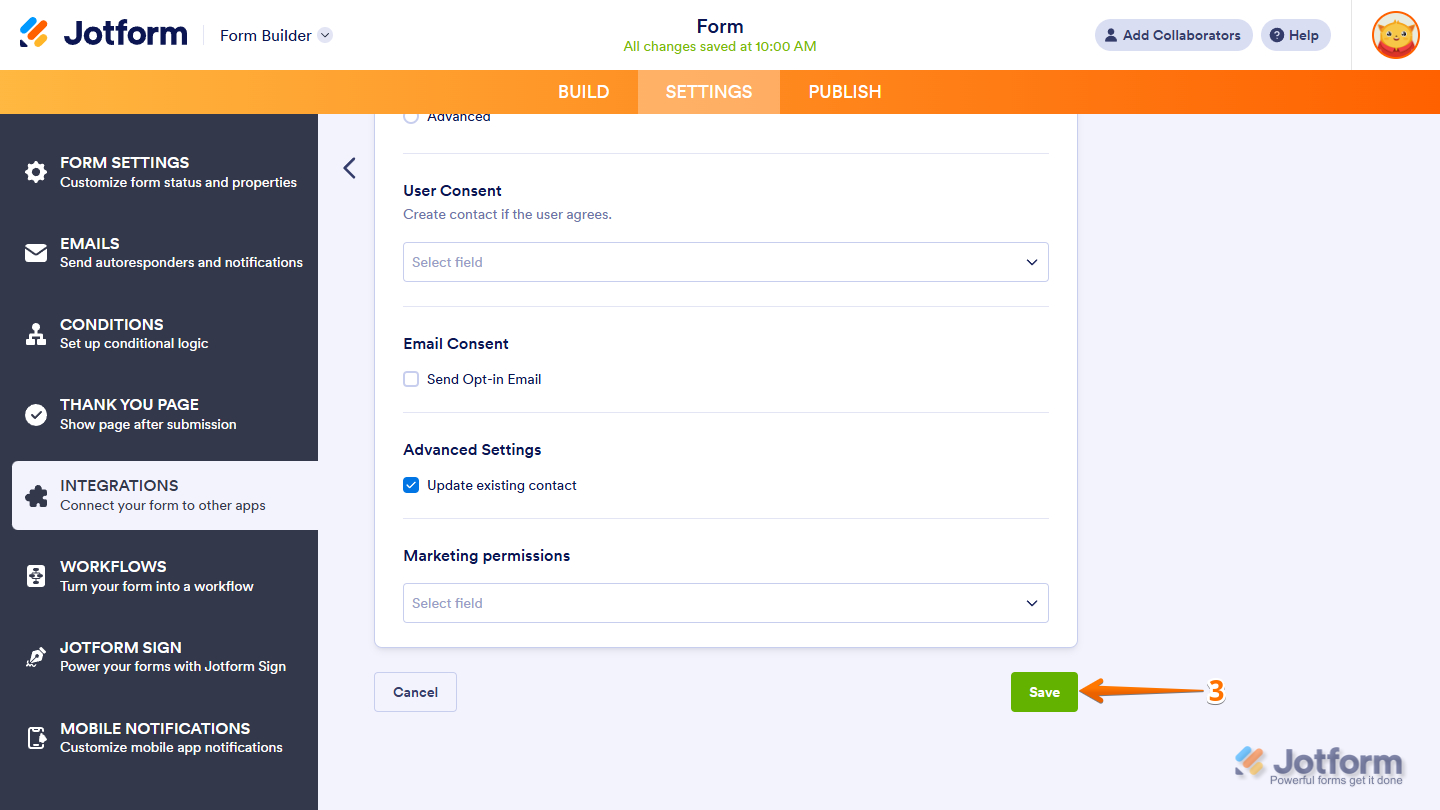
- Now, scroll down to the bottom and click on Save.
Let Subscribers Select Their Groups
When you select Let Subscribers Select Their Groups, you can map your form fields and automatically add subscribers to the groups they choose on your form. This is ideal when you want to capture your subscribers’ specific preferences.
Before You Start
- Add each group to your form as a separate field.
- The field labels don’t need to match the exact group category labels, but the options must match the ones in Mailchimp.
- When matching fields, ensure the field types match — for example, if the group uses a checkbox in Mailchimp, use a Multiple Choice field in Jotform.
If your form and Mailchimp Group settings are ready, it’s time to set this up on your form. Here’s how to get going:
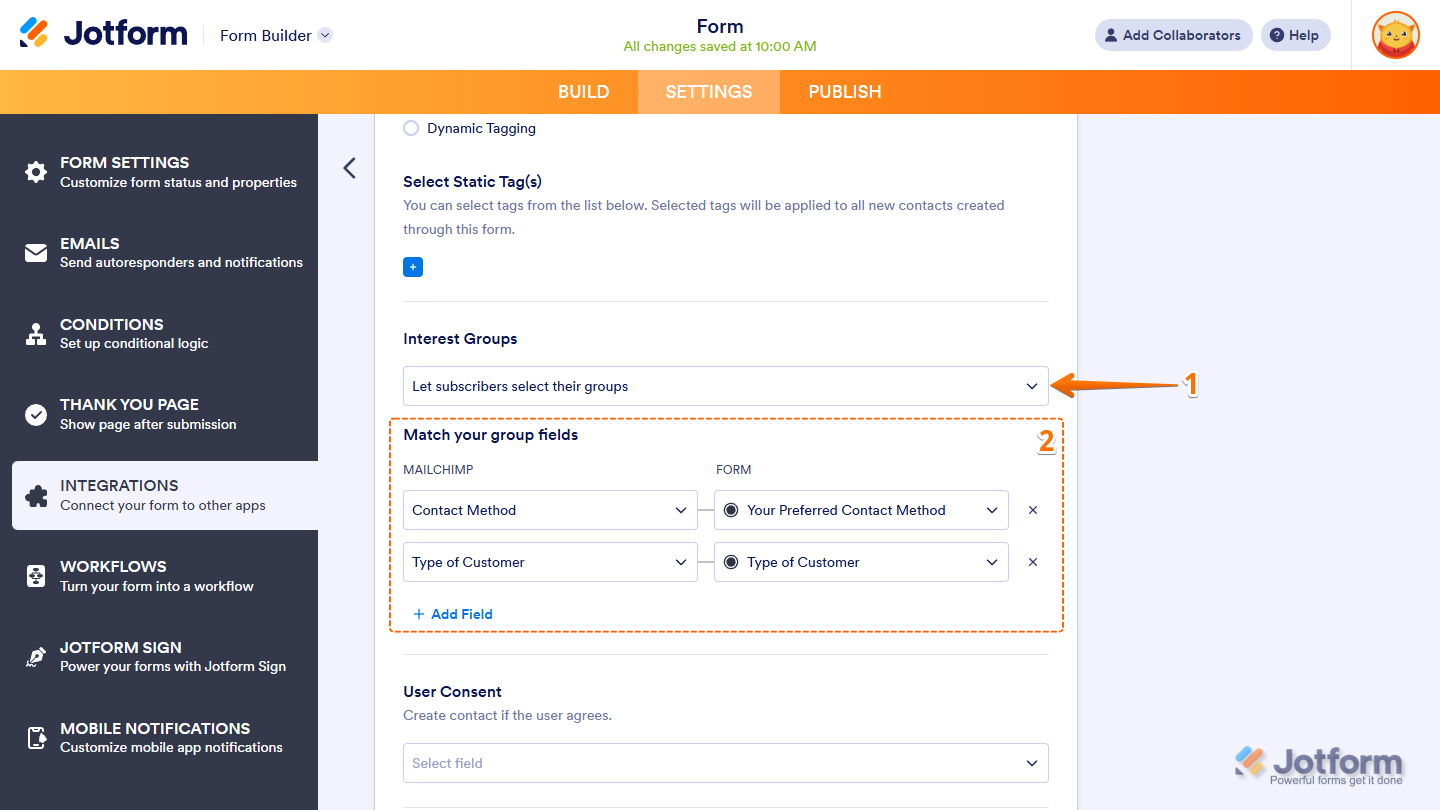
- In the Interest Groups dropdown menu of your Mailchimp integration settings, choose Let Subscribers Select Their Groups.
- Next, in the Match Your Group Fields section, map your Mailchimp Group on the left to your form fields on the right.
Pro Tip
To map more fields, just click + Add Field at the bottom of the section. To remove a mapped field, click the X icon on the right side of the field.
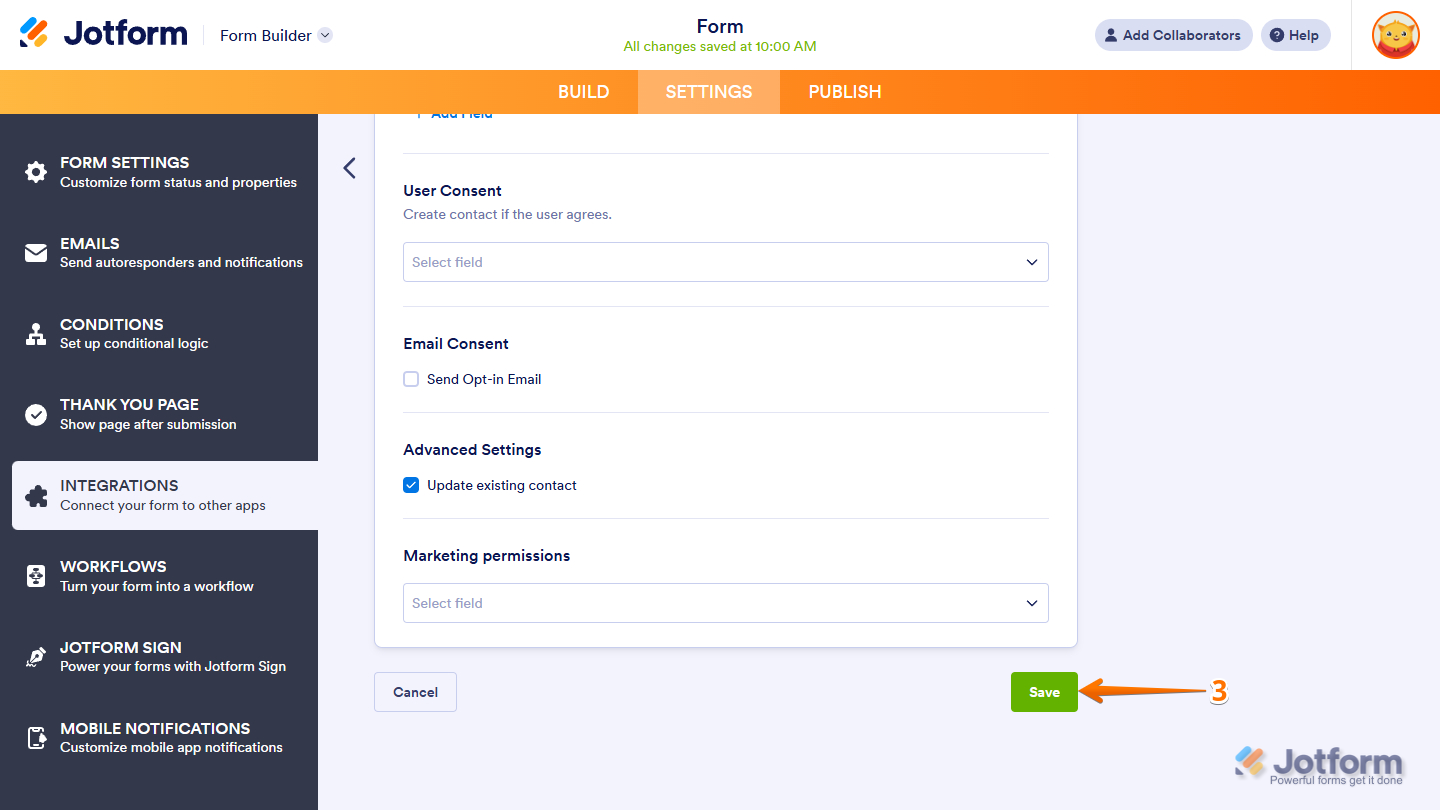
- Now, scroll down to the bottom and click on Save.
That’s it for setting up the integration and configuring your groups. You’re now ready to streamline how subscribers are added to your Mailchimp audience.



Send Comment:
1 Comment:
April 17, 2025
This appears to be out of date and no longer possible?