Once your Brand Kit is set up, it will control the appearance of your Enterprise environment.. Wherever you customize colors, logos, or visual components in your Enterprise environment, you’ll see Brand Kit–based suggestions that will help you apply your organization’s styling. Here are the places Brand Kit suggestions will appear and how to locate them:
Workspace
- First, in the Admin Console, in the sidebar on the left side of the screen, click on Customization.
- Next, select Workspace.
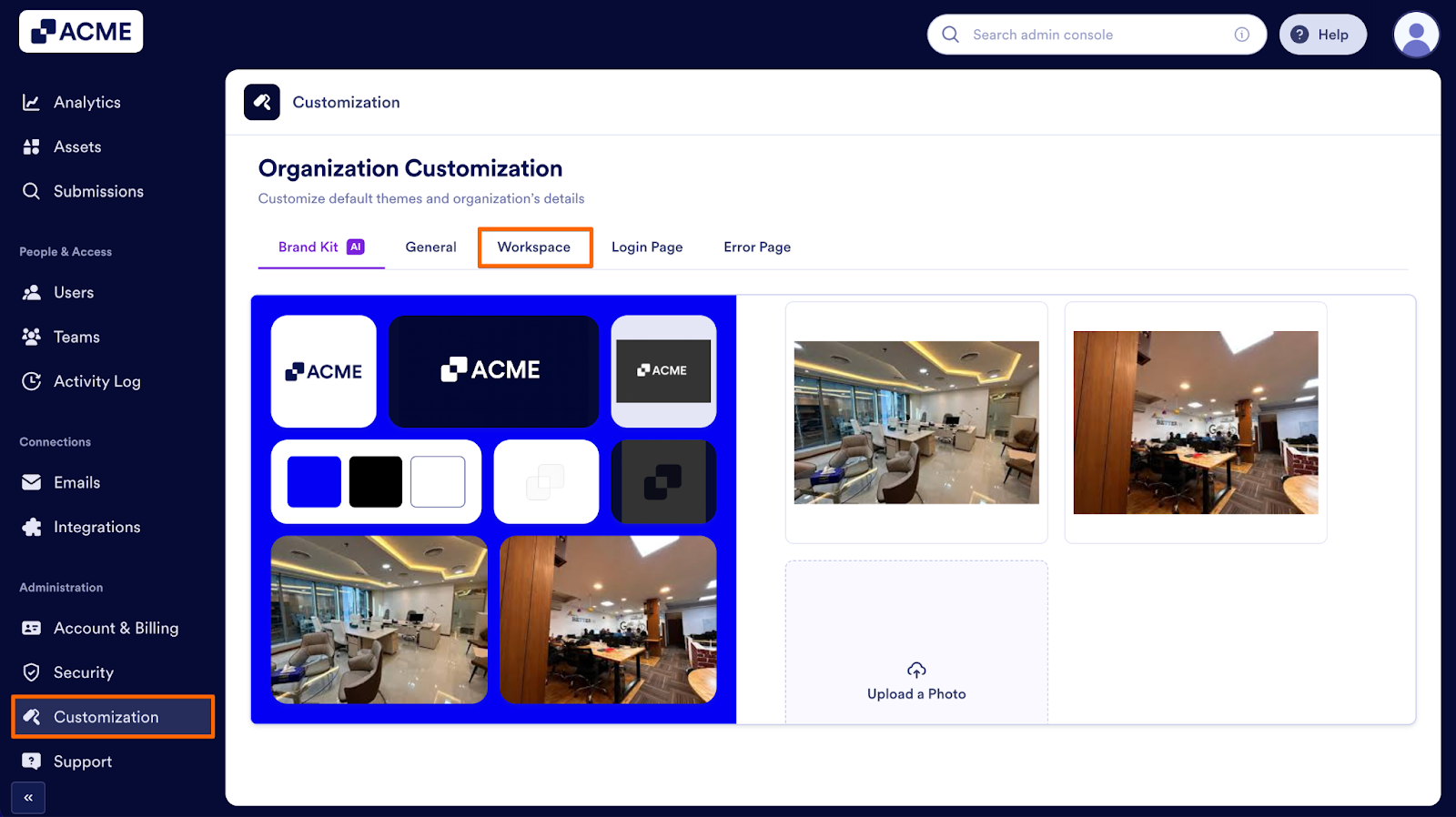
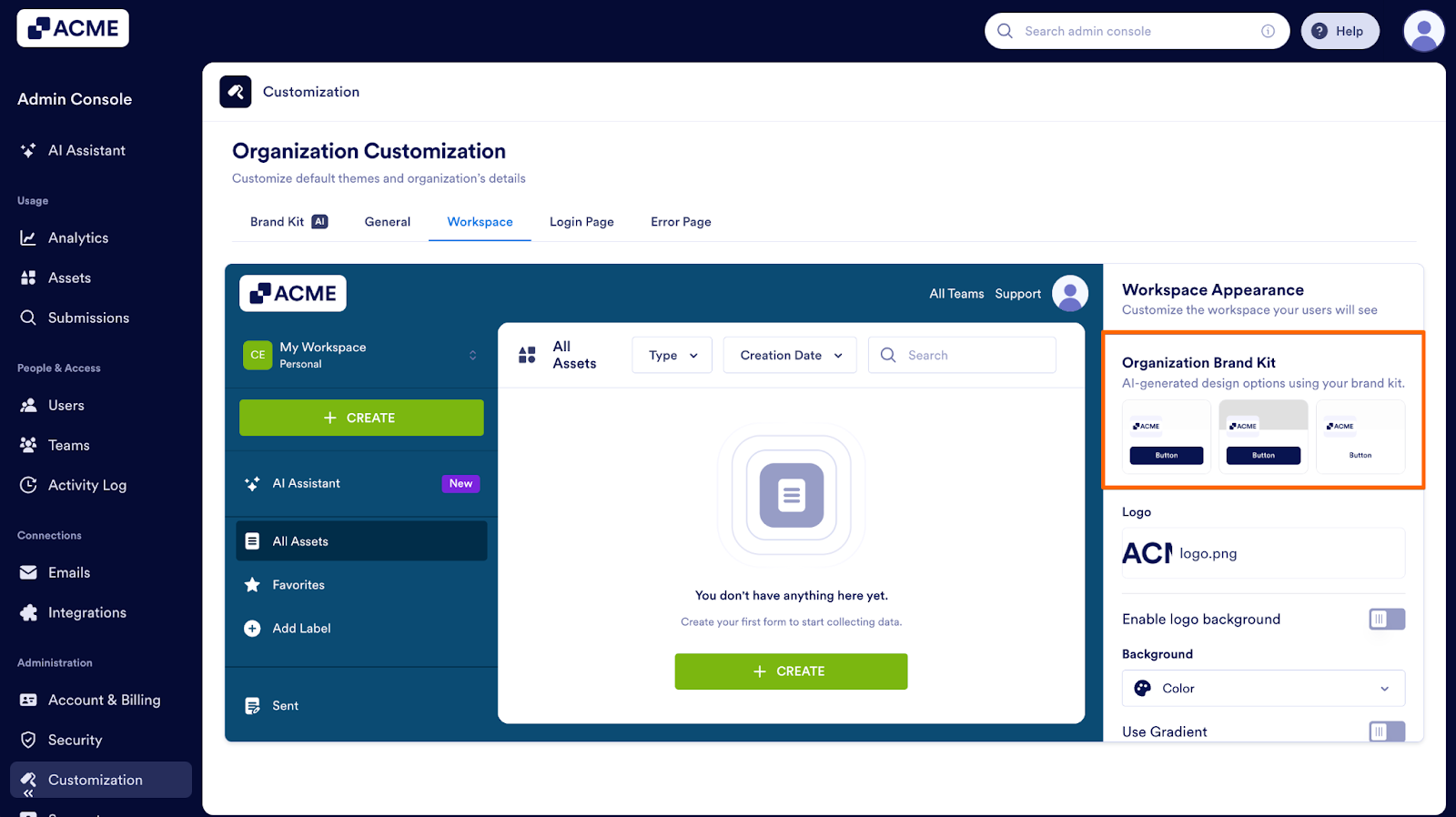
Finally, look on the right side of the screen for your Brand Kit suggestions.
Login page
- First, in the Admin Console, in the sidebar on the left side of the screen, click on Customization.
- Next, select Login Page.
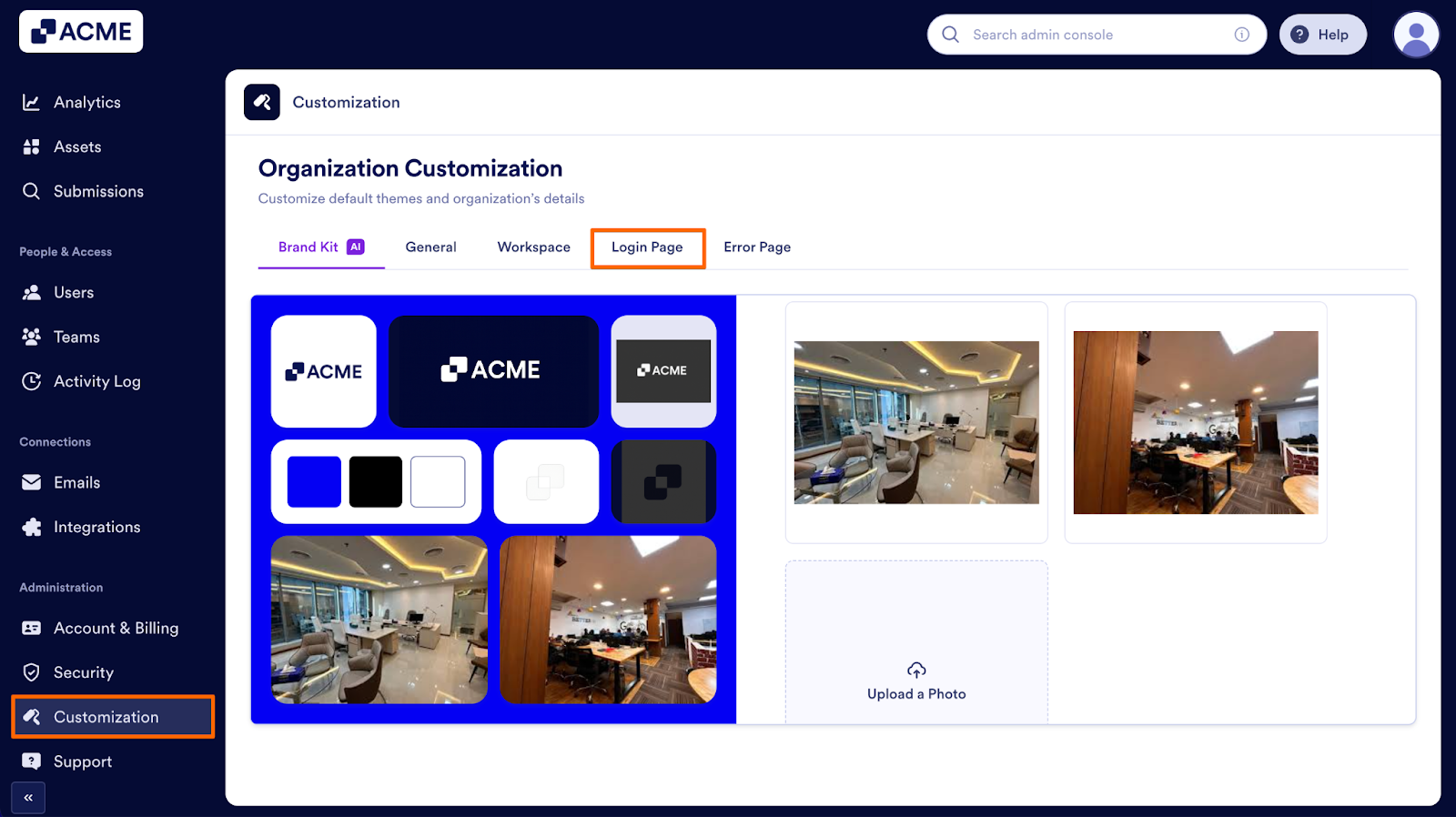
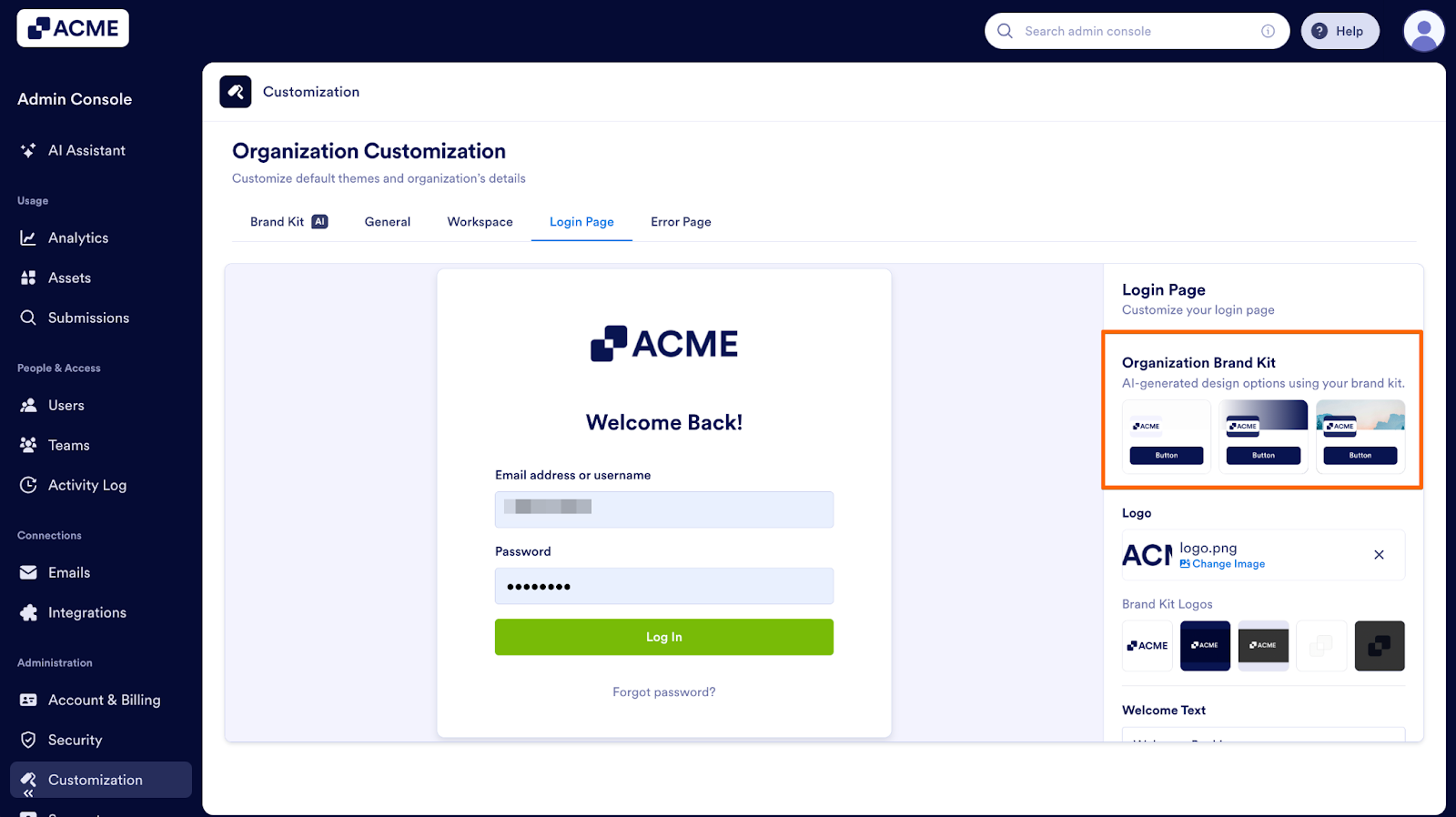
Finally, look on the right side of the screen for your Brand Kit suggestions.
Error page
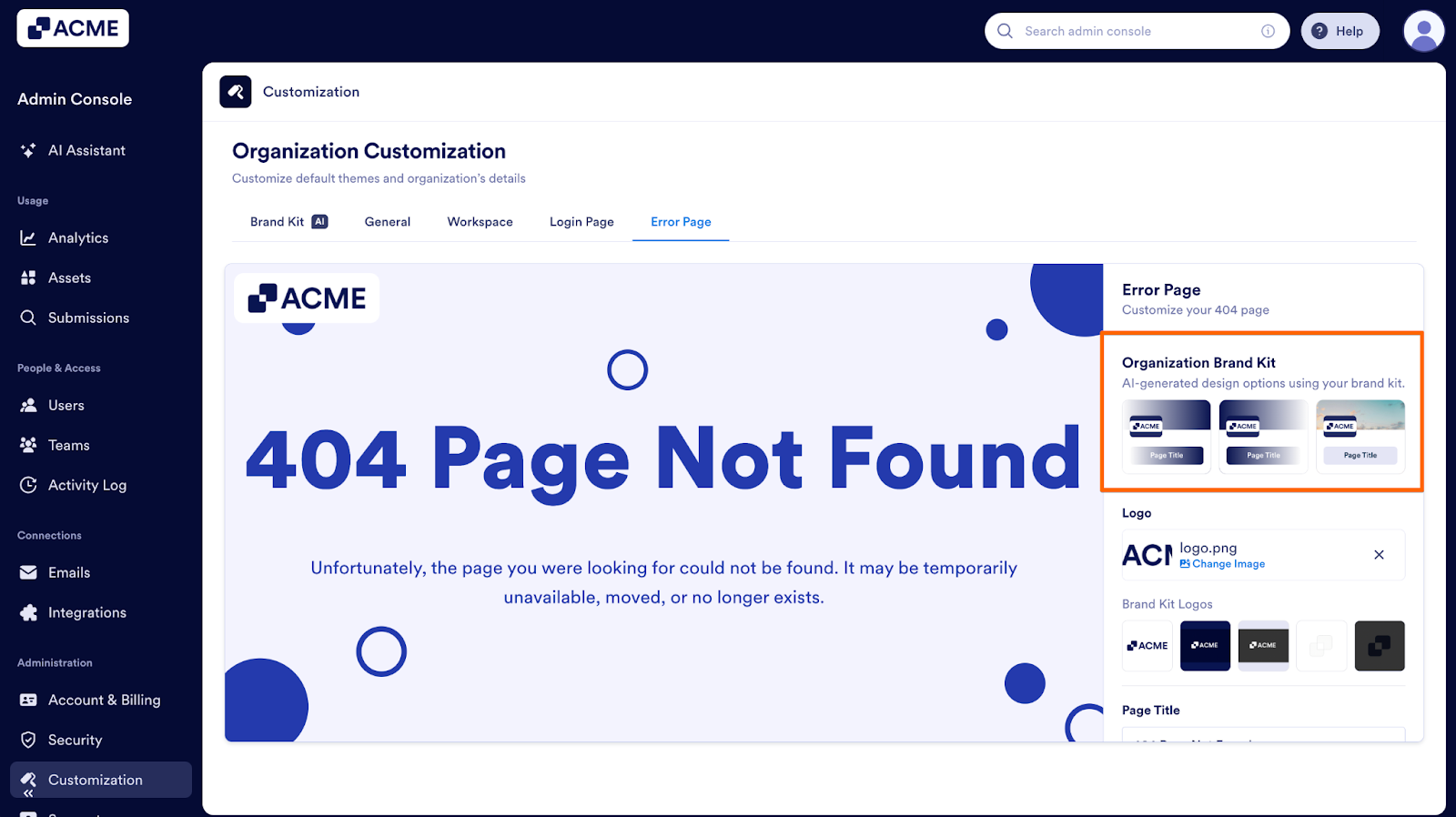
- First, in the Admin Console, in the sidebar on the left side of the screen, click on Customization.
- Next, select Error Page.
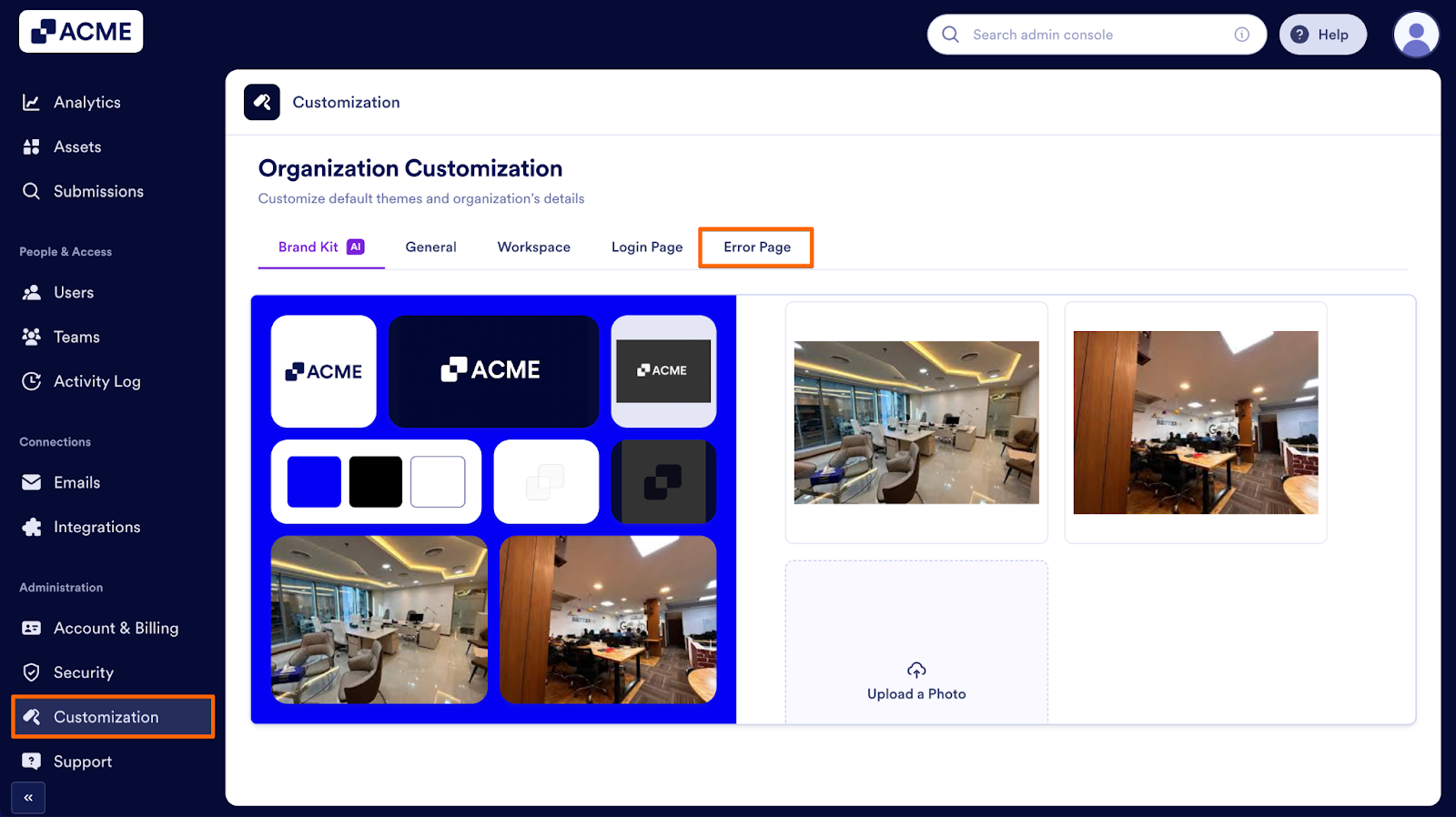
Finally, look on the right side of the screen for your Brand Kit suggestions.
Organizational Form Themes
An Organizational Form Theme defines the default visual style applied to all forms created across your organization. It sets the baseline look, such as layout, color structure, spacing, and component styling, so every new form follows the same design standard from the moment it’s created. If you haven’t configured your organization-wide theme yet, you can learn more about it from How to Create and Manage Form Theme Organization-Wide from the Admin Console.
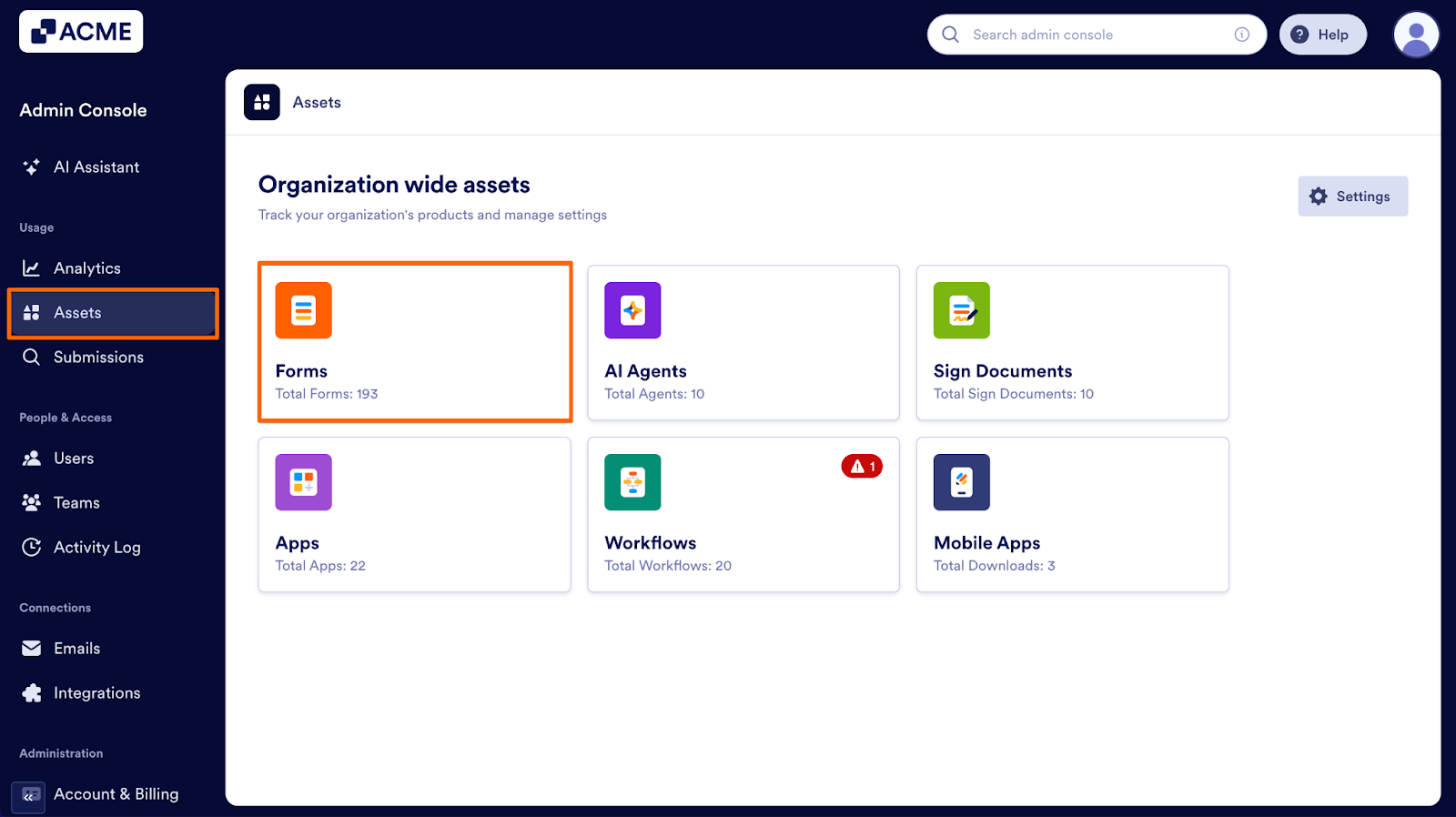
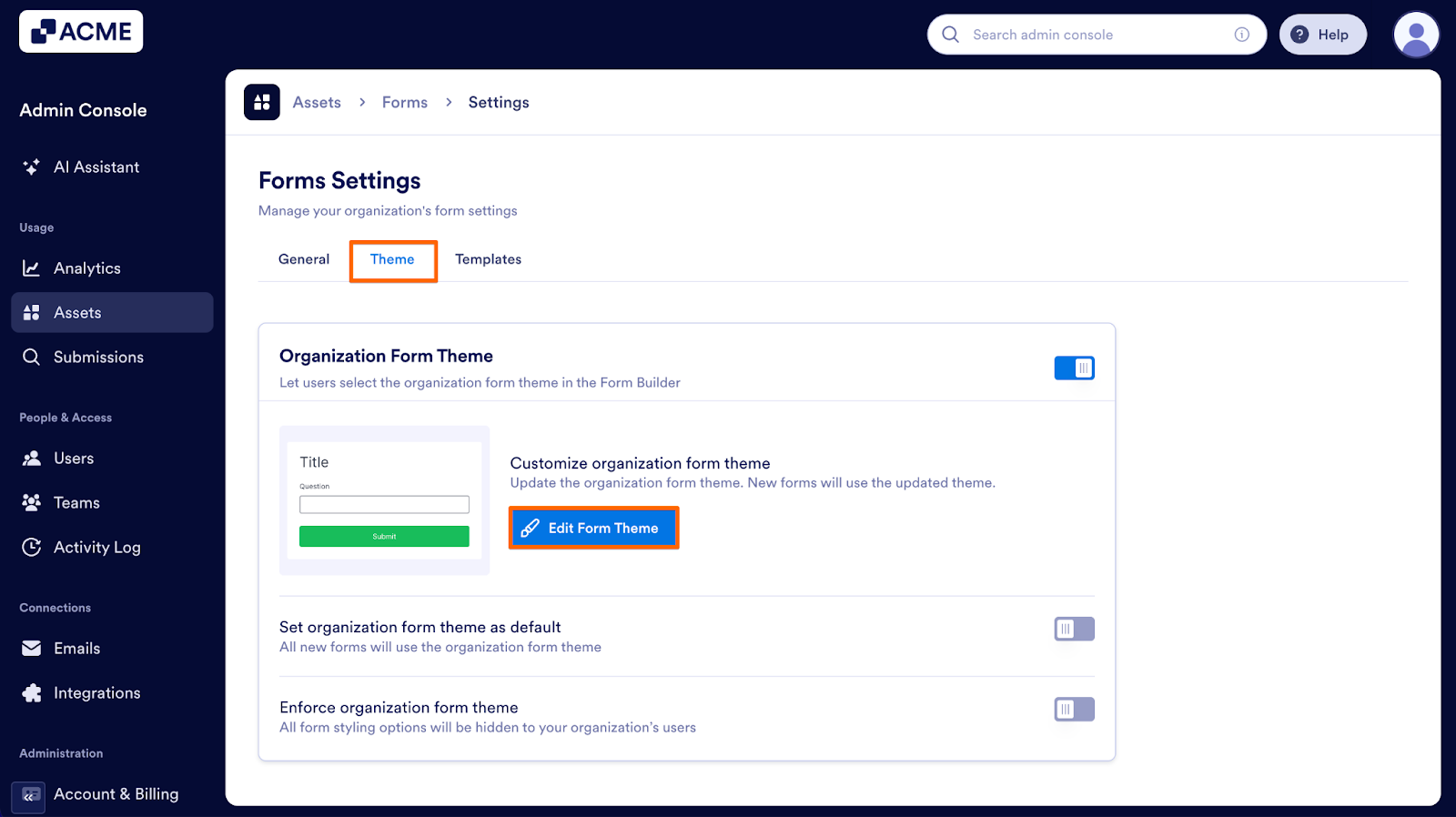
- First, in the Admin Console, in the sidebar on the left side of the screen, click on Assets.
- Next, select Forms.
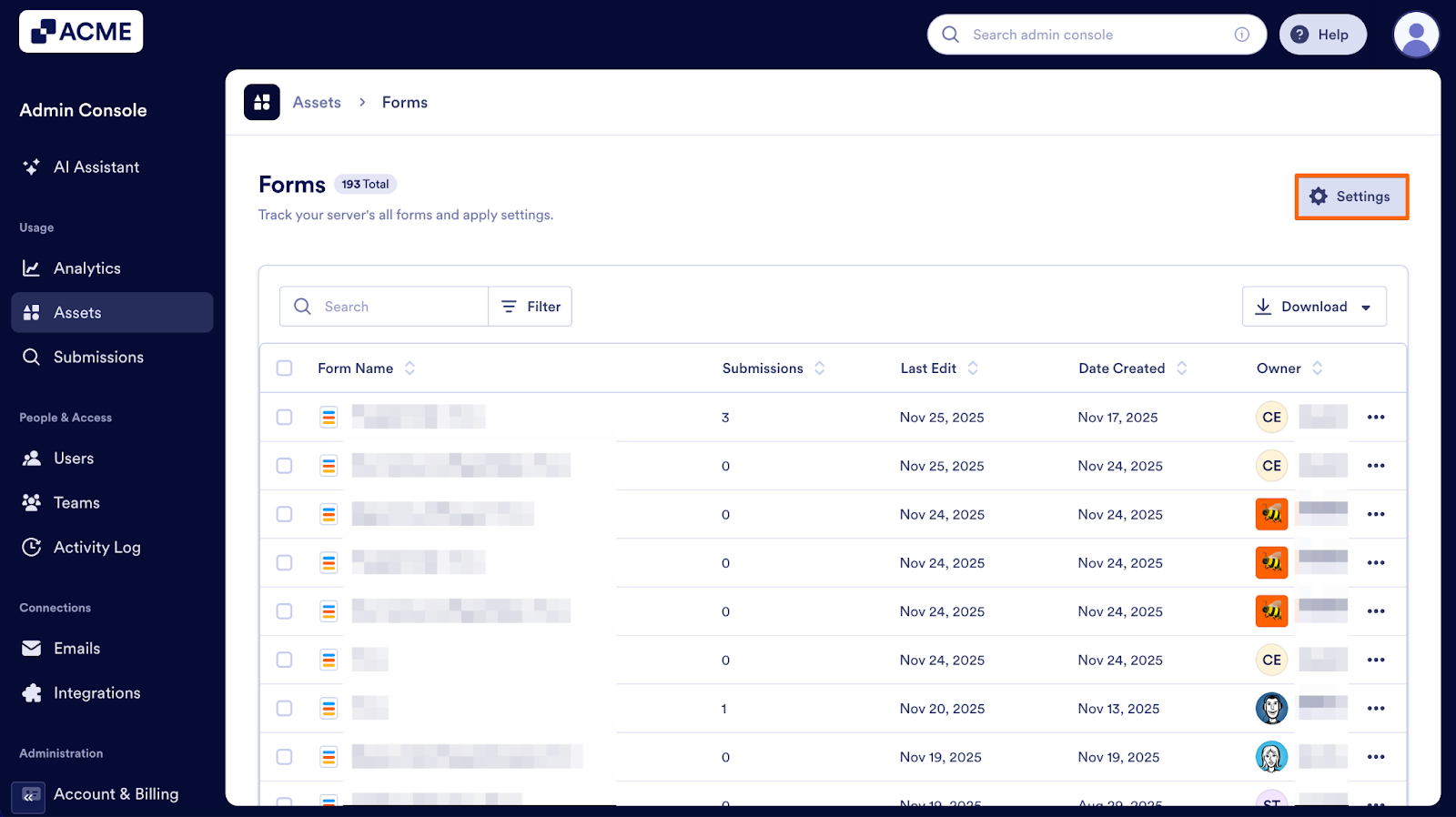
- Then, click on Settings on the right.
- Now, go to the Theme tab.
- Next, click on Edit Form Theme.
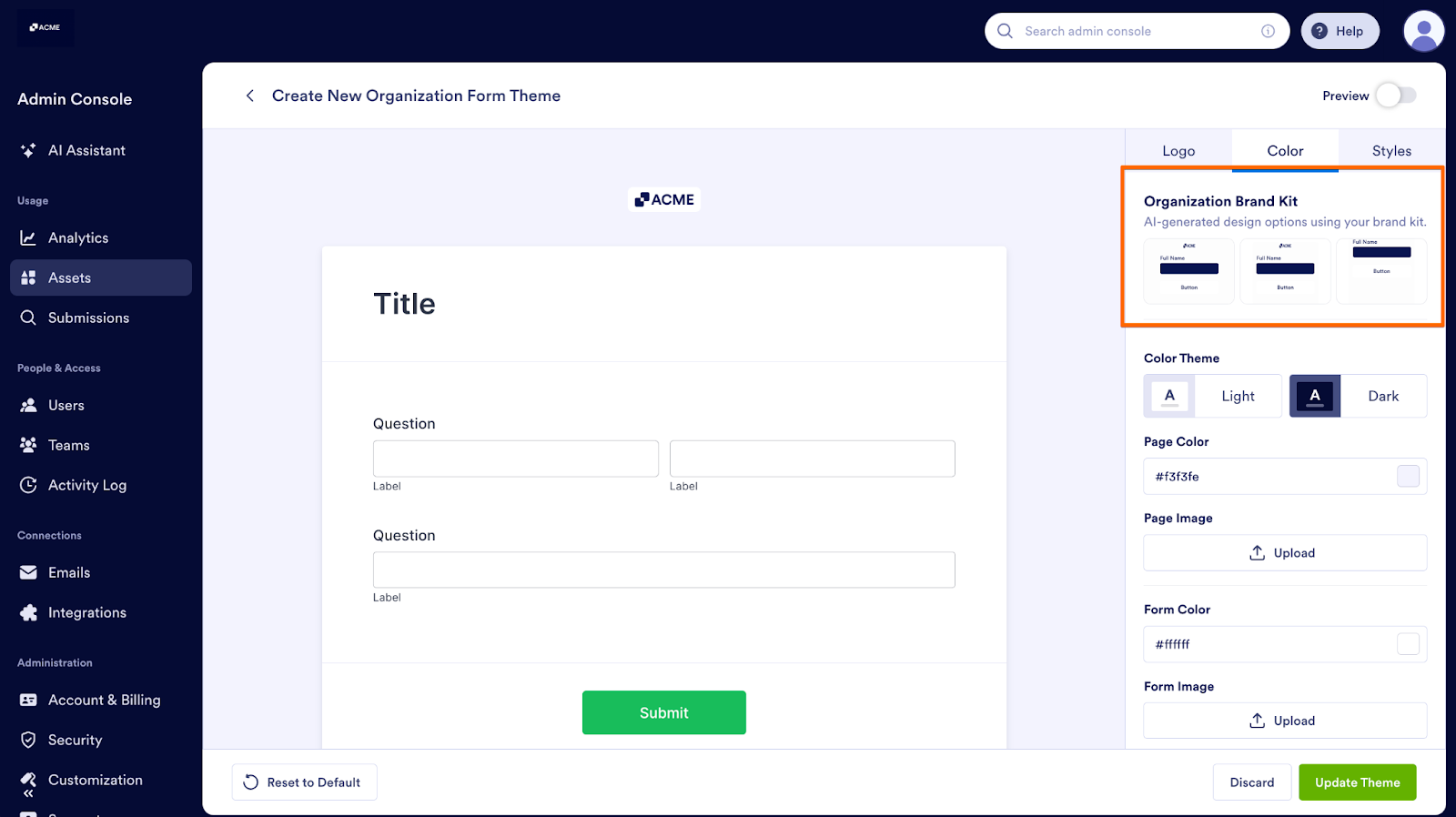
Finally, look on the right side of the screen for your Brand Kit suggestions.

Send Comment: