What is a Brand Kit
A Brand Kit helps your organization maintain a unified, professional appearance across your Enterprise environment. By storing your logos, colors, and media in one place, you can apply your branding consistently and help teams stay aligned with your brand identity.

After creating your Brand Kit, you can refine or update the elements that were created. The management area is organized into expandable sections so you can adjust each part individually.
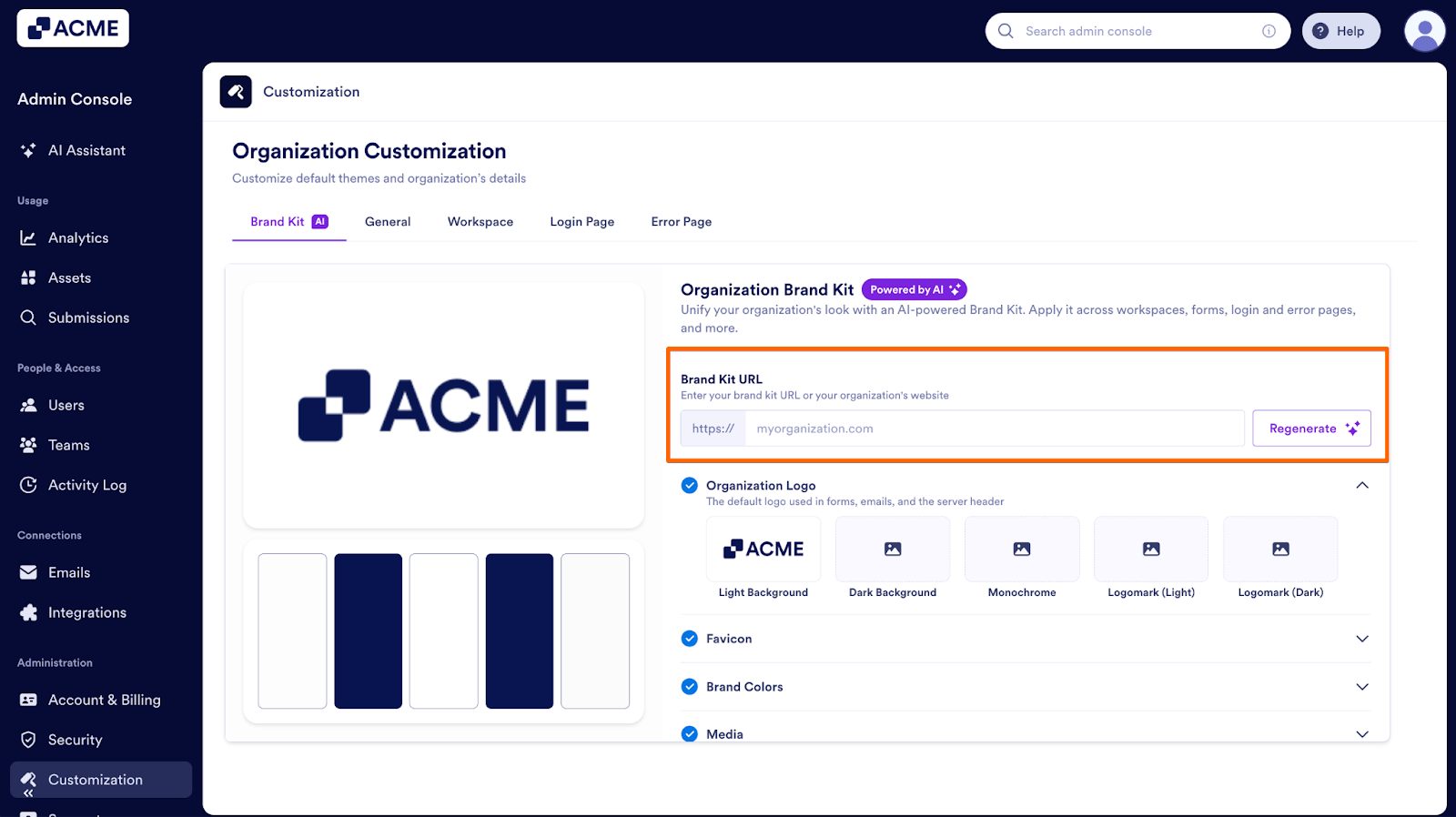
Brand Kit URL
If you’ve made changes to your brand identity on your website or brand page, you can import those changes using the Brand Kit URL field. This allows you to pull new colors or branding elements quickly without starting over from scratch.
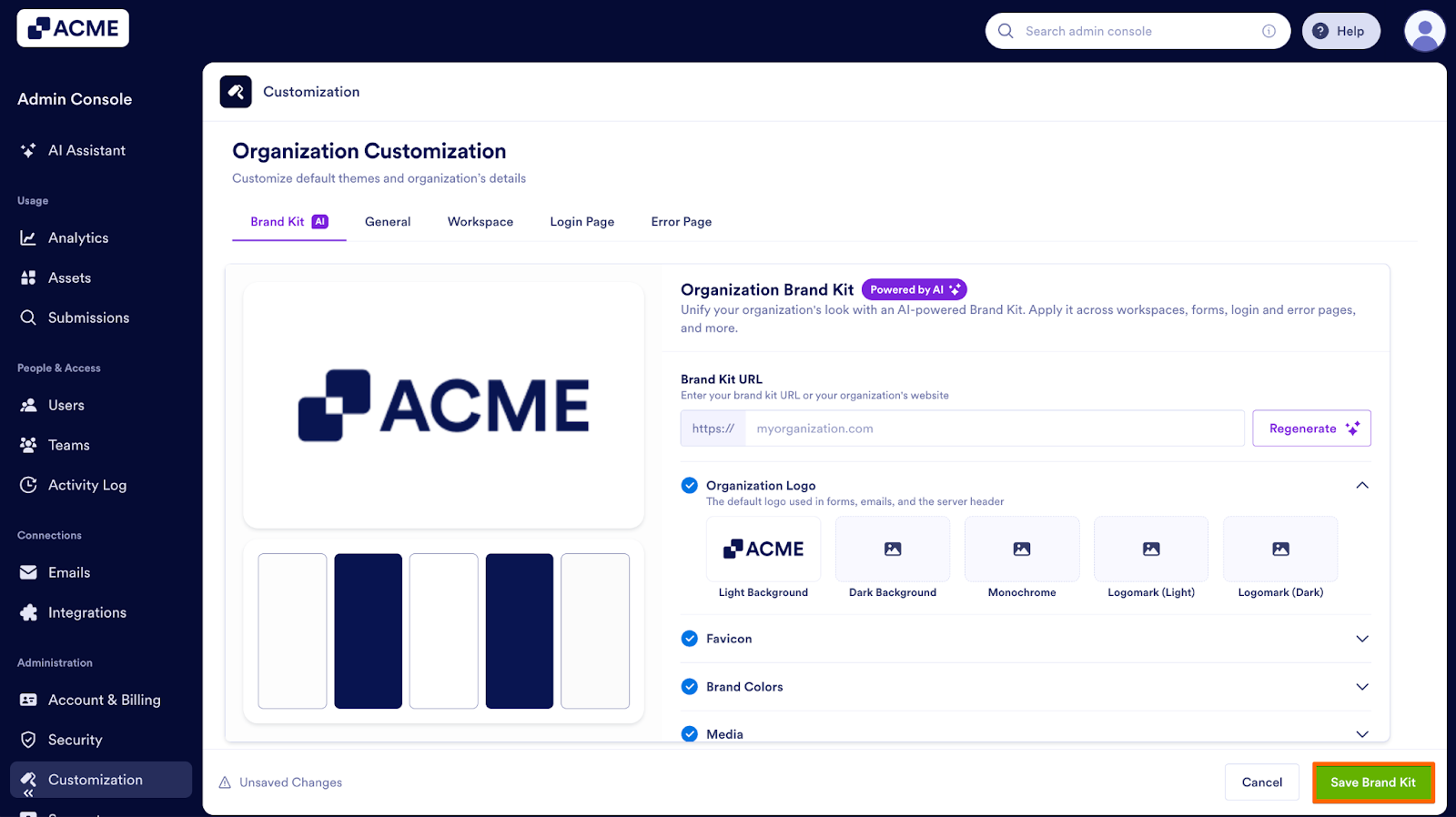
Organization Logo
This section lets you manage all logo variations used across your environment, including light and dark versions, monochrome styles, and logomarks. The system uses AI to apply the correct variation in the correct locations so your branding displays properly across different backgrounds.
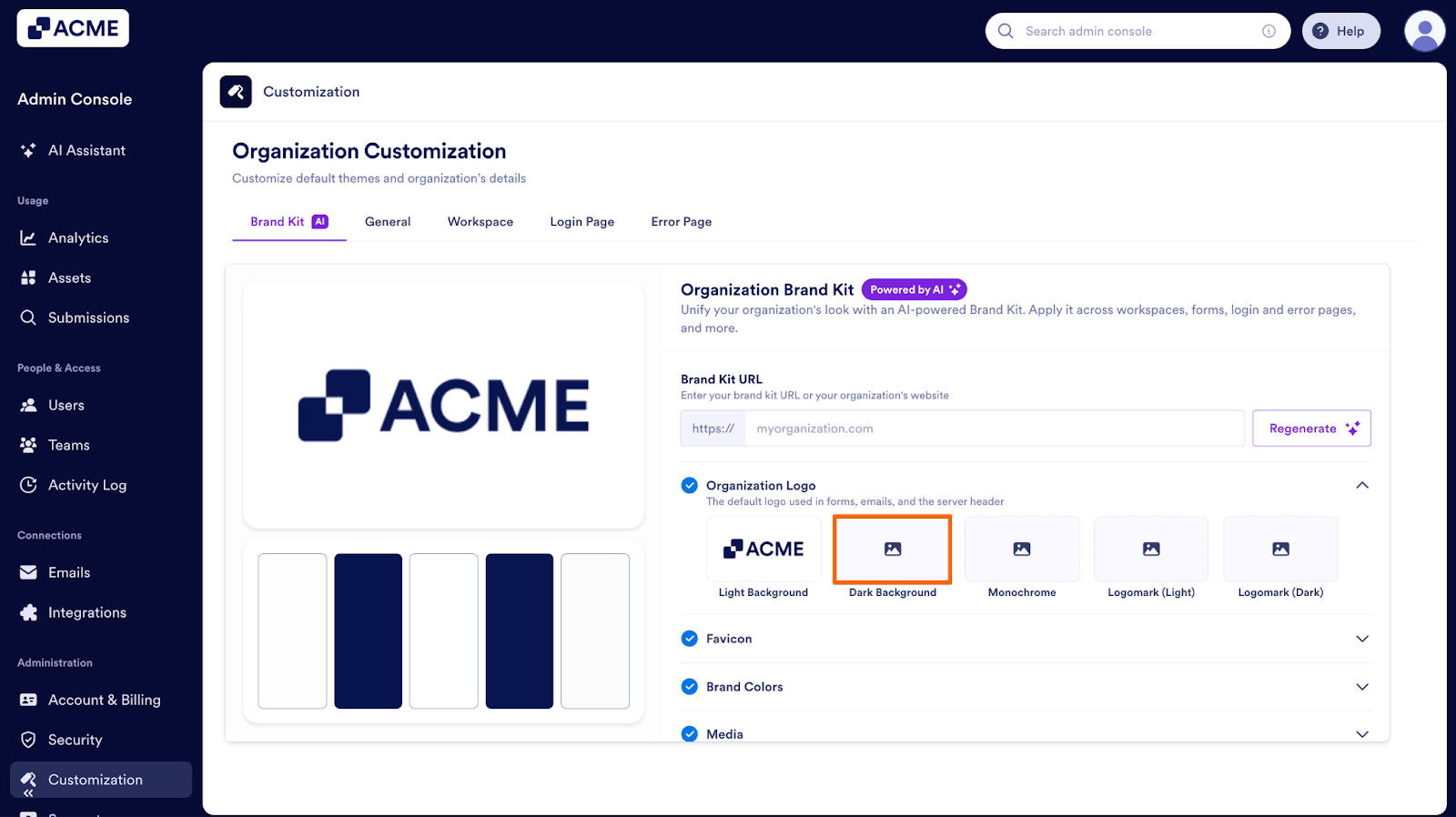
Adding a New Logo Variation
- First, click on the Image icon on the version you want to add.
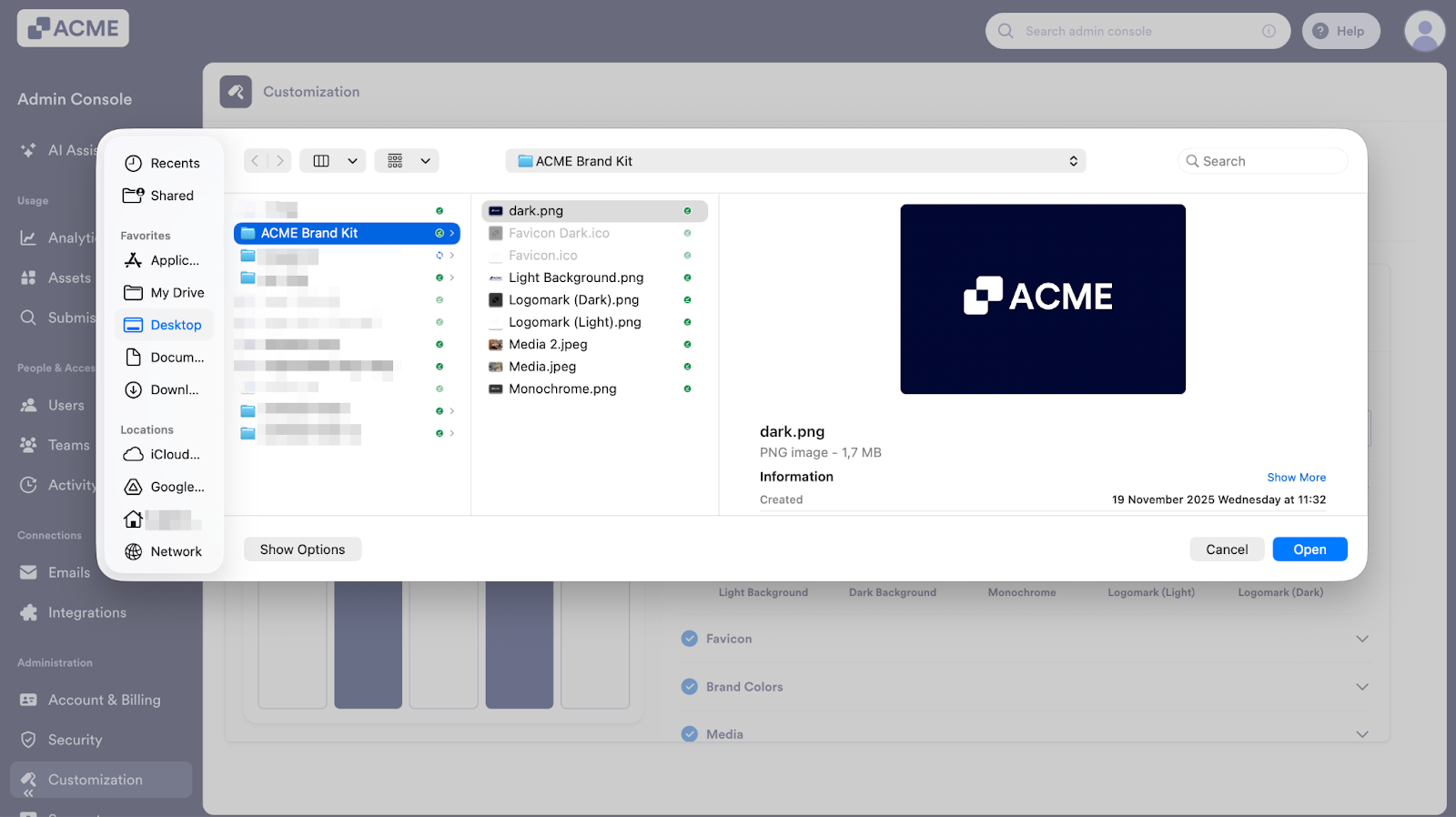
- Next, select the logo you would like to upload and use.
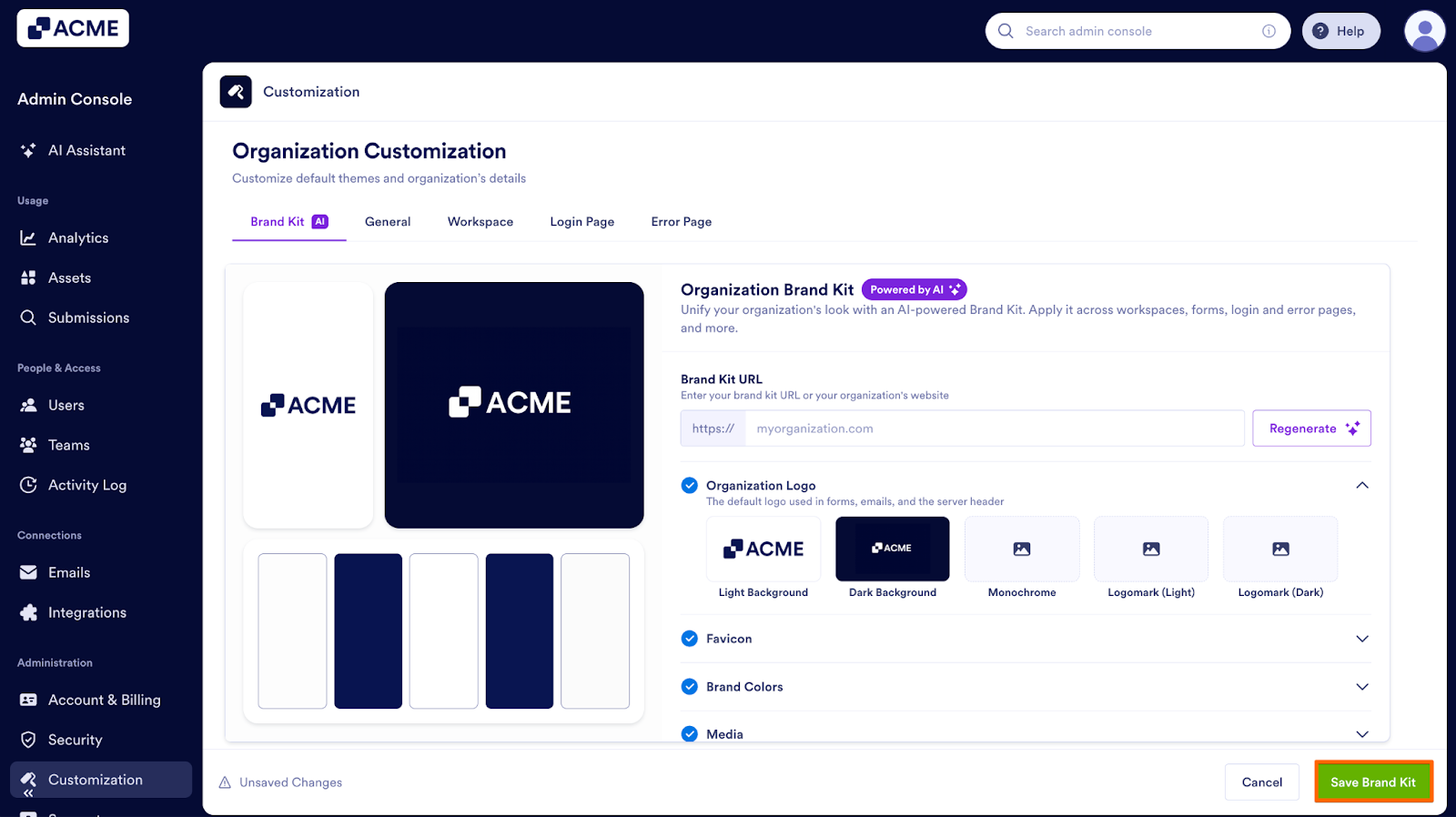
- Finally, click on Save Brand Kit.
Replacing an Existing Logo
To replace a logo that is already in place:
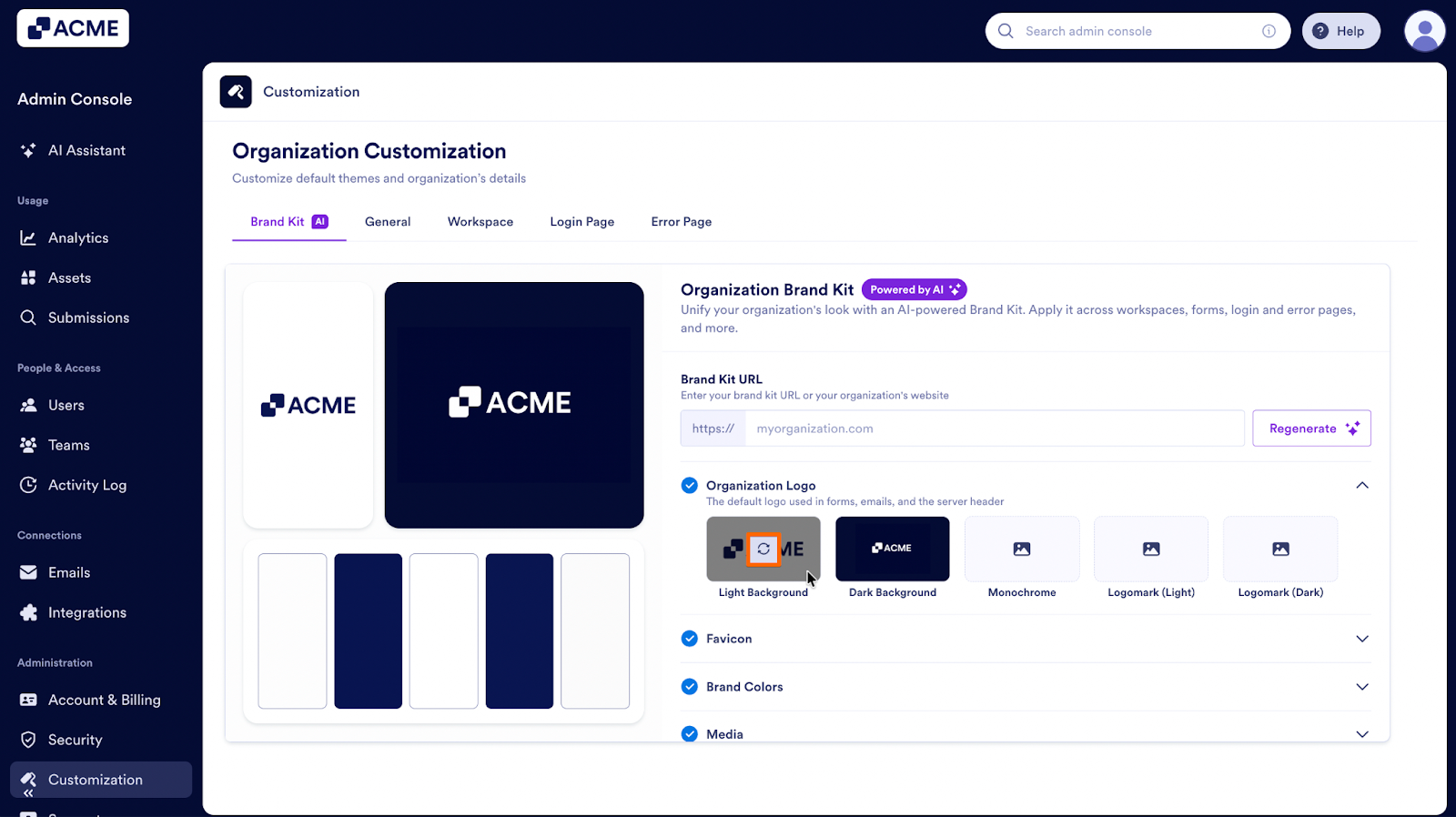
- First, hover your mouse cursor over the logo you want to replace.
- Next, click on the Refresh icon.
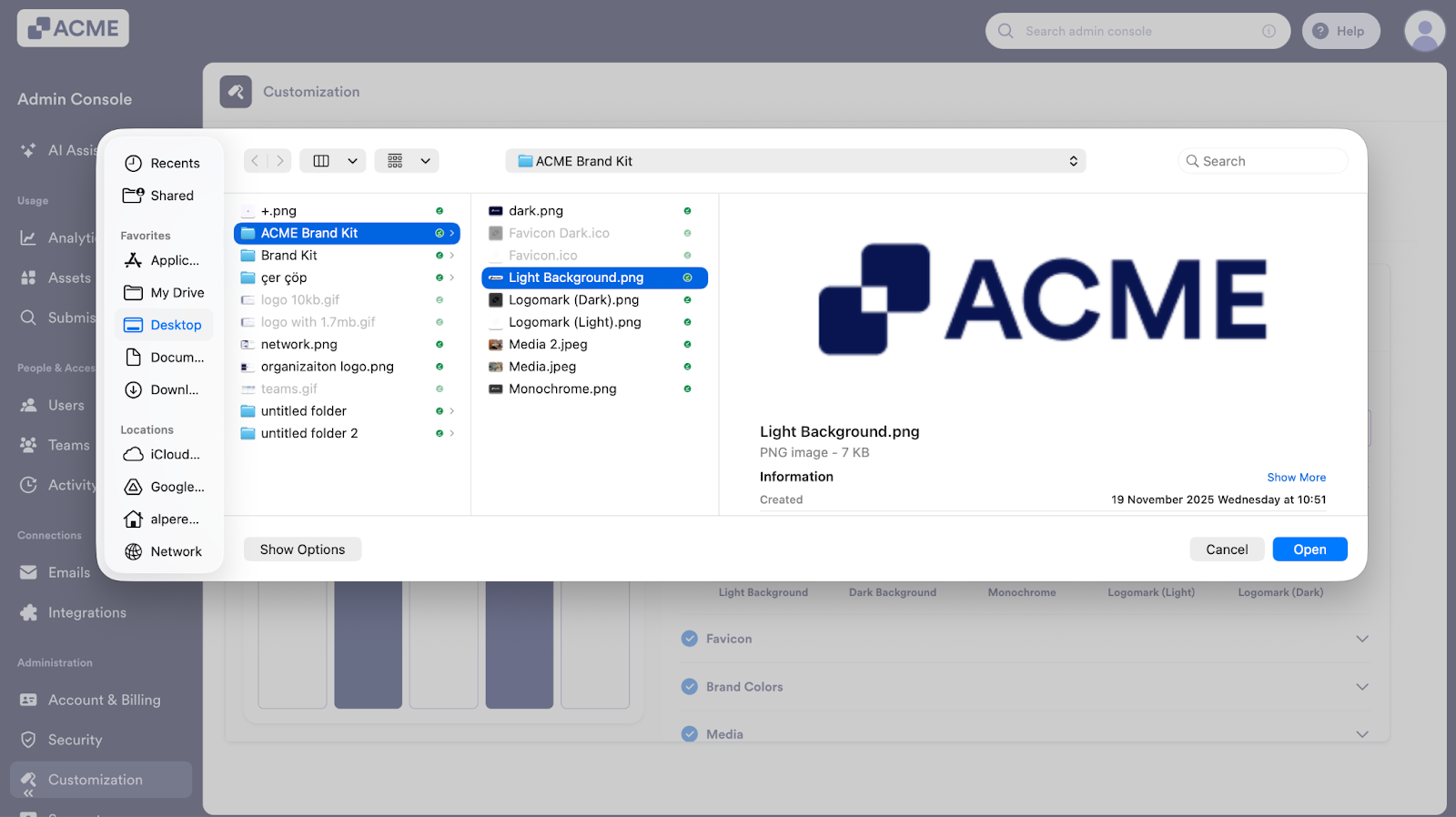
- Then, select the logo you like to upload and use.
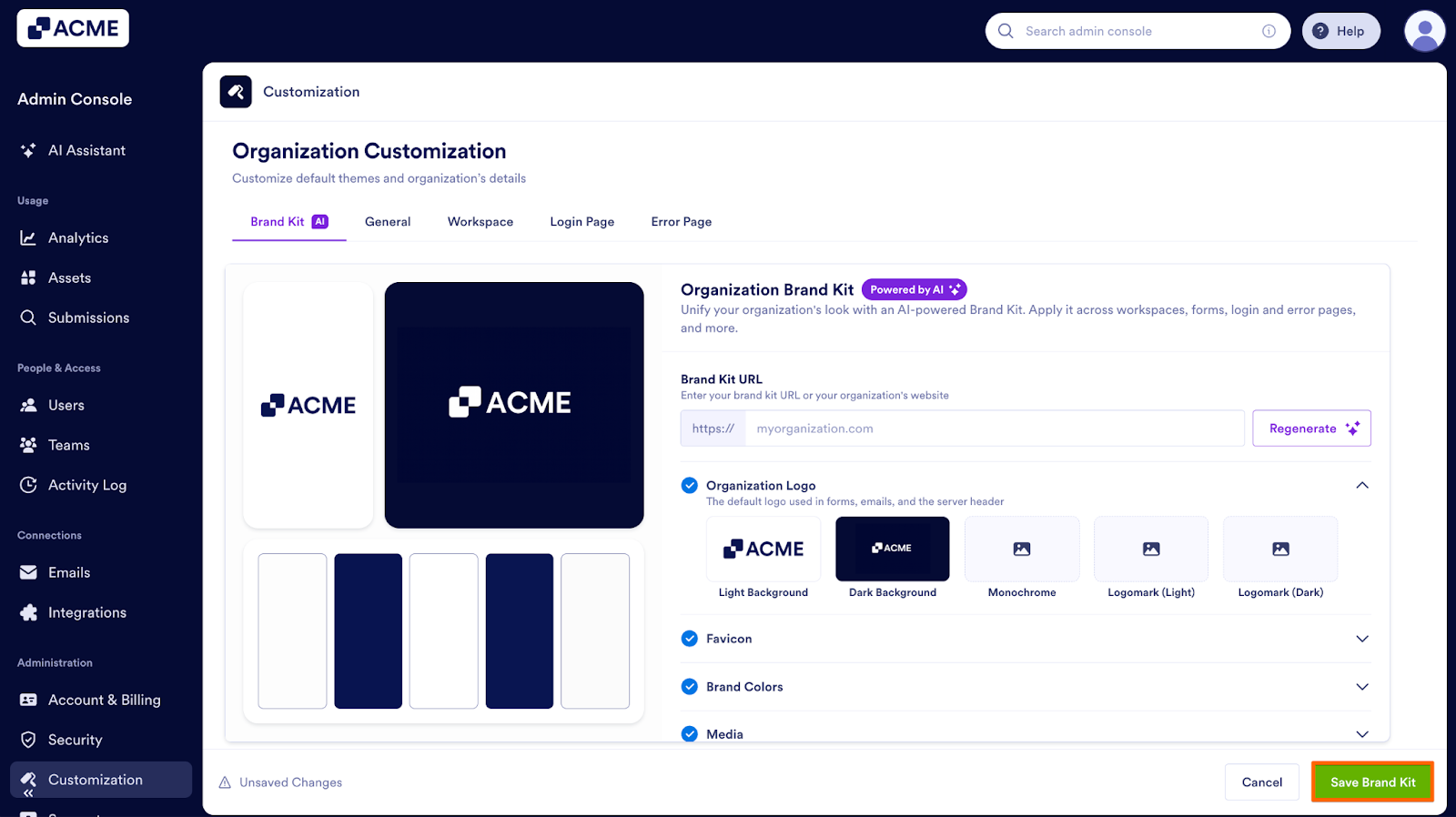
- Finally, click on Save Brand Kit.
Deleting a Logo
To remove a variation entirely:
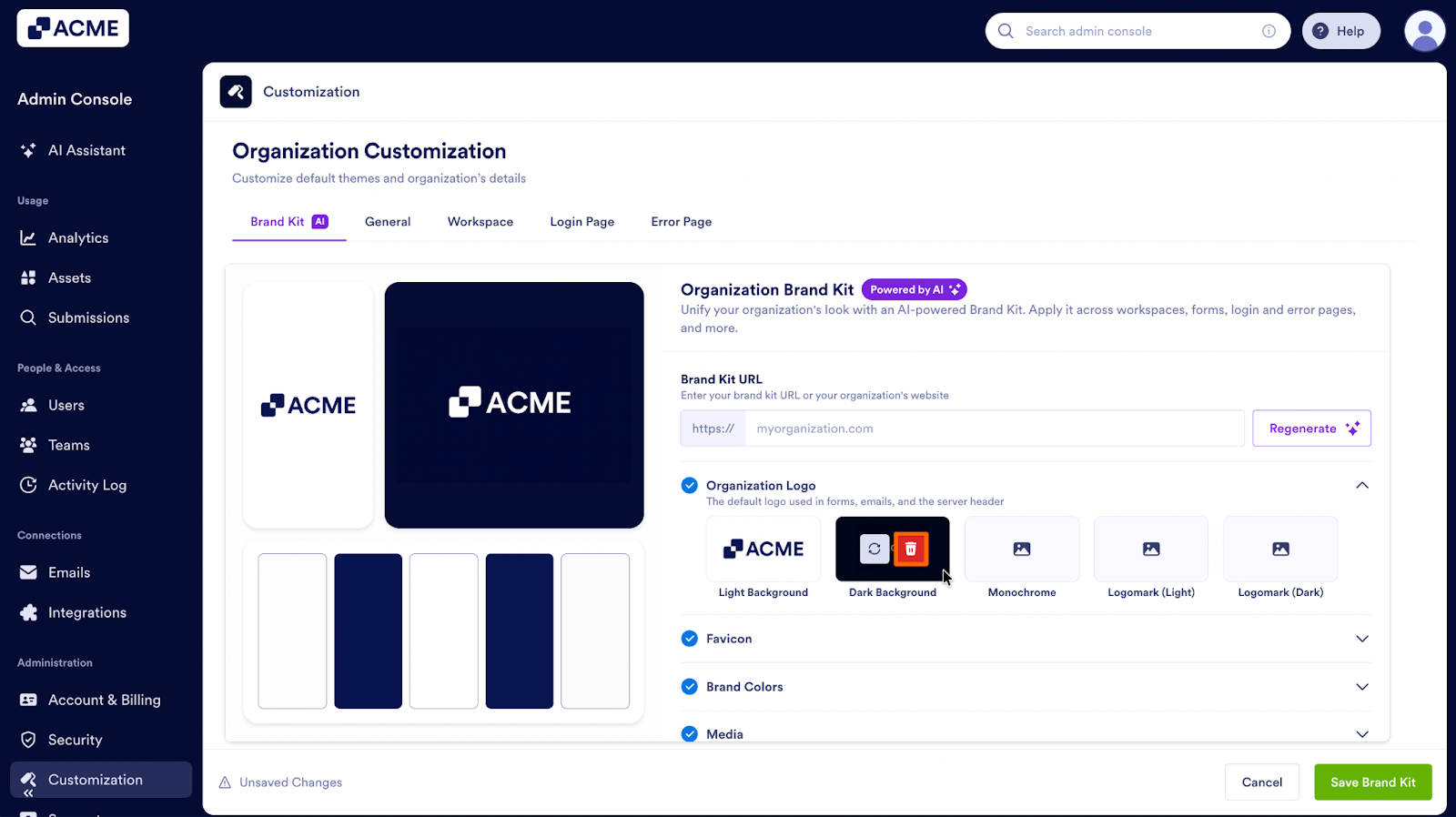
- First, hover your mouse cursor over the logo you want to delete.
- Next, click on the Trash icon.
- Finally, click on Save Brand Kit.
Note: If you have an existing logo, it can't be removed, but you can replace it with a different logo.
Favicon
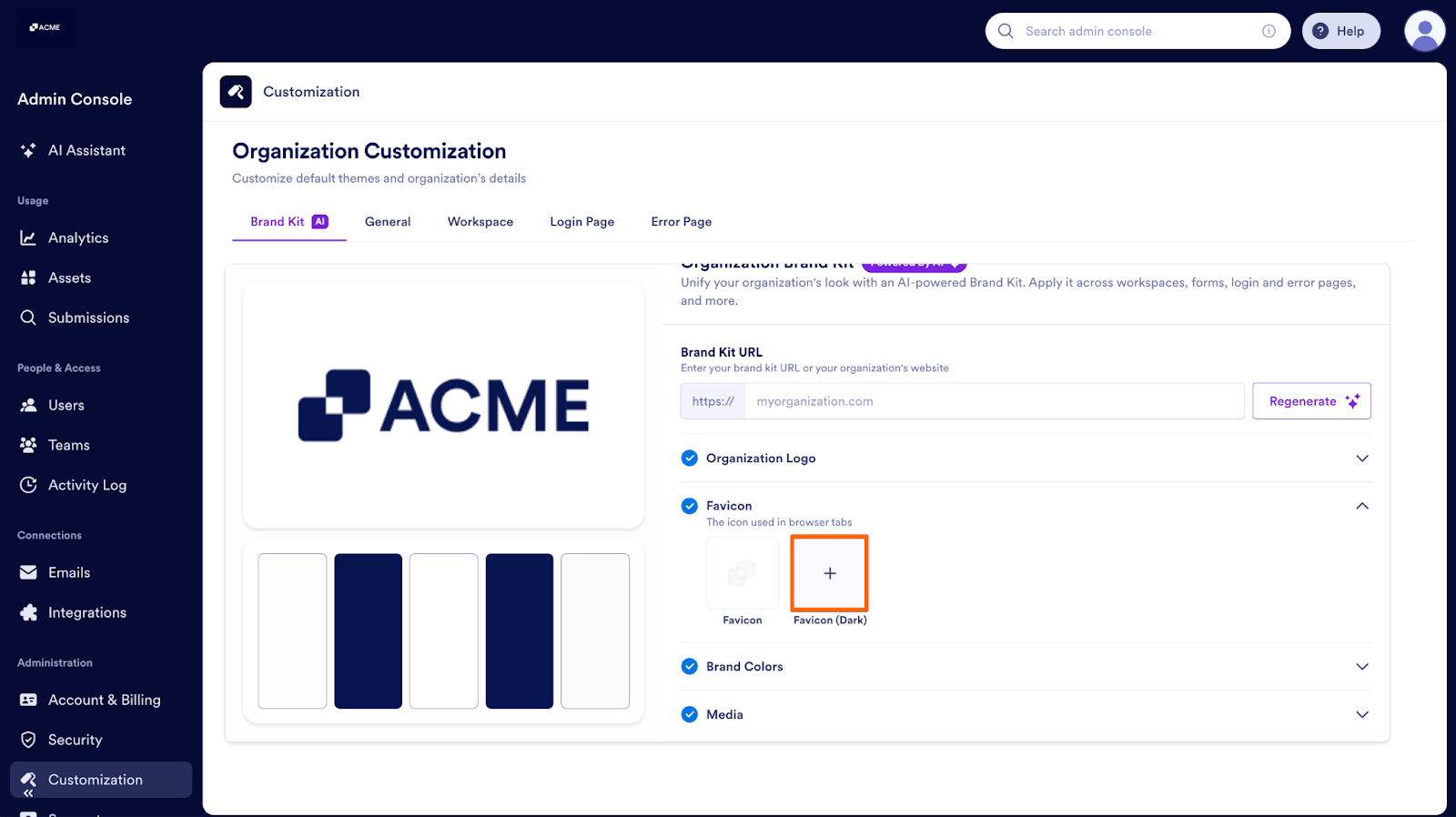
The favicon section lets you manage the icon that is displayed in the corner of browser tabs and bookmarks. You can upload multiple variations, such as a standard version and a dark-background version, and the system will use the appropriate one automatically.
Adding a New Favicon
- First, click on the Plus icon in the slot where you want to add a favicon.
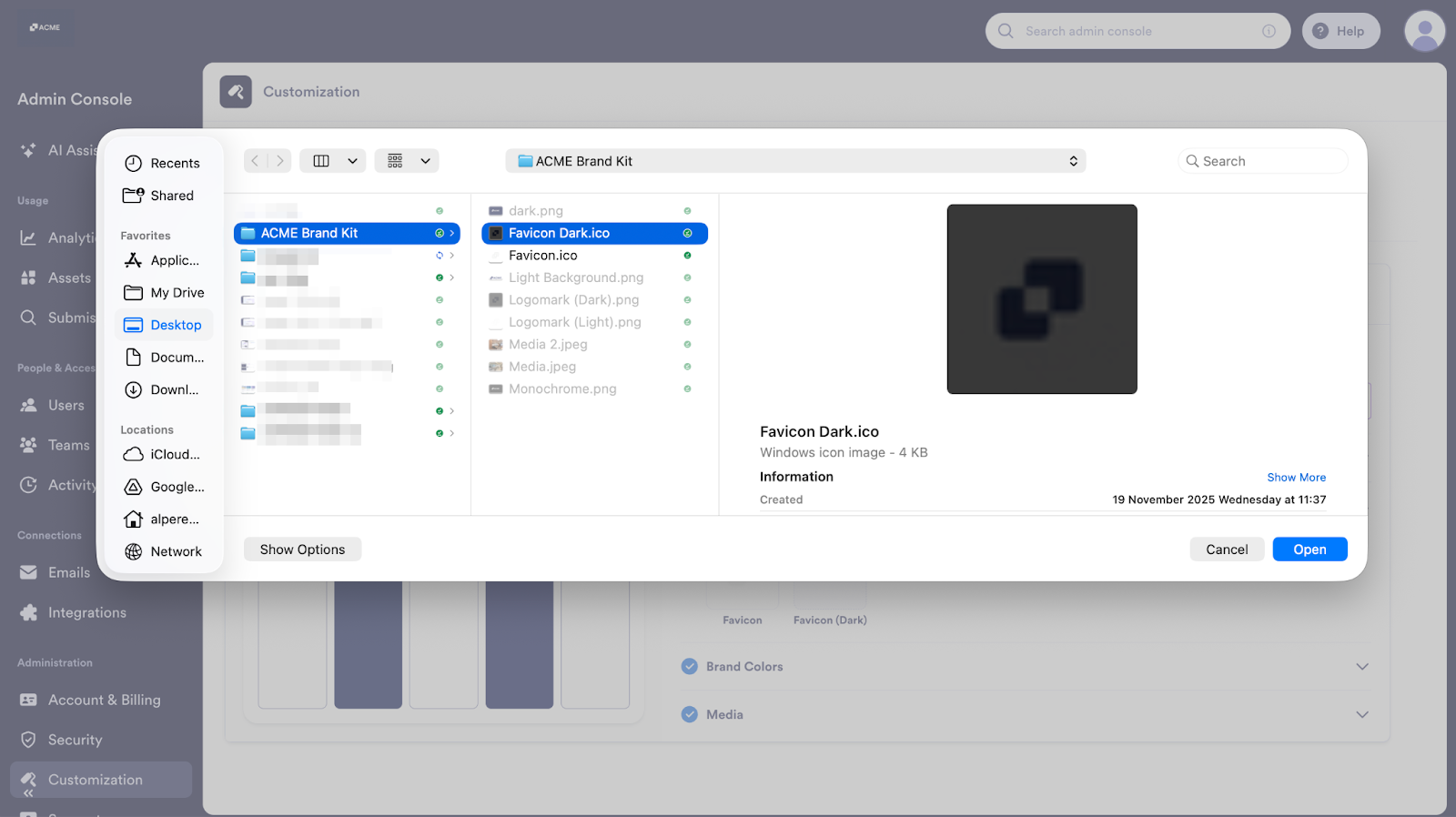
- Next, select the favicon you would like to upload.
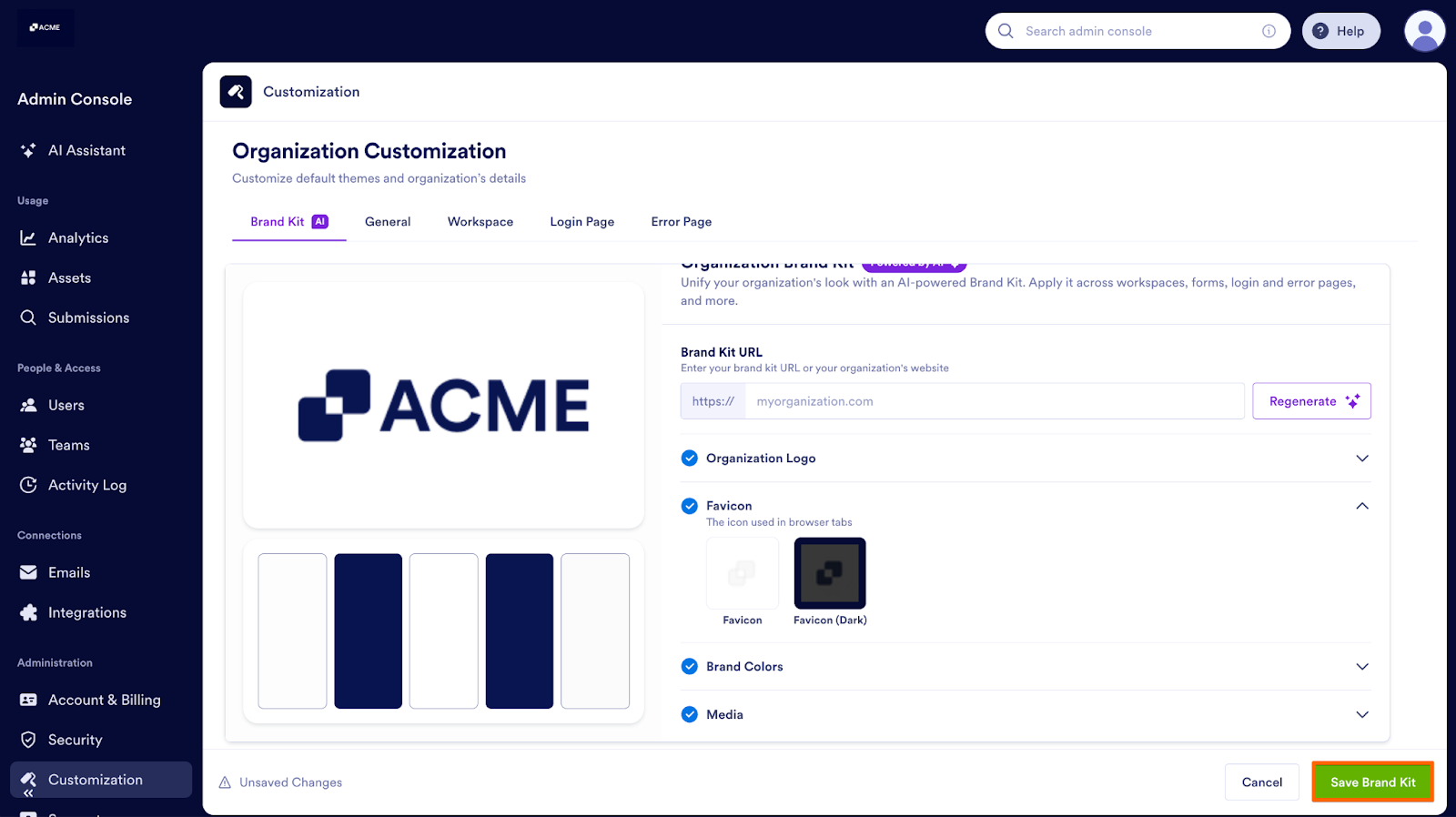
- Finally, click on Save Brand Kit.
Replacing an Existing Favicon
To replace a favicon that is already in place:
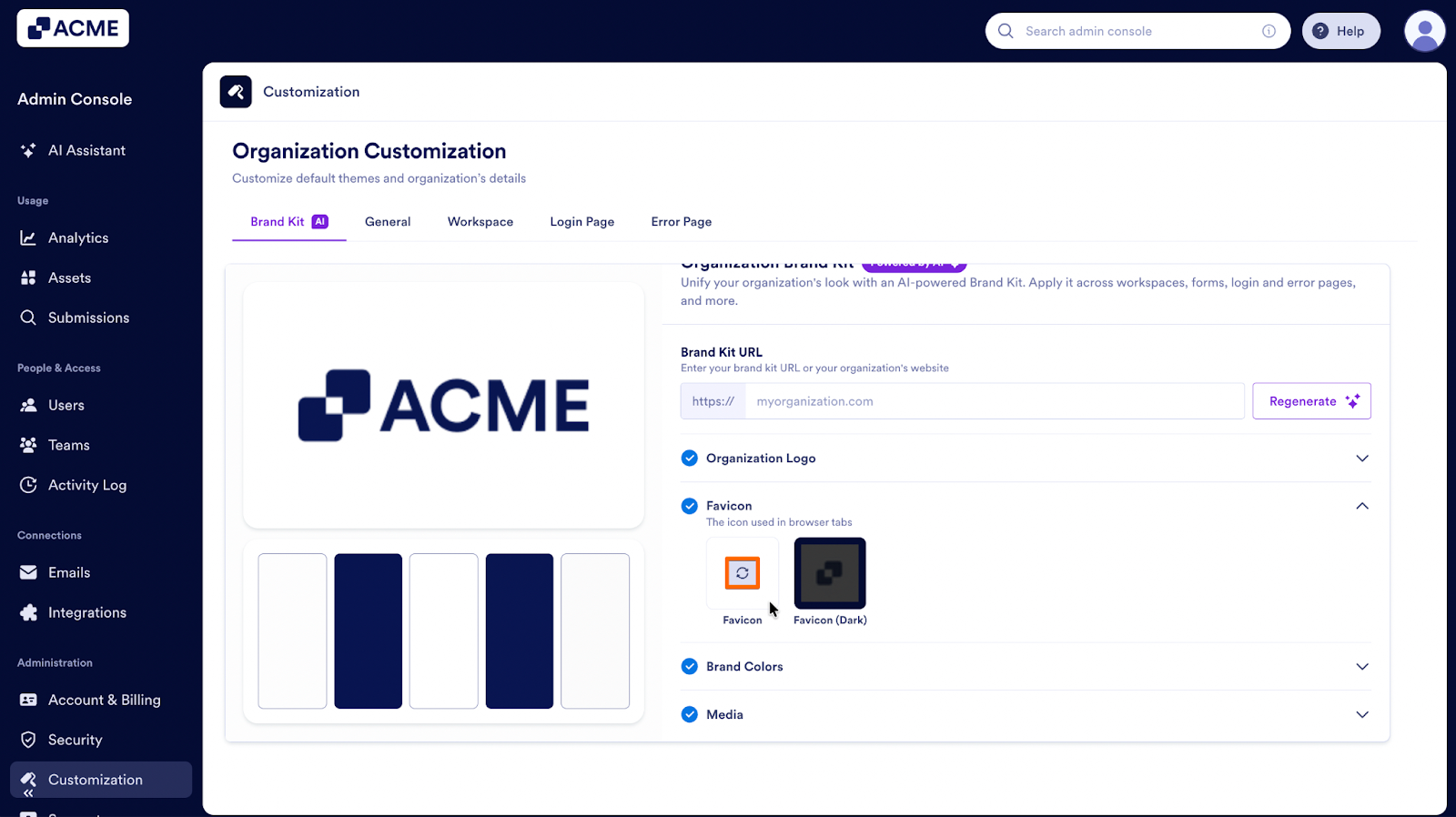
- First, hover your mouse cursor over the favicon you want to replace.
- Next, click on the Refresh icon.
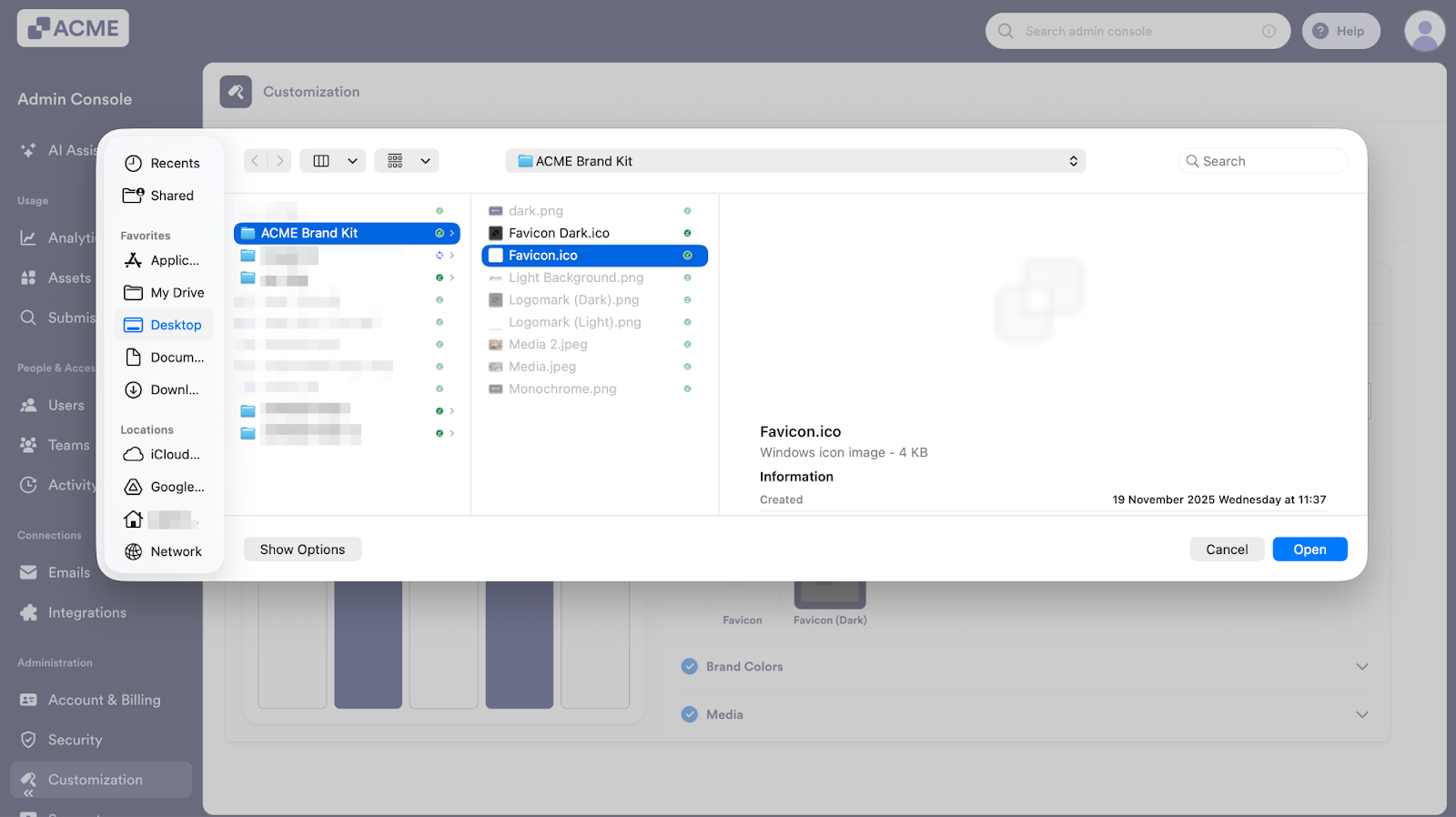
- Then, select the new file you would like to use.
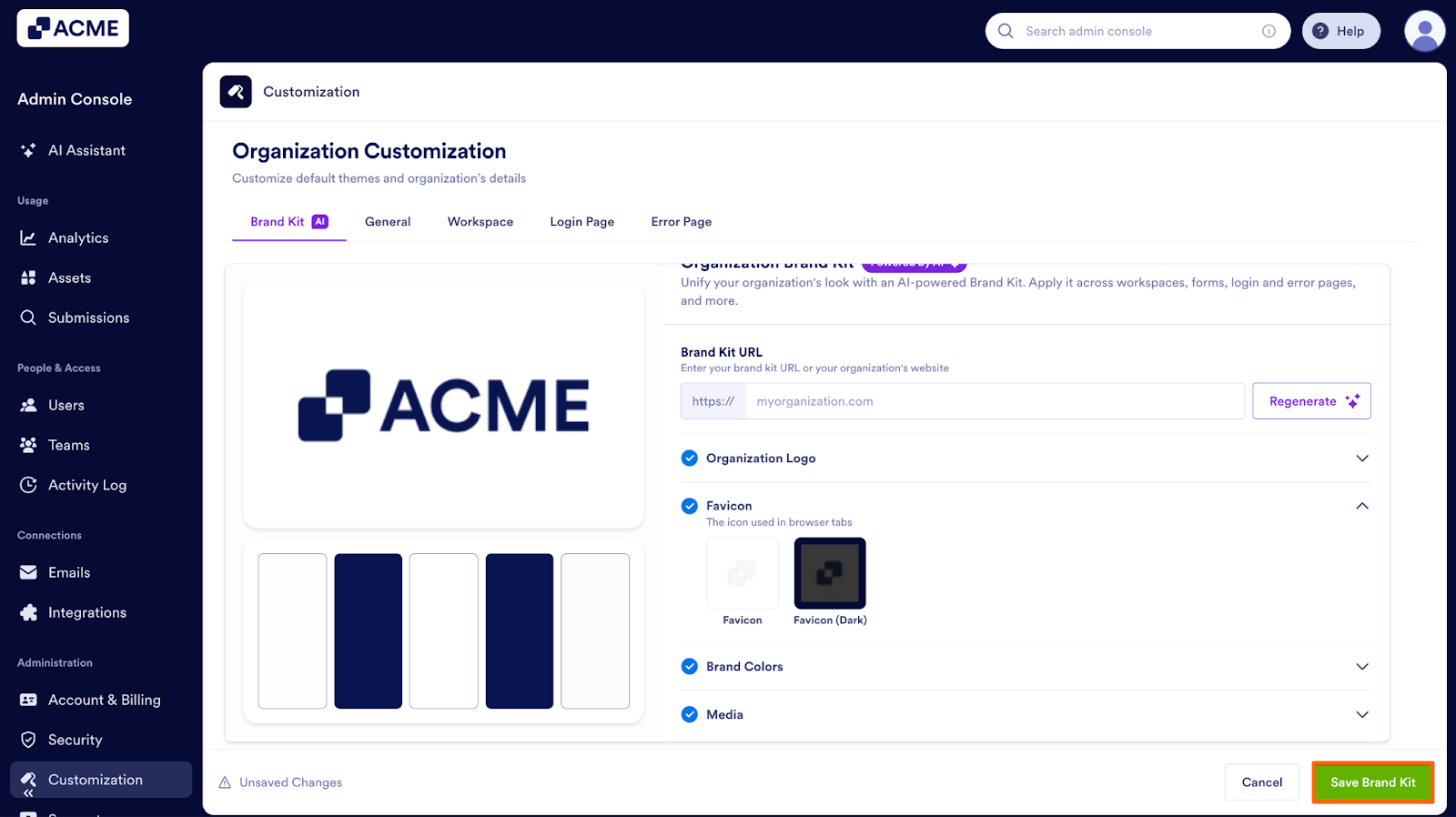
- Finally, click on Save Brand Kit.
Deleting a Favicon
If you need to remove a variation entirely:
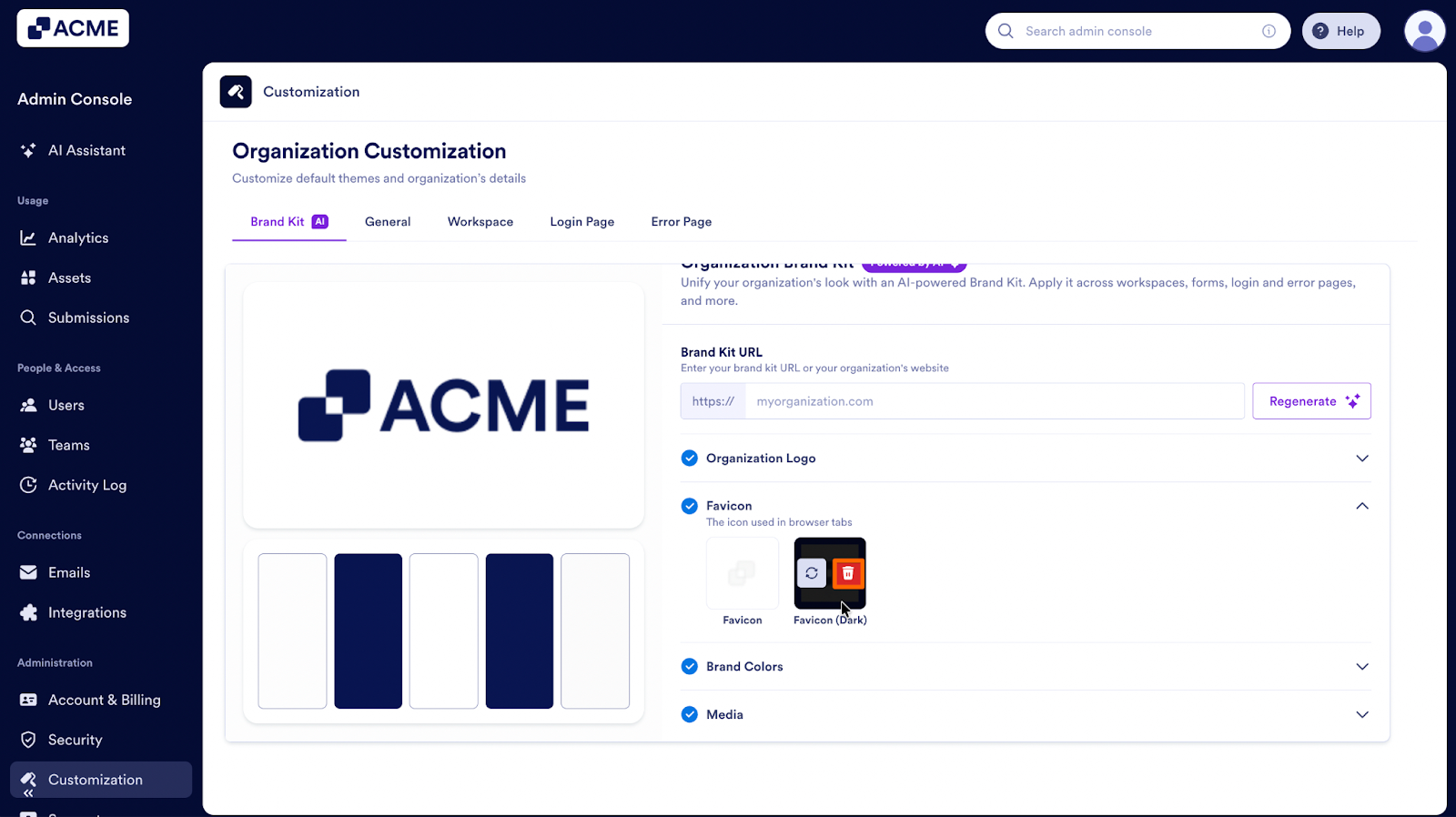
- First, hover your mouse cursor over the favicon you want to delete.
- Next, click on the Trash icon.
- Then, click on Save Brand Kit.
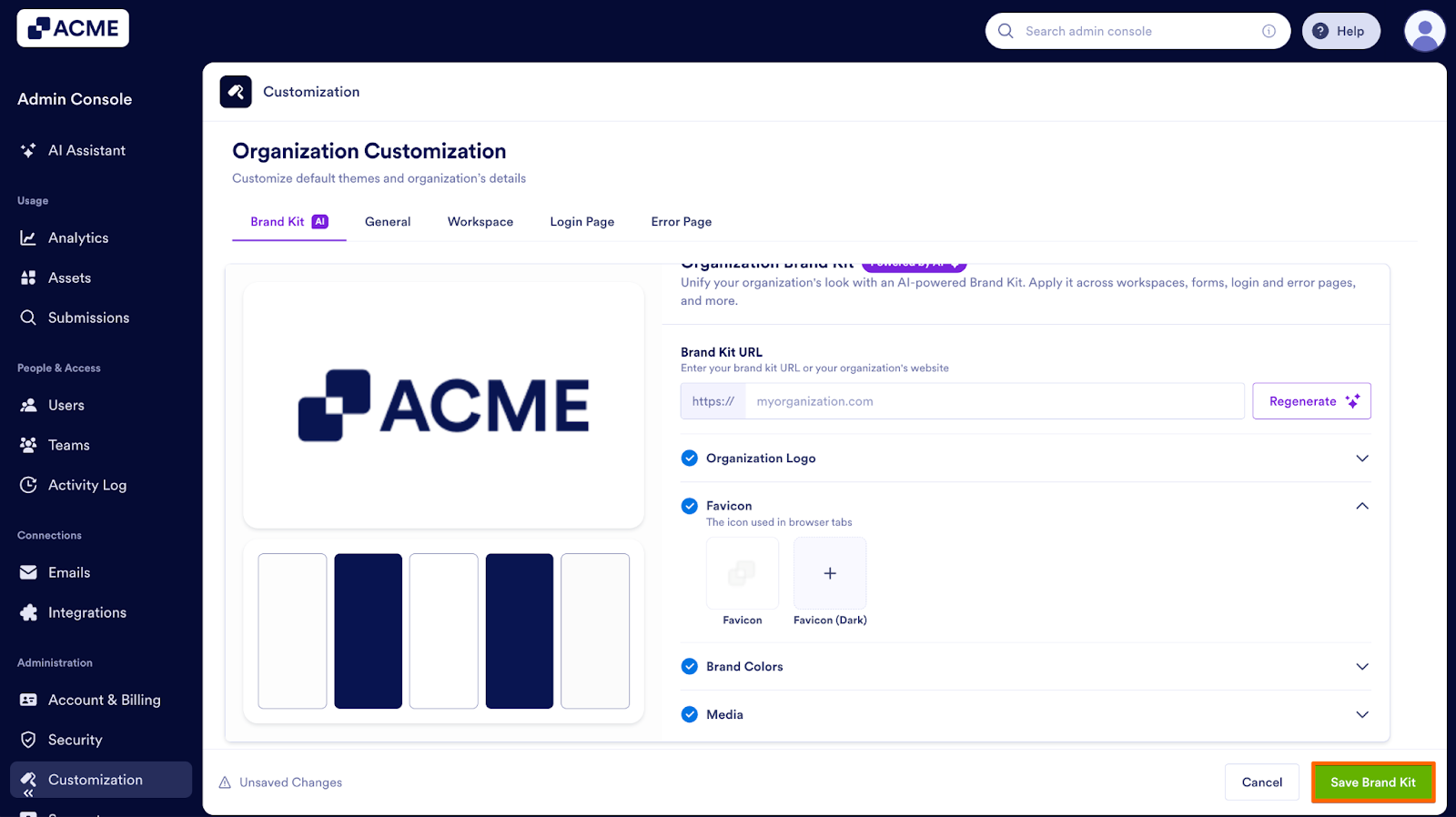
Note: If you have an existing favicon, it can't be removed, but you can replace it with a different favicon.
Brand Colors
Your brand colors can be used across forms, workspaces, pages, and other branded elements.
Updating a Color
- First, click on the Hex value of the color you want to change.
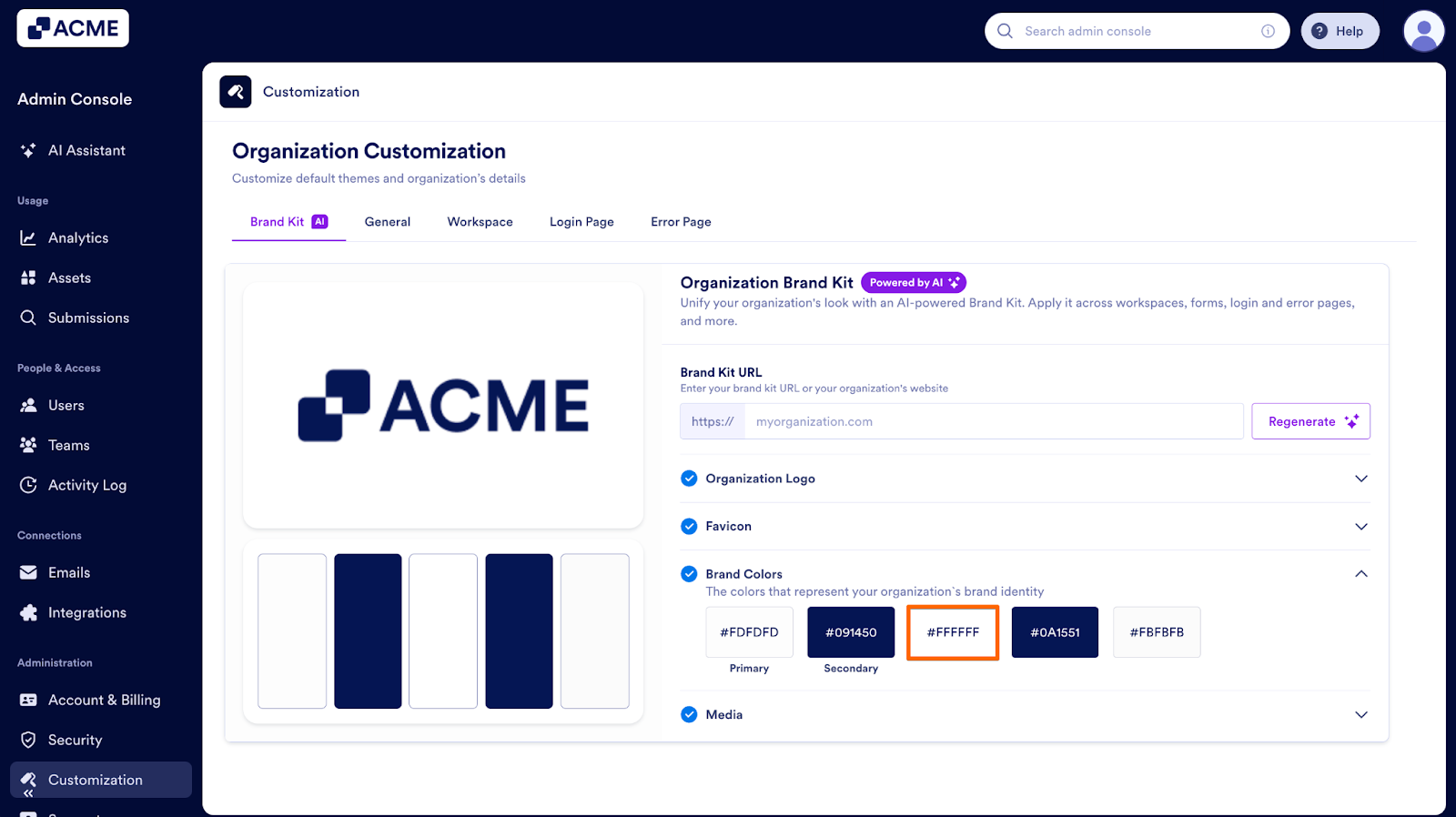
- Next, choose a new color.
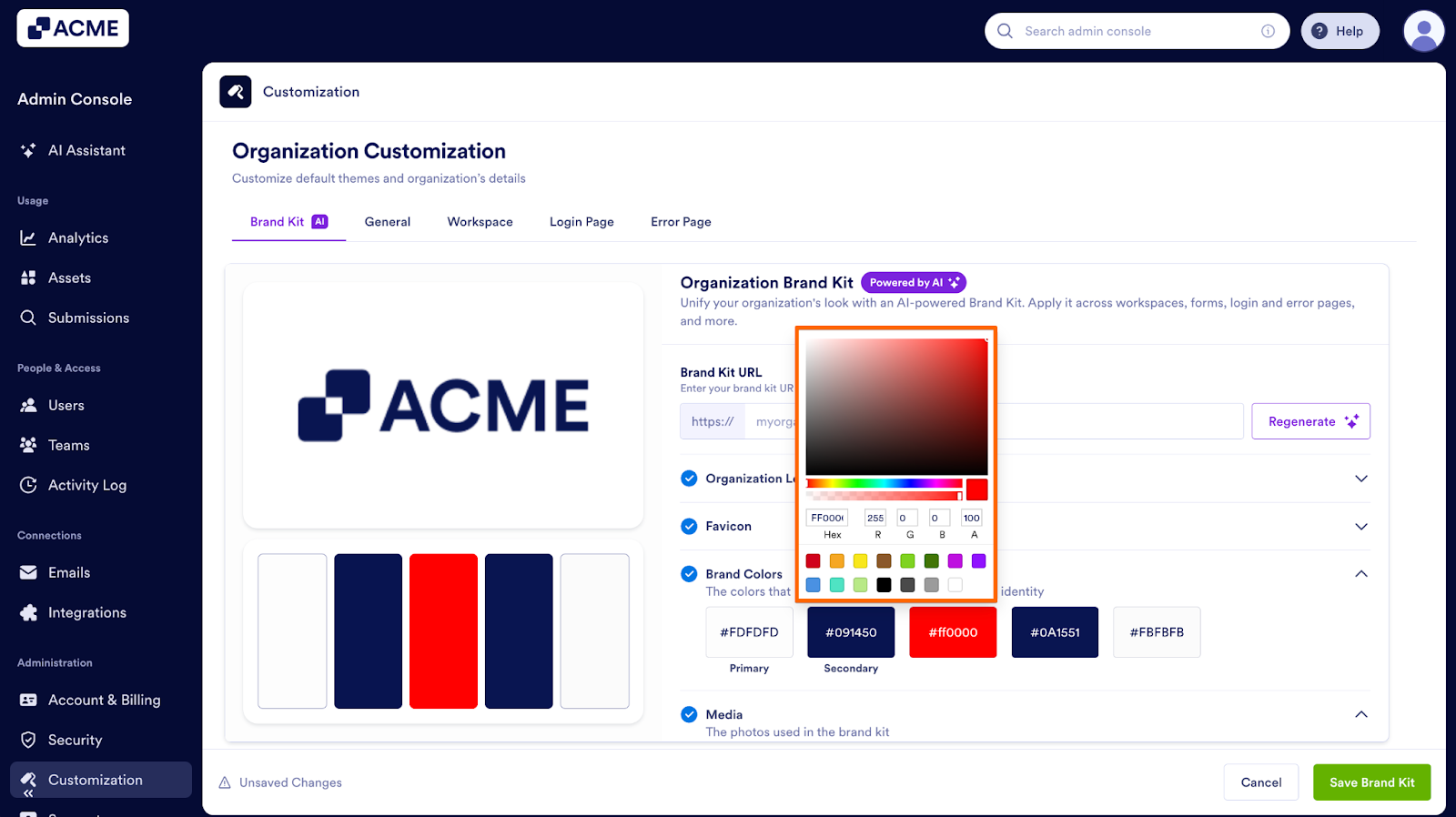
- Finally, click on Save Brand Kit.
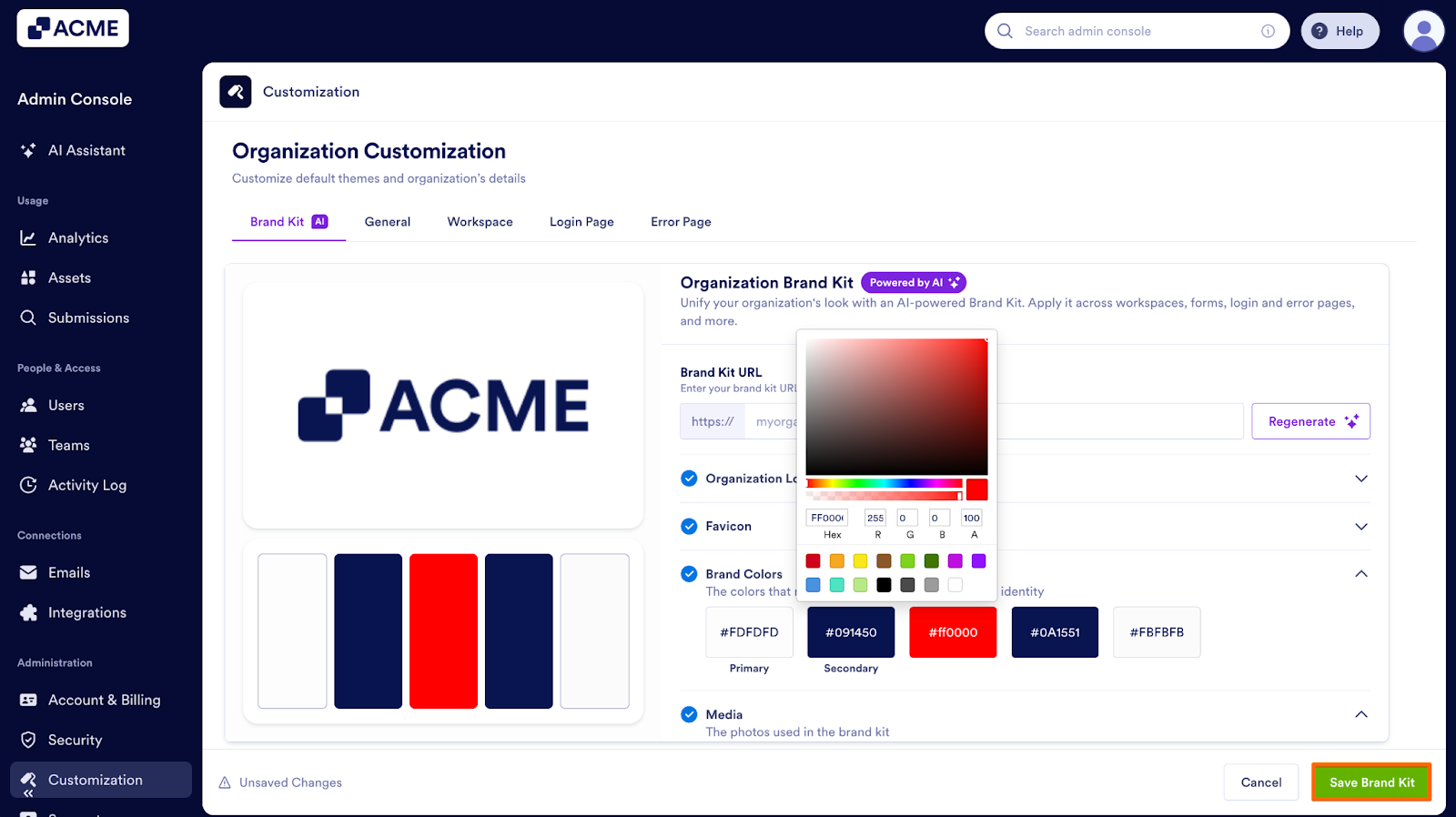
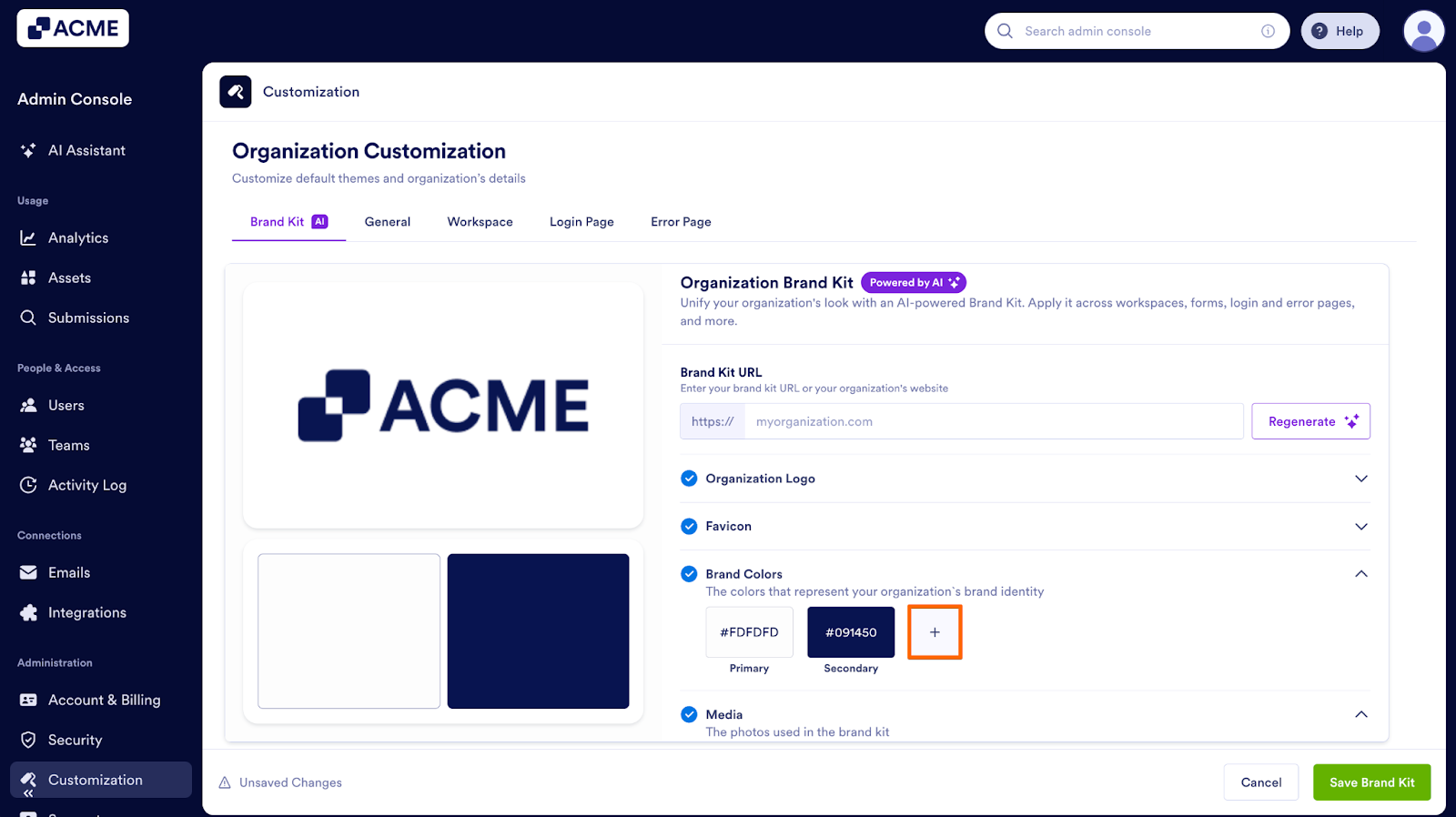
Adding a New Color
- First, click on the Plus icon to add more colors to your palette.
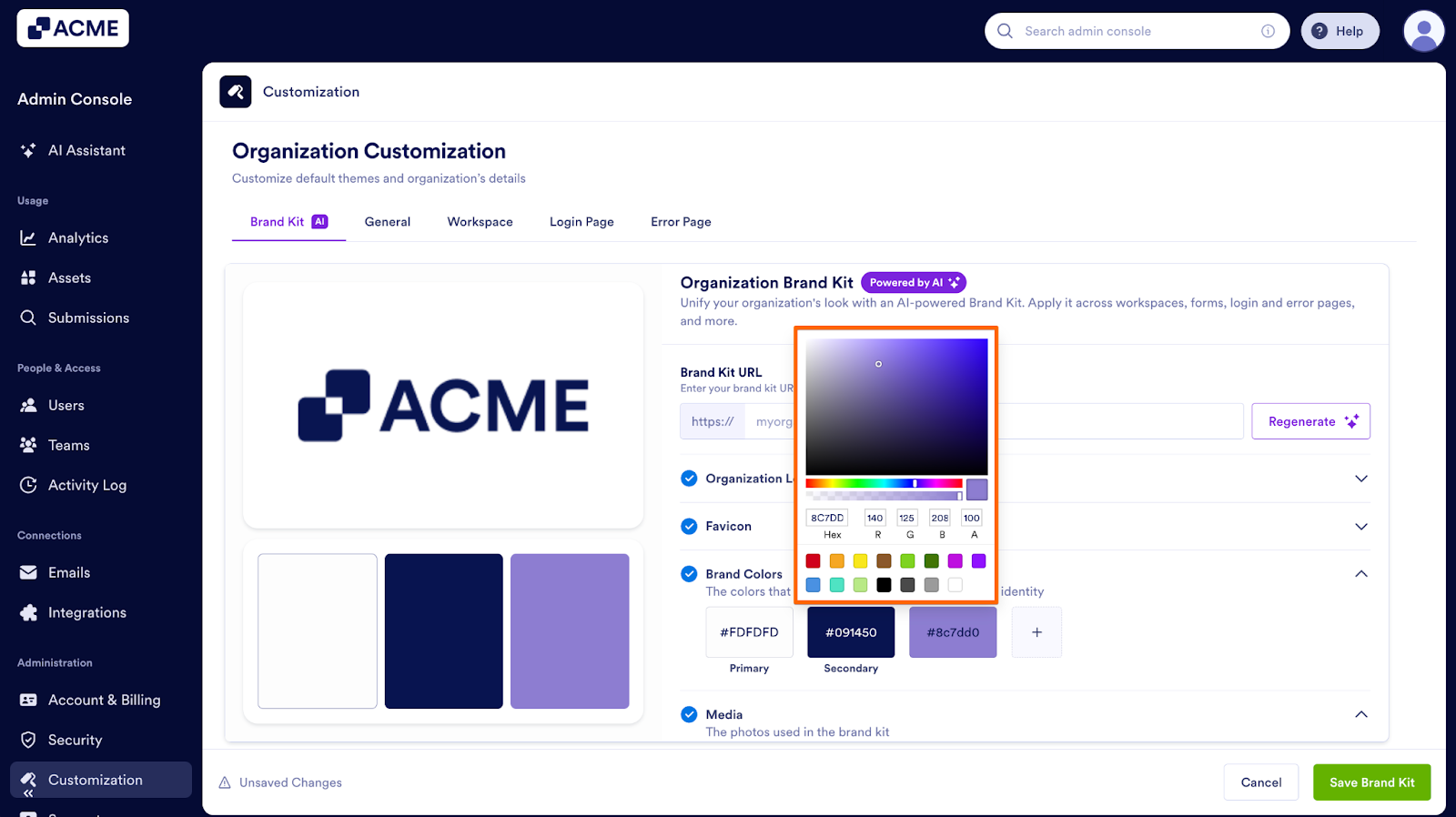
- Next, choose a color from the picker.
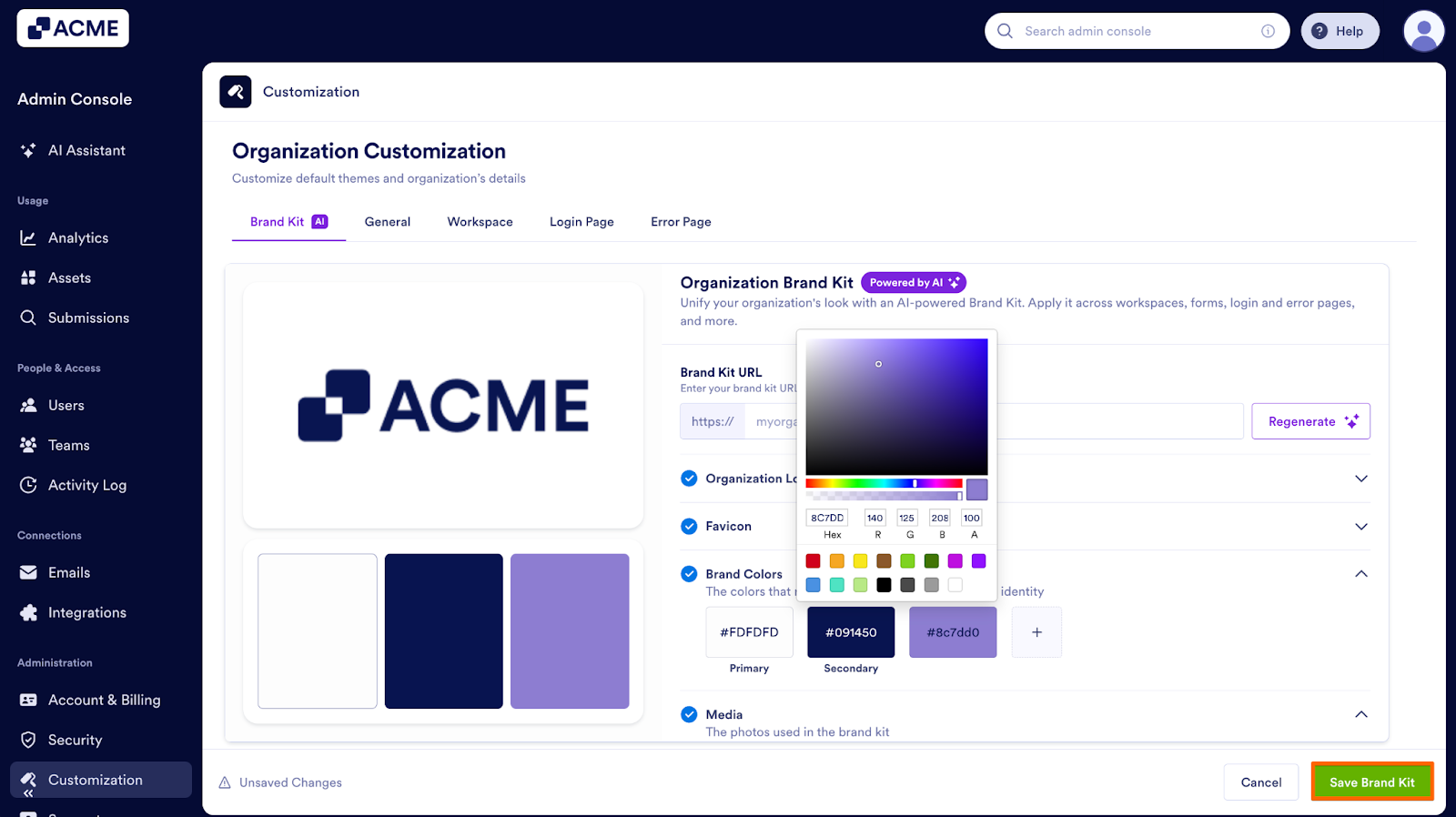
- Then, click on Save Brand Kit.
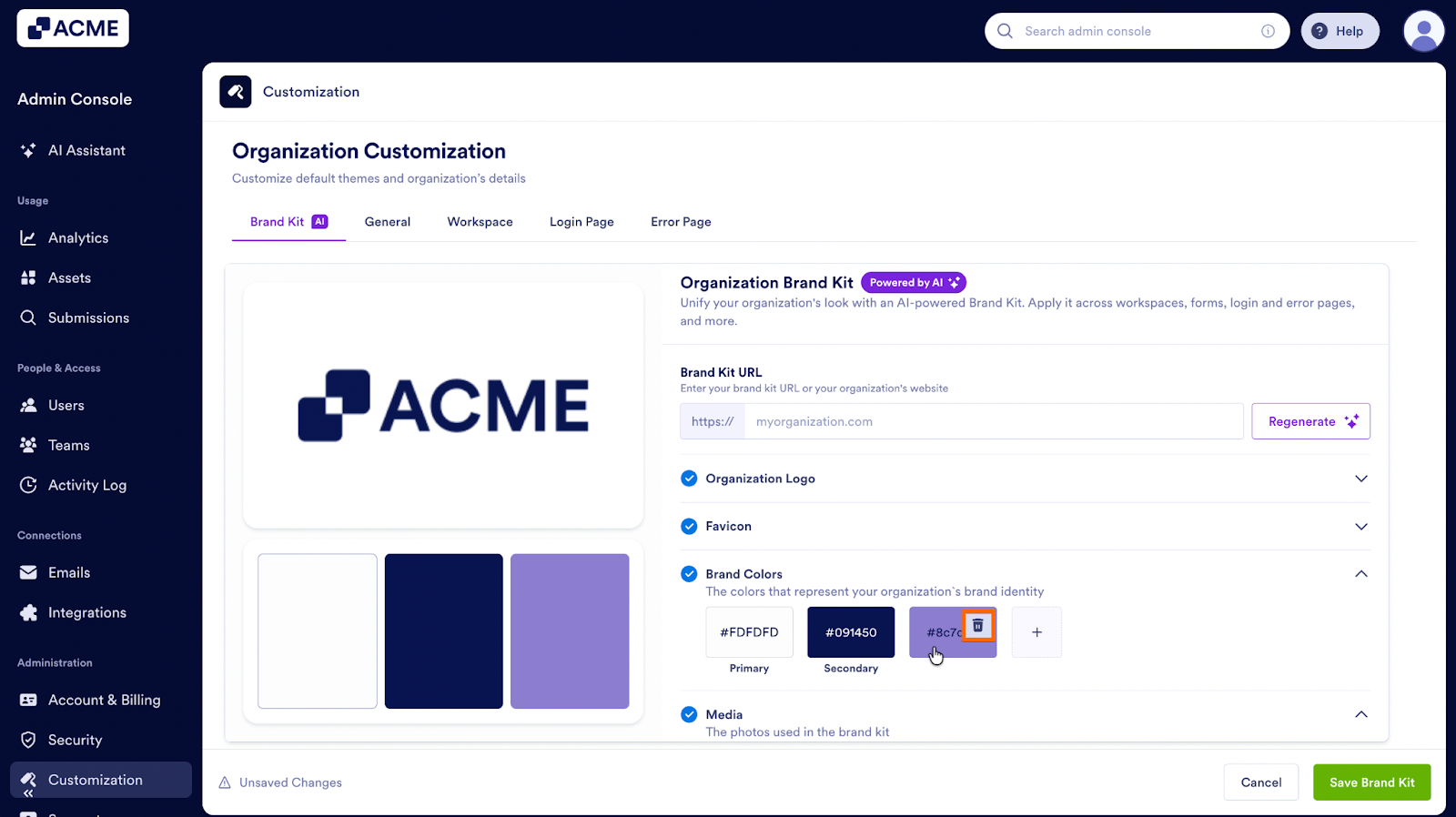
Deleting a Color
- First, hover over the color you want to remove.
- Next, click the Trash icon to delete it.
- Then, click on Save Brand Kit.
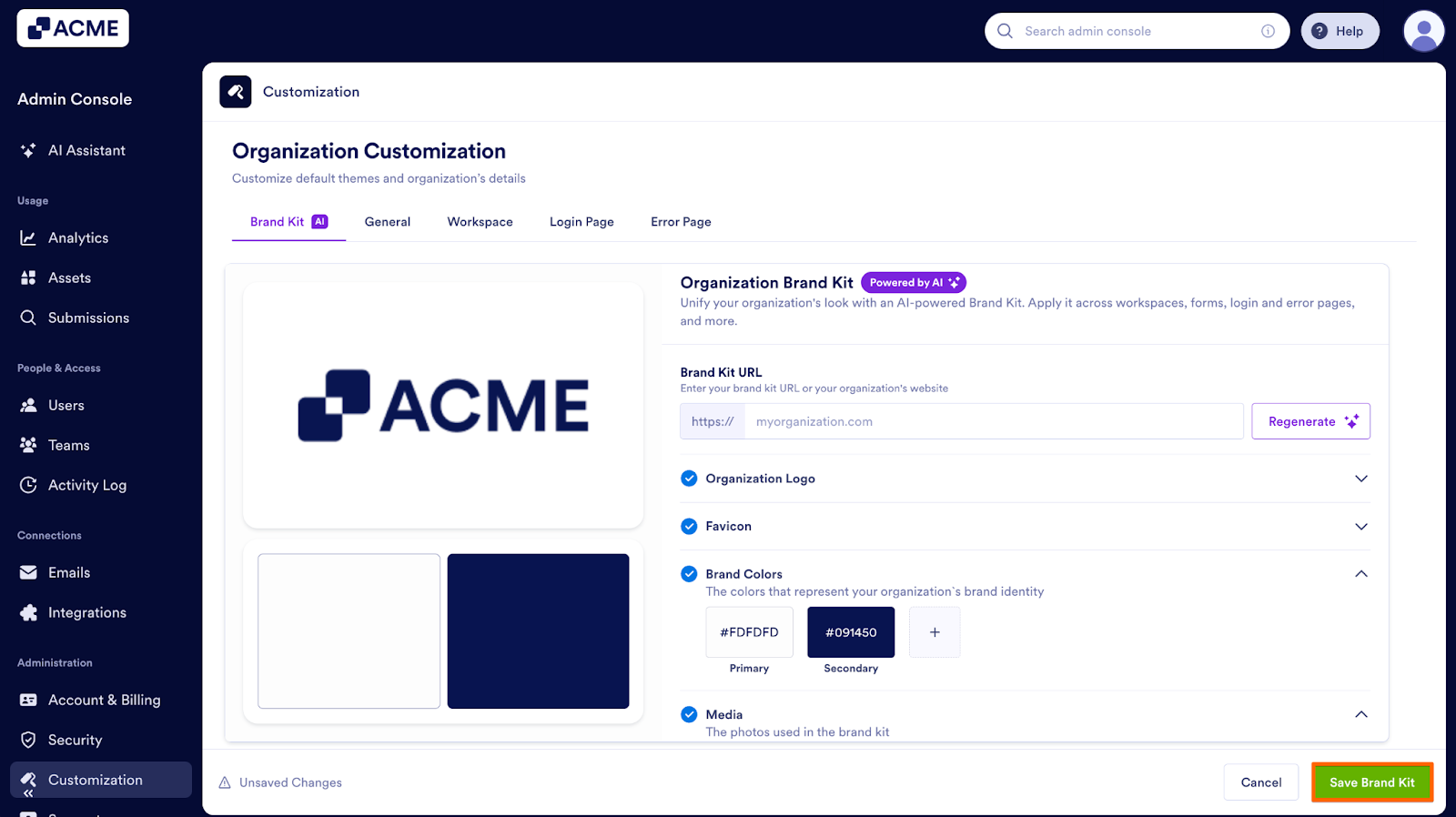
Note: Primary and secondary colors can’t be deleted because they anchor your brand palette, but you can change them at any time by clicking on them.
Media
Adding New Media
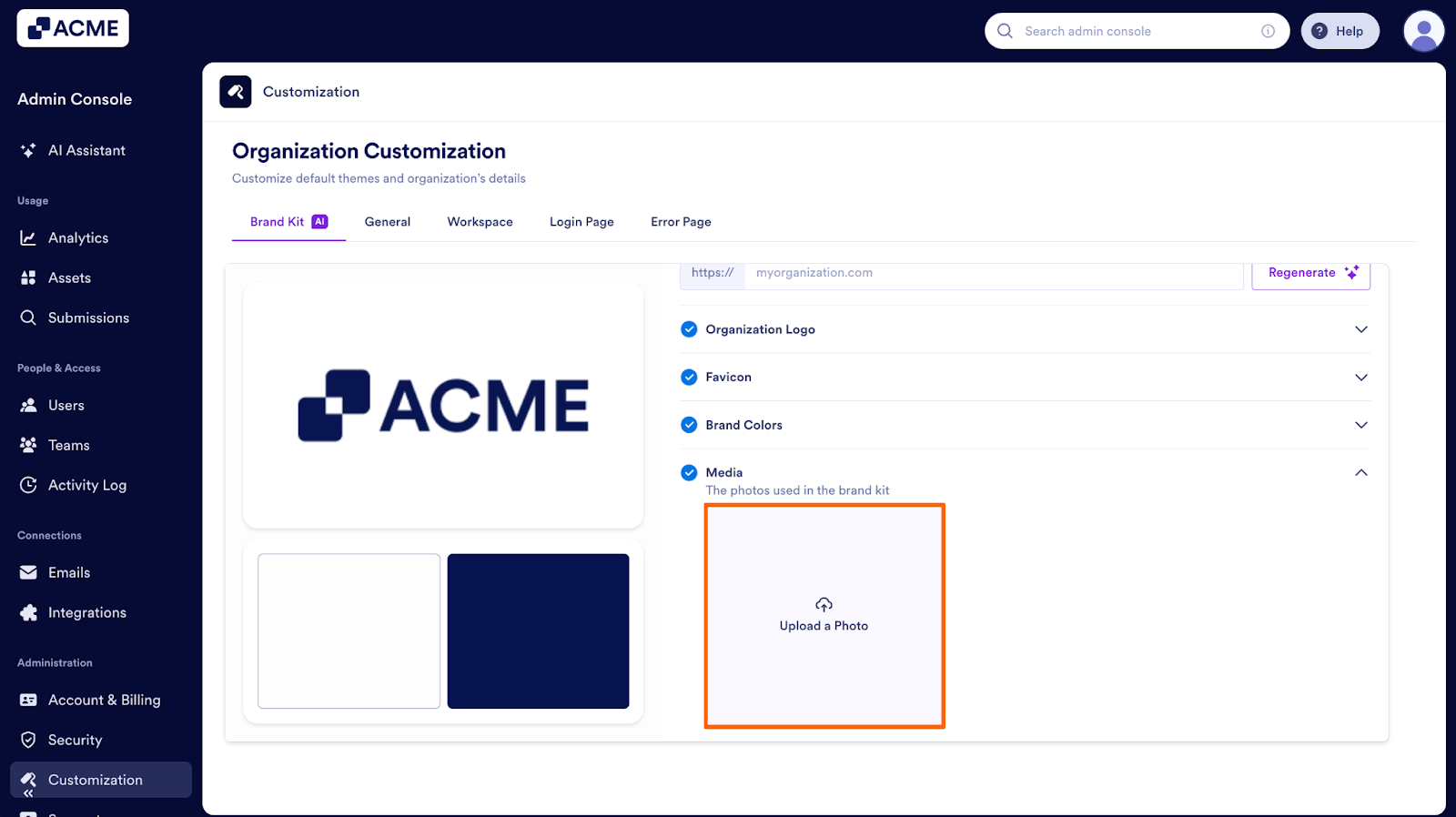
- First, click on Upload a Photo.
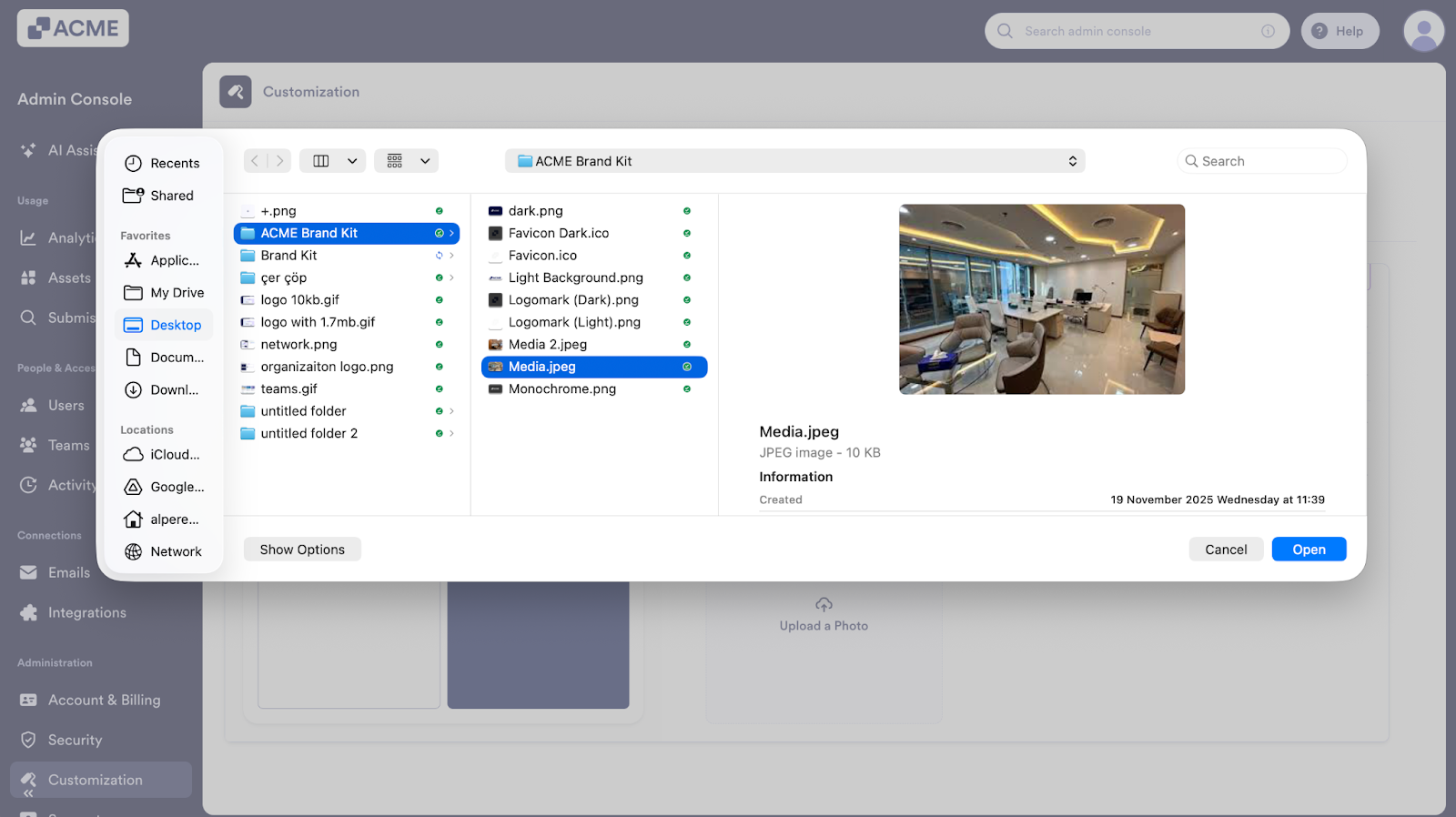
- Next, select the file you want to add.
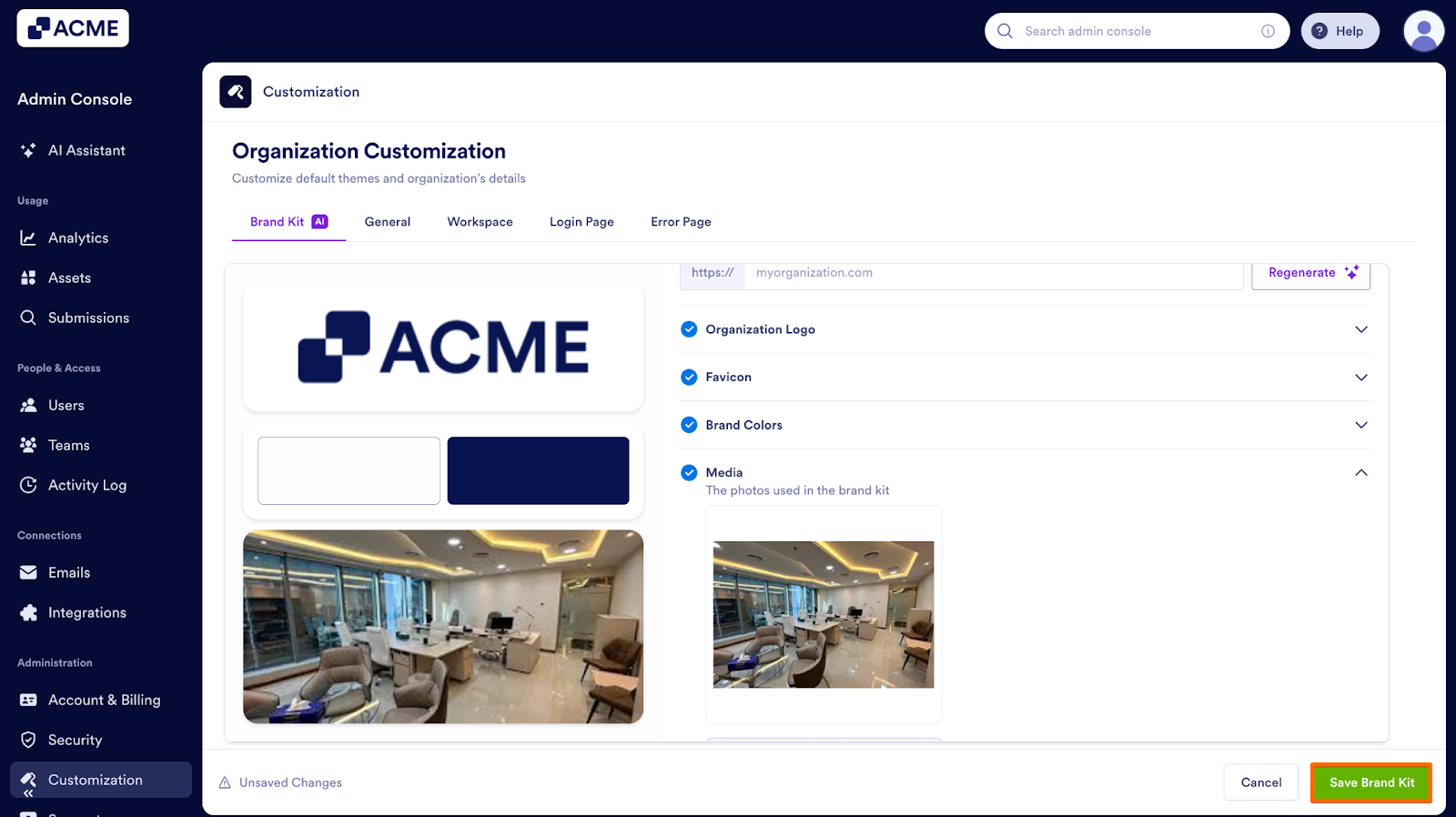
- Then, click on Save Brand Kit.
Replacing Existing Media
To replace a photo that is already in place:
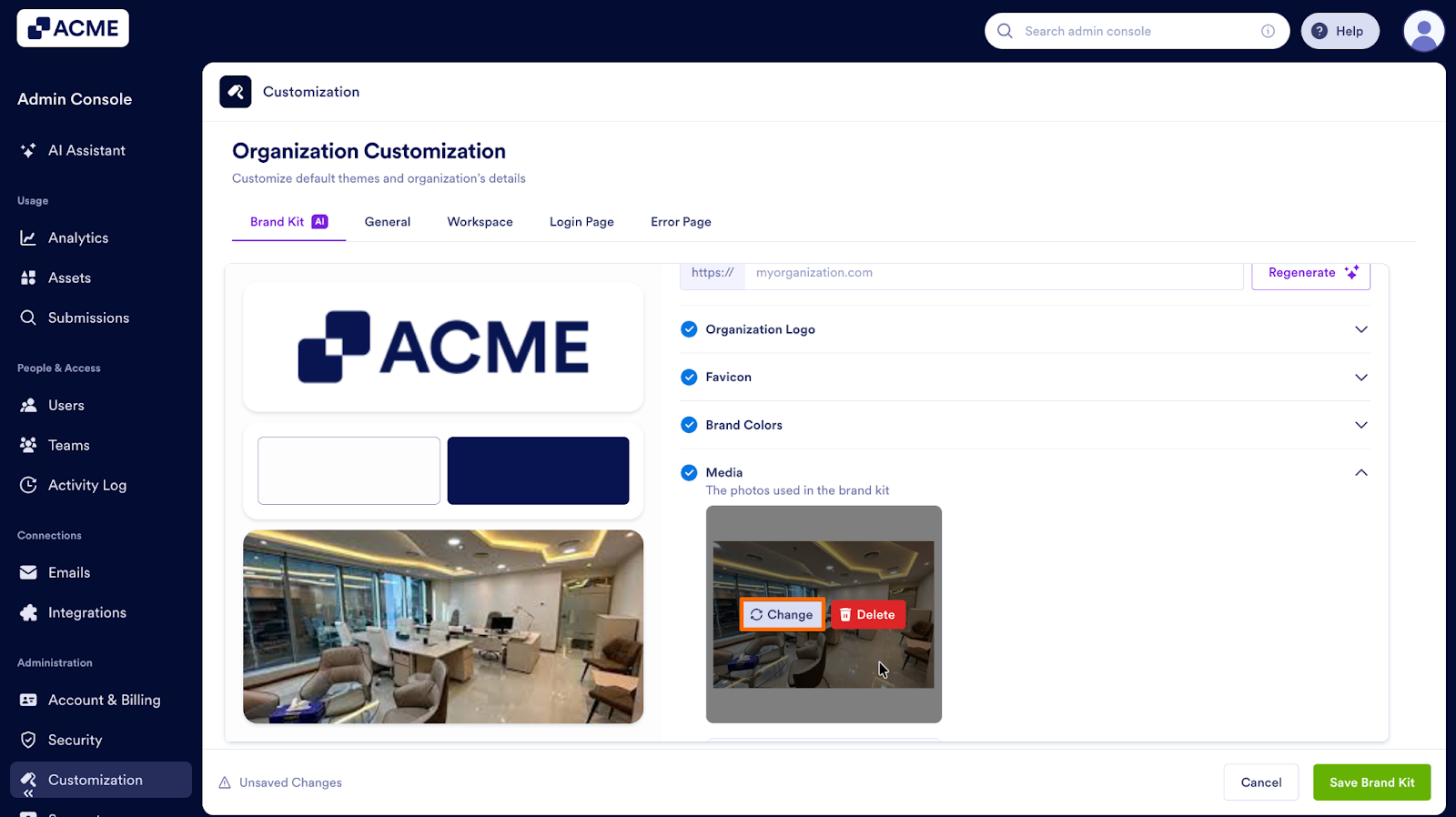
- First, hover your mouse cursor over the media you want to update.
- Next, click on the Change button.
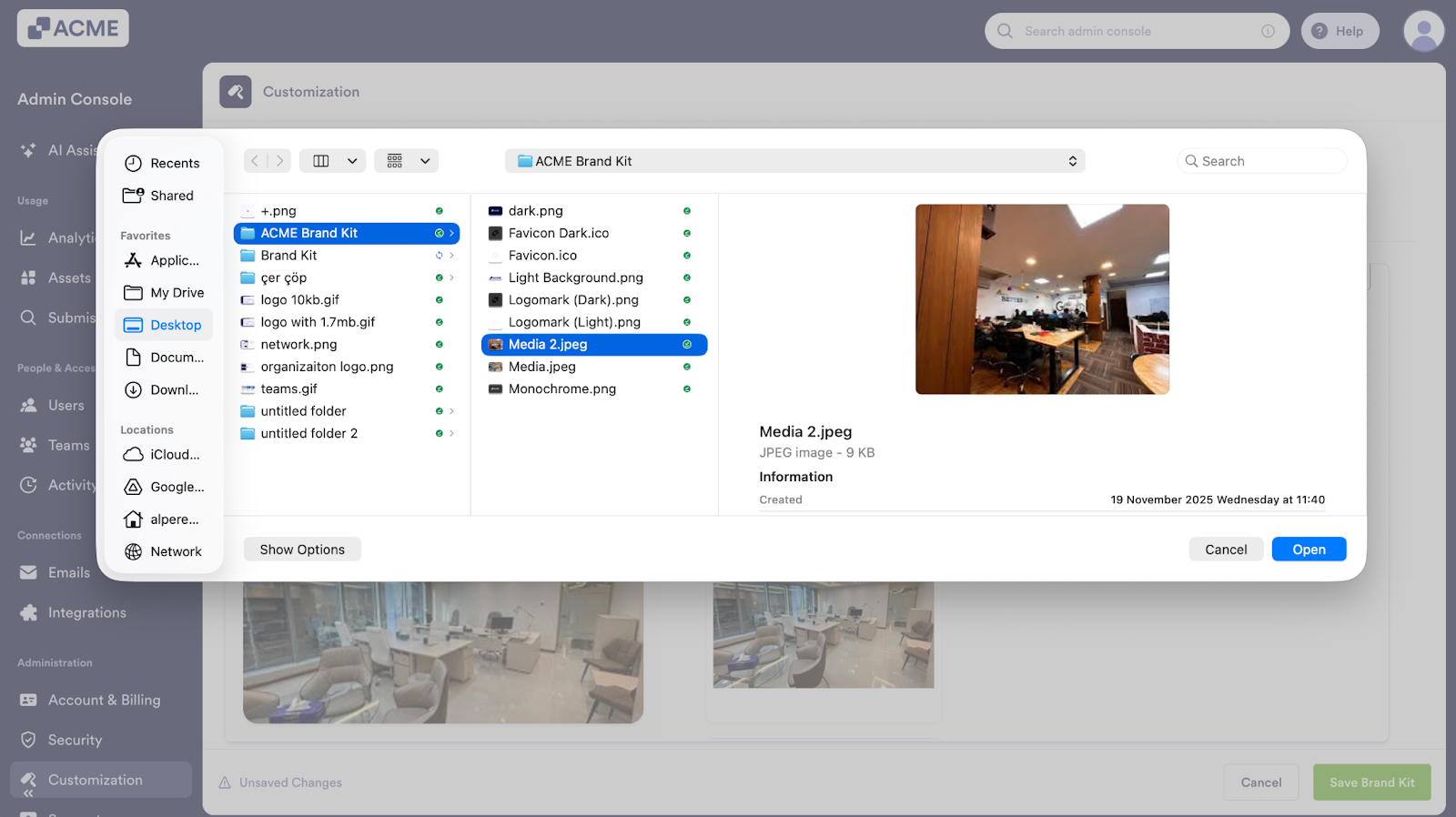
- Then, choose the new file you would like to upload.
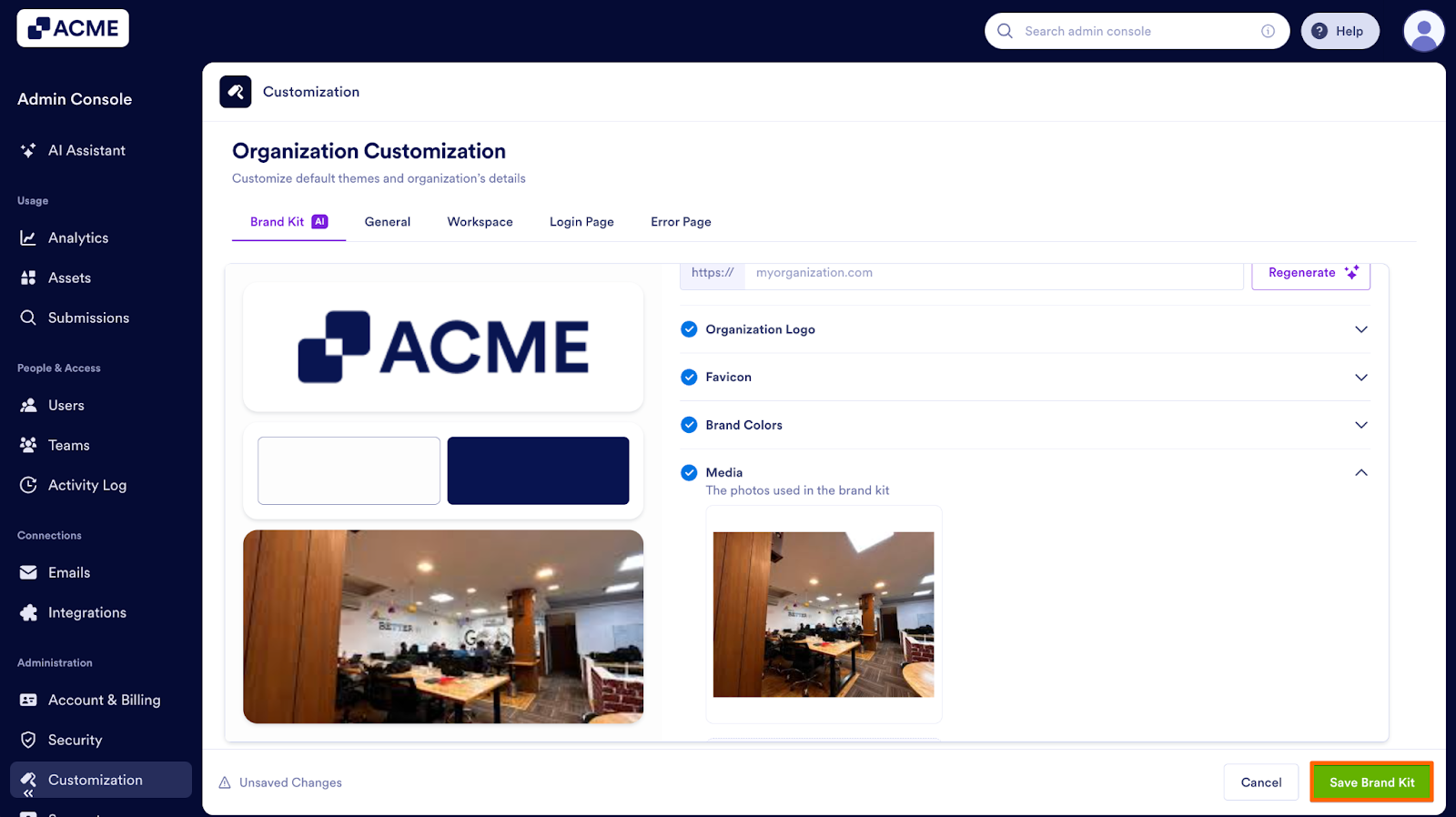
- Finally, click on Save Brand Kit.
Deleting Media
If you need to remove a file entirely:
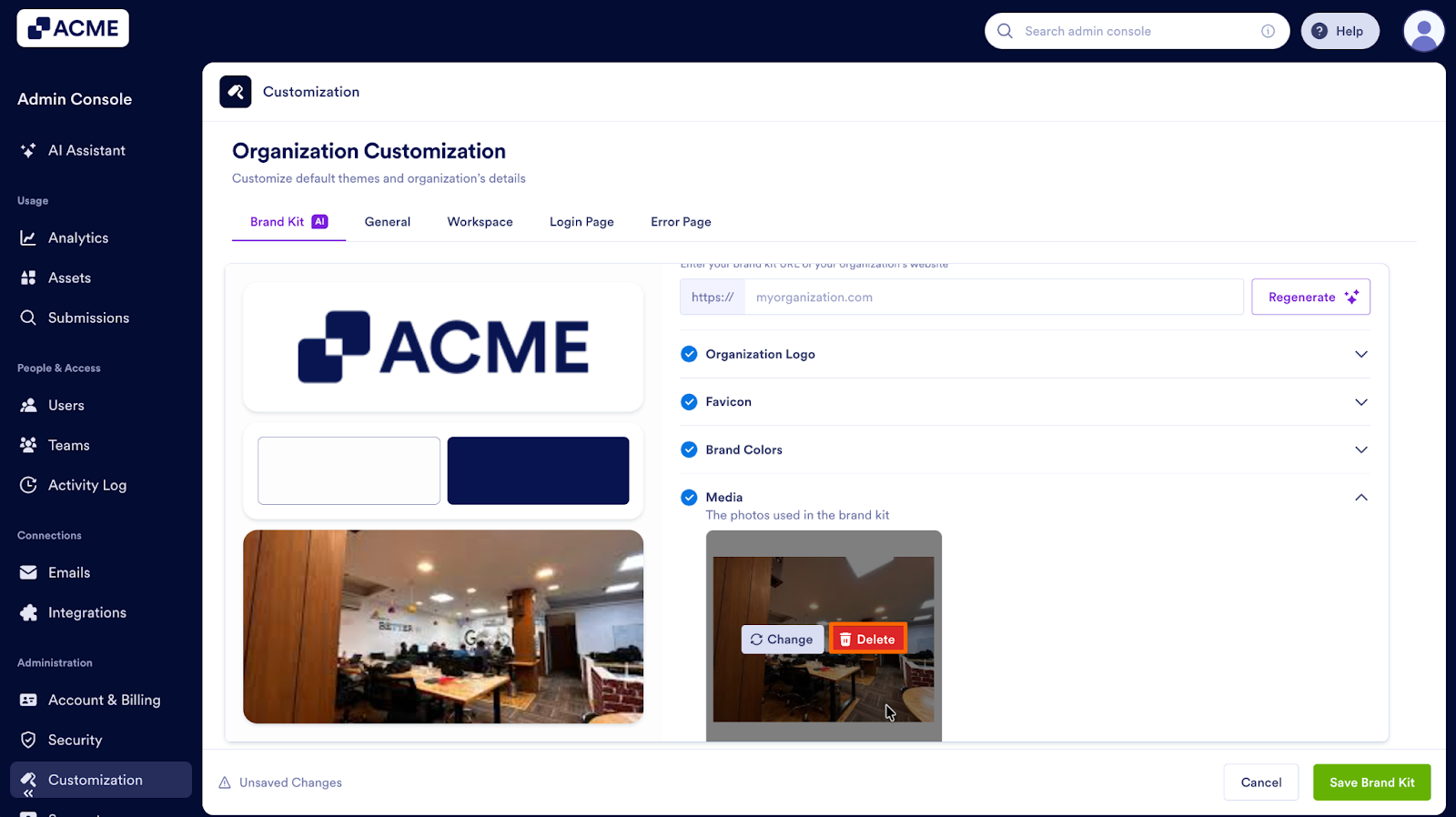
- First, hover your mouse cursor over the media you want to delete.
- Next, click on the Delete button.
- Finally, click on Save Brand Kit.
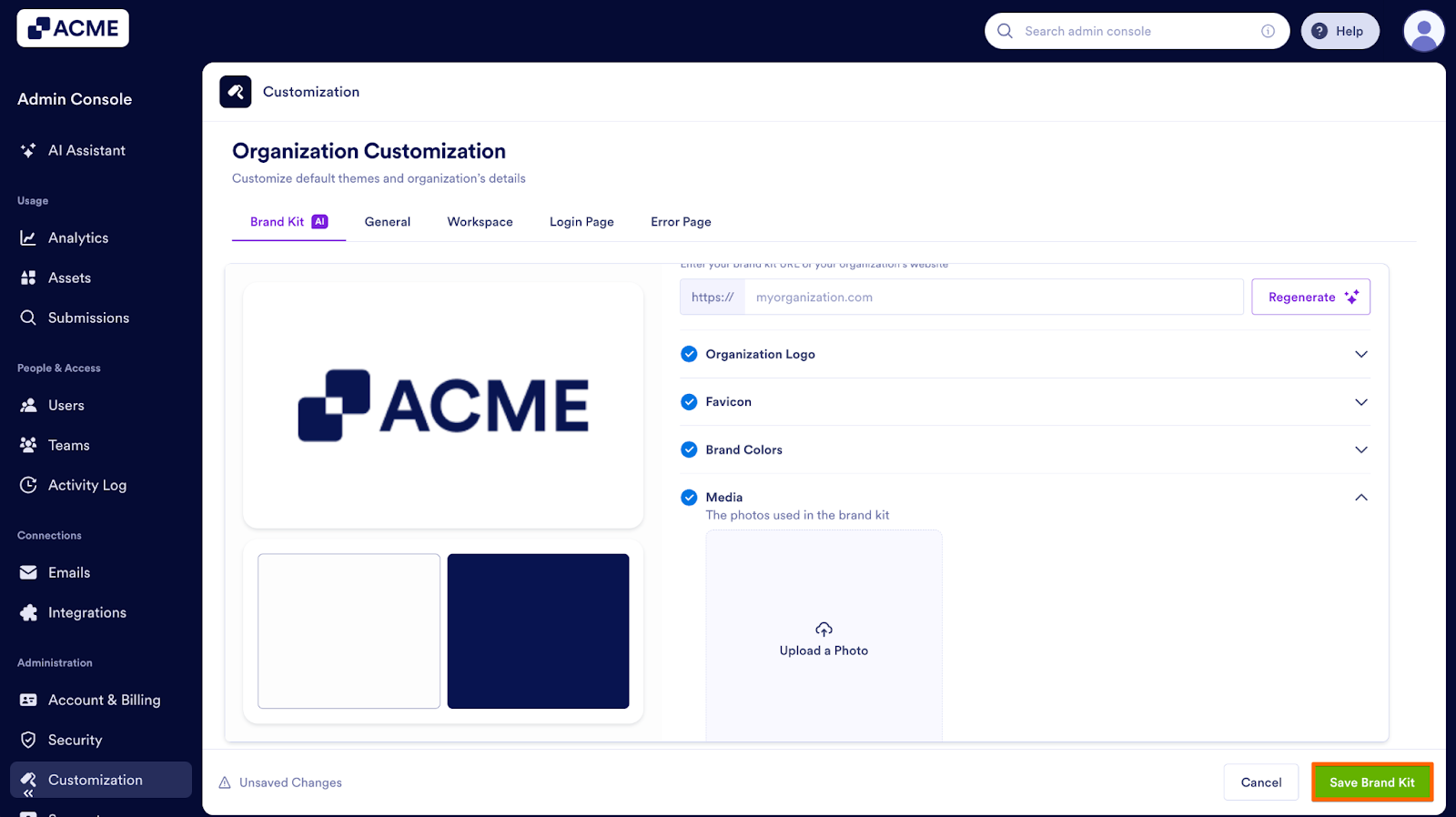
Once you are happy with your brand kit, you can implement it across other pages in your organization.

Send Comment: