Before publishing your Draft version, you can preview and compare it with the current Live version. This helps you to make sure that everything looks and functions as expected before going Live.
Comparing Versions in Preview
Quickly check how your draft compares to the published form before updating in preview mode.
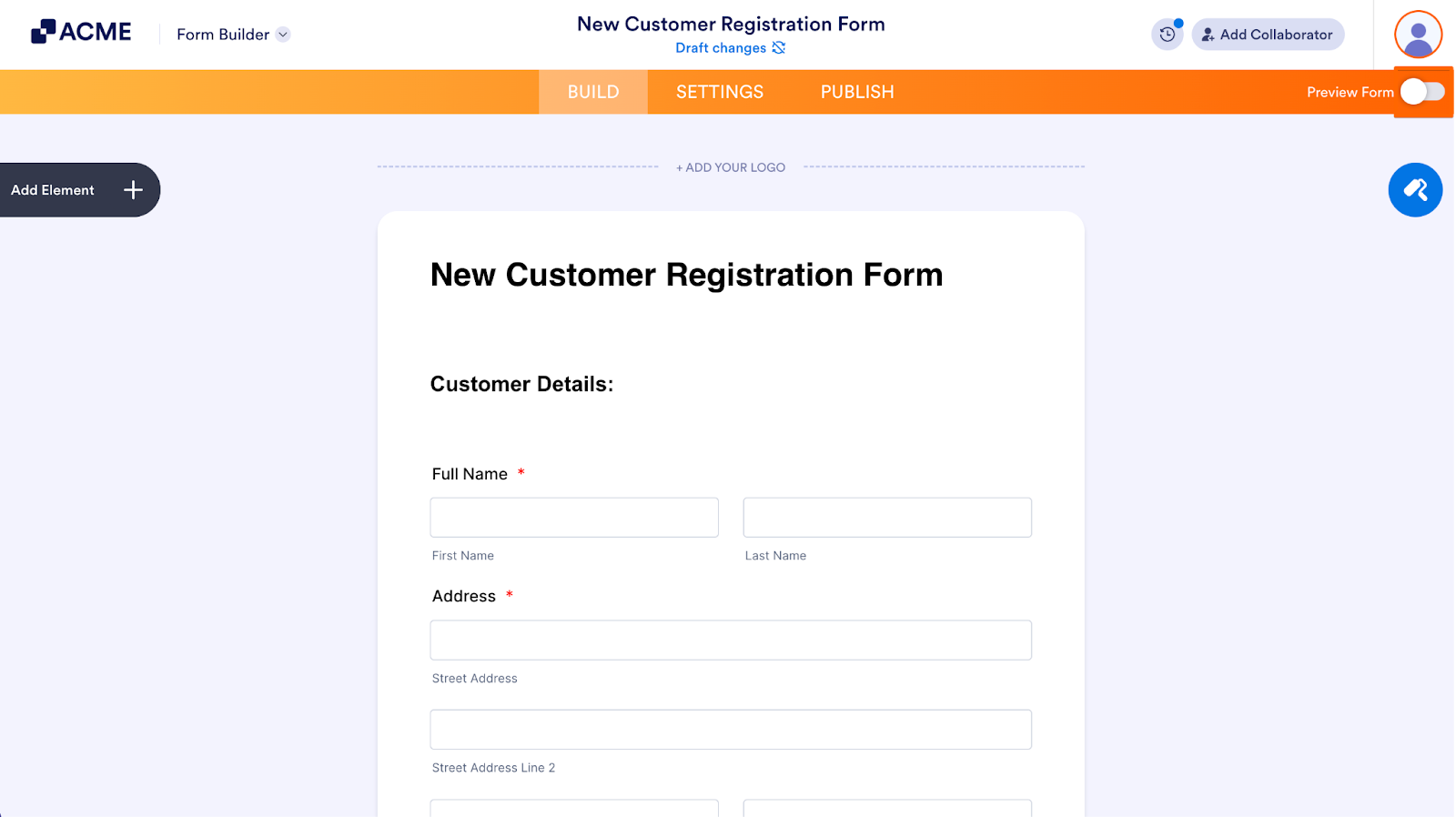
- In the Form Builder, toggle on the switch next to Preview Form in the top right.
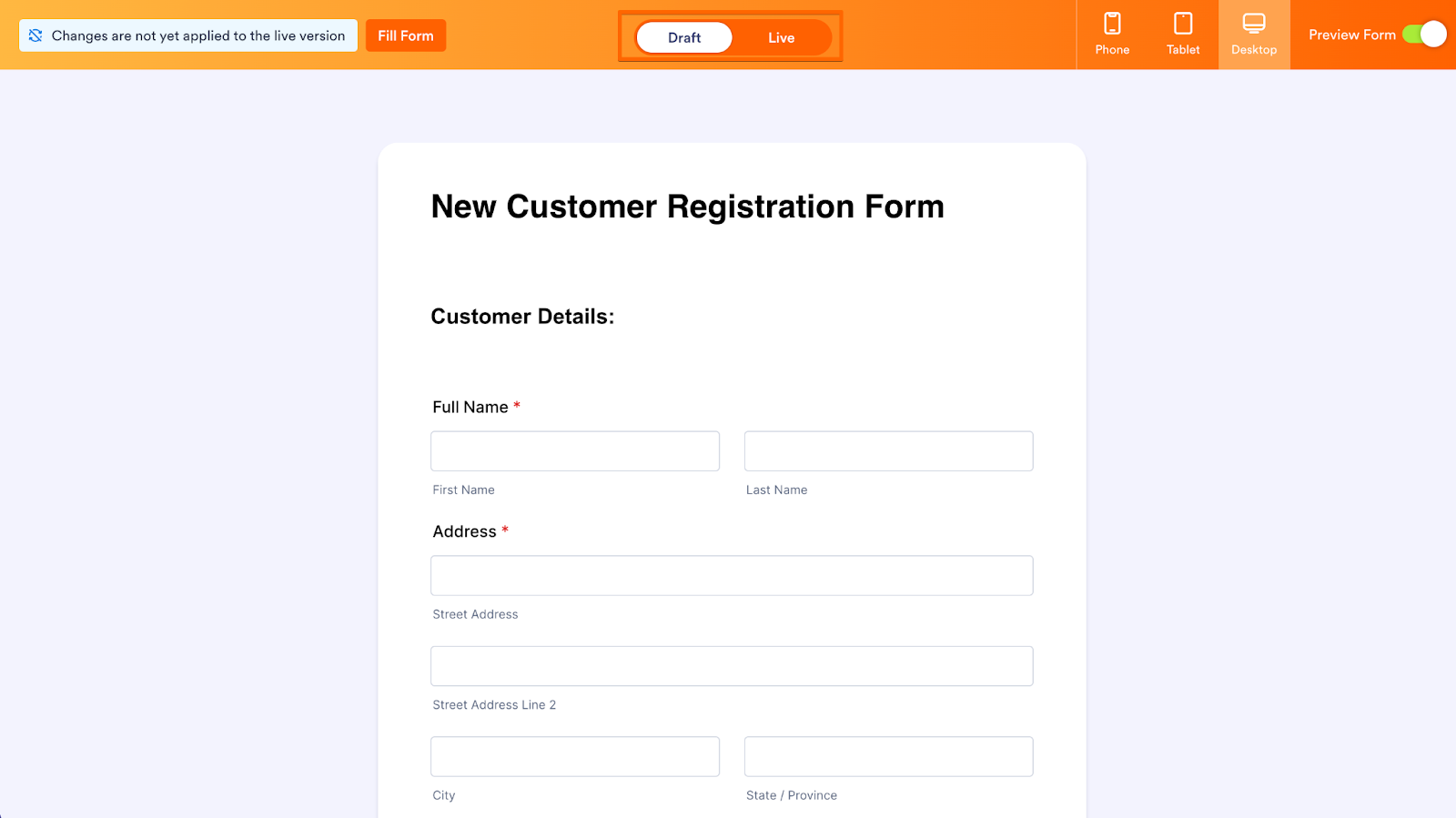
- In the orange banner at the top of the Preview, toggle the switch between the Draft and Live versions to compare them.
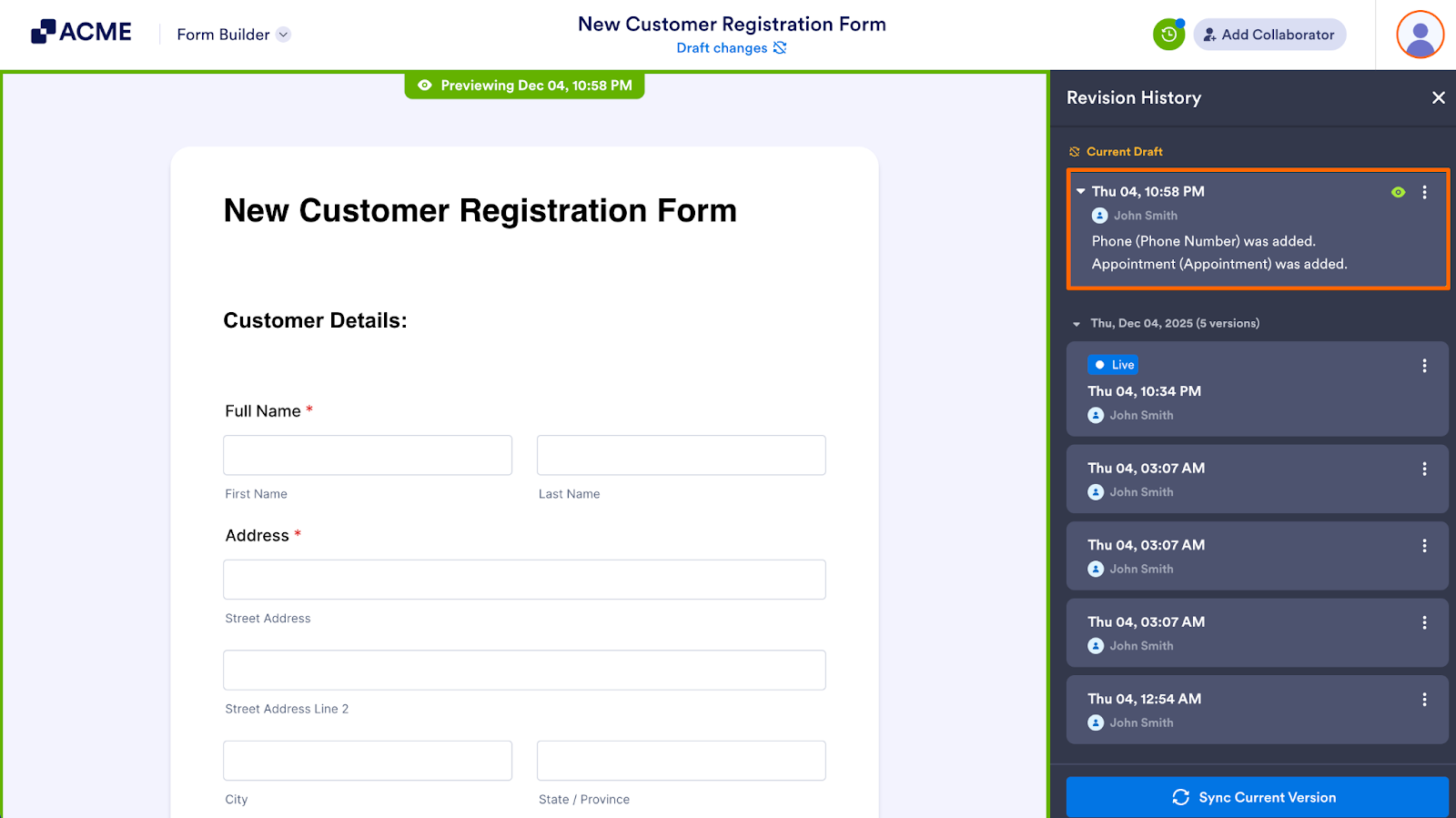
If you’d like to see a list of what’s been changed on the Draft version, you can open the Revision History for the form. Let’s walk through this process together:
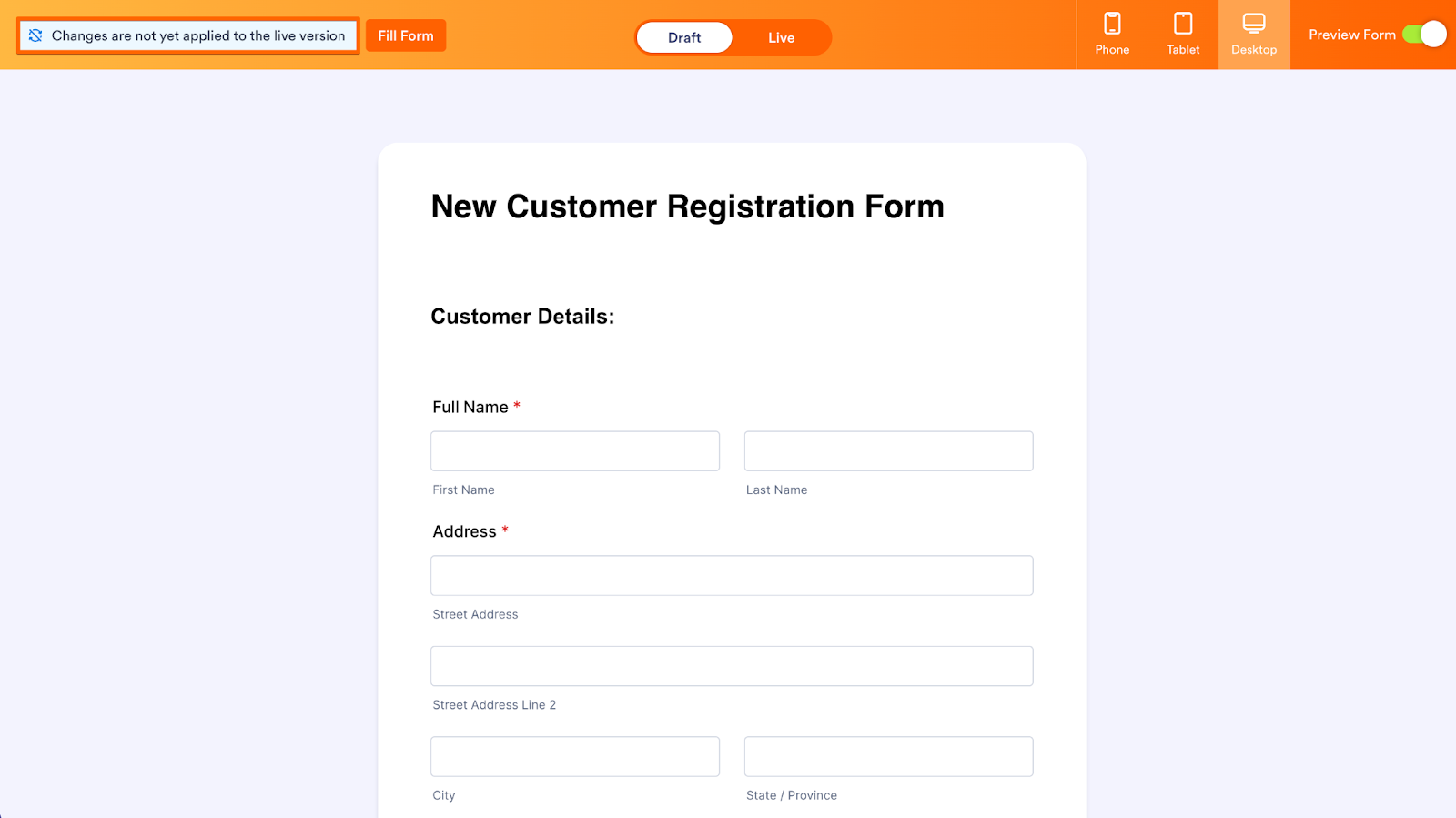
- In the Form Preview, switch to the Draft version of the form and click on Changes are not yet applied to the live version on the left-hand side of the page.
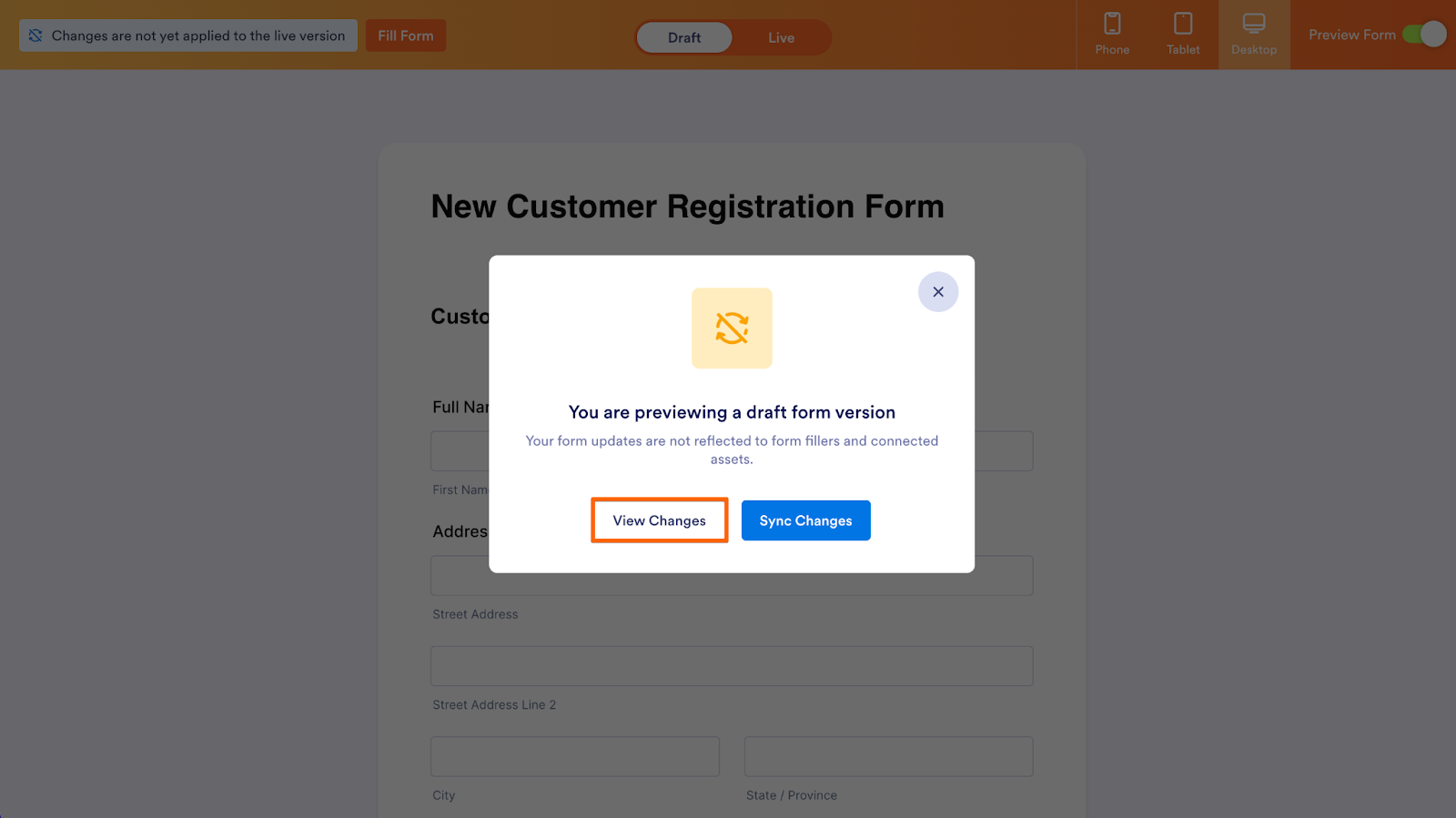
- Then, click on View Changes in the pop-up window.
On the right-hand side of the page, you’ll see added or removed fields under Current Draft, along with the date and time the version was created.

Send Comment: