When working in Draft mode, you might need to restore a previously published version of a Form. Using Revision History, you can view the form’s edit history and go back to an older version of the Form.
Access to Revision History
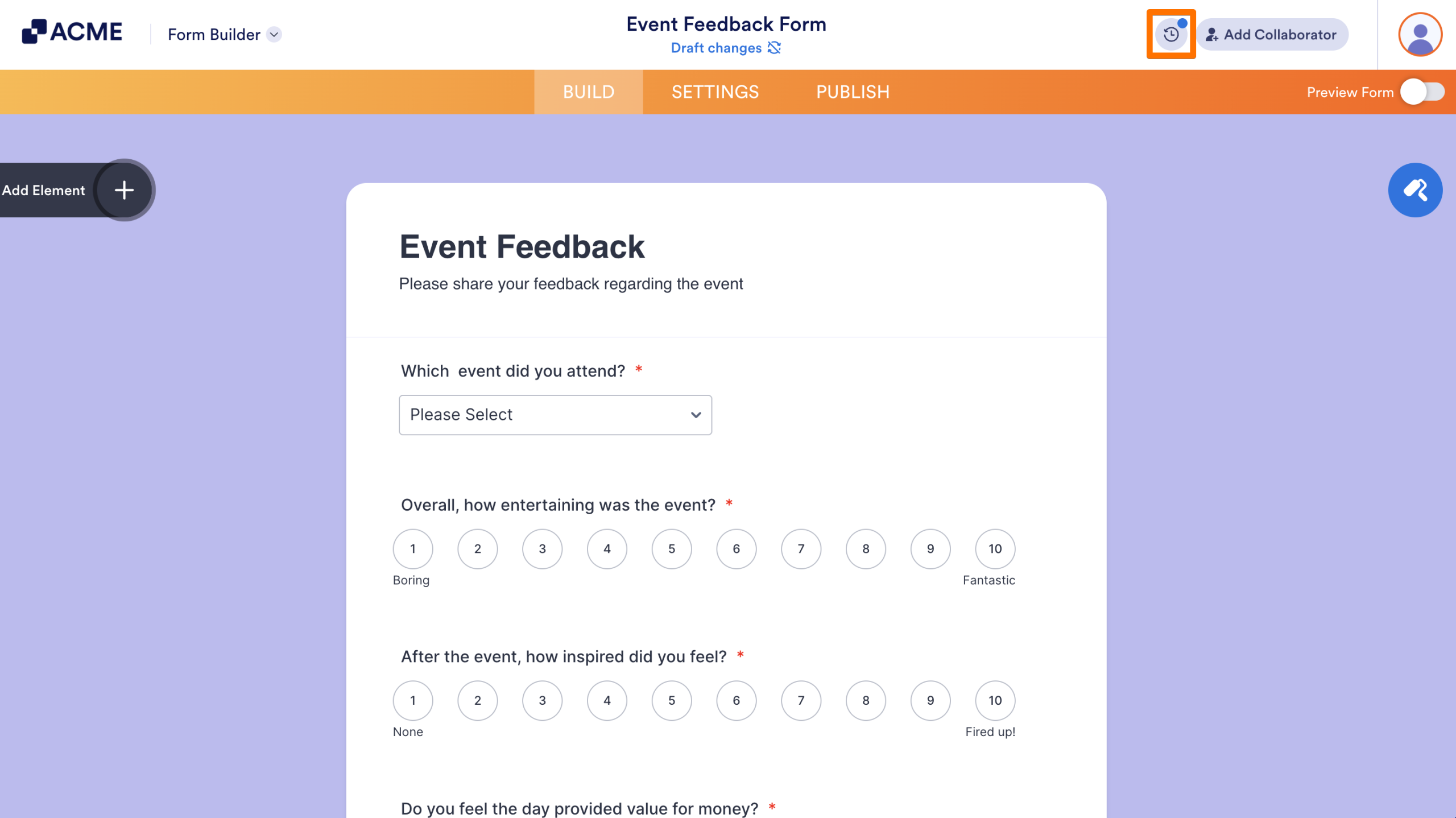
- In Form Builder, under the Build tab, click on the Clock icon in the upper right-hand corner of the page.
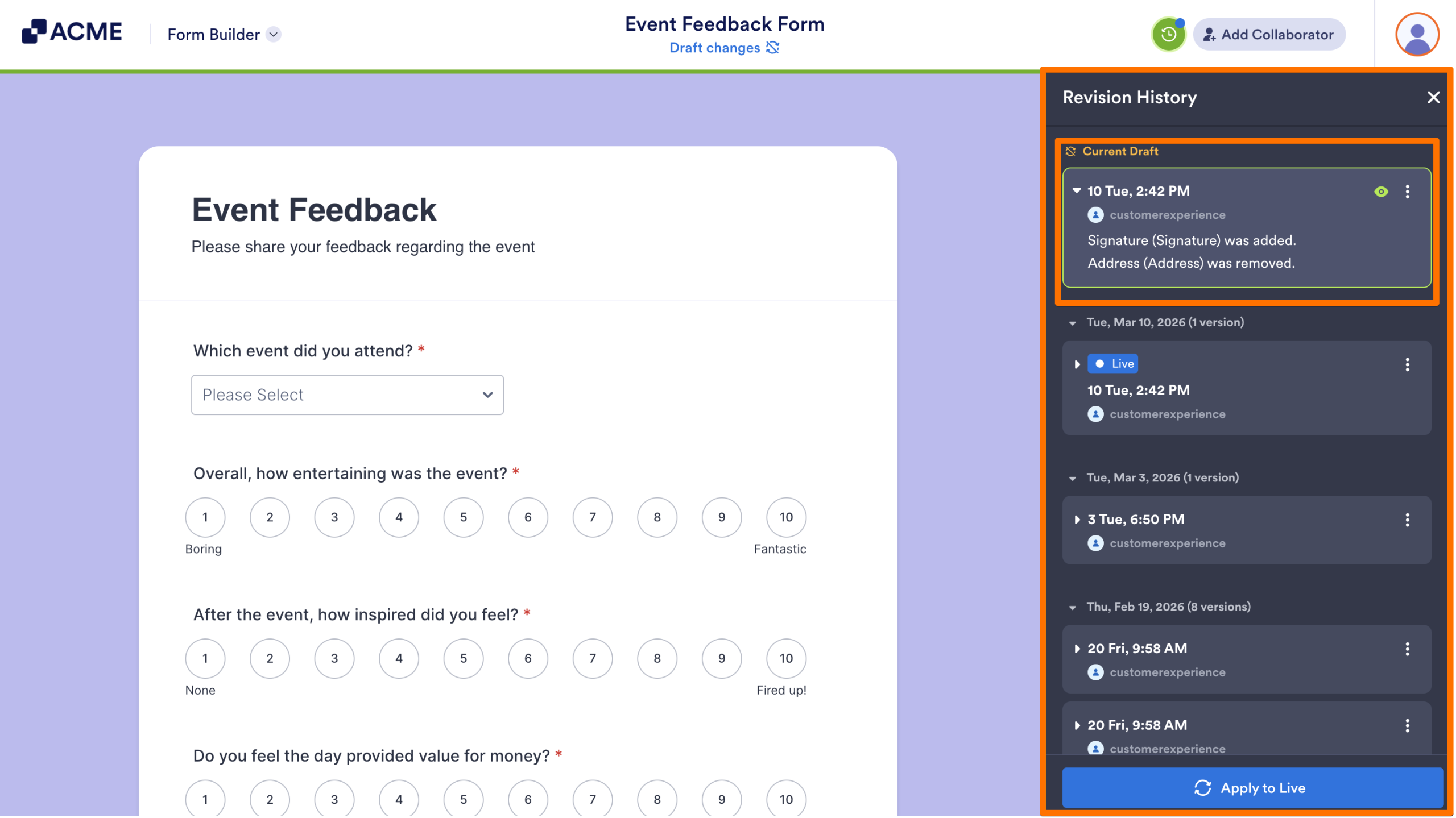
In the Revision History panel, all past and current versions of the form are listed in chronological order. If your form has draft changes, the draft version will appear at the top, under Current Draft.
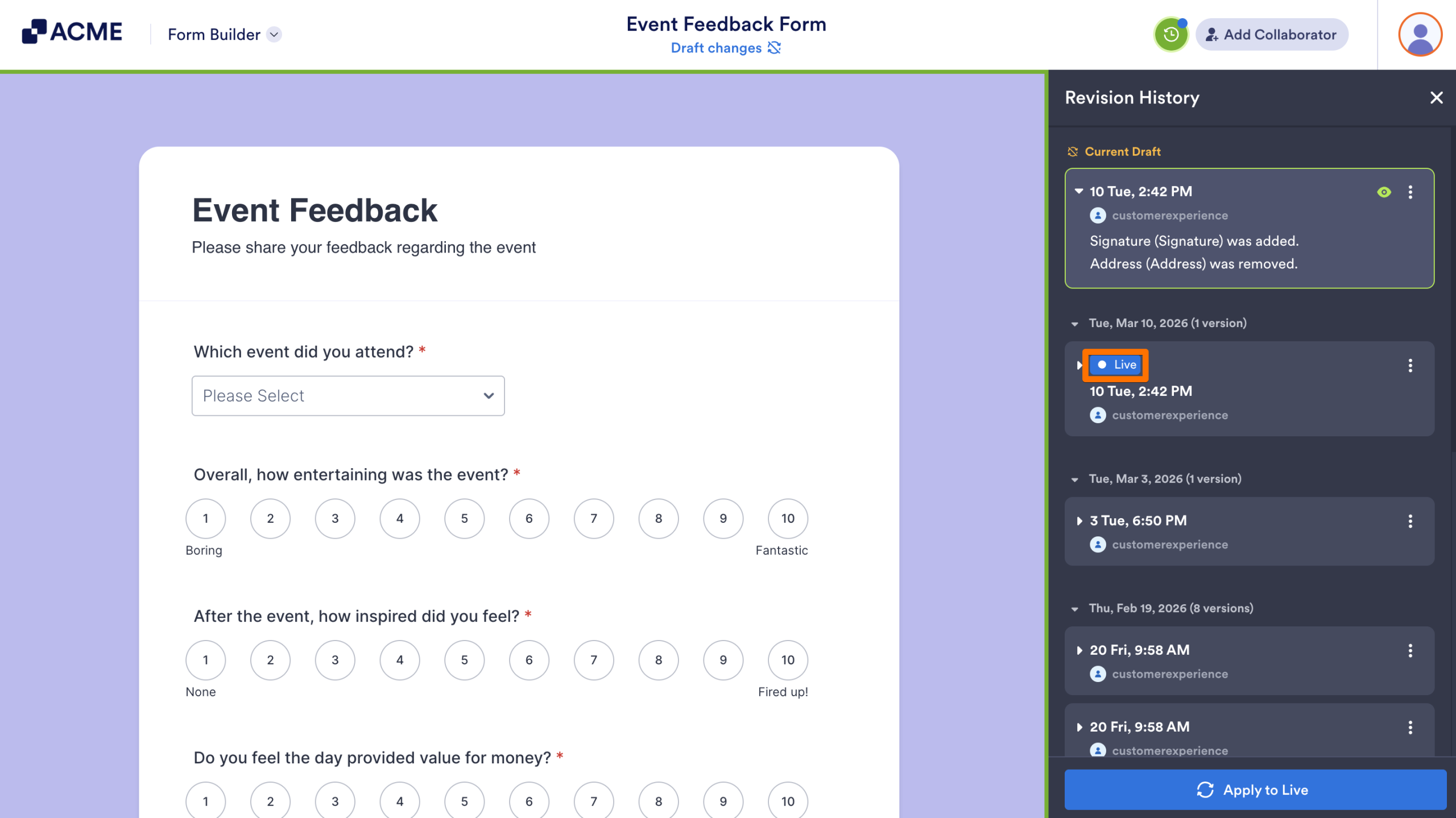
A blue Live label will appear next to the current Live version of the form.
How to Restore a Previous Version
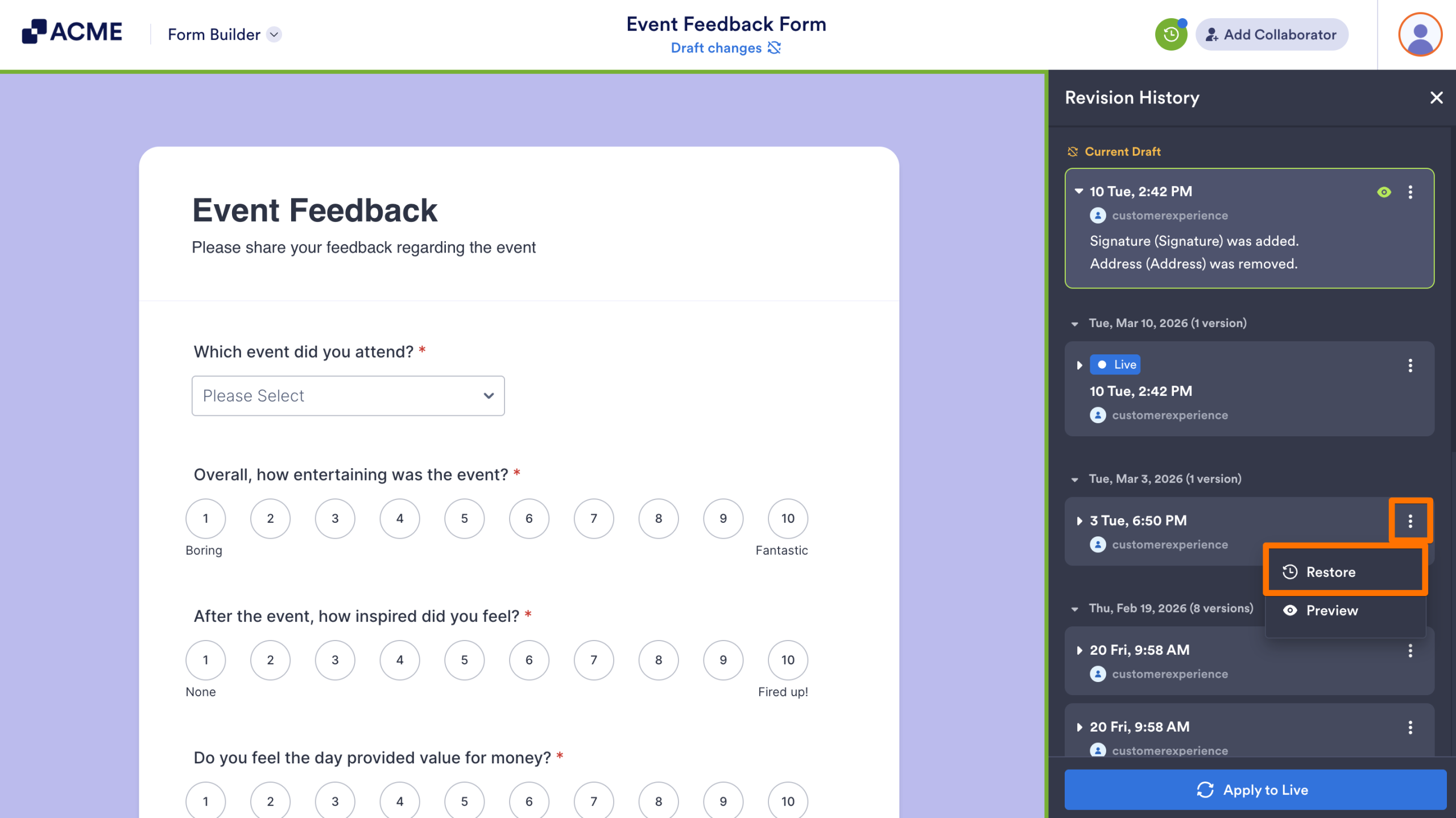
- In Revision History, click on the three dots on the right side of the version you’d like to restore.
- Select Restore.
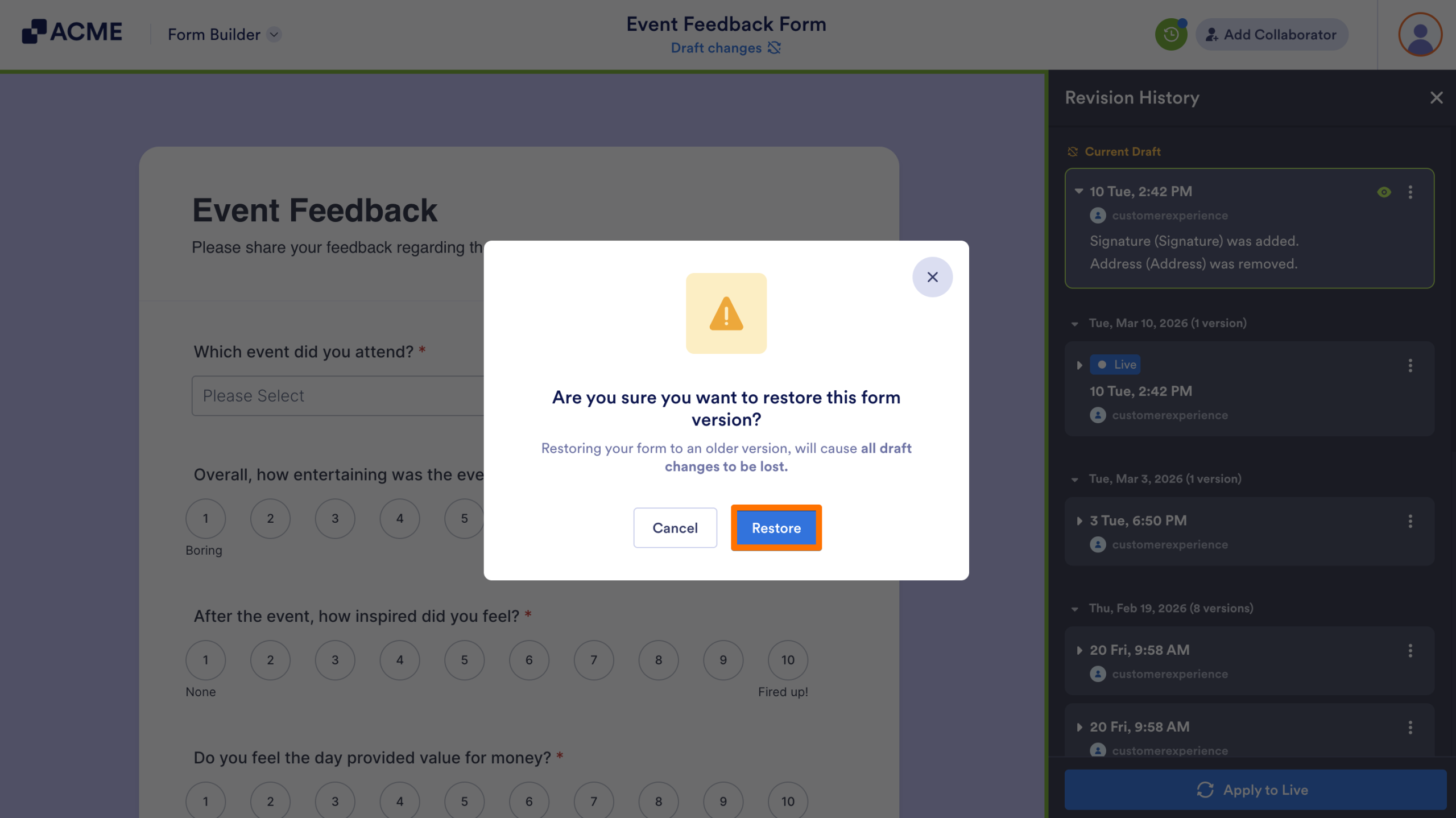
- Finally, click on Restore in the pop-up window.
What Happens When You Restore a Version
Restoring a previous version of the form in Draft Mode removes all edits and changes made after that date and time. This then becomes the working draft in the Form Builder.
Additionally, the live version of the form remains the same until you apply the restored draft.
- Restoring a previous version will discard any changes that were made after that version, whether they were applied or not.
Restoring a version is helpful when you need to roll back recent changes, recover a previous layout, or continue editing from a known stable point without affecting your live form.

Send Comment: