When working on your form, it’s important to know if you’re viewing the Live or the Draft version. The Live version is visible to form fillers, while the Draft contains edits that haven’t been published yet. Let’s walk through a few ways you can check the status of your form and confirm which version is Live.
Check the Draft Status Indicator
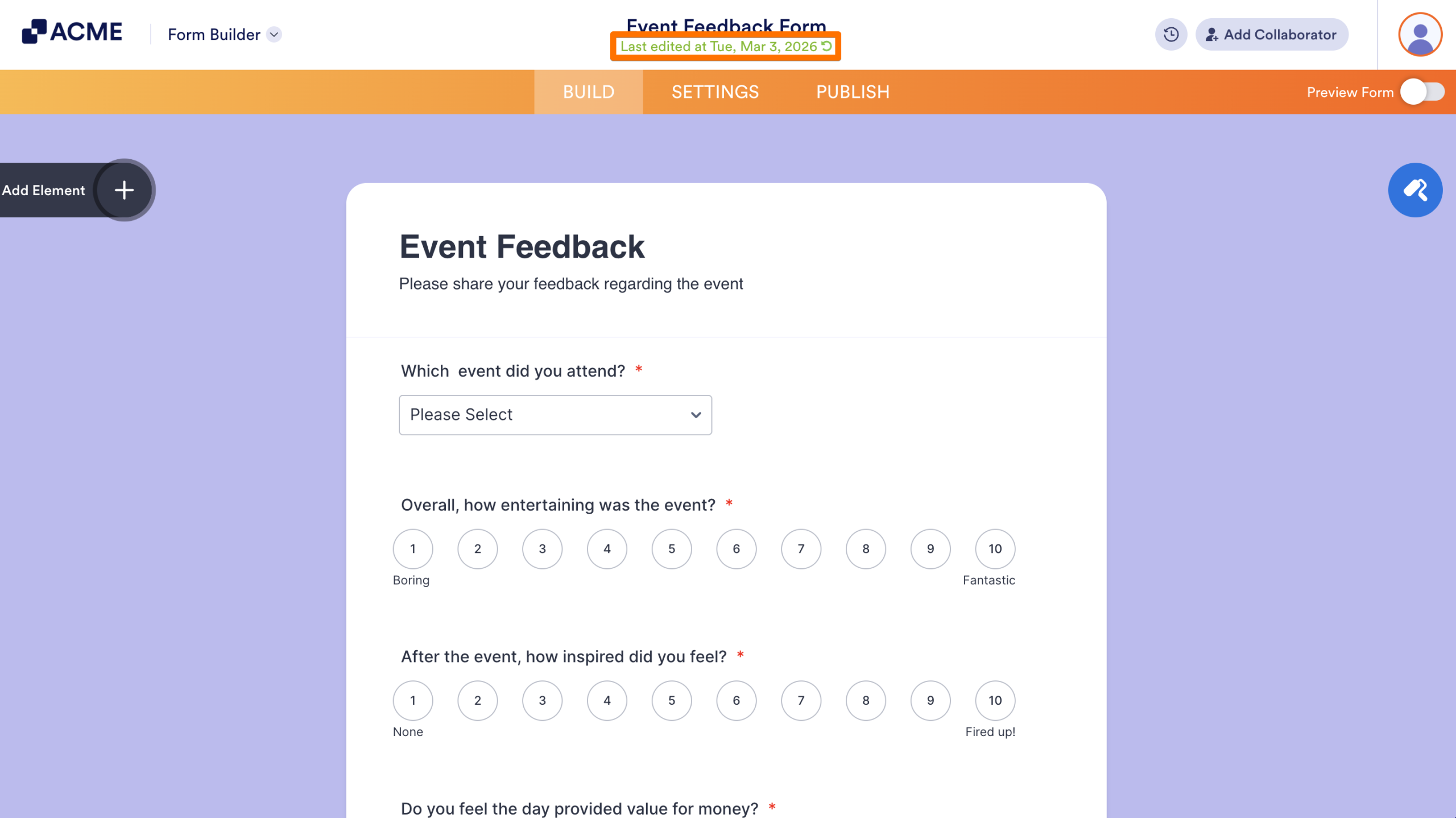
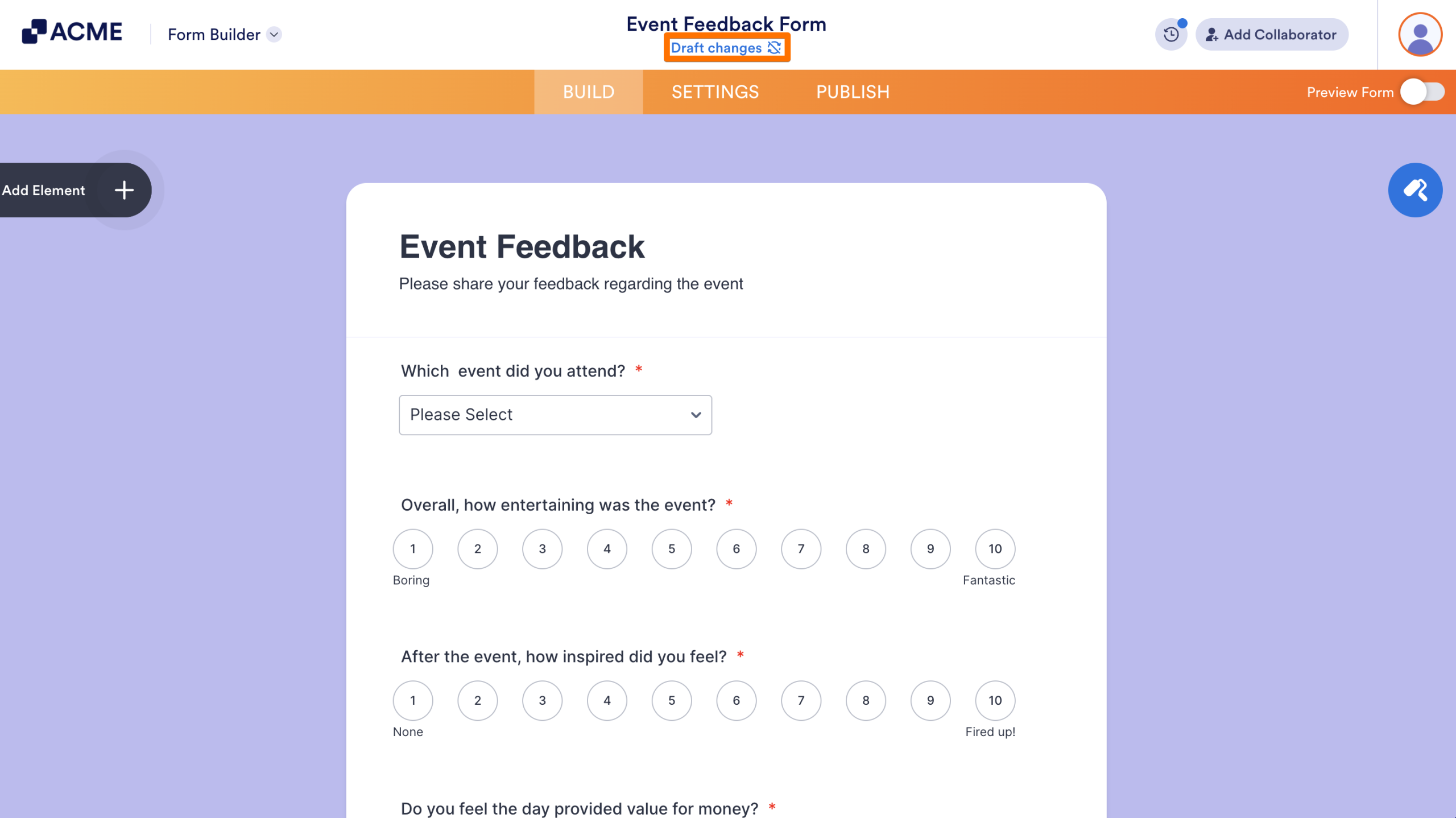
At the top of the Form Builder, under the Form’s Title, you’ll see your form’s draft status.
- If your changes are up to date, you’ll see the time the form was last edited in green. This means your draft and live versions match.
- If there are changes in your draft that haven’t been published yet, you’ll see Draft changes in blue.
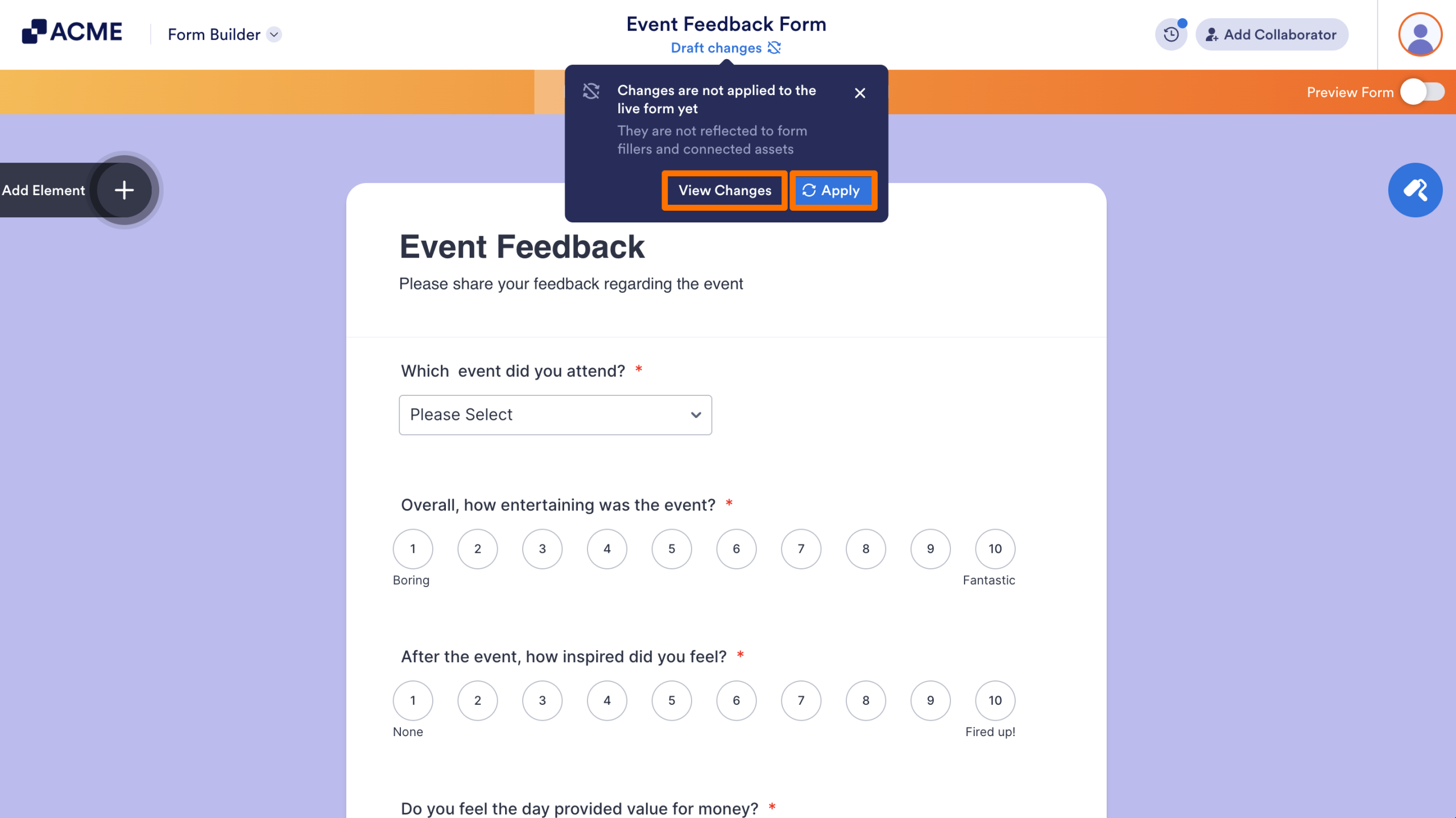
If you click on Draft changes, you’ll see two options:
- View Changes: Select this to open the Revision History.
- Apply: Select this to publish your draft.
Check the Revision History
You can also check the Revision History to see what version is live and which is the Draft version.
To access it manually, click on the Clock icon at the top of the Form Builder.
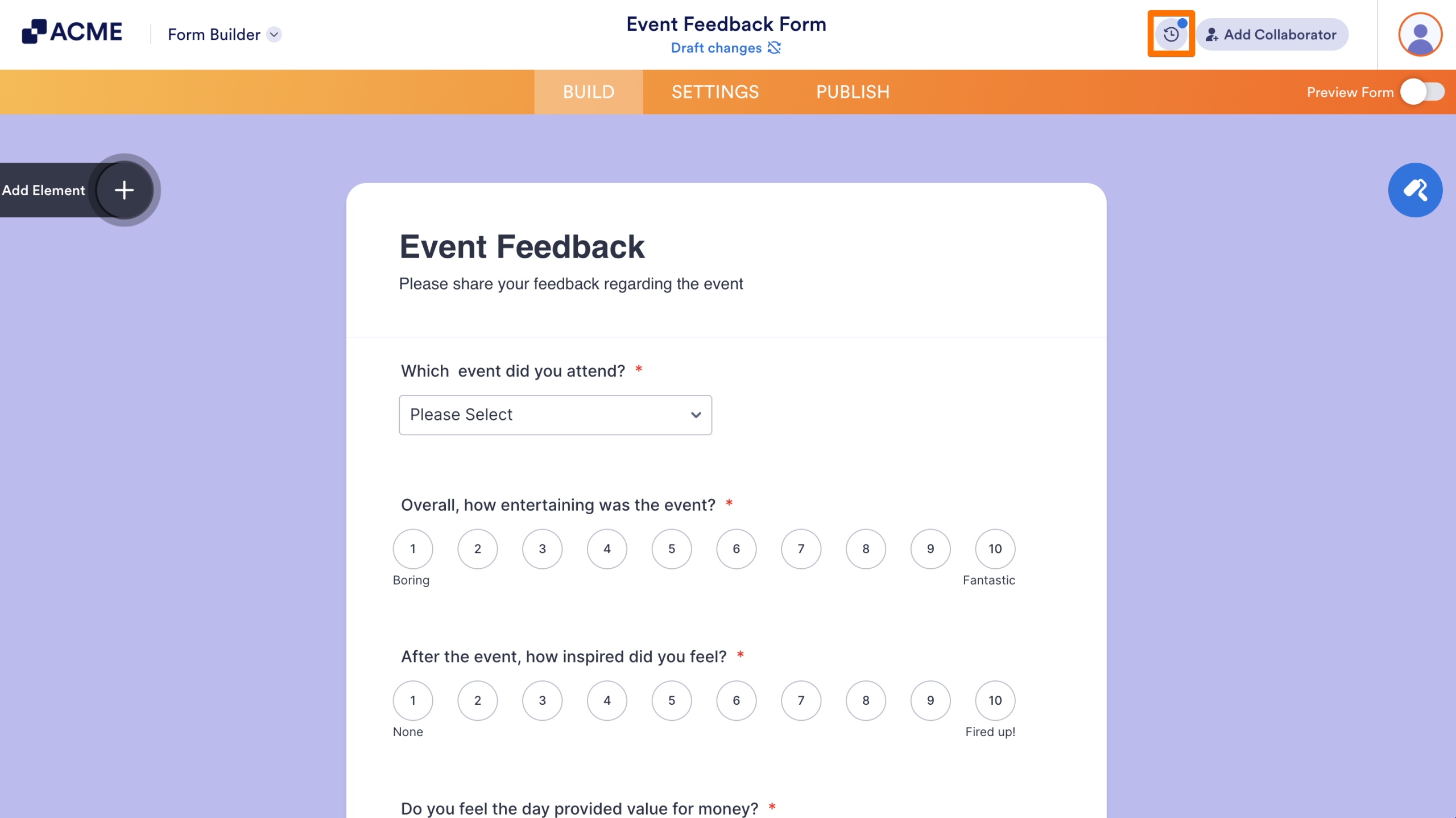
Inside the Revision History panel, you’ll find:
- The current Live version marked with a blue Live label.
- The Current Draft version, at the top of the revision history.
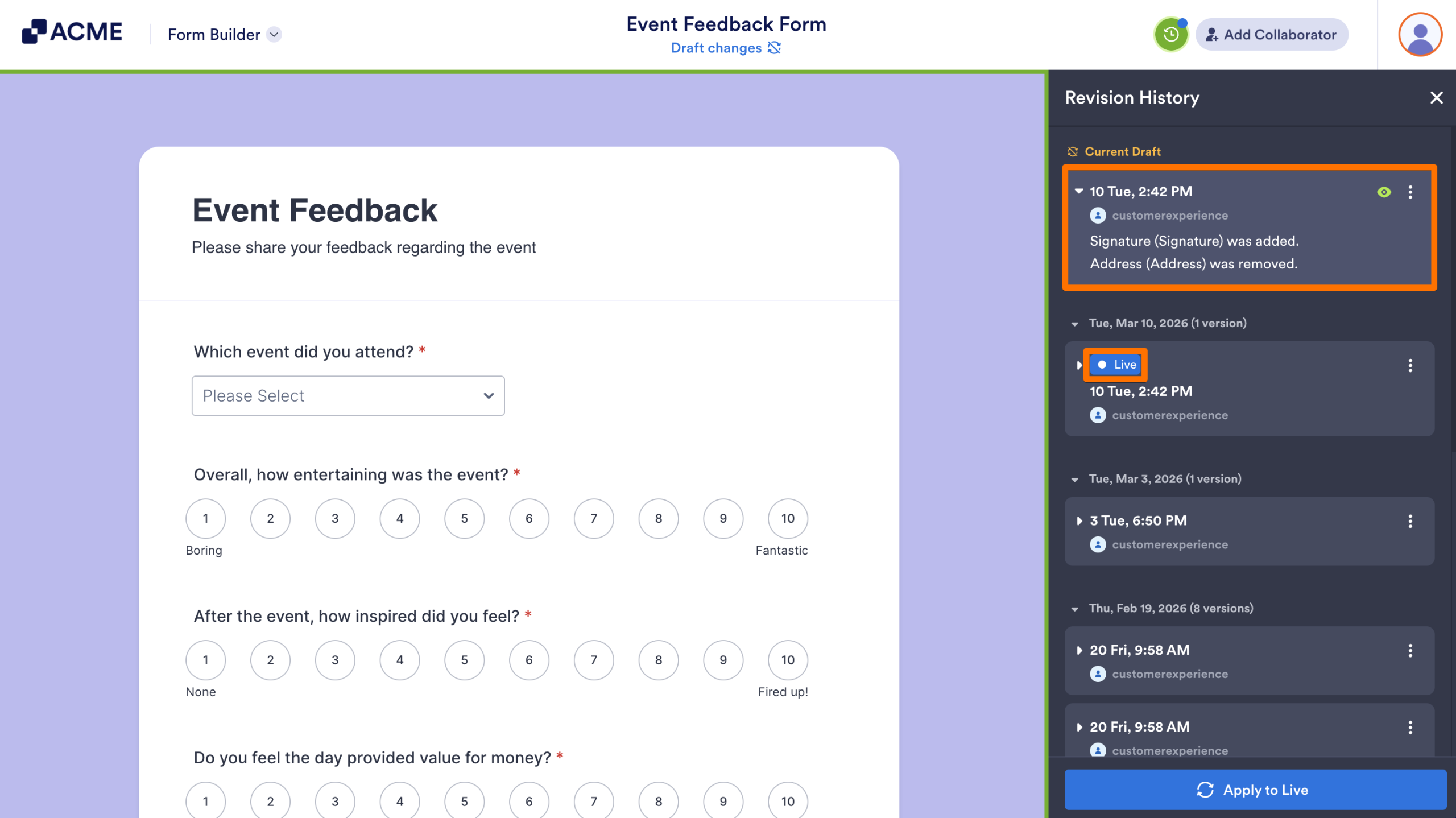
- You can compare revisions, see draft versions, and choose whether to apply the changes.
In this view, you’ll be able to see the Live Version and confirm which version form fillers area viewing. Additionally, you can compare it with previous versions and the current Draft.
Check the Publish Menu
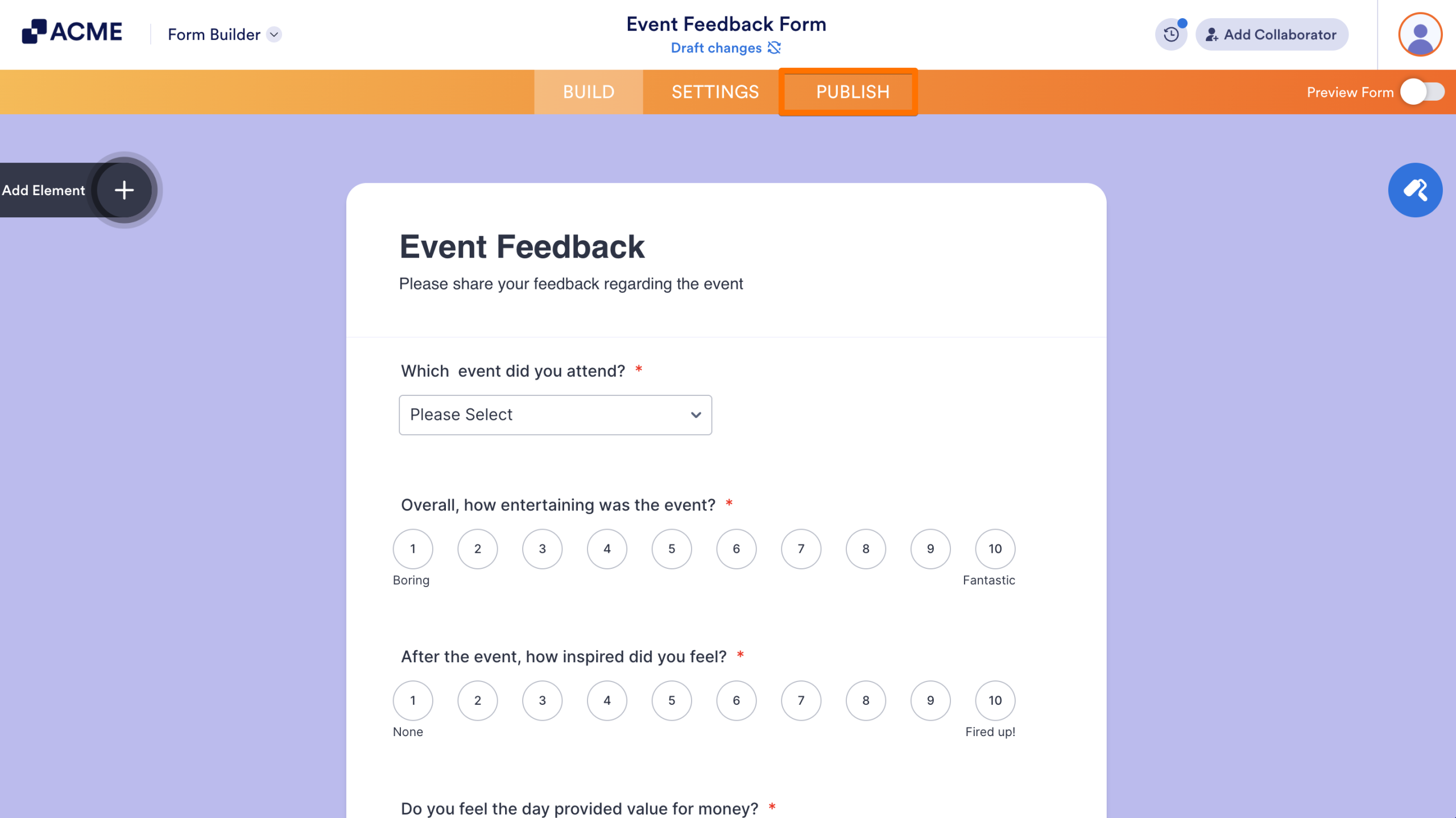
You can also see your form’s status in the Publish tab of the Form Builder. To open this, click on Publish in the orange banner at the top of the page.
- If your form has draft edits, you’ll see the View Changes and Apply buttons in a blue banner at the top of the page.
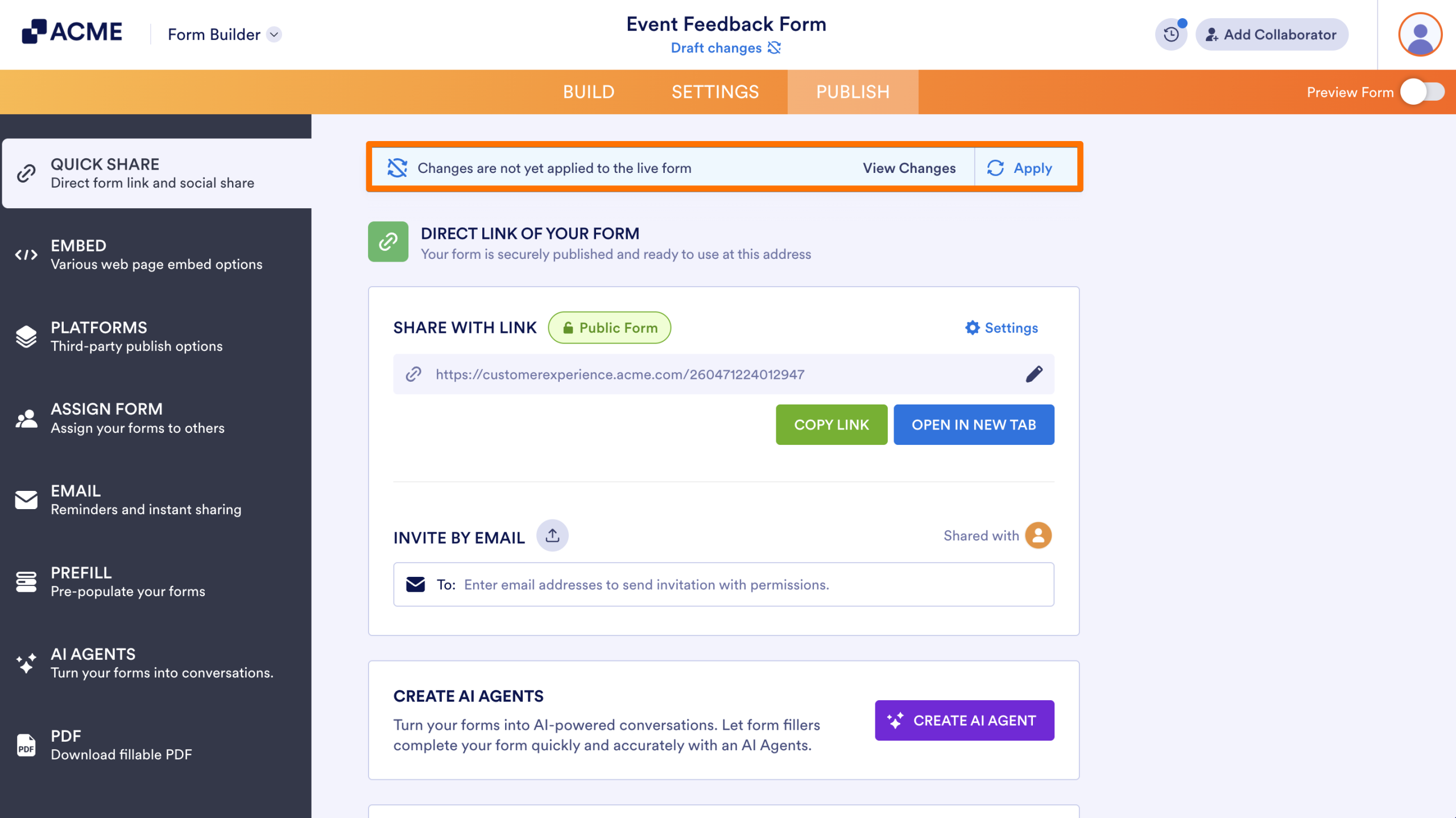
This banner doesn’t highlight the current live version, but it helps confirm if the Draft and Live forms match or not.
Tips to Avoid Confusion Between Draft and Live Versions
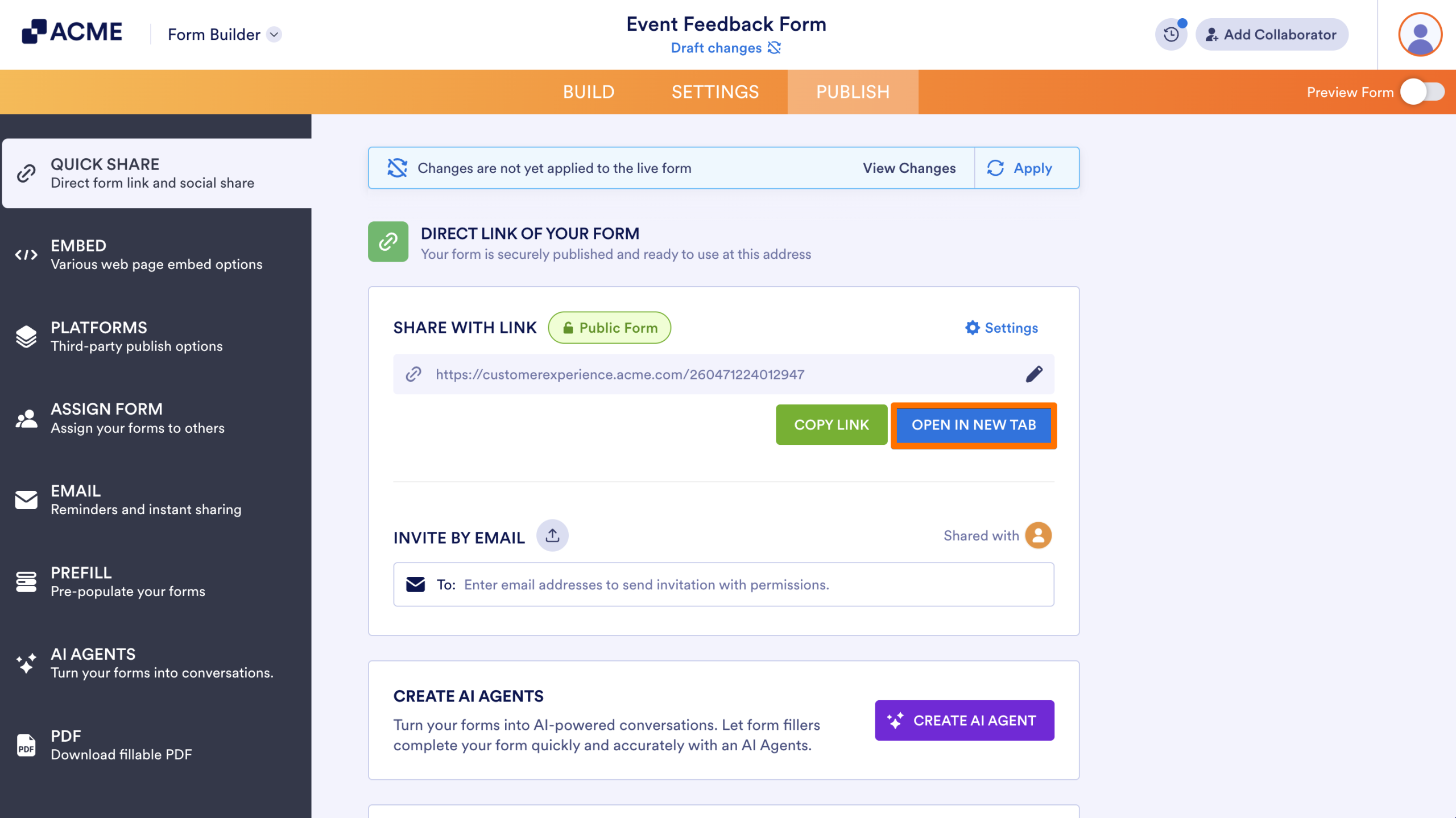
- Before sharing your form link, open the live form in a new tab in the publish tab.

Send Comment: