Jotform makes it easy to create multilingual forms and connect with people around the world. You can translate your forms into 130+ languages and let respondents select their preferred language. You can also translate other parts of the form experience, including confirmation emails and thank you messages, so respondents can continue using their preferred language even after submitting the form.
Adding a Language
Adding more languages to your form lets respondents fill it out in the language they prefer. You can add a language either from Form Settings or directly from the form.
Using the Add Translation Button
Adding an additional language to your form only takes a few steps. Here’s how to get started:
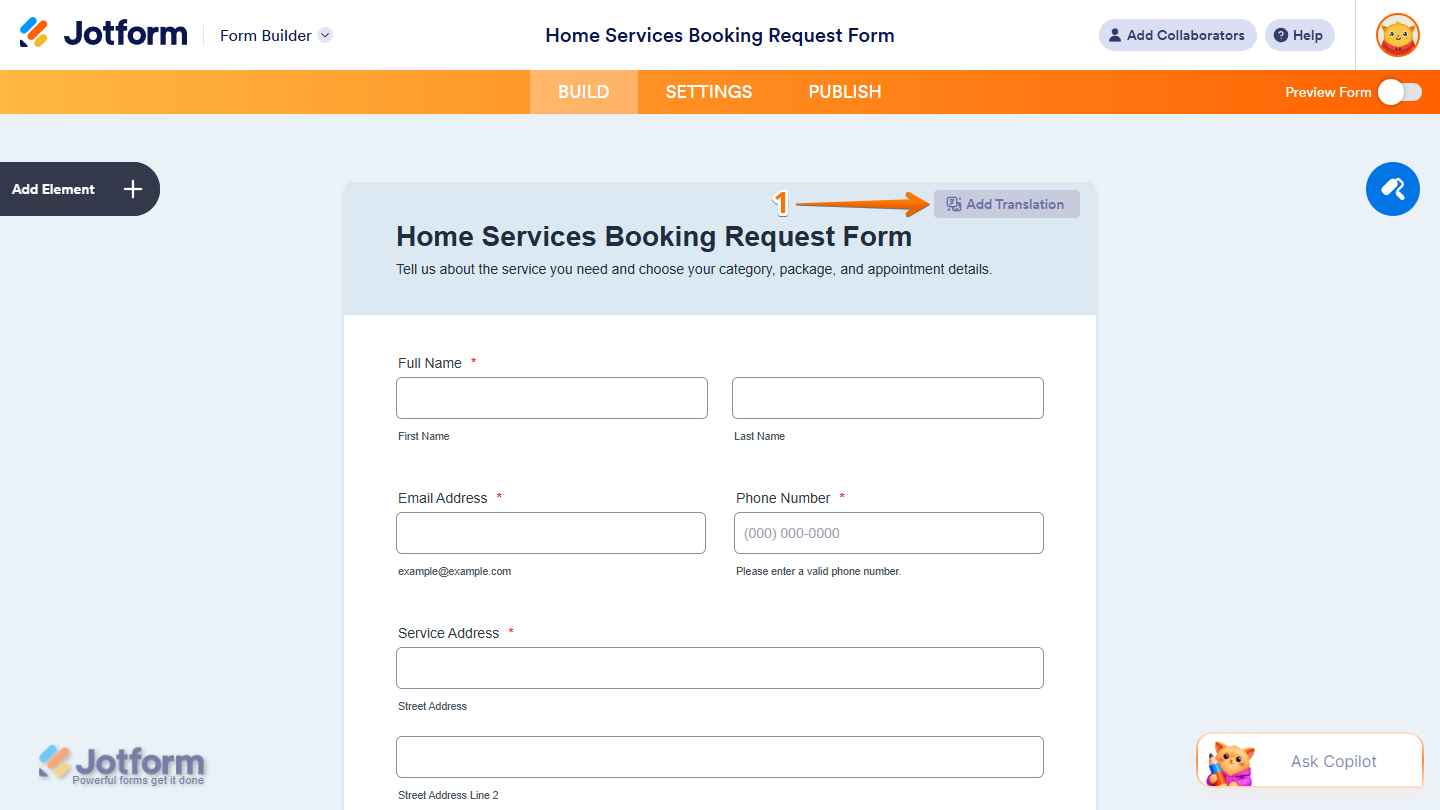
- In Form Builder, hover your mouse over the top-right side of your form and click on Add Translation.
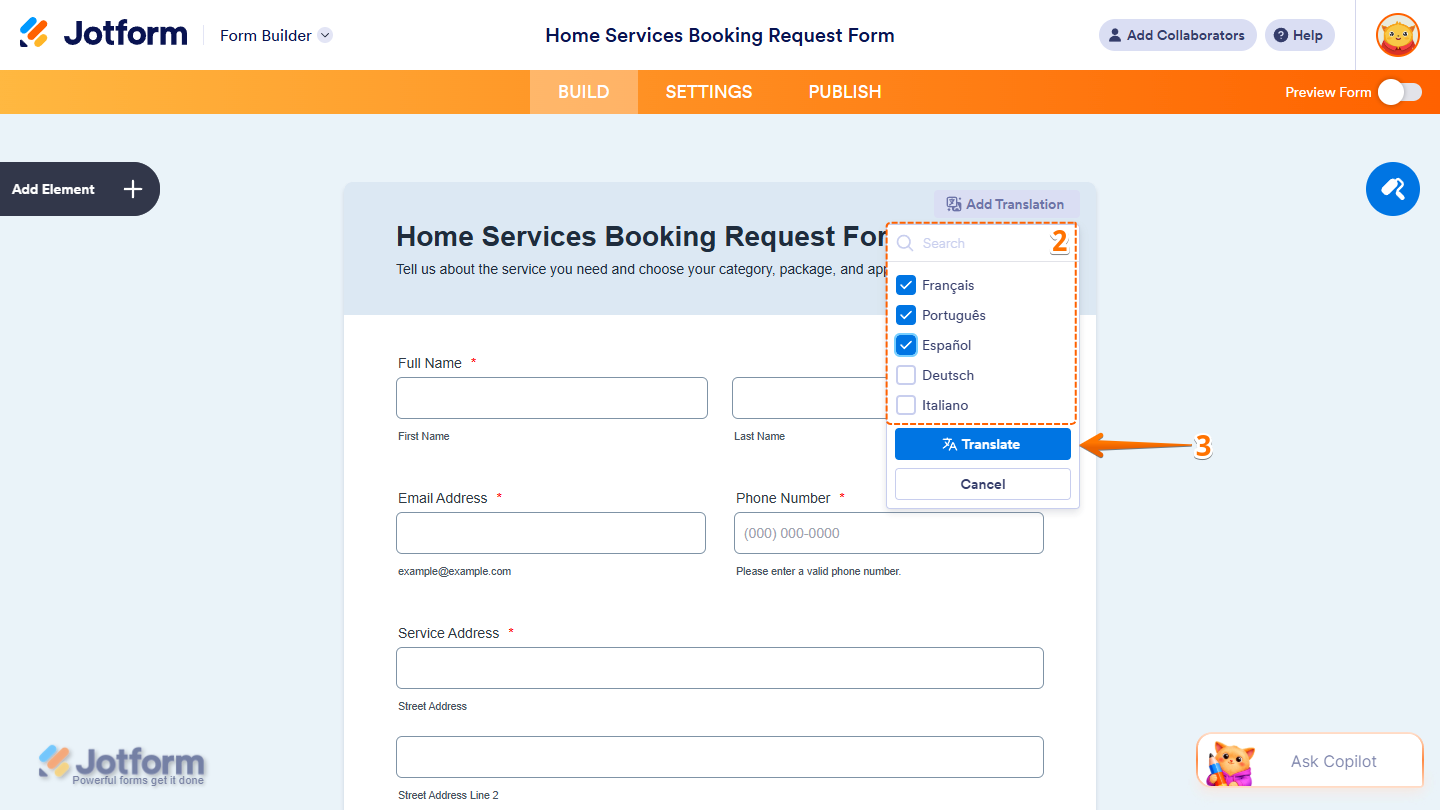
- Now, in the menu that comes up, tick the boxes next to the languages you want to add to your form. You can use the Search bar at the top of it to find one easily.
- Then, click on Translate.
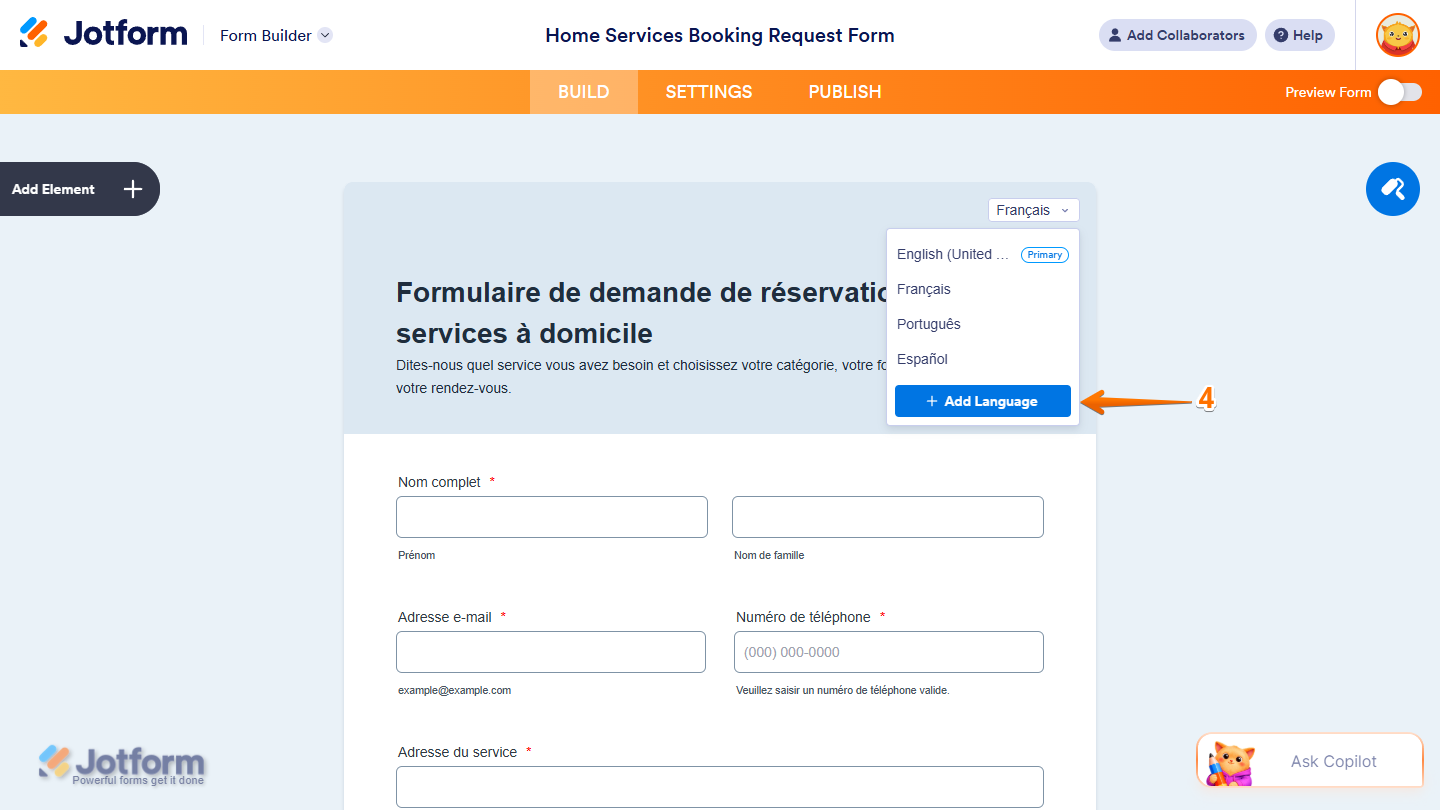
- To add another language, click on Add Language at the bottom of the menu.
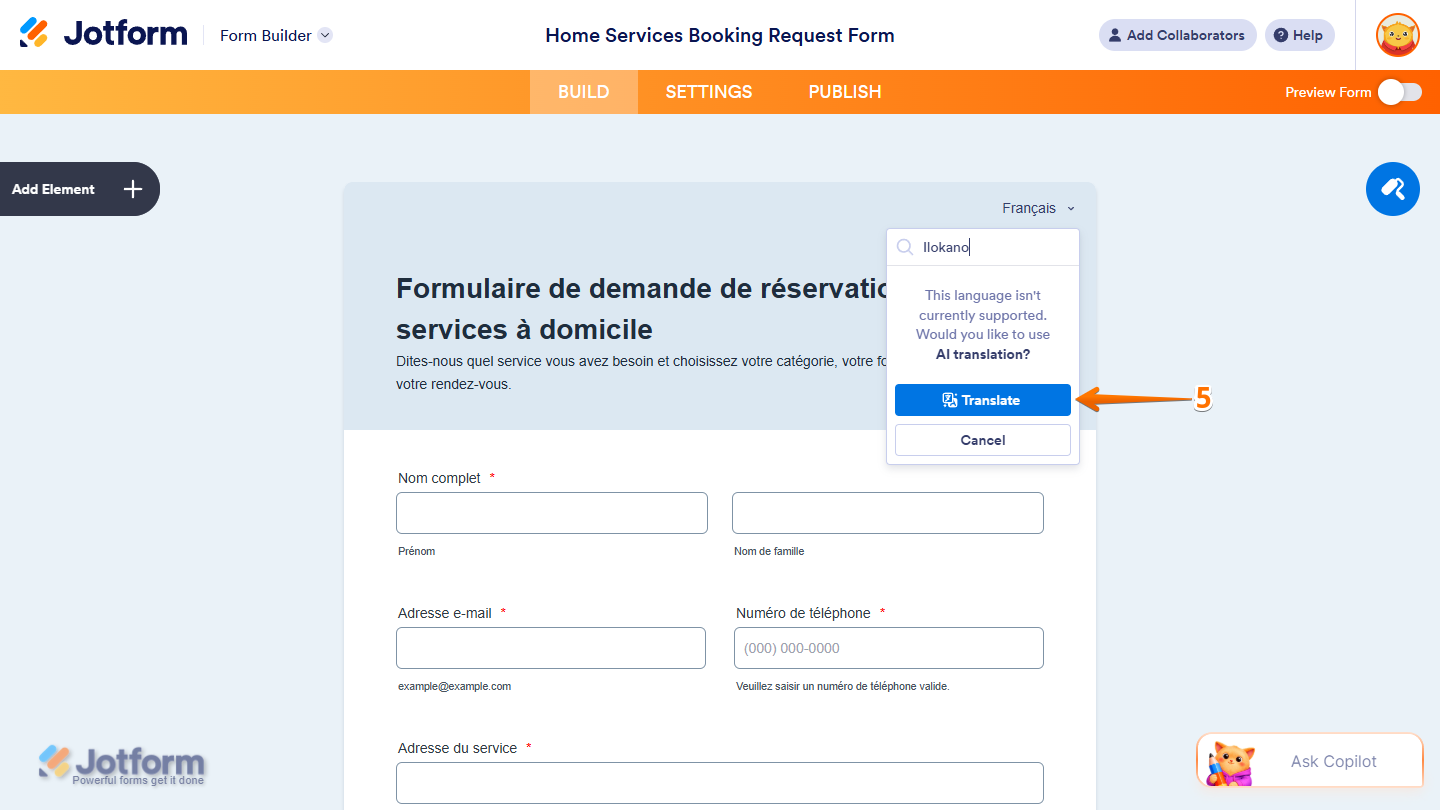
- If the language you search for isn’t supported, click on Translate to add the language using AI Translation.
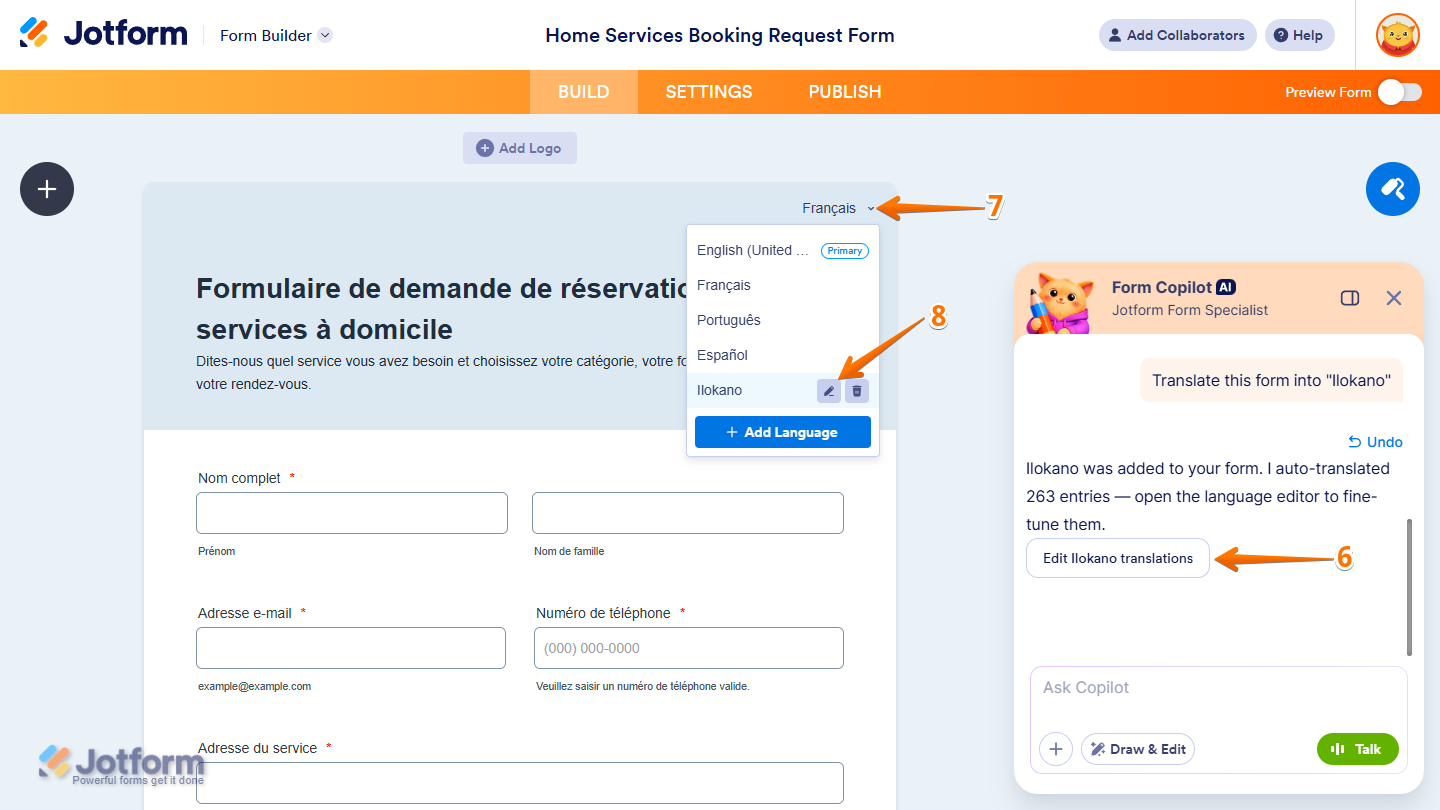
- In the Form Copilot AI chat window that opens on the right side of the page, click on Edit below the confirmation message to open the AI-generated translations in Form Settings for review.
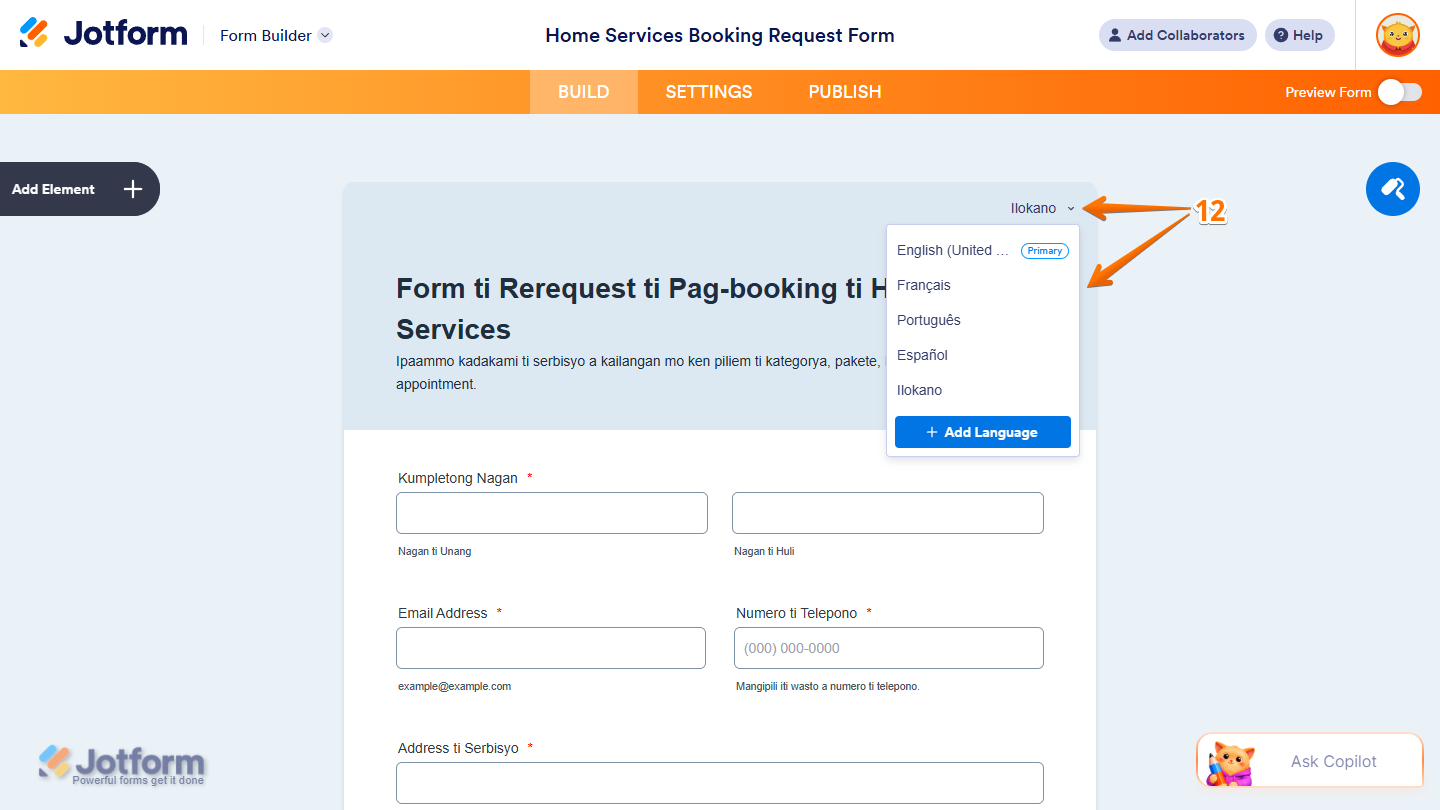
- Or, to open and review the translations for any added language, click on the Downward Arrow icon on the right side of the selected language at the top of your form.
- Then, in the Dropdown menu, hover your mouse over the language you want to review and click on the Pencil icon that appears on its right.
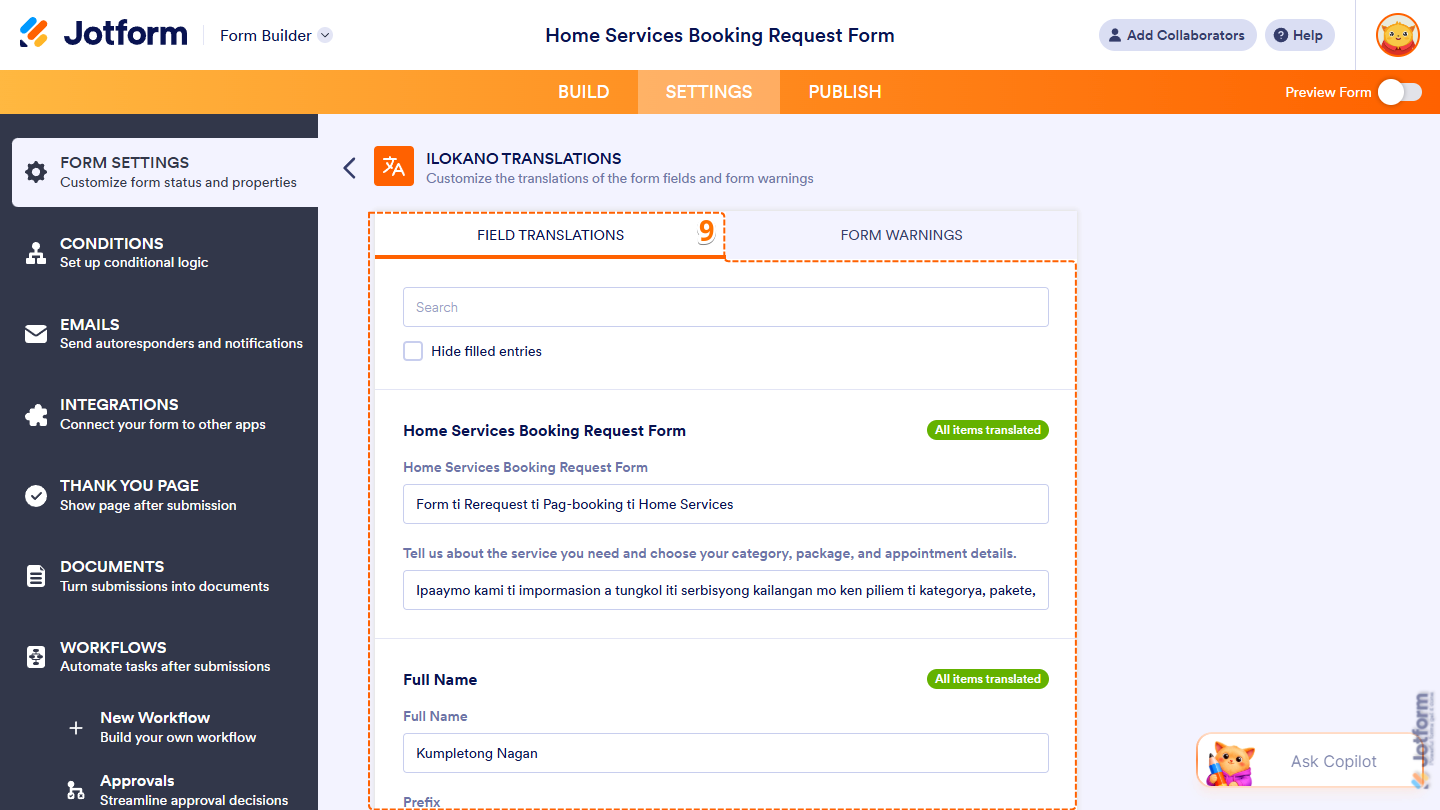
- Now, in the language editor that opens under Form Settings, enter a translation for each item or update any auto-translated ones as needed. Scroll through the list to review the items, or use the Search bar at the top to quickly find a specific one.
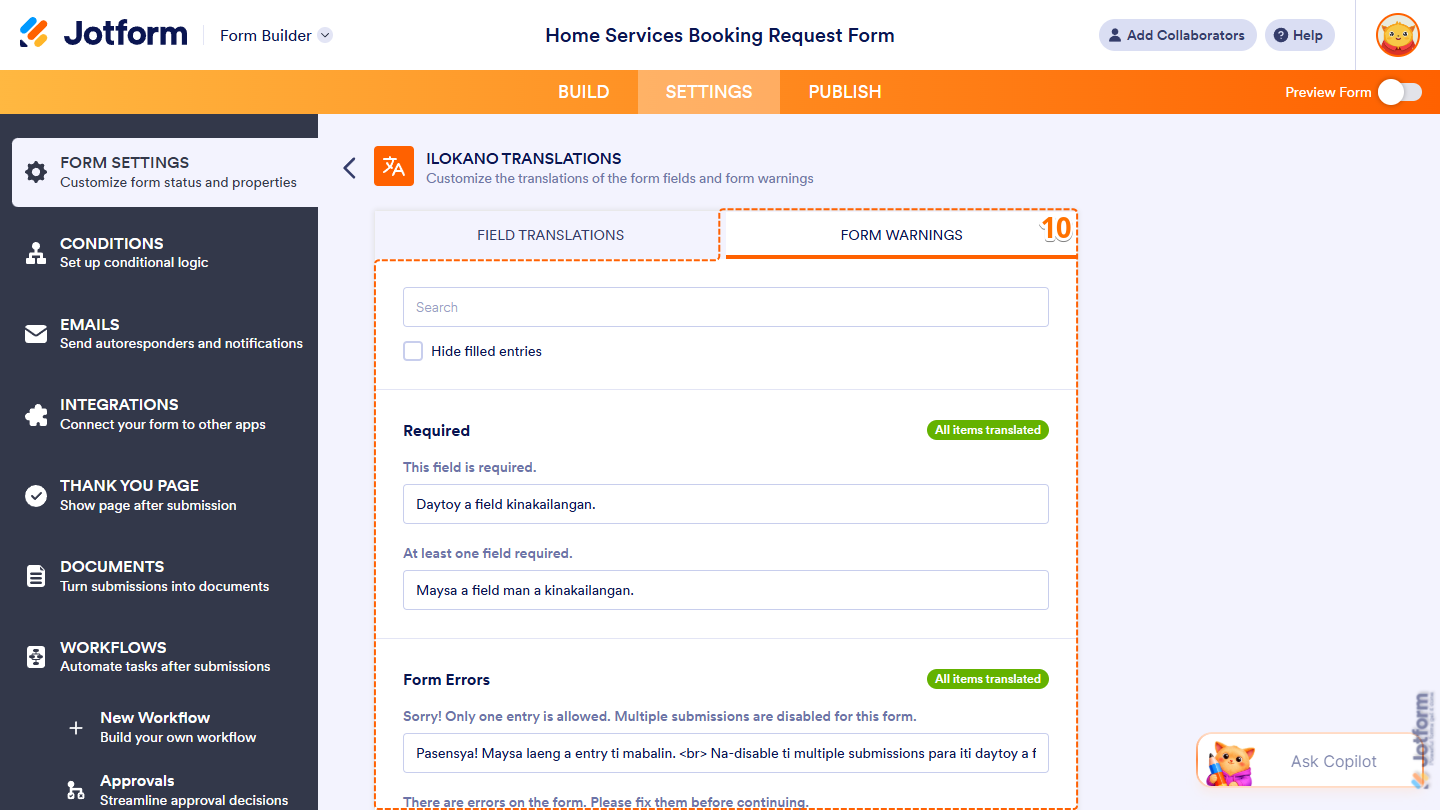
- Next, go to Form Warnings and enter the translation for each warning or update any auto-translated ones as needed. Scroll through the list to review the warnings, or use the Search bar at the top to quickly find a specific one.
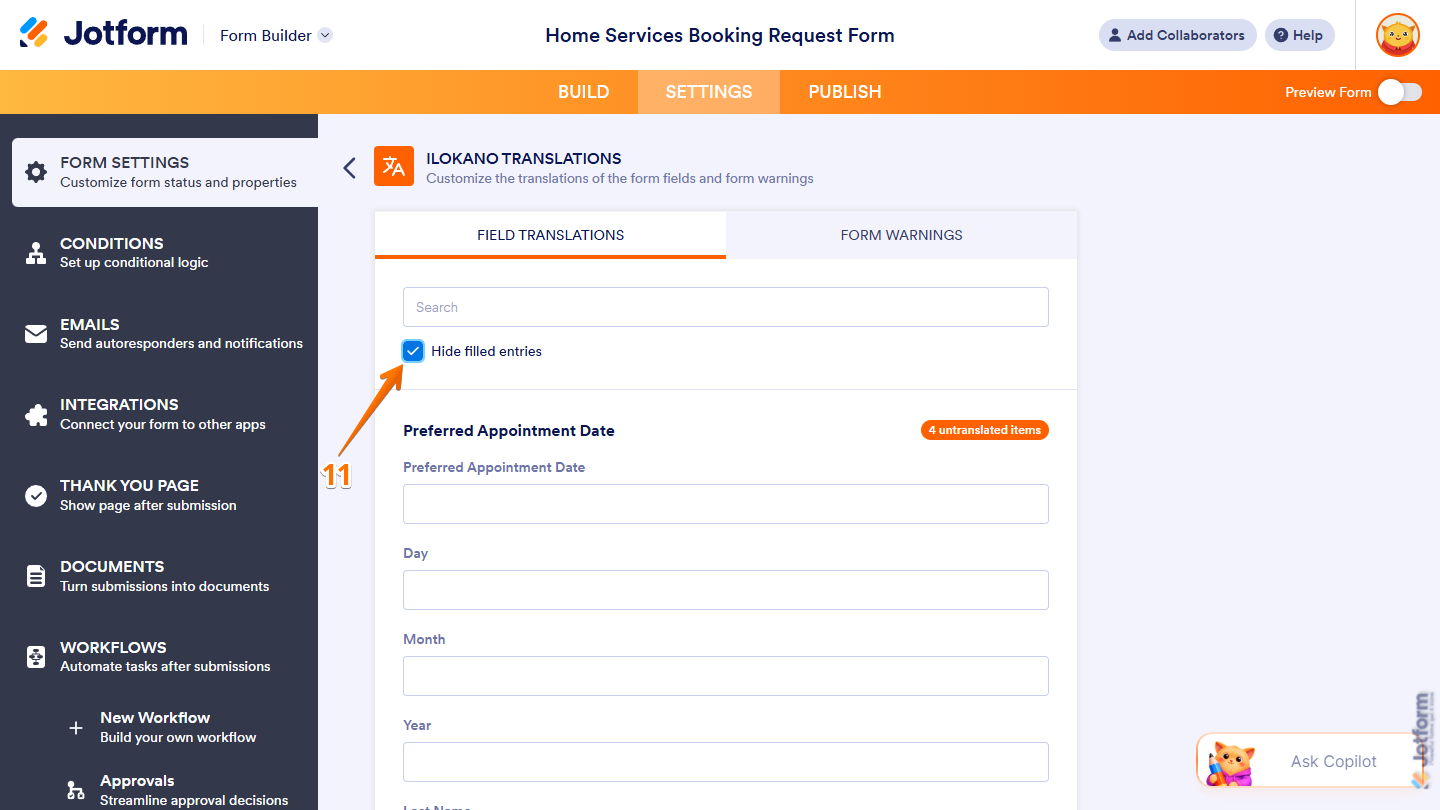
- To easily check for items in a tab that still need a translation, tick the box next to Hide Filled Entries.
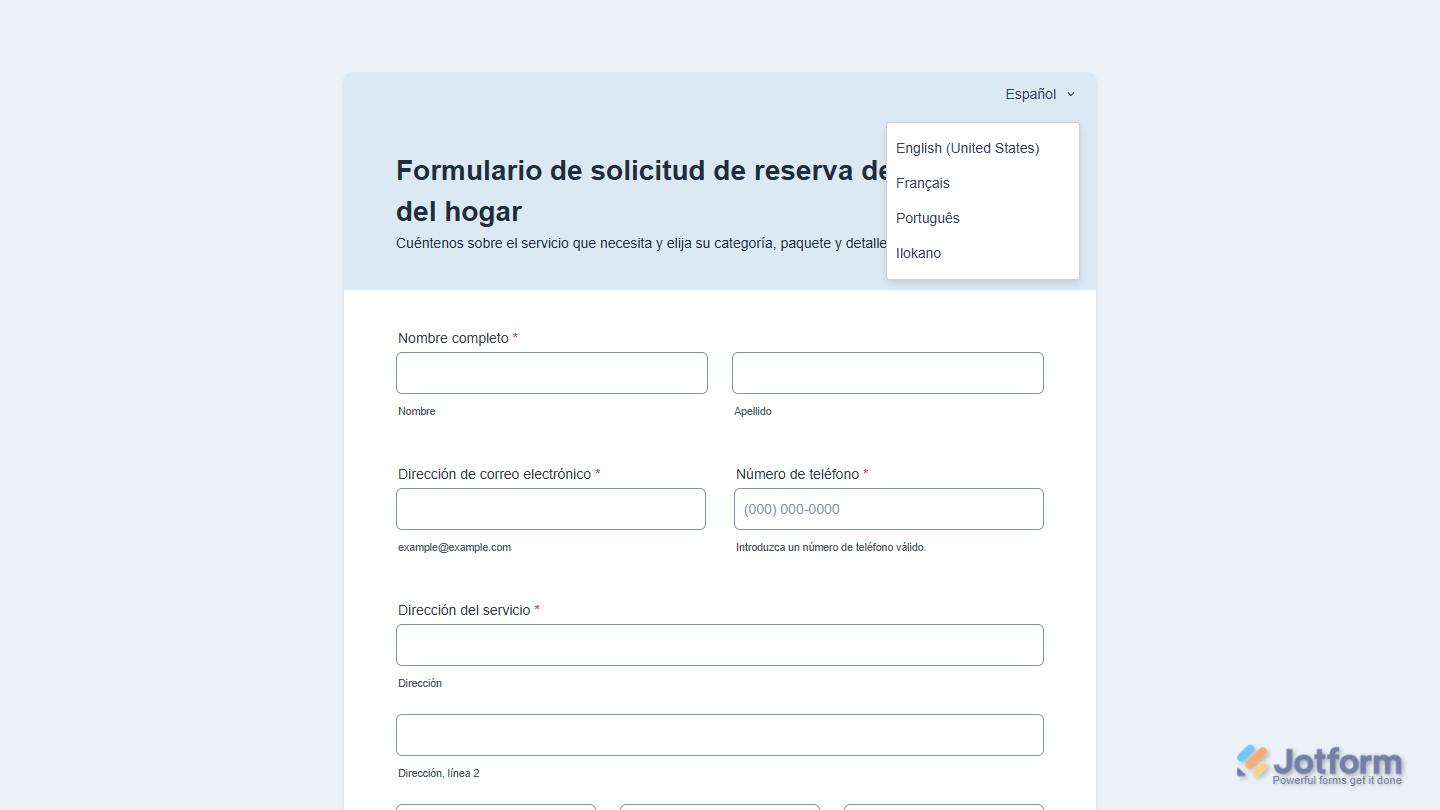
- To preview your form in a different language, click on the Downward Arrow icon on the right side of the selected language at the top of your form and, in the Dropdown menu, select the language you want to view.
That’s it. You’ve successfully added another language to your form. Now, respondents can view and complete your form in the language they prefer.
Using Form Settings
Adding another language from Form Settings only takes a few steps. Here’s what to do:
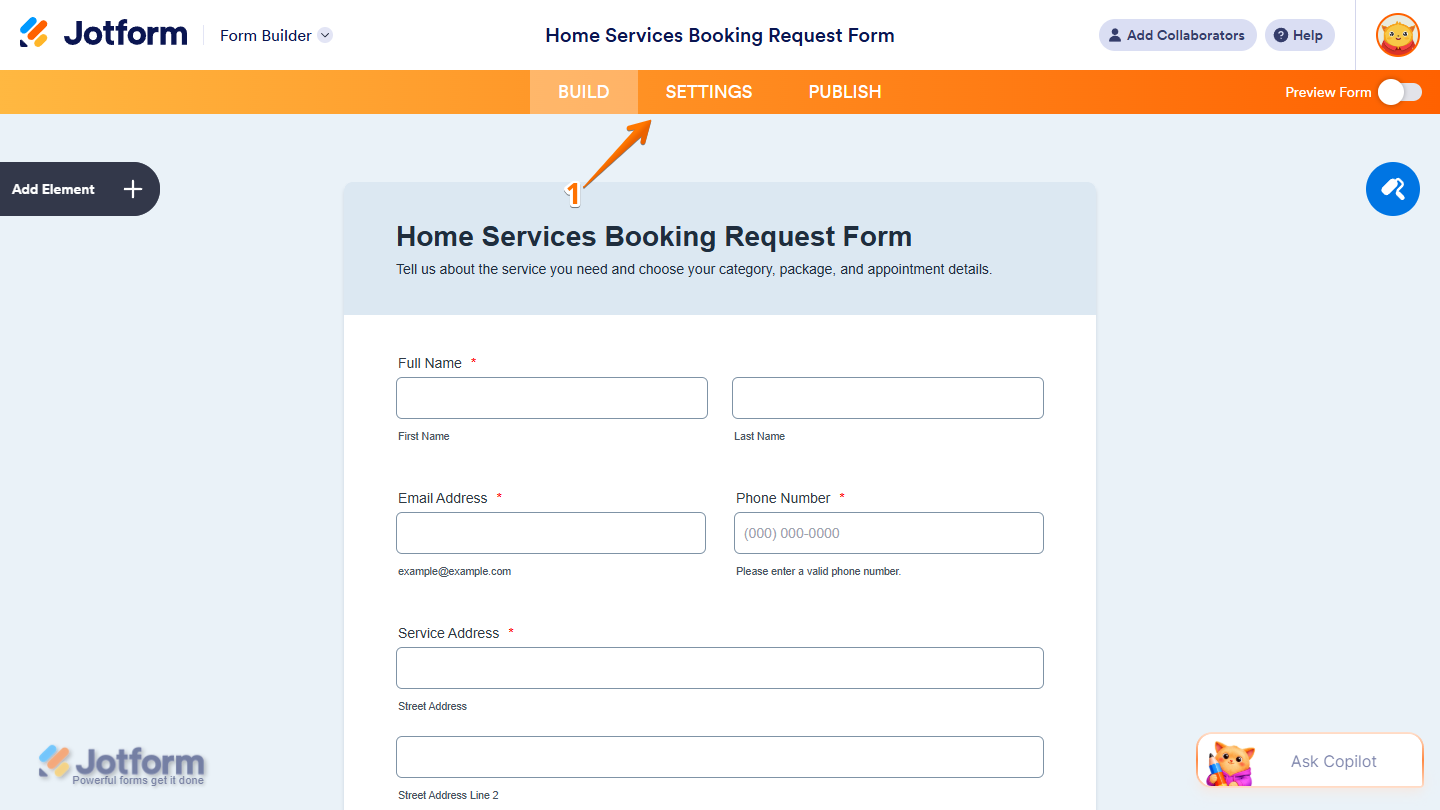
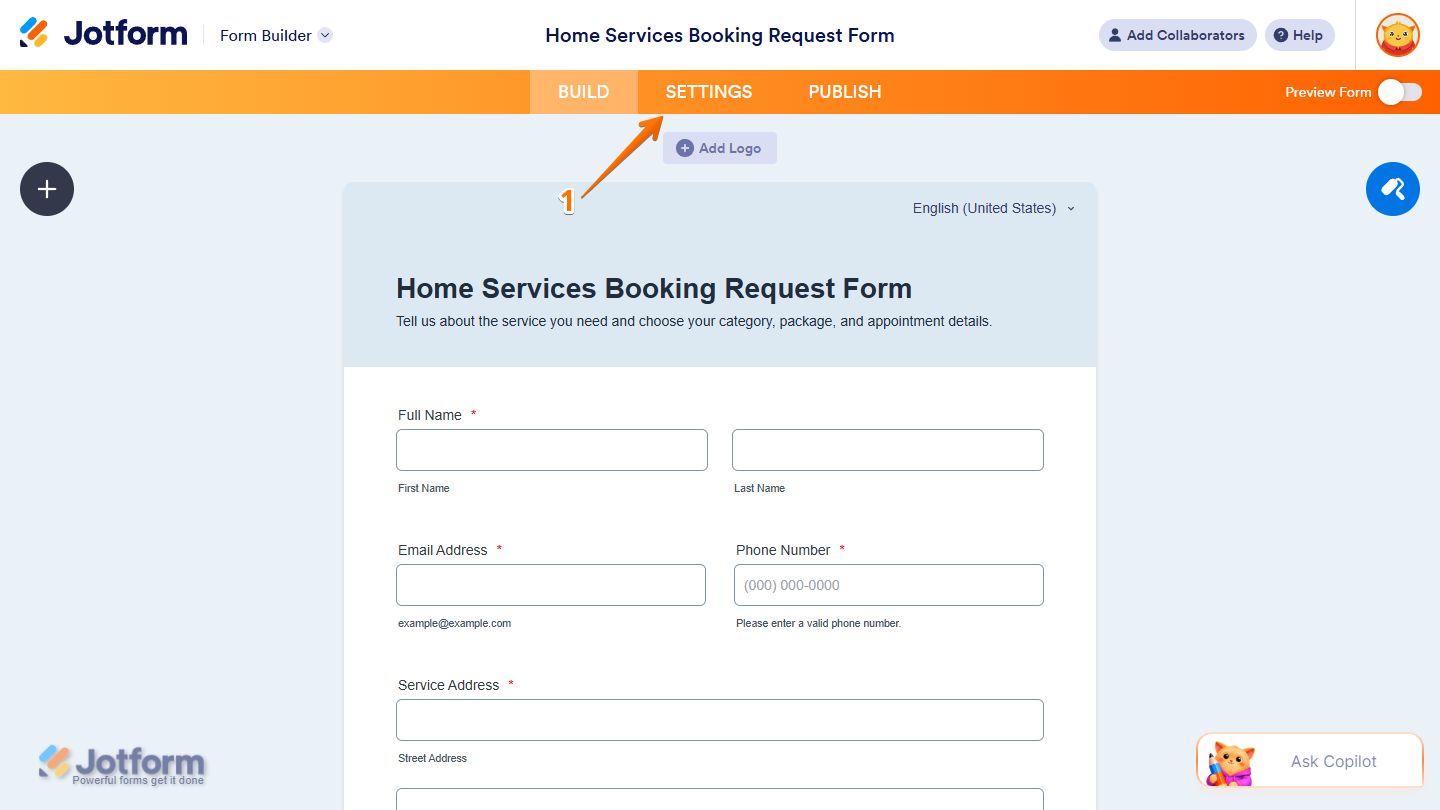
- In Form Builder, in the orange navigation bar at the top of the page, click on Settings.
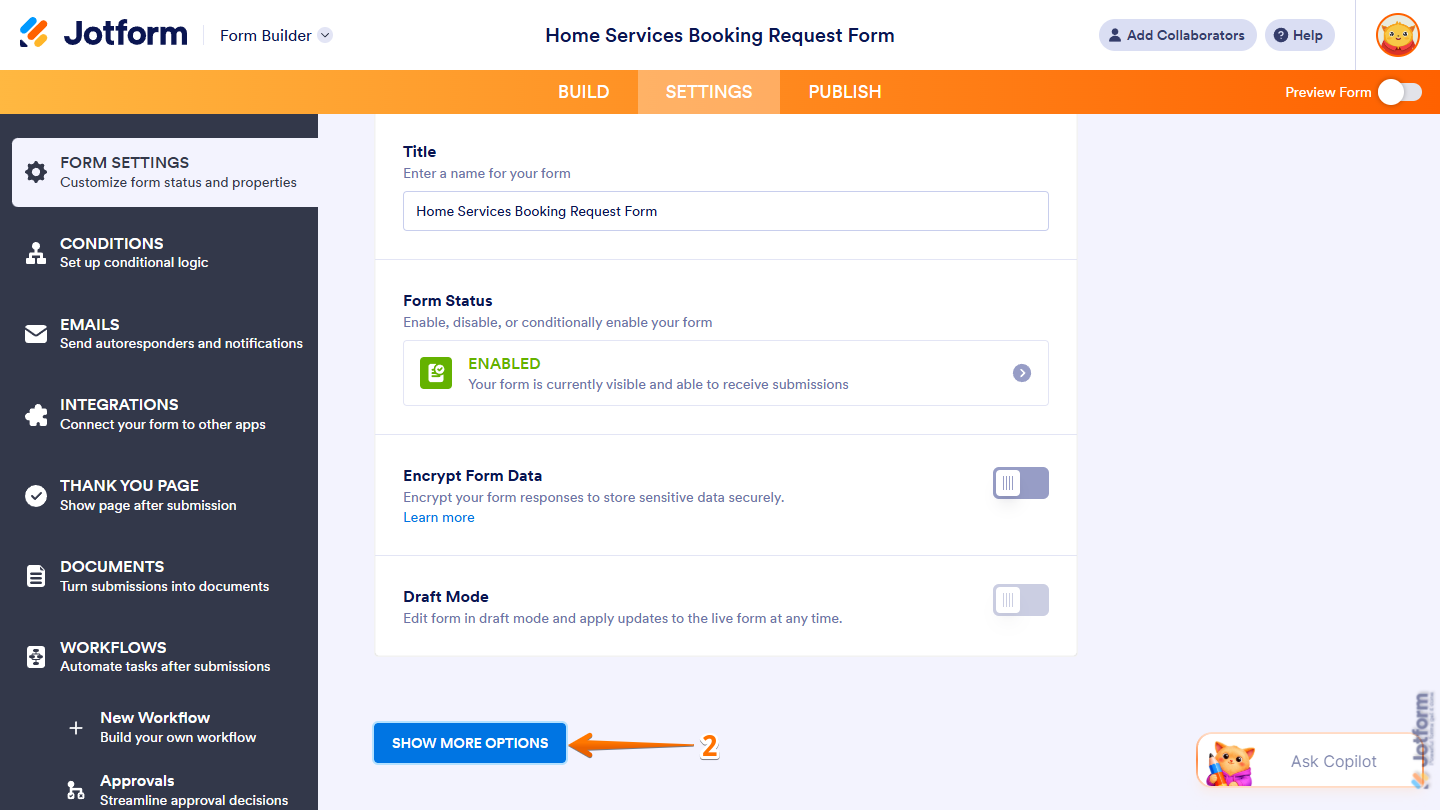
- Then, scroll to the bottom of the page and click on Show More Options.
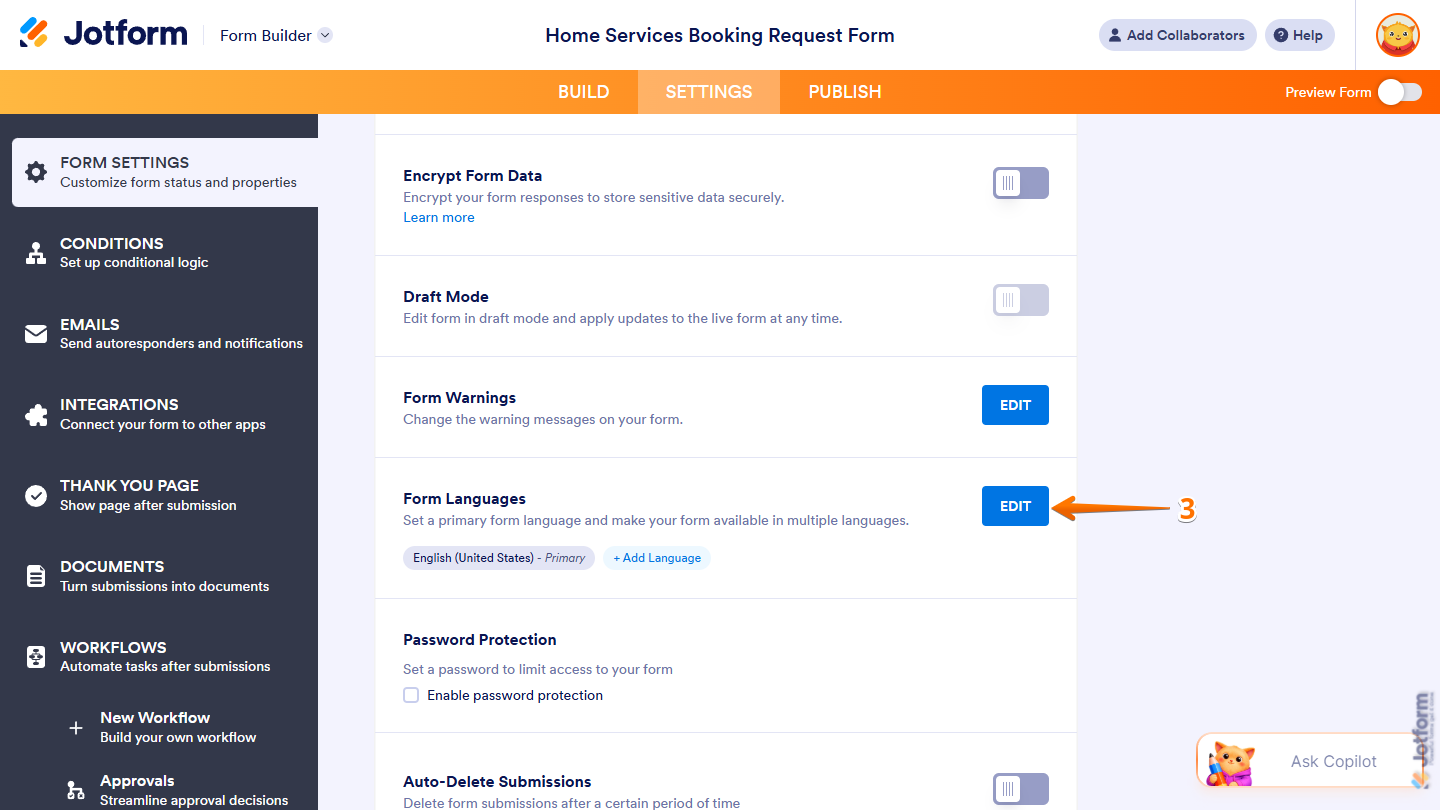
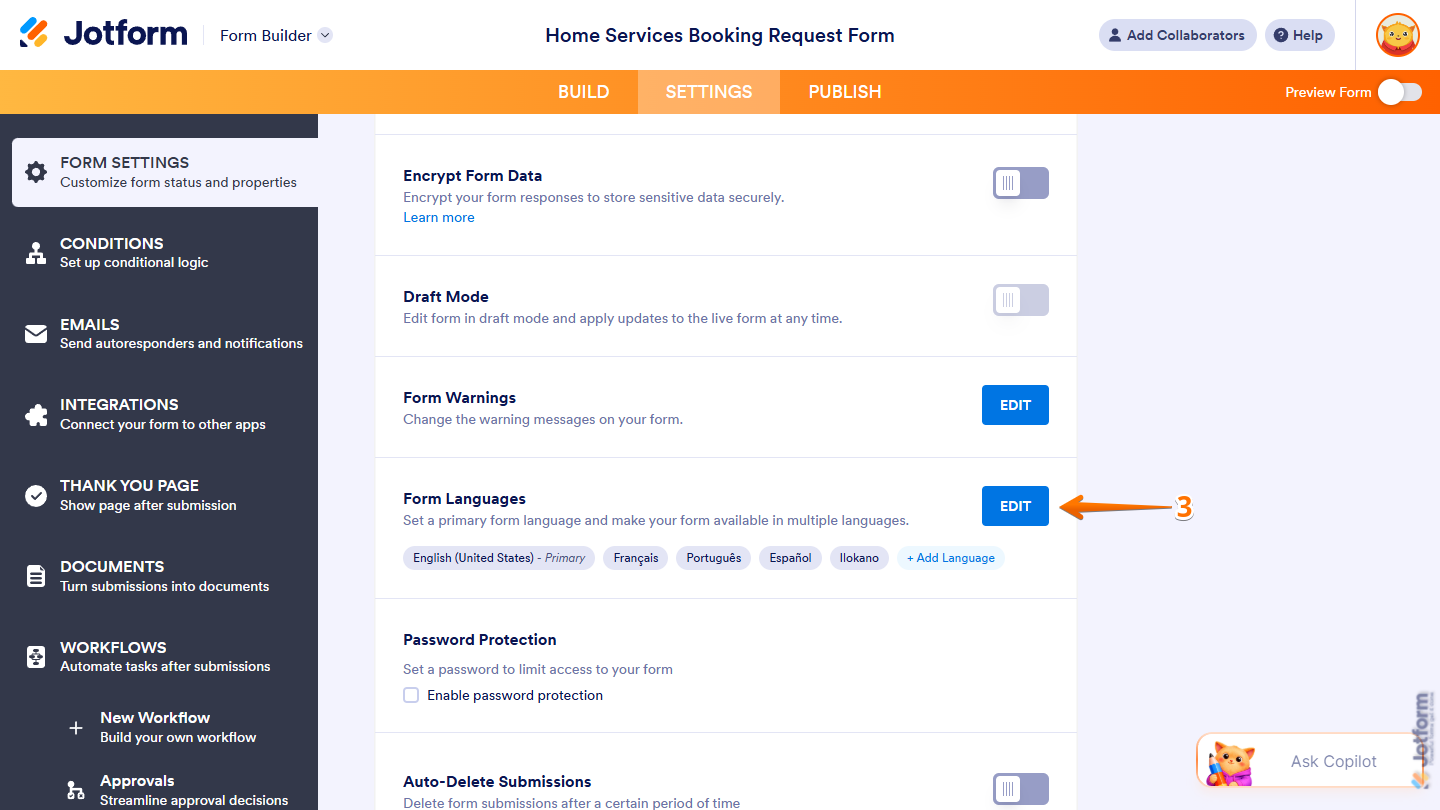
- Next, scroll down to Form Languages and on the right side of it, click on Edit.
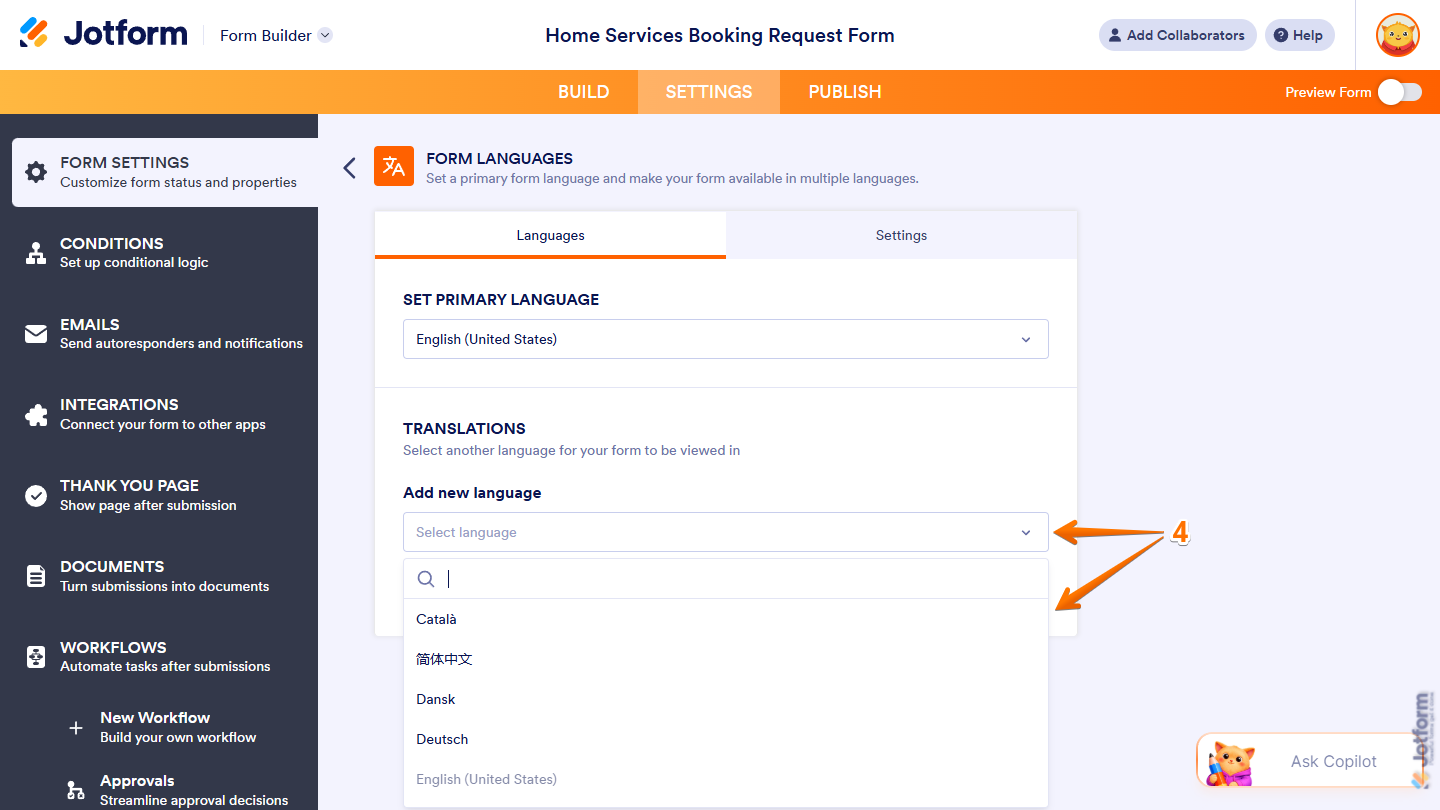
- Now, under Translations, click on the Downward Arrow icon on the right side of Add New Language and, in the Dropdown menu, select the language you want to make available on your form. You can use the Search bar at the top of the menu to find one easily.
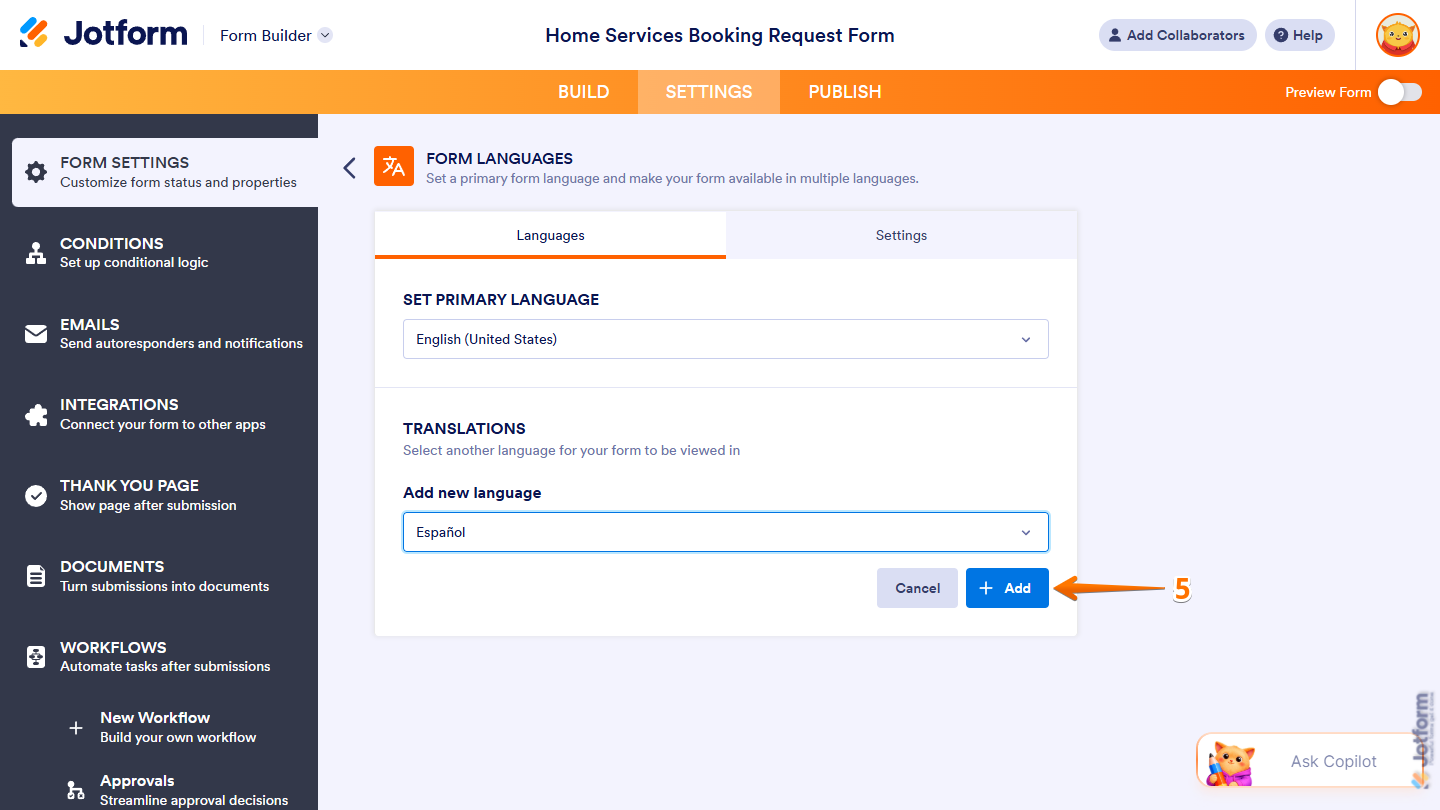
- Then, click on Add.
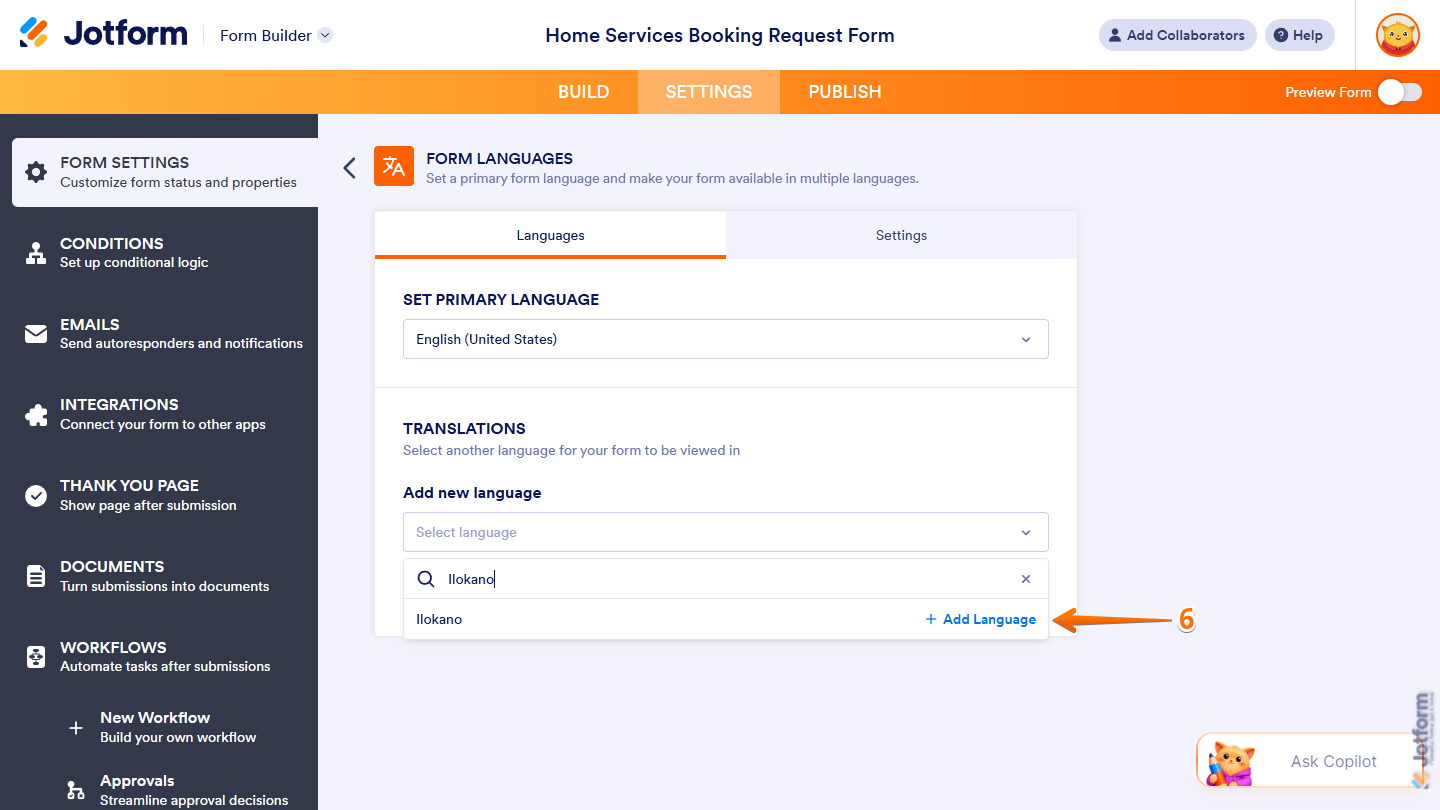
- If the language you search for isn’t supported, click on Add Translation on the right side of the Search bar to add the language using AI Translation.
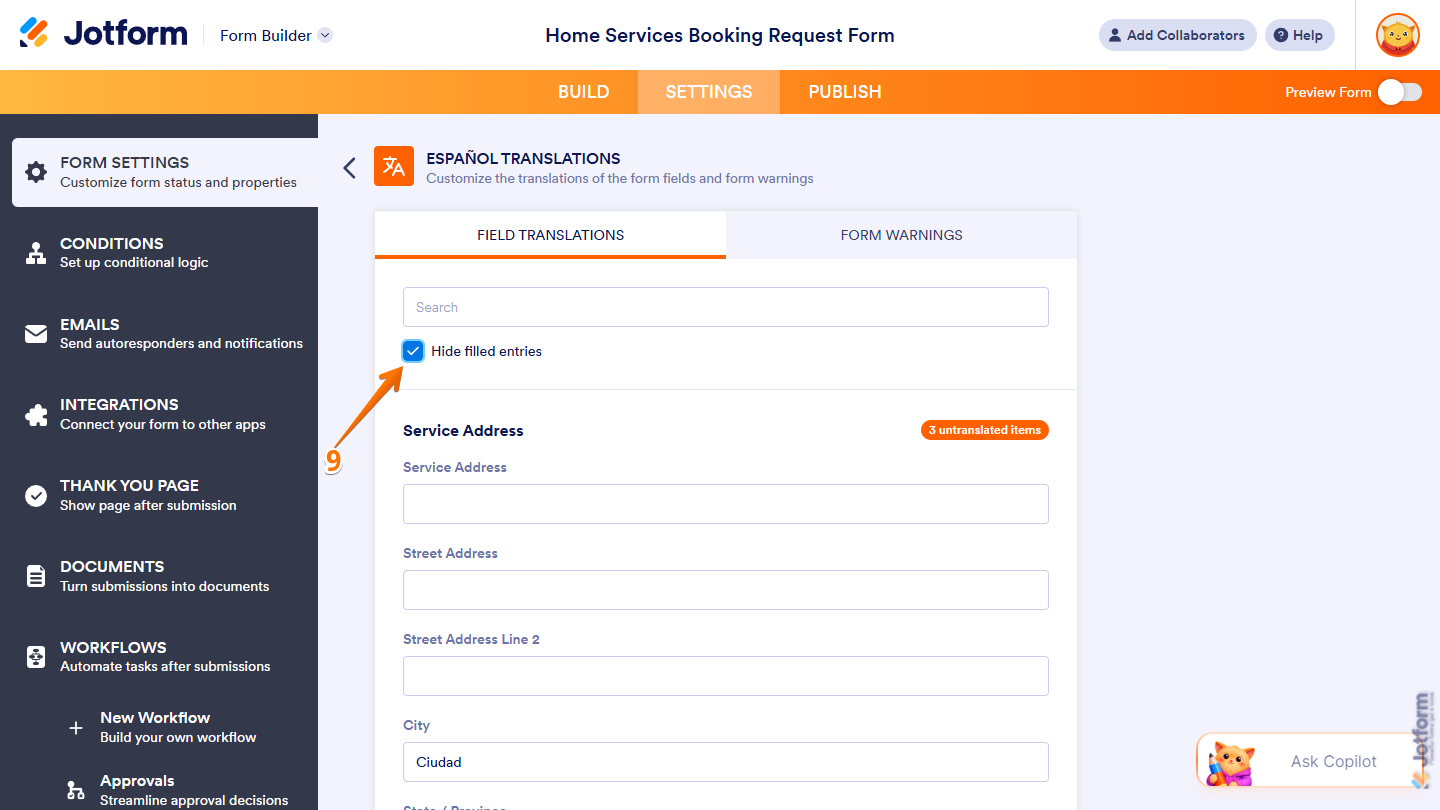
- Now, in the language editor, enter a translation for each item or update any auto-translated ones as needed. Scroll through the list to review the items, or use the Search bar at the top to quickly find a specific one.
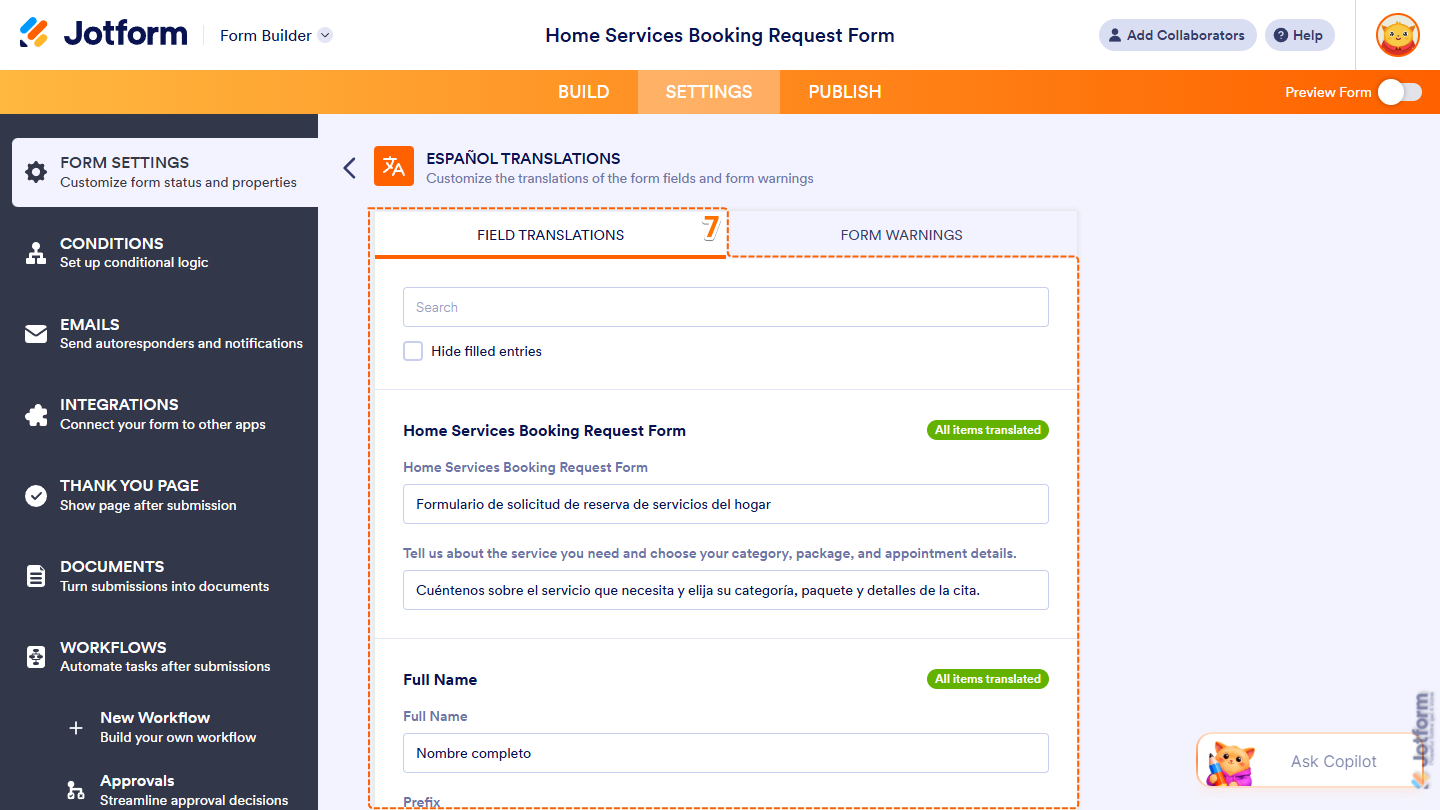
- Next, go to Form Warnings and enter the translation for each warning or update any auto-translated ones as needed. Scroll through the list to review the warnings, or use the Search bar at the top to quickly find a specific one.
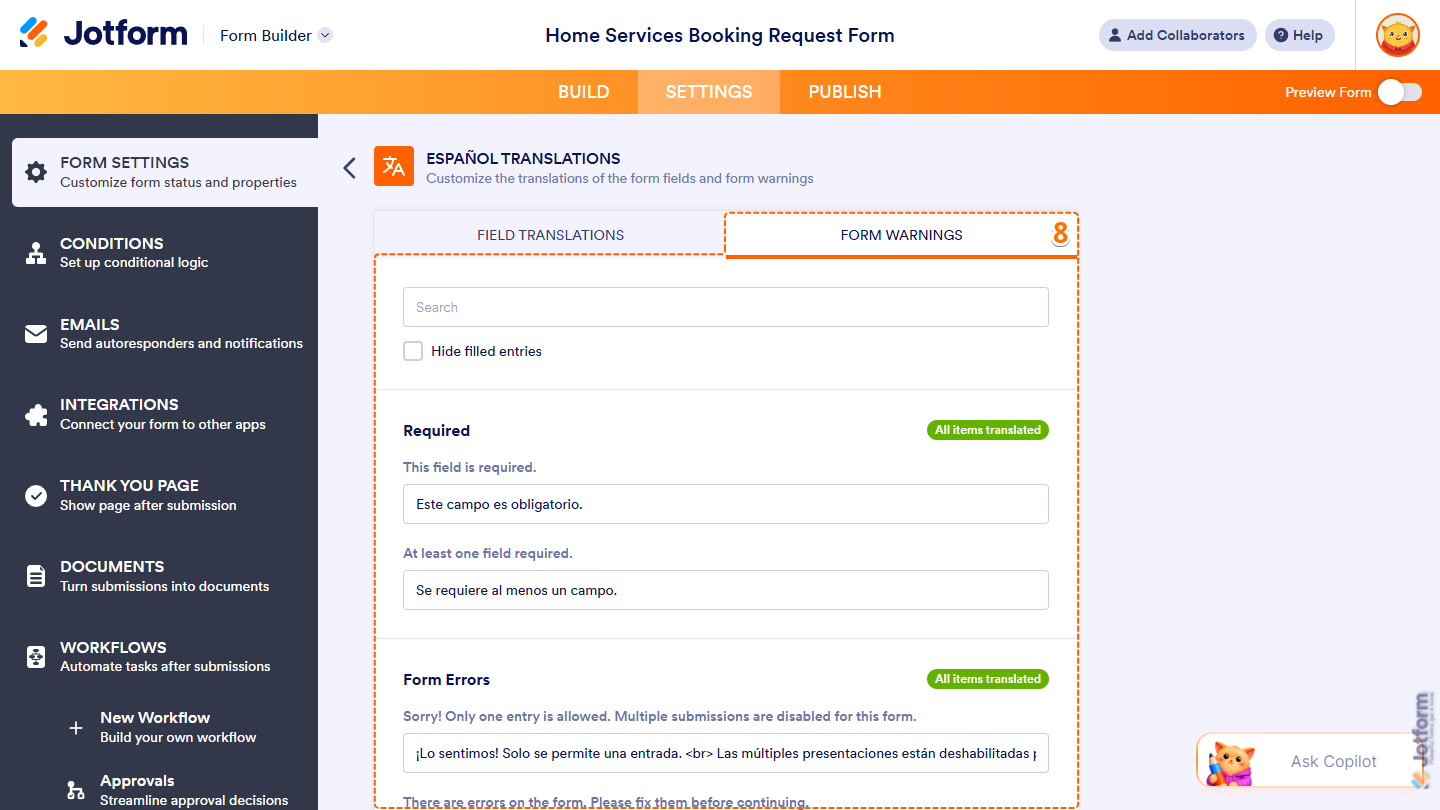
- To easily check for items in a tab that still need a translation, tick the box next to Hide Filled Entries.
Note
Any changes you make to the translations are automatically saved.
That’s it. Once everything’s set, respondents can select their preferred language and complete your form in it.
Changing the Primary Language
You can change the primary language of your form in a few easy steps. Here’s what to do:
- In Form Builder, in the orange navigation bar at the top of the page, click on Settings.
- Then, scroll to the bottom of the page and click on Show More Options.
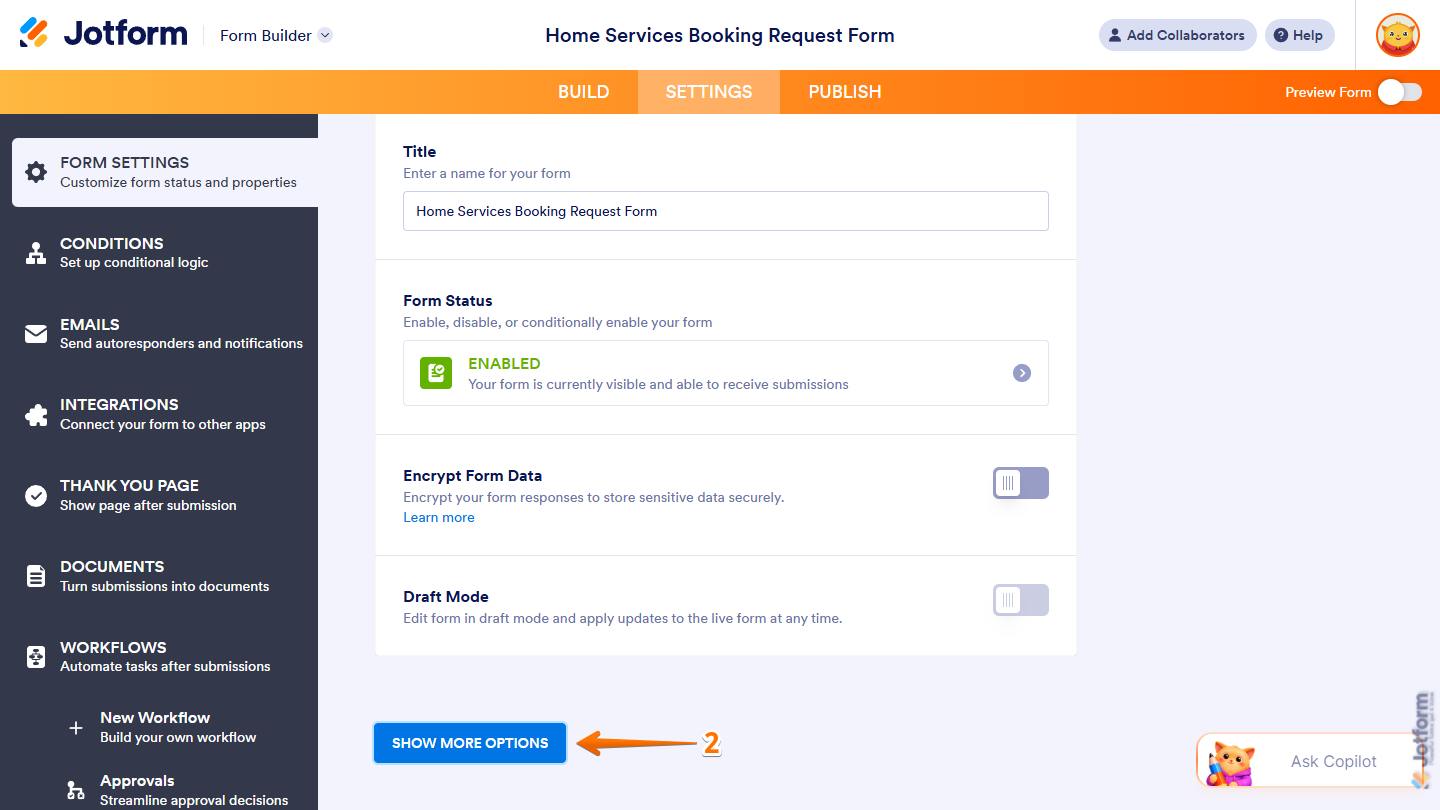
- Next, scroll down to Form Languages and on the right side of it, click on Edit.
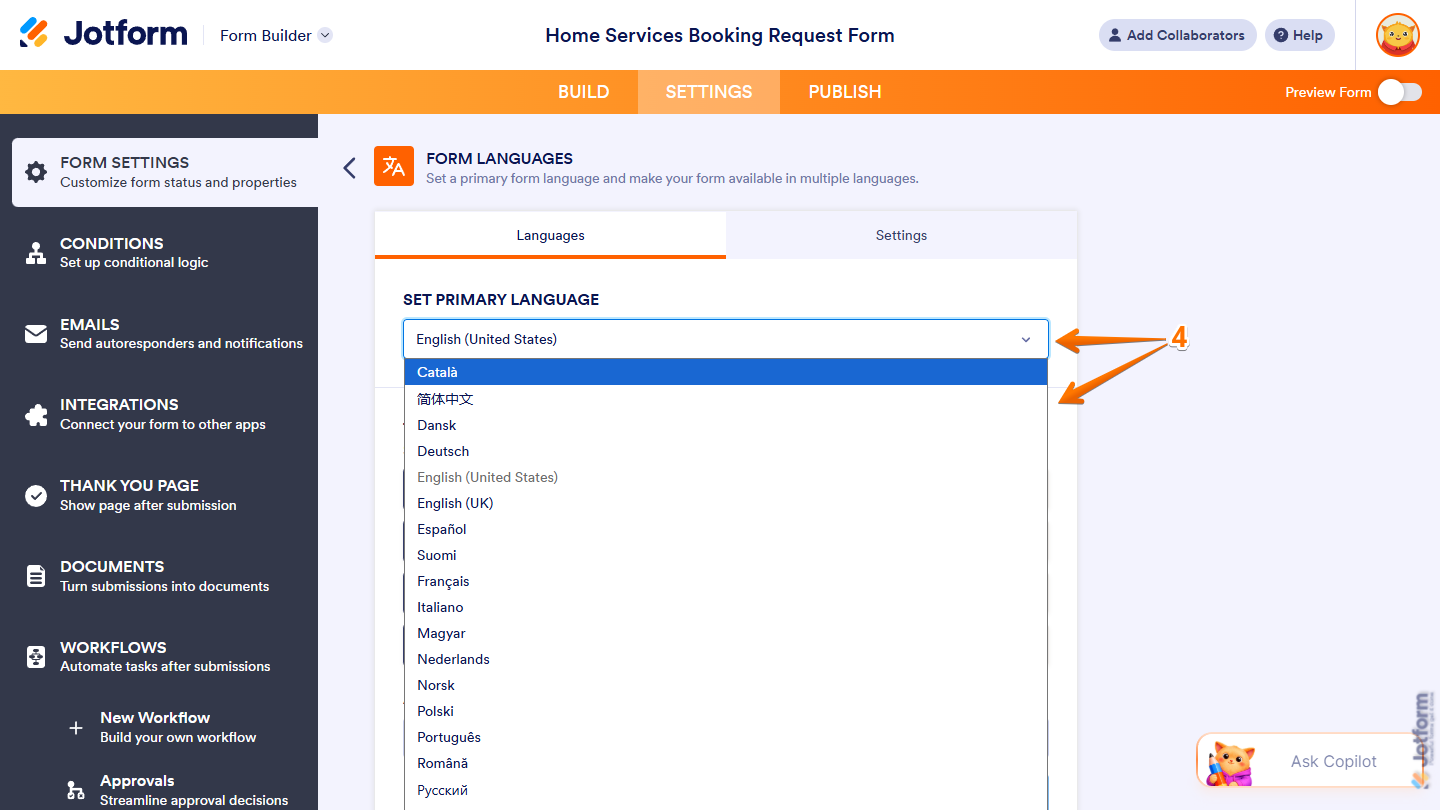
- Now, under Set Primary Language, click on the Downward Arrow icon on the right side of it and in the Dropdown menu, select the language you want to set as the original language of your form.
Note
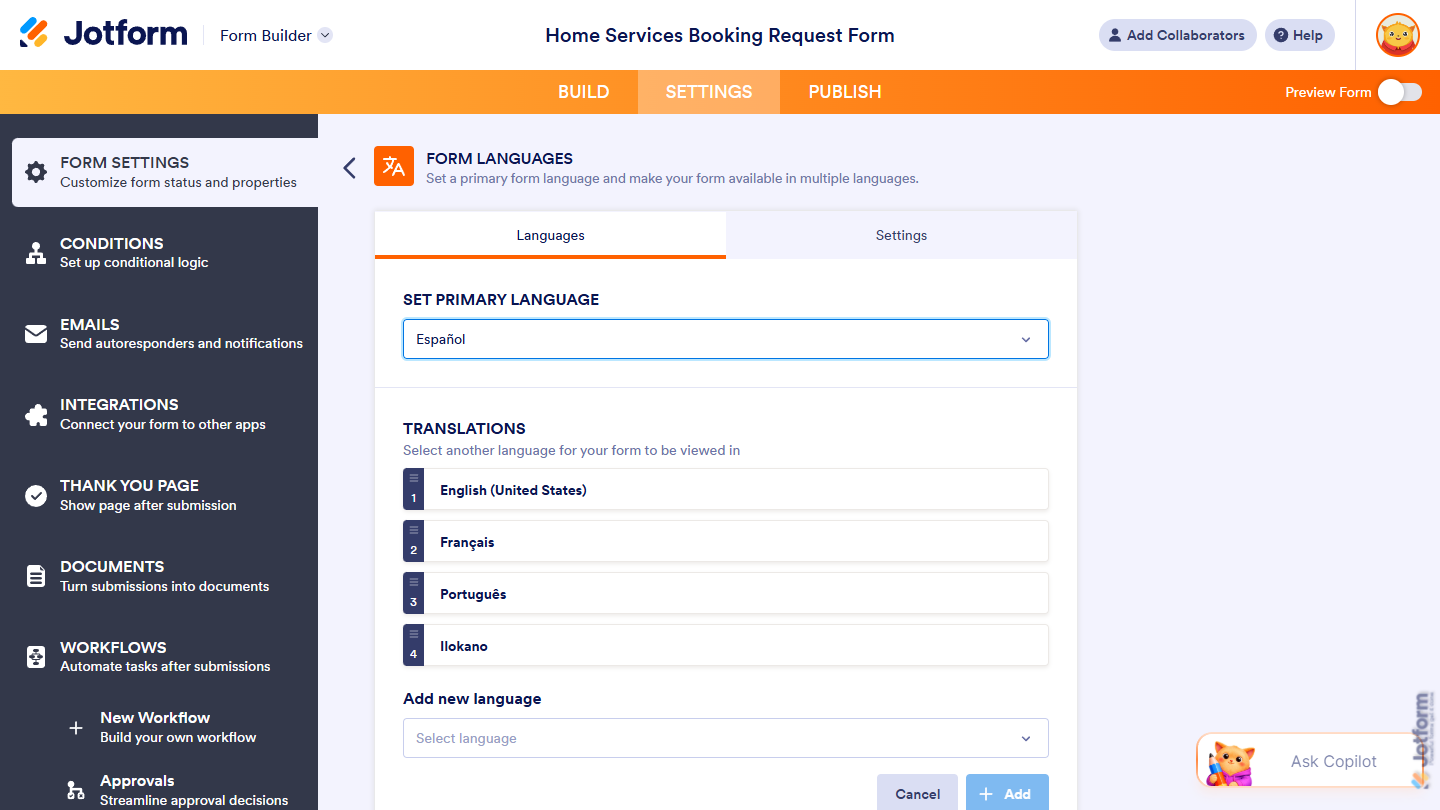
When you change the primary language, the previous one is automatically added as another language for your form. You may need to set up or update the translations for that language afterward.
That’s it. The language you selected is now the primary language of your form.
Configuring Language Settings
You can customize the language selector and control how your form handles language detection and browser translation. Here’s what to do:
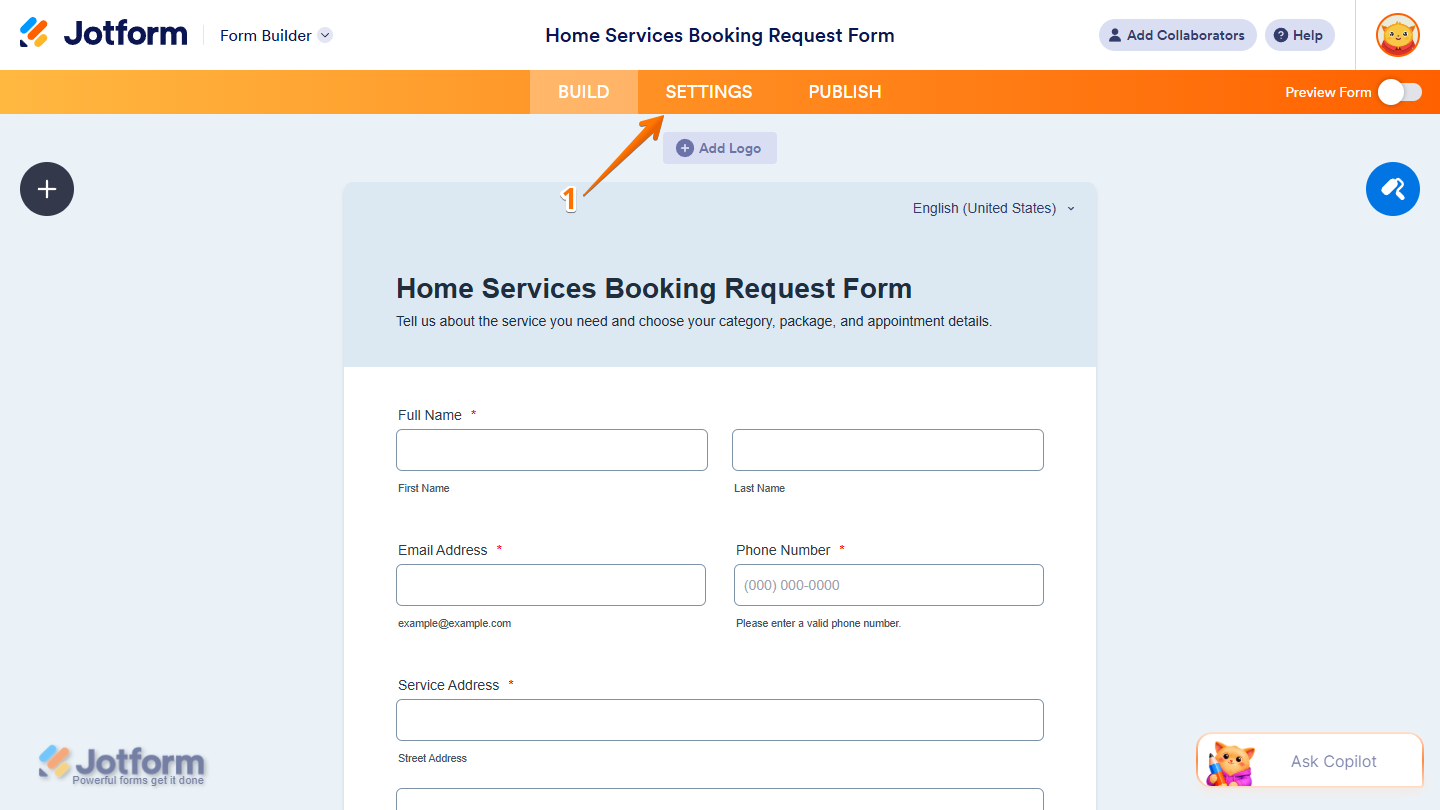
- In Form Builder, in the orange navigation bar at the top of the page, click on Settings.
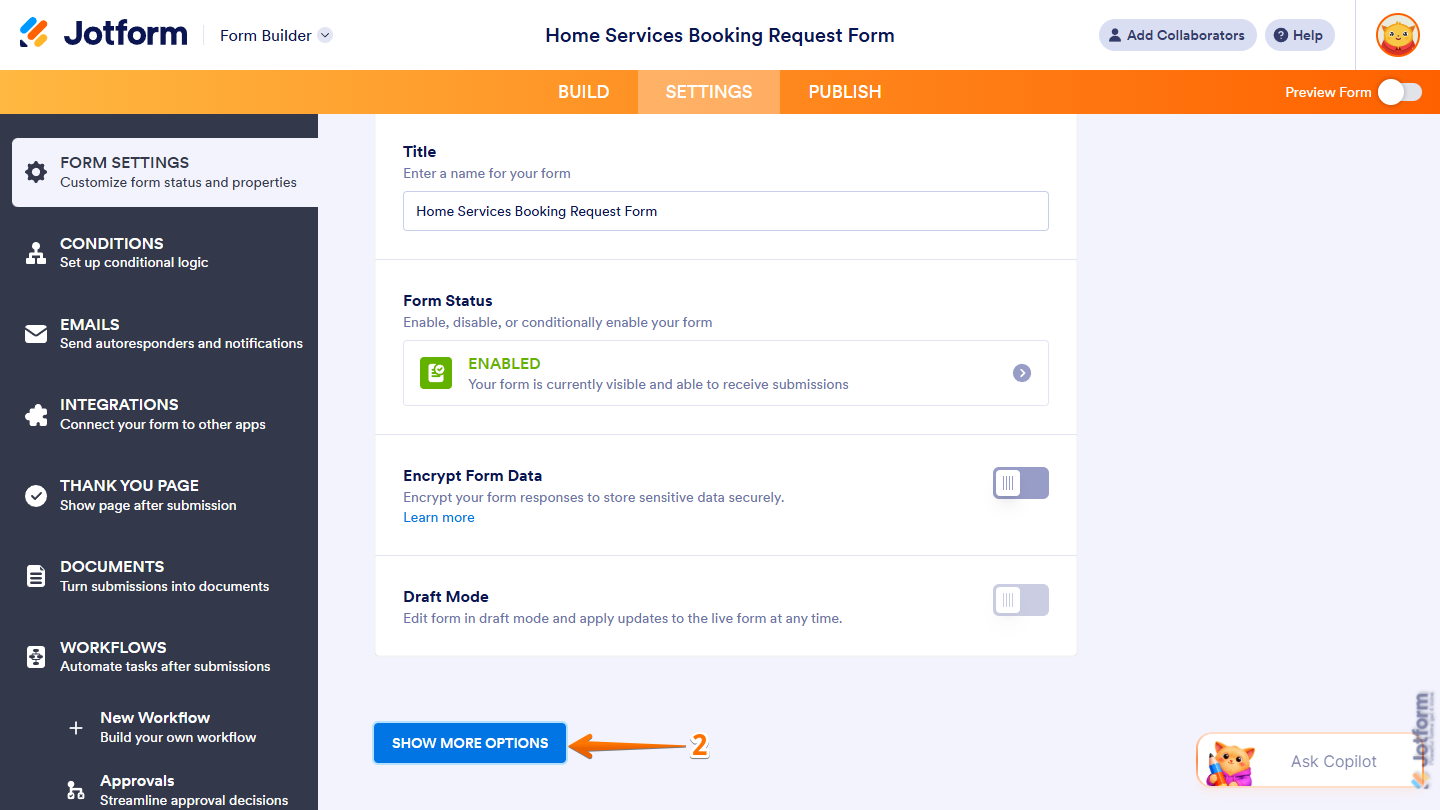
- Then, scroll to the bottom of the page and click on Show More Options.
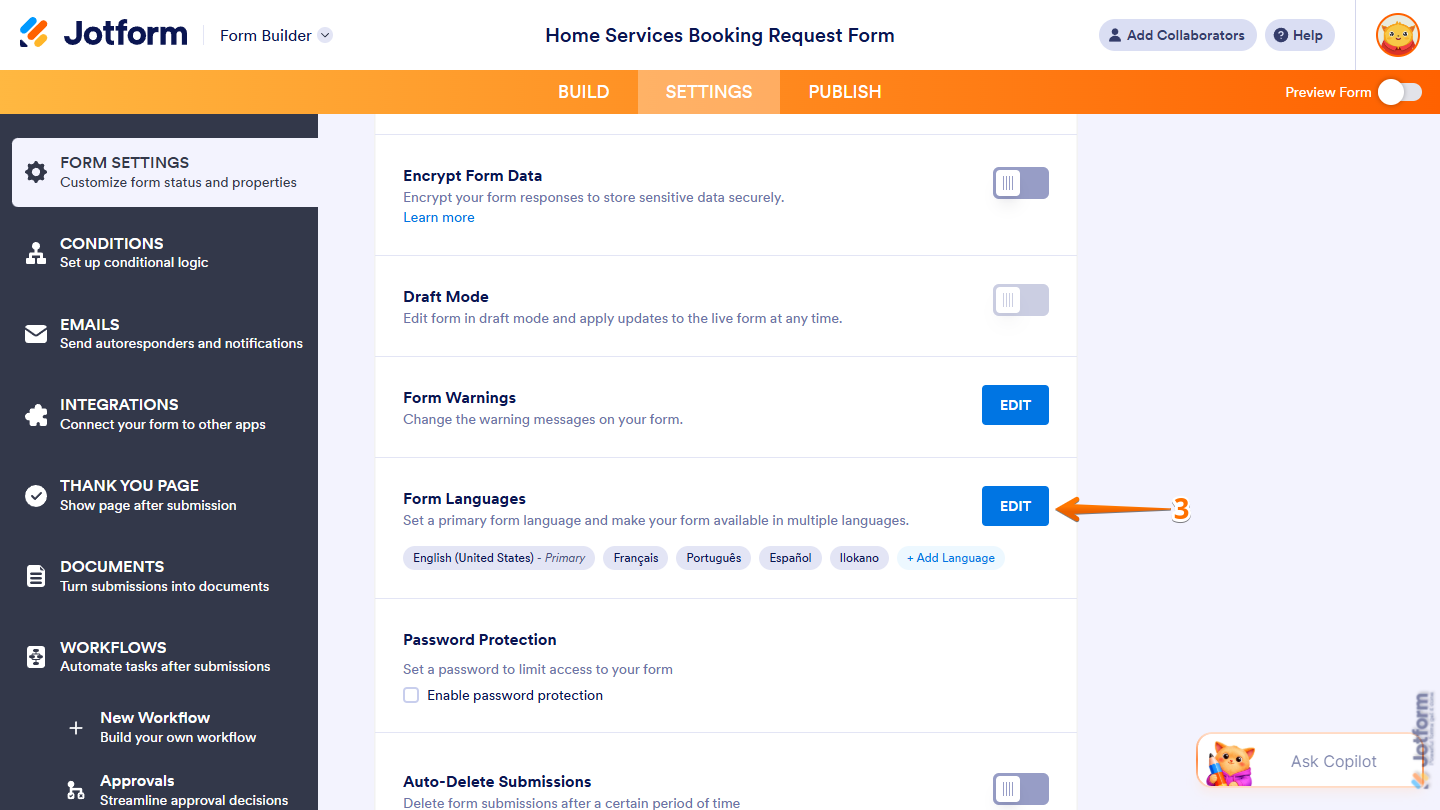
- Next, scroll down to Form Languages and on the right side of it, click on Edit.
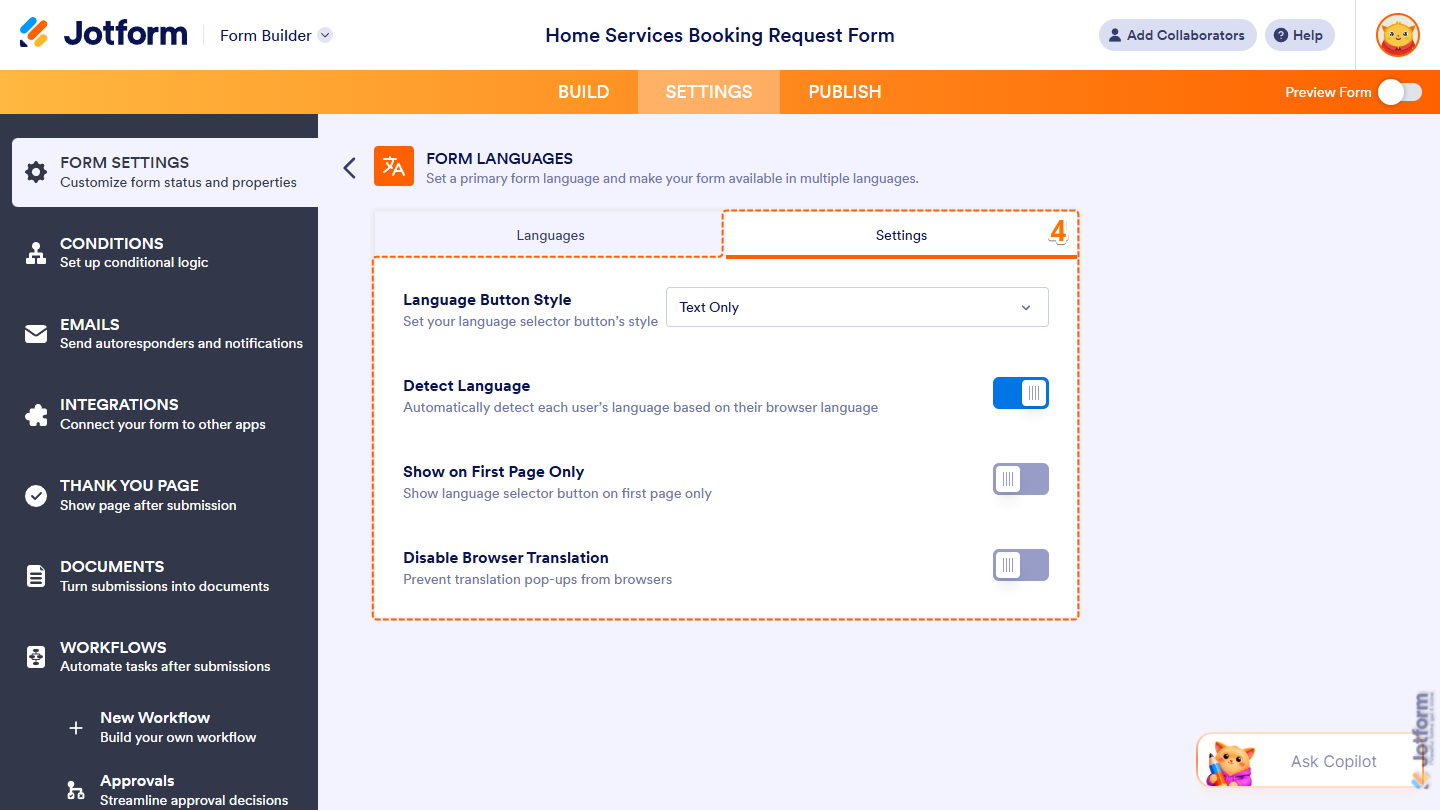
- Now, under Settings, you’ll find the following options you can configure:
- Language Button Style — Click on the Downward Arrow icon and in the Dropdown menu, select whether to display the language name, a flag, or both on the language selector button.
- Detect Language — Toggle this off to stop automatically detecting each respondent’s language based on their browser language.
- Show on First Page Only — Toggle this on to show the language selector button only on the first page of your form.
- Disable Browser Translation — Toggle this on to prevent browsers from showing translation pop-ups for your form.
Note
Any changes you make to these settings are automatically saved.
That’s it. Your form will now follow the language preferences you selected.


Send Comment:
24 Comments:
August 4, 2026
I am unable to amend the translation. every time i select the option the screen just goes blank, I have selected additional language but when I go to edit nothing appears?
July 31, 2026
Is it possible to see what language the user selected when filling out the form? I'd like to track the different entries when translations are being used.
July 12, 2026
Hi there, I just tried the automatic translation of my form to Russian. It was pretty good, but I still wanted to change a few things. I did change them, and it says that they were automatically saved. However, when I either do a form Preview or go directly to the form, I do not see my changes reflected. Is this a bug or does it take some time for the system to update? Thank you!
P.S. When I go back to editing the changes via Form Languages setting, my changes are there.
May 26, 2026
I needed to translate the contents of a paragraph (text field) as well as the response questions. Is that possible?
October 26, 2025
After adding a language, is it possible to change the default language. I started my survey in Dutch, and now want to switch to English. But I cannot remove Dutch for it's the default language.. Any guidance would be most appreciated.
June 10, 2025
I would love to translate a form to French for our France-based team but how do I handle mapping to Salesforce for picklists etc. For example, even though I want 'Oui' as a picklist answer, I would like 'Yes' to be mapped to Salesforce. Is there a way to get around this? Thanks.
June 9, 2025
What about the thank you page ? Where do I change it ?
June 6, 2025
Is it possible to see what language the user selected when filling out the form? I'd like to track how often our different translations are being used.
September 18, 2024
Outside of the basic information like Months and a few field, 90% of a form doesn't automatically translate even English to Spanish which should be fairly simple.
July 18, 2024
Hello, We have a mutiple language website. Is it possible to change the language of the form automatic to the language the user is viewing the website?
April 18, 2024
Hello, I have some questions about your form translation tool. Does it also translate free response form submissions? And does it use Google Translate / how accurate are languages like Arabic, Vietnamese, and others?
December 15, 2023
For the report generated from the form is there a way to have the report in the second language, I have it with 2 languages options but the report is just on one language.
September 26, 2023
Yes, I have found this is not function for my needs as a teacher and has wasted a lot of my time. Most of the form that I created jotform was unable to translate. Bummer since I was so excited to easily translate forms for my students.
September 8, 2023
How do I add in table in line with text into the translated form?
August 14, 2023
I embedded my form as an html on a wix-website and would like the language to change when the user is on the german or the english site. Is there a way to let this happen automatically? If it is not, is there a way to tell the form to show the version I want? I can change the code for english and german separately.
I saw that you can ad a code snipped to the url if you embedd it through an iframe or the javascript snipped but I can't use those because of some adjustments I had to make to the code.
June 13, 2023
I am trying to translate my form into Korean but am struggling. Form name: Frieze x Sustainability
Thank you
Kasia
May 4, 2023
Hello, this works perfect. In my case I have my form embedded in a wordpress using polylang plugin to manage different languages.
Is it possible that when users change web language the form uses that language by default?
October 26, 2022
Why when I pick Español for a language choice only the responses are in Español but not the question itself? Please help
October 8, 2022
We are working with Afghan refugees. I was wondering if it was possible to get Dari translation possibility.
August 22, 2022
Are you able to enlarge the form translation button so that it is more obvious.
April 27, 2022
Basically what Ryan said is true. It's not translating 90% of our form.
February 3, 2022
This feature might be useful for basic forms such as contact forms, but I consider it essentially non-functional for anything with larger amounts of text (whole single sentences) like a short quiz. When trying to convert a form/quiz into Spanish almost every single field showed untranslated errors except basic fields requiring name and signature.
September 23, 2021
Hi,
Not working with dropdown inside table.
Not possible to proceed to translation.
September 5, 2021
شكر