With Jotform, you can easily connect your forms to Insightly CRM and keep your lead information organized in one place. Insightly is a modern customer relationship platform designed to help sales teams focus on the right leads at the right time, while Jotform makes it simple to collect accurate, useful data directly from your audience.
By bringing the two together, you can turn form responses into meaningful CRM records that support smarter follow-ups and stronger relationships. Whether you’re gathering new contacts, managing tasks, or keeping project details aligned, this integration helps streamline your workflow and gives your team clearer insight into every interaction—so staying connected with leads feels effortless and organized.
What You Need for This Setup
You’ll need your Insightly API key to complete this integration. If you’re not sure where to find it, check out Getting Your Insightly API Key below.
Setting Up the Integration
Setting up your form to send form data to Insightly CRM is quick—here’s how:
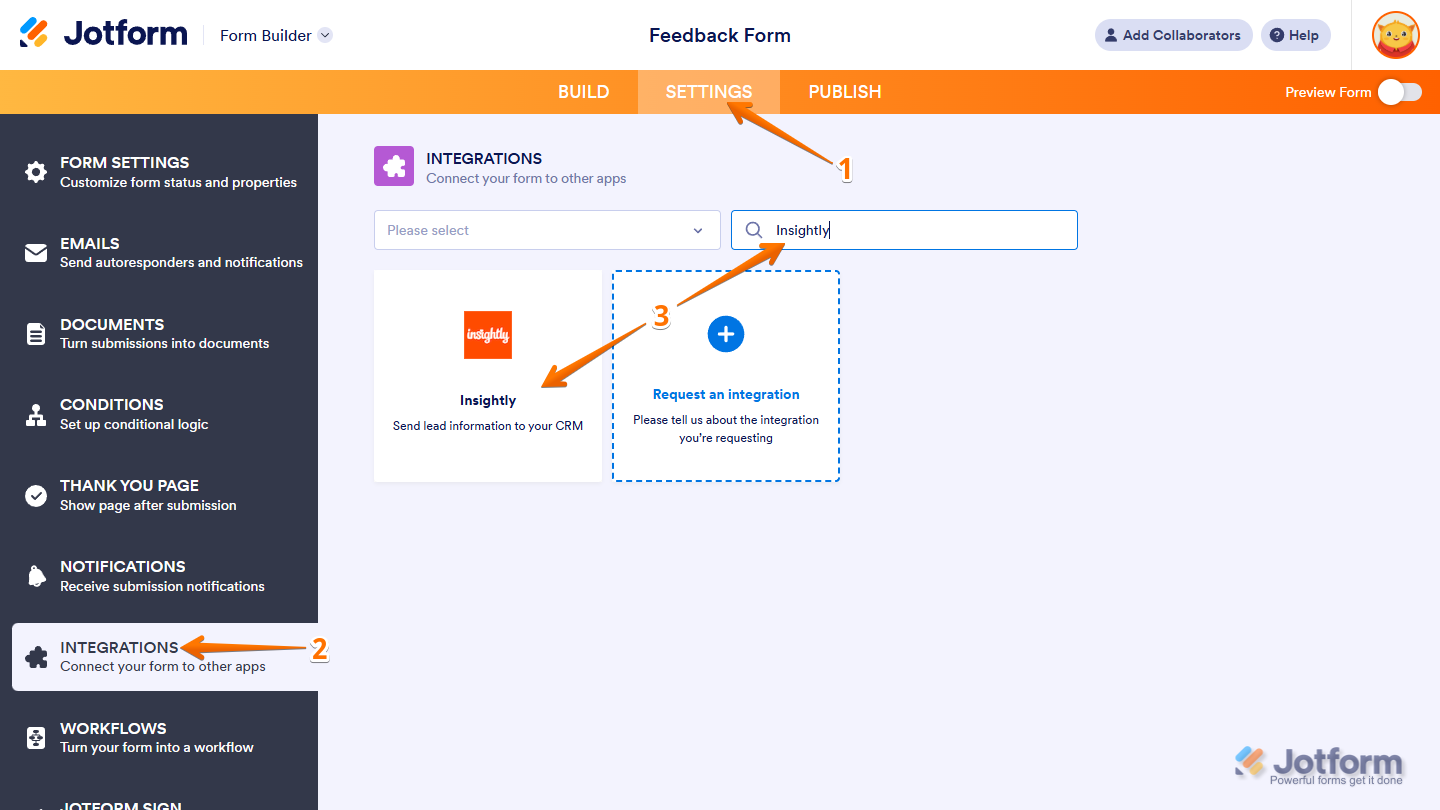
- In Form Builder, in the orange navigation bar at the top of the page, click on Settings.
- Now, in the menu on the left side of the page, click on Integrations.
- Then, in the Integrations section on the right, search for Insightly and click on it.
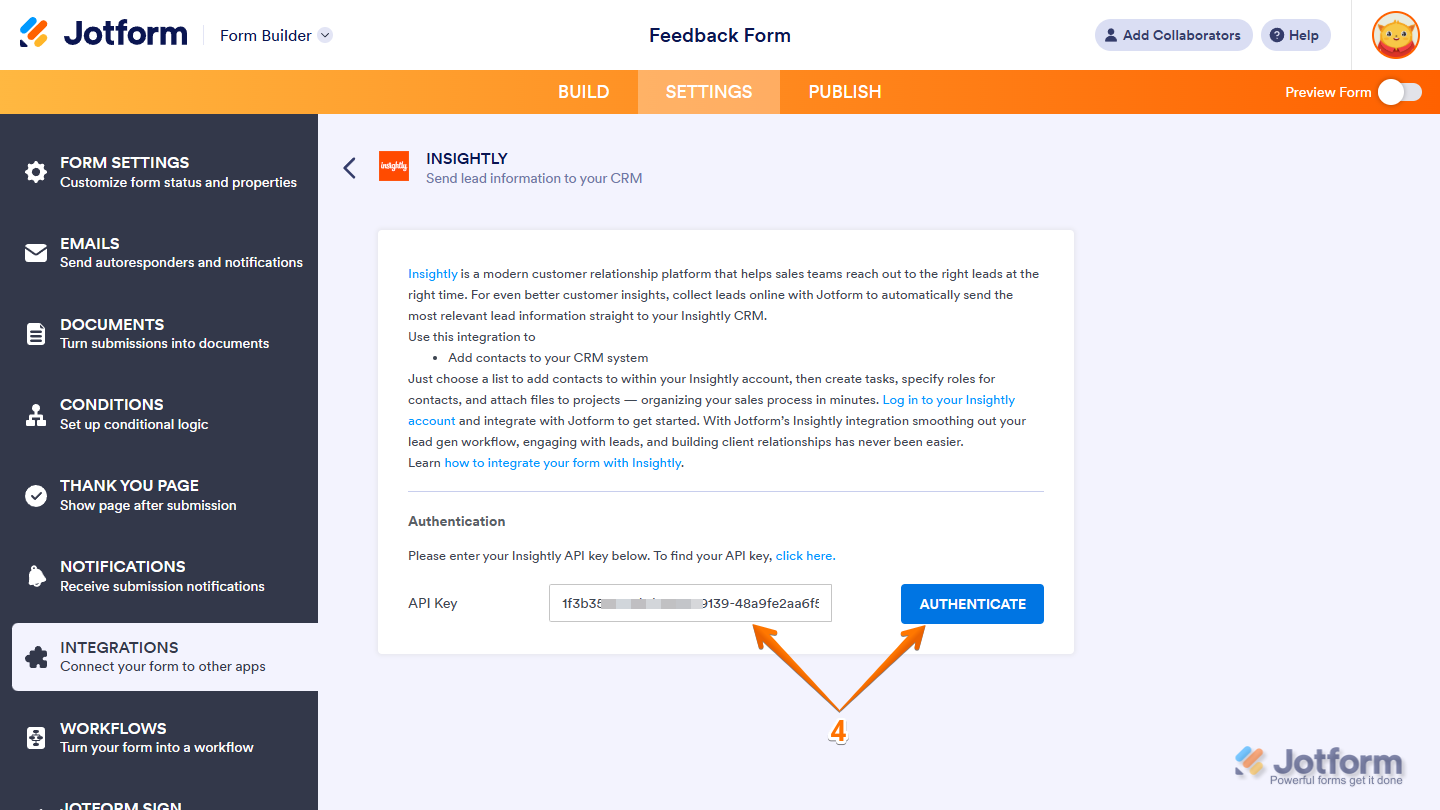
- Next, in the Insightly section, paste your API key into the API Key Input box and then click on Authenticate next to it.
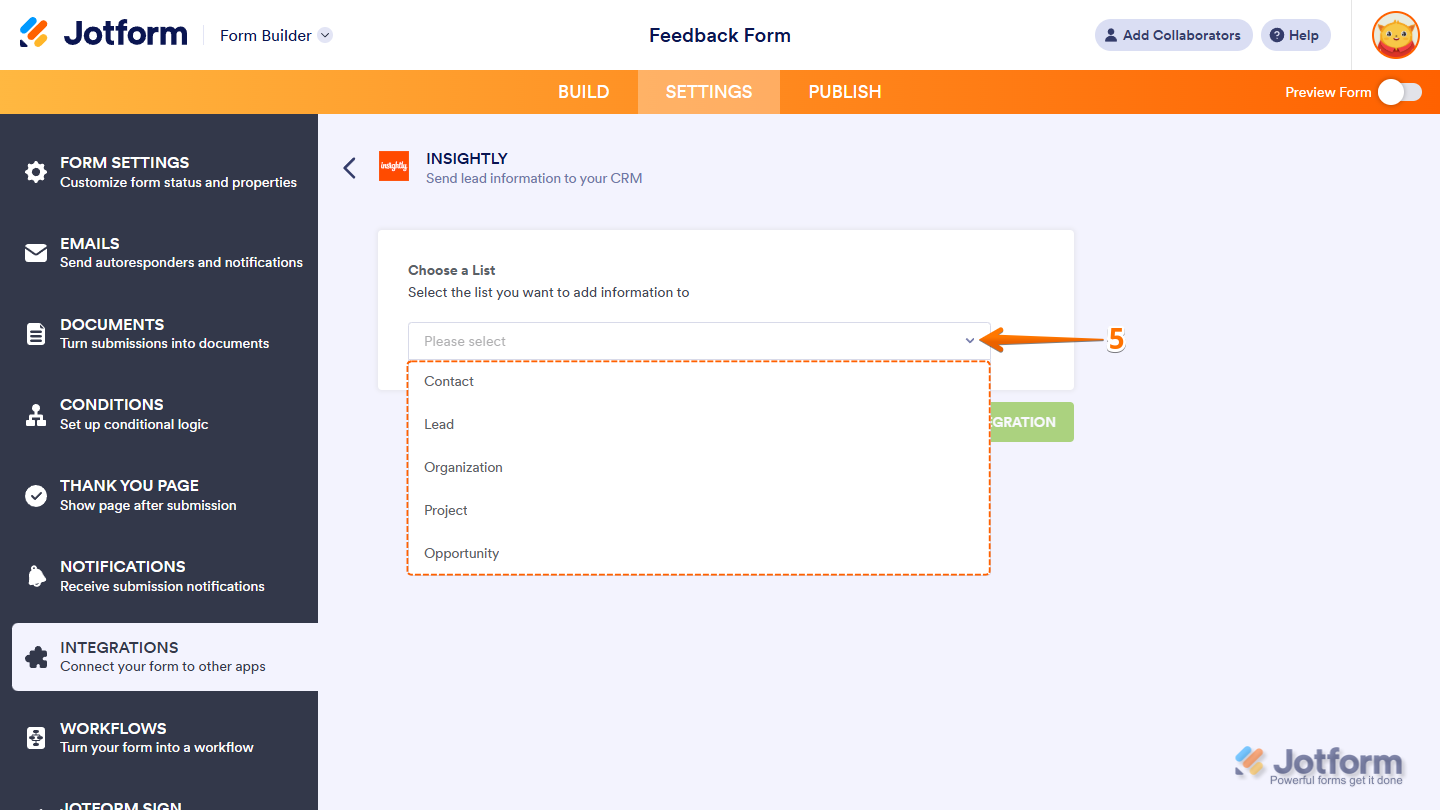
- Now, click on the Choose a List Dropdown menu, and then select the list you want to add information to.
Note
This integration works only with standard Insightly lists such as Contact, Lead, Organization, Project, and Opportunity, and doesn’t support adding information to custom objects.
- Next, click on the Dropdown menu next to the required default field from the list you chose, and then select a supported form field to match it. You can use the Search bar at the top of the menu to find a specific one easily.
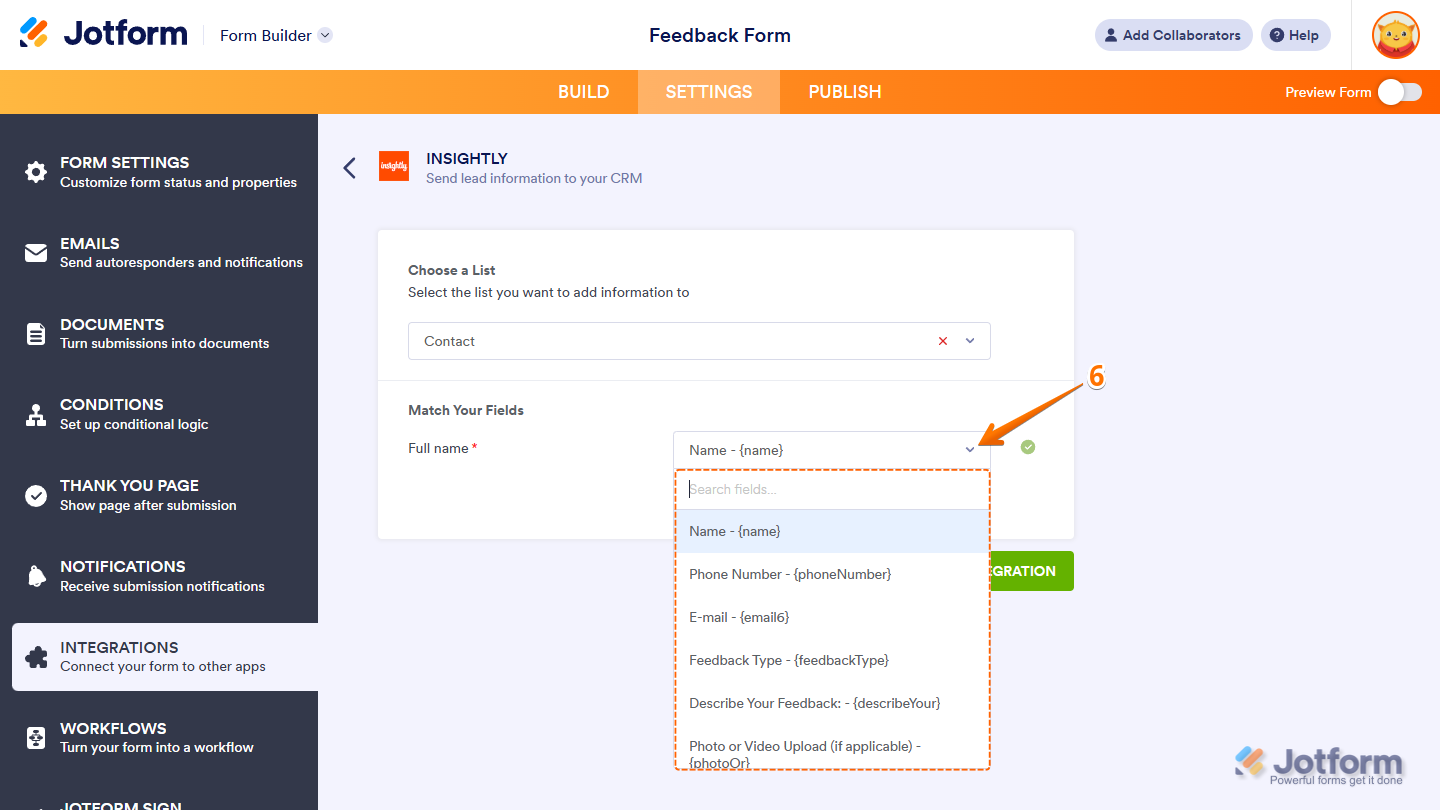
You can click the Add New Field button below the last dropdown menu to map additional fields.
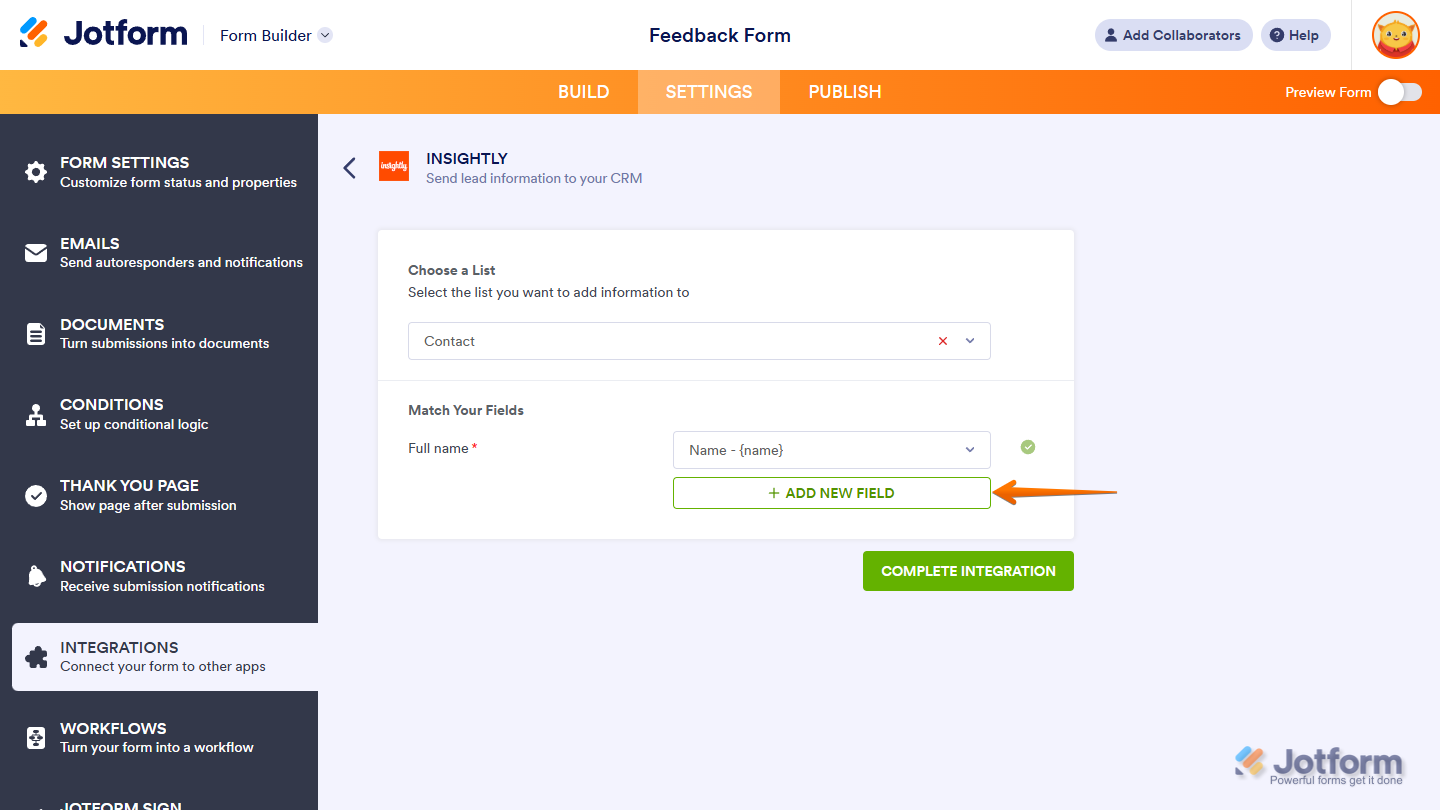
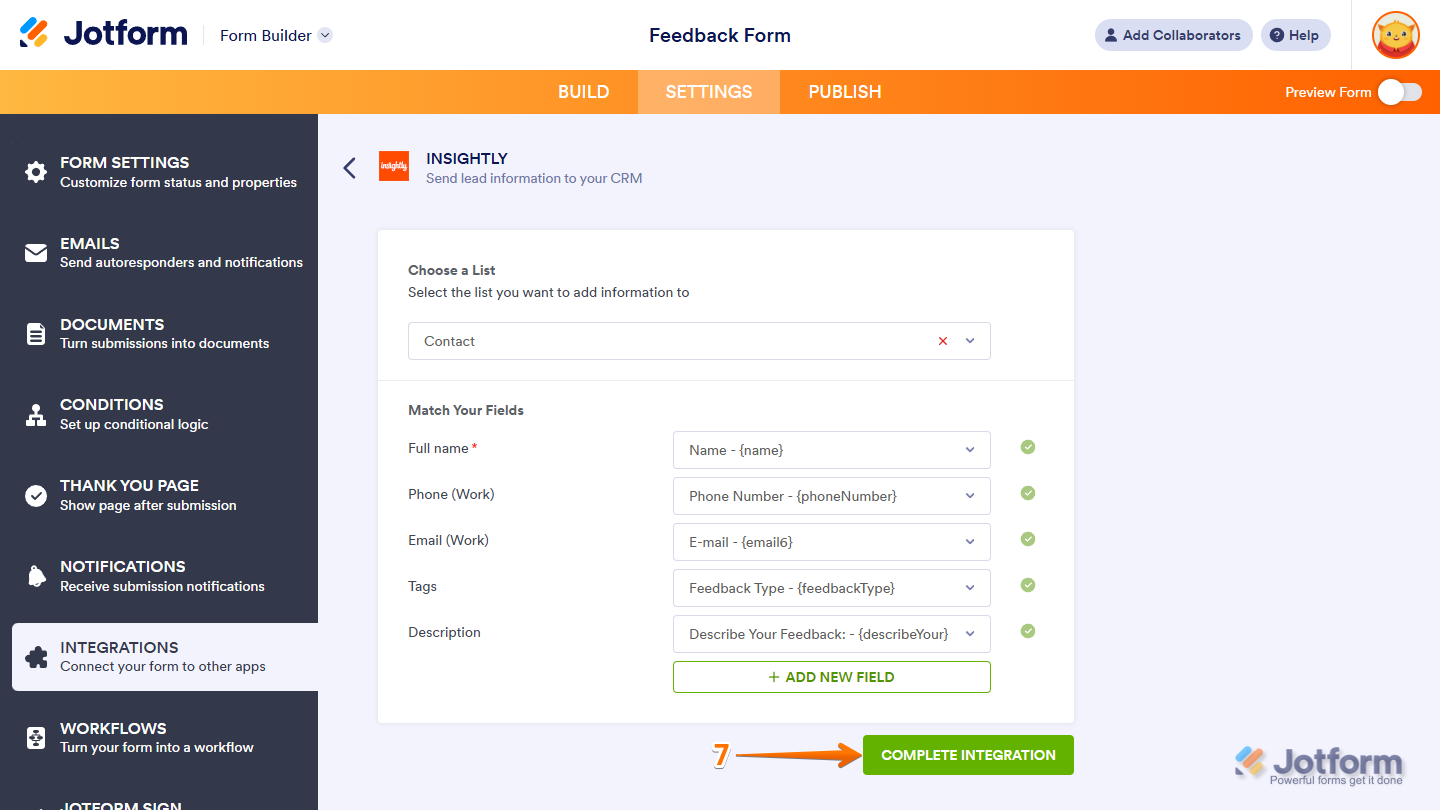
- Once everything’s set, click on Complete Integration.
- Then, finally, click on Finish.
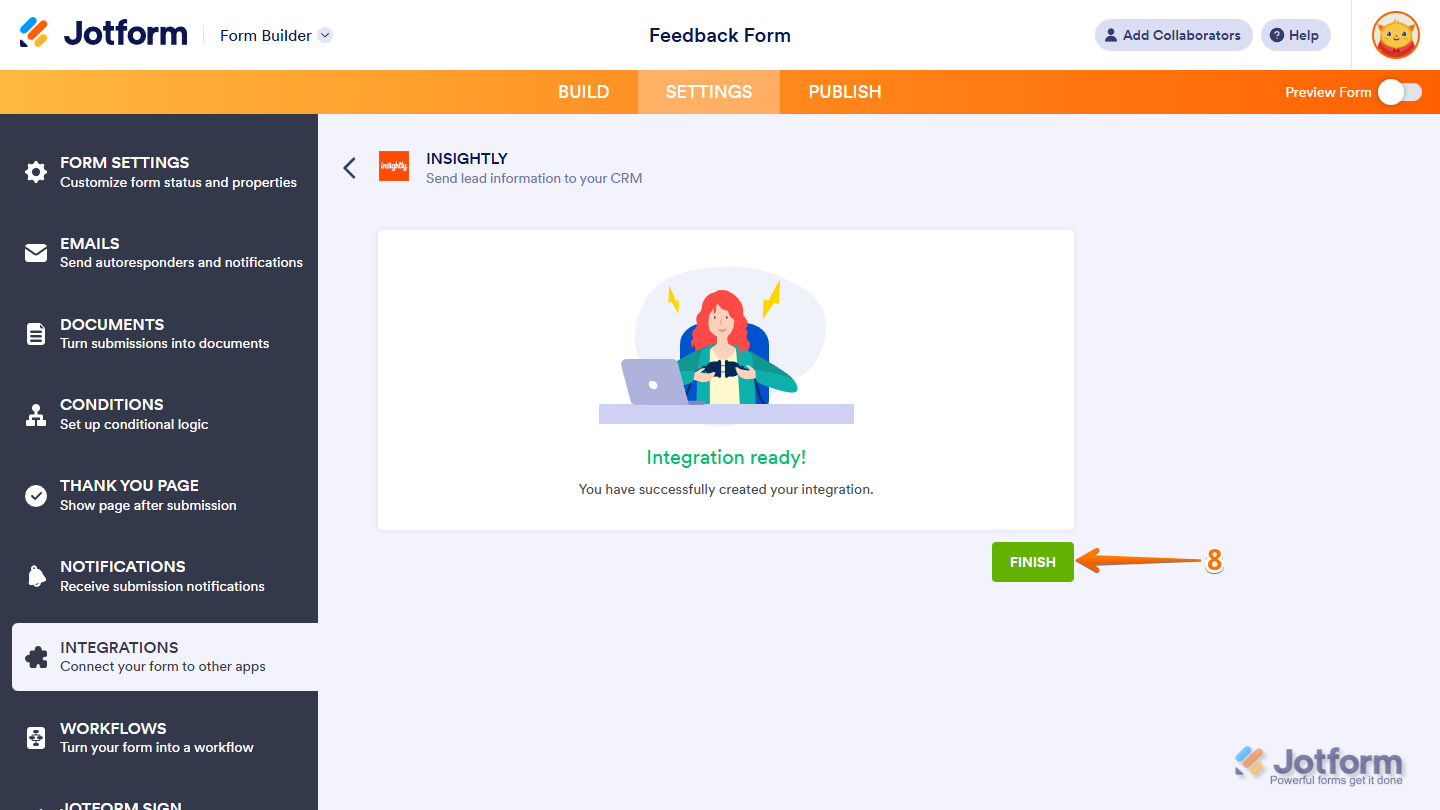
That’s it. Your form is now ready to send data to Insightly CRM.
Getting Your Insightly API Key
To set up this integration, you’ll need your Insightly API key. Here’s how to get it:
- Log in to Insightly and, on the top-right side of your Home page, click on the User icon or your Profile Picture.
- Then, in the menu that comes up, click on User Settings.
- Now, in User Settings, in the API section, copy your API key.
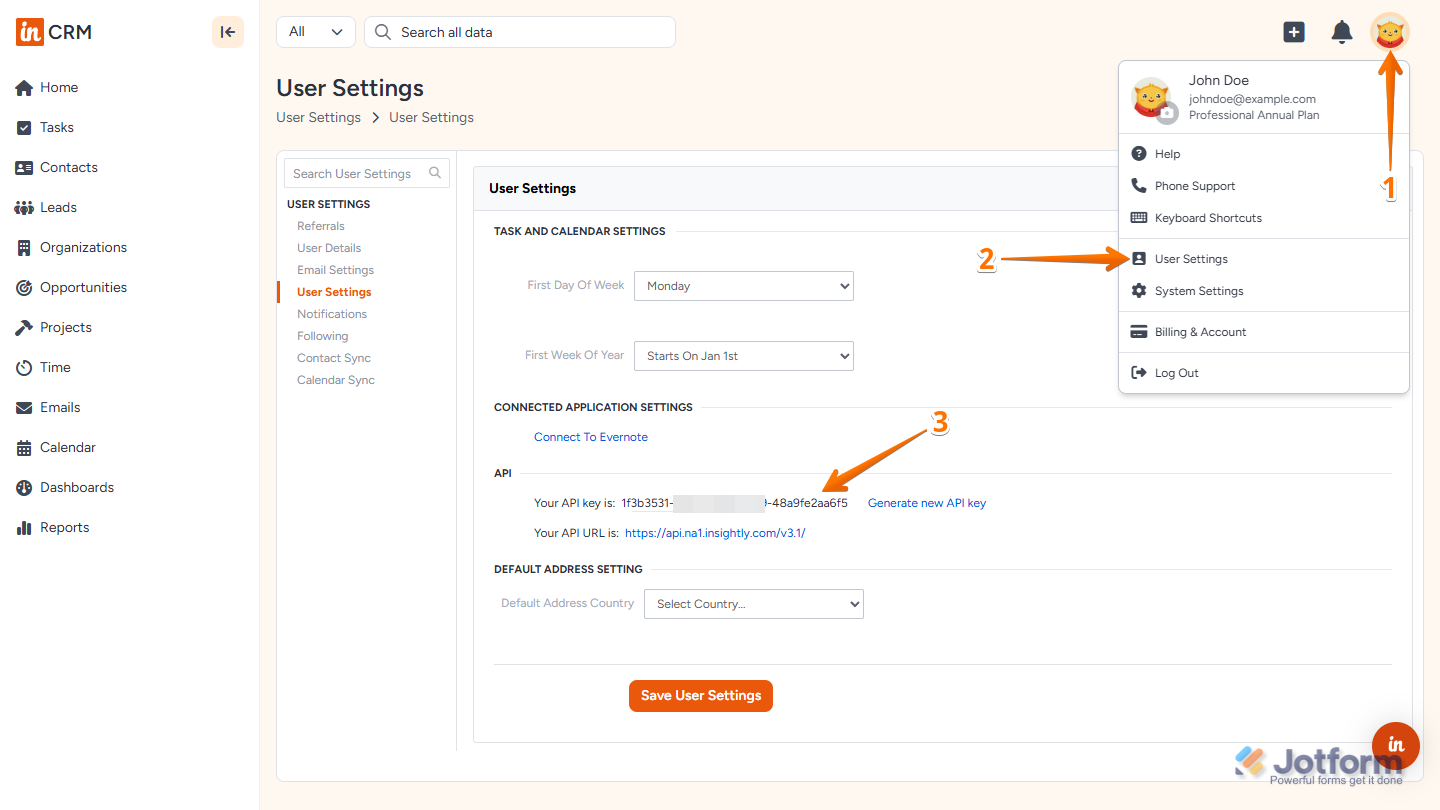
That’s all it takes to get your API key. Now, you’re ready to integrate your form with Insightly.

Send Comment:
18 Comments:
June 23, 2021
Most of my form/ Insightly lead fields have mapped across brilliantly. However, not all of my Insightly lead fields are shown in the drop down. One in particular is a multiselect field. It exists on the jot form as a multiselect and exists in Insightly on the lead as a multiselect (both with identical options). Why can't I map this or see it in the integration filed drop down?
April 27, 2021
im trying to call a date field form my insighty to be matched with the Jotform is this possible
April 26, 2021
What is the best field to use in jotform that can be matched up to 'tag' the contact in Insightly?
January 5, 2021
How do I push jotform data into a custom object? I only see the standard Insightly object lists available in the integration widget.
April 11, 2020
I would like to use my website form to bring leads to insightly. Please advise. I do not want to use the sightly form option.
June 21, 2019
I would like to create tasks for my Team Members in various Departments according to a Field chosen by the Select Tag in my Jotform.
February 10, 2019
I would like to be able to fill out a form in Google Forms and be able to link it to an existing project or organization in Insightly. Specific example - when I go do a client visit, I want to collect information to be able to put it in a form (type of Boiler preference, date of original install, issues, etc.).
Thanks in advance,
Josée
October 17, 2018
I would like to know if my form can not only create a new contact record but match, say, based on name or another custom field, and update an existing Insightly contact record. Is this possible?
August 24, 2018
How are the surveys handled?
April 4, 2018
pagseguro is returning error messagem because jotforms is not sending cardholder birthdate, area code and phone.
October 10, 2017
One of my forms on my website include an uploaded file. So the user will enter their name, email address and upload a file (of a specific design they have created). Can this uploaded file be integrated into Insightly or is the integration restricted to entered fields.
July 7, 2017
I integrated Insightly and chose the "Project" option when asked to Choose a List. However when I filled out and submitted the form I received an error message: Insightly Integration Error! apiProject Required property 'PROJECT _NAME'not found in JSON. Path", line 1, position 24
I then removed the integration, cleared my browser's cache, generated a new Insightly API key, and re-added the integration.
However, I received the same error message again. Except the last name indicated "...position 57" and not 24 (first error message)
February 19, 2017
I have a form with several fields, but I can only match up to 3. It's important that all the info entered into the form lands in Insightly. Is there a way to transmit all the fields?
January 12, 2017
I've done the above but when I tried testing the form on my facebook page this is the error I received:
Oops!
Insightly Integration Error!
API User does not have access to Lead.
December 18, 2016
Can jotform also create task in Insightyly at the same time??
July 20, 2016
I entered the API key to include Insightly, however it is not passing the fields over for me to select.
Need help! thanks.
July 11, 2016
This is exciting that we are getting this integration! However, my form creates both a project and a contact at the same time. Therefore, I would like to seethe ability to add both a project and a contact and not have it set up as an either or. Thanks!
June 28, 2016
I followed the instructions above and it works like a charm. But now I'd like to modify the matching of the fields. How do I do that. If I click on "integrations" I am asked to enter my api again and go through the whole process again...
Christoph