Jotform makes managing form assignees simple and stress-free. By assigning forms to your team or colleagues, they can collect information on your behalf from any device, helping things move along faster without the back-and-forth. From your account, you can easily keep an eye on their submissions, track progress in real time, review the data as it comes in, and make sure everything stays on track for a smooth and efficient data collection experience.
Note
Only the form owner and users who’ve been given the right permissions can view assignee submissions. If you’re not seeing the data you expect, take a quick moment to check that you’re logged in to the correct Jotform account and that your access level allows you to view those submissions. Once that’s sorted, everything should be right where you expect it to be.
Viewing Assignee Submissions
Whether you’re working together on a project or collecting responses from your team, you can easily view their submissions and keep everything organized in one place. Setting it up is quick—here’s how:
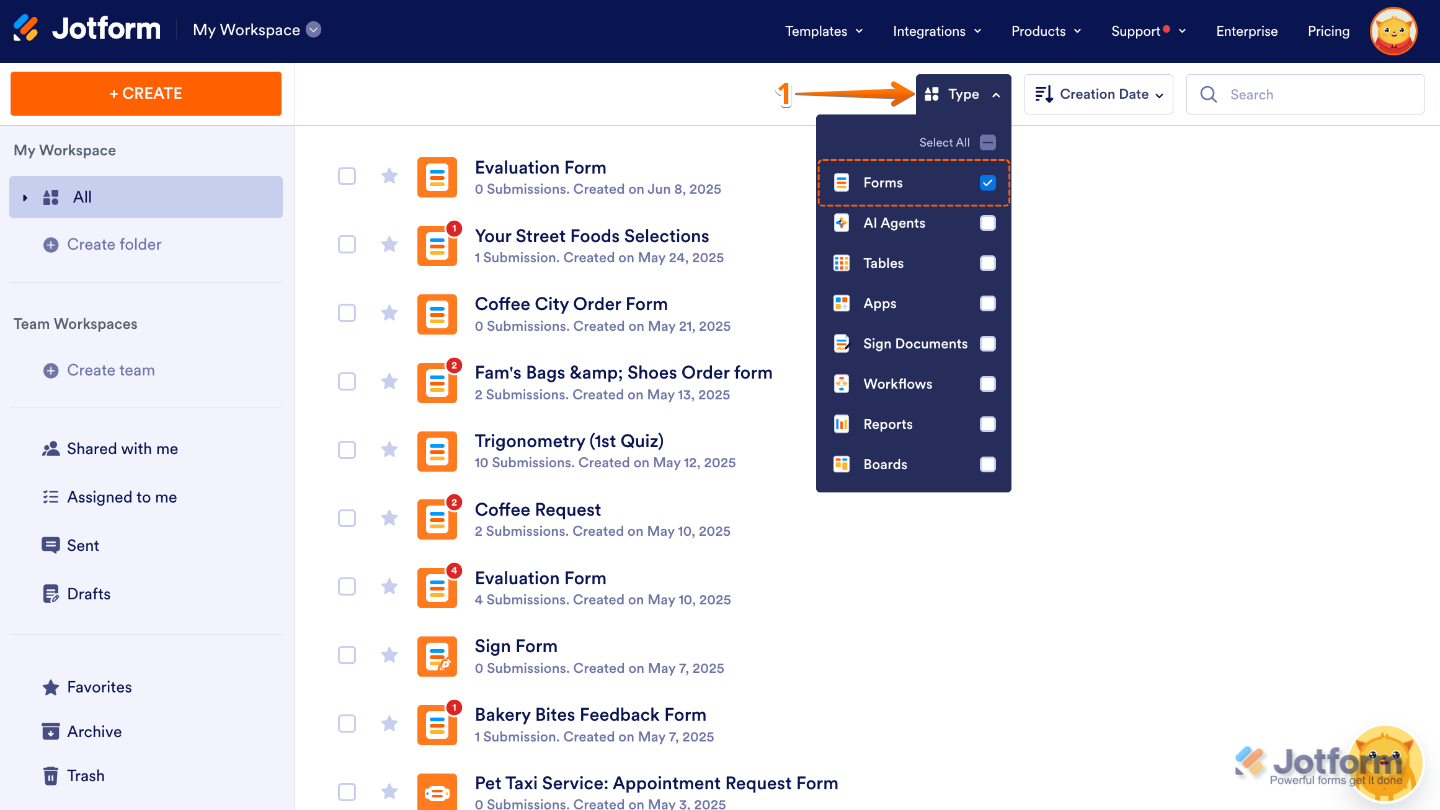
- On your Workspace page, click on Type at the top and in the Dropdown menu that opens, uncheck the boxes next to all the assets except Forms, so only they’ll be shown on the page.
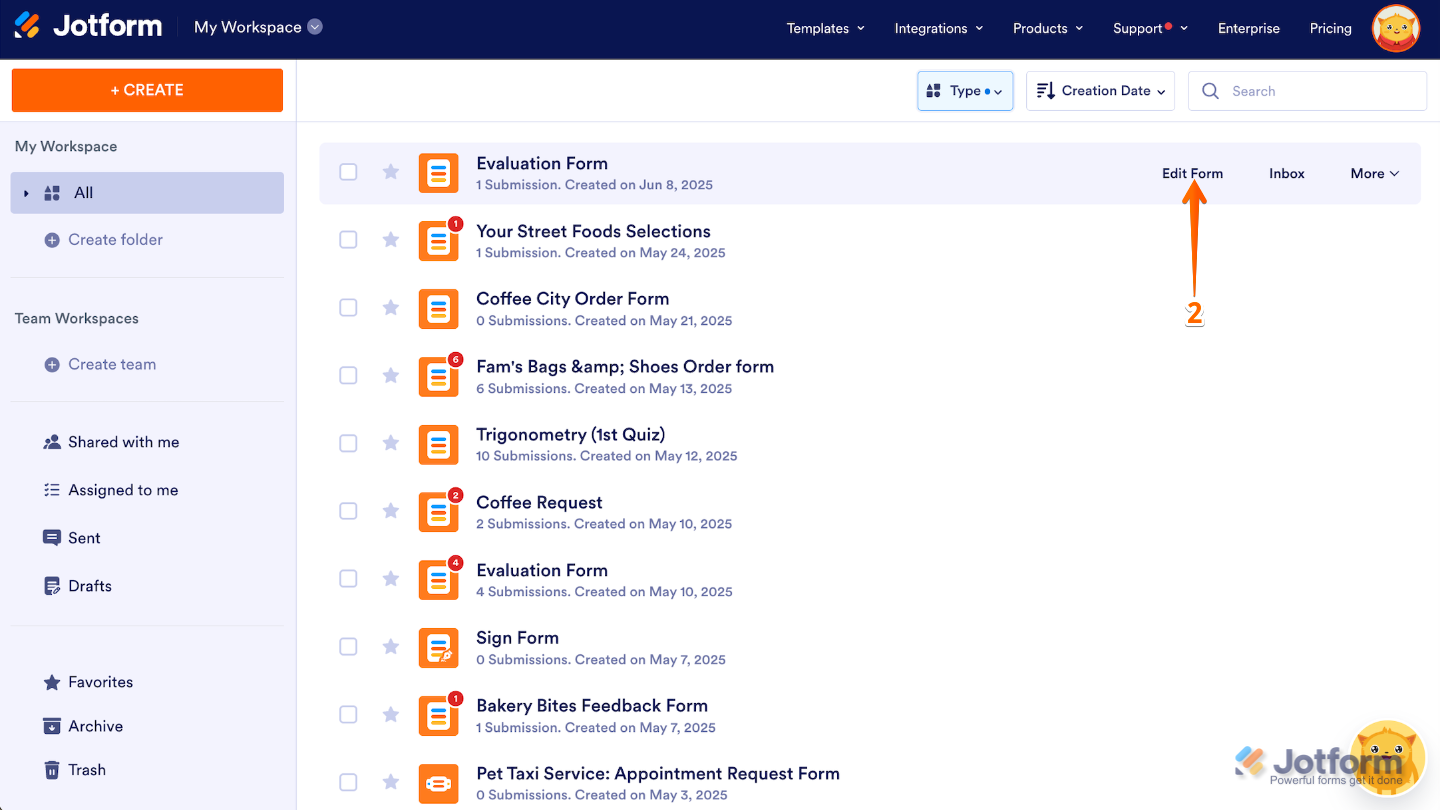
- Now, hover your mouse over the form you want to manage, and click on Edit Form on the right side of the page.
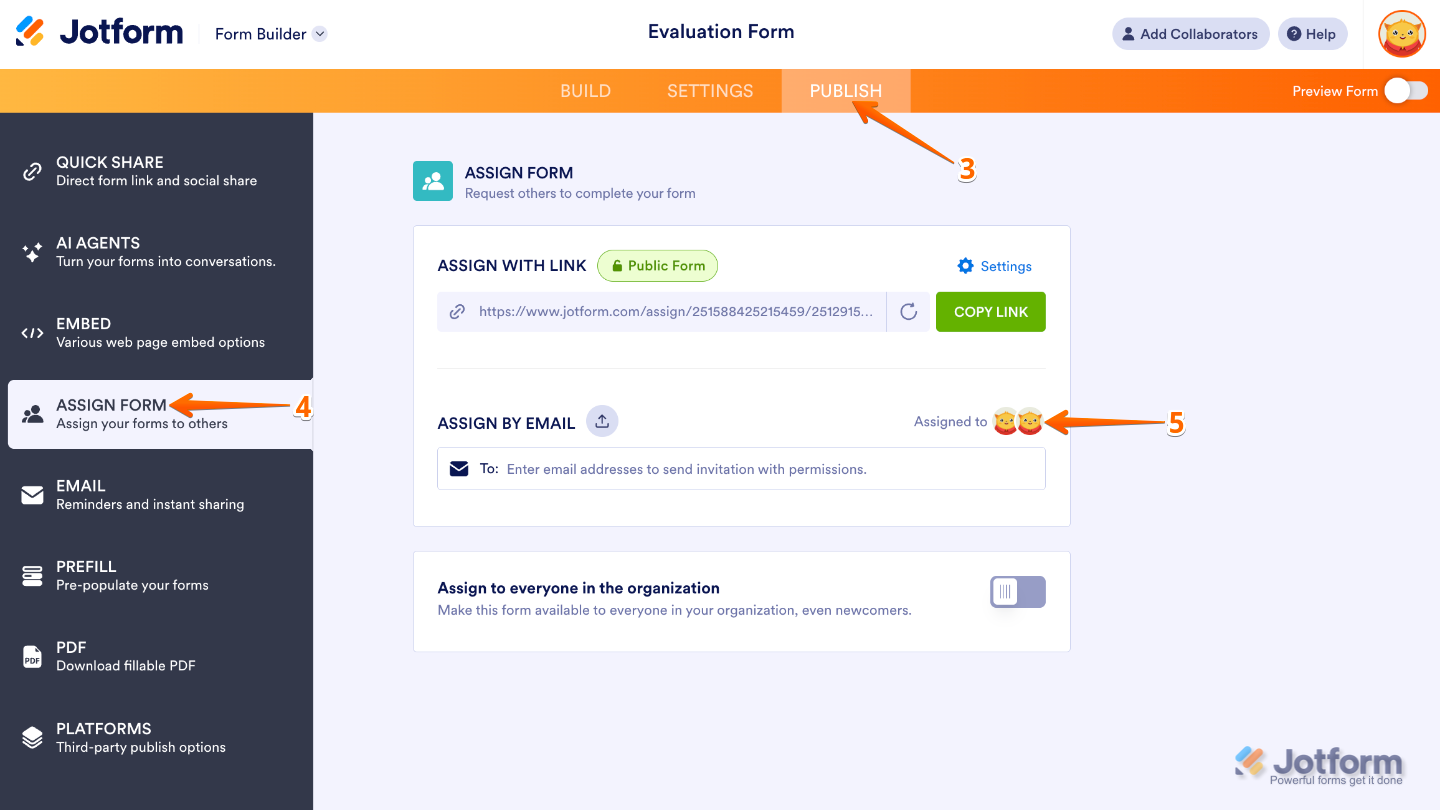
- Next, in Form Builder, in the orange navigation bar at the top of the page, click on Publish.
- In the menu on the left side of the page, click on Assign Form.
- Then, in the Assign by Email section, click on Assign To.
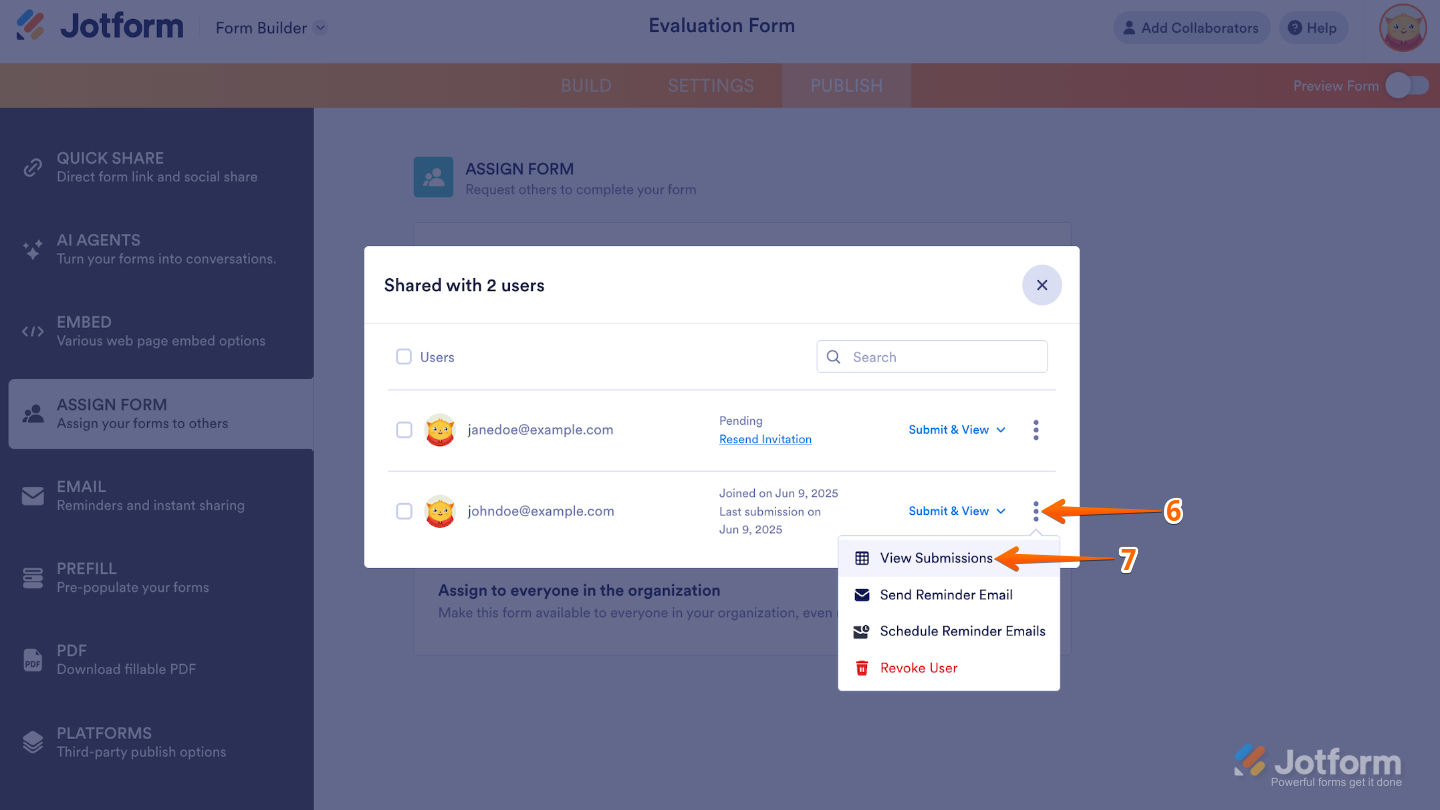
- In the Assign to Users menu that pops up, click on the Three Dots icon next to the assignee you’d like to check.
- Now, in the Dropdown menu, click on View Submissions.
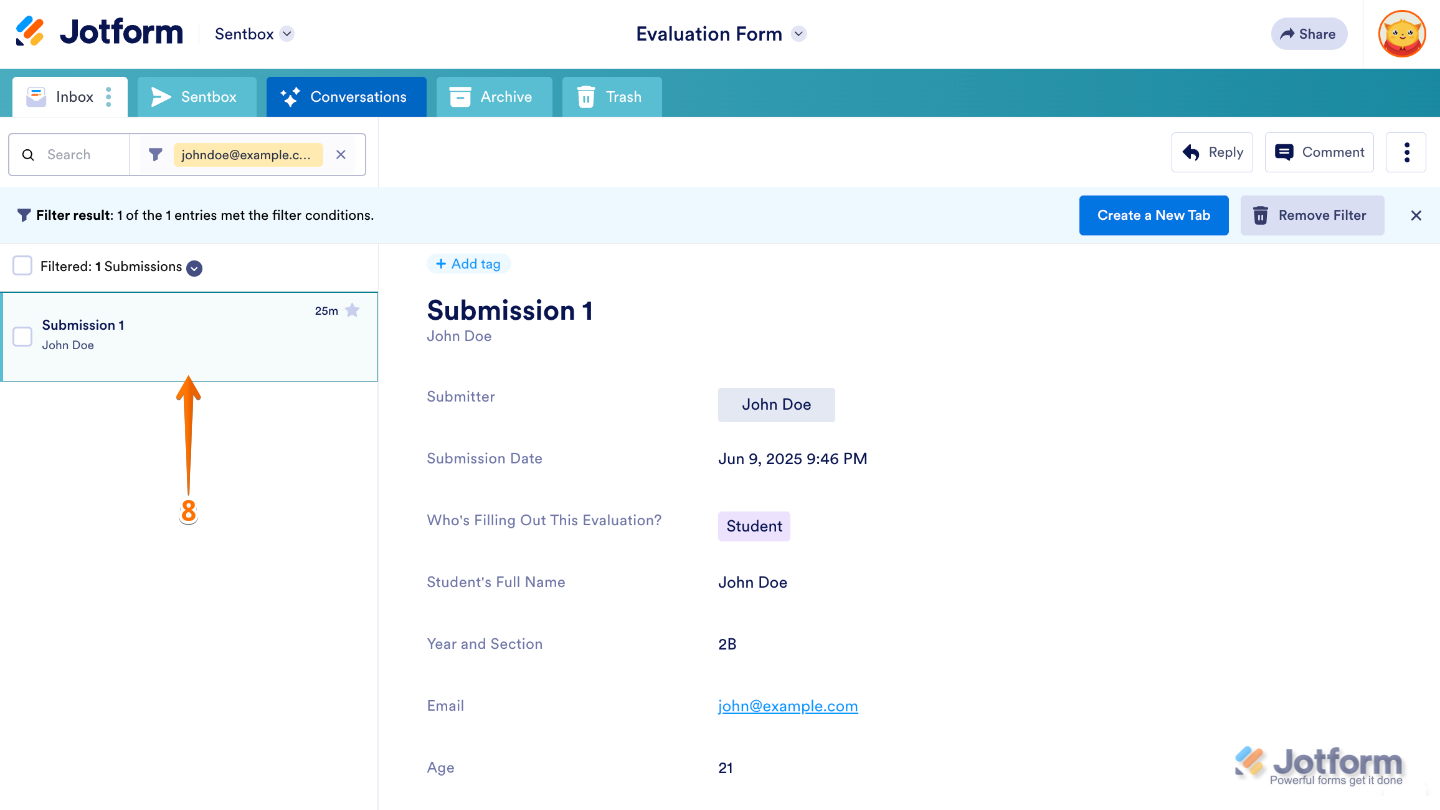
- After that, you’ll be redirected to the Form Inbox where you can see the submission details.
Take a peek at our guides on How to Access Jotform Inbox and How to Search and Filter Submissions in Jotform Inbox to learn more.
Pro Tips
- When a submitter’s collected submissions are filtered in the main tab of Jotform Inbox, click on the Create a New Tab button at the top to set up a separate tab for that assignee. This makes it easier to manage and track submissions by assignee. See How to Organize Your Inbox With Tabs for more details.
- For easy tracking, encourage your assignees to log in to their Jotform account before filling out the form. This way, their submissions will be automatically linked to their user profile, making it quicker and easier to review who submitted what.

Send Comment: