Jotform’s Ziggeo Video Player widget lets you embed videos directly into your form so users can watch content without leaving the page. By adding a Ziggeo-hosted video, you can provide instructions, demonstrations, or announcements that help users better understand what they need to do before completing your form.
Here are a few ways to use it:
- Add instructional or tutorial videos to your form.
- Share product demonstrations or announcements.
- Provide visual guidance before users fill out fields.
- Make your form more engaging with embedded video content.
Whether you’re creating a new form or updating an existing one, you can add and set up the Ziggeo Video Recorder in a few easy steps. Here’s how to do it:
- In Form Builder, click on Add Element on the left side of the page.
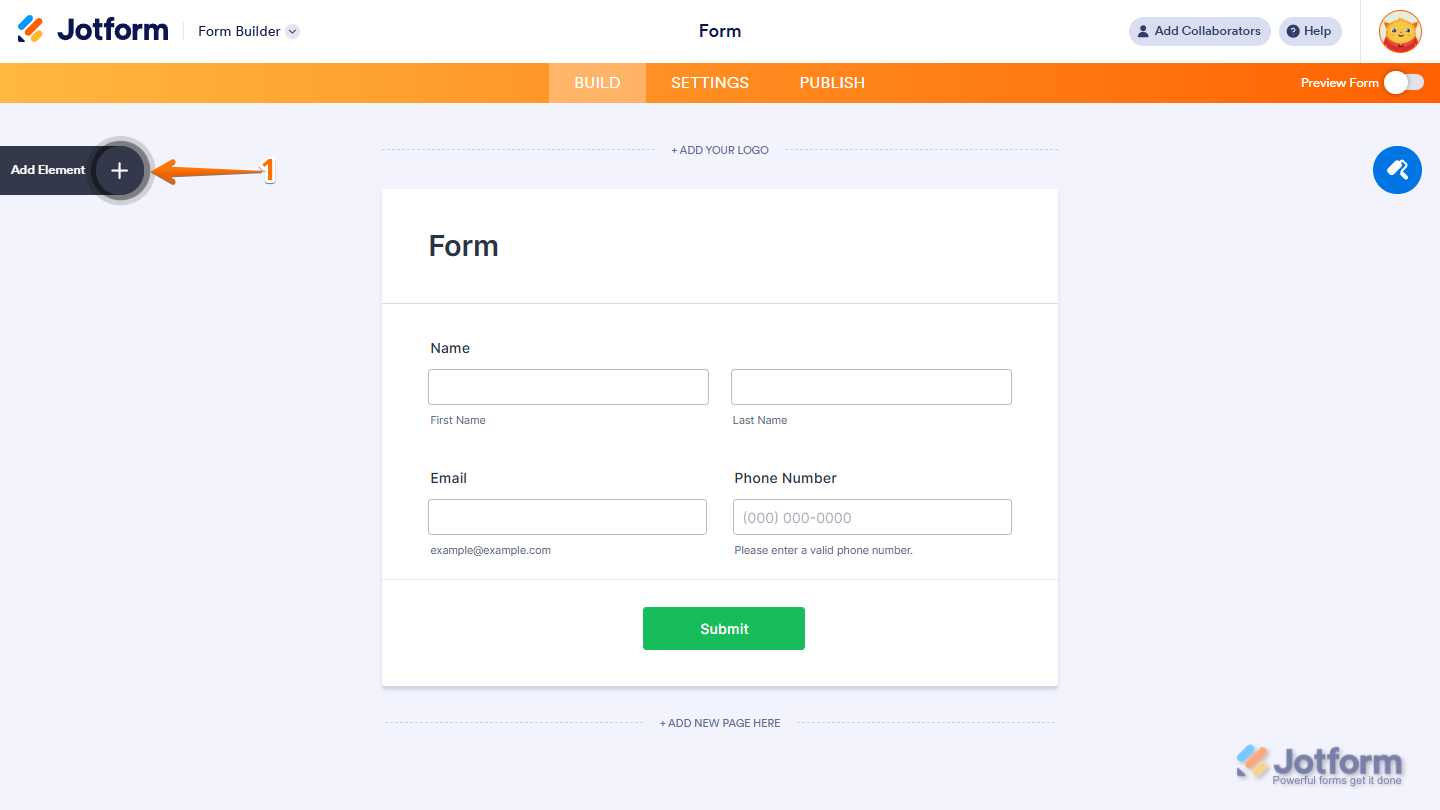
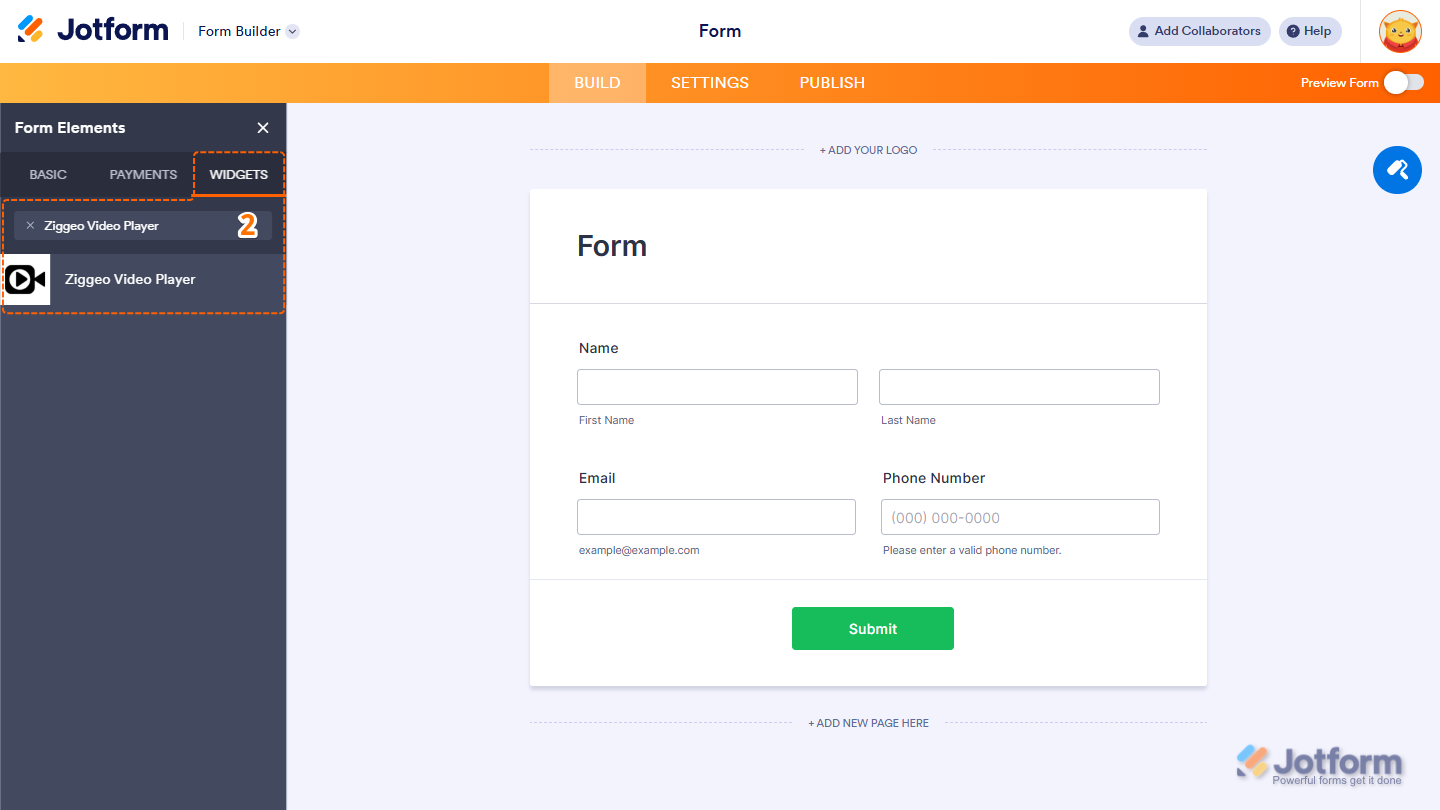
- Now, in the Form Elements menu, under the Widgets tab, search for Ziggeo Video Player and click on it. Or, just drag and drop it to where you want it to be on your form.
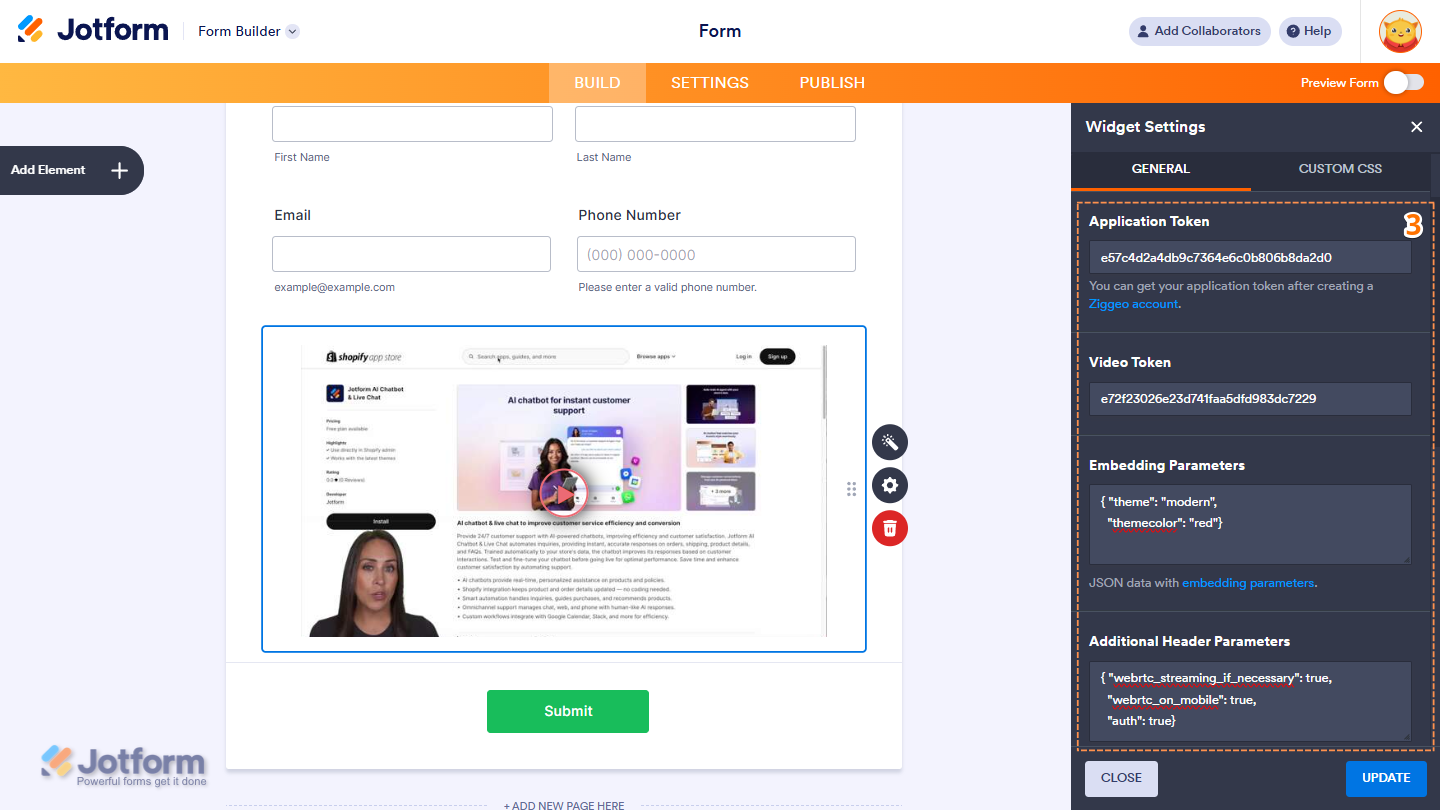
- Next, in the Widget Settings window that opens on the right side of the page, under the General tab, set up these things:
- Application Token — Paste your Ziggeo Application Token. You can get this from your Ziggeo Dashboard after creating an account.
- Video Token — Enter the token for the specific video you want to play.
- Embedding Parameters — If you want to customize how the recorder looks or behaves, you can enter JSON embedding parameters here. The widget already includes default settings, so you can leave this blank unless you need a custom setup.
- Additional Header Parameters — Add extra JSON header parameters only if your workflow requires them. This is not needed for standard use.
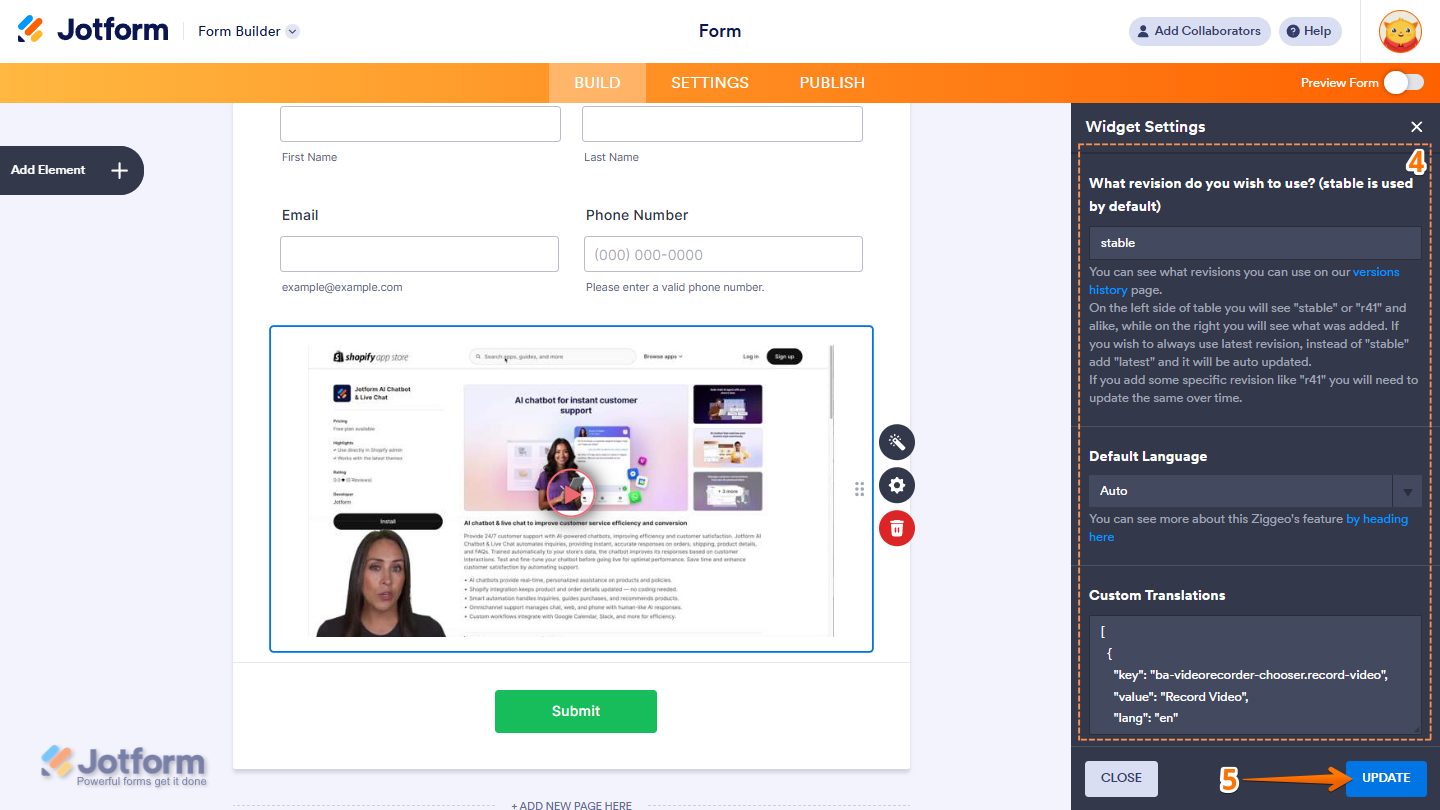
- Then, scroll down to the bottom and continue to set up these settings:
- What is Revision Do You Wish to Use? — Choose which Ziggeo revision to use. “Stable” is used by default and is recommended for most users. “Latest” automatically updates the widget to the newest version. You can also enter a specific revision (e.g., “r41”), but this requires manual updates over time.
- Default Language — Select the default language for the recorder interface.
- Custom Translations — Add your own translations using valid JSON. Only needed if you want to override Ziggeo’s default interface text.
- Once everything’s set, click on Update.
That’s it. You’ve successfully added and set up the Ziggeo Video Player widget on your form.
Note
- For advanced styling of the Ziggeo Video Player widget, you can add your own custom CSS code under the Custom CSS tab in the Widget Settings. Our guide on How to Inject CSS Codes to Widgets walks you through everything.
- To style the fields and labels in the Ziggeo Video Player widget, you can inject custom CSS into the Custom CSS tab in the Widget Settings. Need help getting started? Our guide on How to Inject CSS Codes to Widgets shows you how to do it.

Send Comment: