Jotform Widgets help make Creating Interactive and Dynamic Forms much easier. Whether you’re adding an interactive checklist, an image slider, or even an embedded video, there’s a wide variety of widgets you can use to enhance your form’s functionality and improve your users’ experience. Best of all, you can do it all without writing a single line of code.
Adding a Widget to Your Form
Navigating, selecting, adding, and customizing widgets to fit your needs is super easy. Here’s what to do:
- In Form Builder, click on Add Element on the left side of the page.
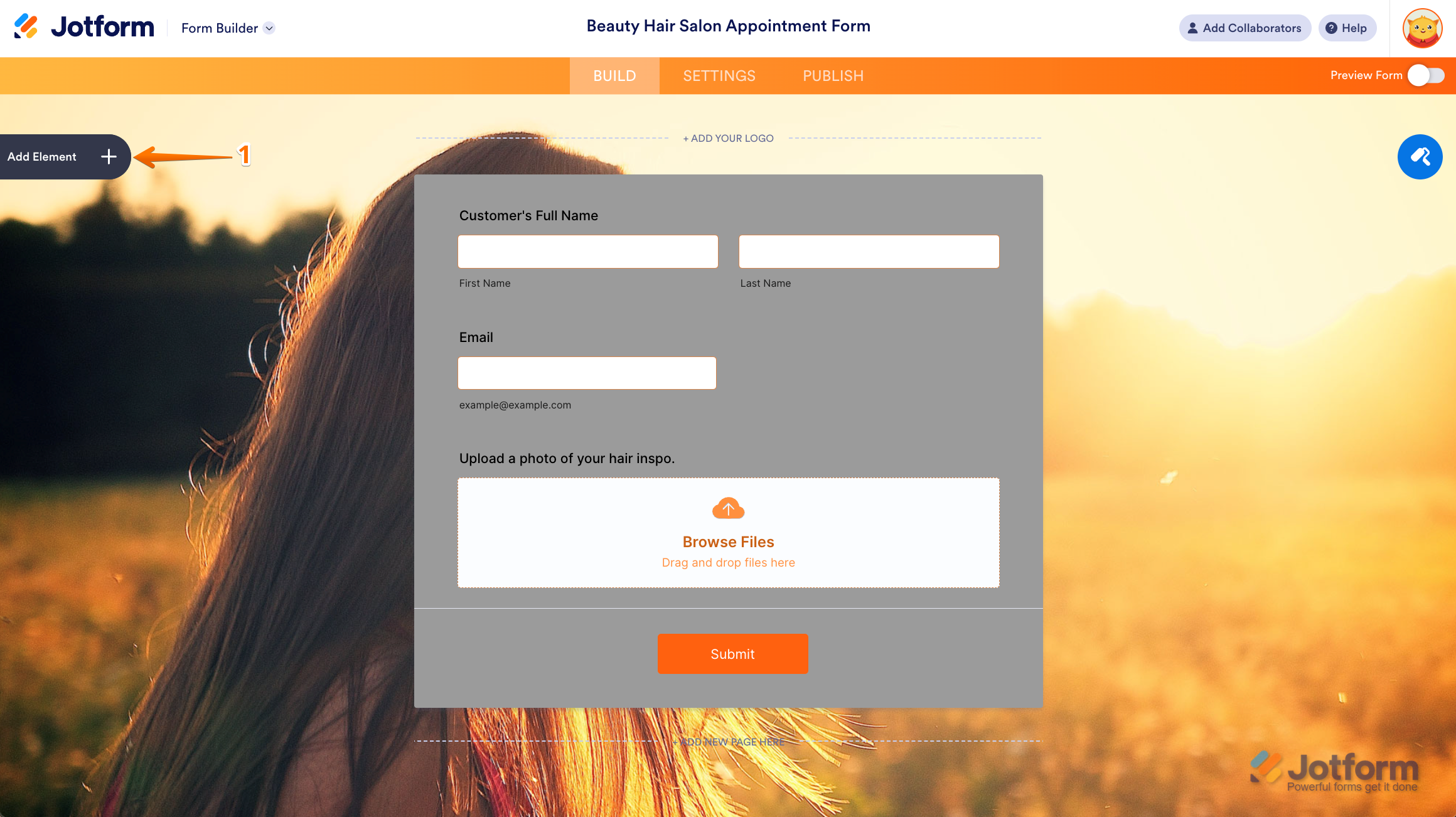
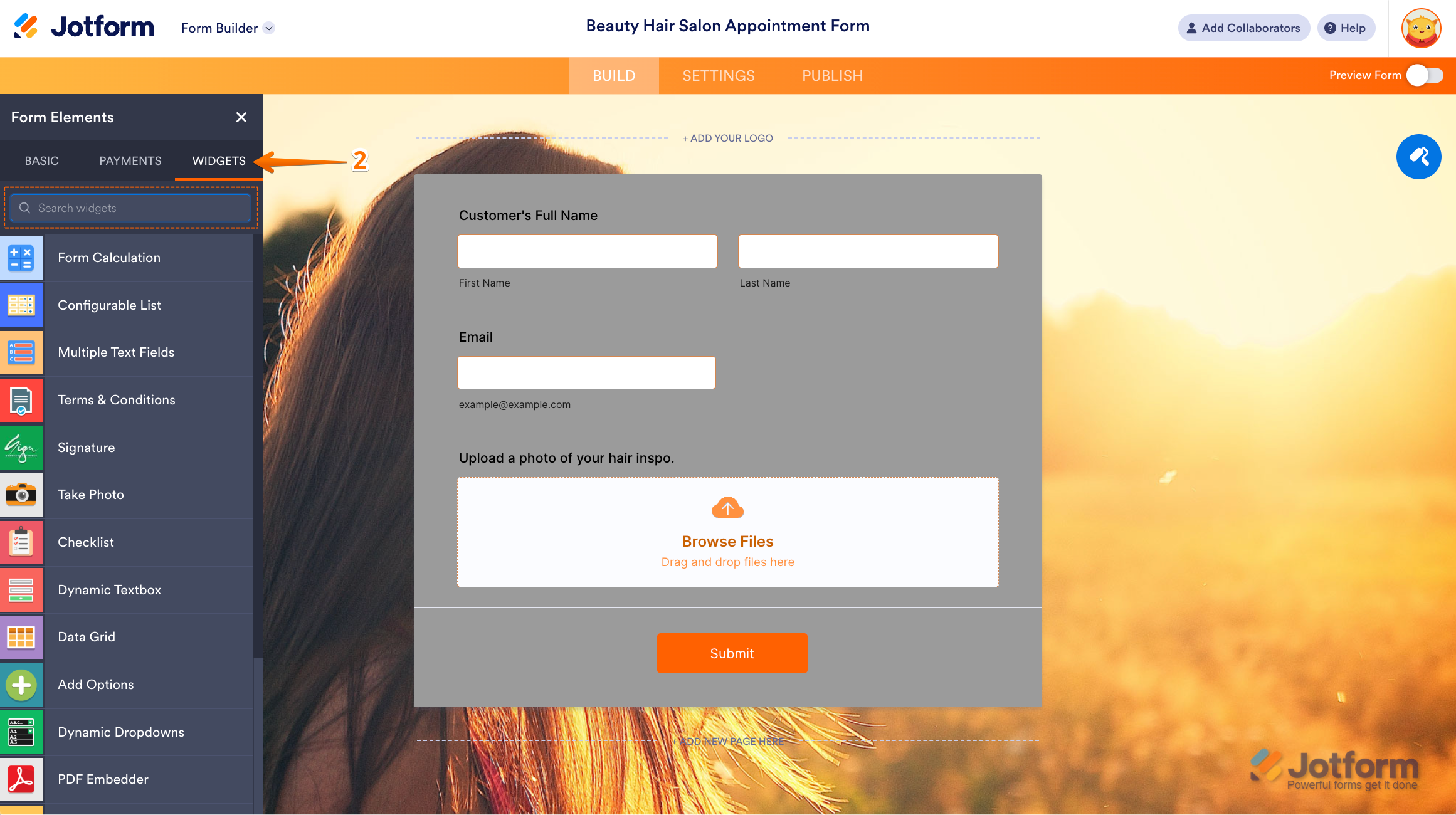
- Then, in the Form Element menu, click on the Widgets tab to search for the widget you want to use.
- Now, click on or drag and drop the widget to your form.
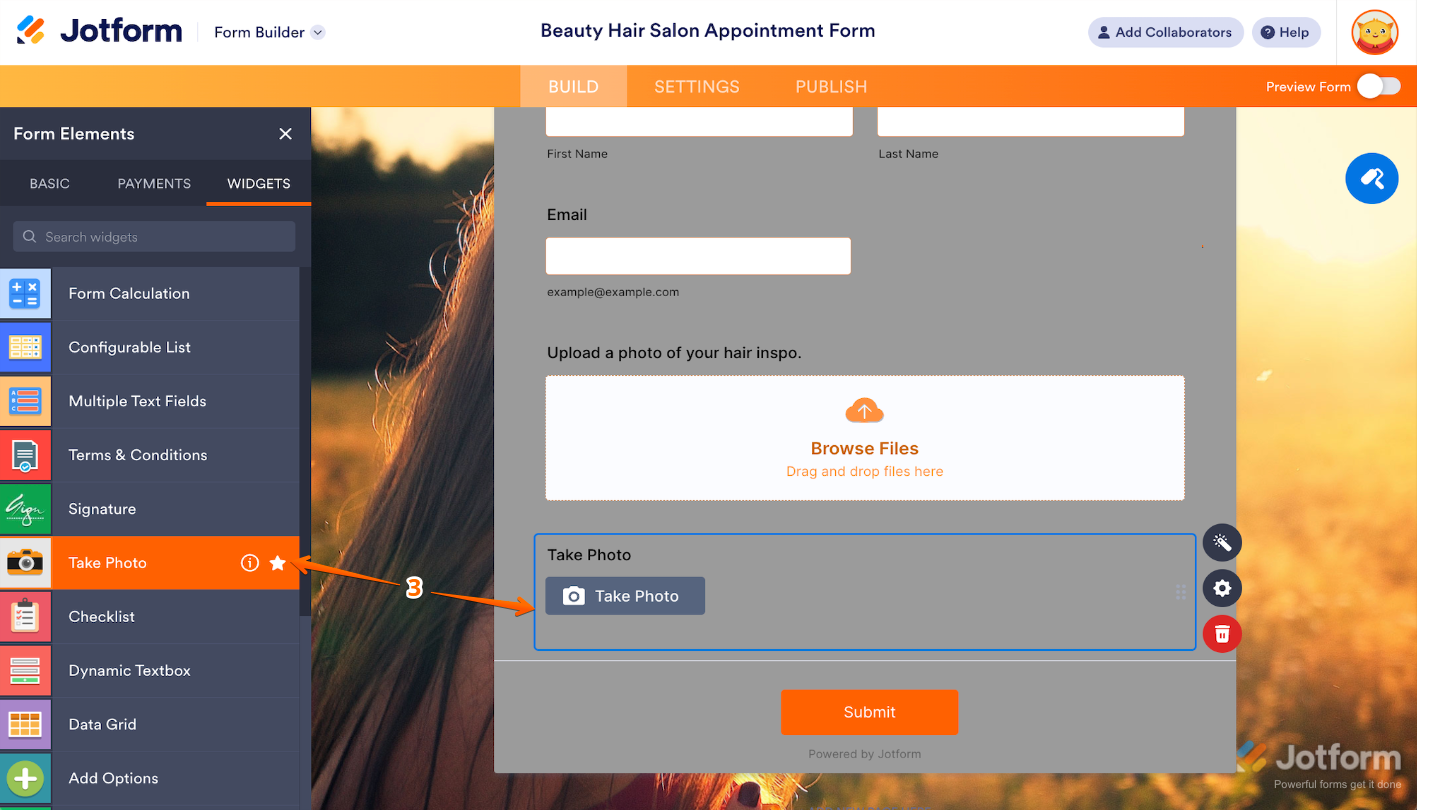
- Next, on the right side of the selected widget, click on the Wand icon.
- In the Widget Settings panel on the right side of the page, set up the options the way you want them, and click on Update to save your changes.

- In addition, if you click the Gear icon, it’ll open up the Question Properties menu that will give you more options to customize the widget. For a full breakdown of how to do it, head over to our guide on How to Access and Configure the Question Properties of a Widget.

That’s it. You now have an interactive and dynamic form that’s ready to engage your users and make their experience smoother and more enjoyable. You can always come back and tweak it anytime to better fit your needs as you go.
Note
Every widget comes with its own Properties menu, where you’ll find General and Advanced tabs for extra customization options. You can also tweak the widget’s appearance by injecting custom CSS if you want a more personalized look. For more details, check out our guide on How to Inject CSS Code Into Widgets.



Send Comment:
46 Comments:
October 29, 2024
I have tried to add the widget to only allow applications from US, as we have recently received responses from Morocco. My daughter, who lives in UK, can still access the form.
Please advise.
March 20, 2024
What if the widget i need in not on the list? can i somehow integrate more widget from internet to jotform ?
December 22, 2022
Are widgets meant to work with the available Integrations as well as basic form elements?
October 31, 2022
Como hacer un timesheet para mi tranajo. Sabado y Domingo solamente
September 24, 2022
Hello
How do I enter a filed which will enable the customer to upload their driver's lic or other documents
September 7, 2022
Thanks.. that widget worked...
April 26, 2021
Hi, I want to include select top 5 question. May I know if the orderable list is able to do that? Or check all that applies limit to 5? How to specify that?
March 19, 2021
I have tried to add the Docusign widget but it doesn't show up when I preview. I have authenticated it. Is there something else I need to do?
July 13, 2020
Hi! I'd like to show the customer a list of what they are purchasing before they leave the form. How do I do that? (the purpose is for them to verify what they'd like to purchase)
July 9, 2020
I need a live customer service to help me
June 27, 2020
Hi, I am trying to figure out how to add a table to my form that a person can type an answer in each cell. The columns would be Age, Event and What Happened. For each event, they need to enter their age and what happened.
Thanks,
Louise
May 15, 2020
I added a widget to my form but when I embed the form in the article everything is showing up but the widget. That section just comes up blank.
April 28, 2020
how can I pass the values from a widget to something like air tables, I want to pass the value of the voice recorder widget to a field in airtable. Is this possible?
February 18, 2020
How can I add a widget made by me to my form?
February 17, 2020
Hi
Can i have process to add widget for the camera photogrphs.
Thanks
October 14, 2019
how do i get the Preview Before Submit widget in my list so i can add it to an existing form?
April 11, 2019
Yes, thank you, but I do not see "Global Count down" when I tape this in search...
March 11, 2019
Hy I wanted to use jotform with Hotjar recordings, so I asked you how can I do this.
You suggested to use CLASSIC FORM and embed the source code in my site. So I did, and everything is good, except the widgets in my form. The widgets somehow are not showing up on my site when I implement the source code.
Any suggestion?
What I would like to use as widget is the image selector...this would be the product selection tool that people can send me through form to get the quotation..
April 5, 2018
Nope. none of the widgets allow me to create a table. I love to sign up but so far, unable to create table which is what I need. Suggestions please!
January 14, 2018
I created a dynamic dropdown, but once I close the Widget Settings after creating I cannot seem to edit the options. Is there a way to edit the drop-down options after closing the Widget Settings or do I need to create a new widget to make edits?
June 6, 2017
Please update Widgets
December 21, 2016
what about google maps
how i can add it in my form to get locations of responsers
December 20, 2016
I need to resend my form to multiple people. Each time the form goes out, the recipient can choose an item from "inventory". When I try to add new items to the inventory, they add in as already having been chosen. Help.
October 27, 2016
I am not sure I am reading this right. Are you offering to process payments for less than PayPal does (but we'd still use PayPal) or is it that actually you will now charge for us to link to paypal through jotform if we process more than 10 payments per month with them? we're very happy with jotform - and pay gladly for the service - but the ability to link to paypal to process fees for service seems integral and not an 'add on.' Can you please explain? Happy to discuss.
October 25, 2016
https://www.jotform.com/help/384-how-to-customize-pdf-submissions-report/