Purchasing a paid plan through the Jotform Mobile App gives you a convenient way to upgrade your account anytime, anywhere—right from your phone. Whether you need higher submission limits, more storage, or access to advanced features, the mobile app lets you review available plans and complete your purchase in just a few taps. With a streamlined in-app experience, you can quickly compare options, select the plan that fits your needs, and keep managing your forms on the go without interruption.
Notes
- The pricing is the same for both Android and iOS devices, though the steps for completing the payment for your chosen subscription may vary slightly between platforms.
- The Jotform Mobile App features a consistent user interface across Android and iOS, ensuring identical navigation to the upgrade section, as detailed in this article.
Purchasing a Paid Plan in the Jotform Mobile App
First, install the Jotform Mobile App and log in to your account. Then, for purchasing a paid plan, here’s what to do:
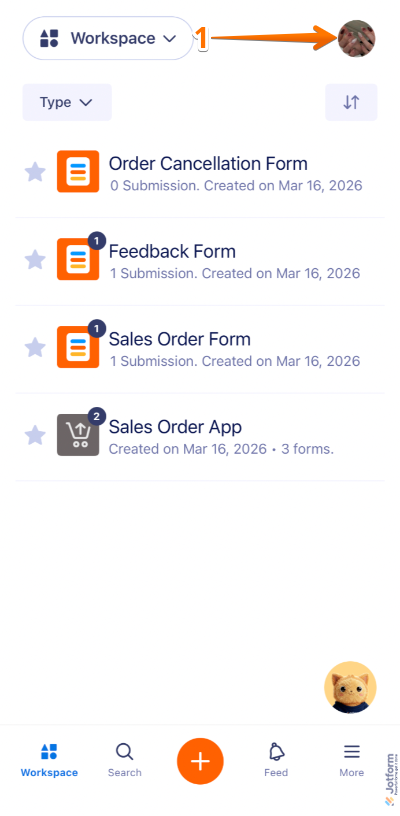
- On your Workspace screen, tap on your Profile Picture/Avatar on the top-right side view.
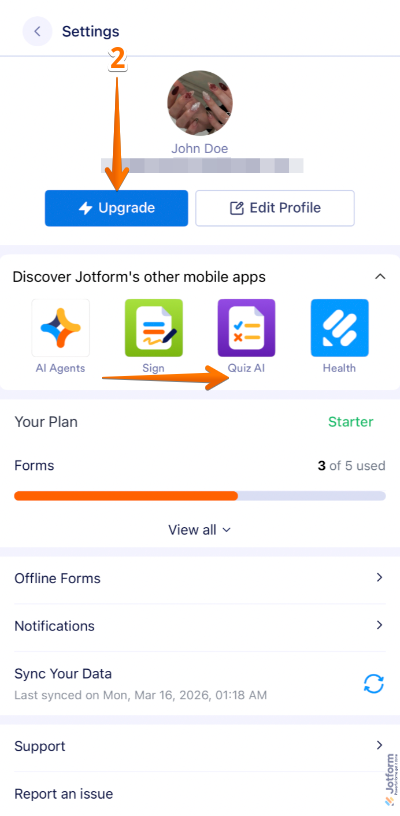
- Then, on the Settings screen, tap on Upgrade at the top part of the panel.
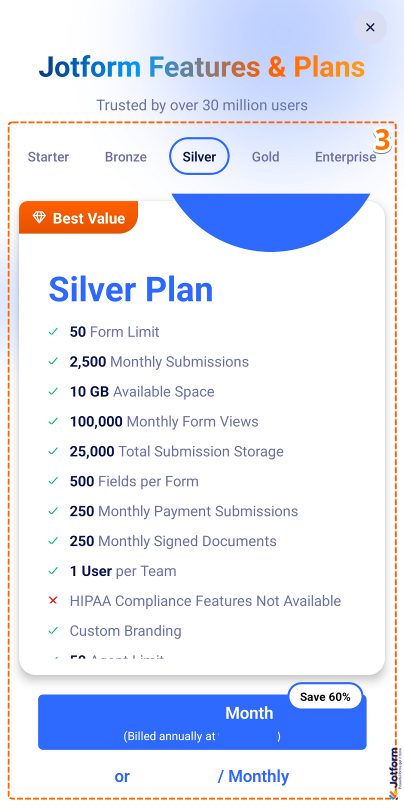
- Next, swipe through your preferred plan, and tap on Annual or Monthly Plan at the bottom.
- Now, tap on Subscribe for Android or press the Side Button twice on iOS devices.

Or, double-click the Side Button on iOS devices.

If you’re close to reaching any of your account limits, you’ll see an upgrade suggestion message appear at the top. Simply tap the Upgrade Now button, and you’ll be redirected to the third step mentioned above.

Note
The payment process may include additional steps that are not shown in this article. For example, you may be asked to confirm your payment using two-factor authentication (2FA), biometric fingerprint verification, or to verify your payment method on the same screen or a separate one. Simply follow the on-screen instructions to complete the process.
Canceling a Subscription
Since you purchased the subscription through Google Play or Apple’s App Store, you can only cancel the subscription through their platform. The cancellation process for both platforms is straightforward.
On Android
To cancel a subscription purchased through Google Play, you’ll need to manage it directly from the Google Play Store app on your phone. This is how it’s done:
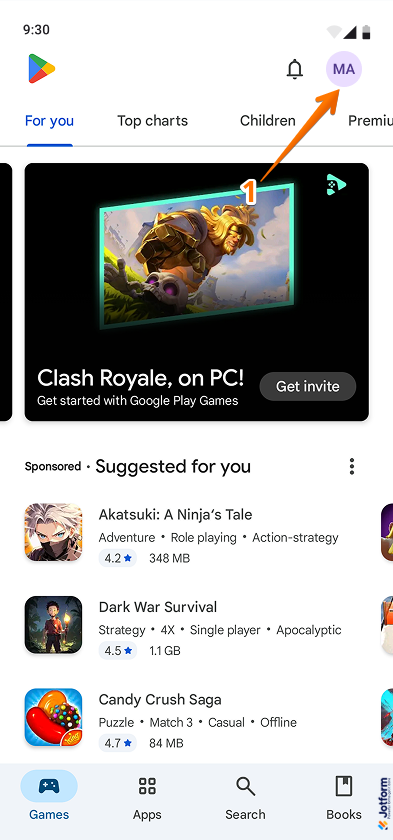
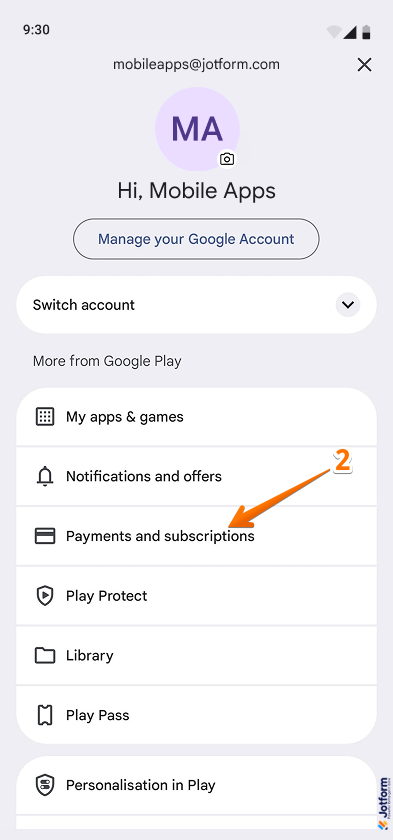
- In your Play Store app, tap on your Profile Picture/Avatar on the top-right side of the screen.
- Then, in the menu that opens, under the More from Google Play section, tap on Payments and Subscriptions.
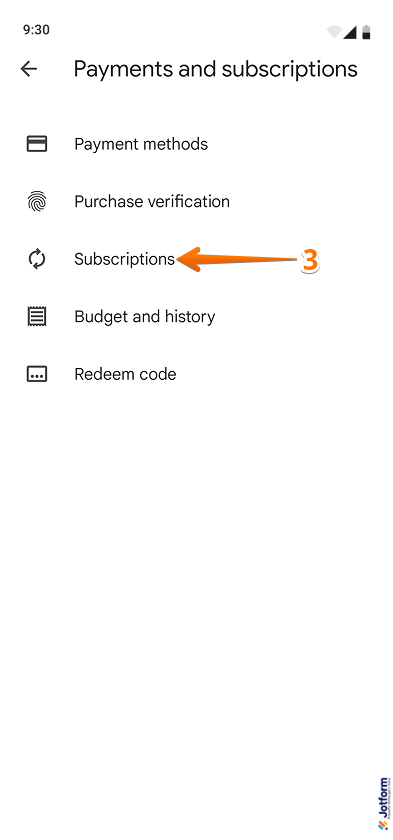
- Next, on the Payments and Subscription screen, tap on Subscriptions.
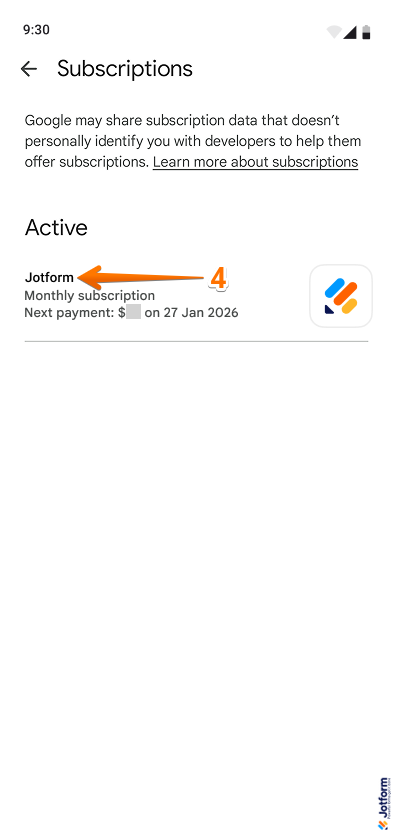
- On the Subscriptions screen, under the Active section, tap on Jotform.
- Then, in the Manage Subscriptions screen, tap on Cancel Subscription at the bottom.

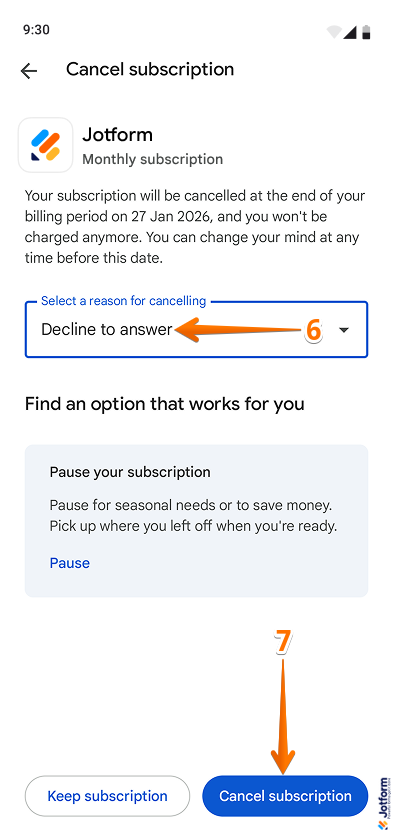
- Next, in the Select a Reason for Cancelling Dropdown menu, select one of the given reasons.
- Now, tap the Cancel Subscription button and follow the next prompt(s) to finally cancel your subscription with Jotform.
Check out Google’s guide on Cancel, Pause, or Change a Subscription on Google Play to learn more.
On iOS
Canceling a subscription on iOS devices requires accessing the Settings app and managing it from the Subscriptions section. Here’s what to do:
- In your Settings app, tap your name at the top of the screen.
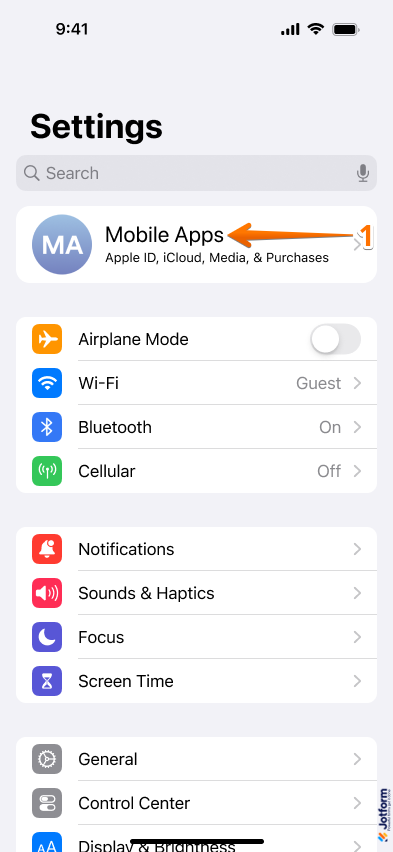
- Then, in your Apple Account screen, tap on Subscriptions.
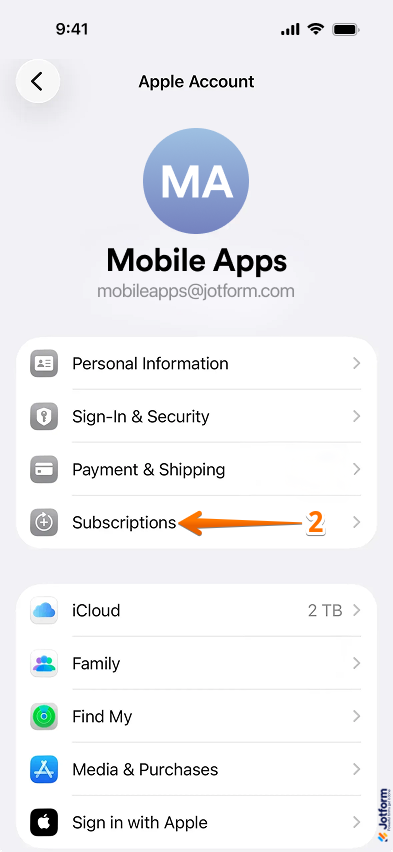
- Next, on the Subscriptions screen, tap Jotform from the list of your paid apps.
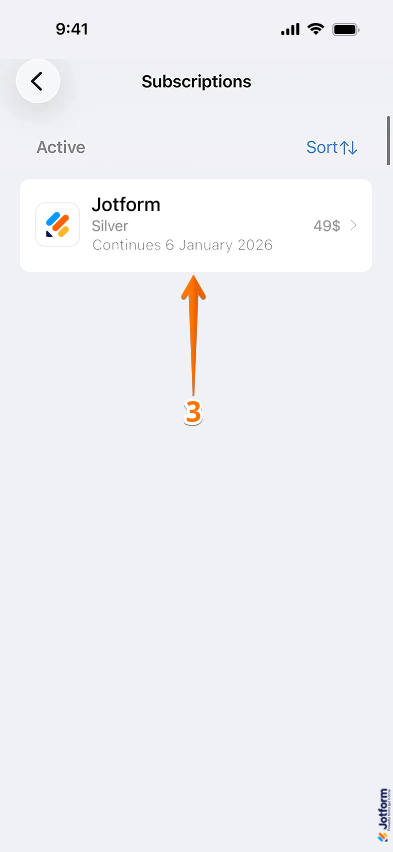
- Now, tap on Cancel Subscription and follow the next prompt(s) to finally cancel your subscription with Jotform.
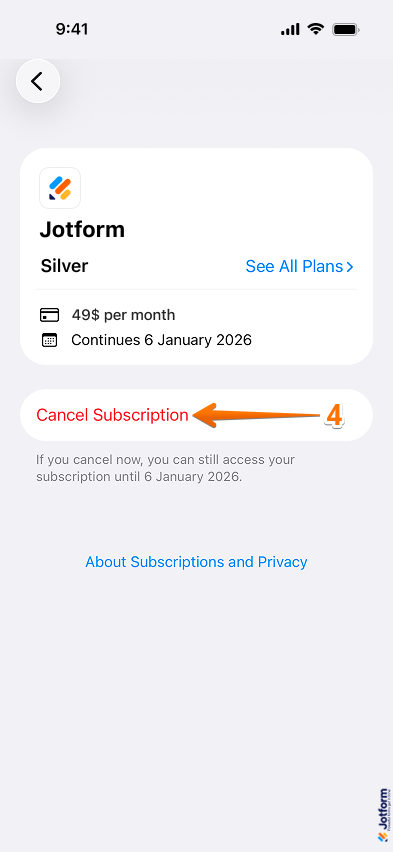
Take a look at Apple’s Support guide on Cancel a Subscription From Apple for more details.
Restoring or Reactivating a Subscription
The Jotform Mobile App provides a convenient way to restore or reactivate a subscription, allowing you to regain access to your paid features without needing to purchase a new plan or undergo the setup process again. Restoring or reactivating only takes a second—here’s what to do:
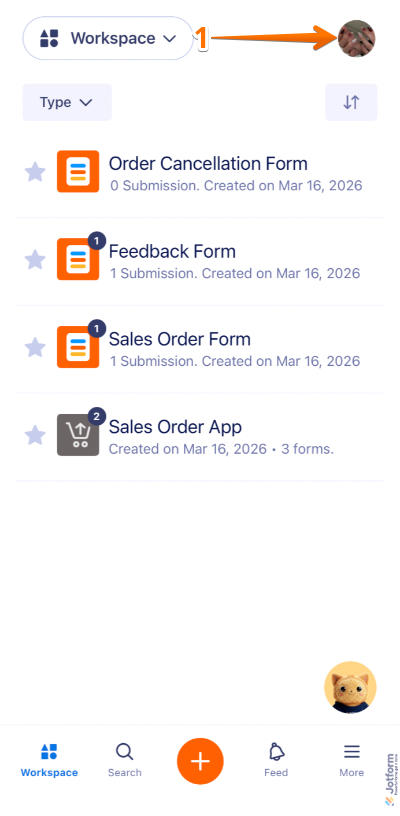
- On your Workspace screen, tap on your Profile Picture/Avatar on the top-right side screen.
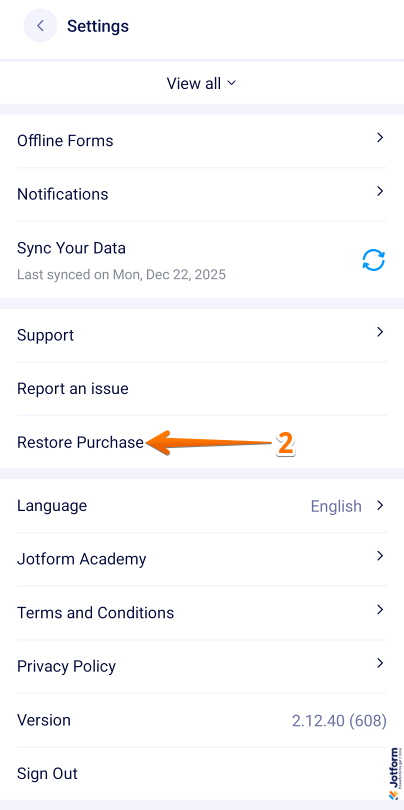
- Now, scroll down to the middle part of the Settings screen, and tap on Restore Purchase.
Note
Tapping the Restore Purchase option will automatically restore or reactivate your Jotform subscription. If successful, you’ll see a confirmation message in a pop-up window; otherwise, an error message will be displayed.
Looking for more info? Check out the following links from Google and Apple:
- For Apple, Restore Your In-App Purchases.
- For Google, Restart or Resubscribe to a Cancelled Subscription.
Getting a Refund on Mobile Purchases
When you purchase a subscription through Jotform’s website, refunds are processed directly by Jotform. However, if you purchase a subscription through Google Play or the Apple App Store, any refund requests are subject to Google Play or Apple App Store refund policies. In these cases, Jotform is unable to process refunds for payments made through either platform.
For refund-related concerns, we recommend contacting Google or Apple directly. You can find more information through the following links:
That’s it for purchasing a paid plan through the Jotform Mobile App and managing your subscription. You can now upgrade, restore, or review your plan details directly from the app, giving you full control over your subscription at any time and from anywhere.

Send Comment: