The Jotform Mobile Forms App lets you access and collaborate with your team directly from your mobile device. With Jotform Teams, you can switch to your team workspace, view shared forms, and manage submissions while working on the go.
If you’re using Jotform Enterprise, you can also access teams created by your Team Admins, view members, and edit forms or other shared assets from the mobile app.
Accessing the Teams Workspace
Getting to your Team’s workspace is simple. Here’s how to access it on your mobile app:
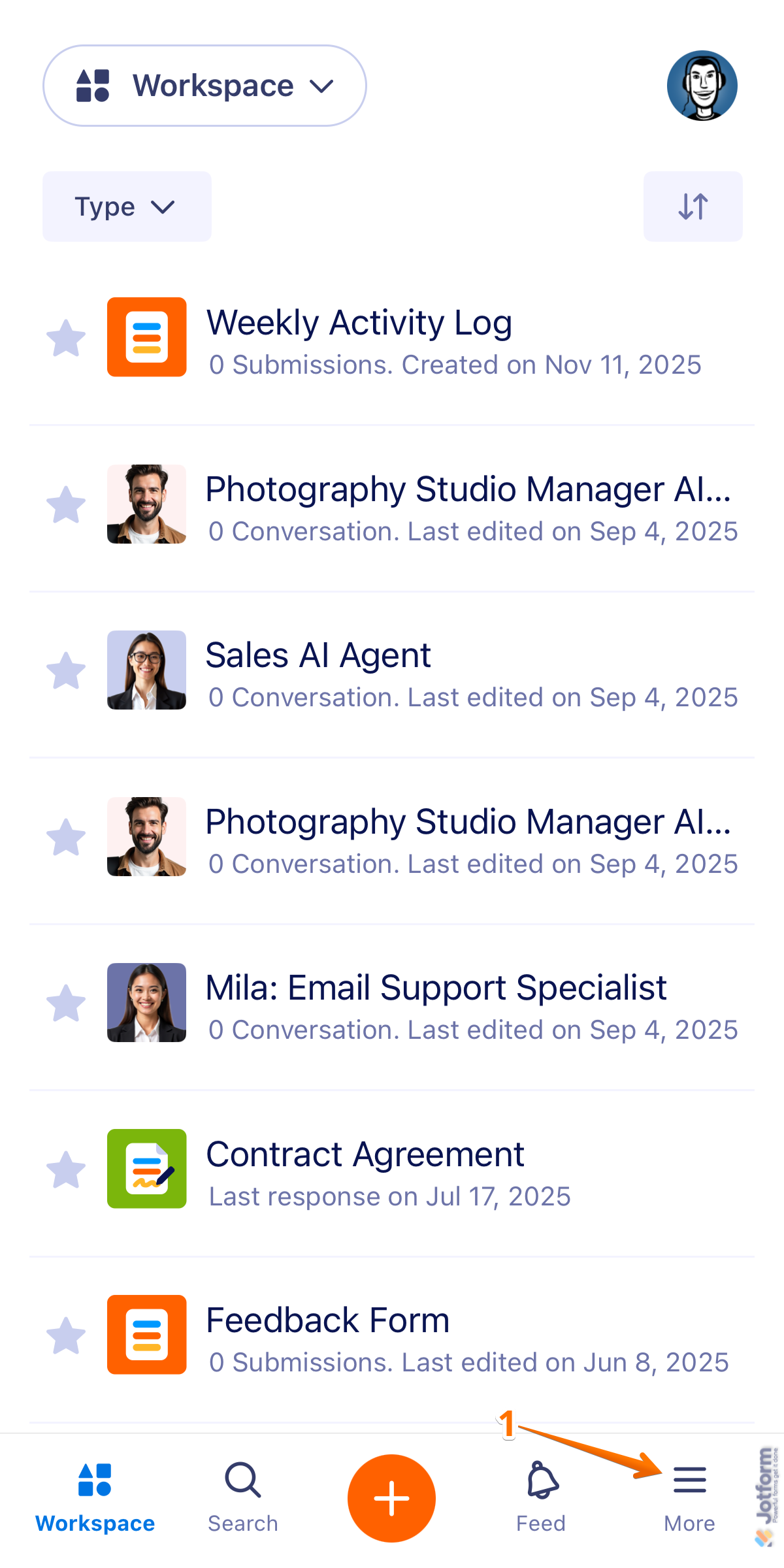
- On your Jotform Mobile App, on the bottom-right corner of your screen, tap on the Three Lines icon.
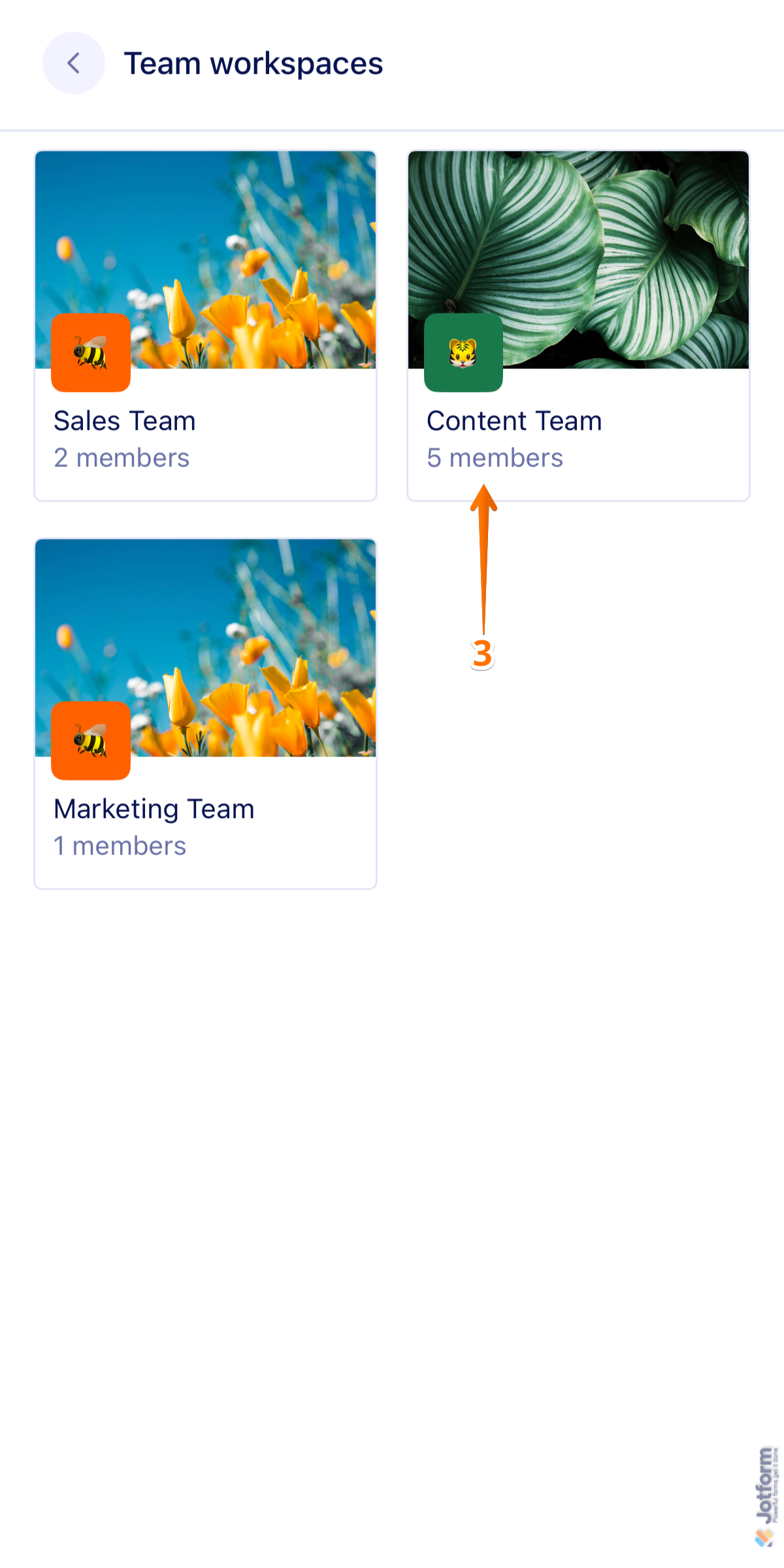
- Then, in the More menu that opens, in the Team Workspaces section, tap on View.

- Next, tap on the team you want to access or join. For example, Content Team.
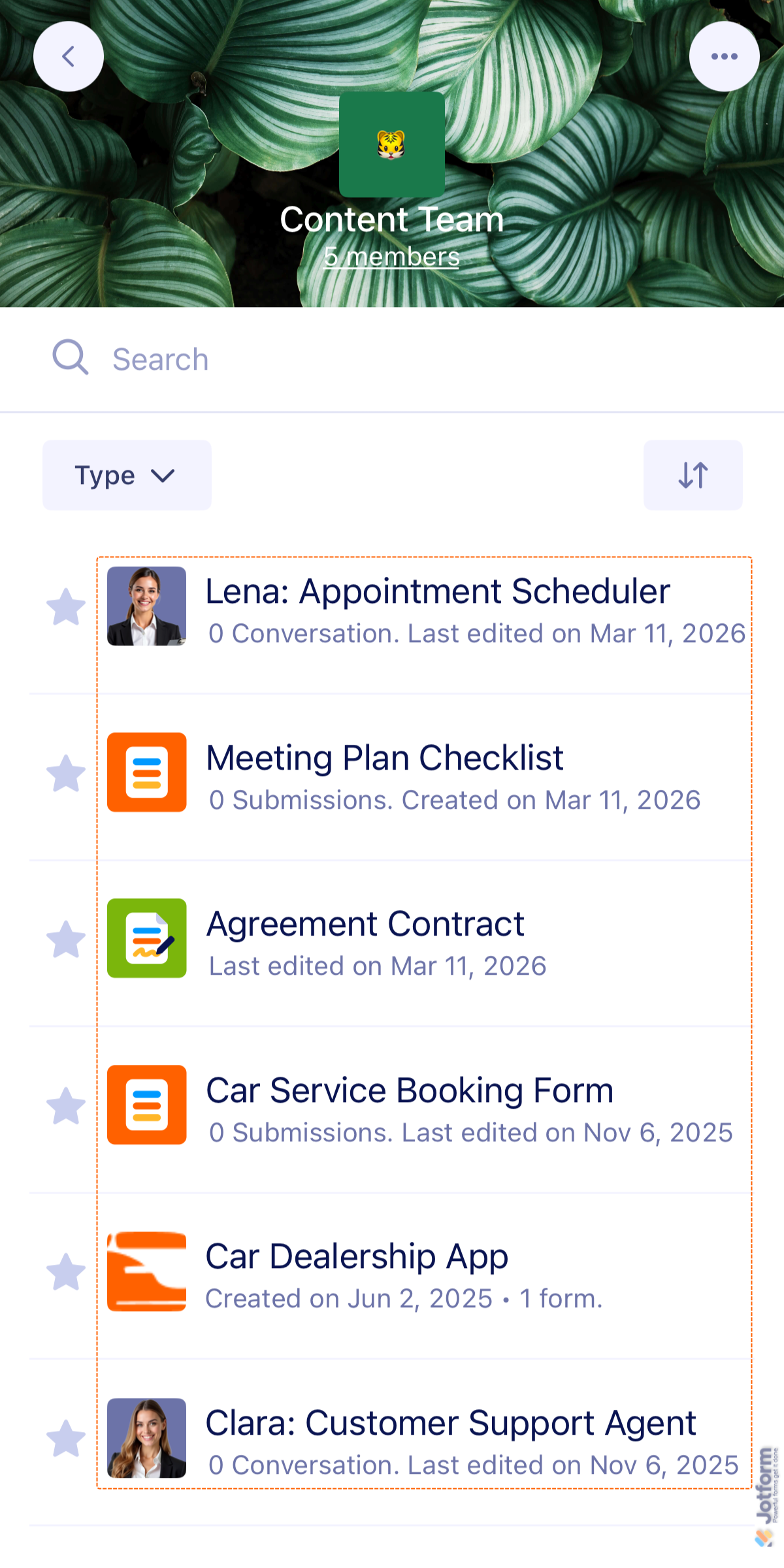
And that’s it! You can now view the list of forms and other assets you’re working in the Team Workspace.
Managing Assets in the Teams Workspace
All your Jotform Teams assets, including Forms, AI Agents, Apps, E-sign Documents, Tables, and Reports, are listed in one place. From here, you can filter and sort assets to organize your workspace, or access archived and deleted items through the options menu.
Note
Some asset types available in the Jotform web platform, such as Boards, may not be visible in the Jotform Mobile Forms app.
Filtering Assets in the Teams Workspace
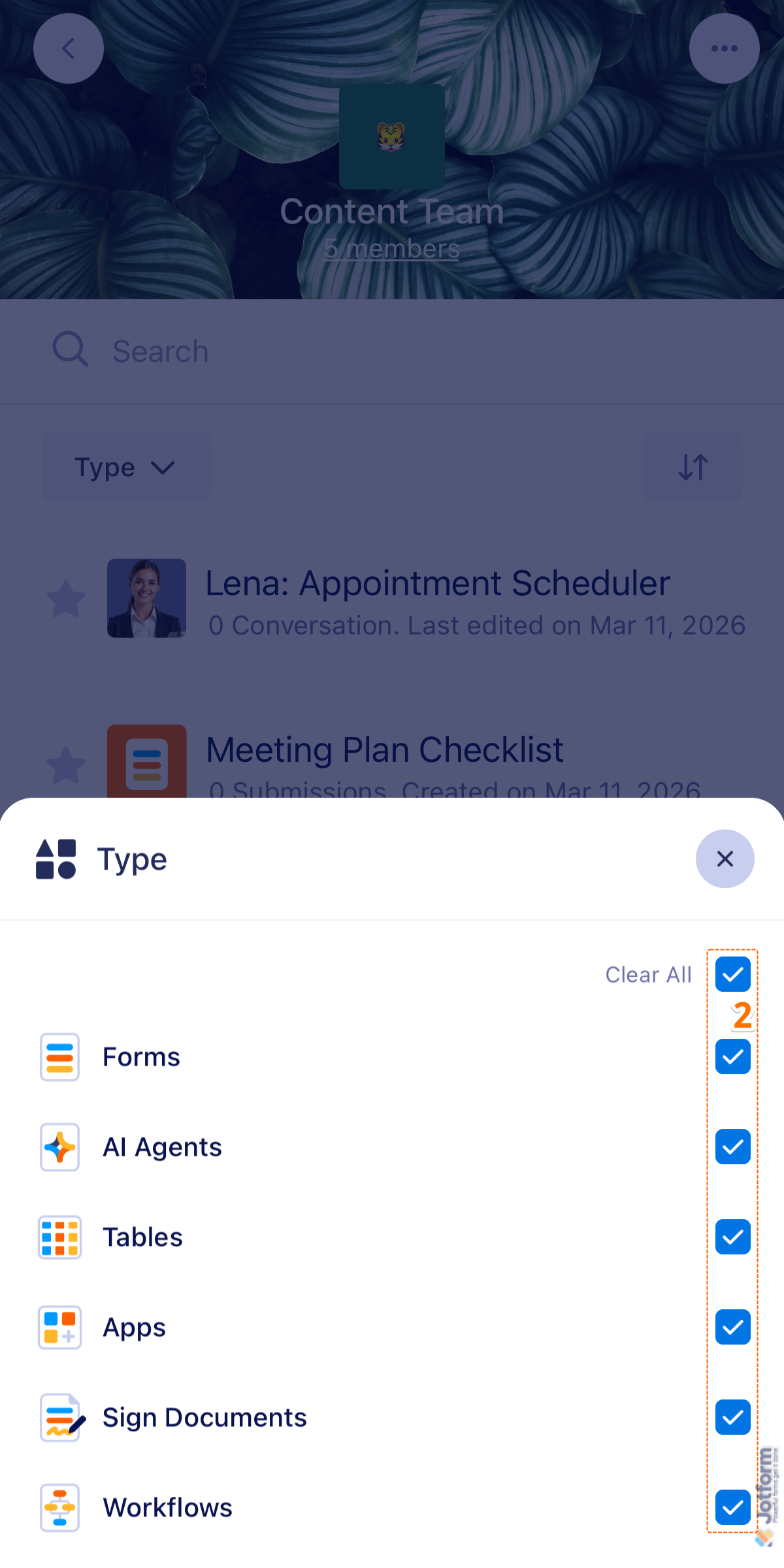
You can filter assets in the Teams workspace to quickly find the items you need. This allows you to display only specific asset types, such as Forms, Apps, or Tables. Here’s what to do:
- While in your Teams Workspace, tap the Type tab on the left side of the screen.
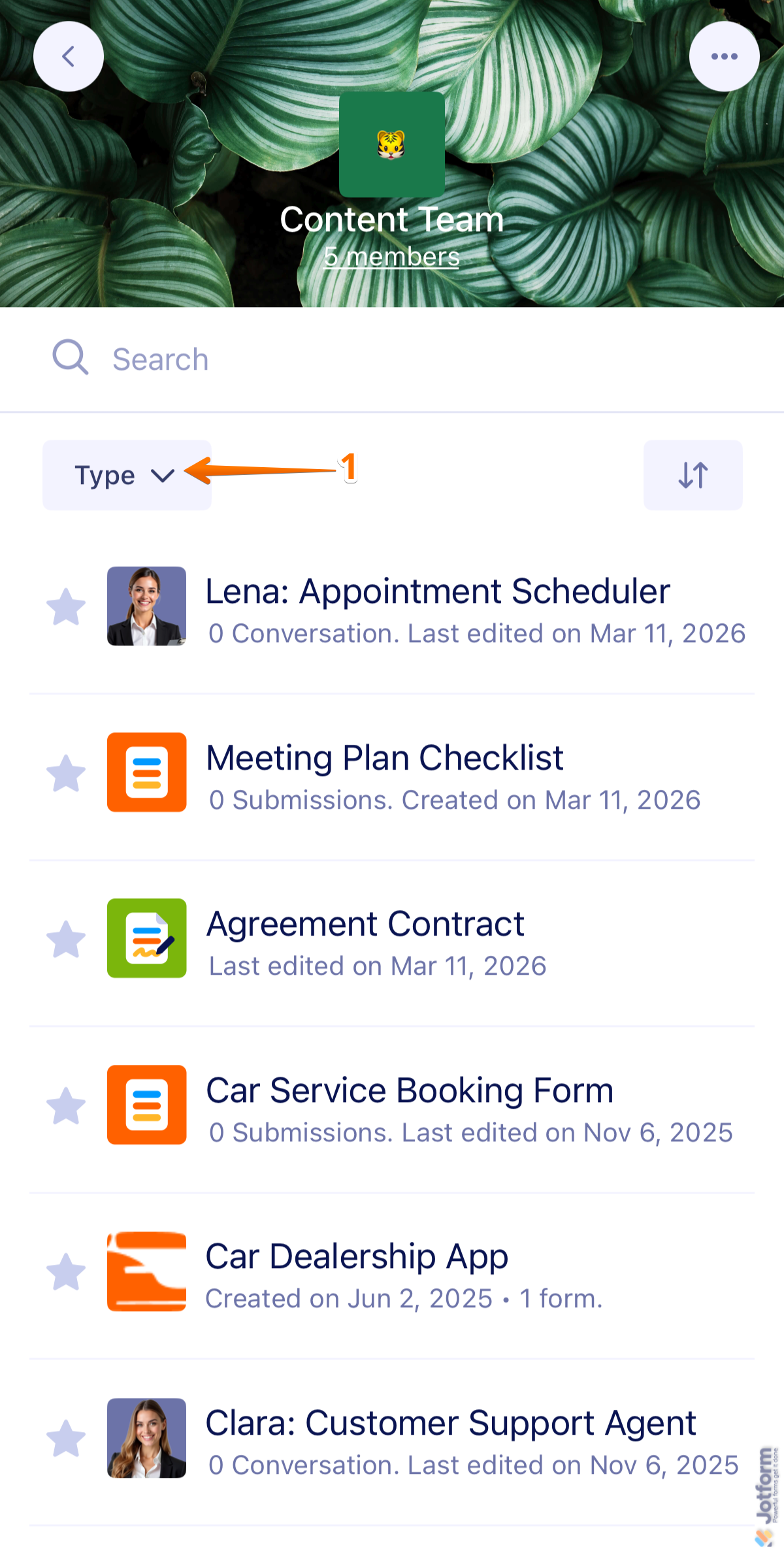
- Then, in the menu that comes up, you can view all your assets and customize the display by selecting or clearing the checkboxes for specific asset types.
Sorting Assets in the Teams Workspace
Keep your workspace organized by sorting your forms, submissions, and other assets with just a few taps:
- While in your Teams Workspace, on the right side of the screen, tap on the Sorting icon.
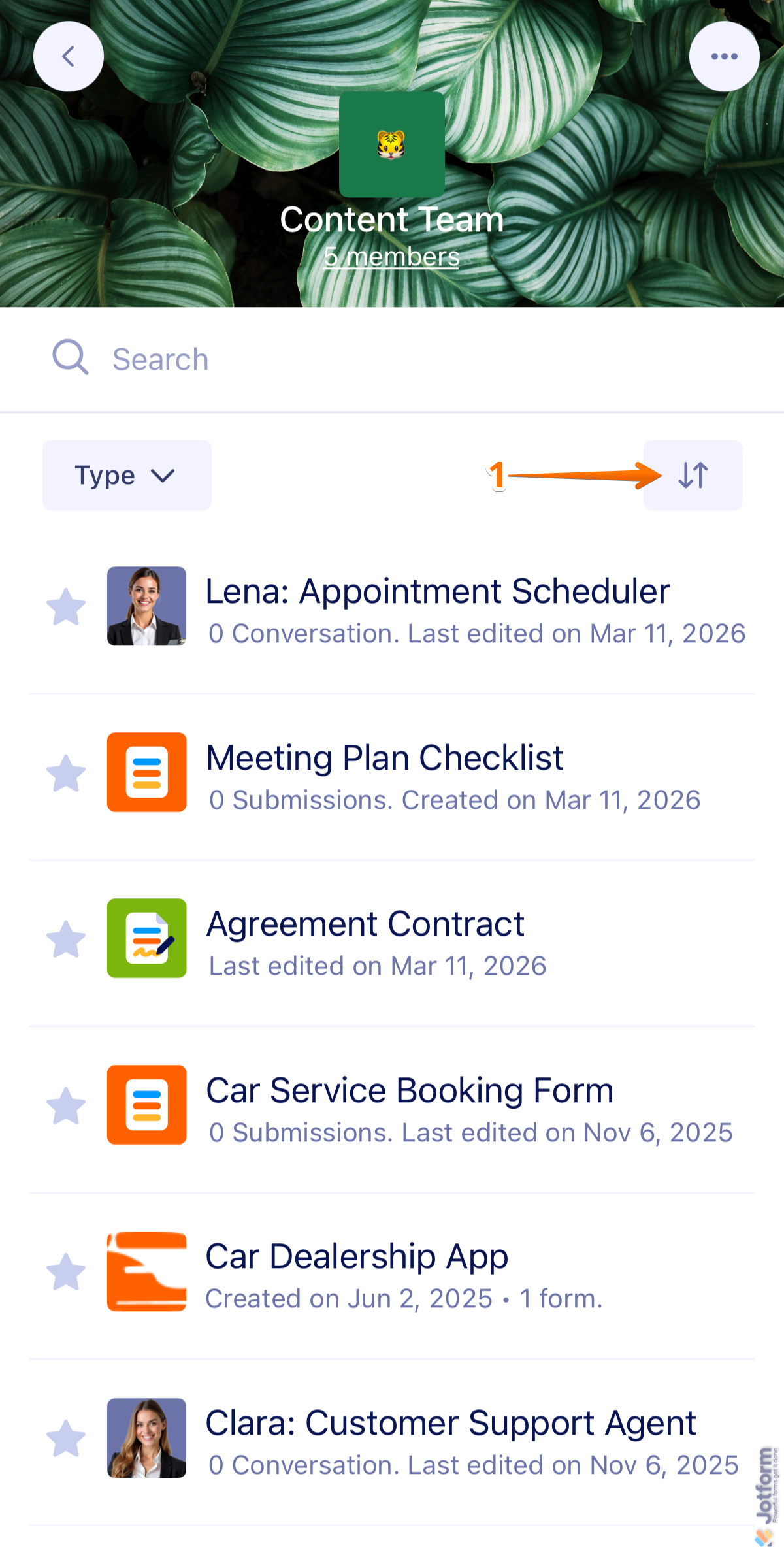
- Now, in the menu that comes up, select one of the following sorting options:
- Last Activity — Displays assets based on the most recent activity.
- Last Response — Sorts assets by the most recent submission received.
- Last Edit — Displays the most recently updated assets at the top.
- Creation Date — Shows the newest assets first.
- Title (A–Z) — Arranges assets in alphabetical order.
- Title (Z–A) — Lists assets in reverse alphabetical order.

Accessing Archived or Trashed Assets in the Teams Workspace
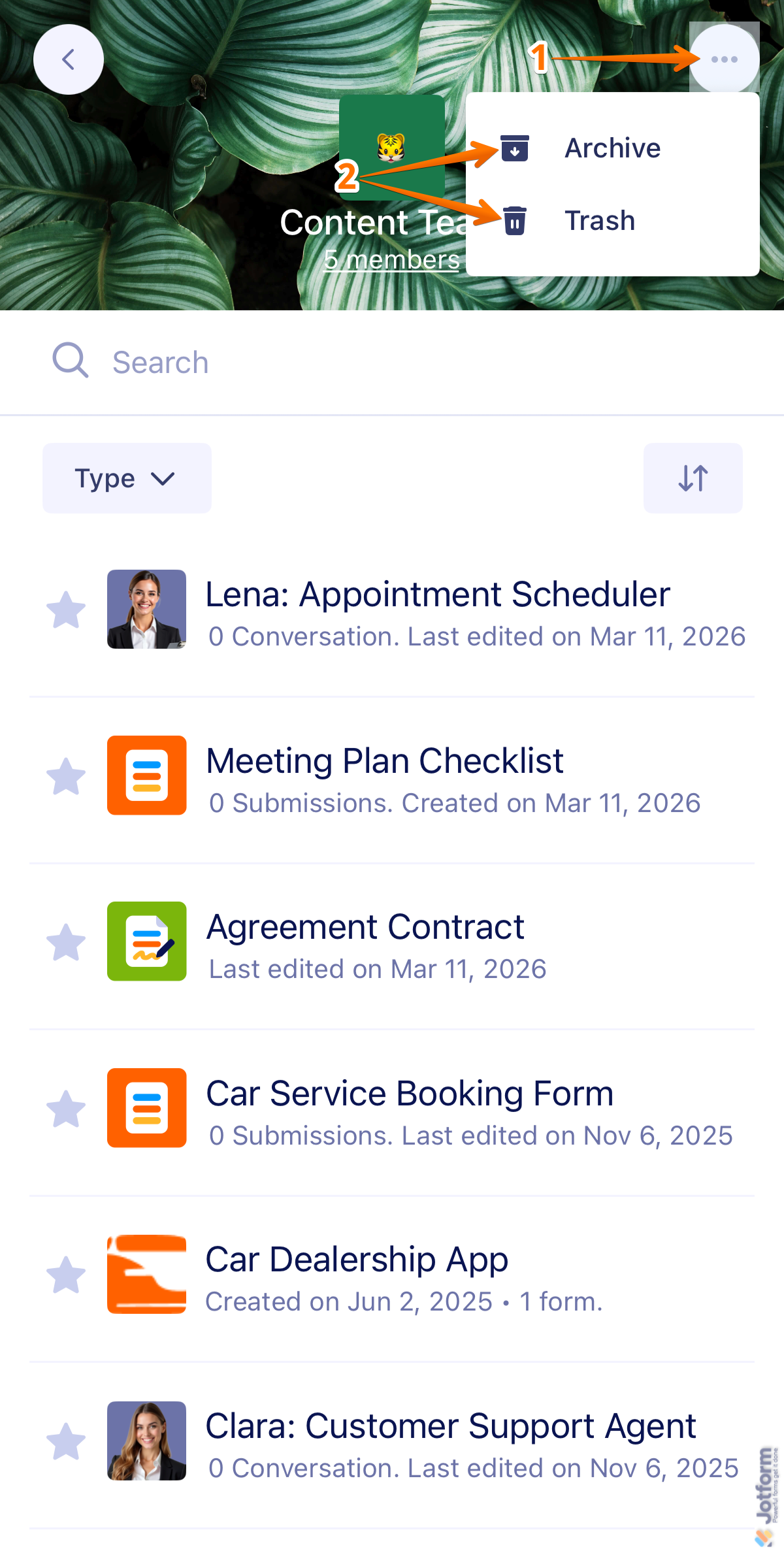
Archived or deleted assets in your Teams workspace can still be accessed from the options menu. This allows you to review items that were previously archived or moved to trash. Here’s how to get going:
- While in your Teams Workspace, on the top-right corner of the screen, tap on the Three Dots icon.
- Now, in the menu that comes up, select one of the following options:
- Archive — Opens the list of assets that have been archived in the team workspace.
- Trash — Opens the list of assets that have been moved to trash.
Viewing Your Team Members
You can also easily see who’s on your team and manage their roles and permissions. Here’s the quick way to do it:
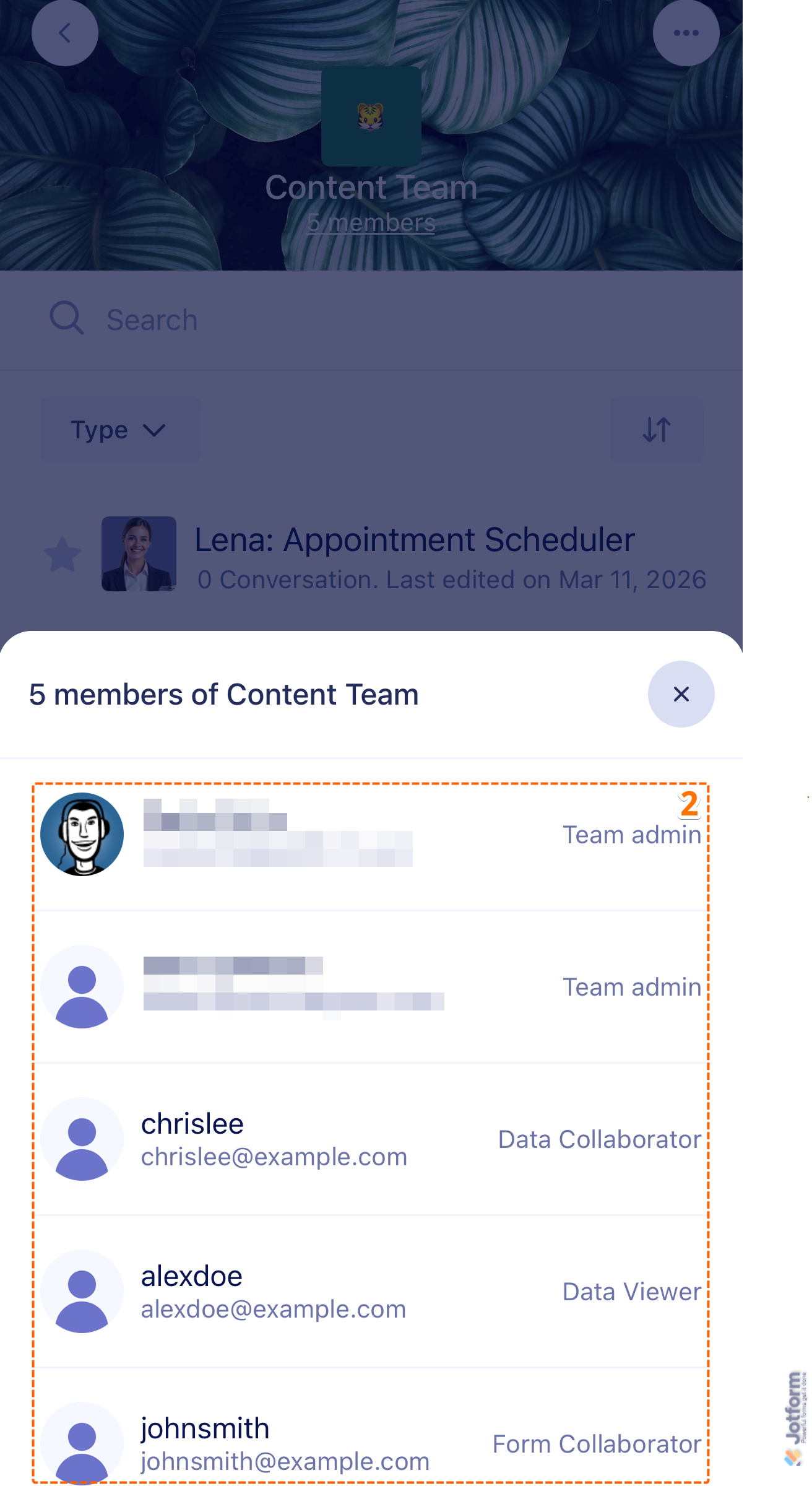
- While in your Team Workspace, at the top of the screen, just below the Team Name, tap on Members link.
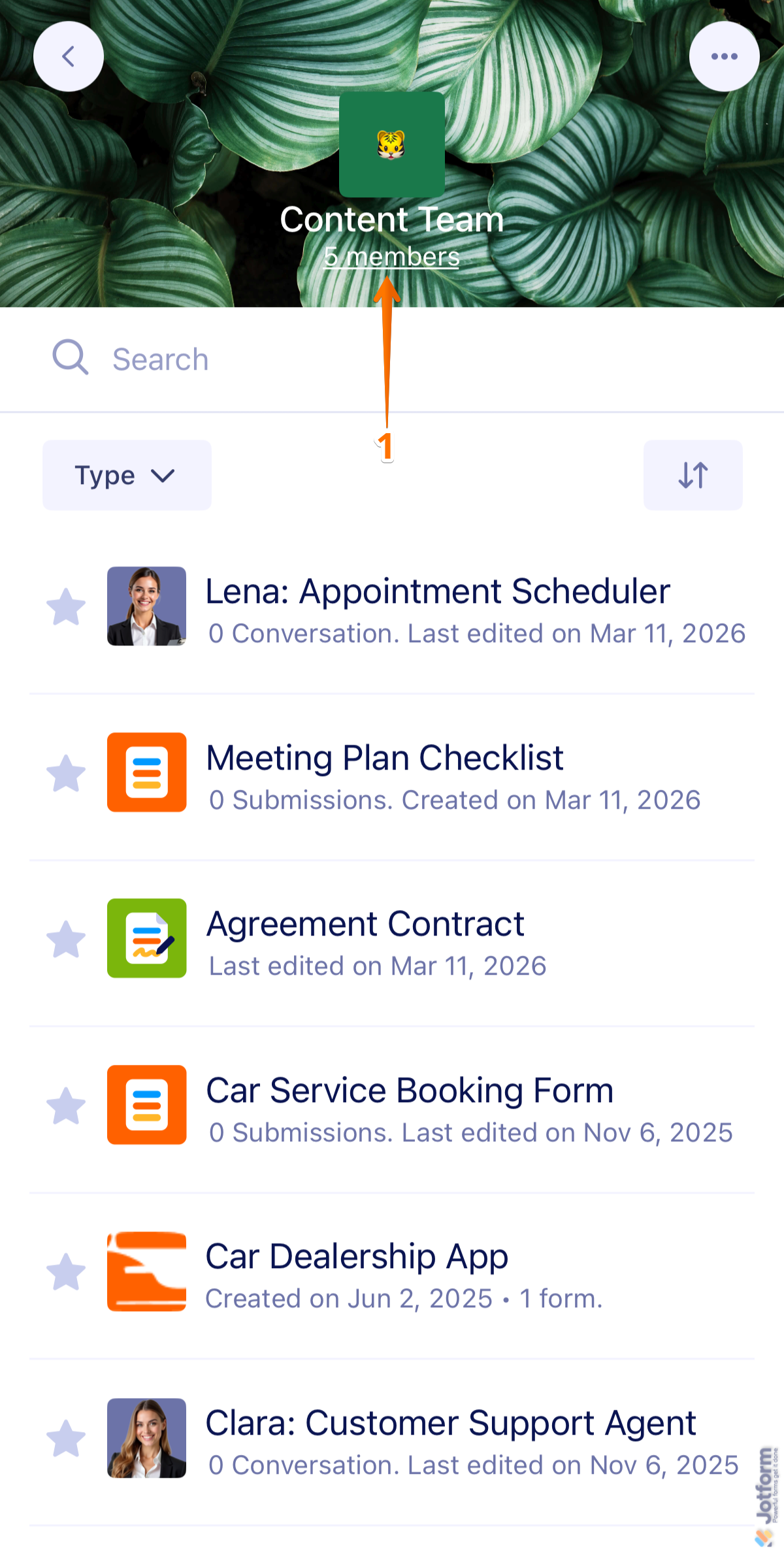
- Now, in the Manage Members of Team window that opens, you’ll see a list of your team members.
Note
If you want to manage your team members, such as changing their roles and permissions or removing someone from the team, you’ll need to do this through your dedicated Enterprise Server on your desktop.

Send Comment: