The Team Workspace brings all of your team’s content together in one place. This section walks through how to access a workspace and navigate the tools that help you manage its assets.
Accessing a Team Workspace
In My Workspace, you’ll only see teams that you’re a member of.
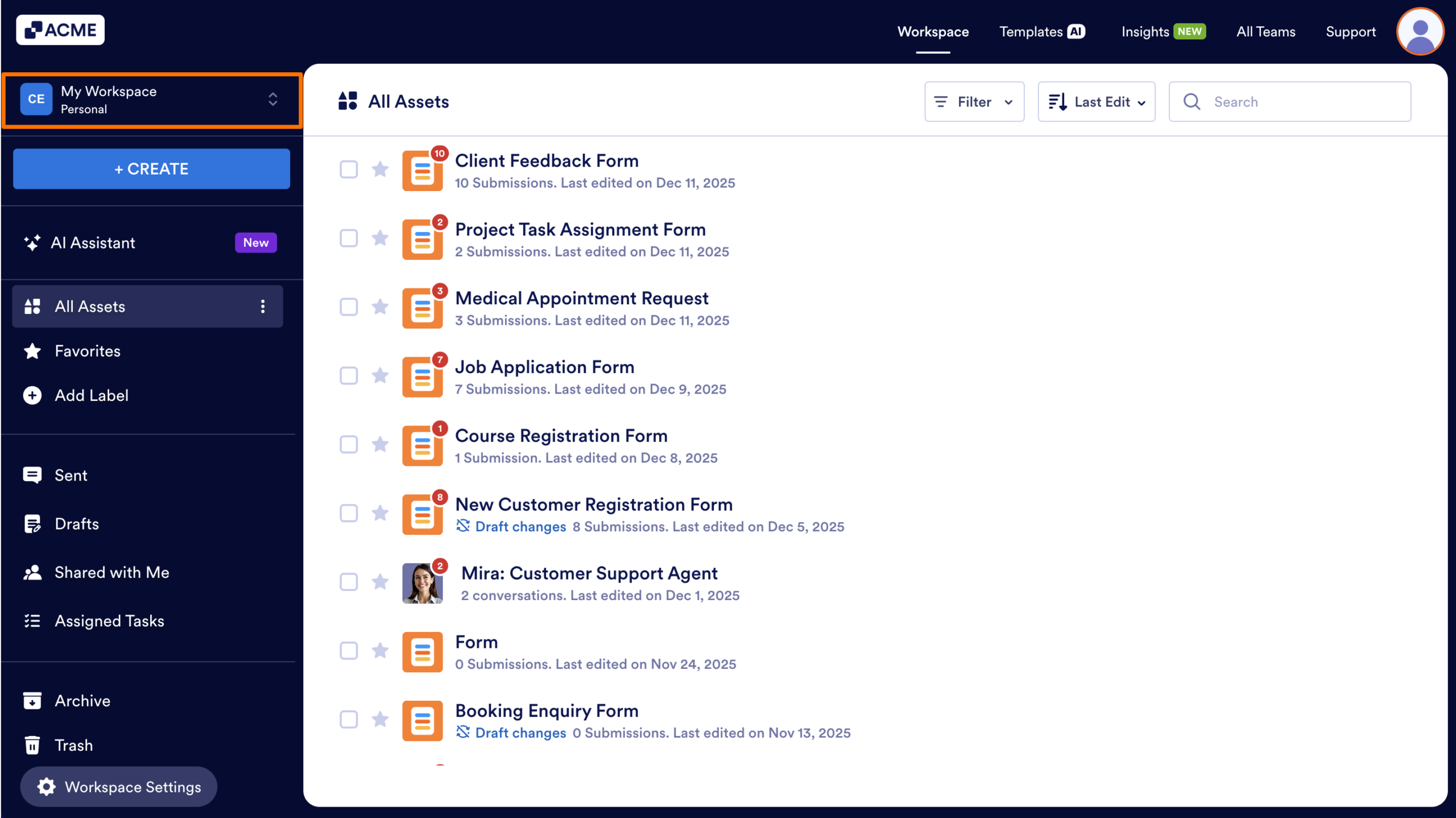
- In My Workspace, click on the Workspace picker located above the Create button.
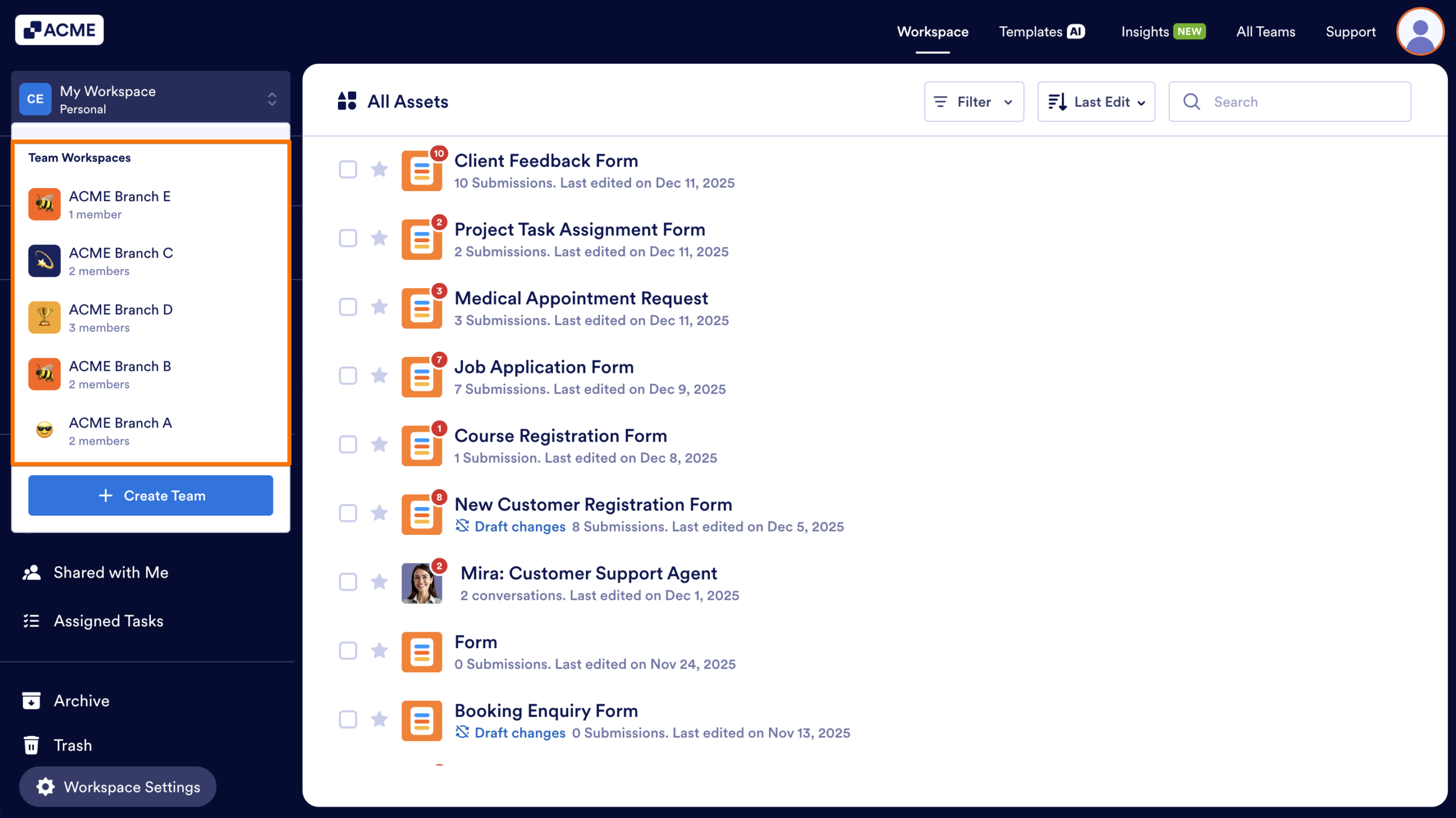
- Then, under Team Workspaces, select the Team you want to view.
You’ll be brought to the team’s workspace, where the team’s assets are stored and new assets can be created.
Exploring the Workspace
Depending on your role in the Team, you’ll see assets, team information, and other navigation tools. Let’s go over some of these key features:
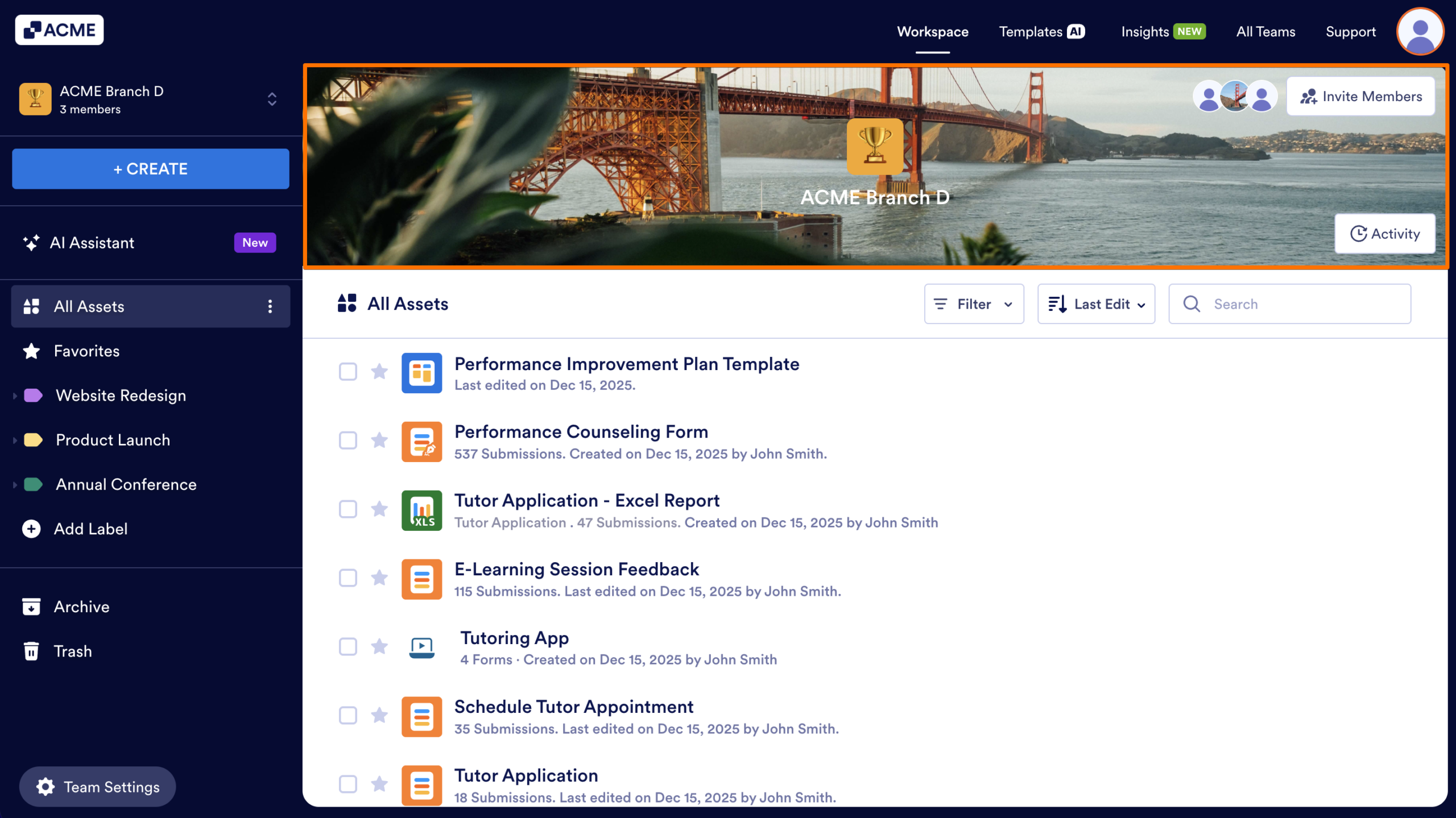
Workspace Banner
At the top of the page, you can find your team’s name, banner, and icon. This helps you quickly identify what workspace you’re in.
Create Button
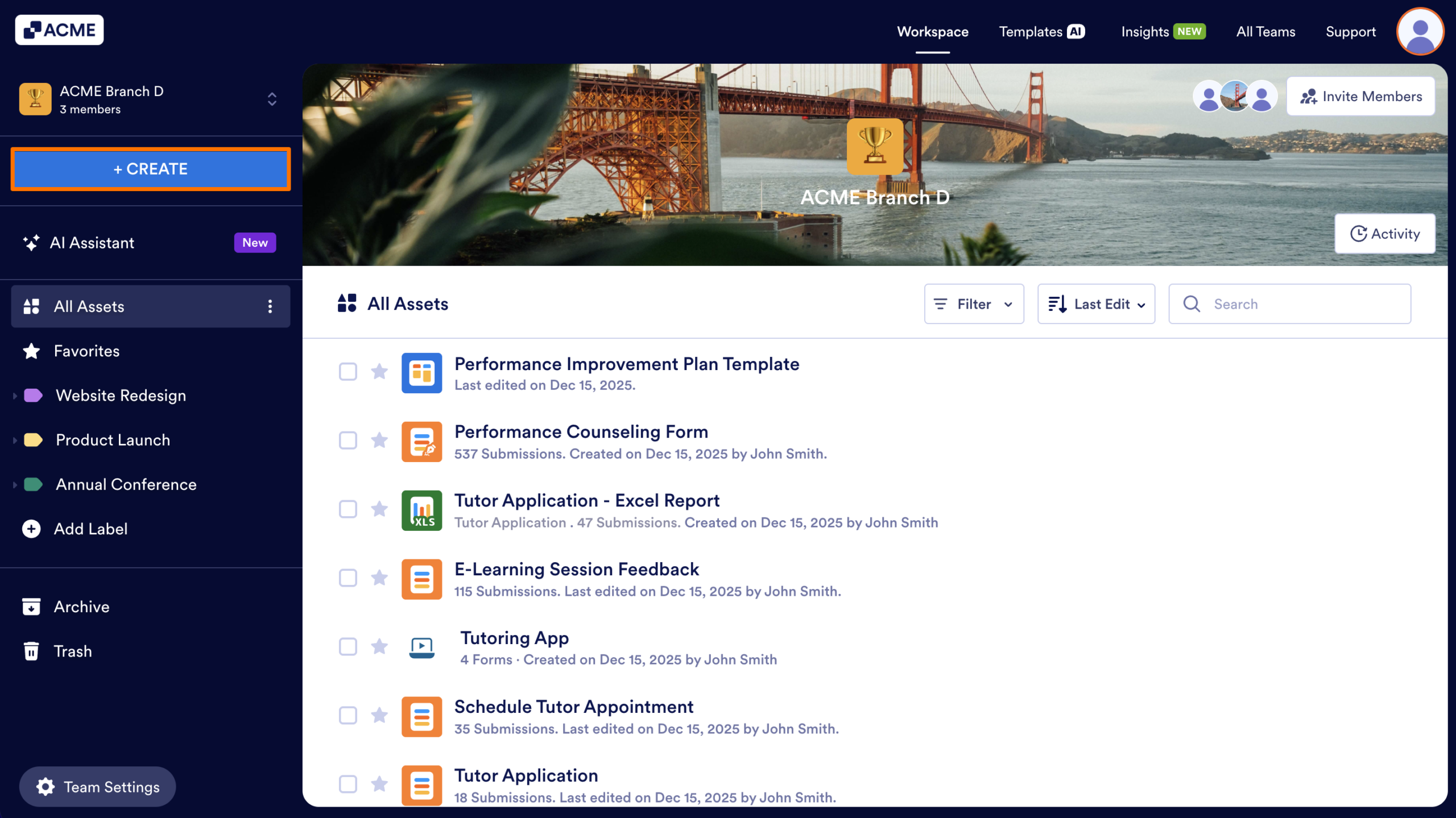
Like in your personal workspace, the Create button on the left-hand side of the page lets Team Admins and Creators build Forms, Apps, Submission Tables, and Sign Documents, as well as other assets.
Left-Side Navigation
The left panel helps you move through different parts of the workspace:
- AI Assistant: Use our AI Assistant to ask for help creating or finding assets.
- All Assets: View every asset stored in the workspace.
- Favorites: Quickly access assets you’ve marked as favorites.
- Labels: Organize assets by assigning and managing labels.
- Archive: Access all archived assets.
- Trash: Access, restore, or permanently delete assets. Deleted assets are stored here for 30 days unless they’re manually deleted.
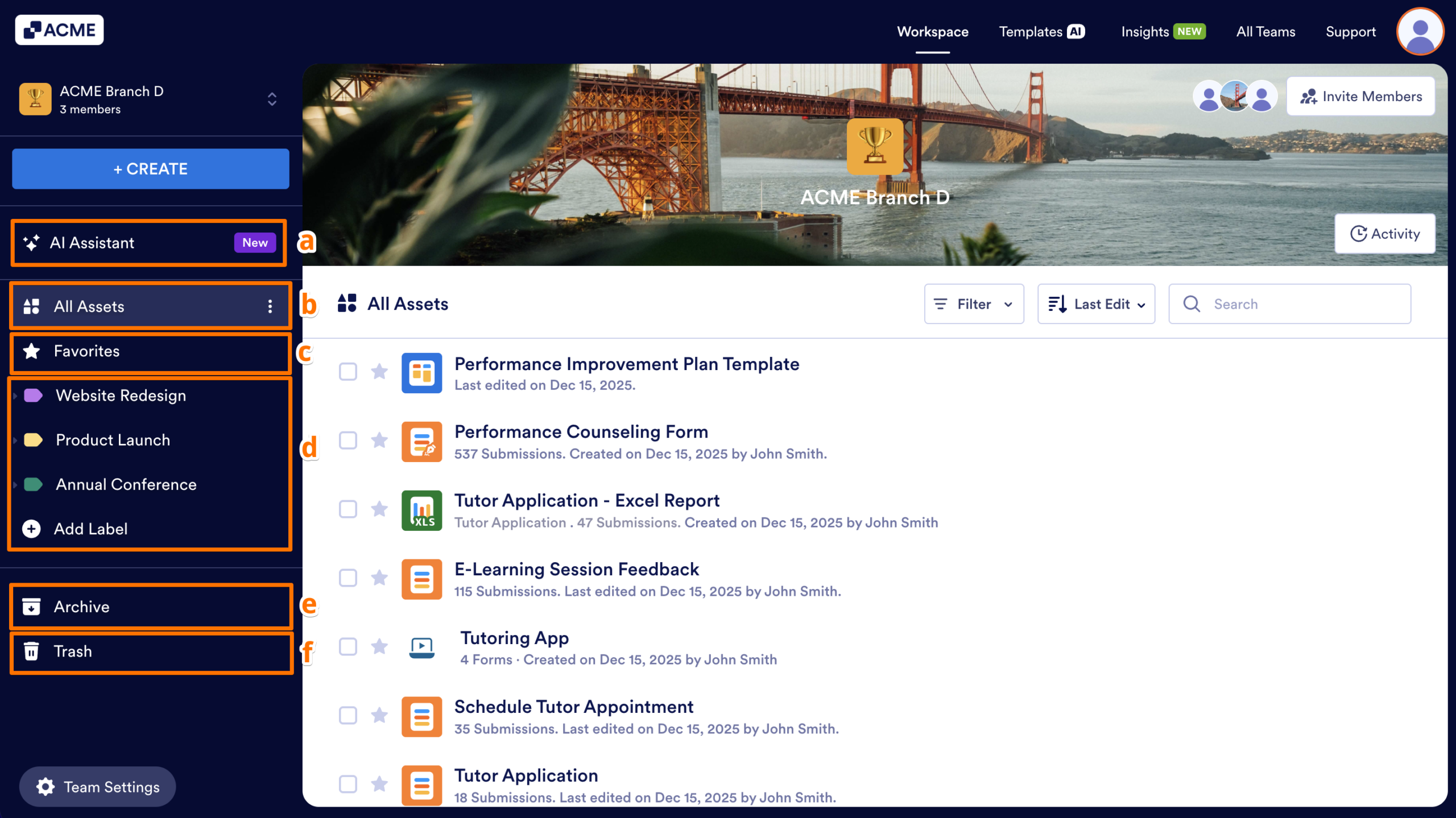
For more information about organizing the workspace and strategies for asset structure, check out How to Organize Assets in Team Workspace.
Toolbar Controls
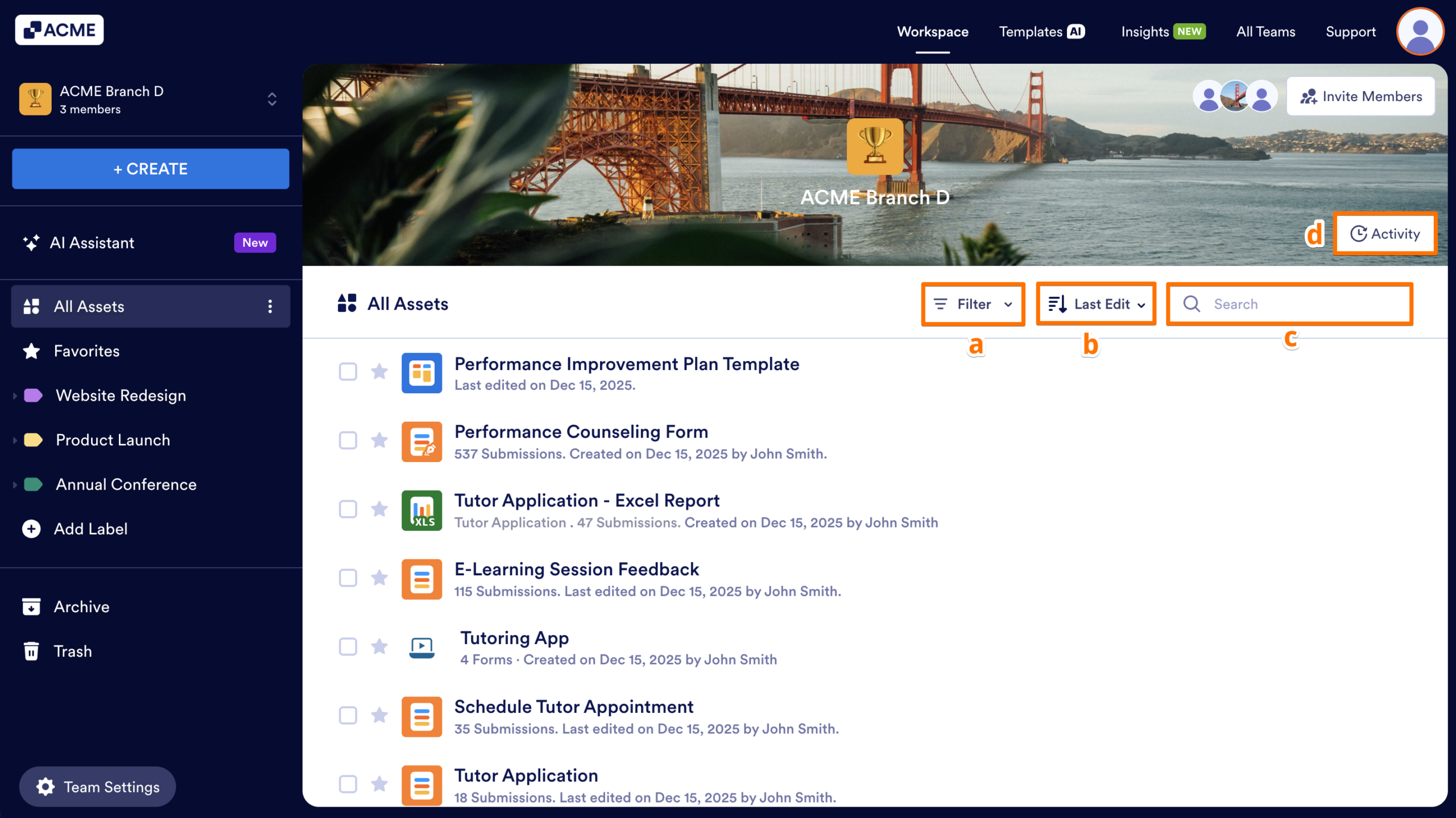
In each section of the Team Workspace, you’ll find a toolbar under the banner to help you filter, sort, and search for assets.
- Filter Menu: Use this menu to filtering assets by type.
- Sort Menu: Sort assets by criteria, such as last edit time or title.
- Search Bar: Use this to quickly find assets by name.
- Activity Button: Click here to view recent activity in the workspace, including edits on assets, changes to the team, and more…
Asset List
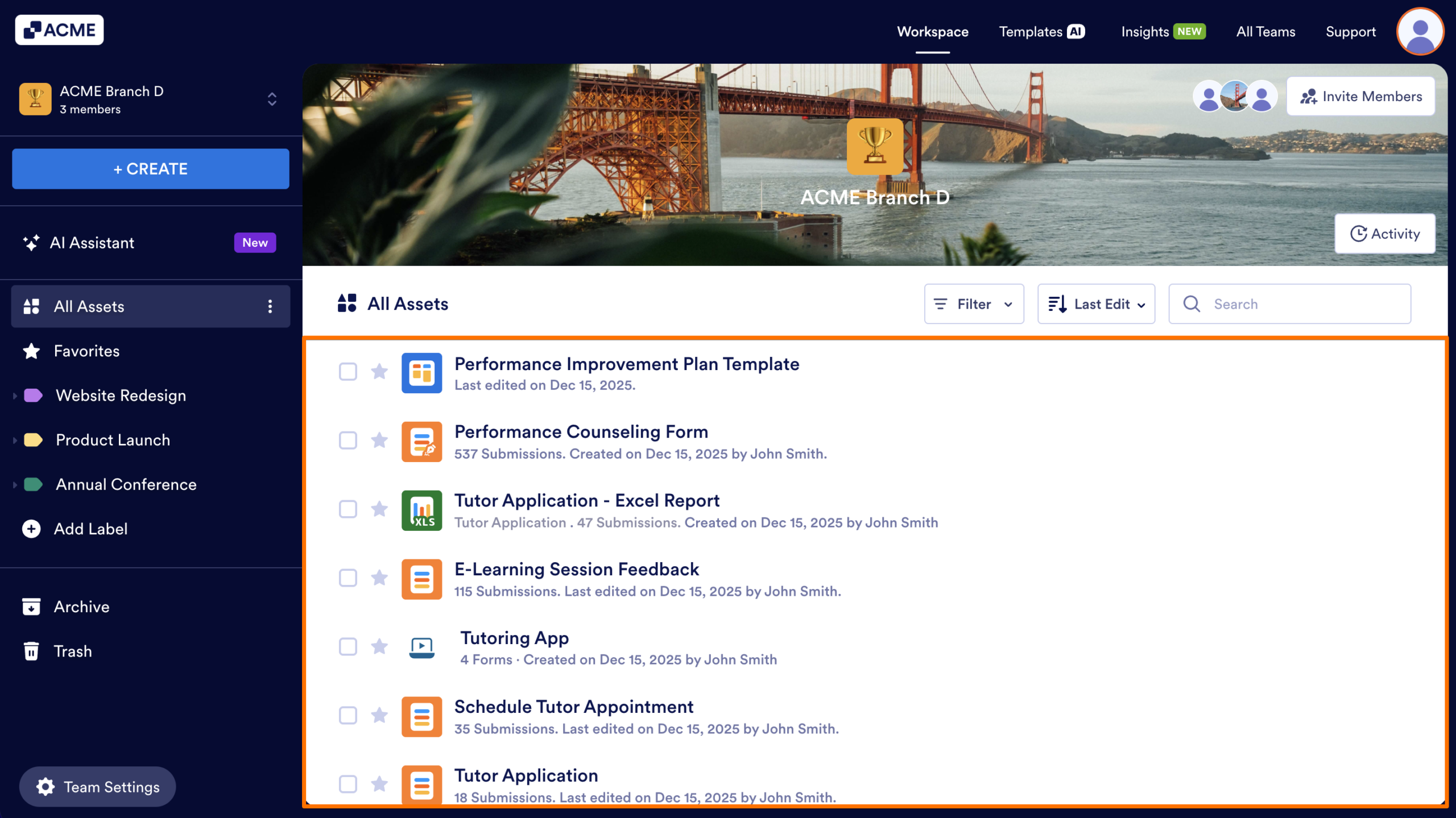
This area displays all assets in the team’s workspace. Depending on your role, you can view additional actions by clicking on the checkbox next to the asset name.

Send Comment: