
Flowridge Platform Demo Booking
We couldn't create your widget. Please try again.
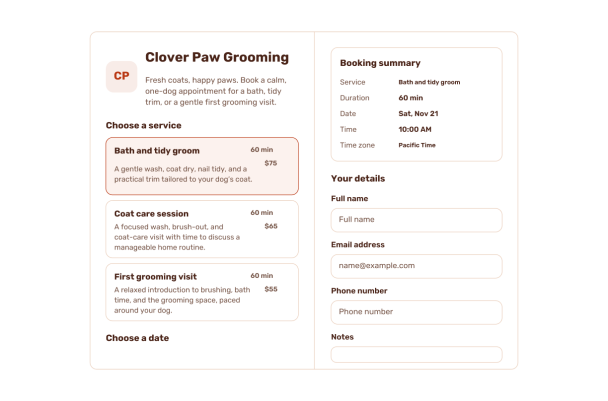
We couldn't create your widget. Please try again.

We couldn't create your widget. Please try again.

We couldn't create your widget. Please try again.

We couldn't create your widget. Please try again.
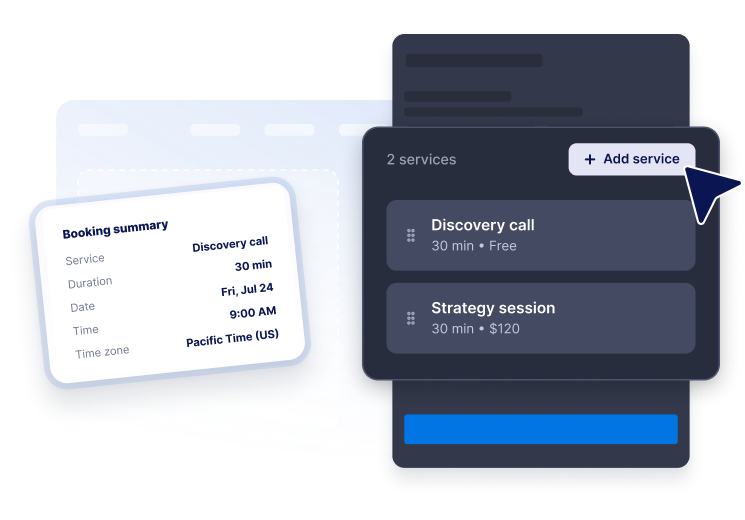
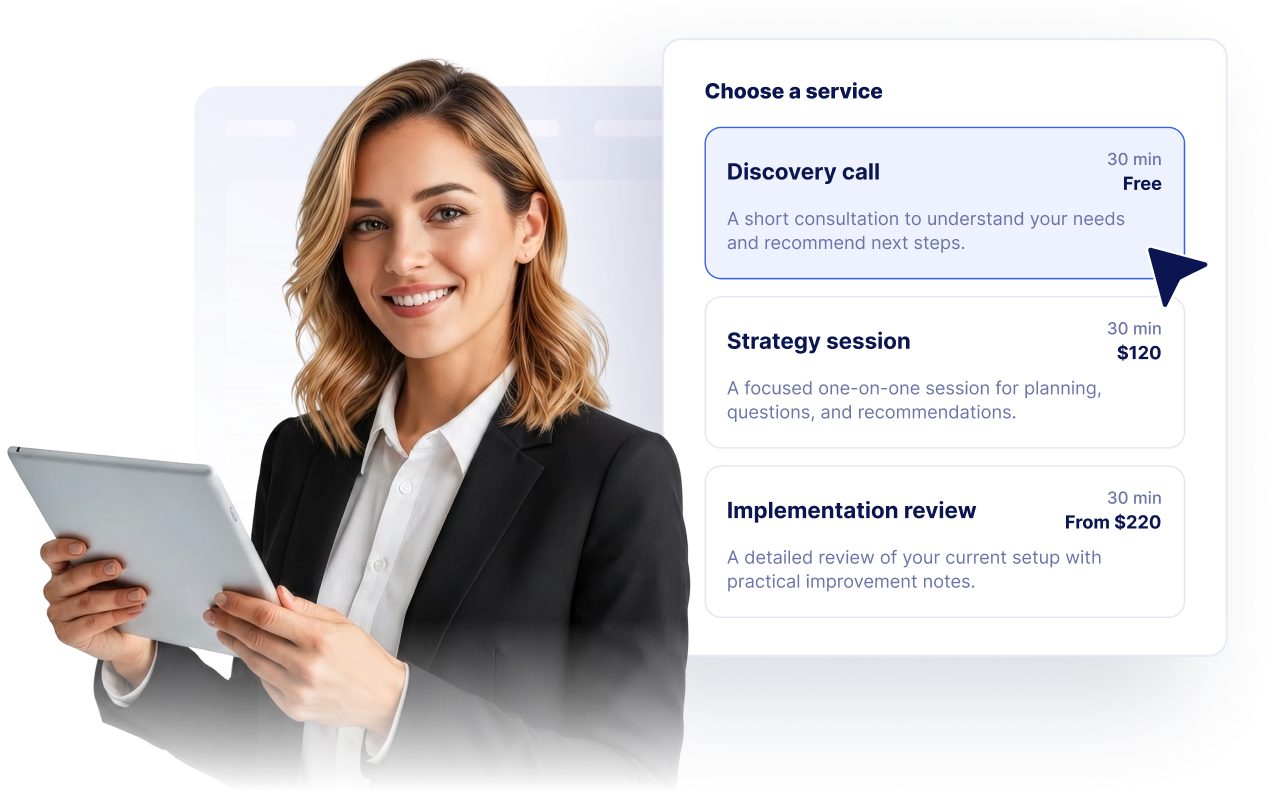
List appointment types with descriptions, duration, and pricing so visitors can choose the right option.
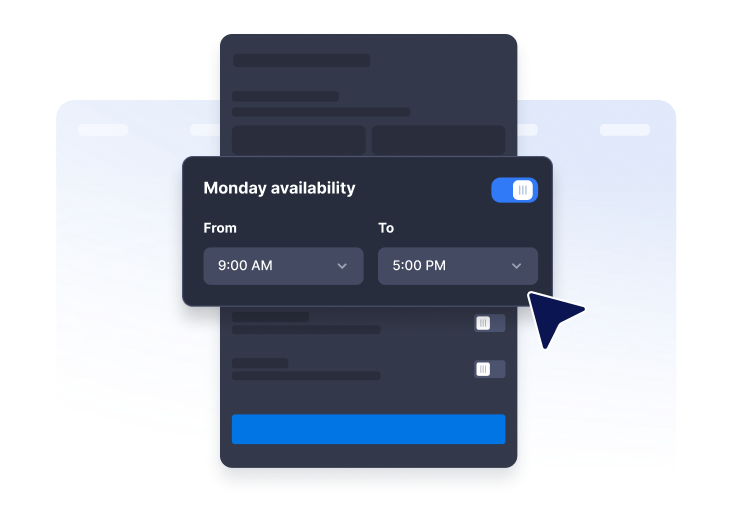
Choose weekly working hours, time increments, booking notice, booking window, time zone, and blackout dates.
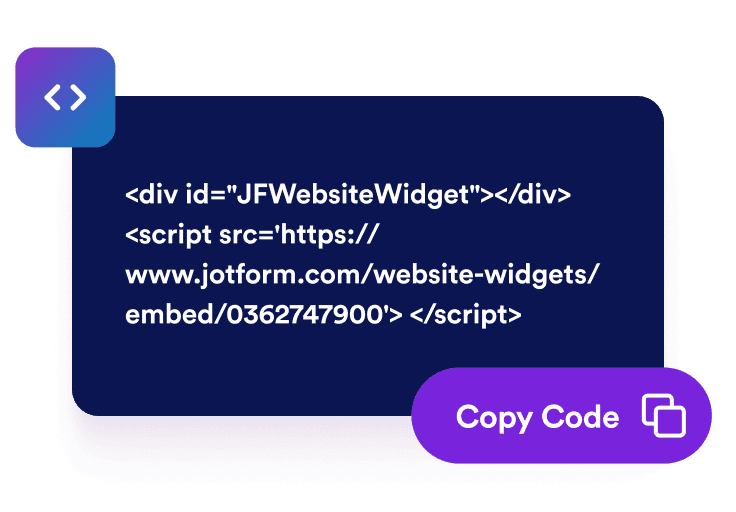
Customize the booking form and style, then publish the widget where customers already browse your services.
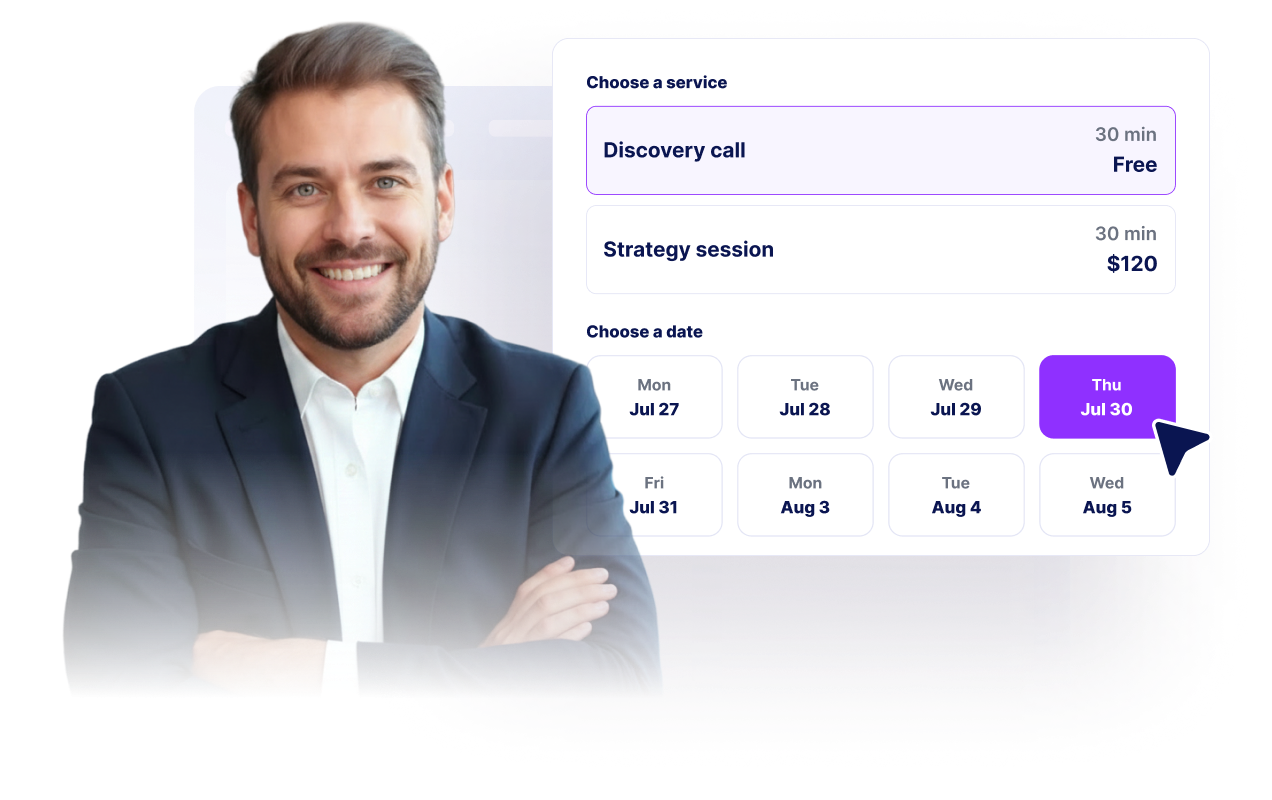
Create a clear service list with descriptions, appointment lengths, and free, fixed, or from-style prices.
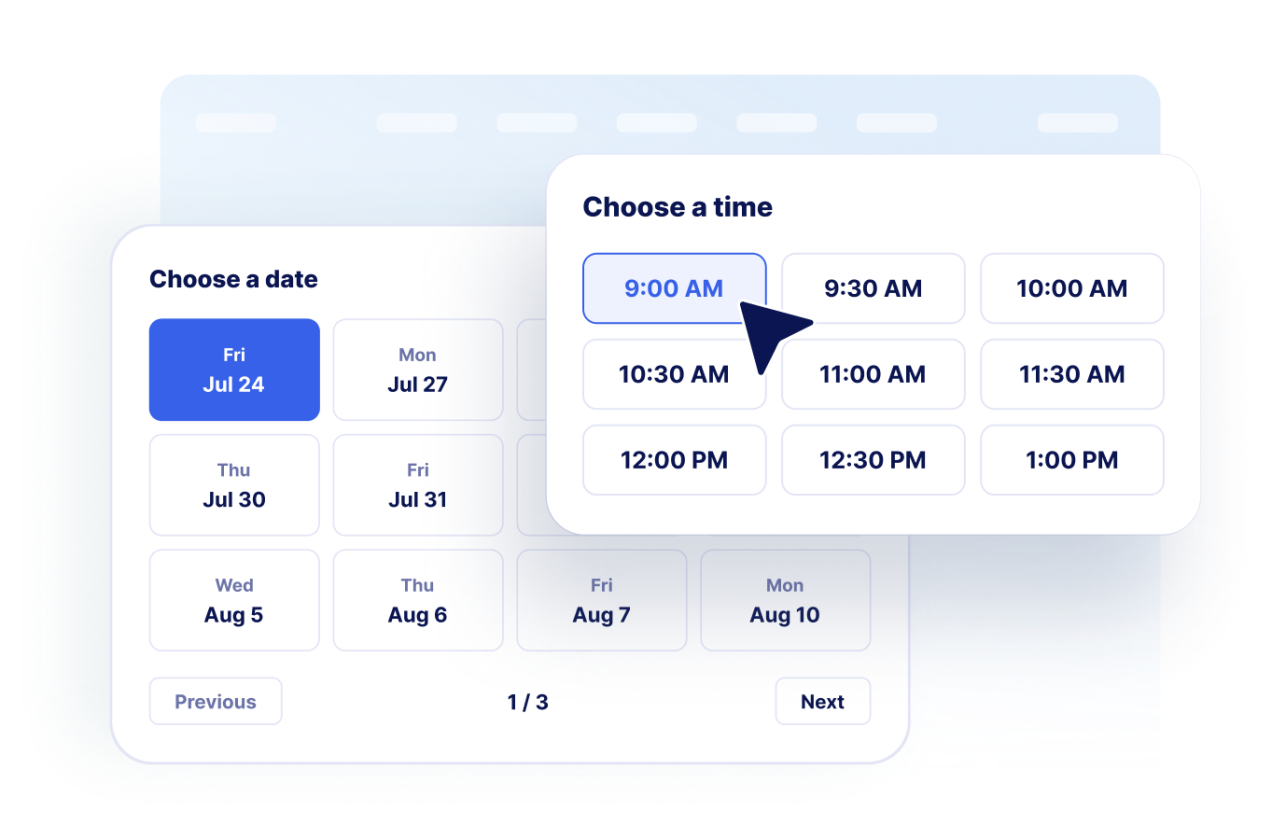
Display available dates and generated time slots from your weekly availability and booking rules.
Gather name, email, optional phone number, and booking notes before showing the confirmation screen.
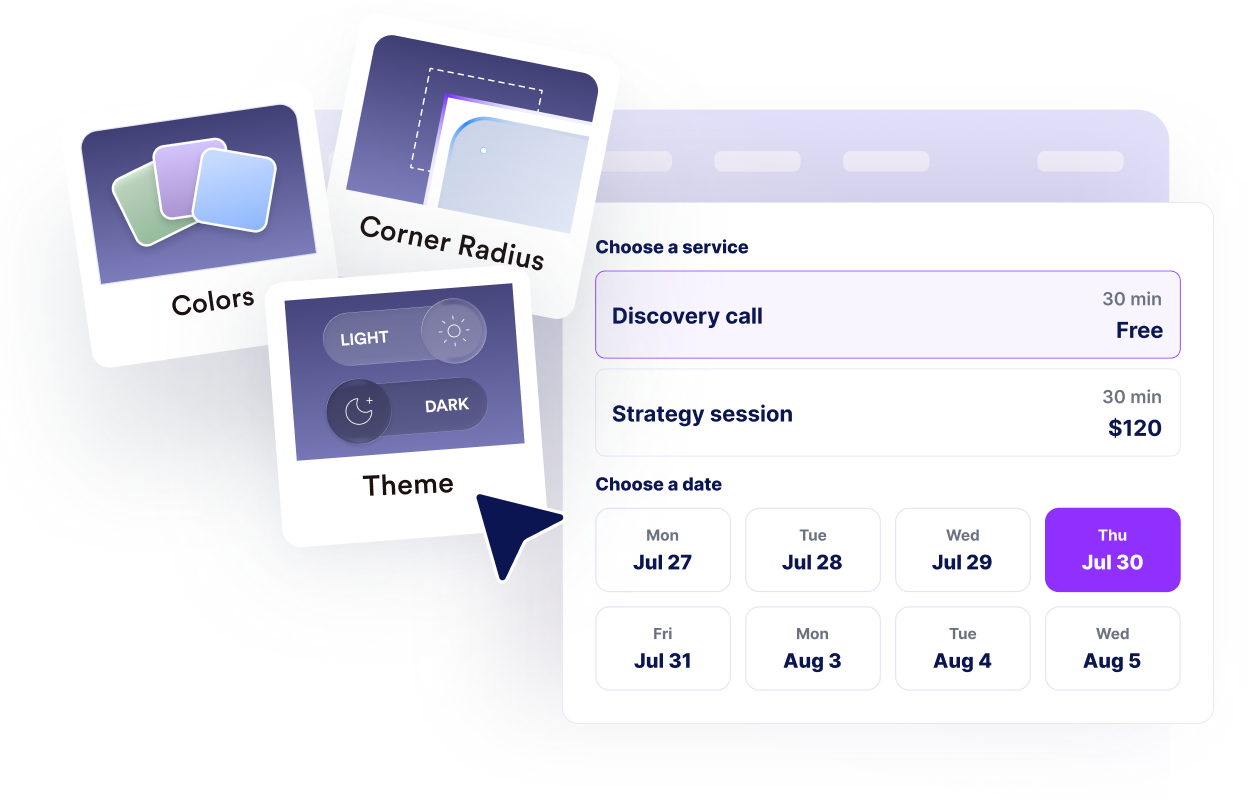
Customize layout, colors, confirmation text, branding, calendar notes, and advanced CSS for a native website fit.
Jotform’s widgets make your website more interactive and increase conversions. There are many tools available, from star ratings and testimonial sliders to social proof popups and media embeds. Add widgets to your forms or landing pages to collect data, display proof, and capture leads — no coding required.
Add Jotform widgets to your website with a simple embed code. Customize the widget, preview how it looks, and paste it into any page that supports custom HTML or embed blocks, all without a developer.
Use Jotform Website Widgets to collect leads, show customer feedback, display social proof, embed media, or add helpful web page tools. Each widget helps visitors interact with your business directly from your website.
If you need help setting up, customizing, embedding, or troubleshooting your widget, Jotform’s customer support team is available 24-7. You can move forward with confidence, knowing that help is there when you need it.
Place the widget wherever visitors are ready to choose a time, ask for help, reserve a service, or start a consultation.
Service pages so visitors can book immediately after comparing your offers.
Contact pages where scheduling is a better next step than another message thread.
Clinic, salon, and wellness pages that need appointment requests with clear availability.
Consulting and agency pages for discovery calls, strategy sessions, and follow-up meetings.
Landing pages where a compact booking flow can turn campaign traffic into confirmed leads.
Support and onboarding pages where customers need time with a specialist.
Turn engagement into action with Jotform. Create powerful forms that capture leads, collect payments, and automate responses, all in one place. Every submission lands in your Jotform Inbox, where you can follow up or connect with your favorite apps.
Get Started — It’s Free!
An Appointment Booking widget lets website visitors choose a service, select an available date and time, enter contact details, and request an appointment online.