Table Widget Features

Create a Responsive Table for Your Website

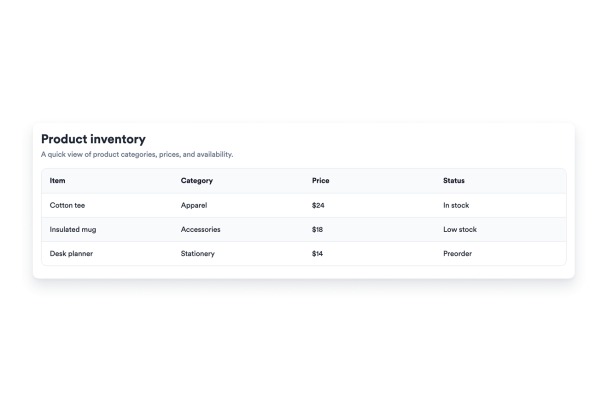
Build a table for products, schedules, pricing, directories, or research summaries. Add rows and columns, style the surface, and choose mobile behavior without writing code.

Create Your Table - It's Free!
Create a Responsive Table for Your Website Hero Bg Image

How to embed Table Widget to WordPress

1Get your embed code

After customizing your Jotform website widget, click Try it on your website for free, and copy the generated embed code.

2Open the page editor

Go to the WordPress post or page where you want to display the widget, then add a new block.

3Add a Custom HTML block

Select Custom HTML and paste your Jotform Website widget embed code into the HTML field.

4Update and view

Click Update or Publish, then open the page to check your embedded widget.

Edit Rows, Columns, and Cells

Create your table structure in the builder with column headings, row labels, and multiline cell values for detailed information.

Data controls include:

ColumnsRowsCell valuesRow labels
Build Your Table
Edit Rows, Columns, and Cells

Choose Mobile Display Behavior

Keep wide tables scrollable or turn each row into a compact card so visitors can read the table comfortably on phones.

Responsive options include:

Horizontal scrollStacked cardsMinimum column widthContainer width
Set Mobile Layout
Choose Mobile Display Behavior

Customize the Table Style

Switch between prepared color schemes and adjust table, header, row-label, text, border, stripe, and accent colors to match your website.

Style controls include:
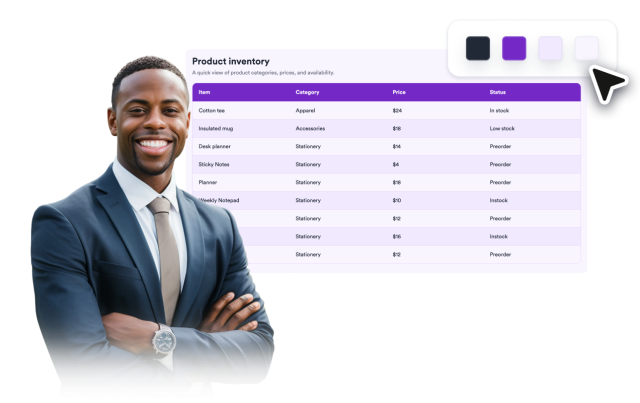
Prepared color schemesCustom colorsStriped rowsCorner radius
Style Your Table
Customize the Table Style

Keep Large Tables Easy to Follow

Use floating headers and row labels to keep context visible while visitors scan long or wide data sets.

Reading aids include:
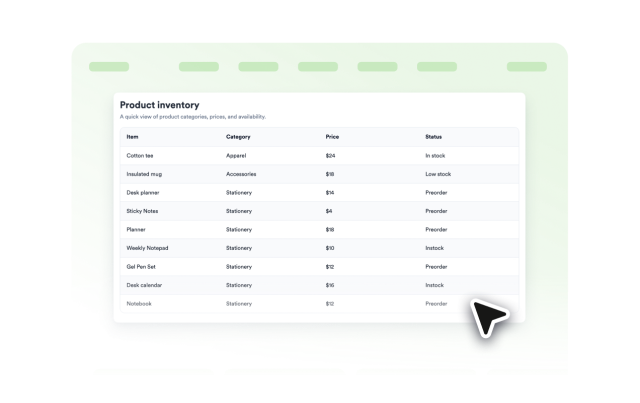
Floating headerFloating row labelsRow stripingScoped CSS
Improve Readability
Keep Large Tables Easy to Follow