
If you work in architecture, construction, or engineering, you’ve no doubt heard of or worked with Bluebeam Revu. It’s a popular software application built specifically to support professionals in these fields who work with PDFs — especially those related to project documents, drawings, and building specifications. You can do nearly anything with PDF files in Bluebeam, including converting them into fillable forms.
Fillable forms are a valuable tool for collecting data because they allow you to standardize the submission of information, making it easier for individuals and teams to work with incoming data. They also promote accuracy and efficiency because users can submit data digitally, reducing the need for hand writing, printing, and scanning.
Below are step-by-step instructions on how to make a fillable form in Bluebeam. And if you’re looking for a more mobile-friendly, easy-to-use alternative, keep reading to learn more about Jotform’s Smart PDF Forms.
How to make a fillable form in Bluebeam
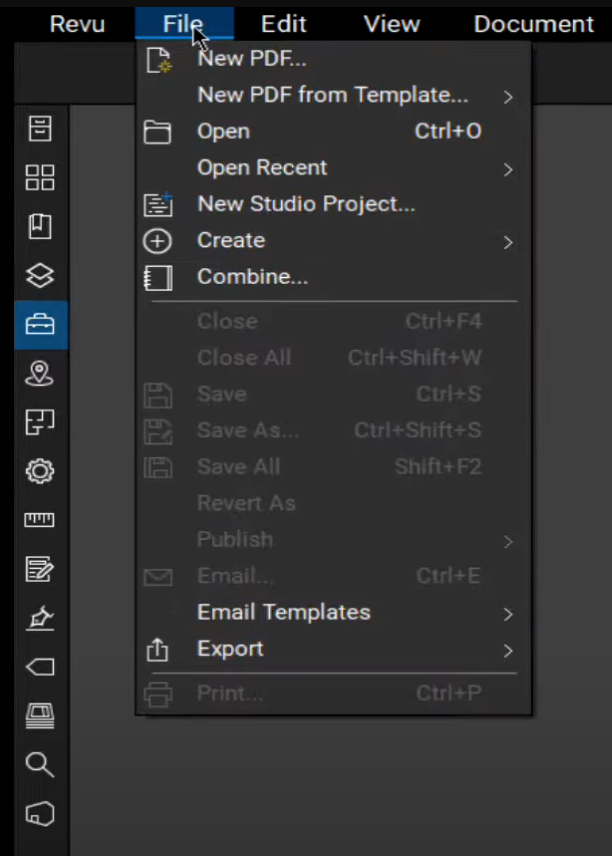
1. First, open the PDF you want to convert into a fillable form in Bluebeam Revu by clicking File in the top menu and then Open to locate your PDF document.
2. Convert your PDF into a fillable form. You have two options for doing this: you can either insert the form fields manually or use Bluebeam’s Auto Create function. If your PDF already has form fields in it, using Auto Create is the simplest method.
To use Auto Create:
a. Navigate to Tools > Form > Automatically Create Form Fields.
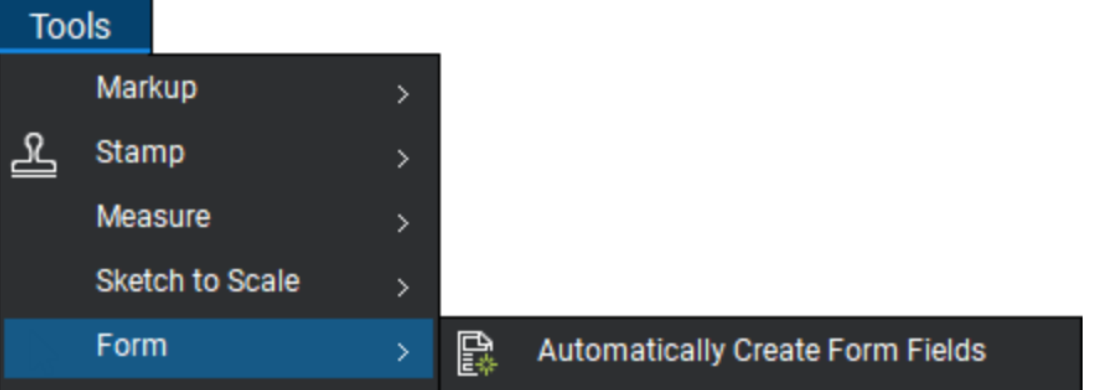
Bluebeam will scan your document to detect form elements — text fields, check boxes, radio buttons, signature and date fields, etc. — and automatically insert form fields. It’ll attempt to identify and name form fields based on the surrounding text as well as the shape, such as a square checkbox vs a rectangular text field.
If your PDF is a scanned document or image-based PDF (rather than a computer-generated one), Bluebeam may not be able to detect form fields automatically. In this case, it’ll suggest using optical character recognition (OCR). OCR gives Bluebeam access to the PDF’s underlying data, allowing it to “see” form fields.
To run OCR, simply click Yes in response to Revu’s OCR suggestion.
To manually add form fields:
a. Go to Tools > Form.
b. Select the form field type you want to add. Options include Text Box, Tick Box, Radio Button, List Box, Dropdown, Button, and Digital Signature.
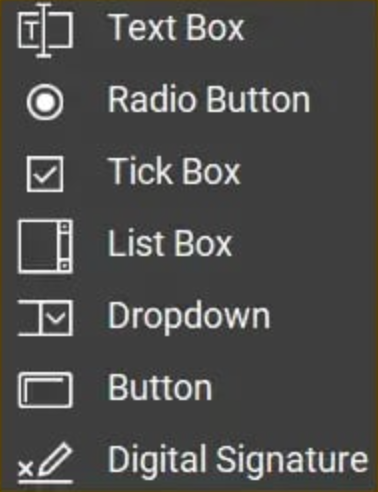
c. Place and configure each field on the PDF as needed. To do this, first click on a field to make it active. You can then adjust the size by dragging the control points, or move it to a new location by clicking inside the field and dragging the element.
3. Review and edit the appearance of your form fields.
- If you’ve used Auto Create, the “Edit Form” mode automatically becomes active after the scan has been completed and the Forms panel will be visible. (If you’ve added fields manually, go to Window > Panels > Forms to access the Forms panel.) This panel shows the types of fields that appear on your PDF and the name of each field. Select a form field to make it active.
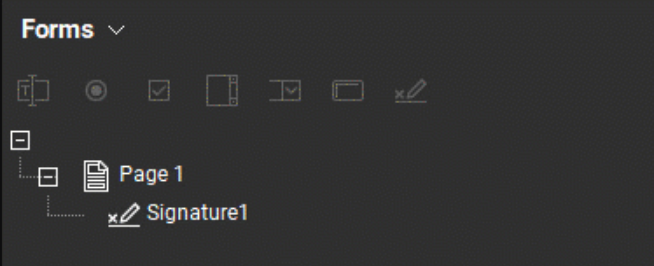
- To edit the appearance of form fields, open the Properties panel by navigating to Window > Panels > Properties. For each form field, adjust the properties in this panel as needed.
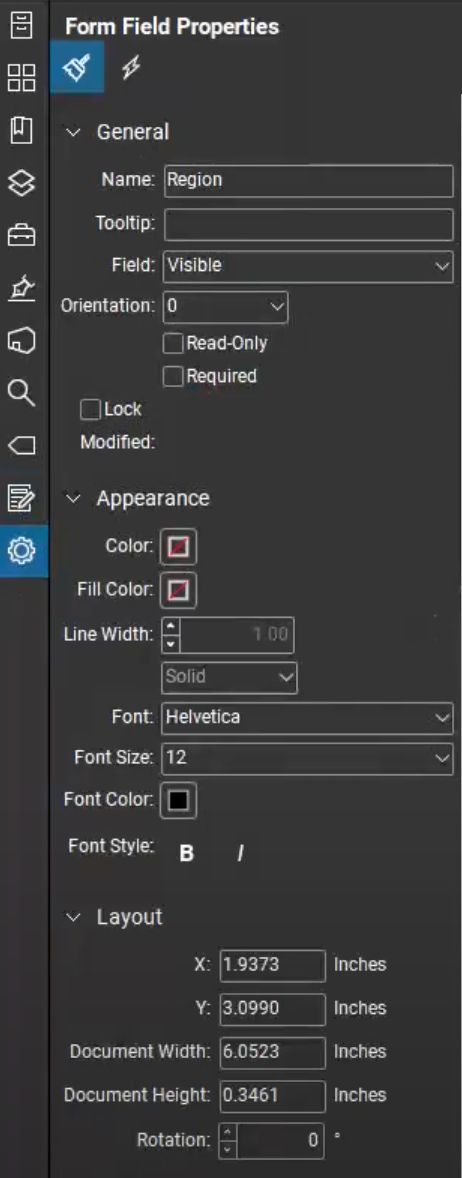
4. Further modify form properties and the layout as needed. For example, you can
- Duplicate fields across multiple pages by right-clicking on a form field and then selecting Duplicate Across Pages.
- Neaten up your layout with the Align (left, center, right, etc.) and Distribute (for even spacing) tools.
- Add calculations and automate form behavior.
To set up a simple calculation (like Quantity x Price = Total):
- Use the Forms panel to create and name the text boxes that will be part of the calculation (for example, Quantity, Price, Total).
- In the Properties panel, scroll down to Calculate and then select Calculation Field from the dropdown list.
- Choose the product from the second dropdown list, and click Select.
- Select each of the calculation fields (for example, both Quantity and Price).
- Select OK.
An alternative to Bluebeam for fillable forms: Jotform
Learning how to make a PDF a fillable form in Bluebeam is just one aspect of mastering the software; it has many features that help contractors, architects, and engineers work seamlessly as a team. But if you’re in search of an alternative PDF-to-form converter — one that makes filling out forms online even easier — try Jotform.
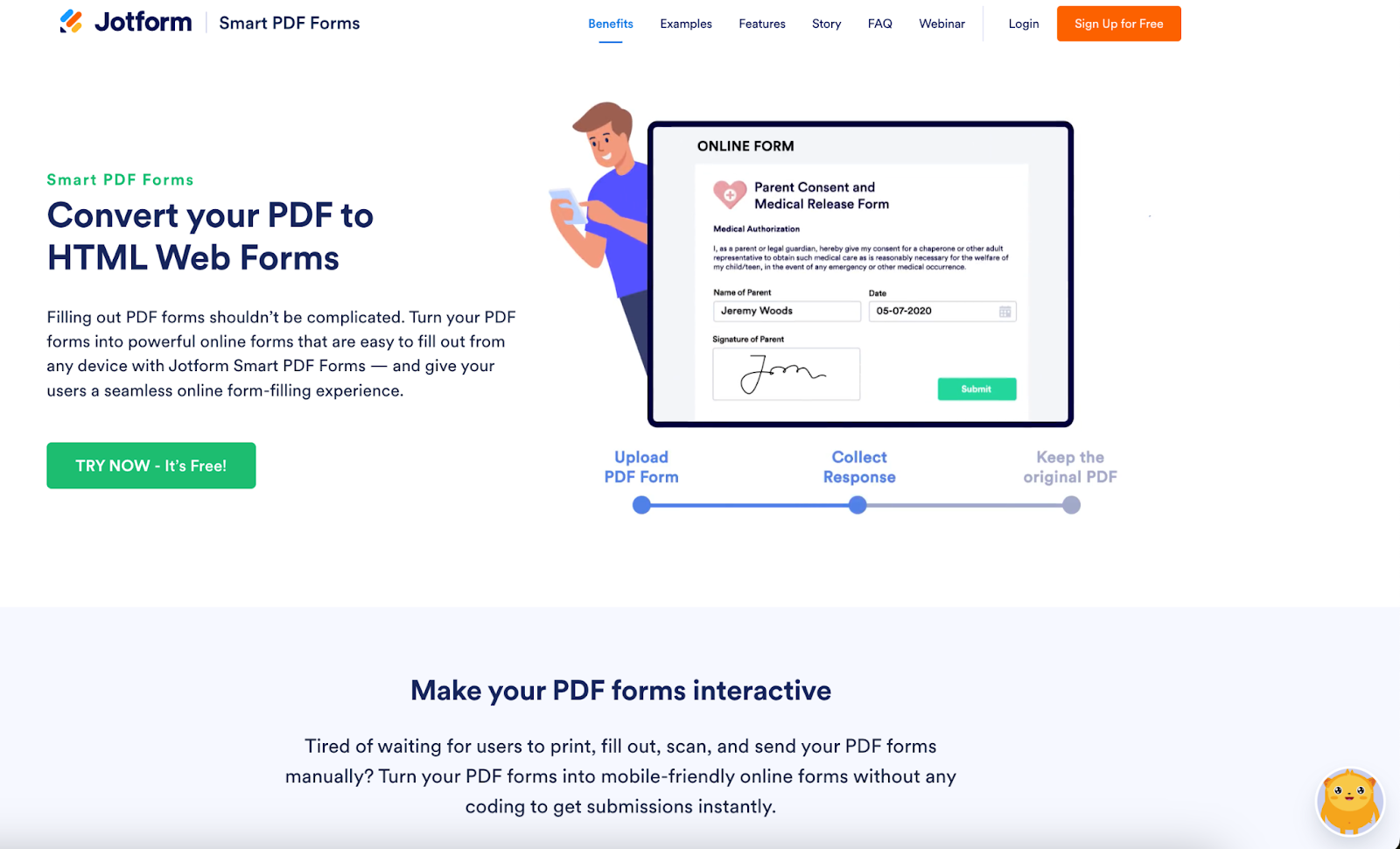
Jotform Smart PDF Forms allows you to turn any PDF into an online fillable form that’s accessible on any device — without printing or downloading. It gives users a seamless online form-filling experience and has advanced features to help you make the most of your PDFs, including
- Field adding and mapping: You can easily edit PDF form fields with a drag-and-drop tool, add new fields, and map online form fields with PDF fields.
- Preview PDF: Users can preview their submissions in PDF format.
- Response sharing: Users can download and send their submissions as PDFs or share them via email.
- Password protection: Maintain privacy by limiting PDF access to only those who know the password.
- Instant notifications: Get an email notification for every new submission.
- Cloud storage integration: Streamline your workflow by connecting to popular cloud storage services such as Google Drive, Dropbox, and Box.
- Mobile-friendly: Users can fill out forms on any computer, smartphone, or tablet, creating a smoother form-filling experience.
Once you’ve collected your responses, you can turn them into professional-looking, designed documents with the help of Jotform PDF Editor.
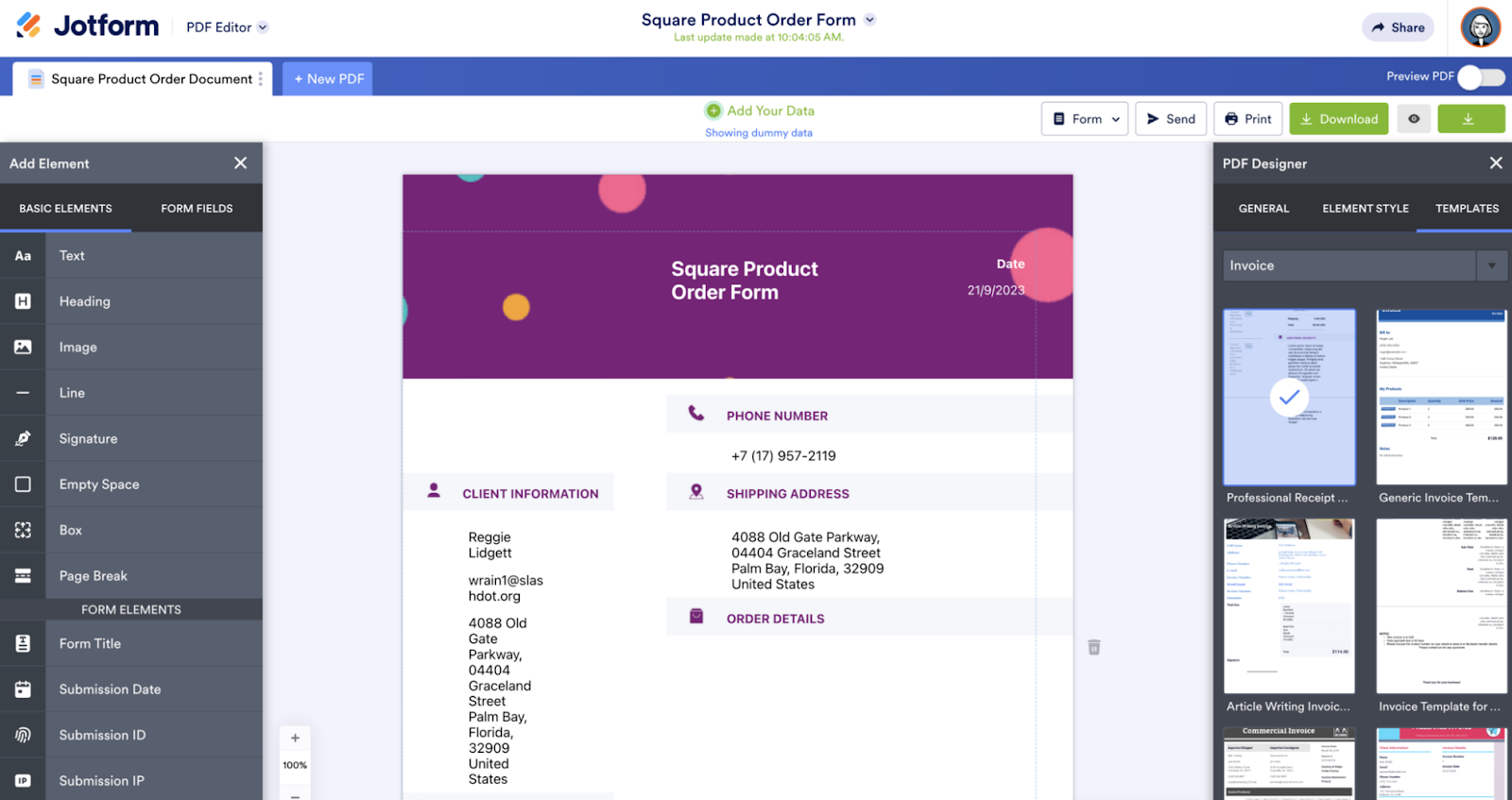
Whether your forms are related to project updates, inspections, RFIs, bids, invoices, or anything else, Jotform PDF Editor can automatically generate PDFs from the related form submissions. It offers numerous customization options so you can match the look and feel of your company’s branding, too. You can even use it to turn PDFs into e-sign documents and collect signatures from clients and partners.
Best of all, Jotform is incredibly easy to use, even for non-technical individuals and teams. (Here’s how to create a fillable PDF form in just a few steps.) No coding is required to create fillable forms from PDFs, or to generate polished PDF documents.
And did we mention Jotform has a free plan? You can use its forms and features without breaking the bank.
Get started creating fillable forms from PDFs
For professionals in nearly any field, having the ability to easily create fillable forms from PDFs is a necessity. Bluebeam Revu is one of the top PDF tools, particularly for technical documentation, and has a number of powerful features that support team communication and collaboration. It is costly, however, and may not be the best solution for online and mobile-friendly form-related workflows.
If you’re looking for a simple tool to convert a PDF to a web form, give Jotform Smart PDF Forms and PDF Editor a try. Together, they create a seamless online form-filling experience and offer you a full set of robust features — both for making PDFs interactive and for generating attractive-looking PDF documents from form responses. Ready to try the best alternative to Bluebeam Revu for turning PDFs into fillable forms? Convert your first PDF now.
This guide is for anyone in architecture, engineering, or construction who wrangles PDFs and needs cleaner, faster data capture.























Send Comment: