With Jotform, adding attachments to your form emails is quick and easy. Whether you want users to receive uploaded files, a PDF copy of their submission, or a simple download link, there are a few flexible options to choose from. These options work for both autoresponder and notification emails.
Here’s what you can do:
- Send uploaded files as email attachments (if your form has a File Upload field).
- Attach a PDF of the form submission.
- Add a download link of the PDF Submission instead of attaching it directly.
Each option helps keep form fillers and your team in the loop,and makes sure everyone has a copy of the submission when they need it.
How to Add File Uploads as Email Attachments
If your form includes a File Upload field, you can automatically send uploaded files as email attachments. Here’s how to set it up:
- In Form Builder, in the orange navigation bar at the top of the page, click on Settings.
- Then, in the menu on the left, click on Emails.
- Next, on a Notification or Autoresponder Email template, hover over it and click on the Pencil icon.
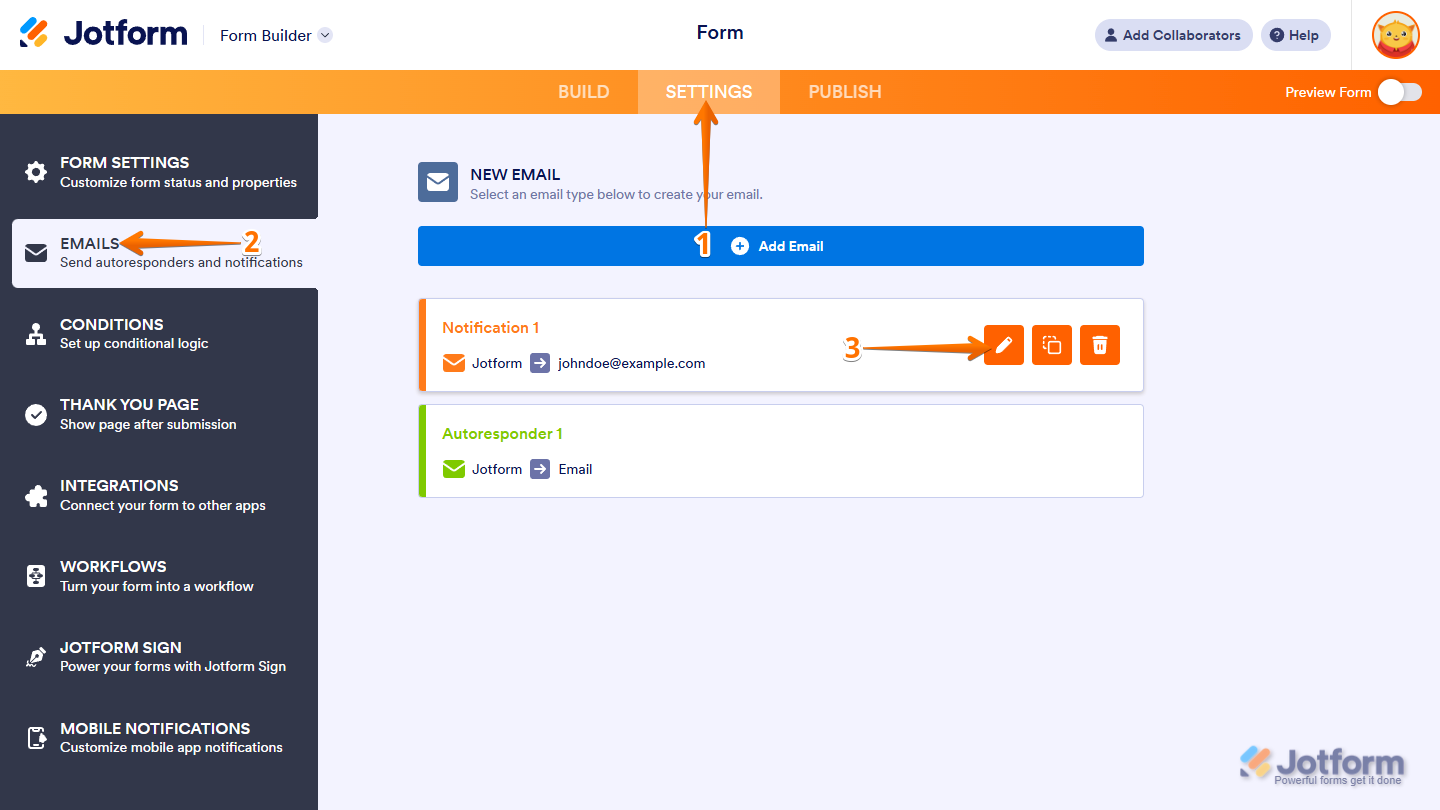
- Then, under the Advanced tab, toggle on the Send File Upload as Attachments.
- Finally, at the bottom of the page, click on Save, and you’re all set.
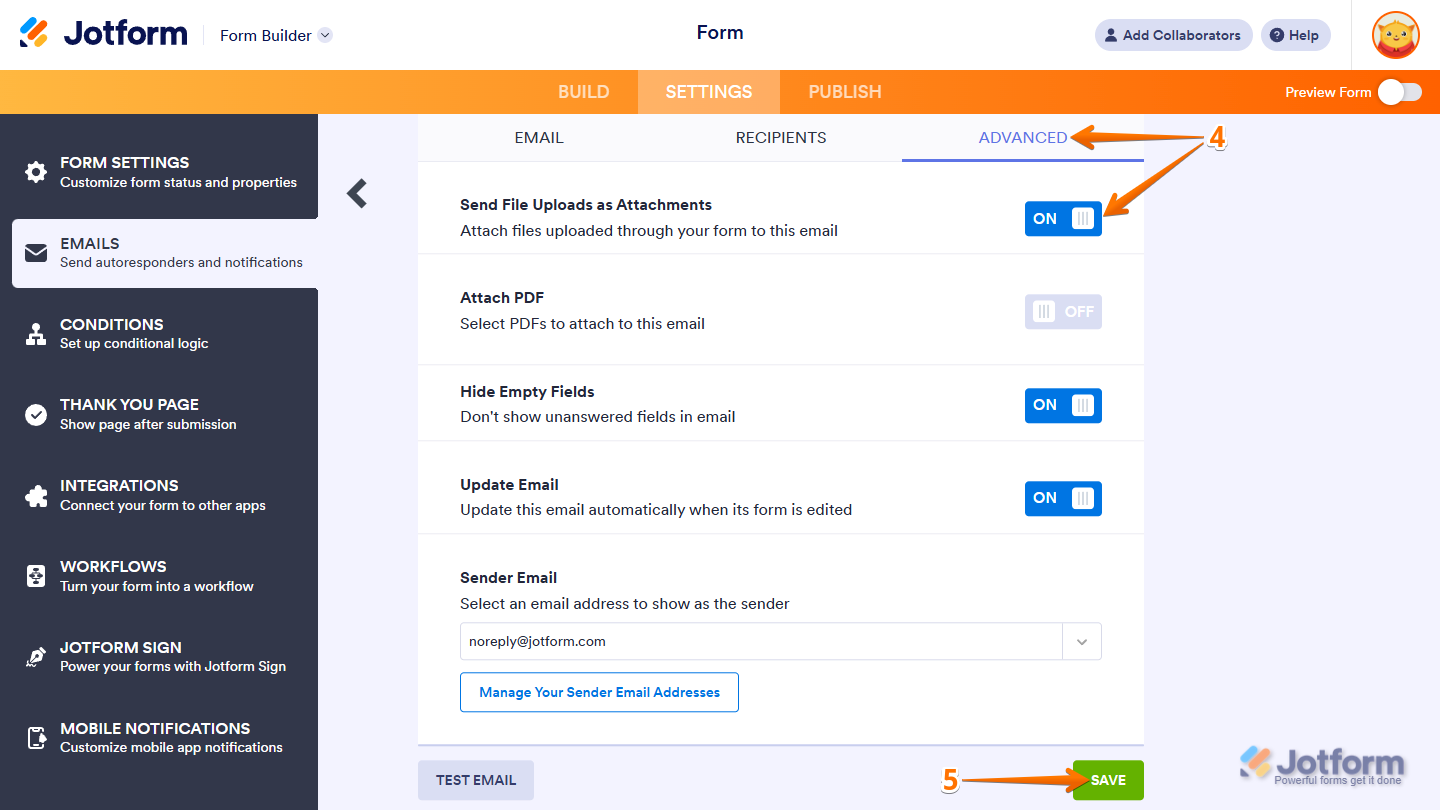
And that’s it! When someone uploads a file through your form, it will appear as an attachment in the email.
Note
If the uploaded file is larger than 5 MB, it won’t be attached to the email. We recommend setting a file size limit on your File Upload field to keep things running smoothly. You can check out our guide on How to Change the File Size Limit in File Upload Fields to learn more.
How to Add a PDF Copy of the Submission
You can also include a PDF copy of the form submission as an attachment in the email. Setting it up takes no time—here’s how:
- In Form Builder, in the orange navigation bar at the top of the page, click on Settings.
- Then, in the menu on the left, click on Emails.
- Next, on a Notification or AutoresponderEmail template, hover over it and click on the Pencil icon.
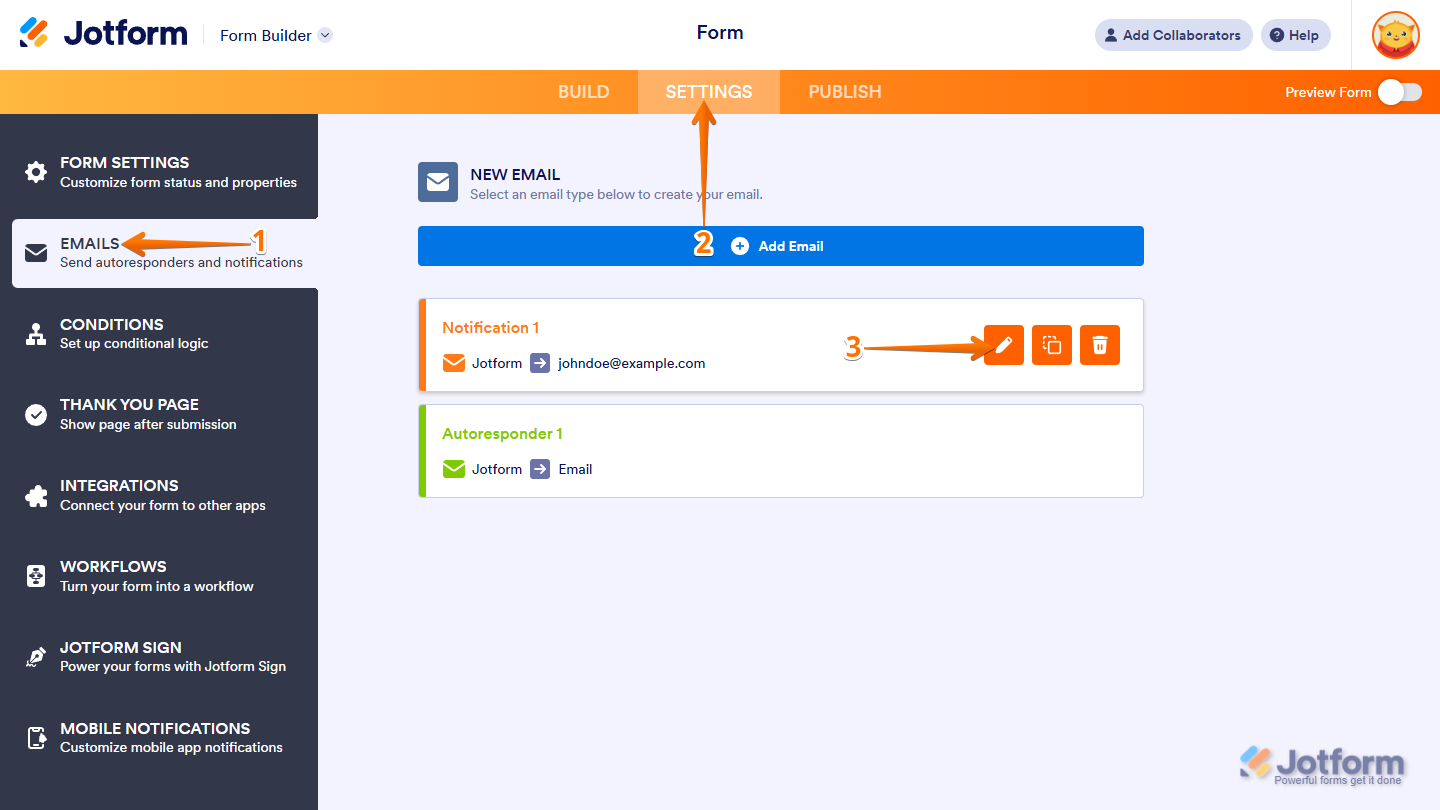
- Then, under the Advanced tab, toggle on the Attach PDF.
- Finally, at the bottom of the page, click on Save, and you’re done.
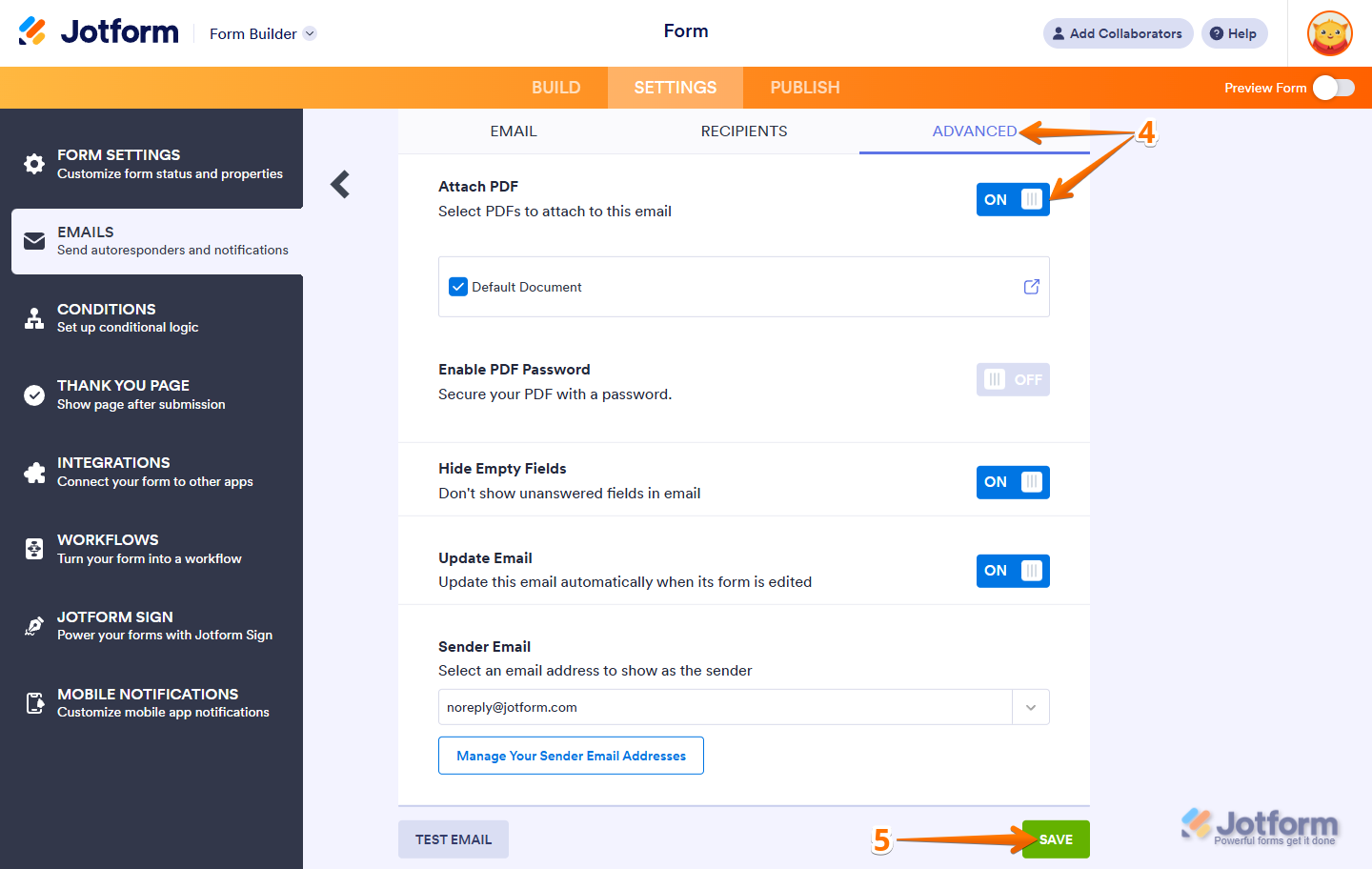
From now on, a PDF copy of the submission will be included with the email.
How to Add a Download Link to the Submission PDF
If you’d rather not attach a copy of the PDF submission, you can add a PDF submission link instead. You can do it in a few simple steps:
- In Form Builder, in the orange navigation bar at the top of the page, click on Settings.
- Then, in the menu on the left, click on Emails.
- Next, on a Notification or AutoresponderEmail template, hover over it and click on thePencil icon.
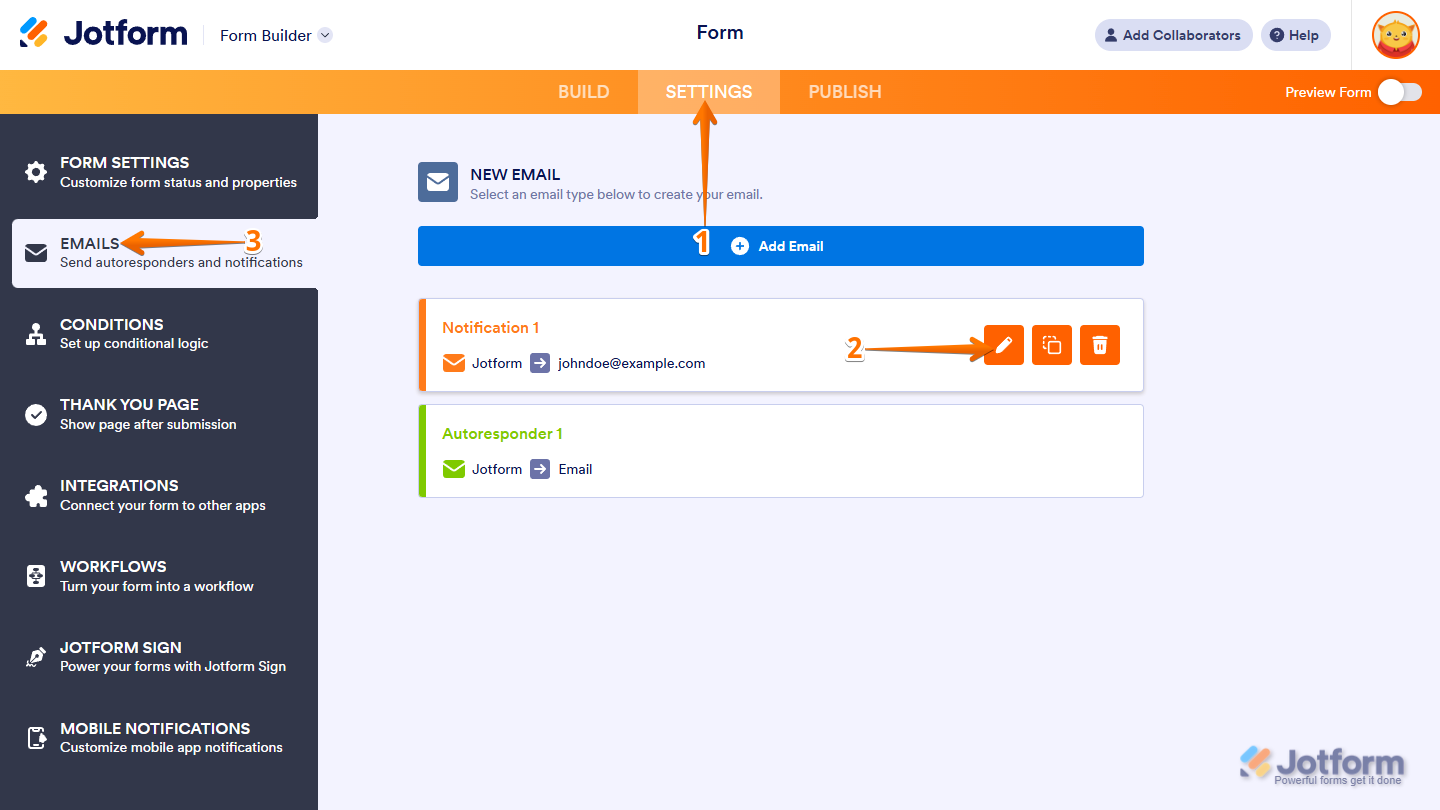
- Then, under the Email tab, in the Email Content window, click on Form Fields in the top-right corner.
- Next, in the Dropdown menu that opens, click on the PDF link and place it wherever you want.
- Finally, at the bottom of the page, click on Save, and you’re good to go.
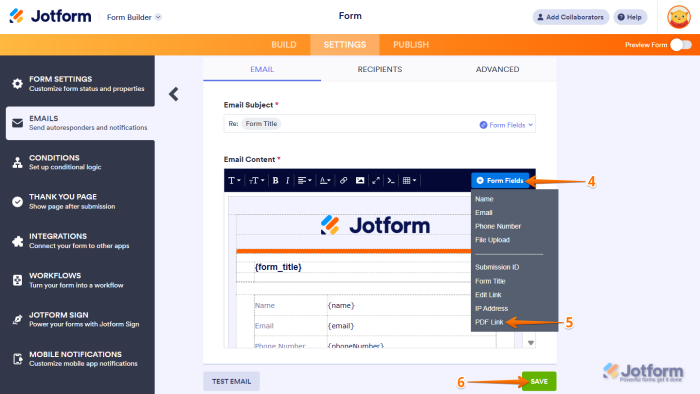
Your notification and autoresponder emails will now include a link to download the submission as a PDF.
With these options, you can easily choose how attachments are included in your form emails—whether it’s uploaded files, a PDF copy of the submission, or a downloadable PDF link. This helps ensure both you and your form submitters always have access to the information you need.

Send Comment:
1 Comment:
May 17, 2024
Is there possible with approval form to ask more attach files from the client after we approved or denial the submission?