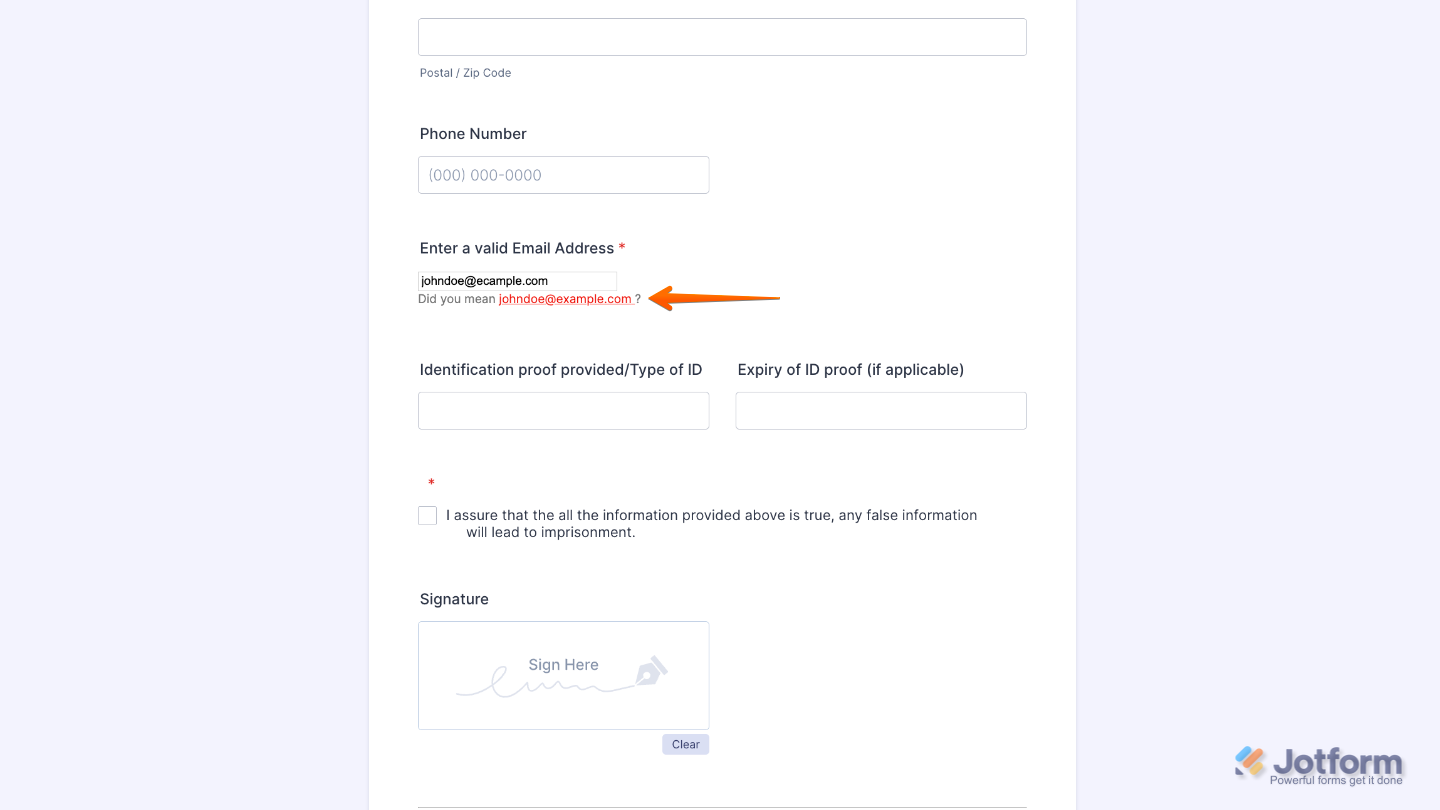
Jotform’s Email Correctness Check widget helps ensure users enter their email addresses correctly before submitting the form. It’s a simple way to catch typos and reduce bounce backs by showing an error message that suggests the correct address without the typo.
Here are a few ways to use it:
- Improve Data Accuracy — If you’re collecting leads or sign-ups, accurate email addresses make your list cleaner and more reliable—no more clutter from incorrect entries.
- Ensure Smooth Communication — Whether you’re sending order confirmations, event tickets, or follow-up emails, having the right address means your messages get where they need to go.
- Add Professionalism to Your Forms — By double-checking emails, you show users you care about accuracy and communication, which builds trust in your process.
- Perfect for Registrations and Orders — From online registrations to e-commerce forms, this widget helps guarantee that important info won’t get lost because of a simple typo.
Adding and Setting Up the Email Correctness Check Widget
Add the Email Correctness Check widget to your form to help users enter their email addresses accurately. It only takes a minute to set up—here’s how:
- In Form Builder, click on Add Element on the left side of the page.
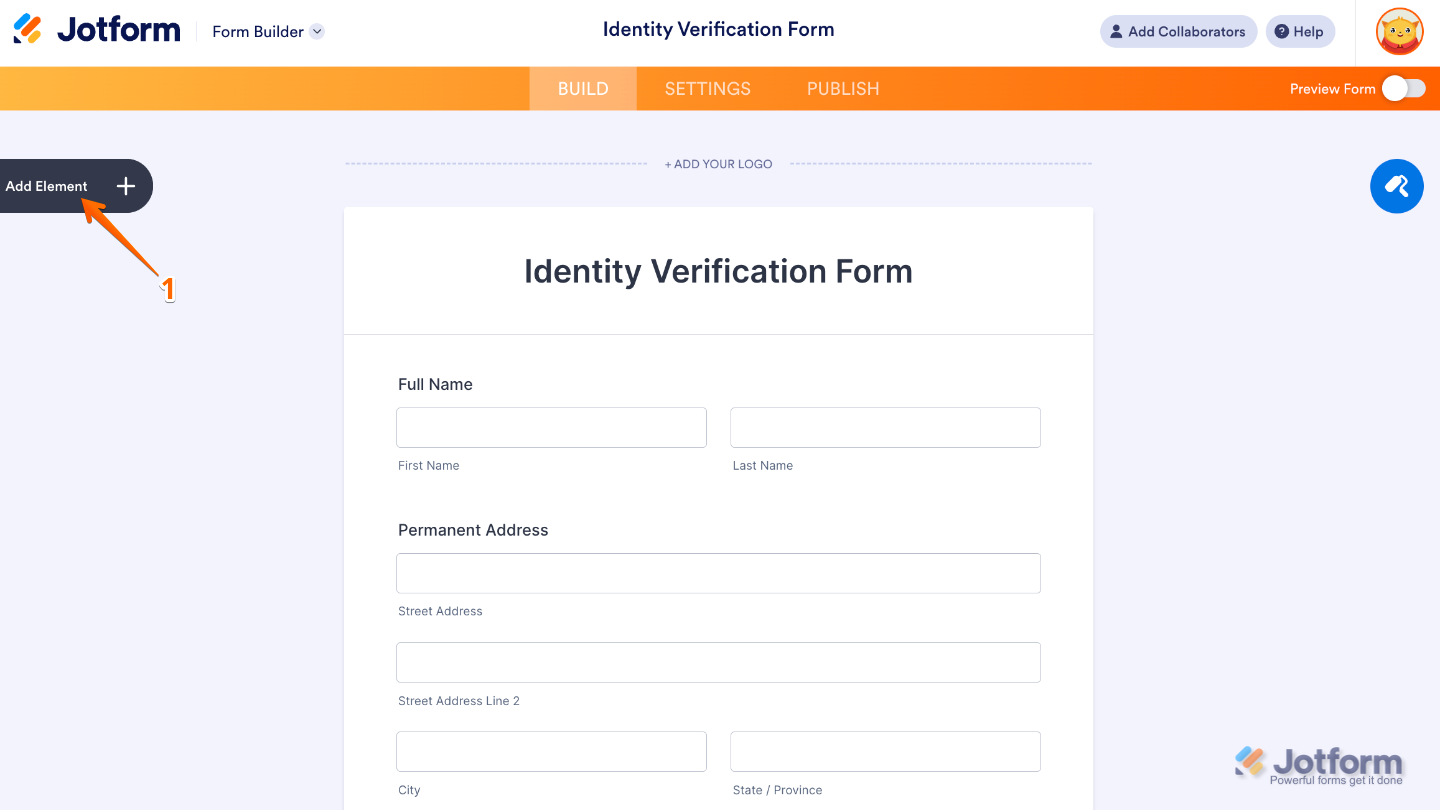
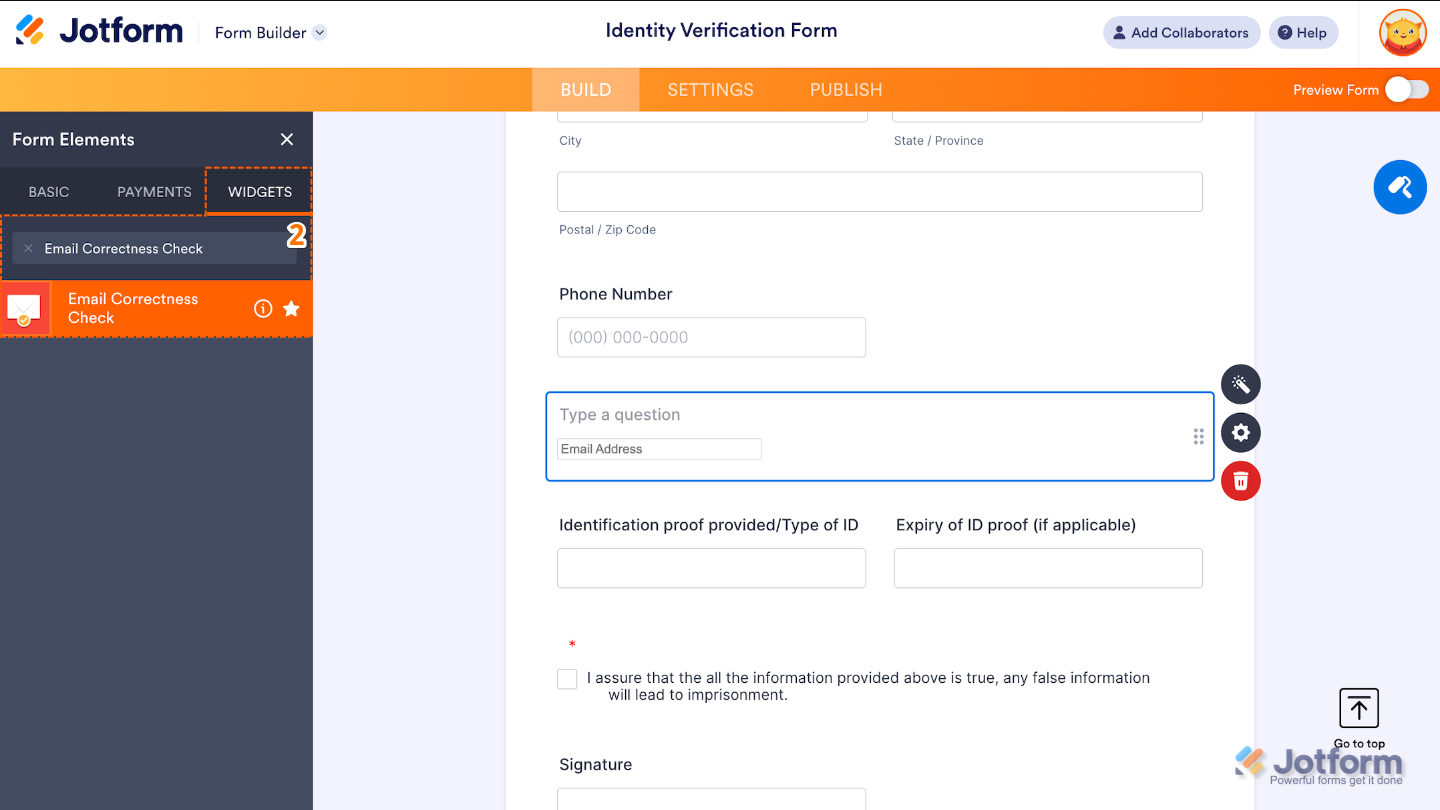
- Now, in the Form Elements menu, under the Widgets tab, search for Email Correctness Check and then click on it. Or, just drag and drop it to where you want it to be on your form.
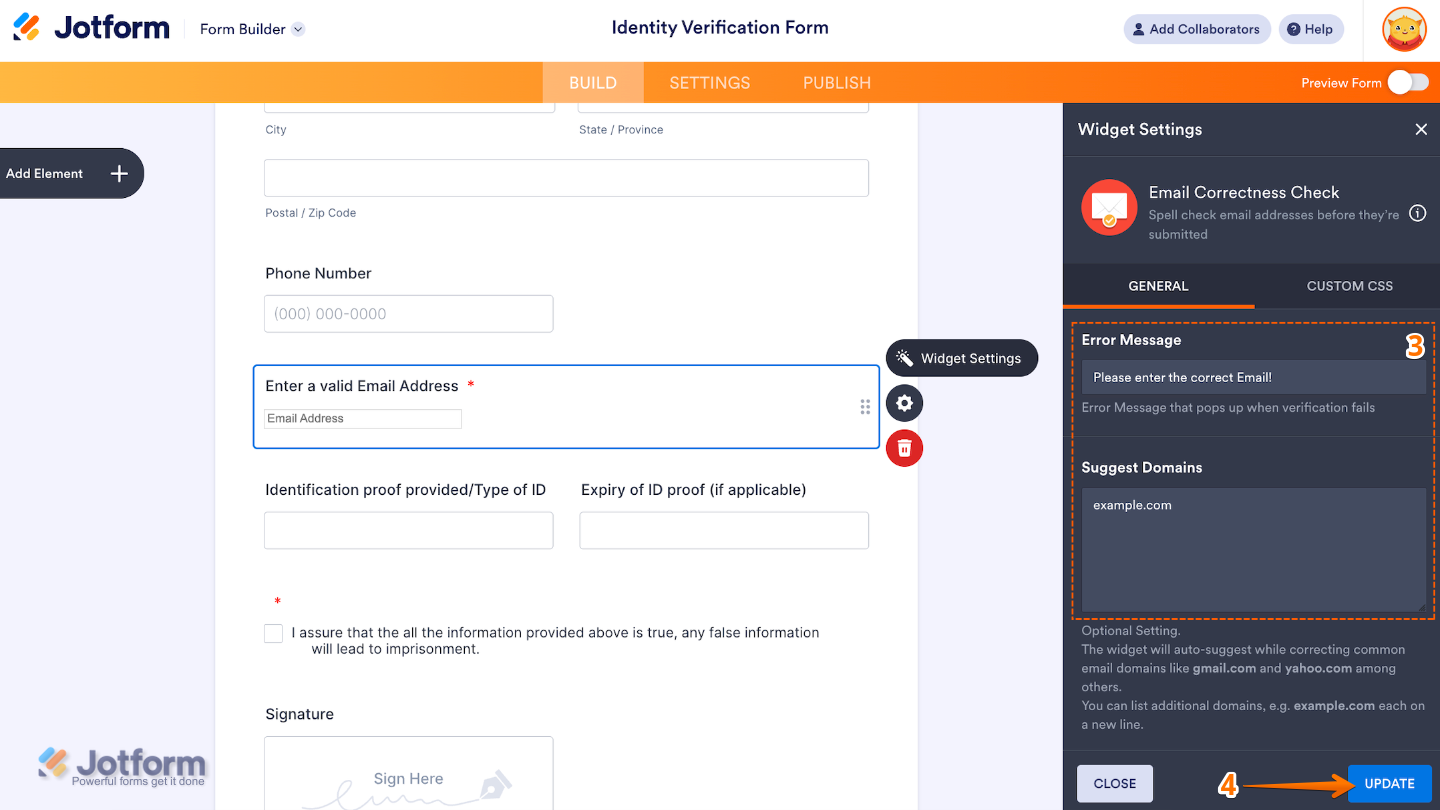
- Next, in the Widget Settings window that opens on the right side of the page, set up the following options:
- Error Message — Edit this to personalize the message shown to users when the email they’ve entered doesn’t seem correct.
- Suggest Domains — Set this up to add a list of common email domains that the widget can suggest if it detects a typographic error.
- Once you’re done, click on Update.
That’s it. You’ve successfully added and set up the Email Correctness Check widget to your form. Now, your form’s email field will prevent common email entry mistakes. Curious how it works on a live form? Check out this Demo Form.
To further customize your Email Correctness Check field appearance, just click on the Gear icon to open its properties.
Note
For advanced styling, you can add your own custom CSS under the Custom CSS tab in the widget settings and style the Email Correctness Check field. Our guide on How to Inject CSS Codes to Widgets walks you through everything.
Pro Tips
- Add the most common domains your audience uses to improve suggestion accuracy and reduce submission errors.
- Customize your error message to keep it friendly and on-brand
- Place the widget early in your form, so users catch mistakes before moving forward.
- Test it on mobile and desktop to make sure the typing animation and error prompts are smooth across devices.

Send Comment: