Jotform’s Short Scrollable Terms widget is a handy way to share long content, like agreements or detailed instructions, without taking up too much space on your form. It comes with a built-in checkbox that users can tick to confirm they’ve read and agreed to the terms before submitting.
Here are a few ways to use it:
- Service agreements — Let users quickly read and agree to your terms of service before signing up.
- Privacy policies — Display your privacy policy in a compact, scrollable box so it doesn’t clutter your form.
- Event waivers — Perfect for sports events, workshops, or trips where participants must acknowledge liability waivers.
- Membership rules — Show community guidelines or club rules that members must agree to before joining.
Notes
- By default, the Short Scrollable Terms widget is set to required, so users will need to check the box to confirm they’ve read the content before they can submit the form. It’s a helpful way to make sure nothing gets missed.
- There’s a checkbox included by default so users can easily confirm they’ve read and agreed to the content before hitting submit, just a simple way to keep everything clear and transparent.
Adding and Setting Up the Short Scrollable Terms Widget
It’s easy to share terms and conditions, privacy policies, or disclaimers without cluttering your form; everything stays neat and user-friendly. Here’s a quick how-to:
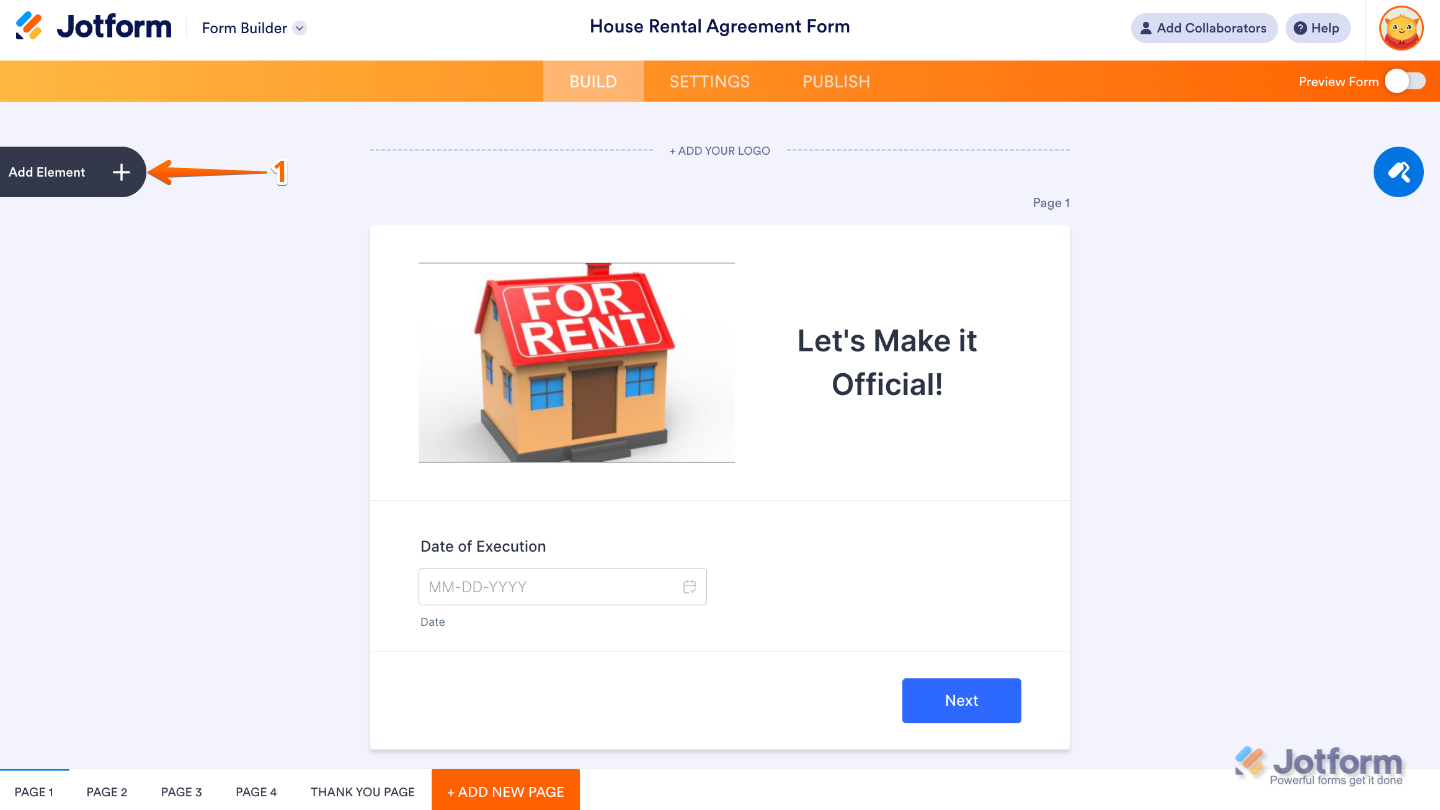
- In Form Builder, click on Add Element on the left side of the page.
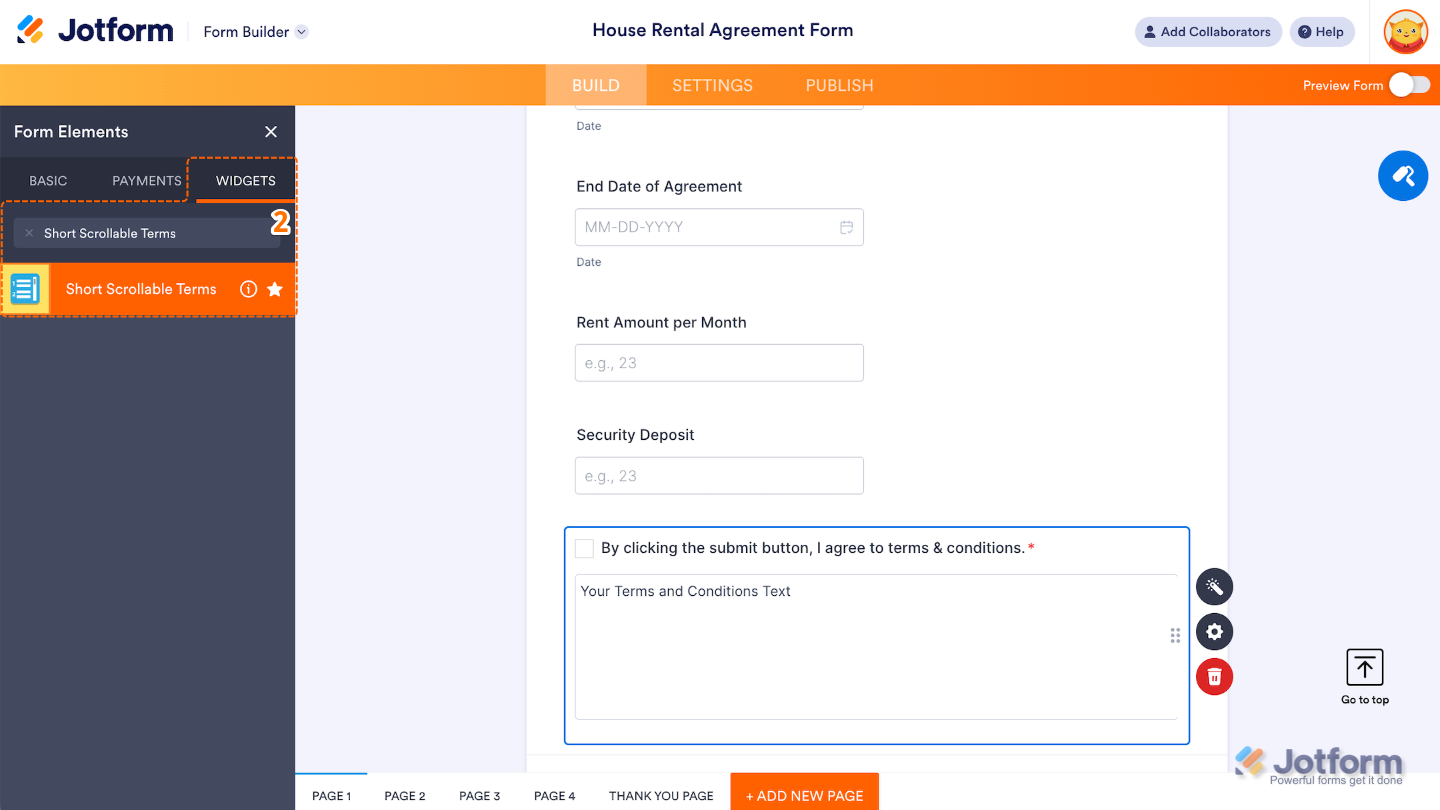
- Now, in the Form Elements menu, under the Widgets tab, search for Short Scrollable Terms and then click on it. Or, just drag and drop it to where you want it to be on your form.
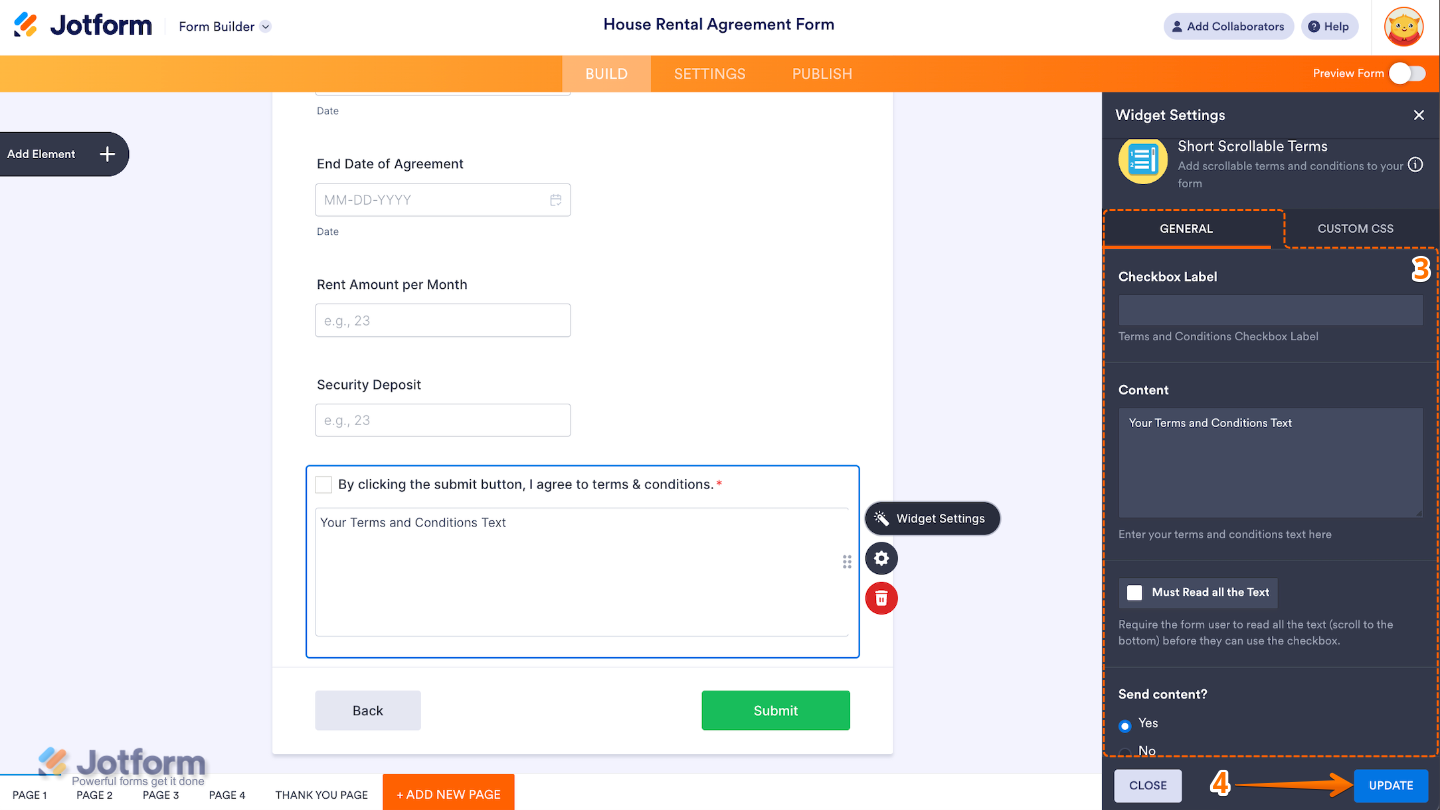
- Next, in the Widget Settings window that opens on the right side of the page, under the General tab, set up the following options:
- Checkbox Label — Use this to customize the text that appears next to the checkbox users click to confirm they’ve read and agreed to the terms.
- Content — This is where you enter your terms and conditions, privacy policy, or any important text you want users to read.
- Must Read All the Text — When enabled, users must scroll through the entire content before they can check the agreement box.
- Send Content? — If set to Yes, this setting includes the full content (terms text) in the form’s submission data.
- Once you’re done, click on Update.
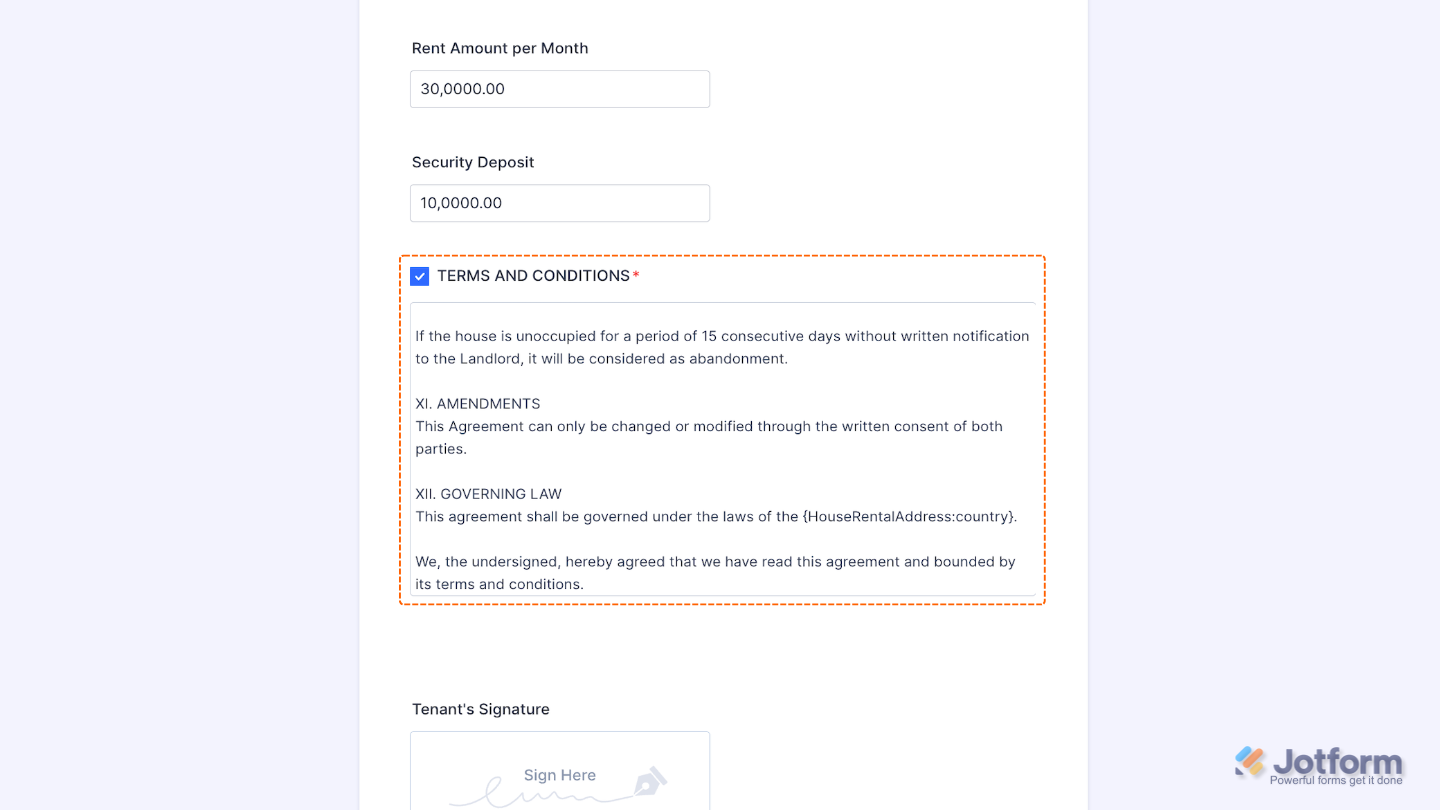
That’s it. You’ve successfully added and set up the Short Scrollable Terms widget to your form. Now, you have a long text—like terms, policies, or disclaimers—in a compact, scrollable box that keeps your form clean while still sharing important information. Here’s a Demo Form so you can see it in use.
To personalize how your Short Scrollable Terms field looks, simply click the Gear icon to open its settings.
Note
For advanced styling, you can add your own custom CSS under the Custom CSS tab in the widget settings and style the Short Scrollable Terms field. Our guide on How to Inject CSS Codes to Widgets walks you through everything.
Pro Tips
- Turn on the Must Read All the Text option if you’d like users to scroll through everything before they can agree, a gentle nudge to make sure nothing gets skipped.
- Use the Send Content? option if you want the full terms text included in the submission data, great for legal or record-keeping purposes.
- Make your terms easy on the eyes by using short paragraphs, headers, or bullet points. A clean layout goes a long way inside the scroll box.
- Give your form a quick test on both desktop and mobile to make sure the scroll area and checkbox look great and work smoothly for everyone.

Send Comment: