Jotform’s Social Share widget makes it simple for users to share your company or link on their favorite social media platforms—like Facebook, Twitter, LinkedIn, and more—right from your form. Whether you’re promoting an event, gathering survey responses, or encouraging signups, this widget helps spread the word and get more eyes on your content with just a single click.
Here are a few ways to use it:
- Encourage Users to Share Your Form After Submission — You can place the Social Share widget on the Thank You page to let users instantly share your form on their social media accounts. This helps increase visibility and reach without additional marketing effort.
- Promote Events or Campaigns — The widget can be used to encourage participants to share event registrations, fundraisers, or promotional campaigns with their networks. This helps attract more attendees or supporters organically.
- Boost Survey Participation — After completing a survey, users can share it with friends or colleagues through the Social Share widget. This can help you gather more responses in a shorter amount of time.
- Increase Brand Awareness — You can use the widget to make it easy for users to share your business, product, or service pages. Every share helps expand your brand’s online presence.
Note
The widget’s share buttons automatically adjust to match each platform’s official branding, giving users a familiar and trusted look wherever they’re sharing.
Adding and Setting Up the Social Share Widget
Adding the Social Share widget to your form is quick and easy, no coding needed. Just drag it into your form, and it’s ready to go. To get going, here’s what you’ll do:
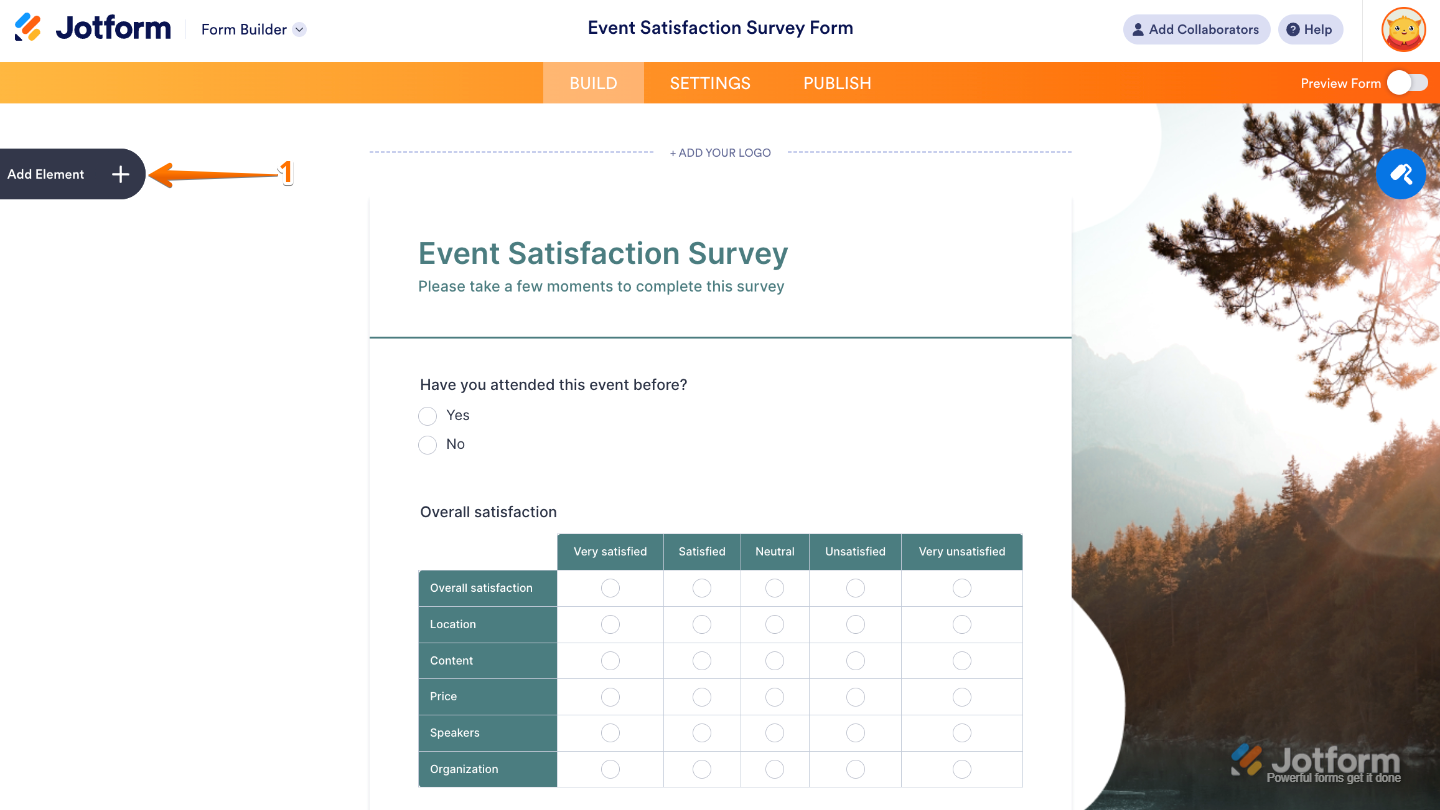
- In Form Builder, click on Add Element on the left side of the page.
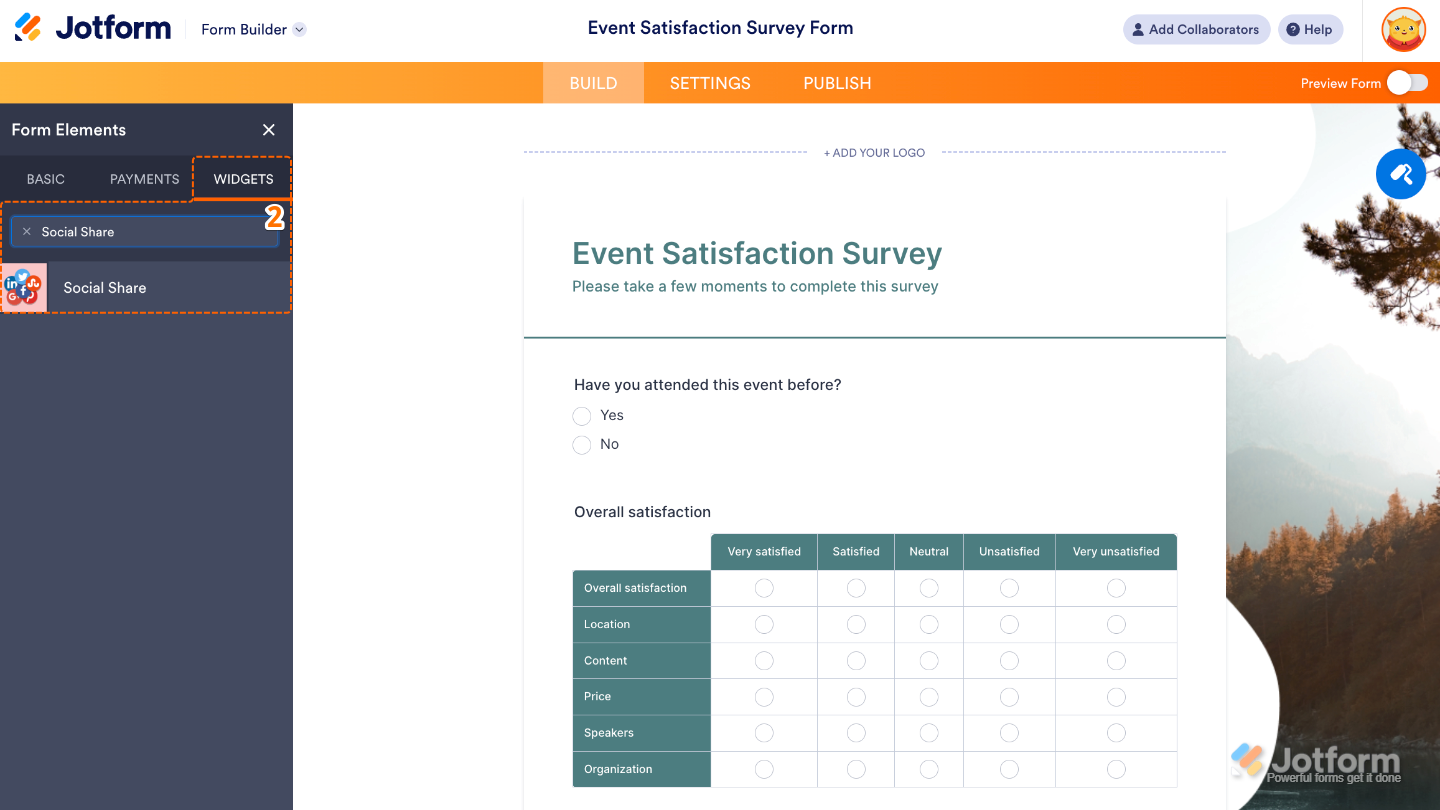
- Now, in the Form Elements menu, under the Widgets tab, search for Social Share and then click on it. Or, just drag and drop it to where you want it to be on your form.
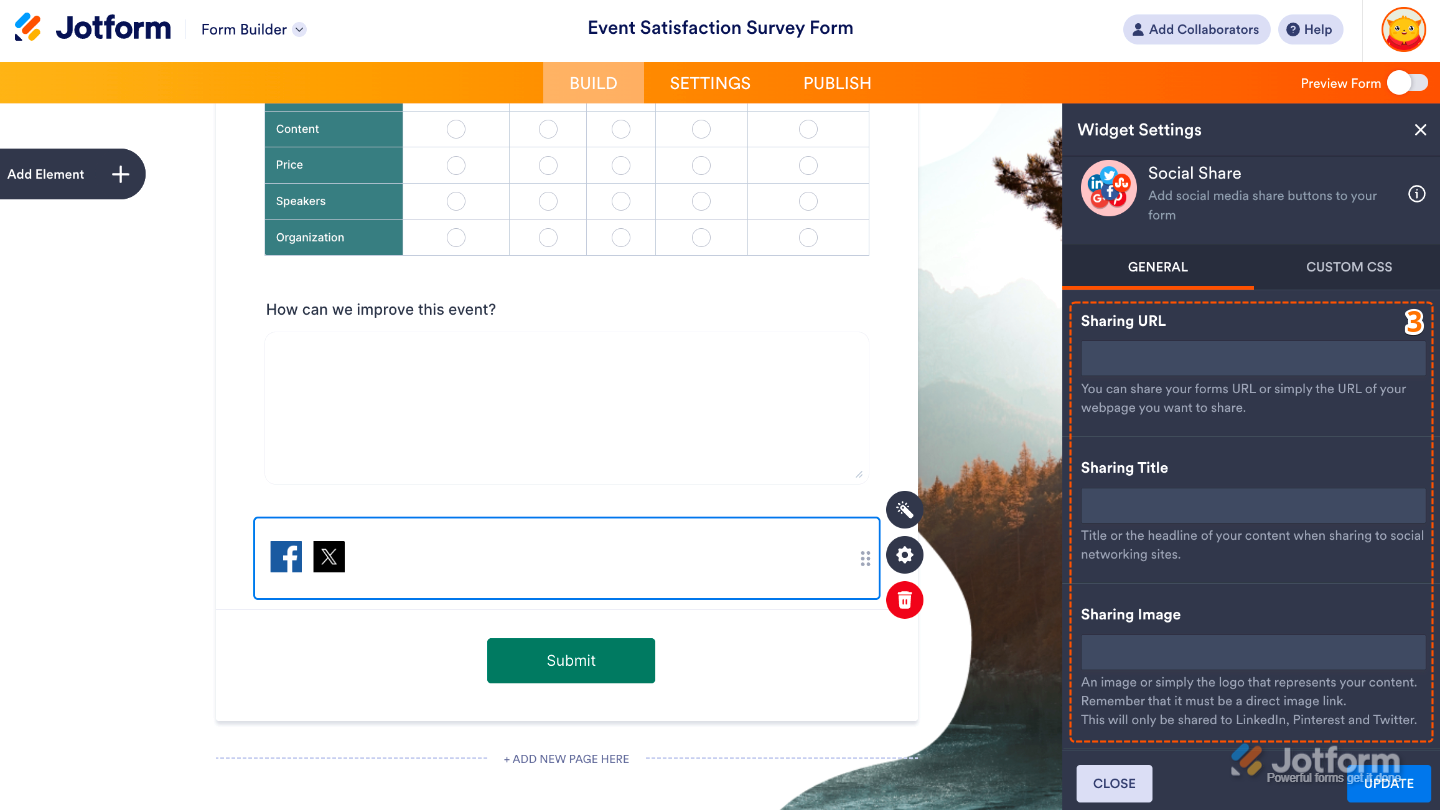
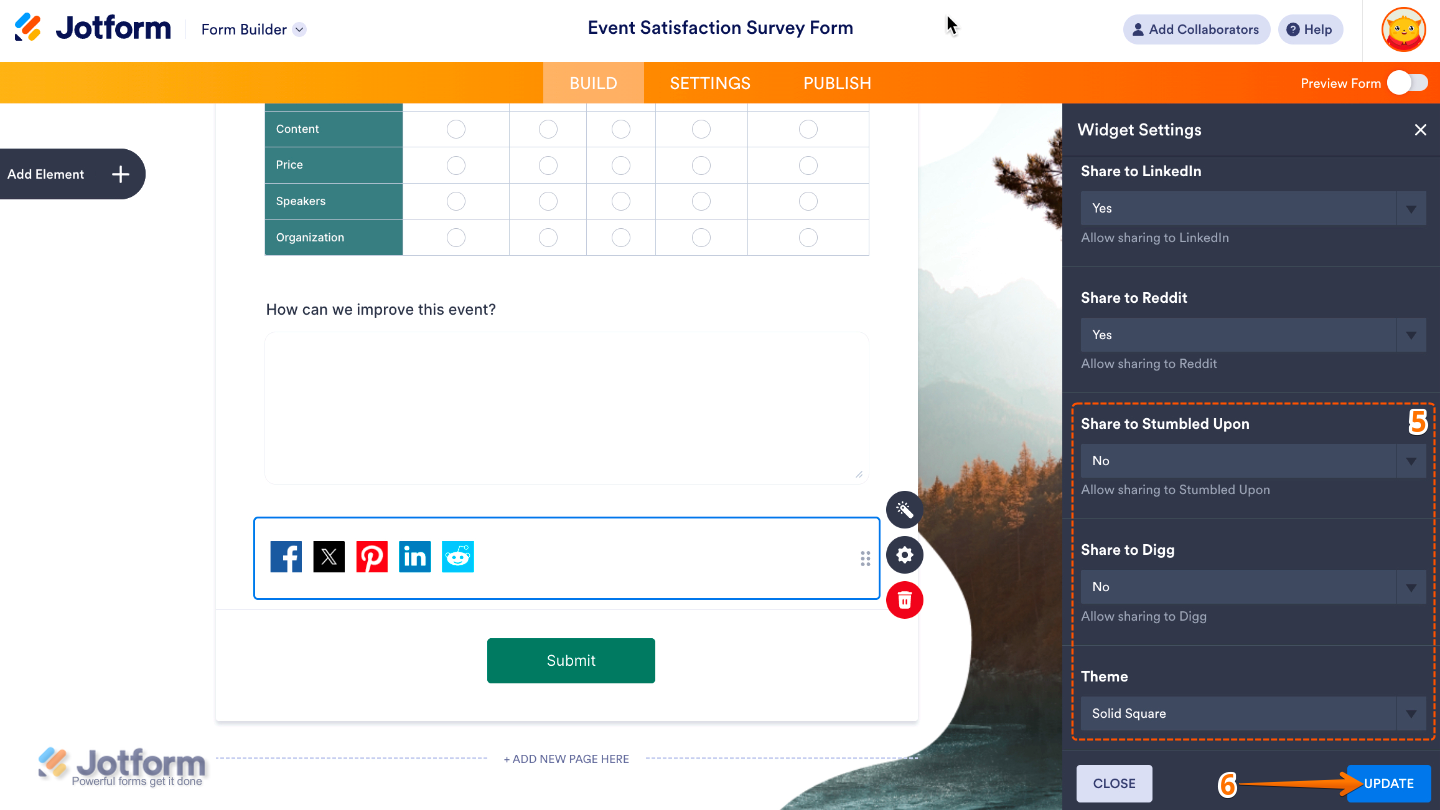
- Next, in the Widget Settings window that opens on the right side of the page, set up the following options:
- Sharing URL — Enter the link you’d like people to share when they click a social media button.
- Sharing Title — Customize this to choose the title that will show when your link is shared on social media.
- Sharing Image — Add the link to the image you’d like to appear next to your shared link on social media.
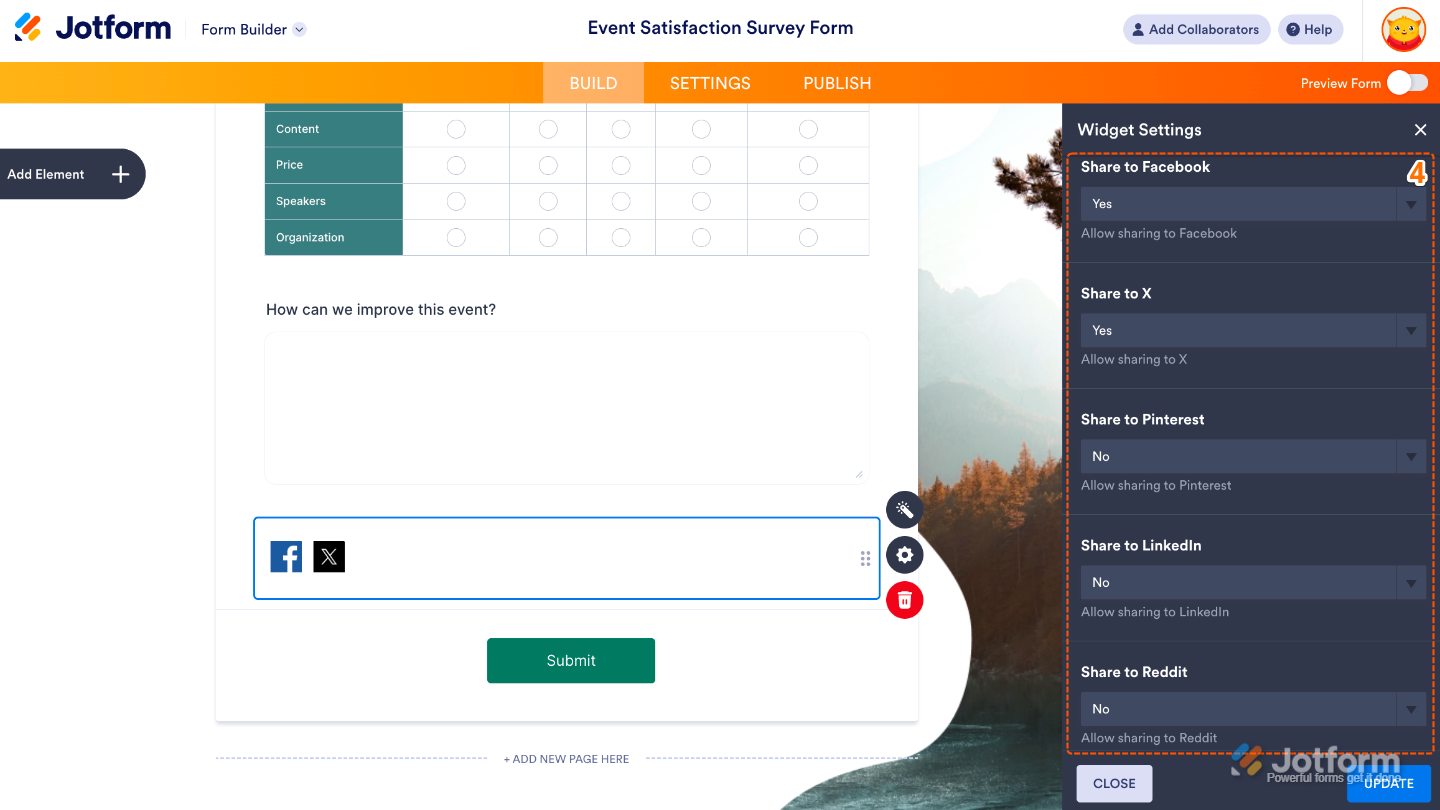
- Then, scroll down and continue to set up these options:
- Share To Facebook — The Facebook share button is toggled on by default, but you can easily switch it off if you’d prefer not to have your link shared there.
- Share to X — Switch this off if you’d rather not allow users to share your link on Twitter.
- Share to Pinterest — When this is toggled on, the Pinterest share button will be available for users to click.
- Share to LinkedIn — Turn this on so users will see a LinkedIn share button that they can click to share your link.
- Share to Reddit — Switch this on to show a Reddit share button, making it easy for users to share your link.
- Scroll down to the bottom and set up these last three options:
- Share to Stumbled Upon —Toggle this on to display a StumbleUpon share button, giving users a quick way to share your link.
- Share to Digg — Turn this on to show a Digg share button, making it easy for users to share your link with just a click.
- Theme — Pick a theme for your share buttons that matches your form’s look and feel, so everything stays on-brand.
- Once you’re done, click on Update.
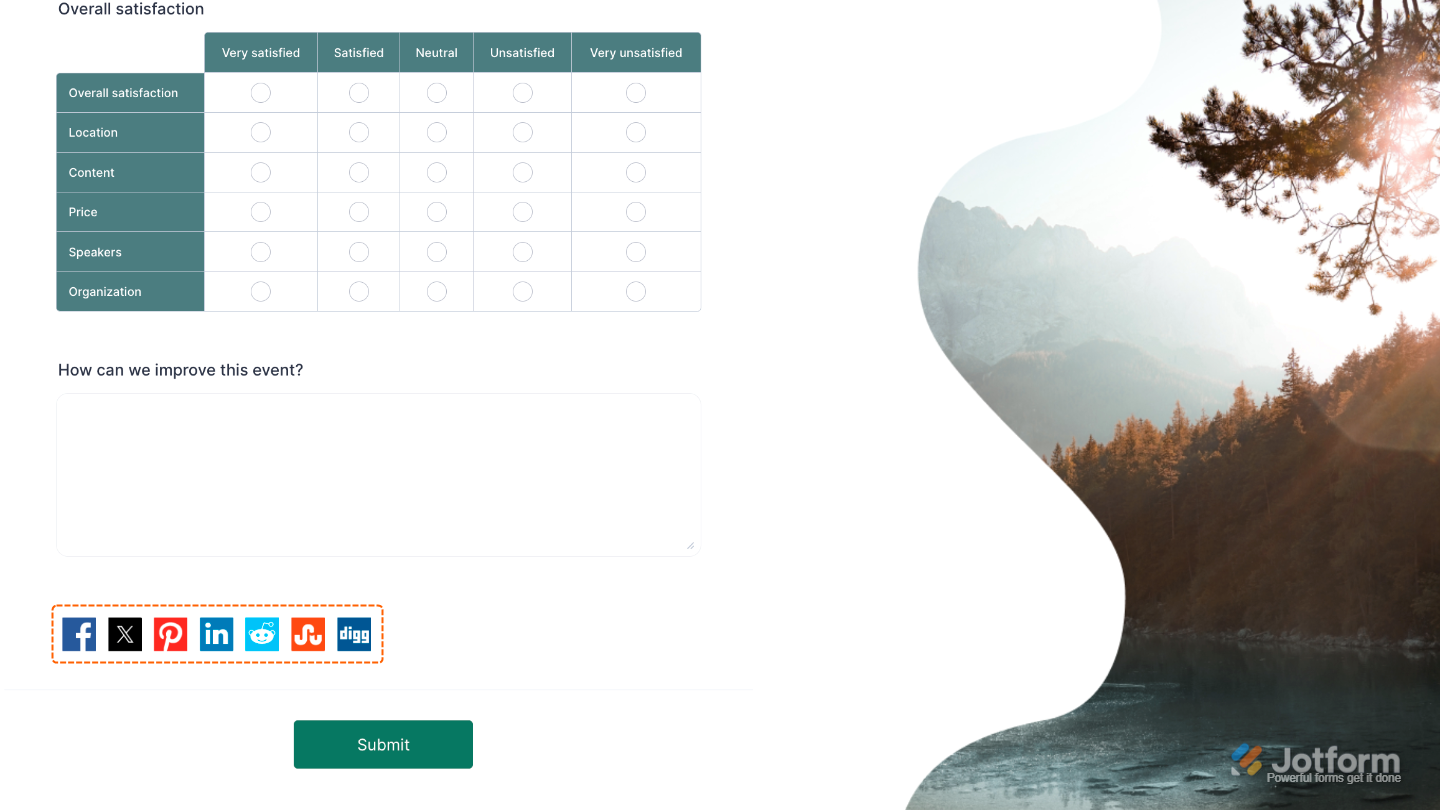
That’s it. You’ve successfully added and set up the Social Share widget to your form. Now, you have a field in your form that supports popular platforms like Facebook, Twitter, LinkedIn, and more, so your link can be shared across multiple channels with just a click. See how it comes together in this live Demo Form.
To tweak how your Social Share field looks, just click the gear icon to open its settings and make it fit your style.
Note
For advanced styling, you can add your own custom CSS under the Custom CSS tab in the widget settings and style the Social Share field. Our guide on How to Inject CSS Codes to Widgets walks you through everything.
Pro Tips
- Add the Social Share widget toward the end of your form so people can easily share it right after they hit submit.
- Give the sharing buttons a quick test on each platform before you go live to make sure the previews and links look and work just right.

Send Comment: