Jotform’s Time Tracker widget makes it simple to track how much time someone spends on a task or activity. Whether you’re creating a timesheet, keeping an eye on session lengths, or logging hours for projects, users can start, pause, and stop the timer right inside your form. It’s also a helpful way to see how long your form takes to complete and get a better sense of the average completion time.
Here are a few ways to use it:
- Track Employee Work Hours — You can use the Time Tracker widget to record employees’ daily work hours by allowing them to start and stop a timer during their shift.
- Monitor Time Spent on Specific Tasks — The widget can track how long a team member spends on a specific task or project. By pairing it with a task or project selection field, you can measure productivity and better estimate timelines for future work.
- Log Consultation or Appointment Duration — You can track the length of consultations, coaching sessions, or appointments by starting and stopping the timer during each session.
- Record Training or Workshop Participation Time— The Time Tracker widget can log how long participants attend training sessions or workshops. This is helpful for programs that require documented hours for certification or compliance purposes.
Notes
- The widget runs quietly in the background; it won’t be visible on your form. It starts tracking as soon as the user begins and stops when they submit.
- You can add multiple Time Tracker widgets on different pages or sections if you want to track time spent on specific parts of your form.
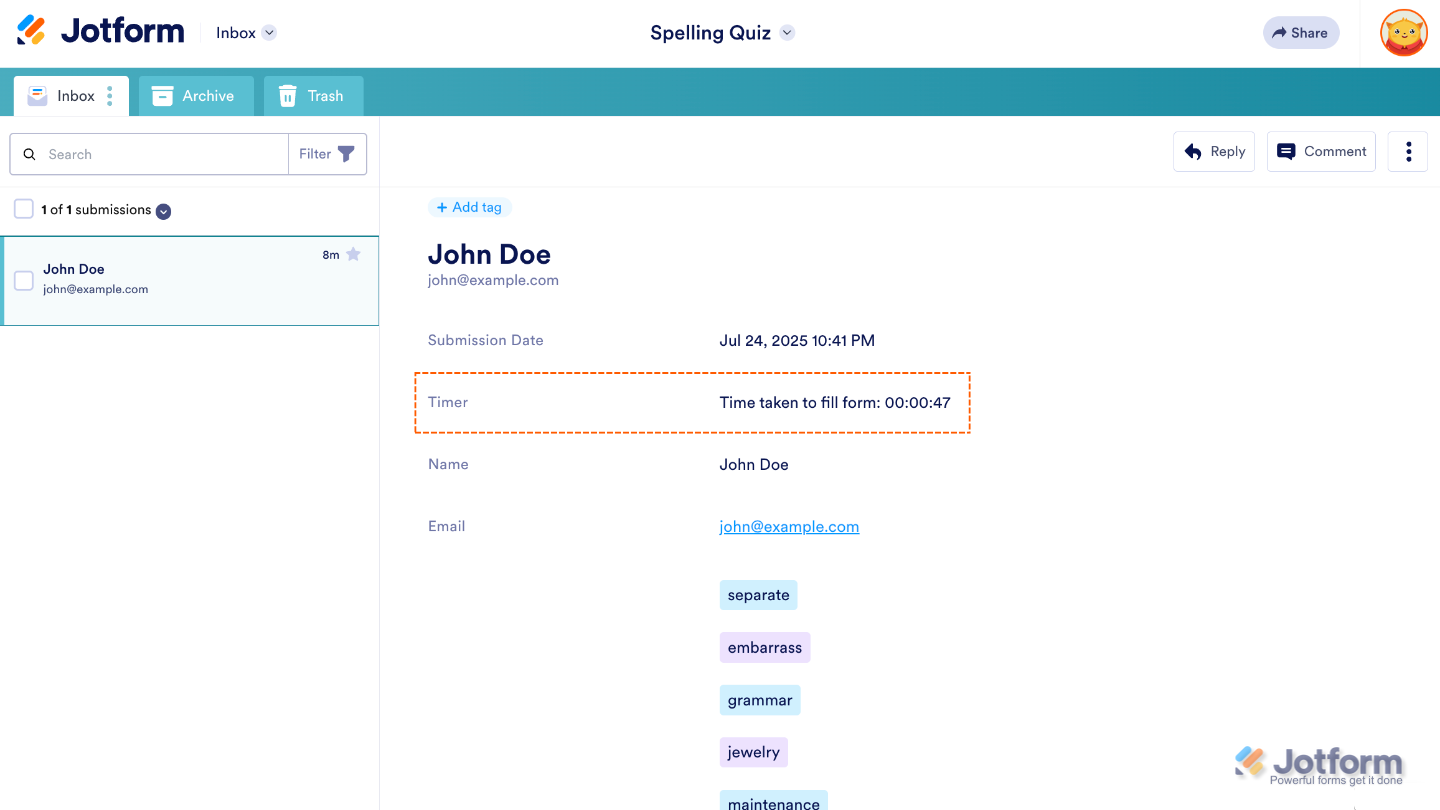
It records time in HH:MM:SS format, and all tracked data is included in your form submissions.
Adding and Setting Up the Time Tracker Widget
In just a few quick steps, you can add the Time Tracker widget to your form and start collecting accurate time data without any hassle. This is how it’s done:
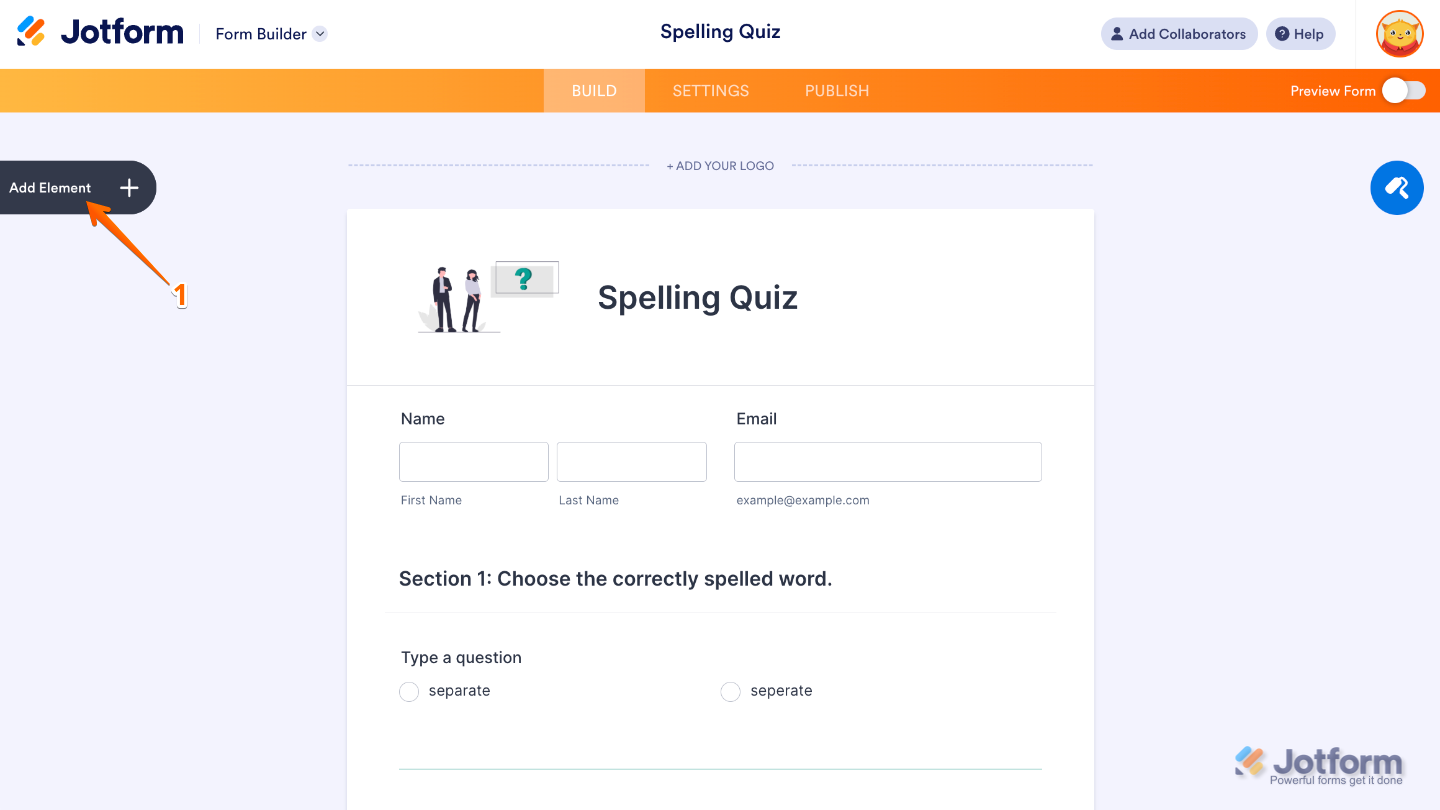
- In Form Builder, click on Add Element on the left side of the page.
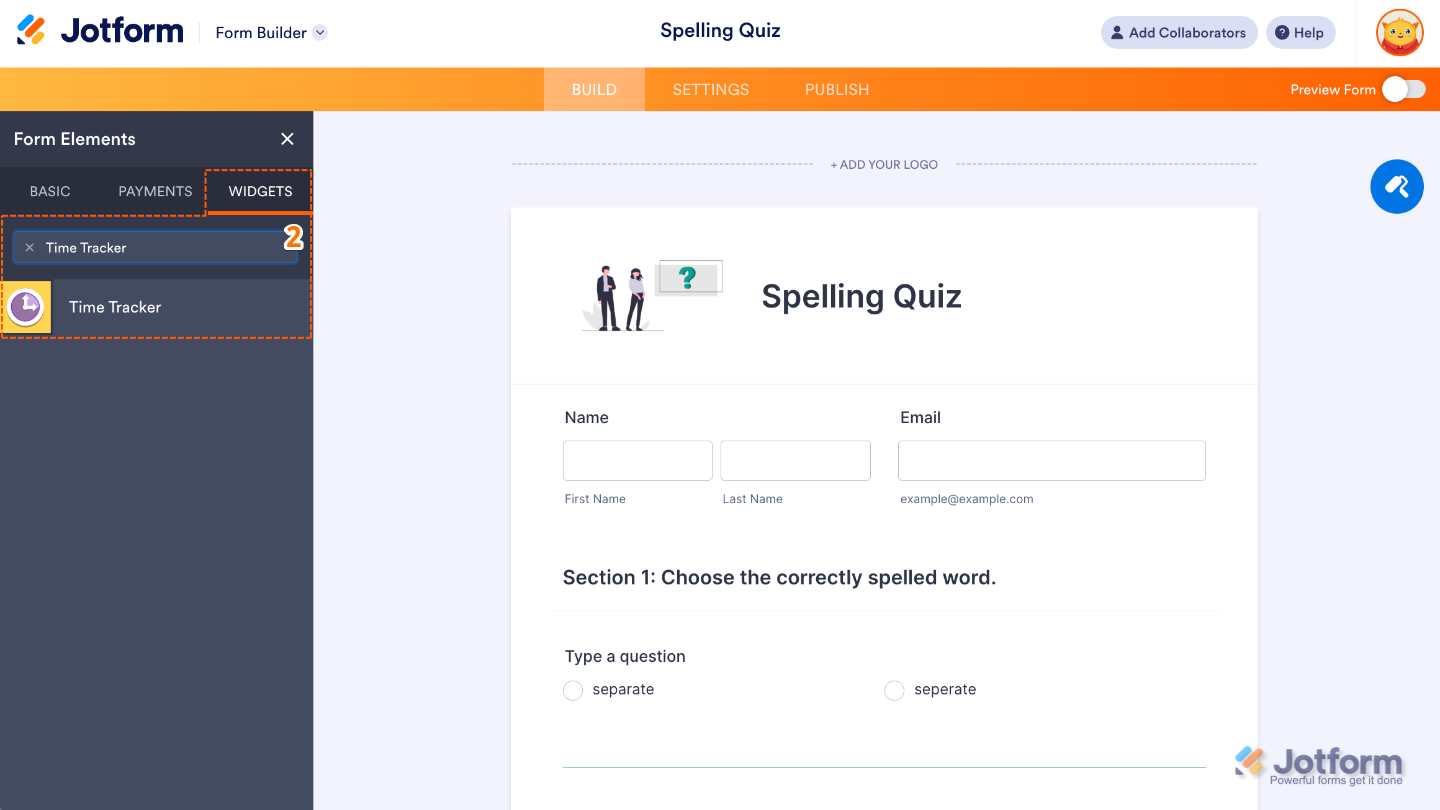
- Now, in the Form Elements menu, under the Widgets tab, search for Time Tracker and then click on it. Or, just drag and drop it to where you want it to be on your form.
That’s it. You’ve successfully added and set up the Time Tracker widget to your form. Now, you have a field in your form that automatically tracks how long a user spends filling out the form or a section of it. Here’s a quick look at how the result will appear when you check your form submissions in your Inbox:
If you’d like to customize how your Time Tracker field looks, simply click the gear icon to open its properties and adjust the settings to fit your needs.
Note
For advanced styling, you can add your own custom CSS under the Custom CSS tab in the widget settings and style the Time Tracker field. Our guide on How to Inject CSS Codes to Widgets walks you through everything.
Pro Tips
- Give each tracker a clear label if you’re using more than one, so it’s easy to see which part of the form the time data comes from.
- For multi-page forms, you can track time per page by adding a Time Tracker to each page.

Send Comment: