Signing PDFs doesn’t have to be complicated or require jumping between different tools. If you’re already using Google Drive to store and manage your files, there’s an easier way to get documents signed without breaking your workflow.
We’ll show you how to sign PDFs directly in Google Drive using Jotform’s Sign PDF app. Whether you’re approving contracts, finalizing agreements, or adding your signature to important documents, we can help you do it quickly and securely. No downloads, no printing, and no hassle, just a simple way to sign PDFs and keep everything organized in one place.


Installing Jotform’s Sign PDF App
To use Jotform’s Sign PDF app straight from Google Drive, you’ll first need to install it. Don’t worry, it’s super quick and only takes a few clicks from the Google Workspace Marketplace. Here’s the quick way to do it:
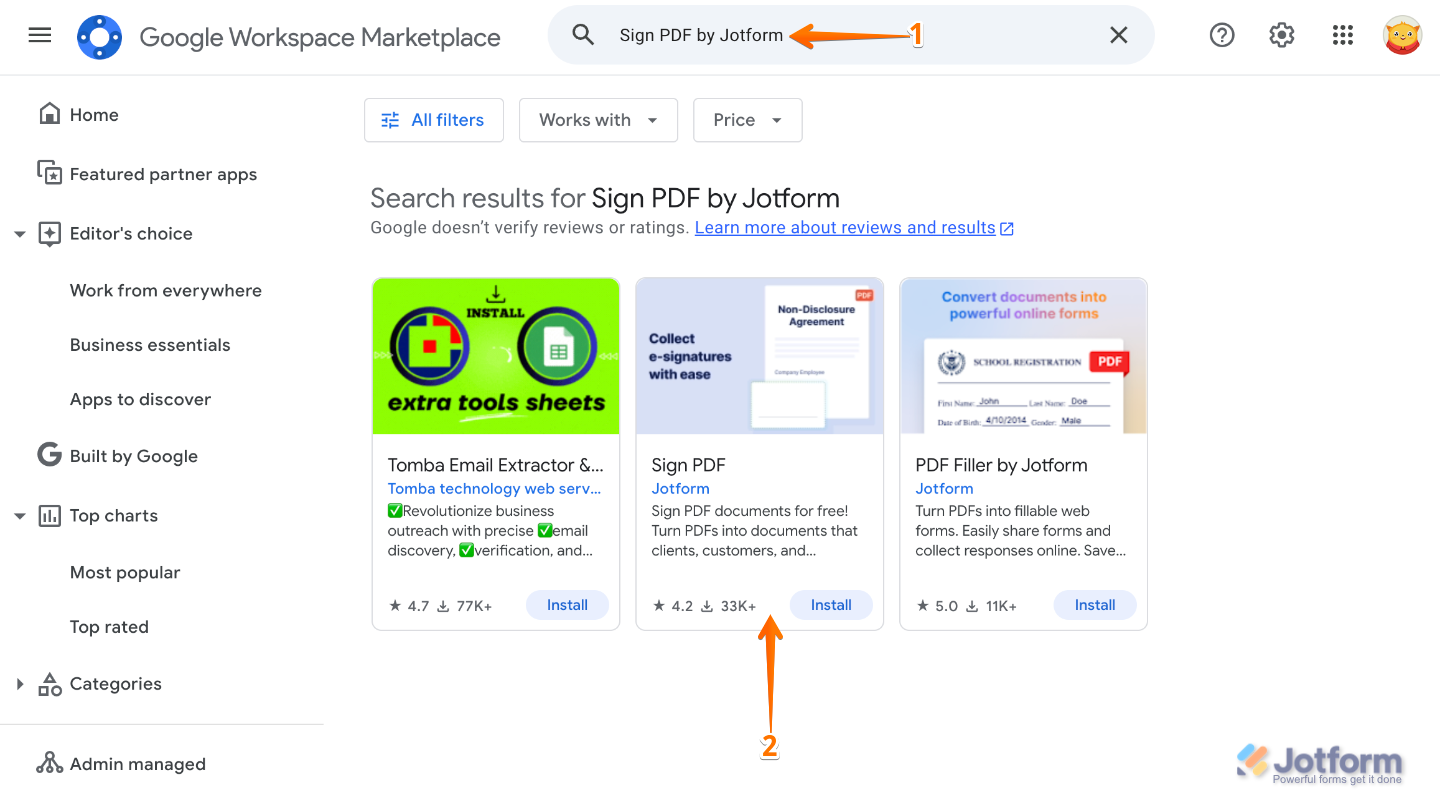
- Go to Google Workspace Marketplace, then in the search bar at the top, enter Sign PDF by Jotform.
- Then, from the search results, click on it.
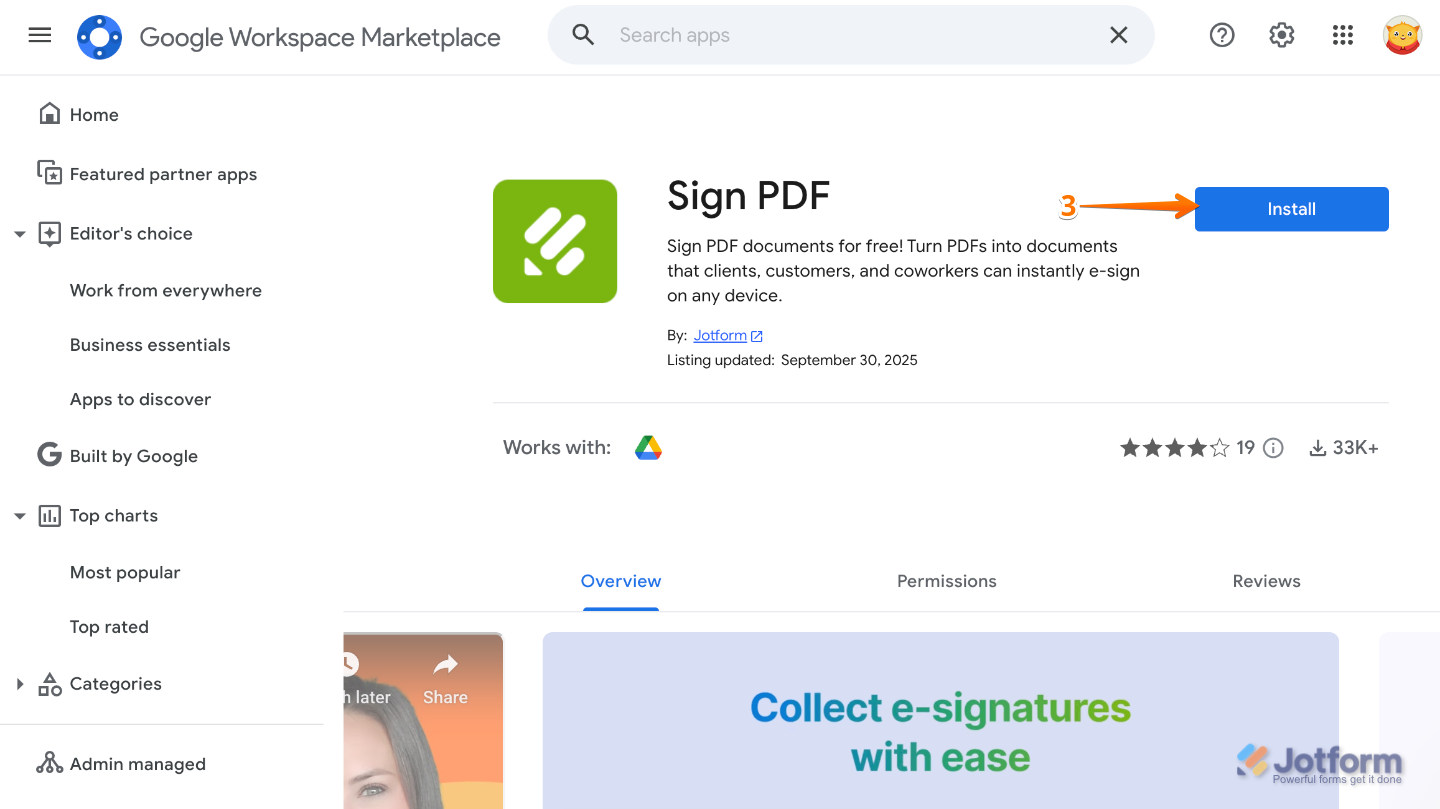
- Next, on the left side of the page, click on Install.
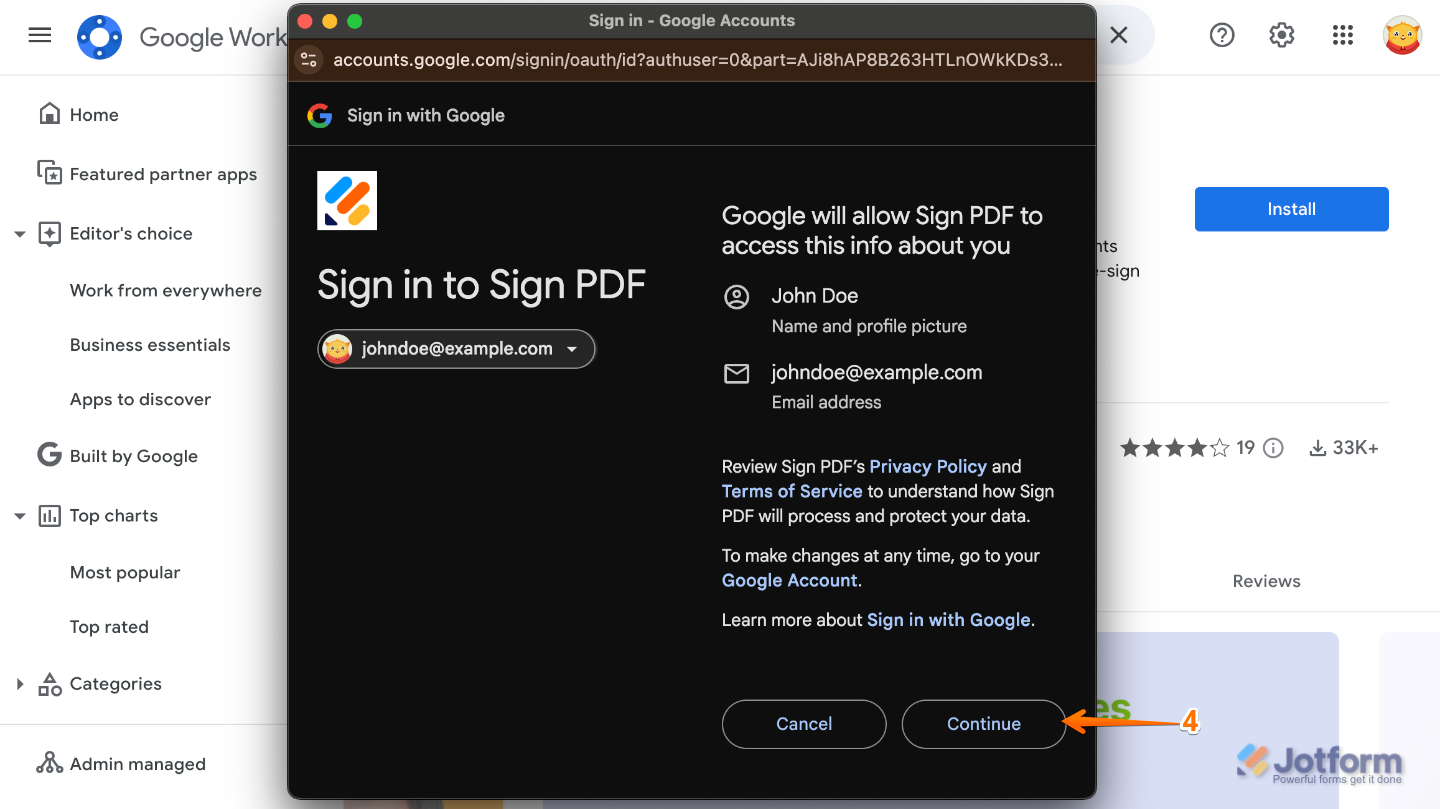
- Then, in the window that comes up, sign in to your Google Workspace account and click on Continue.
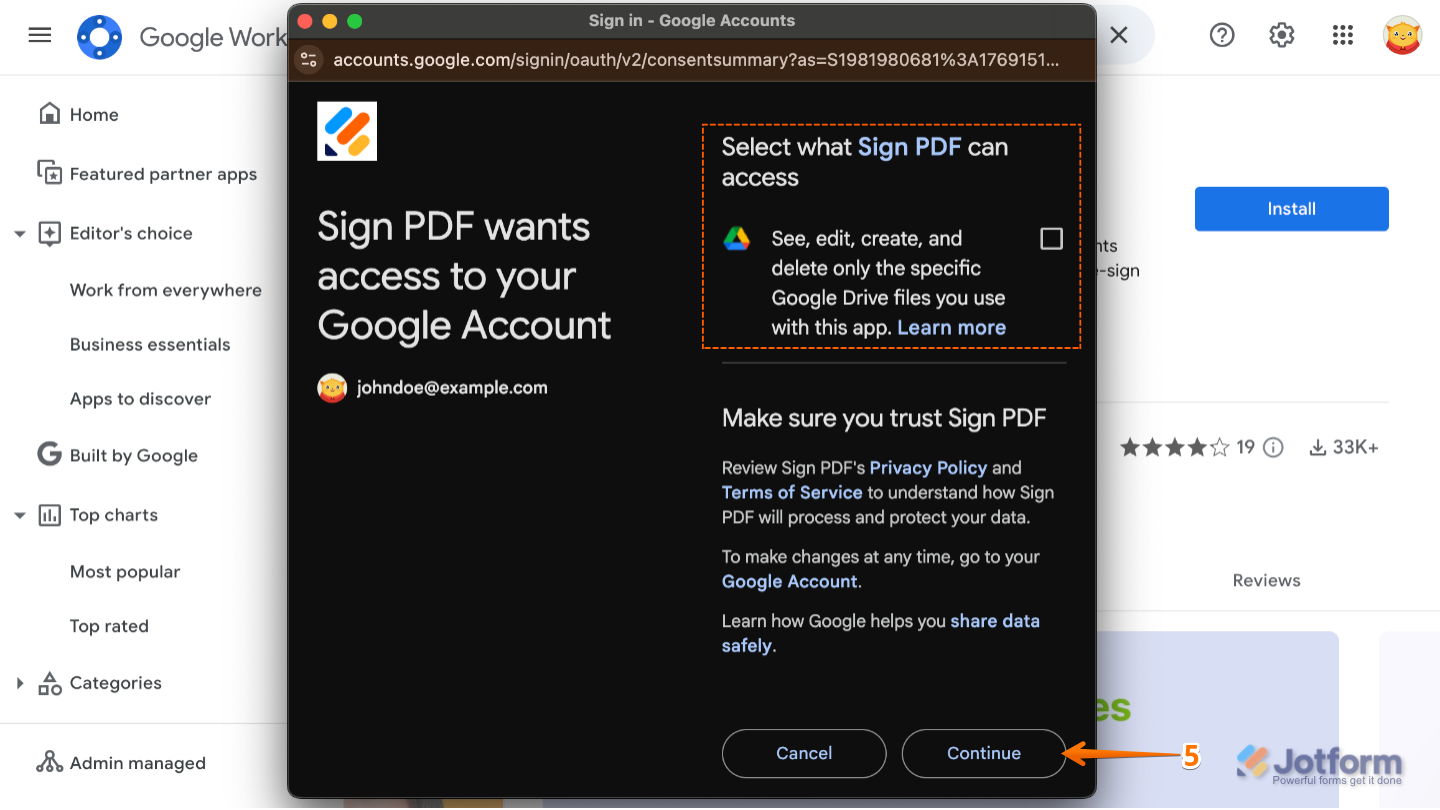
- Now, review the requested app permissions, put a check in the box, and click on Continue at the bottom, and you’re done.
- Finally, in the confirmation window, click on Done.
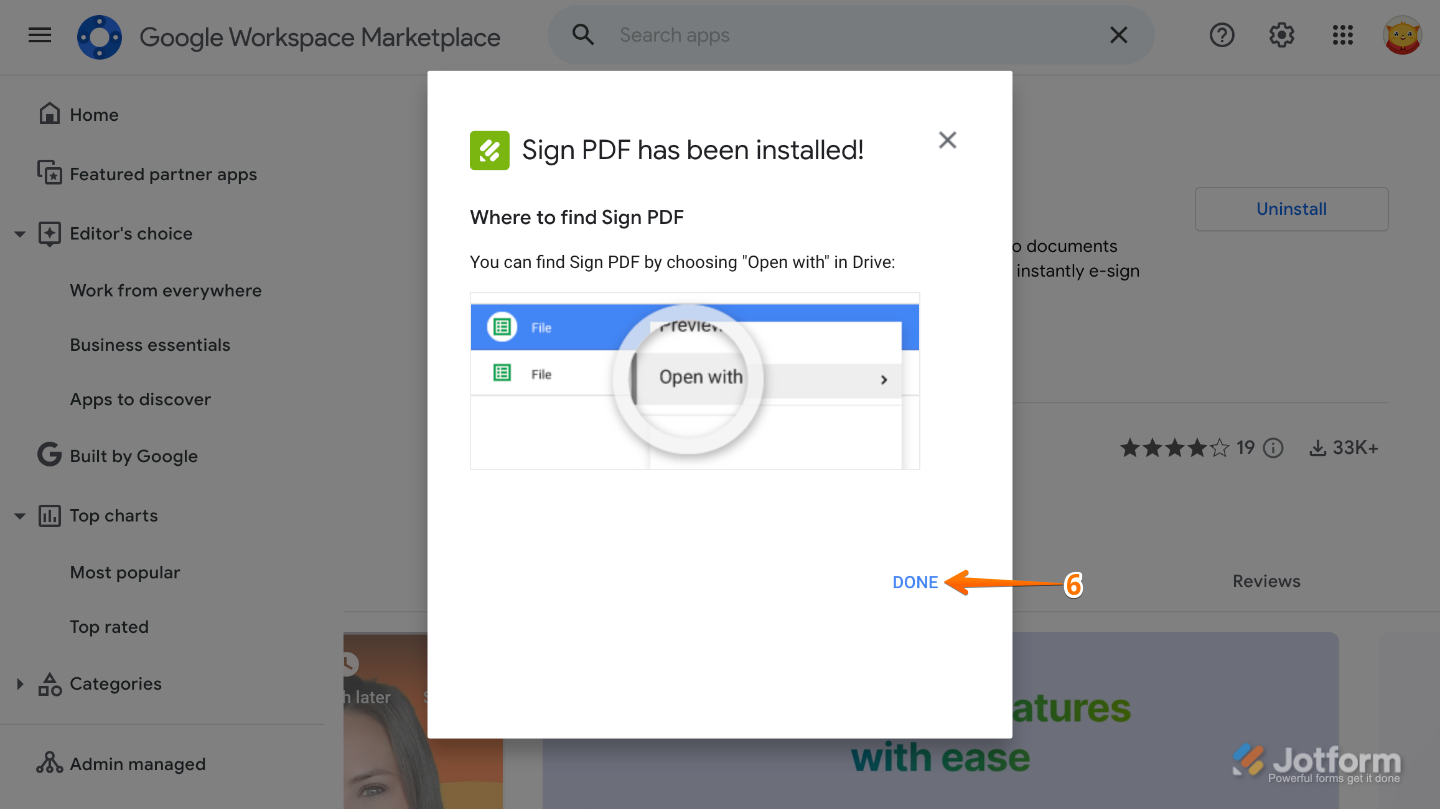
That’s it. You’ve successfully installed Jotform’s Sign PDF app in your Google account and are ready to start signing your PDFs with ease.
Note
If you’re using a Google Workspace domain, you might need your administrator’s approval before you can install the app.
Opening a PDF with Jotform Sign and Connecting Your Jotform Account
Now that the app is installed, it’s time to open Sign PDF and connect your Jotform account. This quick setup lets everything work smoothly so you can start signing PDFs without any extra steps. Here’s how to get going:
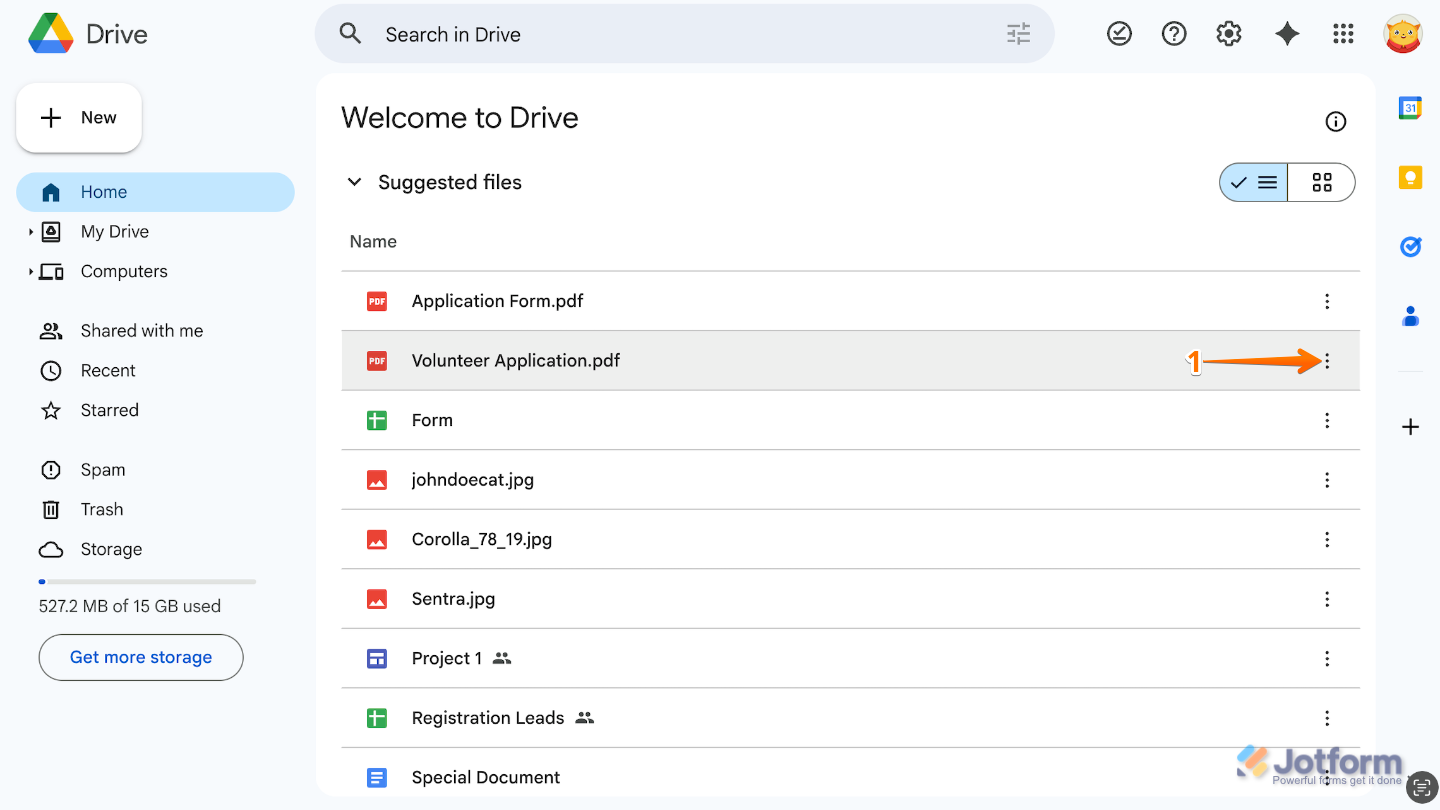
- In your Google Drive, hover over a PDF document and then click on the Three Dots icon on the left side of the page.
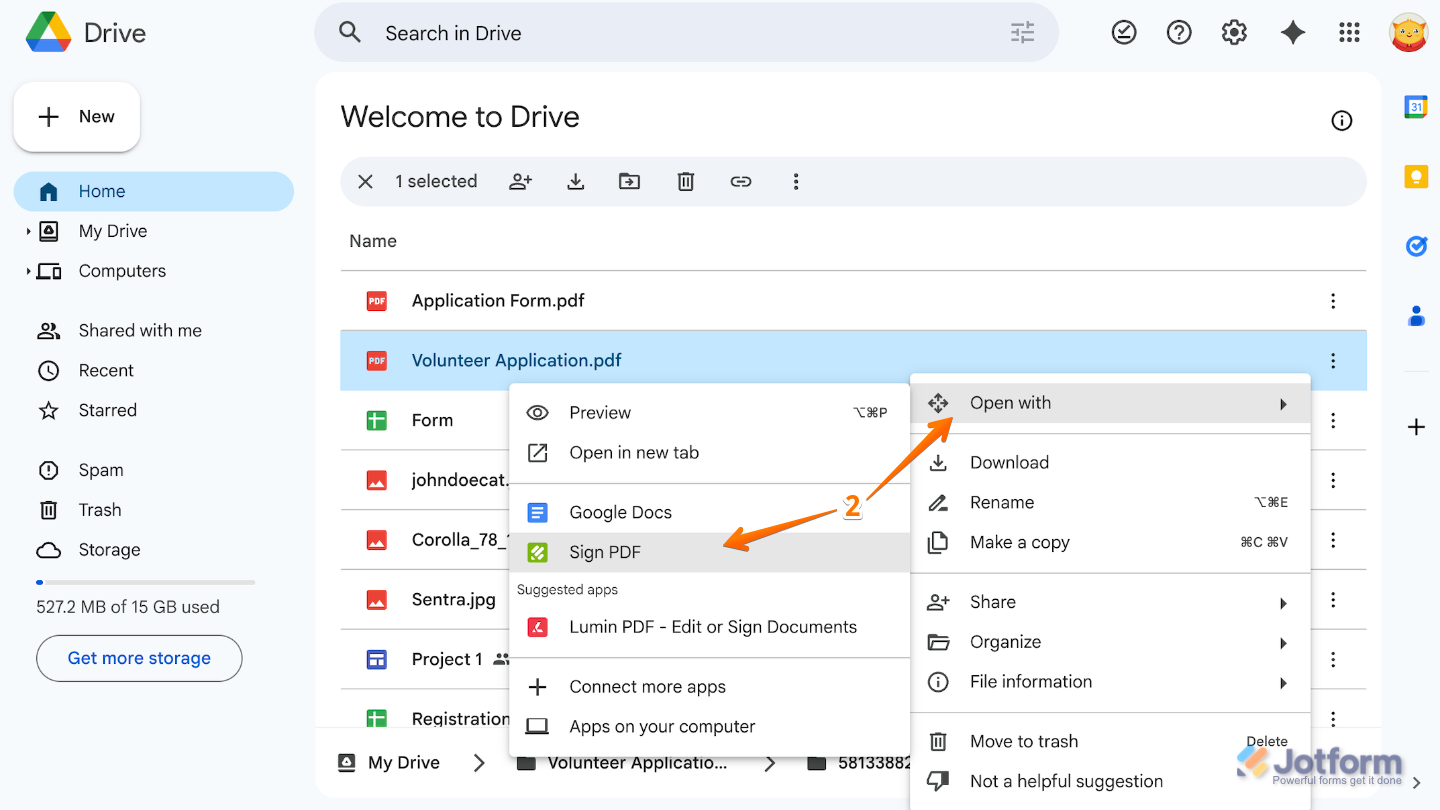
- Then, in the menu that opens, click on Open with and select Sign PDF.
- In the new browser tab that opens, sign in to your Jotform account and click on Continue.
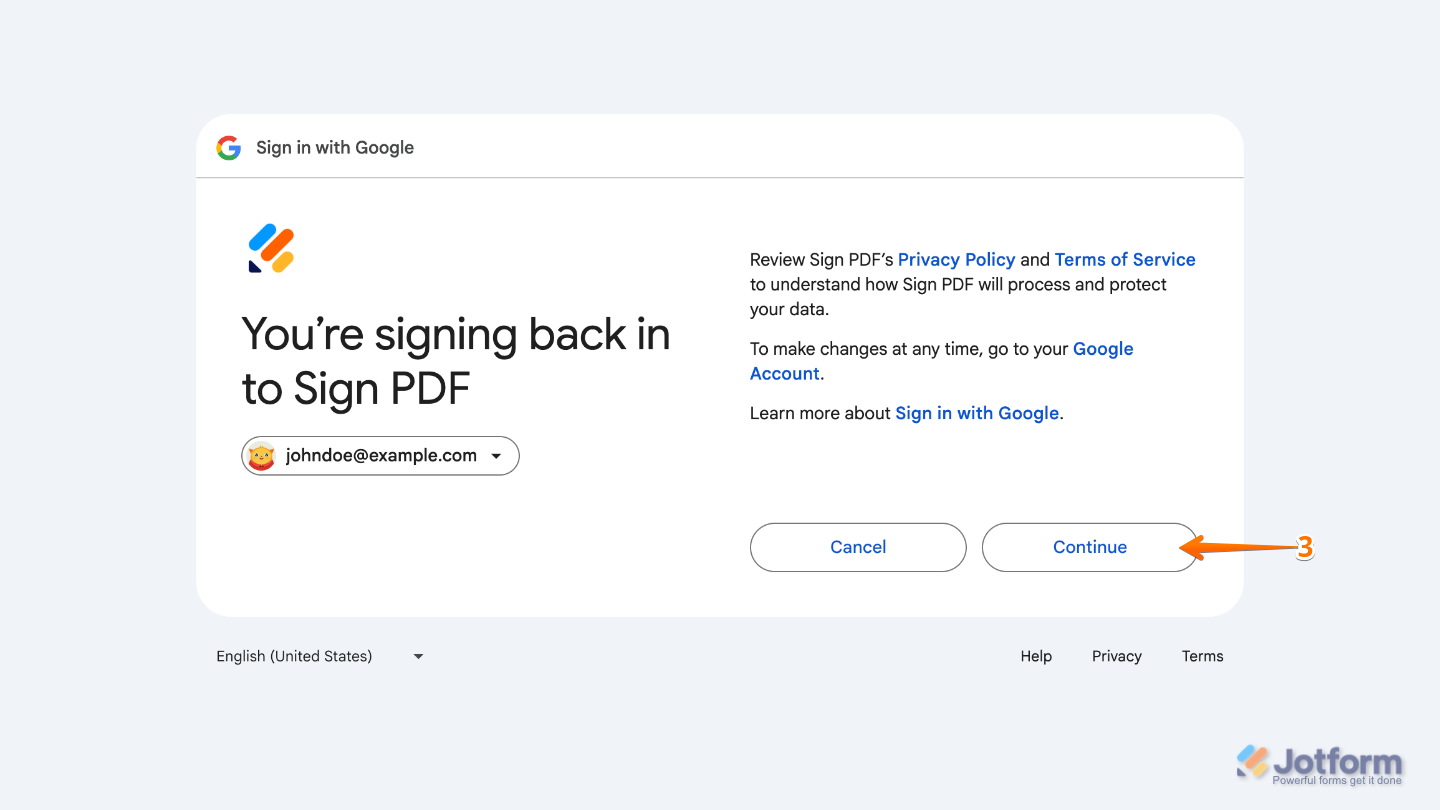
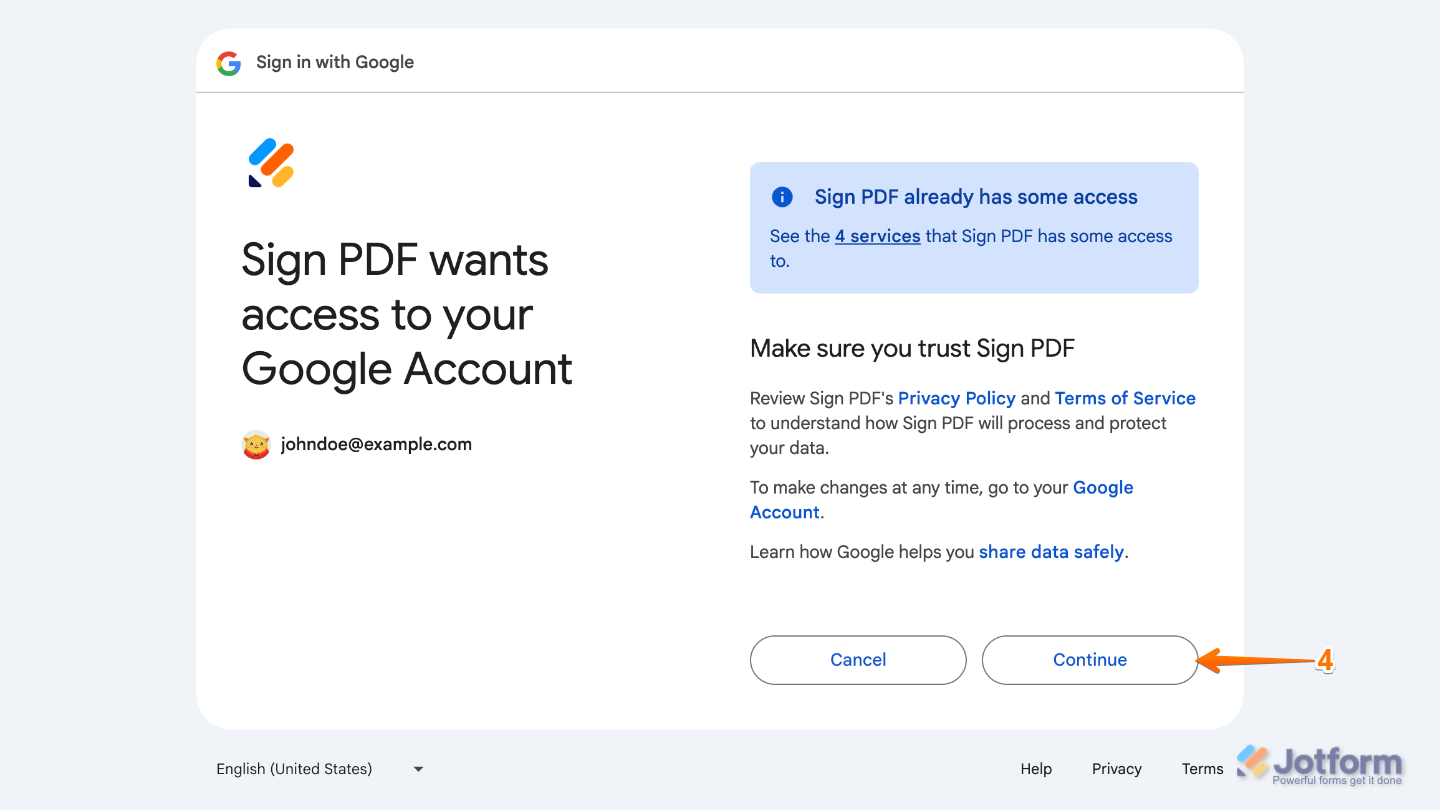
- Now, review the Google Account Permission Screen and then click on Continue.
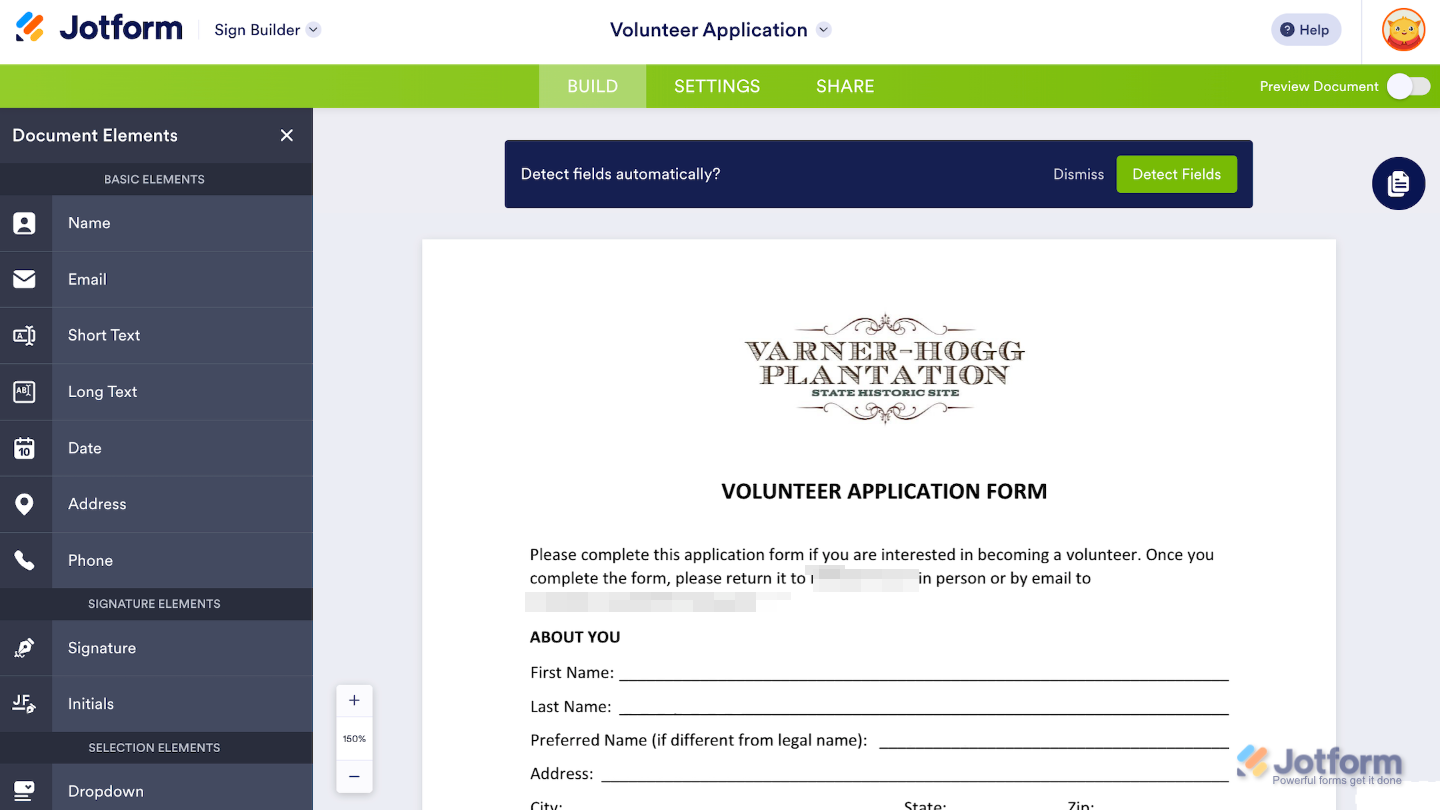
After that, you’ll be taken to the Sign Builder, where the fun part begins. Here, you can turn your PDF into a sign-ready file, add and assign fields to the right signers, and send it out to collect legally binding electronic signatures—quick and easy.
Here’s a list of helpful guides to help you get started with creating your sign document:
- How to Use Jotform Sign
- How to Send a Document for Signature With Jotform Sign
- How to Use Auto-Detect Fields in Jotform Sign
- How to Allow Signers to Delegate the Document to Other Signers
Pro Tip
Jotform has many other apps designed to make things a lot easier within Google ecosystem. Check our Google Workspace Marketplace directory to learn more about them.

Send Comment: