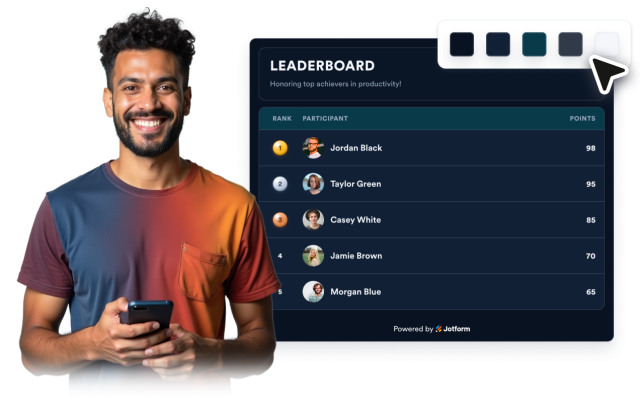
Leaderboard Table Widget
Create Your Own Leaderboard Table Widget in Seconds for Your Website
Build a simple leaderboard table widget with medal-style top rows, participant images, custom headers, responsive rows, and scoped styling controls.
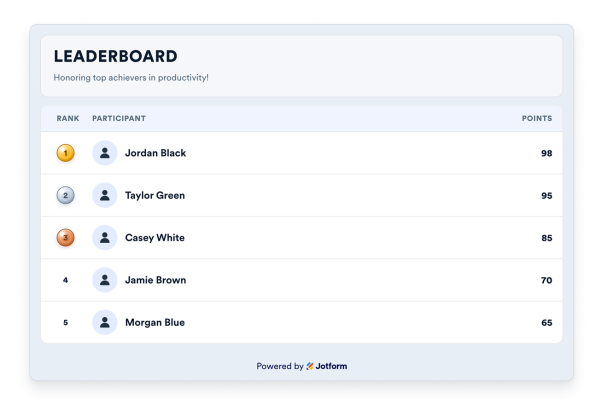

Display Rankings in a Clean Table Widget
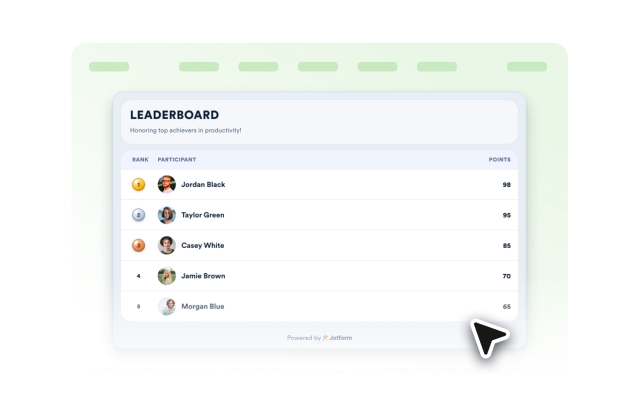
Keep every participant in one readable table with aligned rank, participant, and points columns. The first three rows stay in the list and receive medal-style badges.
Table controls:
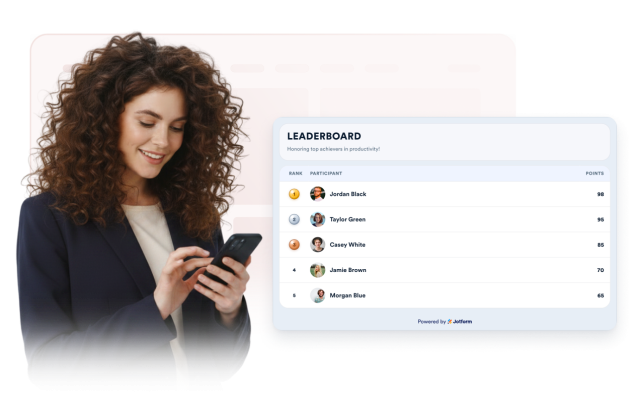
Show Participant Details Clearly
Add participant names, optional profile photos, and avatar fallbacks so each ranked row is easy to recognize.
Participant details:
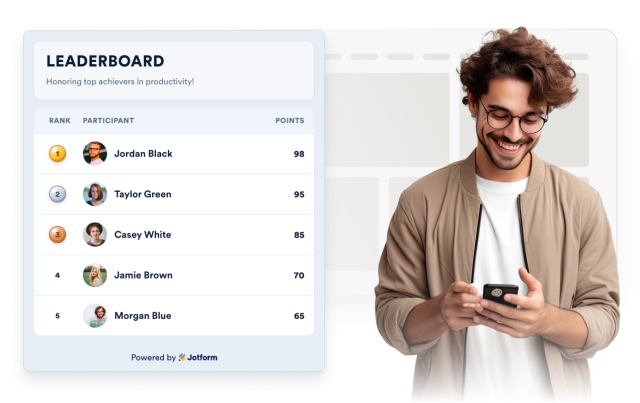
Choose How Scores Are Ranked
Rank higher scores first for competitions and points, or lower scores first for time-based challenges where the smallest number wins.
Ranking options:
Control Labels and Styling
Edit the header and column labels, choose a preset or custom palette, set the font and corner radius, and add scoped custom CSS so the leaderboard fits your brand.
Styling tools: