QR Code Widget

One More Chapter Book Club for QR Code

Invite readers to discover a book club’s current reading list with a floating QR code widget. It displays the title “One more chapter”, a short description, and a QR code captioned “Scan for this month’s reading list.”
One More Chapter Book Club for QR Code

More QR Code Styles

Sugar Studio Custom Cake QR Code621 Used

Sugar Studio Custom Cake QR Code

Invite customers to discuss a celebration cake with a soft pink QR card, berry-coloured code and rounded Poppins typography. A short heading and scan-to-call caption keep the bakery contact option clear. The QR contains an illustrative telephone number for compatible mobile scanners.

Apricot House Visit QR Code300 Used

Apricot House Visit QR Code

Welcome visitors with a warm apricot QR card, rounded Nunito lettering and a clear directions button. The friendly coffee-stop message introduces a sample cafe visit page. Visitors can scan the code or choose Get directions and hours to continue.

Electric Press Digital Issue QR Code748 Used

Electric Press Digital Issue QR Code

Give readers a quick way to reach a digital publication with this floating QR code widget. It displays the title “Open the latest issue” and a QR code, with the caption “Scan for stories that move you.” The light card is positioned on the right side of the page and appears expanded by default on desktop and mobile. Use this template for a digital magazine, newspaper, or other issue-based publication. Visitors can scan the code with a mobile device to open the linked issue. The widget keeps the experience focused on the QR code and caption, without a description or call-to-action button.

Sunset Motors Test Drive QR Code763 Used

Sunset Motors Test Drive QR Code

Invite vehicle shoppers to start a test-drive inquiry with a warm peach QR card, rust-coloured code and classic serif typography. A short heading and scan caption keep the invitation clear. The QR contains a sample SMS draft for compatible mobile scanners.

How to create a QR Code widget

Customize your widget

Customize your widget

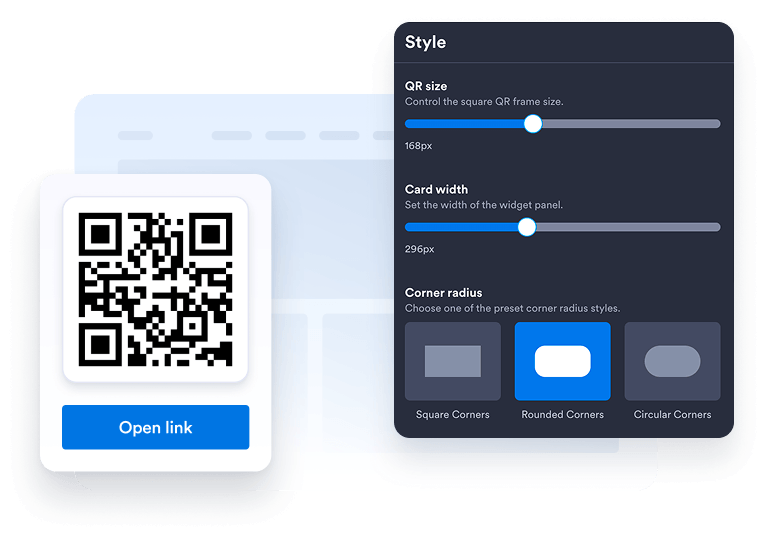
Choose your preferred layout, colors, CTA, and overall appearance to match your website's design.
Get the embed code

Get the embed code

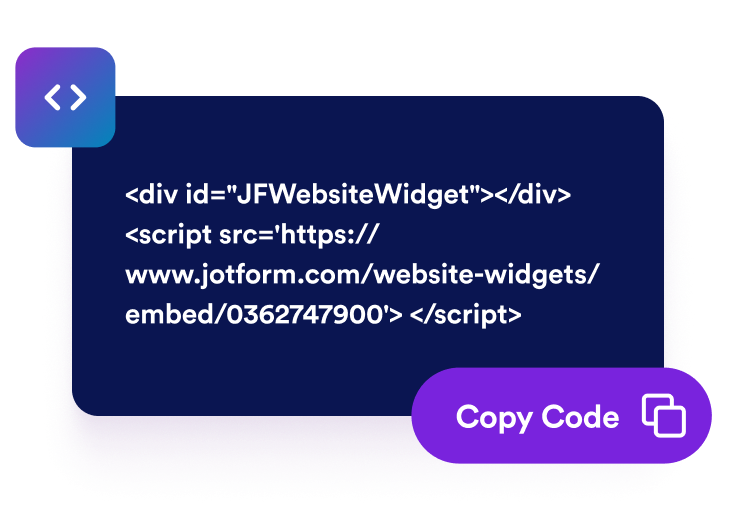
Copy the automatically generated embed code and paste it anywhere on your website.
Embed it anywhere

Embed it anywhere

Publish your QR Code across your site in seconds. No technical setup needed.

Turn quick mobile access into real business growth

Build credibility with easy access

A clear QR Code helps visitors move from your website to forms, menus, files, or offers with less friction.
Build credibility with easy access

Improve visibility and SEO

Helpful on-page tools can improve engagement, support brand trust, and make your content easier to use.

Improve visibility and SEO

Convert more visitors

Send visitors to signup forms, payment pages, booking forms, downloads, or promotions right when they are interested.

Convert more visitors

Keep content fresh with easy updates

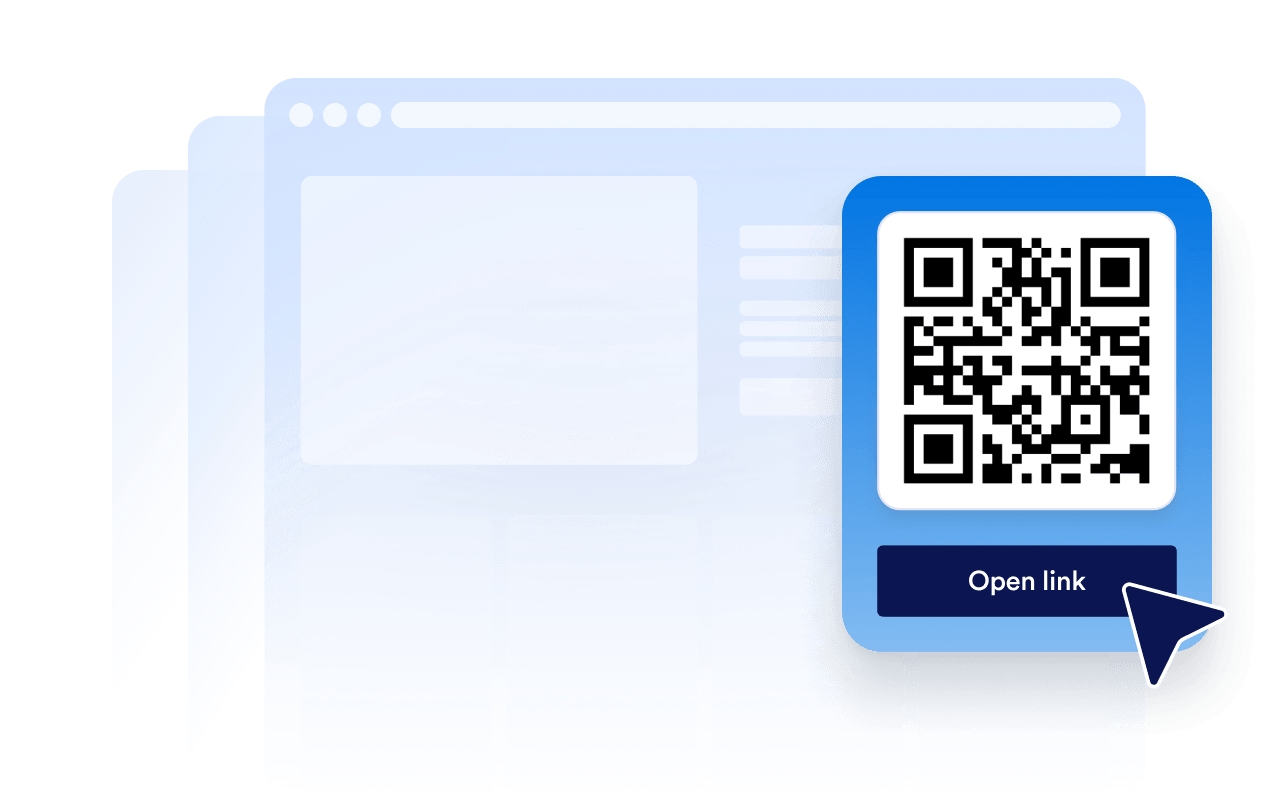
Update the QR Code destination in Jotform when your campaign, form, or offer changes without rebuilding your page.
Keep content fresh with easy updates

How to embed your QR Code into WordPress

1Get your embed code

After customizing your Jotform website widget, click Try it on your website for free, and copy the generated embed code.

2Open the page editor

Go to the WordPress post or page where you want to display the widget, then add a new block.

3Add a Custom HTML block

Select Custom HTML and paste your Jotform website widget embed code into the HTML field.

4Update and view

Click Update or Publish, then open the page to check your embedded widget.

Why Jotform Website Widgets stand out

Jotform’s widgets make your website more interactive and increase conversions. There are many tools available, from star ratings and testimonial sliders to social proof popups and media embeds. Add widgets to your forms or landing pages to collect data, display proof, and capture leads — no coding required.

Embed widgets without coding

Add Jotform widgets to your website with a simple embed code. Customize the widget, preview how it looks, and paste it into any page that supports custom HTML or embed blocks, all without a developer.

Build more interactive pages

Use Jotform Website Widgets to collect leads, show customer feedback, display social proof, embed media, or add helpful web page tools. Each widget helps visitors interact with your business directly from your website.

Get support when you need it

If you need help setting up, customizing, embedding, or troubleshooting your widget, Jotform’s customer support team is available 24-7. You can move forward with confidence, knowing that help is there when you need it.

Where to use your QR Code

A QR Code is useful anywhere visitors need a faster way to take action from any device. Add it to high-intent pages so people can scan, save, register, pay, download, or contact you without extra steps.

Homepage send visitors to your main form, offer, app, or contact page.

Product pages link shoppers to guides, demos, manuals, or payment forms.

Restaurant pages let guests scan menus, order forms, or reservation pages.

Event pages guide attendees to registration, tickets, maps, or check-in forms.

Landing pages connect campaigns to signups, coupons, downloads, or lead forms.

Contact pages help visitors save details, request quotes, or book appointments.

Convert leads into paying customers with the Jotform Form Builder

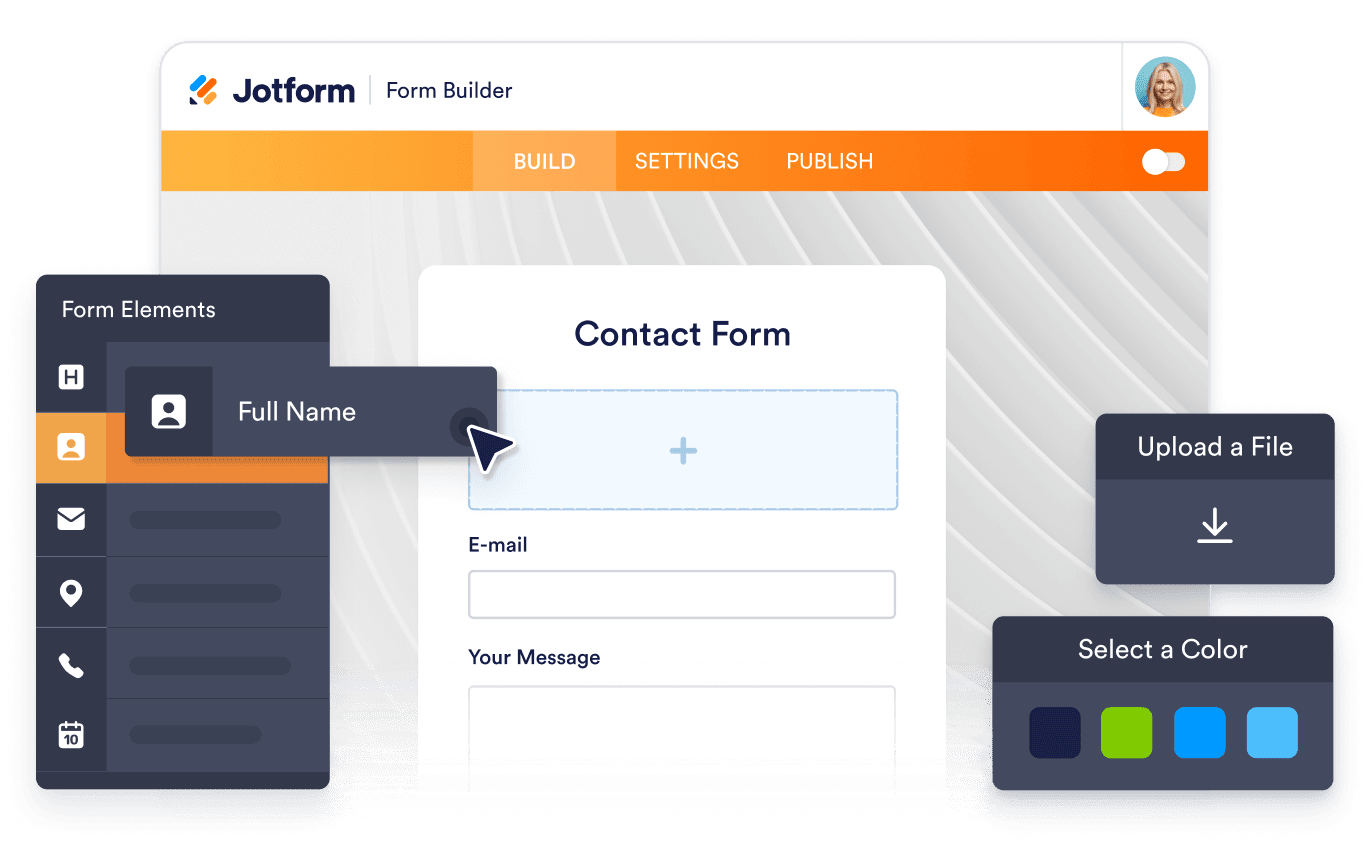
Turn engagement into action with Jotform. Create powerful forms that capture leads, collect payments, and automate responses, all in one place. Every submission lands in your Jotform Inbox, where you can follow up or connect with your favorite apps.

Get Started — It’s Free!
Convert leads into customers

FAQ

  • How do I add a QR Code to my website?

    Create your QR Code widget in Jotform, choose the destination you want visitors to open, and copy the embed code. Paste it into your website, landing page, or blog post to make it available right away.

  • Can I customize the QR Code widget design?

  • Can I update the QR Code after it is embedded?

  • What can I link to with a QR Code?

  • Why should I use a QR Code on my website?

  • Is the QR Code widget free?

  • Does the QR Code work on mobile devices?

  • Can I use the QR Code with Jotform forms and automations?