RSS Feed Widget
RSS Feed Widget Features for Websites
Display RSS or Atom feed content on your website with customizable sources, responsive layouts, article cards, popup behavior, links, colors, and styling controls.
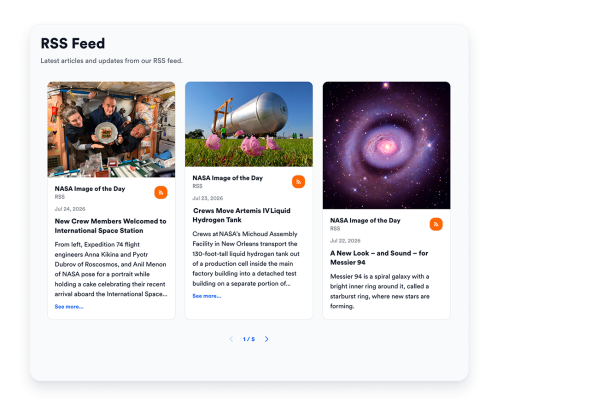

Connect your RSS source
Add a public RSS or Atom feed URL to bring articles, blog posts, announcements, or news updates into an embedded website feed. Keep visitors informed with readable content previews directly on your page.

Fit articles to your layout
Choose grid, masonry, list, carousel, or slider layouts depending on how much content you want to show and how much space your page has. Use compact layouts for side sections or expanded layouts for resource pages.

Show the right article details
Control the details visitors see before opening a feed item. Show or hide author names, dates, captions, source labels, action counts, links, and popup content to keep each RSS card clear and useful.
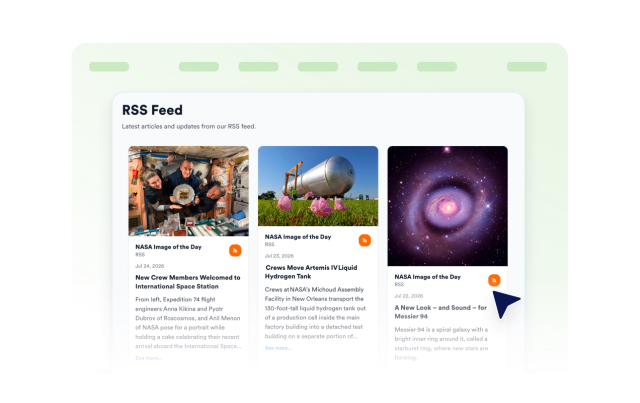
Match feeds to your brand
Style your RSS Feed Widget so article previews feel consistent with the rest of your website. Customize themes, platform accents, card colors, navigation arrows, pagination, and custom CSS.