Microsoft SharePoint to Jira Automation FAQ
1) What is Microsoft SharePoint to Jira Automation used for?
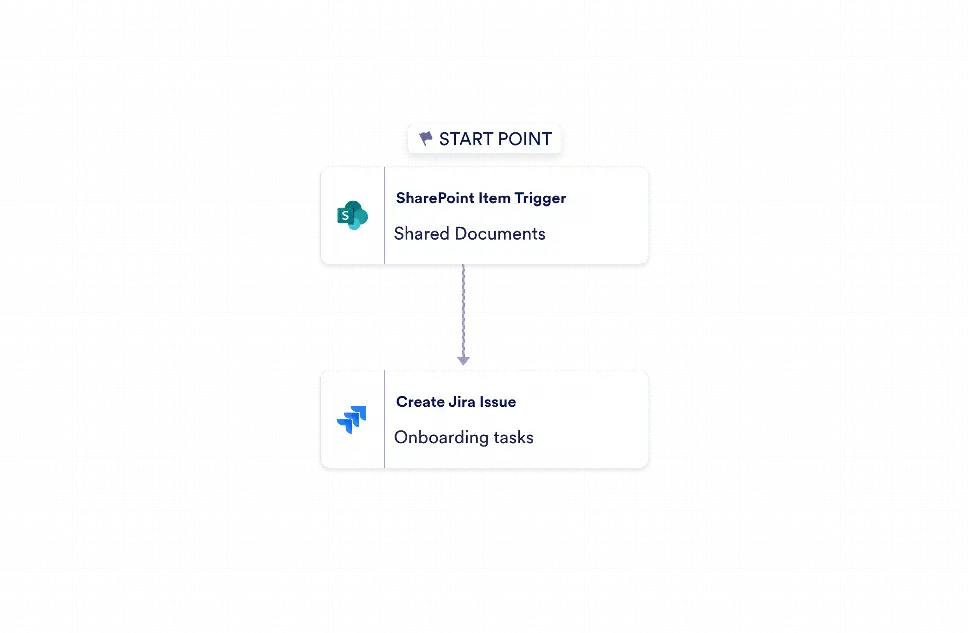
This workflow template is used to create a Jira issue automatically whenever a new item is added to a Microsoft SharePoint list. It helps teams move requests, tasks, and updates from SharePoint into Jira without manual re-entry.
2) When should someone use Microsoft SharePoint to Jira Automation?
It should be used when a team collects work items in SharePoint but manages execution in Jira. It is a good fit for project intake, internal requests, issue reporting, and other processes that need a fast handoff between systems.
3) Who can use Microsoft SharePoint to Jira Automation?
Operations teams, project managers, IT groups, support teams, and department leads can use this template. Any organization that depends on SharePoint for list-based intake and Jira for task management can adapt it to their process.
4) What are the benefits of using Microsoft SharePoint to Jira Automation?
The main benefits are less manual copying, fewer entry mistakes, and quicker task creation. It also improves visibility by making sure incoming SharePoint items are turned into trackable Jira issues right away.
5) What data can be included in the Jira issue?
The workflow can use incoming SharePoint fields to build a descriptive issue summary and include relevant event details in the Jira issue. This helps the team understand the request without having to open multiple systems.
6) How does Jotform Workflow Builder support this process?
Jotform Workflow Builder connects the SharePoint trigger directly to the Jira action in a simple automation path. Users can configure their connections and map the data they want to pass between systems while keeping the workflow focused and easy to manage.
7) Can this template be adjusted for different teams?
Yes. Teams can tailor the SharePoint list fields they capture and decide how those details should appear in Jira. That flexibility makes it suitable for different request types, departments, and project workflows.
8) What happens after the Jira issue is created?
Once the issue is created, the work can continue in Jira under the team’s normal tracking process. The template ensures the handoff happens automatically, so the request is ready for review, assignment, or completion without delay.