
AI writing assistants are no longer a futuristic novelty. In fact, they’re reshaping how we compose everyday communications — especially email. Gmail’s integration of Gemini AI through its Help me write feature has become increasingly mainstream.
Users rely on Gemini inside their Gmail interface to help draft, polish, and summarize messages with just a few clicks. This handover of basic drafting tasks frees up human bandwidth for more high-value tasks, but while these built-in tools are powerful, they’re not a one-size-fits-all solution. That’s especially true for teams that need tight brand control, consistency, and human oversight.
That’s where more advanced, enterprise-grade tools like Jotform’s Gmail Agent come in. These tools offer deeper customization and automated triage, while still maintaining the involvement of human users. The result? Organizations benefit from intelligent automation without sacrificing brand control.
In this article, we’ll explore Gemini’s Gmail drafting feature in depth: what it is, how it works, what its strengths and limitations are, and why some teams may want to consider a more advanced alternative like Jotform’s Gmail Agent instead.
A comprehensive overview: What is the Gemini AI Gmail email draft feature?
Within the Gmail environment, the Gemini email draft tools help you perfect the art of the persuasive, readable email, crafting messages that recipients will actually read and act upon. What sounded like science fiction just a few years ago is now an everyday technology that’s capable of saving time and improving productivity.
Here are a few examples of what you can do with Gmail plus Gemini:
Compose new messages from prompts within Gmail
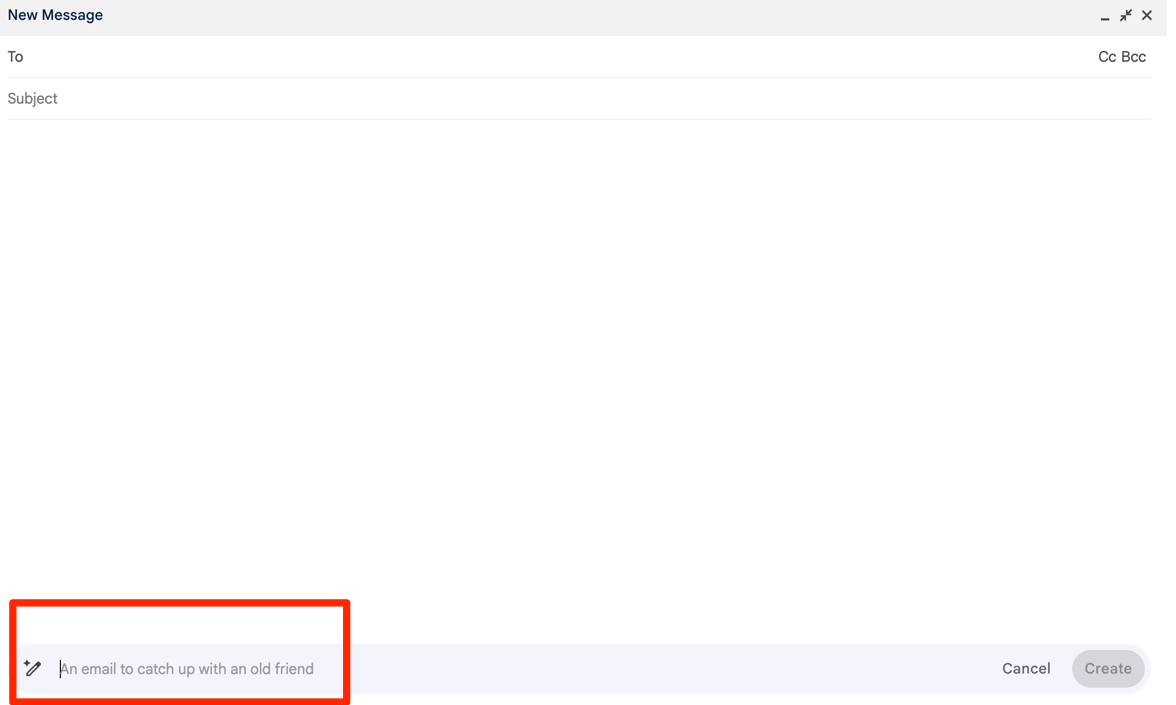
Gemini’s Help me write feature shows up directly in Gmail’s compose window. Simply click the pencil-and-star icon from the bottom toolbar of a new message window. You can then type a short prompt — for example, “Write a cover email message for attached meeting notes.” Gemini will then generate a draft based on your prompt.
Create suggested drafts and refine them
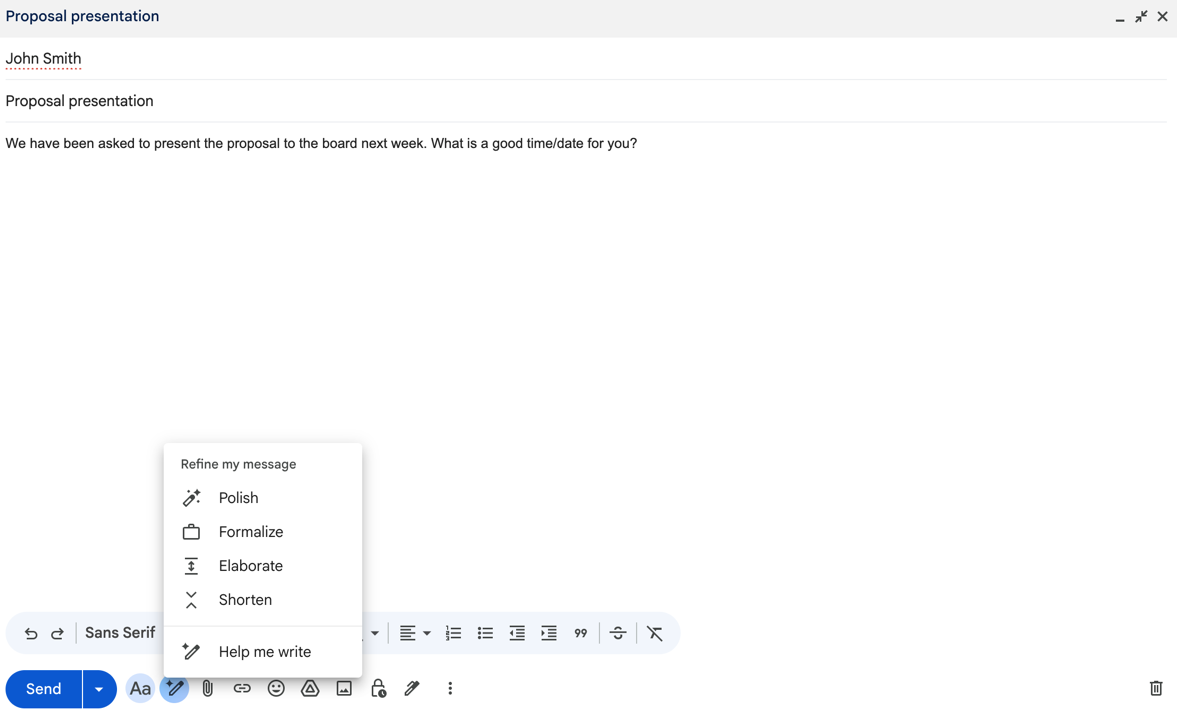
Whether you’re replying to an email, refining your own words, or starting from scratch using just rough notes, Gemini can help. Once you have entered or typed about 12 or so words into the Compose email box, right-click the Gemini icon and Gmail will display a Refine my draft shortcut with options to Formalize, Elaborate, Shorten, or Polish.
- Formalize lets you turn casual or rough text into something more businesslike.
- Elaborate adds detail and depth.
- Shorten trims down long text into a more concise message.
- Polish smooths your phrasing, improves clarity, and readies a message for sending with minimal edits.
Summarize long threads and answer email-specific questions
If you find yourself wishing that your colleagues would simplify their long emails or that there was an easy way to catch up on long conversations, Gemini can help. Using the Summarize this email feature, you can get a synthesized summary of long threads. You can also ask Gemini targeted questions like “What are the action items?” by typing directly in the side panel. Moreover, on mobile for both Android and iOS, Gemini summary cards now show up automatically at the top of long email threads to help you digest conversations with multiple participants and replies.
Leverage content from Google Drive
When composing replies, you can reference other documents stored in Google Drive. Gemini supports tagging a specific file using “@” followed by the file name, and it can pull relevant facts from the tagged file into your email draft.
Step-by-step: How to use Gemini’s AI drafting features in Gmail
Here’s a user-friendly walk-through of how to use Gemini’s AI drafting capabilities in Gmail.
Step 1: Start a new email or a reply to an email
- Open Gmail on your desktop or mobile device (Android or iOS).
- Click Compose to generate a new email or open a thread and tap Reply.
- If Gemini is enabled for your account, you’ll see a Help me write icon (pencil + star) or button in the compose window.
Step 2: Enter your prompt
- Click the Help me write button or icon.
- Type a short description of what you need. For example, “Write a follow-up email after a sales meeting” or “Draft a thank-you note to the firm’s partners.” Gemini uses existing context, such as a prior email thread, when generating its draft.
- On mobile, if the draft window is empty, a Help me write shortcut appears in the body or near the icon.
Step 3: Refine the draft
- After Gemini generates an output or you’ve typed some text) and your draft is roughly 12 words or more, the Refine my message shortcut appears.
- Swipe (on mobile) or click (on web) to see your options: Polish, Formalize, Elaborate, or Shorten.
- Select the style you want, and Gemini will regenerate a refined version.
Step 4: Insert the draft or continue editing
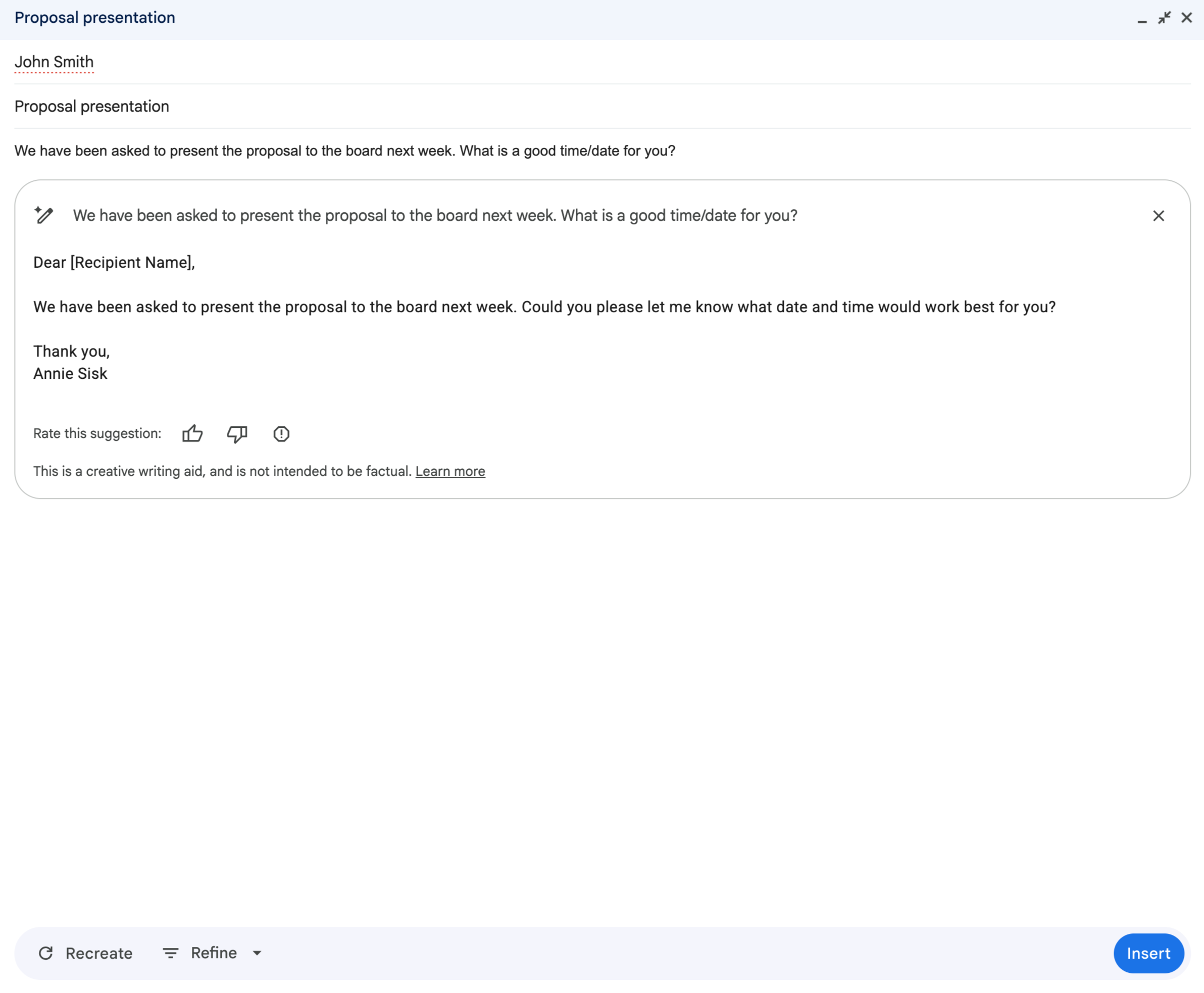
- Once you’re satisfied with the wording, copy and paste the Gemini-generated text into your draft. From there, you can make additional edits manually.
- On mobile devices, newer updates include a quick Insert button in the Gemini side panel, so you don’t have to manually copy and paste.
Step 5: Review and send your email
- Always preview and review your draft before you click send. Even though Gemini assists in the process, it’s up to you to verify the tone, accuracy, and brand alignment of your message.
- Only you can actually send the email. Gemini will not auto-send from Gmail’s drafting tools.
While using AI in Gmail is a simple and straightforward process, there are a few caveats regarding the availability of Gemini’s tools. First and foremost, not everyone will get Gemini access within the Gmail environment. The feature is available only with certain paid accounts, such as various tiers of Google Workspace or a subscription to a Google One AI premium plan. Additionally, admins may need to enable specific smart features and personalization functions in Workspace settings.
The benefits and drawbacks of Gemini AI in Gmail
Now that we’ve covered what it is and how you use it, let’s examine where Gemini shines — as well as where it may fall short.
Advantages of Gemini AI in Gmail
Gemini AI in Gmail gets high marks for both speed and efficiency. It can generate a full draft of your email message in mere seconds, regardless of whether you’re starting from scratch or replying to a complex threaded conversation. Using Gemini prompts, even for smaller, everyday messages — like a thank-you note, for example, or a check-in on a colleague’s progress — helps save a lot of time cumulatively and gives you a huge boost in productivity, freeing you up for deeper work.
Gemini can also help you refine and clarify your email messages. With options to formalize, elaborate, shorten, and polish, it can help you improve the tone, readability, and even professionalism of an email message. Use these tools to help tighten grammar and syntax or improve your email’s structure. This functionality is especially helpful for non-native speakers, as well as for anyone who just wants to convey their message in the most polished voice possible.
By summarizing long email threads for you, Gemini can help you catch up on ongoing conversations without having to read and reread every message yourself. It can also extract the next steps or appropriate action items from emails, making it even easier to stay on top of assigned tasks buried in long email chains. On your mobile device, you’ll even see automatic summary cards at the top of long message threads.
Finally, since Gemini can read from your Google Drive documents, it can help improve context awareness and integration of knowledge contained there, resulting in more precise, well-informed responses. Your replies can reference reports, proposals, or even shared files.
Drawbacks of Gemini AI in Gmail
Gemini’s obvious advantages shouldn’t overshadow a full understanding of its potential drawbacks. For one thing, Gemini might not fully comprehend the nuances of your brand voice, style guideline requirements, or organizational policies. This can result in a tone that may seem generic or even misaligned with your brand’s personality. If your business relies heavily on a consistent voice, the default responses Gemini delivers might require significant manual revision before they match your standards.
As is the case with any AI tool, human users can find themselves tempted to accept everything Gemini produces at face value, without conducting a closer review. But failure to look critically at AI-produced content poses real risks, including factual errors, misaligned tone, and unintended implications. Overreliance on Gemini or any other generative-AI tool in drafting business content can lead to off-brand impacts or even embarrassing errors.
While its prompt-based refinement options are impressive and useful, Gemini doesn’t have many customization or tailoring options beyond those tools. You can’t import company policies, canned drafts or scripts, or any knowledge-base context into Gemini’s logic inside Gmail. And it won’t help you triage or automatically label or forward emails based on content and context.
As noted before, unless you’re a member of an organizational team that has Google Workspace, Gemini AI is also only available to paying customers — that is, subscribers to Google AI Pro or Google AI Ultra plans. At present, neither Gmail’s free accounts nor lower-tier plans come with access to these features.
One last note of caution: There may be some security concerns around the use of Gemini. Researchers have noted that Gemini’s summarization feature has been targeted by prompt-injection attacks. This means attackers can embed hidden HTML or CSS within emails, trick Gemini into producing deceptive summaries, and potentially mislead users.
When you need more: Introducing Jotform’s Gmail Agent as a Gemini alternative
If you’re part of a team or organization that sends high volumes of email — like email marketing, customer support, sales, or operations — you might find Gemini’s native Gmail integration too limited. While it’s great for individual productivity, it does lack features for deeper customization, full brand alignment, and automated workflows. That’s where Jotform’s Gmail Agent steps in.
Why look beyond Gemini’s draft feature?
In a team or business setting, brand voice matters. You don’t want every agent or salesperson writing in different, individualistic styles; you need brand control and consistency of alignment. Gemini’s suggestions may not consistently reflect your style, terminology, or messaging rules. And without sufficient guardrails, email drafts can drift off course and out of alignment.
Moreover, teams need some functionality that Gemini just doesn’t have yet. An AI tool that offers smarter triage, labels, and prioritization can help teams identify what’s urgent, whose response is needed, and which emails or response messages can be automated. In that vein, most organizations need to retain a human in the workflow loop to make sure every response is reviewed, edited, and approved or validated to minimize any risks.
Finally, many organizations need greater scalability in their email workflows than Gemini can currently provide. When dozens or even hundreds of emails arrive in your inbox every day, writing individual messages becomes a real problem and can create a bottleneck that impedes productivity.
How Jotform’s Gmail Agent goes further
Teams need an email AI solution that can operate at scale while still preserving quality, tone of voice, and oversight. Fortunately, there’s a powerful alternative to Gemini, and it’s built specifically to work with Gmail. Jotform’s Gmail Agent addresses the needs of busy organizations and teams while also providing a robust alternative to Gemini’s native Gmail drafting in several ways:
- Gmail-native AI advantage — Jotform’s Gmail Agent connects directly to Gmail via OAuth, so there’s no need to share passwords. It can start generating draft replies as soon as emails arrive. The agent learns from your existing sent email history, so its drafts reflect your actual tone, style, and communication patterns.
- Trained on your information — Because it’s a full AI agent instead of a prompt-response tool, Jotform’s Gmail Agent can reference your up-to-date knowledge base in Jotform, building replies that reflect current policies, style sheets, FAQs, and brand guidelines.
- Human-in-the-loop control — Perhaps most importantly, Jotform’s Gmail Agent does not auto-send. Every AI-generated draft lands in your Gmail Drafts folder for your review and approval. This preserves quality, ensures alignment, and always gives you the final say. That’s an essential level of control for customer-facing or sensitive communications.
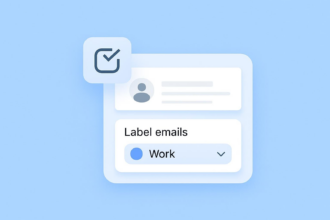
- Intelligent triage and auto-labeling — The Jotform Gmail Agent goes beyond drafting assistance by examining incoming emails and applying smart labels based on content (e.g., “Support – Urgent,” “Sales Inquiry,” or your own custom categories). It can prioritize which emails deserve an immediate draft and which can be deferred or ignored, such as promotional or low-value messages. This keeps your inbox organized and your team focused, saving you the time and energy of having to manually sort through everything.
- Brand consistency — Jotform’s Gmail Agent is trained on your past emails as well as a custom knowledge base. That means that every draft shares the same tone, policy, and messaging, thus reducing variance across senders. You can also configure greetings, signatures, and response styles in the Agent’s settings.
- Simple, secure setup — Setup for the Jotform Gmail Agent relies on OAuth. Jotform requests permissions to read and draft in your Gmail account, but it never stores your password. The tool is verified by Google and adheres to several security and compliance standards, including SOC 2 Type II, GDPR, and HIPAA. Forgoing a risky API plug-in, everything works within a secure, authorized channel.
- Robust enough for teams — For customer support, sales, or operations teams, Jotform’s Gmail Agent is a true game changer. It helps reduce response lag, enforce brand consistency, and free up your team members from the time drag of repetitive drafting, while still keeping them involved in quality control.
Taking your emails to the next level with AI
Gemini’s AI draft feature in Gmail is a powerful tool for individual users that can result in faster composition, a more refined tone, and truly useful summaries. With the Help me write and Refine my draft options, you can draft or polish emails in seconds and even reference your Google Drive to include relevant details. It’s an incredibly smart productivity booster for day-to-day email tasks.
However, if you’re part of a business, customer service team, or any role where brand voice, accuracy, and oversight are nonnegotiable, Gemini’s native Gmail features may not be sufficient to handle your needs. That’s where Jotform’s Gmail Agent delivers more, including AI-driven drafting, intelligent triage, auto-labeling, and complete human-in-the-loop control. It’s designed for scale and security, helping teams stay efficient without sacrificing quality or consistency.
If you’re managing a busy inbox or leading a team that sends a lot of emails, give Jotform’s Gmail Agent a try. It packs a powerful punch and is easy to use, whether you are an old pro with Jotform’s AI Agents or still wondering “What are AI agents?”. Simply connect the agent to your Gmail, let it learn your voice, and start generating smart, on-brand draft replies. Experience the difference of email automation that’s not just fast but also safe, consistent, and under your control.
This article is for professionals and teams who rely on Gmail for daily communication and want to streamline their email workflow using AI. It’s especially helpful for organizations that need fast, polished drafting support while maintaining brand consistency, oversight, and secure processes.










































Send Comment: