
Your email signature is the equivalent of a digital business card. It contains vital information like your full name, pronouns, role, company, email address, and phone number. It also showcases your brand style and corporate tone.
After completing your iOS email setup, Apple automatically adds the line “Sent from my iPhone” to all outgoing emails from the iPhone Mail app. It’s possible, though, to customize the email signature if you prefer. Doing so allows you to include essential information and branding — ultimately, to present your most polished digital self.
In this article, we show you how to change your email signature on the iPhone and cover best practices for mobile email signatures. We also introduce you to a tool that can take email signatures and replies to another level: Jotform Gmail Agent.
How to change your email signature on iPhone step by step
Not sure where to find your email signature settings so you can customize your email signature on your iPhone? Follow these step-by-step instructions for iOS 15–18 and iOS 26:
1. Open the Settings app on your iPhone. It’s the cog icon on a gray background.
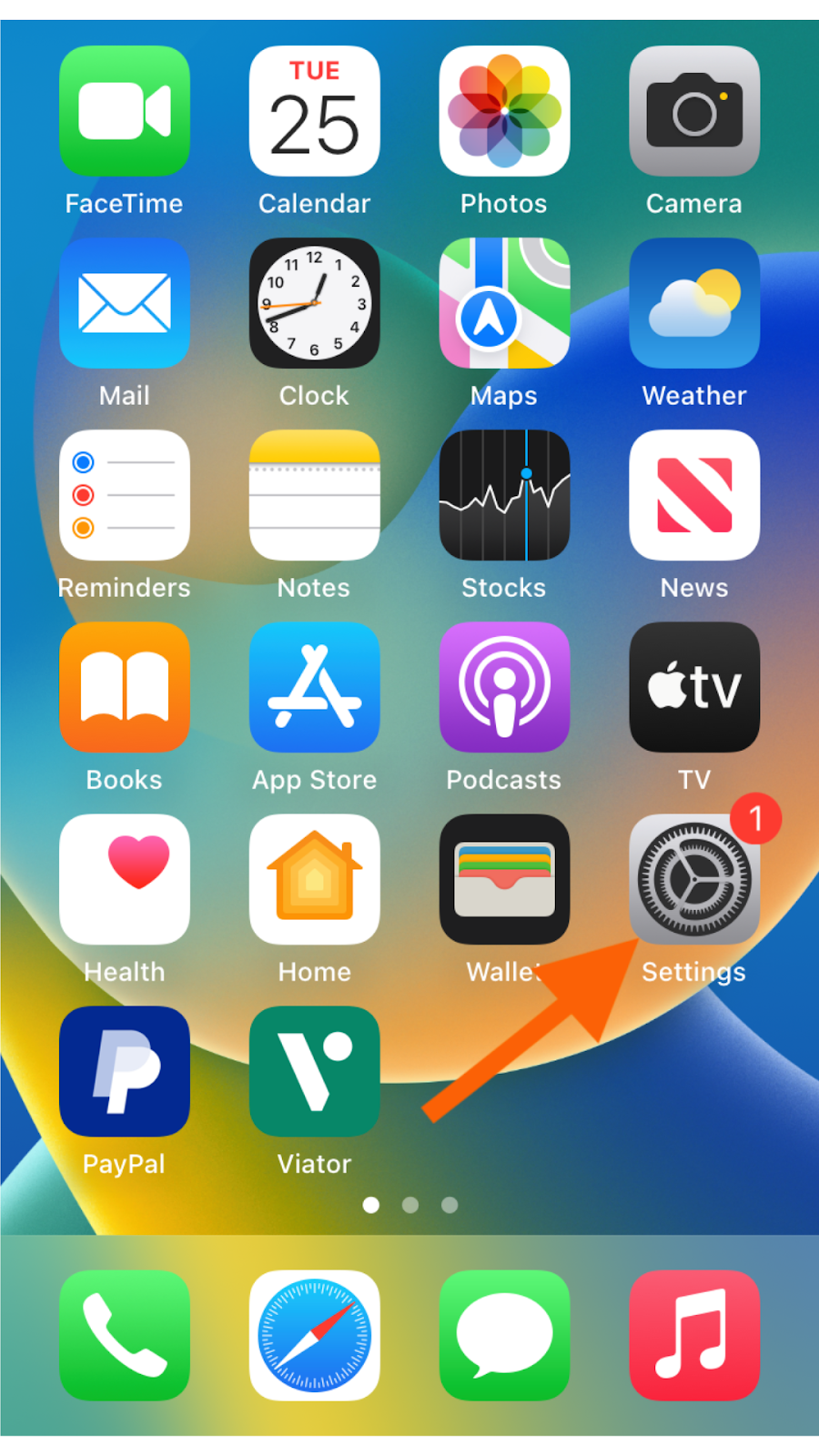
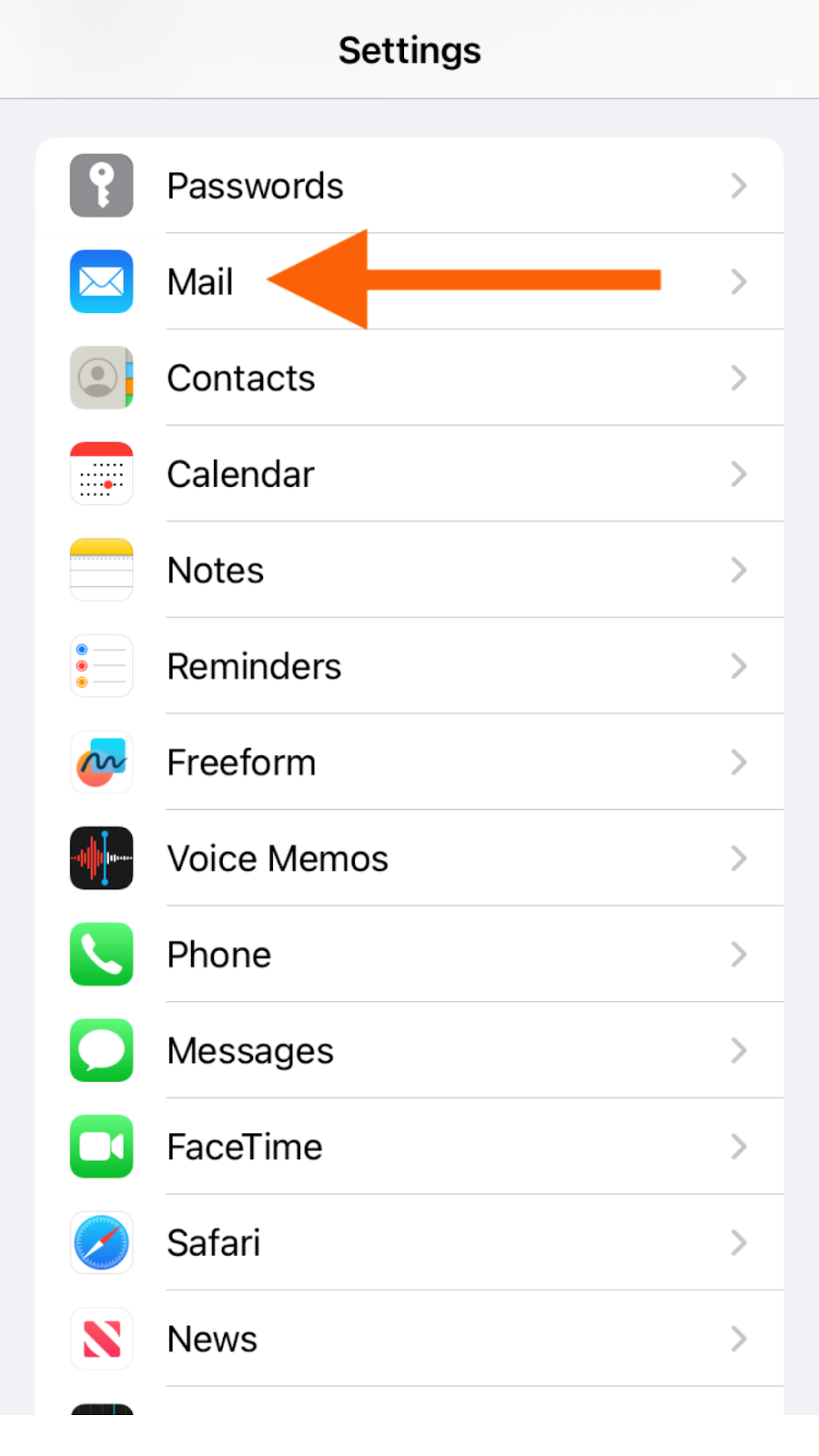
2. Tap Mail.
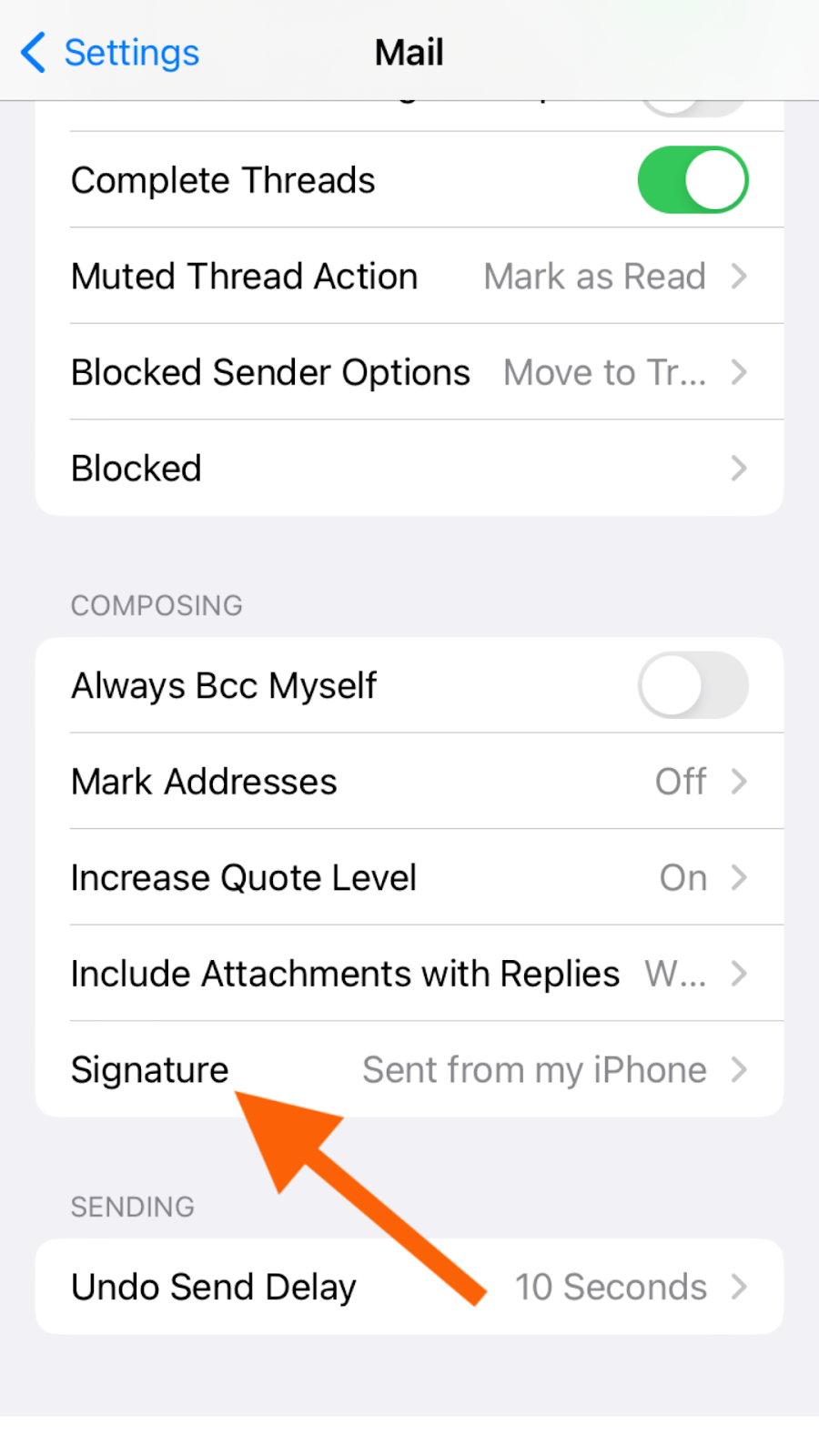
3. Tap Signature under the Composing section. This will open up your Mail signature.
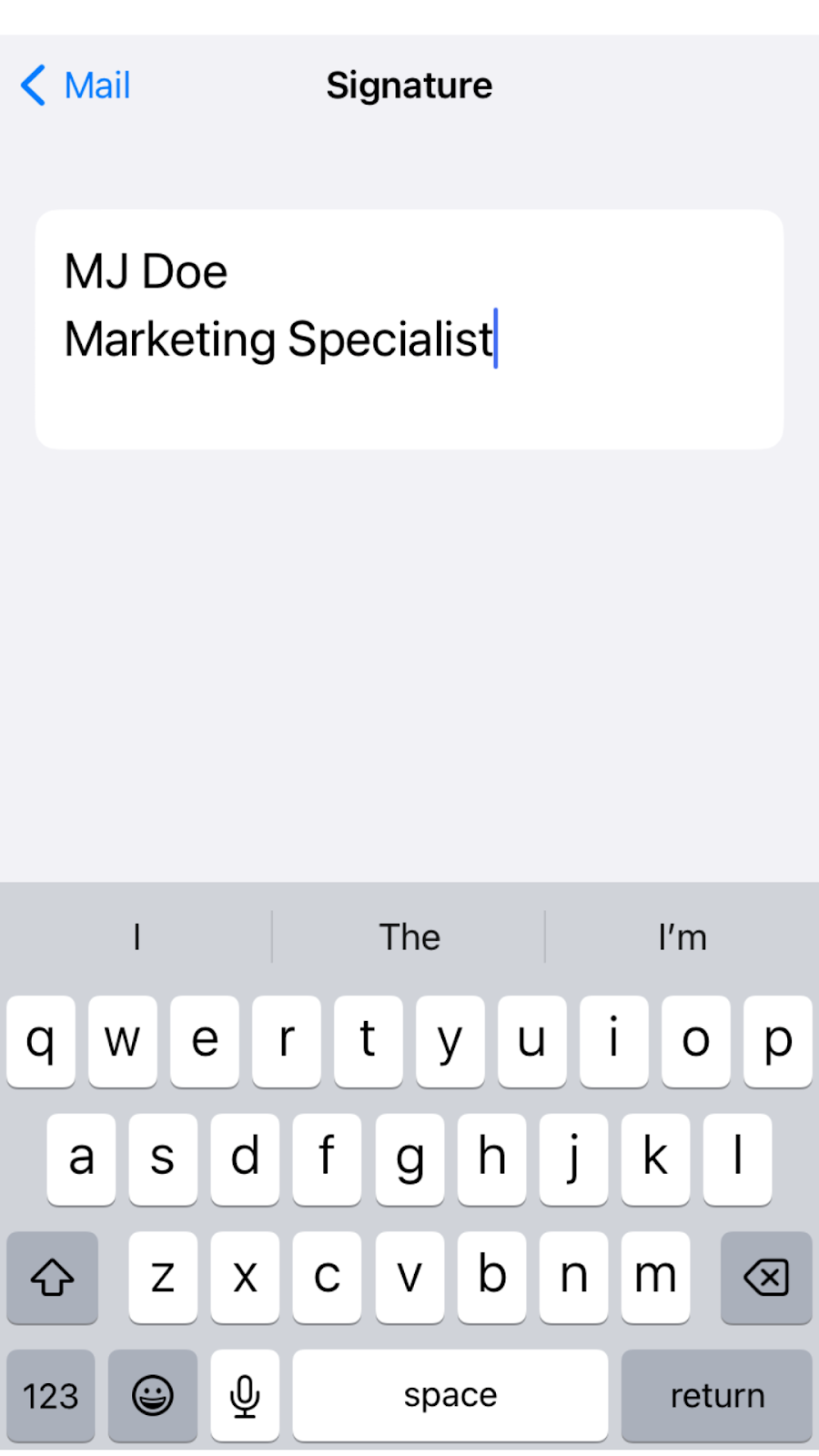
4. Tap the text field. Edit your email signature as you like. Your changes will be saved automatically when you close the Settings app.
Pro Tip
If you use more than one email account on your iPhone, tap Per Account to manage multiple email signatures. You can then create separate email signatures for each account. Tap All Accounts to use the same signature for every mailbox.
Note that, for an iPhone Mail app signature, you can only use plain text. You don’t have the ability to include rich text or images.
Best practices for mobile email signatures
Follow these tips to optimize your email signature for mobile:
- Keep it short: Three to five lines is the ideal length. Avoid the urge to include unnecessary information, like favorite quotes.
- Include essential information: Your email recipients will be looking for key details like your first and last name, your business title, company name, phone number, and website link. You can also include your pronouns and mailing address if you like.
- Use plain text or light formatting: When you add a signature to an iPhone, you have limited formatting features available. For mobile, plain text signatures are best because they’re small and easily deliverable.
- Avoid bells and whistles: Large images, long disclaimers, and heavy branding can distract from the actual content of the email. Only include important information and save the rest for other communication channels.
- Test signature appearance: Make sure you test how your signature looks across devices. Sometimes, it may appear different on desktop than it does on mobile, which will require some troubleshooting.
Pro Tip
Regularly use your iPhone to send contracts and get digital approvals? You need more than just a professional-looking email signature. Try Jotform Sign Mobile, a document signing app that helps you collect secure electronic signatures on your phone. Perfect for contracts, agreements, and more, you can use it to create and sign digital documents, scan paper documents, and manage both remote and in-person signings. It’s a digital-first tool that’s highly intuitive and easy to use.
For Gmail users: Signature settings and smart drafting with Jotform Gmail Agent
Want to level up your email game? If you’re only using the iPhone Mail app to conduct business, you’re missing out on the many helpful features available in other mail applications, like Gmail.
You can customize your Gmail signature for mobile just as you can for the iPhone Mail app, and it has additional formatting options available. For Gmail users on iPhone, you have to manage your signature separately from Apple Mail. Here’s what you need to do:
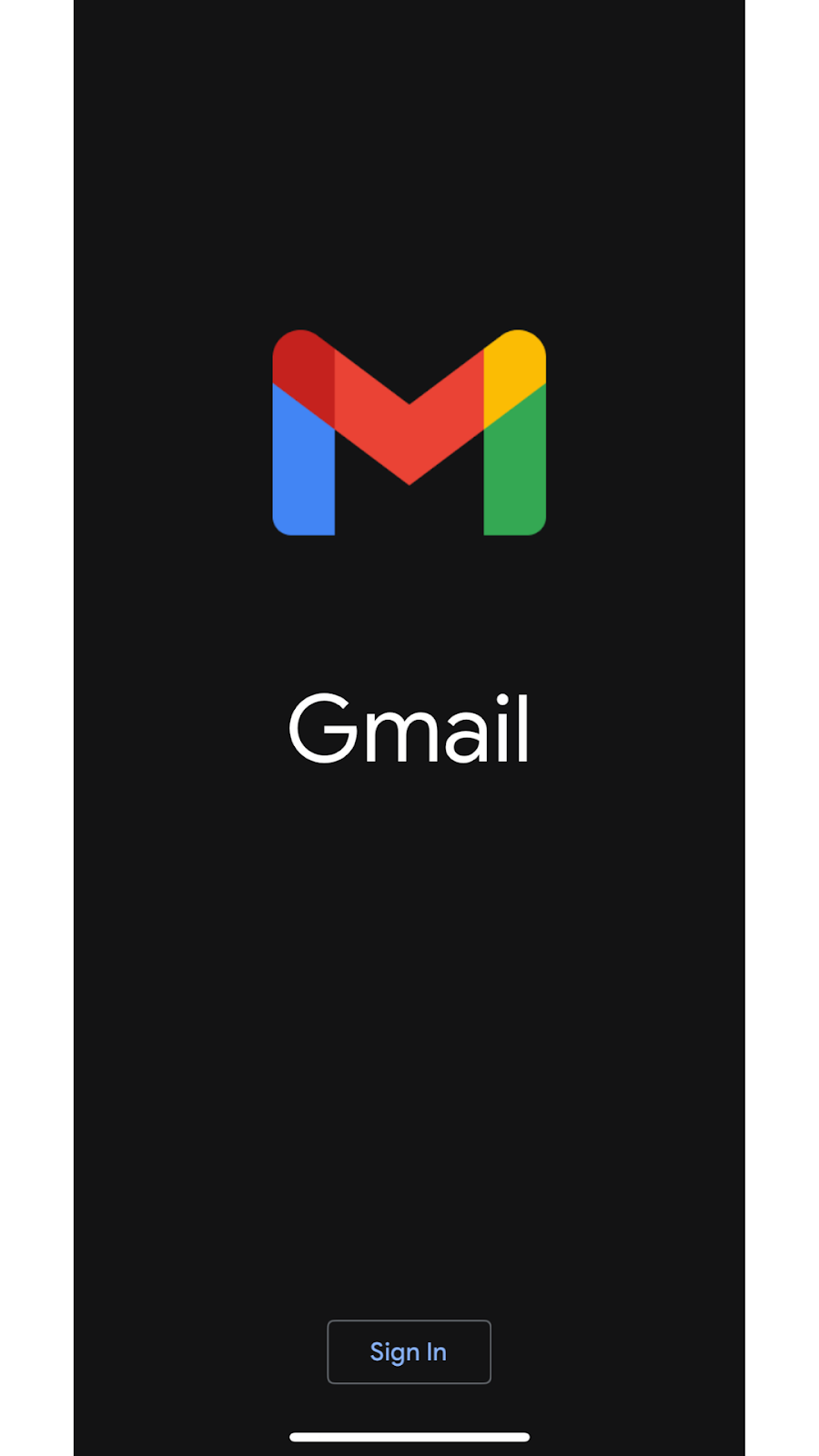
1. Open the Gmail app.
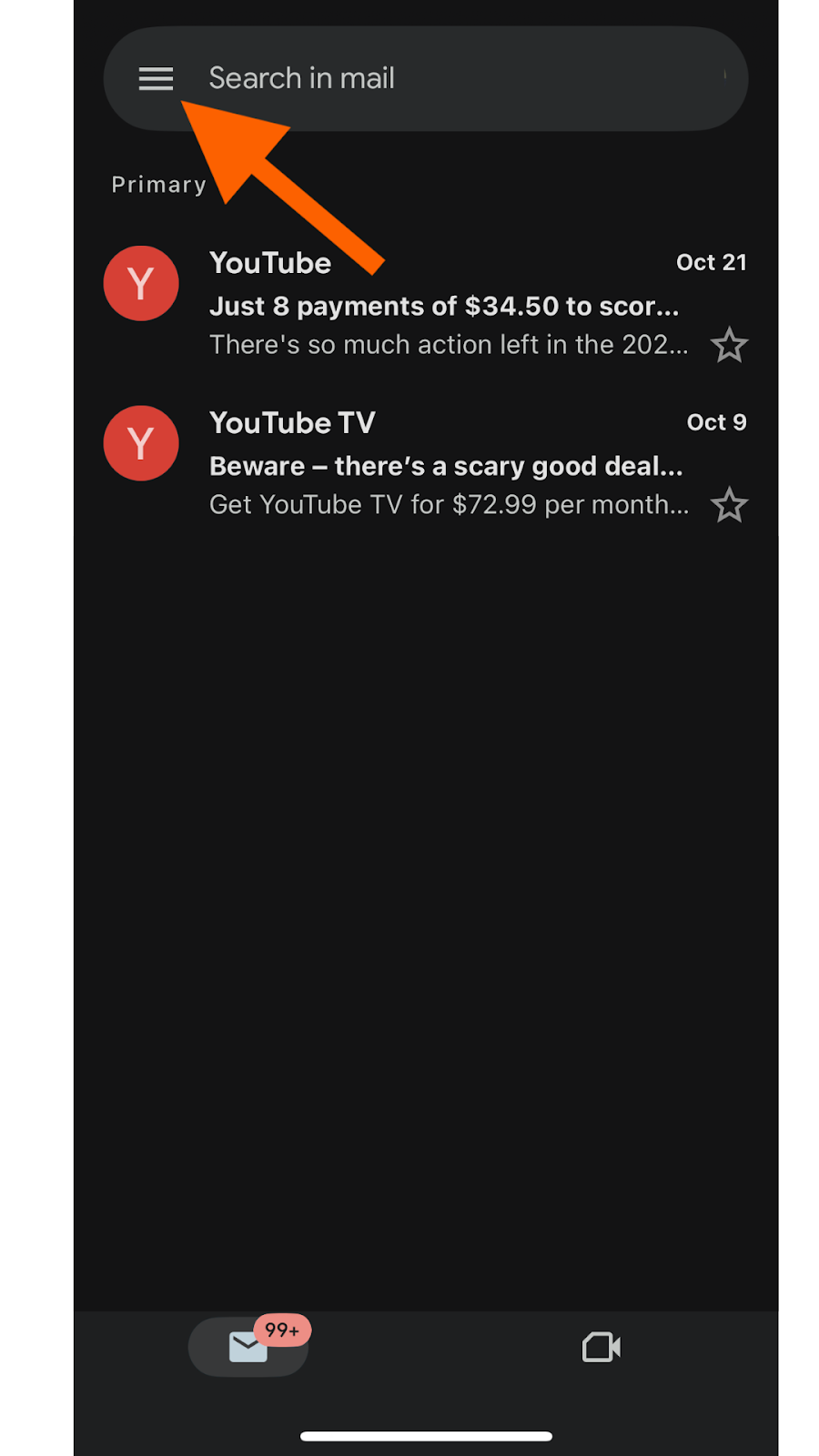
2. Tap Menu (the three horizontal lines).
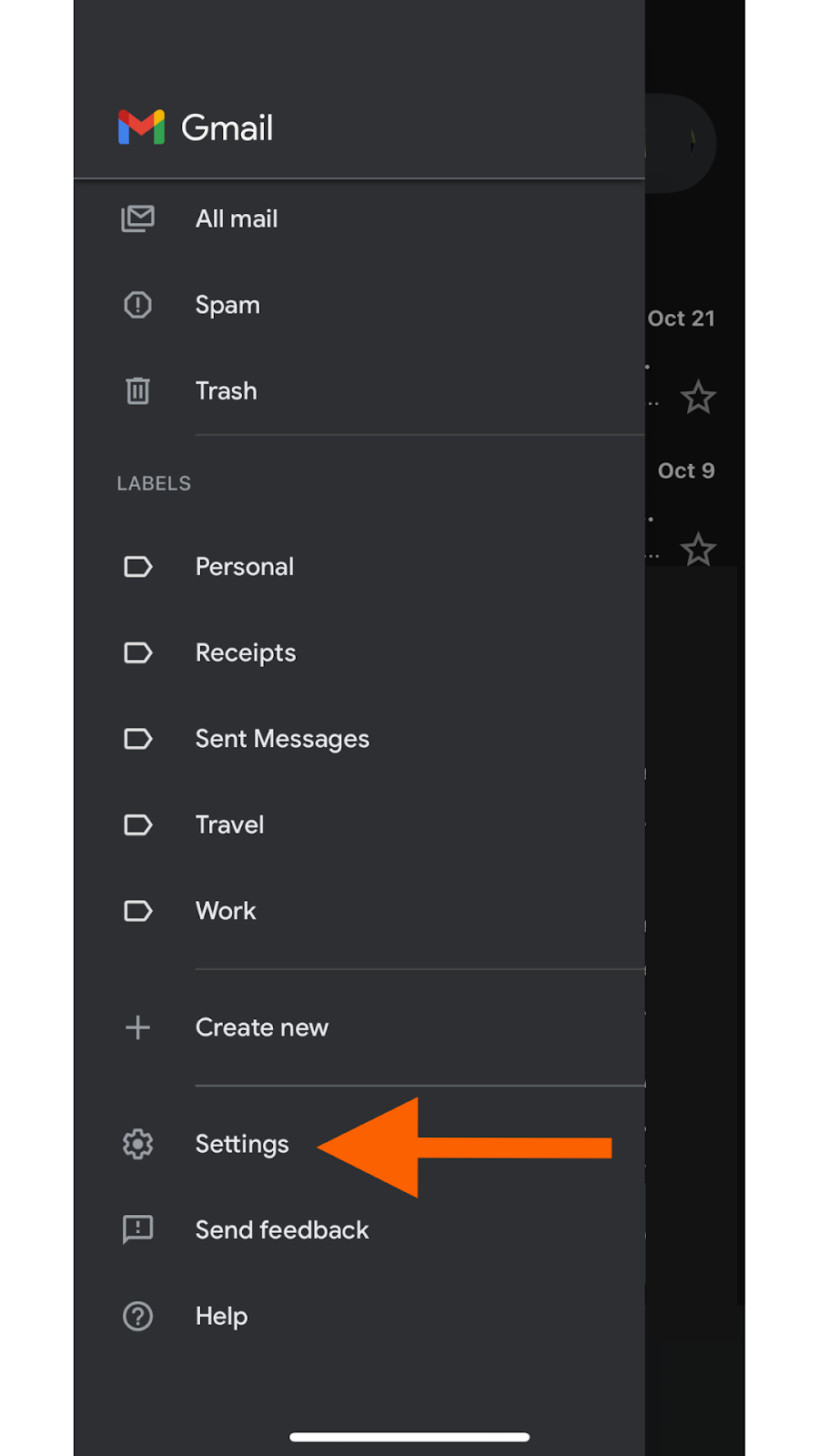
3. Tap Settings.
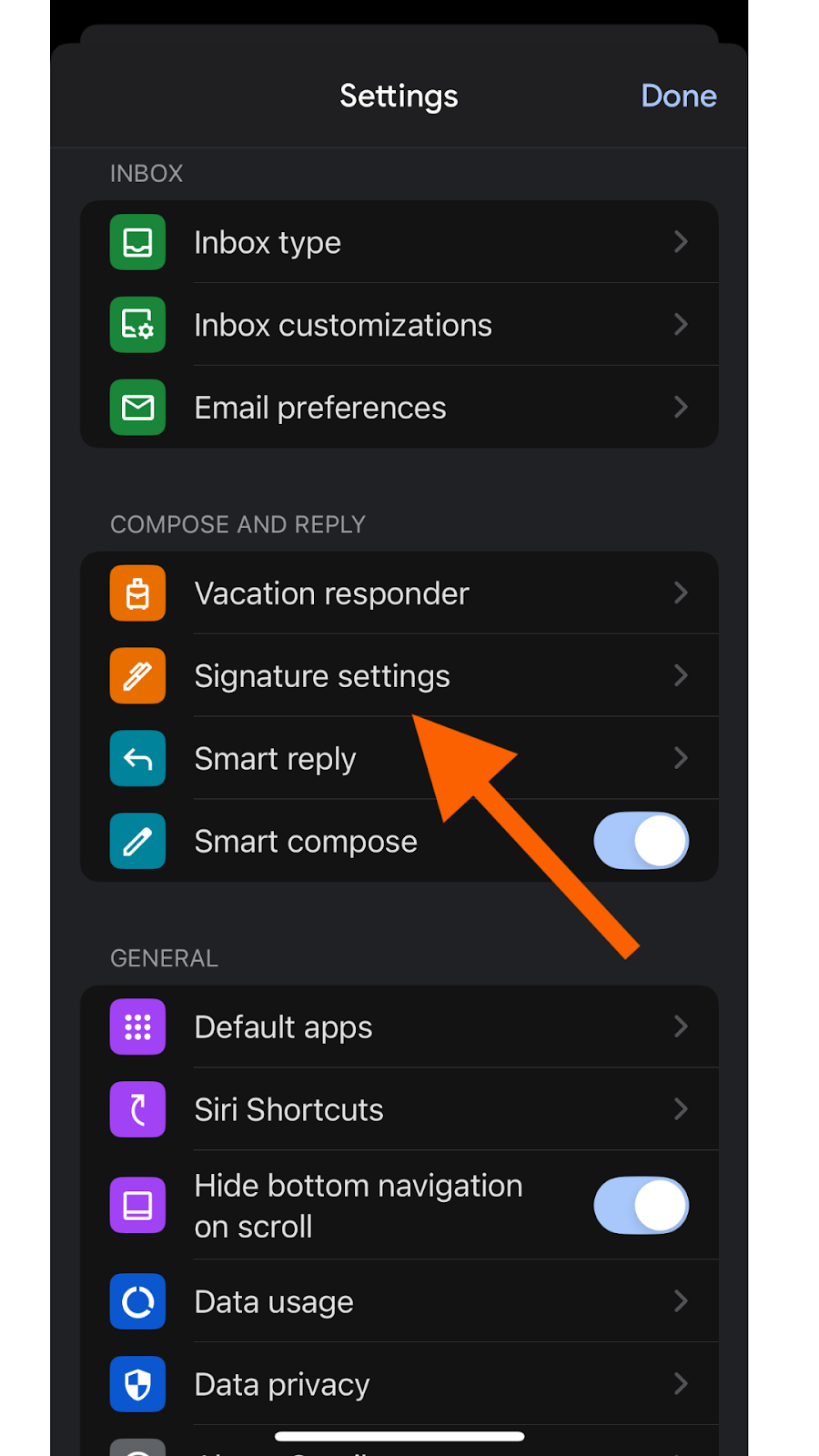
4. Under “Compose and Reply,” click Signature settings.
5. Toggle Mobile Signature on.
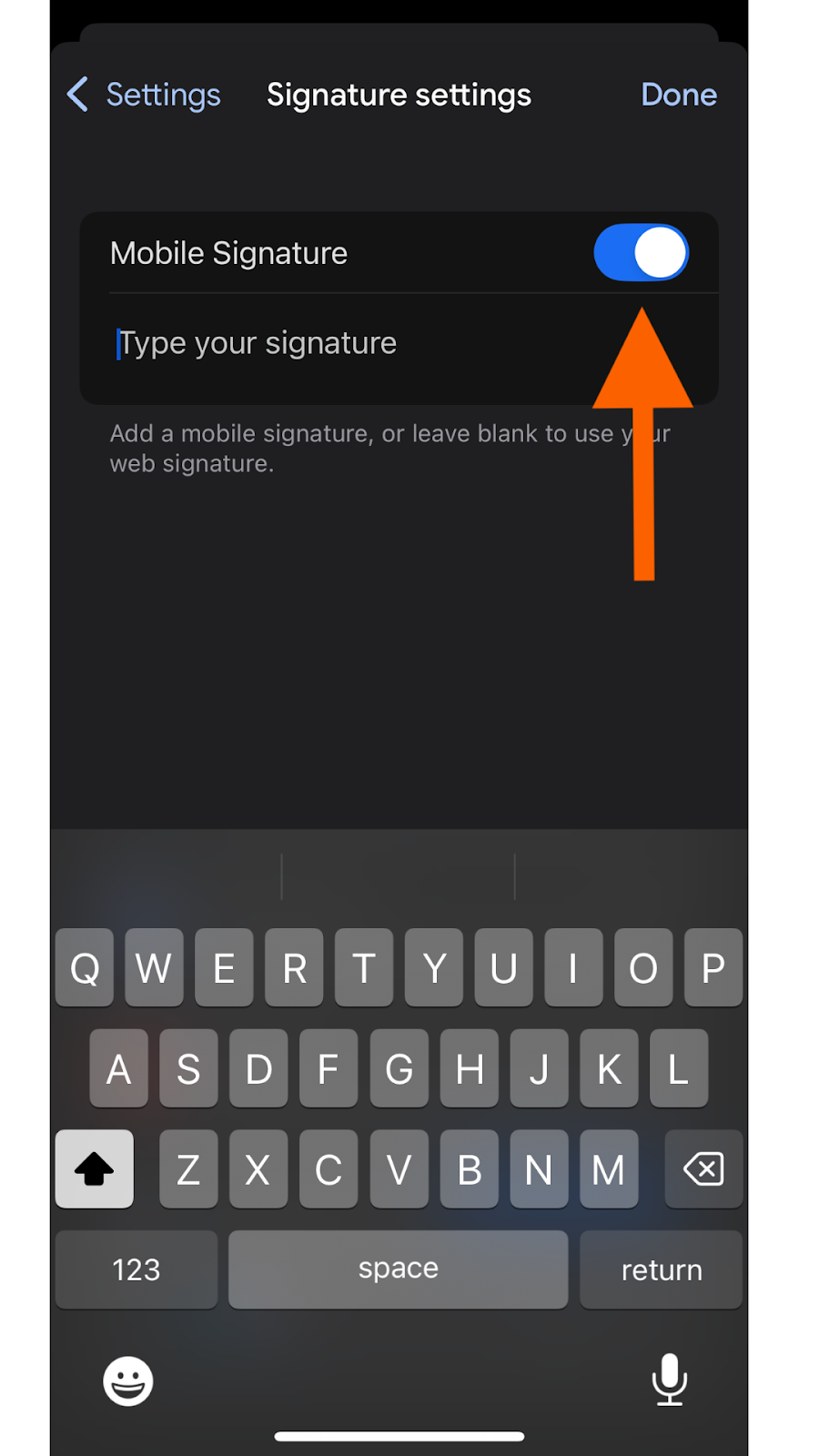
6. Add or edit the sign-off text as needed.
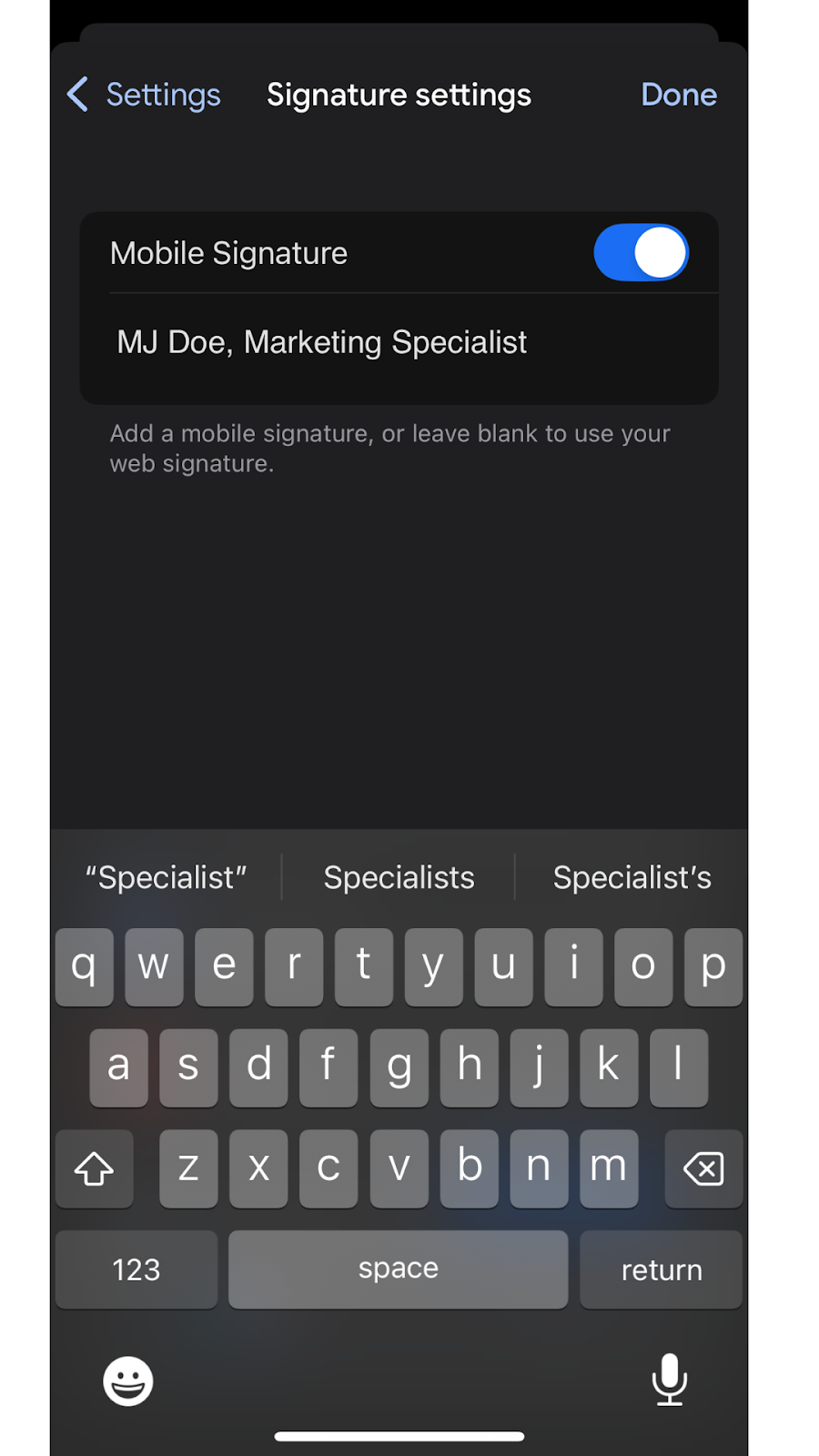
7. Tap Done to save your changes.
After you’ve customized your email signature on Gmail, take a minute to explore some of the features that help with email writing and inbox management. For example, if you’re overwhelmed with drafting high volumes of emails, you can use Gmail automation to streamline your processes.
Another valuable tool is the AI-powered Jotform Gmail Agent. Available on both desktop and mobile, it helps you draft, organize, and filter your emails so you can spend less time in your inbox and more time working on the bigger picture.
Here’s how you can work more efficiently using Jotform Gmail Agent:
- Automate email drafts: Jotform Gmail Agent can draft professional, on-brand replies to incoming emails. There’s no need to type replies from scratch — you can simply refine the draft that Jotform Gmail Agent has created.
- Prioritize emails: Don’t worry about promotional, spam, or no-reply messages. Jotform Gmail Agent focuses on priority emails only so you don’t have to read through unnecessary communications.
- Stay on-brand: Jotform Gmail Agent matches your brand’s tone and style so that your responses remain seamless. The drafts also include your email signature.
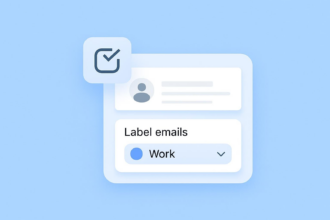
- Stay organized: Jotform Gmail Agent uses smart labels to restore order to your inbox. You can also use advanced filtering options to exclude specific email addresses or entire domains.
- Maintain control over your communications: You have full editing control over the AI-assisted drafts in Gmail. Simply review, edit, and approve before clicking Send.
- Easily oversee email activity: Keep track of every draft generated by Jotform Gmail Agent in the Conversations page as well as in Gmail — no more worrying about losing drafts or feeling scattered.
Using AI in Gmail with Jotform Gmail Agent is a great way to boost your productivity while freeing up time for important work. You can maintain your professional digital appearance and ensure your communication takes center stage.
Put weight behind your signature
Customizing your iPhone and Gmail signatures on mobile enhances professionalism and ensures consistency across every email message. With a custom email signature, you provide recipients with key information about who you are, what you do, and how they can reach you — building trust and strengthening client/customer relationships.
For those who often sign documents and contracts over mobile, use a secure and trusted tool like Jotform Sign Mobile. A powerful complement to your email branding strategy, it gives you the flexibility and speed you need to keep business processes flowing when you’re on the move.

Even more important than your email signature is the content of your emails themselves. Use Jotform Gmail Agent for creating polished, professional, and automated replies for your emails. This AI-powered tool generates replies using your brand tone, creating seamless communication for your audience. All you have to do is review, edit, and send the replies.
Explore both Jotform Sign Mobile and Jotform Gmail Agent for free today.
This article is for iPhone users, mobile professionals, and anyone who wants to personalize their email signature to enhance professionalism and brand identity in mobile communications.













































Send Comment: