
2026’s best Lindy AI alternatives
“Your next hire isn’t human.” That’s Lindy AI’s promise — and it’s a heck of a tagline.
On paper, Lindy promises to be your artificial intelligence (AI) chief of staff: scheduling meetings, taking notes, even handling follow-ups across tools like Gmail, Slack, and Notion. In theory, you build agents once and get hours of work off your plate.
But spend a little time with it (and spend you will), and the cracks start to show.
Some users say the agent builder loops endlessly. Others report copy-pasting context into prompts just to make sure Lindy doesn’t hallucinate, calling it “the worst experience in years.” Another said it’s great for proofs of concept, but for high-volume workflows you’ll need more credits, more time, and probably more patience than you bargained for.
If you’re here, you’re probably looking for something better. So here are my top seven Lindy AI alternatives worth switching to in 2026.
How I tested and selected this list of AI executive assistant tools
This isn’t a “Top seven tools because SEO said so” situation. I tested each Lindy alternative like a real assistant was on the line. (Because in my workflow, it really is).
Each tool had to prove it could handle actual execution to be useful for AI workflow automation.
Here’s what mattered most in my testing:
| What I tested | What that means |
|---|---|
| Can it actually take action? | Can it schedule the meeting, send the follow-up, and update the document — all without me stepping in? |
| Can I control what it does? | Does it ask before taking action? Can I see what it’s doing? Or is it a black box? |
| Does it remember context? | If I tell it my tone or how I like things done, does it remember or start from scratch every time? |
| Does it work with my tools? | Can it work with Gmail, Slack, Notion, Jotform, or my customer relationship management (CRM) system without workarounds? |
| Can I get started quickly? | Does it deliver value in 10 minutes or less? |
Only seven tools made it through testing. Each one solves a different kind of workflow pain, so depending on what you’re looking for, some may fit better than others.
Take a look at what stood out.
7 best Lindy AI alternatives to try in 2026
Maybe you want more visibility. Maybe you hit the free tier limits. Or maybe, like me, you just want to see what else is out there. Whatever your reason, these seven best Lindy competitors are worth exploring if you’re looking for something Lindy-adjacent:
| Tool | Best for | Key feature | Plans/Pricing |
|---|---|---|---|
 Jotform Gmail Agent |
High-volume email workflows with form and/or data routing |
Gmail-to-form parsing with AI agent logic |
|
 n8n |
Custom workflows with full control |
Self-hostable, open-source editor and code-level custom nodes |
|
 Make |
Advanced conditional flows with lots of apps |
Branching logic and parallel paths for pro builders |
|
 Relay.app |
Step-by-step AI automations for non-developers |
Trigger-based flows and human-in-the-loop approvals |
|
 Integrately |
One-click automation for small to medium-sized businesses |
Huge template library with conditional logic baked in |
|
 Relevance AI |
Building complex, multi-agent AI workflows |
Autonomous agents with memory, chain of thought, and routing |
|
 Gumloop |
Drag-and-drop AI automations for teams |
Visual builder with Gummie assistant |
|
1. Jotform Gmail Agent: Best Lindy AI alternative for high-volume email workflows
You caught us. Jotform is the house brand. But if you think this is just a sneaky plug, try it for yourself.
Before I even clicked “Next,” Jotform Gmail Agent was already parsing my inbox: learning how I reply, spotting repeated patterns, and pulling frequently asked questions (FAQs) into its logic.

Once the agent finishes its initial learning phase, you can fine-tune everything inside the Gmail Agent tab in your Jotform workspace:
- Toggle auto-learning on or off.
- Set your greeting and signature style.
- Create custom rules to exclude noisy senders, alerts, or promotions.
- Automatically label high-priority emails.

To dial in the tone of voice, click the three-dot menu next to your Gmail account and head to Agent Persona.
There, you can control response length, tone presets, and even drop in full-blown Email Guidelines so the AI knows where to draw the line.

Pro Tip
If you’re already using Jotform, set up your Gmail Agent in seconds. Check out this quick video:


Everything happens in a contained, transparent workflow. And you can set hard exclusions by domain, label, or sender. The infrastructure is rock-solid too: data is encrypted in transit and at rest, the platform is CASA Tier 2 certified, and it can be used to maintain compliance with GDPR, HIPAA, SOC 2 Type II, and PCI.
- Developer: Jotform, Inc.
- Key features:
- Instant Gmail integration: Setup takes seconds. Simply connect your Google account via OAuth and you’re in.
- AI trained on your actual communication style: The agent learns directly from your sent emails, email marketing, Jotform submissions, internal docs, and FAQs, so replies actually sound like you.
- Nothing sends without your say-so: Every response stays in draft until you hit approve.
- Smarter inbox triage: Automatically flag VIPs, tag by urgency or sentiment, and surface customer issues before they fall through the cracks.
- Connect email to real-world workflows: Set up automations that trigger when someone submits a form, like routing press inquiries to marketing or escalating issues to support.
- Context-rich thread view: Form responses, contact history, and metadata show up directly inside your Gmail view.
- Team-wide assistant with shared tone and context: Everyone on your team can use the same assistant, pulling from one shared knowledge base and tone settings to keep replies consistent.
- Pros:
- According to Jotform’s internal data, high-volume users are saving more than four hours a day with the Gmail Agent, making it one of the best email AI assistants on the market.
- The agent feeds everything it learns into your broader AI stack, so your Gmail agent, website chat, and form autoresponders all stay in sync.
- Cons:
- If you don’t define your tone clearly, replies can occasionally skew too stiff or too casual.
- The agent only works in Gmail, and only while OAuth is active.
- Plans/pricing: Gmail Agent is included with Jotform AI Agents plans:
- Starter (free forever): Five agents, 100 monthly conversations, 10,000 monthly sessions, 50 minutes of monthly voice calls, 250 monthly SMS, 10 million characters in your knowledge base.
- Bronze ($39 per month): 25 agents, 1,000 monthly conversations, 100,000 monthly sessions, 100 minutes of monthly voice calls, 300 monthly SMS, 20 million characters in your knowledge base.
- Silver ($49 per month): 50 agents, 2,500 monthly conversations, one million monthly sessions, 200 minutes of monthly voice calls, 500 monthly SMS, 50 million characters in your knowledge base.
- Gold ($129 per month): 100 agents, 10,000 monthly conversations, two million monthly sessions, 300 minutes of monthly voice calls, 750 monthly SMS, 100 million characters in your knowledge base.
- Enterprise (custom pricing): Unlimited agents, conversations, and sessions; 1,000 minutes of monthly voice calls; 1,000 monthly SMS; unlimited characters in your knowledge base; tailored support and compliance for large-scale deployments.
- G2 rating: 4.4/5
Real-life success story
Elana Etten, an AI consultant at IDMUS Consulting, sends and receives more than 100 emails a day. Jotform’s Gmail Agent won her over, and she’s never looked back:
“I’ve been using Gmail Agent and I absolutely love it. It’s great to see it serves a dual purpose when it helps identify messages that I should reply to in my inbox — because I can see the draft — and then I have a choice between which response to use and it just helps move the day along.”
Jotform Gmail Agent has helped Elena draft over 250 responses and eliminate over 11,000 emails from her inbox.
2. n8n: Best Lindy AI alternative for visual agents with full control
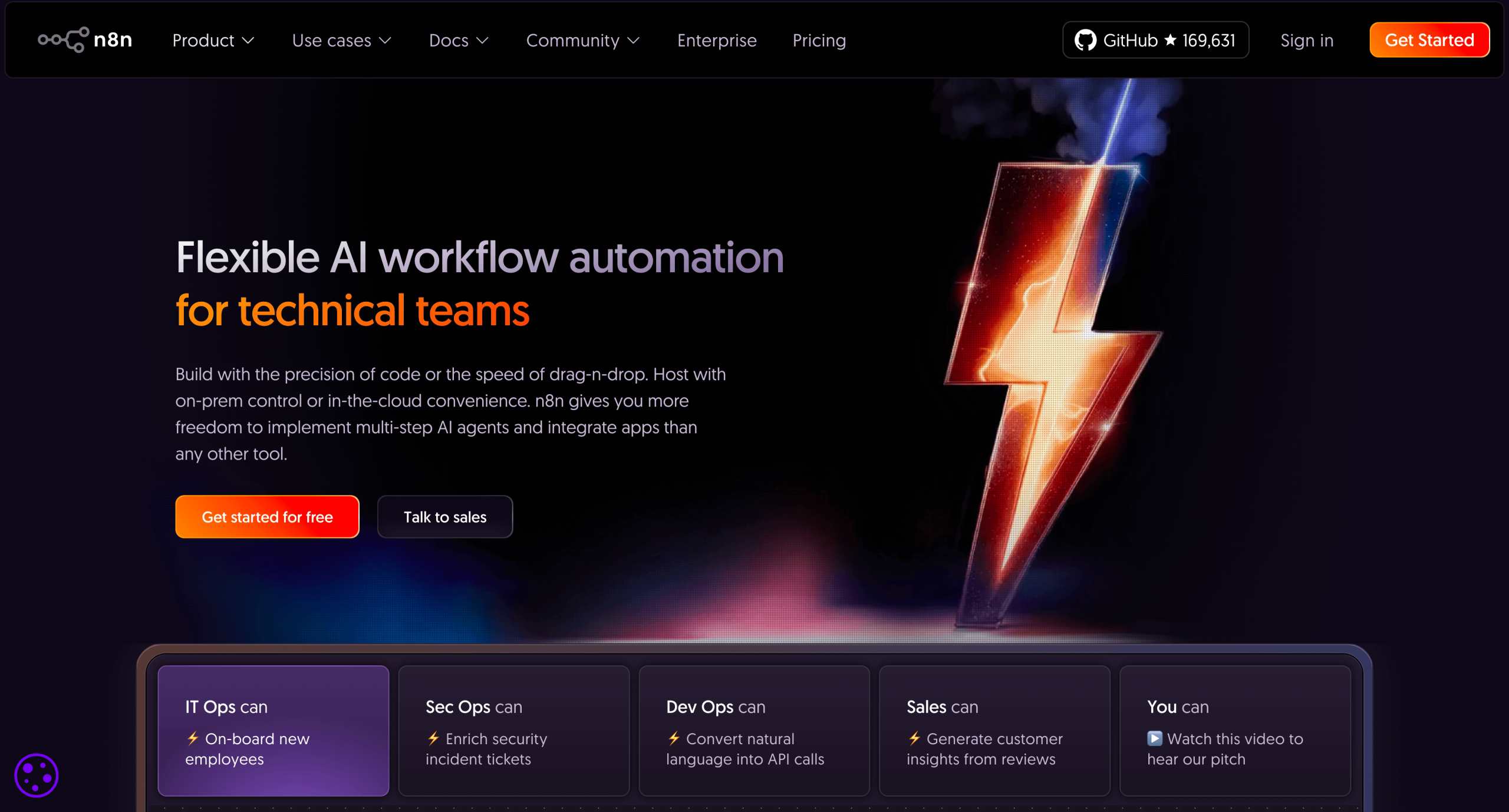
Lindy’s logic visibility is decent but not always enough — especially when flows get complex or branch heavily. n8n shows you the logic.
The 14-day free trial gives you 1,000 executions and kicks off with a smooth, progressive onboarding flow. You start by picking your company size (in my case, “under 20”), your team (“marketing”), and what best describes your organization (“marketing agency”).
Following that, you’re asked how comfortable you are with technical setup. I picked the option that said I was comfortable configuring API authentication, which is a smart filtering mechanism since n8n is clearly designed with more advanced users in mind.
Once your workspace is ready, you get a clean dashboard with the option to watch a short YouTube walkthrough video. It’s embedded right into the user interface, which is a nice touch.

After that, you can either start building from scratch or try out a pre-built agent.

I chose to go pre-built and test out the “Knowledge store agent” template. This dropped me straight into an interactive canvas: a whiteboard-like interface with a flowchart of the entire automation process.
Each node in the flow is editable. I could click into any step, adjust it, delete it, or rewire it entirely. I was impressed by the speed, too — I was ready to go live in under five minutes.

- Developer: n8n.io
- Key features:
- Visual builder with real-time feedback: Build and edit multi-step workflows on a drag-and-drop canvas. Every change shows results instantly.
- Over 400 pre-built integrations: Skip the boilerplate setup with a massive library of native nodes for common tools and APIs.
- Custom HTTP support: Easily connect apps without native support using the HTTP Request node and cURL imports.
- Step-by-step execution: Test individual nodes instead of running the entire flow — ideal for fast debugging and iteration.
- Code-friendly when needed: Use JavaScript or Python inside any node, and add npm packages in self-hosted mode.
- Flexible data handling: Merge, loop, filter, de-duplicate, split, and aggregate data.
- Diverse triggers: Start workflows with app events, cron jobs, webhooks, or even other workflows.
- Built-in AI nodes: Add AI summarization, document questions and answers, or OpenAI-powered agents directly into your automations.
- LangChain integration: Build modular, multi-step AI agents that plug into existing workflows or internal tools.
- Debugging: Monitor performance, stream logs, and trigger fallback workflows with custom alerts.
- Scalable self-hosting: Deploy on Docker or Kubernetes, push between environments, and scale up to 220 executions a second.
- Enterprise-grade security: SOC 2 certified with secret management via AWS, Azure, GCP, or HashiCorp Vault.
- Pros:
- You can test step-by-step, not end-to-end — making debugging fast and satisfying. Replay data or execute just the last step without rerunning the entire workflow.
- Pre-built agents give you a head start. Launch fast using templates, then customize deeply without having to rebuild from scratch.
- Cons:
- If configuring APIs or reading JSON makes you nervous, you’ll hit friction early.
- The interface is clean, yes. Intuitive for a non-technical user? Not really.
- Plans/pricing: n8n offers both cloud (hosted by n8n) and self-hosted versions. The Community Edition (self-hosted) is free, but you’ll need to cover your own server/infrastructure costs.
- Starter ($20 per month, billed annually): ~2,500 executions per month, unlimited workflows per users, five concurrent executions.
- Pro ($50 per month, billed annually): ~10,000 executions per month, more shared projects, workflow history, global variables, admin roles.
- Business (custom pricing): ~40,000 executions per month; advanced security (SSO, SAML, LDAP), version control, environments (dev, prod, etc.), and scaling options; for companies with under ~100 employees.
- Enterprise (custom pricing): Unlimited or high execution volumes, highest concurrency, dedicated support and SLAs, full governance, logs, advanced features.
- G2 rating: 4.8/5
3. Make: Best Lindy AI alternative for conditional, multi-app automations
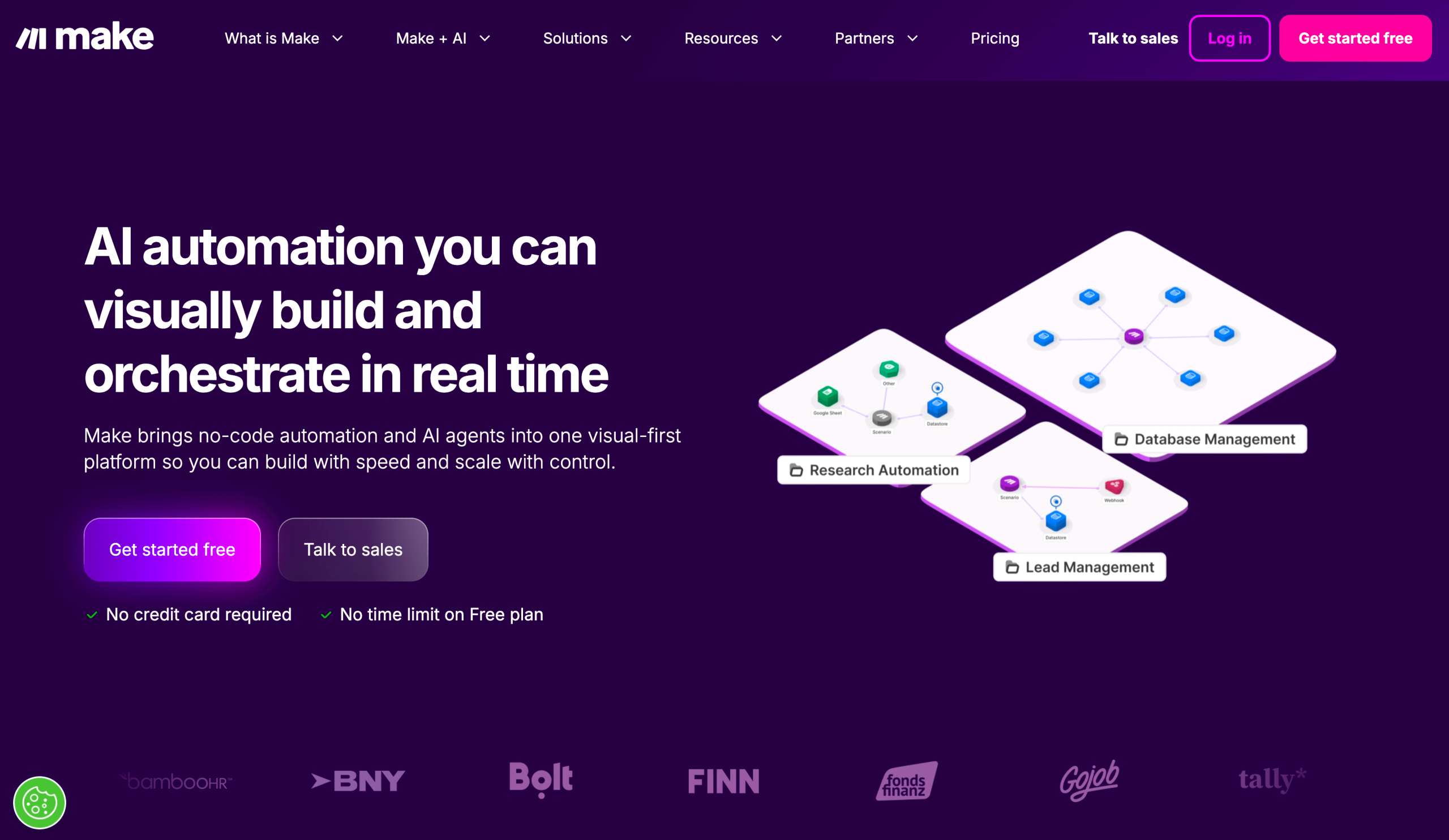
Make starts with a six-step progressive onboarding flow. One screen I especially liked asked about my tech stack: which apps I plan to use with Make. I selected Gmail, Google Sheets, Slack, and Instagram for Business. You can also type in apps that aren’t listed — there were 18 shown to start, but the search bar expands your options.

On the final step, you’re asked: “What do you want to automate with Make?” I entered this prompt:

Based on your choices, Make generates a workspace to help kickstart a workflow. Once you land in the workspace, you get “Trending Resources” like templates and tutorials. Make also auto-suggests apps and workflows based on what you chose during onboarding.
I selected Slack, and it pointed me to a template: “Summarize Emails with Gmail and OpenAI then send it on Slack.”

The guided setup makes it accessible even if you’re not technical. The icons are bold, the flow is visual, and there’s no guesswork about what connects to what. Once Gmail was connected, I chose to parse emails from my “Bin” folder (just to stay safe) and set a start date of September 1st.
After that, I authorized OpenAI and Slack to allow message creation, and Make handled the rest.

But there are two things worth noting:
- On the free plan at least, you can’t connect a personal Gmail account. I had to use a company Google account instead.
- Connecting OpenAI requires generating an API key manually. If you’ve done that before, it’s easy. But if not, this is where a lot of users will hit a wall.
- Developer: Celonis
- Key features:
- Flow control with conditions: Use if/then logic to decide what happens when, and control how each workflow path executes.
- Drag-and-drop data manipulation: Reshape, split, format, or clean up data mid-flow.
- Flexible HTTP and webhooks support: Connect with any public API or trigger scenarios from external services using real-time webhooks.
- Built-in scenario notes: Add comments and reminders directly inside your workflows to document logic or collaborate with teammates.
- Workflow analytics dashboard: Track execution volume, runtime, and success rates over time.
- Role-based access controls: Give the right team members access while limiting execution volume, edit rights, or visibility as needed.
- Reusable AI agents: Build intelligent agents that adapt to different scenarios and use tools already in your workspace.
- No-code AI modules: Run tasks like summarization, classification, or sentiment detection with no prompt engineering required.
- Cloud-hosted MCP server: Let other apps and agents call Make workflows directly via API.
- Pros:
- The templates and guided onboarding make the learning curve less steep. Even non-technical folks can get simple workflows running quickly.
- If one app isn’t supported, you can often find a workaround with HTTP/webhooks or custom code.
- Cons:
- Debugging and error handling aren’t always smooth, especially in lower‑tier plans. Finding exactly which node failed or why can take time.
- Some plans restrict access to security features (SSO, advanced governance, etc.), which means bigger teams or regulated setups may need to upgrade fast.
- Plans/pricing:
- Free: 1,000 operations per month, two active scenarios, 15-minute run frequency, community support only.
- Core ($9 per month, billed annually): 10,000 operations per month, unlimited active scenarios, one-minute scheduling, access to Make API.
- Pro ($16 per month, billed annually): 10,000 operations per month, priority scenario processing, custom variables, full-text execution log search.
- Teams ($29 per month, billed annually): 10,000 operations per month, team-based access controls, shared templates, multiple users.
- Enterprise (custom pricing): Unlimited users, custom apps and functions, overage protection, SOC 2 and SSO, 24-7 support.
- G2 rating: 4.6/5
4. Relay.app: Best Lindy AI alternative for non‑technical users building workflows step by step
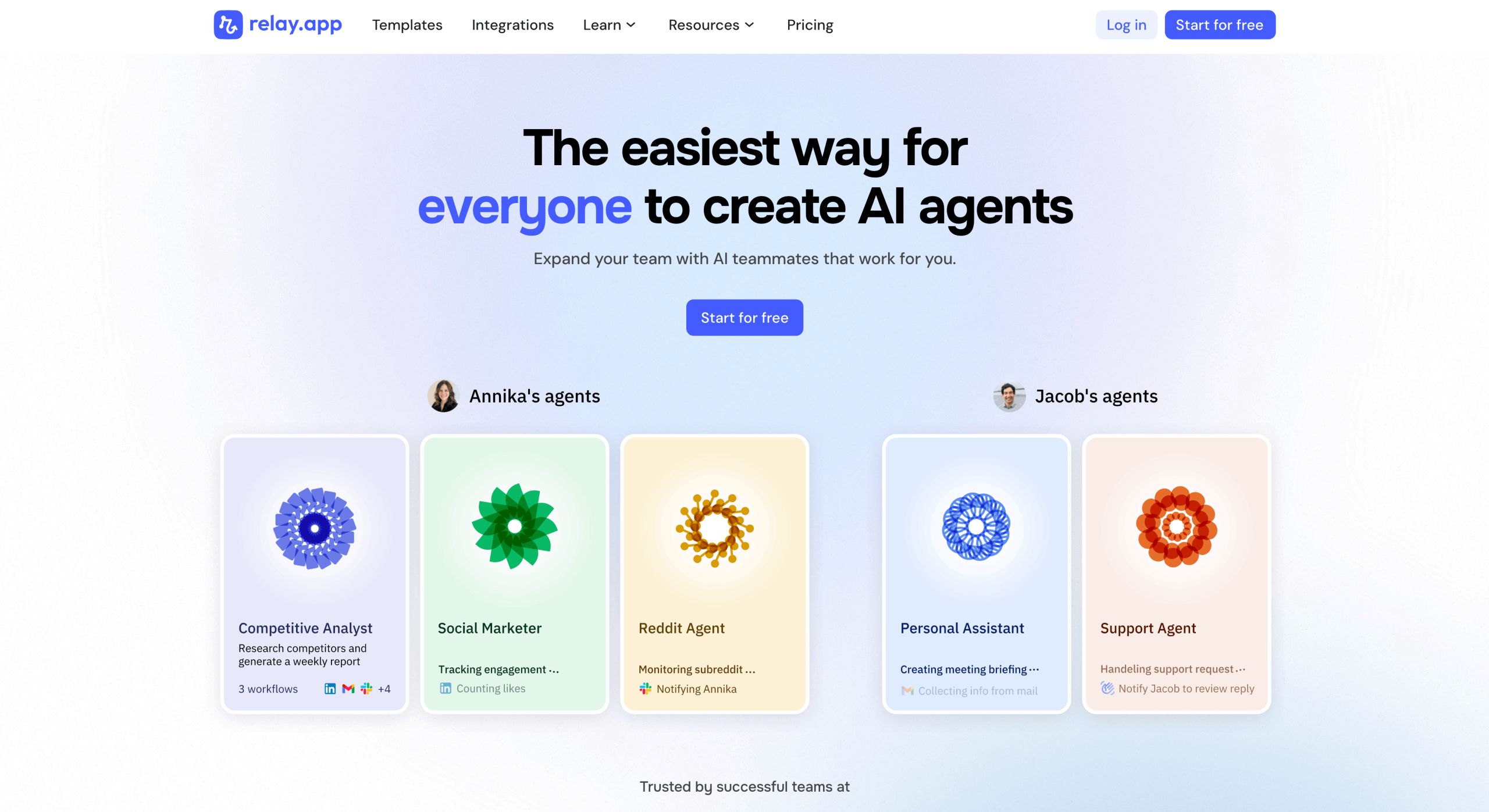
Relay.app is one of the few tools on this list that tries to really personalize onboarding. Right from the start, it asked me for my company website, how often I use AI tools like ChatGPT or Claude, and how comfortable I am with automation.
From there, it asked: “How do you want to build your first agent?” I liked that it gave me three clear paths:
- Guide me step-by-step
- Use a template
- Start from scratch

I picked the step-by-step option to build a LinkedIn Post Analyzer.
First, I added a scheduled trigger. Then I added an AI step. Then — wait, this is nice — it gave me the option to add a human in the loop. So I drop in a Slack approval step where I get pinged before the workflow continues. I love a bit of human veto power.

The whole thing keeps nudging me forward in exactly the right way:
- It asks for my LinkedIn profile URL.
- Then it suggests grabbing the latest posts.
- Then it prompts me to analyze tone using a GPT.
- Then it offers prewritten prompt suggestions.

I can test each step as I go — not just the final run, but each building block. So if something breaks, I know where.
Relay.app might be the most empathetic AI agent builder I’ve tried. The microcopy doesn’t assume I’m a developer. This thing walks with me, not ahead of me. Every prompt tells me what’s happening and what to do next.

The AI agent actually did what it promised. My Prompt GPT-5 summary includes actionable recommendations, and because it’s based on my LinkedIn profile, I can confidently say: it’s accurate.

- Developer: Relay
- Key features:
- All integrations on all plans: Every plan (even the free one) includes full access to all current and future integrations.
- Smart data surfacing: Relay suggests the right data for each field based on context.
- Deep data linking: You can easily access related objects (e.g., deal → contact + company) without API workarounds.
- Live data sync: Relay watches data sources for changes, ensuring automations always use up-to-date values.
- Instant triggers: Most app triggers run in real time, kicking off workflows the second an event occurs.
- Batch triggers: You can launch multiple runs at once (e.g., for every row in a spreadsheet or every open Jira ticket).
- Flow logic control: Build diverging paths using if/else rules, manual teammate decisions, or AI prompts, and merge them when needed.
- Iterators and delays: Loop through items or wait for a specific time or condition before the next step.
- Webhook actions: Trigger workflows with external HTTP calls or wait for incoming requests mid-run.
- AI flexibility: Built-in support for GPT-4o, Claude, Gemini, Groq, etc. Even Free users can use GPT-4o.
- Mini AI agents: Create auto-triggered agents that take action based on updates.
- Human-in-the-loop automation: Add approval steps, manual path selectors, and teammate data inputs with Slack/email nudges.
- Collaborative workflows: Real-time editing, dynamic roles, and workspace-level permissions for smooth multiplayer automation.
- Organized and auditable: Add workflow headers, folders, edit history, run logs, and notifications over Slack and/or email.
- Pros:
- If you’re new to agents, you’re not punished — Relay gives you templates and a guided builder. Both are accessible, but still powerful enough to ship something functional on day one.
- Every step is explained in plain English. You’re not dropped into a blank canvas or forced to guess what a “trigger” means.
- Cons:
- At the time of writing, Relay doesn’t have the same breadth of integrations as Make or Zapier. If your workflow depends on niche SaaS tools, you may need to wait or rig a workaround.
- This isn’t a tool for ETL-style workflows or bulk data transformations. Relay.app shines with micro-automation, not massive spreadsheets or API tricks.
- Plans/pricing:
- Free: 200 steps per month; one user; 500 AI credits per month; access to GPT, Claude and Gemini; multi-step workflows; all features included.
- Professional ($19 per month, billed annually): 750 steps per month, one user, 5,000 AI credits per month, same AI model access.
- Team ($69 per month, billed annually): 2,000 steps per month, 10 users, 5,000 AI credits per month, shared workflows and connections.
- Enterprise (custom pricing): Custom usage limits, integrations, SOC2/GDPR compliance, agent workshops, priority support, team training.
- G2 rating: 4.9/5
5. Integrately: Best Lindy AI alternative for small teams automating everyday tasks
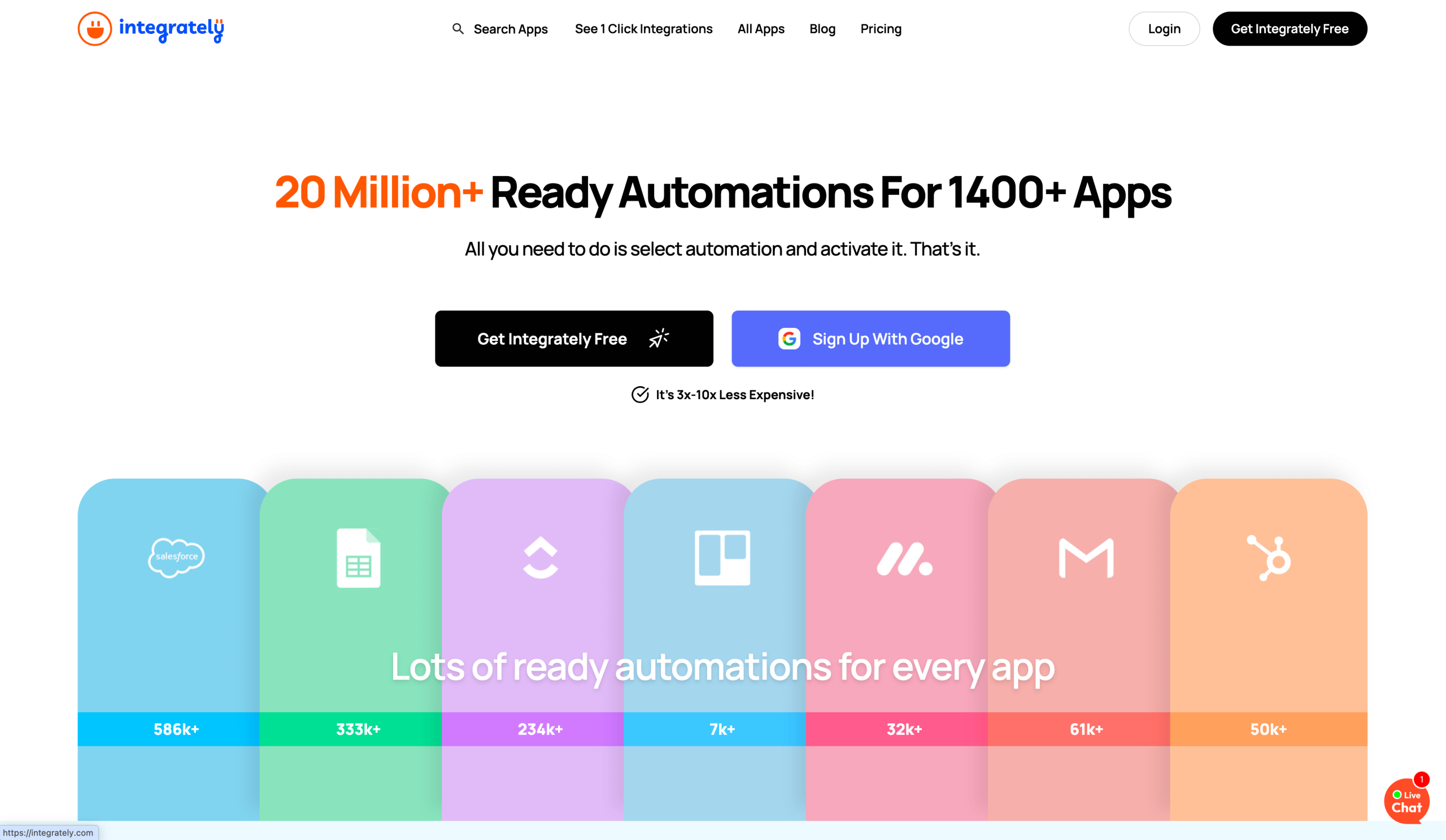
If you can think of an integration, Integrately probably has it. That’s not a throwaway line — just look at this screenshot:

But where it really shines is the AI builder.
Instead of clicking through menus, I just typed a sentence: “When spreadsheet row is created in Google Sheets and if Brinda exists, send email using Gmail.”

That’s it. Integrately parsed the logic, created the triggers and filters, and mapped out the entire workflow instantly. It even structured the “if condition” correctly and prefilled the email step.
All I had to do was hit Activate, and boom — automation ready. The fact that you can get from idea to working automation in under two minutes is wild.
- Developer: CompanyHub IT Solutions Pvt. Ltd.
- Key features:
- A text-to-automation builder: Describe what you want, and Integrately’s AI turns it into a ready-to-run automation.
- Customizable workflows: Go beyond basics with multi-step flows, if-else logic, branching, scheduling, and webhooks.
- Data mapping and transformation: Modify, clean, and structure data as it moves between tools.
- Real-time monitoring and alerts: Track automation runs from a central dashboard and get instant failure alerts.
- No-code interface: The visual builder lets you create complex logic without writing a line of code.
- Live chat support 24 hours a day, five days a week: Get real-time help while building or troubleshooting your automations.
- More than 20 million prebuilt automations: Activate them in one click.
- Pros:
- Over 1,300 apps available and coverage for most common tools — if you’re not deeply niche, it’ll likely already support what you need.
- The templates and one‑click automations mean you don’t spend ten minutes stuck choosing what each field does.
- Cons:
- When your automations need dozens of branches, filters, custom coding, or nested logic, things get fiddly and error‑prone.
- For simpler plans or niche issues, you may not get elite support or priority response (though it’s still generally good).
- Plans/pricing:
- Free: 100 tasks, 15‑minute update checks, single‑step automations, no branching, 24-5 live chat.
- Starter ($19.99 per month, billed annually): 2,000 tasks, five‑minute update checks, includes webhooks and multiple steps.
- Professional ($39 per month, billed annually): 10,000 tasks, two‑minute update checks, more flexible workflow options like branching and scheduling.
- Growth ($99 per month, billed annually): 30,000 tasks, two‑minute update checks, dedicated account manager, higher limits.
- Business ($239 per month, billed annually): 150,000 tasks, two‑minute update checks, unlimited users, advanced support and features.
- G2 rating: 4.7/5
6. Relevance AI: Best Lindy AI alternative for multi-agent AI workflows
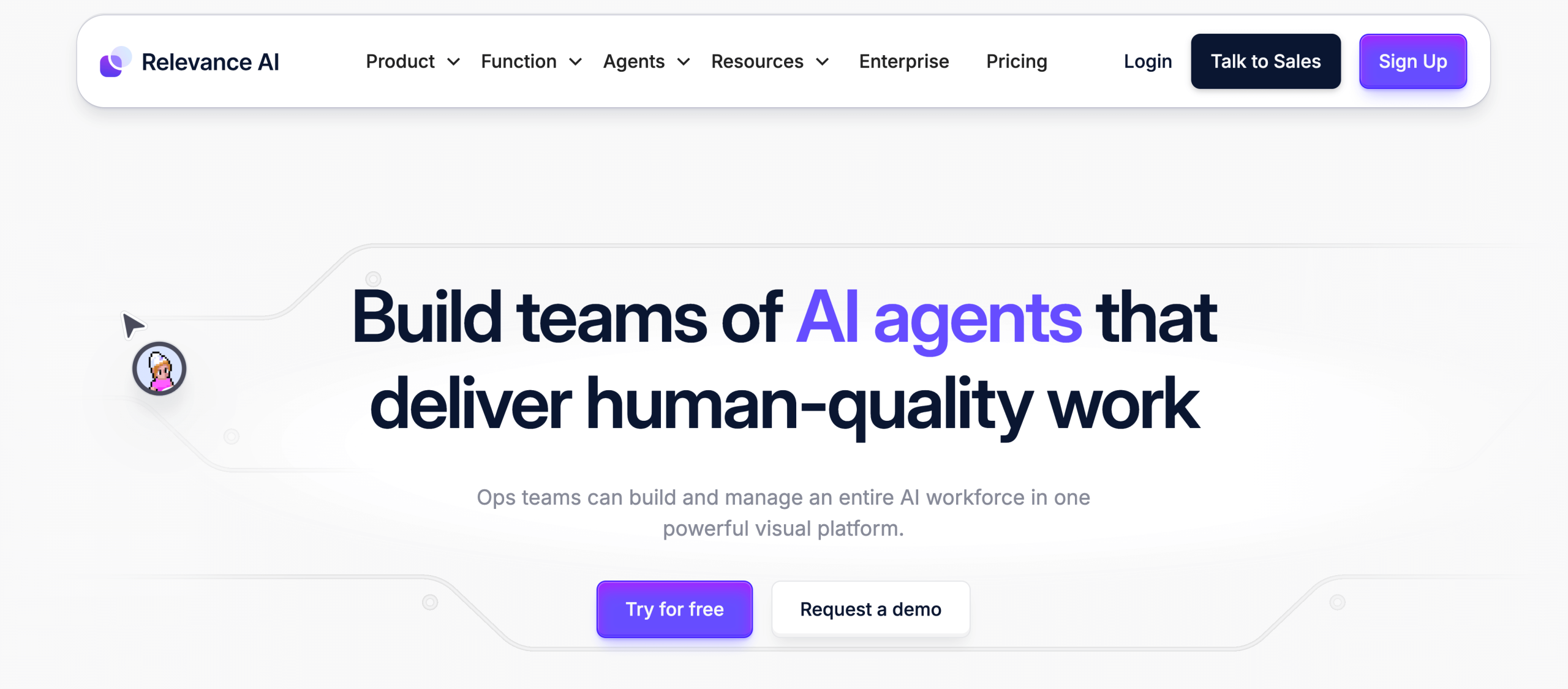
I like that the Relevance AI onboarding eases you in without overwhelming you. Toward the end of the flow, it asks what your goals are. I pick “I’m just exploring.”

Then it follows up with: “How technical are you?” That’s a nice touch. The options are “Not technical,” “Tech savvy,” and “Advanced.” I choose “Tech savvy,” which to me means that I can vibe code.
Then — this I really like — Relevance AI shows me a shortcut right away: Cmd + K to summon the support agent. You might think it’s a tip, but it’s actually user empowerment. Before I’ve even started, the platform has already told me where to look if I’m stuck.

The user interface itself is fun, like a lo-fi video game. The pixelation and iconography remind me of Mario or Gather.
I’m dropped into this half-game, half-tool world and prompted to describe my agent’s job. I type that “I want to extract information from LinkedIn profiles and analyze trending topics.”
Then it asks what output I want. I pick Generate reports.

Next, I get to choose what tools my agent will use. There are pre-sorted categories like Trending, CRM, Communication, Calendar, Data Scraper — over a thousand options.
There’s a live feedback loop, too: I can see Luna, my LinkedIn Analyst, executing the task line by line. If something breaks, I get real-time error feedback. And if I want to tweak or revert, there’s version control baked in.
Every change I make is logged. I can roll back, test again, or save a new version.

I can also duplicate Luna, give her a new function, or pair her with other agents for larger workflows.
There’s even an option to turn any agent into a live chat widget. So if Luna works well, I could embed her on my site with one click.
- Developer: Relevance AI
- Key features:
- AI agents: Build agents that can autonomously handle tasks once you describe what they should do.
- AI workforce: Manage multiple agents like a team — assign tools, distribute tasks, and keep track of who’s responsible for what.
- AI tools: Equip agents with prebuilt tools or integrations so they’re not starting from zero.
- API: Trigger your agents programmatically from other apps or services.
- Invent: Describe what you want, and Invent builds your custom agent based on that prompt.
- Metadata capture: Log high-value data from every agent task automatically for tracking and insights.
- Scheduling control: Decide when agents run, how often, and under what conditions.
- Approvals: Pause workflows and set up approval requirements before certain actions happen.
- Knowledge context: Give agents access to internal context or best practices so they act more like your top team members.
- Version control: Test, track, and restore versions of agents so you can roll back if something breaks.
- Chat embed: Make an agent into a live chat interface, so that people can interact with it conversationally.
- Pros:
- Before the agent launches, you’re prompted to upload docs, paste workflows, or drop in a URL. That context injection makes the outputs smarter from day one.
- From the moment you land, it feels like a playable experience, not just another sterile AI productivity tool. I’m a fan of the lo-fi-like interface.
- Cons:
- If you just want to connect two tools and be done (like Zapier-style “if this, then that”), Relevance might be overkill.
- Yes, it’s no-code — but building truly complex, multi-agent flows still requires experimentation and a decent grasp of logic structures.
- Plans/pricing:
- Free: 200 actions per month, one user, basic shared projects, and 1,000 vendor credits. Core features included.
- Pro ($19 per month, billed annually): 2,500 actions per month, two users, one shared project, 10,000 vendor credits.
- Team ($234 per month, billed annually): 7,000 actions per month, five users, five shared projects, 35,000 vendor credits, analytics.
- Enterprise (custom pricing): Unlimited users and projects, enterprise app triggers, work‑hour controls, security — essentially everything you need to standardize agents organization‑wide.
- G2 rating: 4.3/5
7. Gumloop: Best Lindy AI alternative for hands-on builders who want visual control
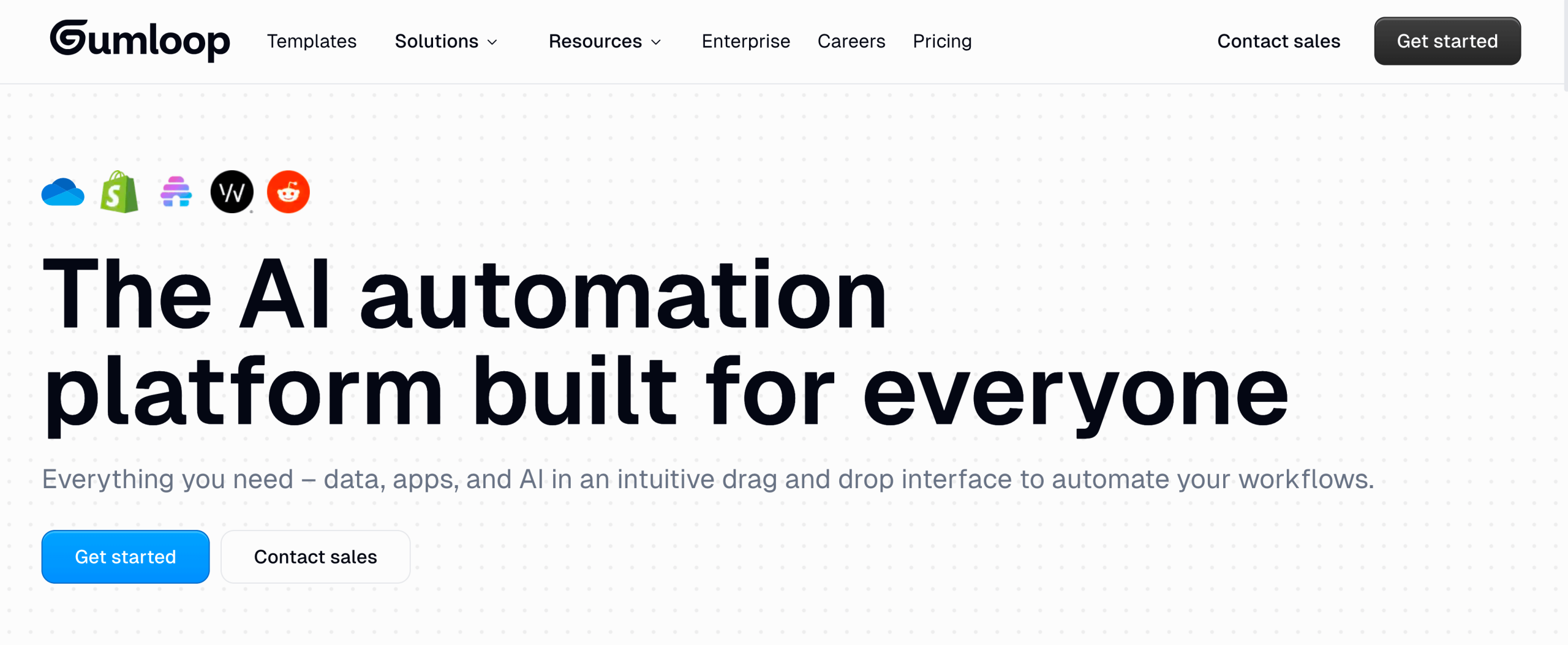
With Gumloop, you start with three options: type a prompt, start with a trigger, or start with an integration.
When I selected “Marketing” as my department from inside the search bar, it served up a bunch of prompt suggestions — super helpful. I picked “Create a weekly AI report of all mentions of my brand on Reddit.”

As soon as I hit enter, I’m dropped into a visual builder: a big blank canvas where the flow comes together block by block. On the left, Gummie (the personal assistant) kicks into gear, breaking down the request, building a plan, and narrating its reasoning out loud like it’s rubber-ducking with me in real time.

Honestly, it’s kind of nice. I don’t feel lost, and I don’t feel stupid. I love that you can drag and drop each block. You can rewire the logic, update your conditions, and see exactly how your automation flows without writing a single line of code.
That design choice is key; it makes you feel in control — like this is your automation, not just something a bot spat out. Bear in mind that, as I’m writing this, Gumloop is still adding more nodes — five minutes and counting. But I don’t mind waiting.
The flow is so transparent and responsive, too, that it feels more like collaborating with a builder than waiting on a loading bar.
Sure, it took a little time. But now I’ve got a fully automated Reddit brand analyst on call, 24-7. Worth it.

- Developer: Gumloop
- Key features:
- Powerful visual builder: Drag-and-drop user interface helps you build multi-step workflows using pre-built blocks.
- AI router: Let AI decide which path to follow next in a workflow (e.g., classify a support ticket and route it accordingly).
- Background workflows: Trigger flows passively from email, spreadsheets, calendar, CRM, and more.
- Parallelized and auto-scaling execution: Gumloop scales workflows automatically, with reserved compute for heavy-duty automations.
- Prompt-to-create: Build agents from natural language prompts.
- Prebuilt templates: Jump-start with templates for channel analysis, workspace audit, company enrichment, etc.
- Multi-model support: Use GPT-4o, Claude 3 Sonnet, Gemini 2.5 Pro, DeepSeek V3, and more.
- Pros:
- The Gummie assistant walks you through the reasoning, so the “what’s happening” is visible. In my opinion, it reduces a lot of the anxiety around waiting.
- I built and ran a functioning Reddit-monitoring workflow in one sitting. The setup didn’t stall out from platform bloat or poor documentation.
- Cons:
- Compared to tools like Relevance AI or Lindy, there aren’t many one-click automations. You’ll need to build your own flows (though it’s easy once you start).
- The platform is still rolling out new nodes. Some advanced use cases may hit a wall today — though it looks promising long-term.
- Plans/pricing:
- Free: 24,000 credits per year, one user, one active trigger, two concurrent runs, Gummie Agent, unlimited flows and nodes, forum support.
- Solo ($30 per month, billed annually): 120,000 credits per year, unlimited triggers, four concurrent runs, webhooks, email support, ability to bring your own API key. Includes all Free features.
- Team ($195 per month, billed annually): 720,000 credits per year, 10 seats, five concurrent runs, unlimited workspaces, unified billing, team analytics, Slack support. Includes all Solo features.
- Enterprise (custom pricing): All Team features plus role-based access control, audit logs, data exports, virtual private cloud deployment, SCIM/SAML, incognito mode, admin dashboard, AI model restrictions, security reports.
- G2 rating: N/A
Cool list, but what’s next?
Here’s how to choose the best AI task automation software for your workflow:
Q1. Do you want full visibility and control over every AI step?
- Yes: Go to Q2.
- No: Go to Q4.
Q2. Are you comfortable tweaking flows, variables, and debugging AI logic?
- Yes: You’ll enjoy Gumloop or Relevance AI — both give you a transparent view of what’s happening.
- No: Go to Q3.
Q3. Do you want a powerful visual builder that doesn’t feel overwhelming?
- Yes: Try Make — it’s low-code but clean, making it great for multi-step workflows and business logic without needing a developer on call.
- No: Go to Q6.
Q4. Do you prefer ready-made automations that “just work”?
- Yes: Go to Q5.
- No: Go to Q6.
Q5. Do you want something that feels like Zapier but cheaper?
- Yes: Use Integrately — perfect if you want to connect to more than 1,300 apps.
- No: Use Relay.app — it’s built for operations teams and async workflows.
Q6. Are you looking for the best AI email generator to automate replies or campaign drafts?
- Yes: Try Jotform’s Gmail Agent, which can read, summarize, and auto-reply with context-aware messages.
- No: Go to Q7.
Q7. Are you an open-source enthusiast who wants full control over hosting and customization?
- Yes: Use n8n — it’s dev-friendly, scalable, and insanely flexible if you like running things on your own infrastructure.
- No: Loop back to Gumloop or Relevance AI. Both strike the balance between technical flexibility and an intuitive user experience.
Pro Tip
Looking for more ways to take your email to the next level? Check out our email marketing tips.
Most of these tools are shipping updates at lightning speed, so what feels “basic” today could be a powerhouse next month. Don’t stress about choosing the perfect tool forever — just pick the one that matches your workflow today, and keep an eye on what’s evolving next.
This article is for busy professionals, solo founders, operations managers, and productivity-focused teams who want to delegate tasks, schedule meetings, automate repetitive email, or streamline their workflow using an AI assistant like Lindy — but are looking for better pricing, feature sets, or control.















































Send Comment: