
Are your Instagram business account direct messages (DMs) flooded with the same questions over and over? If so, you already know the real challenge isn’t figuring out what to say. It’s finding a way to cut back on how often you have to say it. For social media managers, small-business owners, and e-commerce brands, answering repeat messages takes time that could be spent on higher-value work.
If you’re wondering how to improve communication with customers, Instagram quick replies turn your most common responses into reusable shortcuts. That means improved response speed and brand consistency, which is crucial for customer satisfaction.
Automated replies go one step further. Instead of manually triggering each shortcut, automation tools can recognize intent and send the appropriate reply automatically. This keeps your messaging responsive even when you’re not checking your inbox.
If you want to streamline Instagram messaging, improve response times, and deliver consistent customer support using quick replies and automation tools, this guide will show you how to do it step by step.
How to set up quick replies on Instagram
If you’re constantly retyping the same answers in your business DMs, try creating a quick reply on Instagram. What is a quick reply on Instagram? It’s an automated response that helps you manage your DMs faster and keep messages on brand without starting from scratch each time.
Step 1: Confirm you have the correct account
Quick replies live under professional tools, so if you’re wondering, “Why don’t I have quick replies on Instagram?” it’s likely because you’re using a personal account.
Before setting up a quick reply on Instagram, make sure you’re
- Using an Instagram Business or Creator account
- Logging in on mobile or desktop
Step 2: Create your first quick reply
Once you’re logged in, choose a common question you receive and follow these steps:
- Open the Instagram app and go to your profile.
- Tap the three lines in the top-right corner.
- Select Settings and privacy.
- Click Business tools and controls (or Creator tools and controls, depending on your account type).
- Tap Saved replies or Quick replies.
- Select the plus (+) icon to create a new reply.
- Write the full message you want to reuse (for example, your shipping policy, hours, or a standard welcome).
- Add a simple keyboard shortcut your team will remember.
Step 3: Use quick replies in your DMs
After creating your first quick reply, it’s time to test it out.
Instead of pausing to think, type, and edit each response, you can now answer in just a few taps. Here’s how:
- Open your Instagram inbox and tap a conversation.
- Type your shortcut, then tap the speech bubble icon to insert the whole message.
- Or tap the speech bubble icon and choose the reply you want from your saved list.
Quick reply Instagram limitations
Even though quick replies on Instagram are helpful, they have limitations:
- You have to trigger them manually every time.
- Instagram’s character limits restrict longer responses.
- They can’t pull answers from a broader knowledge base for complex questions.
Social media automation tools, such as Jotform Instagram Agent, help solve these issues. They take the quick replies you create and turn them into automated, customized responses that work at scale instead of one DM at a time.
7 Instagram quick reply examples for different scenarios
If you’re looking for inspiration, the following seven templates can serve as copy-and-paste responses for a quick reply to an Instagram story or DM.
1. Greetings and welcomes
Use these welcome messages to set the tone for an interaction and let customers know they’re in the right place:
- “Hey [first name]! Thanks for reaching out to [brand]. How can we help you today?”
- “Hi there! We’ve got your message, and we’re on it. In the meantime, here’s a quick overview of what we can help with: [1–2 bullets].”
2. Business hours and availability
Set expectations so customers aren’t left wondering why you haven’t replied:
- “Thanks for your message! Our team is online [days, hours, and time zone]. We’ll get back to you within [response time].”
- “You’ve reached us outside our usual hours, but we’ll reply as soon as we’re back online: [days, hours, and time zone].”
3. Order status and shipping
Reduce “Where’s my order?” messages with a clear default reply:
- “You can track your order anytime using this link: [tracking link]. Most orders arrive in [time frame]. If anything looks off, reply ‘Agent,’ and we’ll check it for you.”
- “Orders usually ship within [X] business days, and delivery takes about [X] days. If you share your order number, we can give you a more precise update.”
4. Refunds and return policies
Keep policy explanations consistent, especially if multiple team members handle DMs:
- “We accept returns within [X] days of delivery as long as items are unused and in the original packaging. You can start a return here: [link].”
- “For refunds, we first review your order and photos (if applicable). Once approved, we process the refund within [X] business days back to your original payment method.”
5. Answering FAQs
Use a single reply to address FAQs:
- “Here are quick answers to our most common questions: [Q1: short answer] | [Q2: short answer] | [Q3: short answer]. If your question isn’t listed, reply with your question.”
- “Great question! You can find more details here: [FAQ link]. If you’d like a personalized recommendation, tell us your budget and what you’re looking for.”
6. Promotions and discounts
Standardize how you talk about offers so you don’t overpromise:
- “You’re in luck. We’re currently running [promo name]: [brief details]. Use code [CODE] at checkout before [expiry date].”
- “We don’t have a sitewide sale right now, but you can join our list for early access to future discounts here: [signup link].”
7. Customer support
Give customers a clear path from DM to resolution:
- “I’m here to help! To sort this out faster, please share the following details: your order number, the email used at checkout, and a brief description of the issue.”
- “This might be easier to resolve via our support team. Please submit your inquiry at [support link], then reply ‘Done’ so we can keep an eye on it.”
Automate quick replies with Jotform Instagram Agent
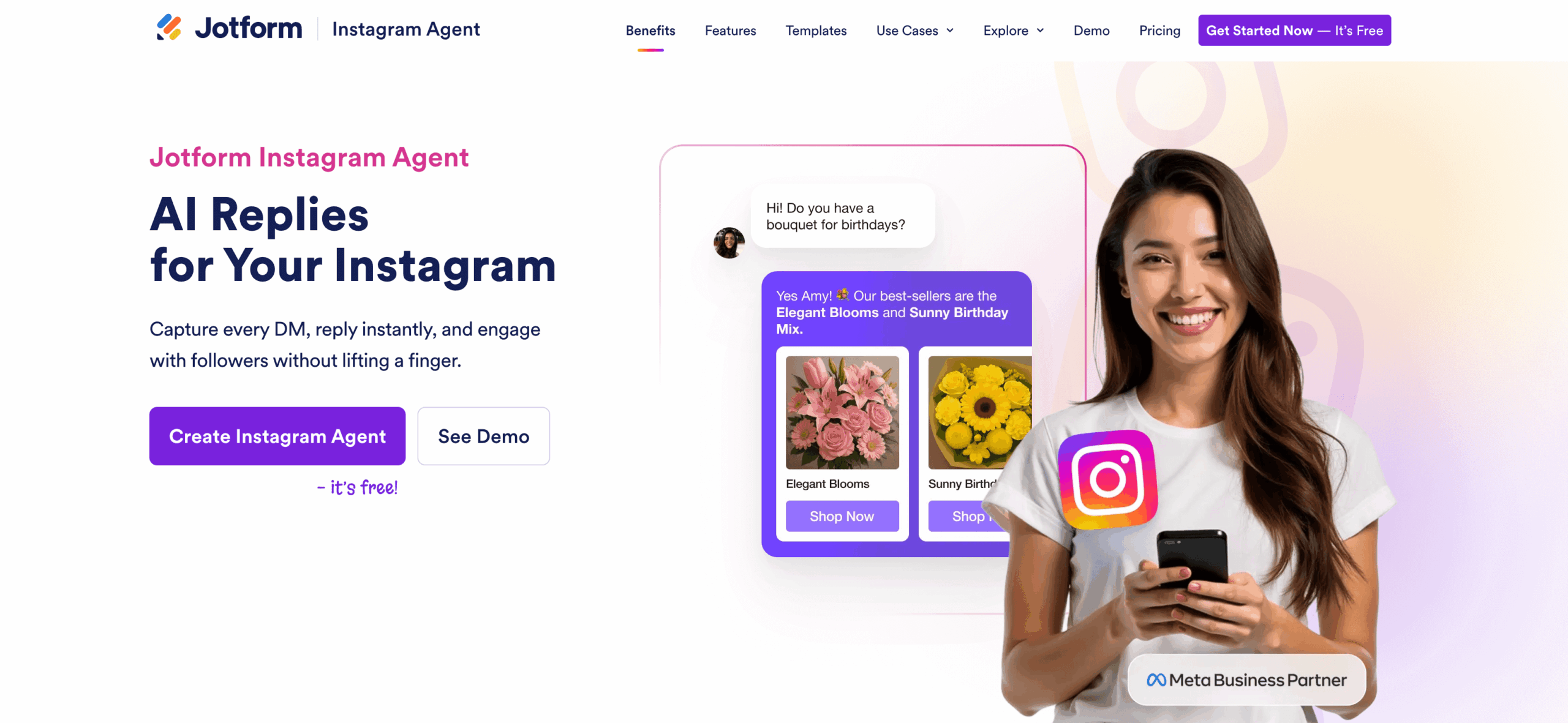
By now, you know which questions come up most often and have created quick replies using message templates. The next step is reducing the manual work involved in sending those replies, especially when you’re offline.
With Jotform Instagram Agent, you can turn your best-performing replies (like the examples in the previous section) into responses that send automatically when a message matches certain conditions.
With Jotform Instagram Agent, you can
- Securely connect your Instagram account so the agent monitors your incoming messages.
- Integrate with the Jotform AI ecosystem for unified management and conversation tracking.
- Adjust automations based on follower count, time of day, or user behavior.
- Send context-aware replies that sound natural and on brand, rather than a triggered response based on a keyword.
Transform your messaging workflows
Quick replies help you answer common questions faster, maintain a consistent tone, and make it easier for anyone on your team to handle DMs with confidence. Once you’ve built a few reliable replies for greetings, FAQs, promos, and support, you have a mini playbook you can reuse.
However, native quick replies still require manual triggers and are limited by Instagram’s character restrictions. Jotform Instagram Agent builds on your saved replies by turning them into automated, context-aware responses that can handle high DM volume without losing the human touch.
If you’re ready to create a more efficient messaging workflow, Jotform Instagram Agent lets you test automations and see how your inbox and customer satisfaction can transform.
This article is for social media managers, small-business owners, e-commerce brands, and customer support teams using Instagram business accounts.





















Send Comment: