With Jotform’s conditional logic, you can create a smarter, more personalized form experience by skipping pages based on a user’s answers. This way, form fillers only move through questions that are relevant to them, keeping things simple, reducing unnecessary steps, and making your form faster and more enjoyable to complete.
Notes
- Conditional logic works seamlessly on both Classic and Card form layouts, so you can create dynamic behavior no matter which style you’re using.
- If more than one condition could apply, Jotform processes them in the order you’ve set in the Conditions panel, so the sequence you choose really matters.
- Any pages that are skipped won’t be shown to the user, and the fields on those pages won’t be included in the submission unless the user has already visited and filled them out earlier.
Skipping Pages Using Conditional Logic
Skipping pages with conditional logic helps your form adapt to each user’s answers, so they only see what’s relevant to them. Setting it up takes no time at all—here’s how:
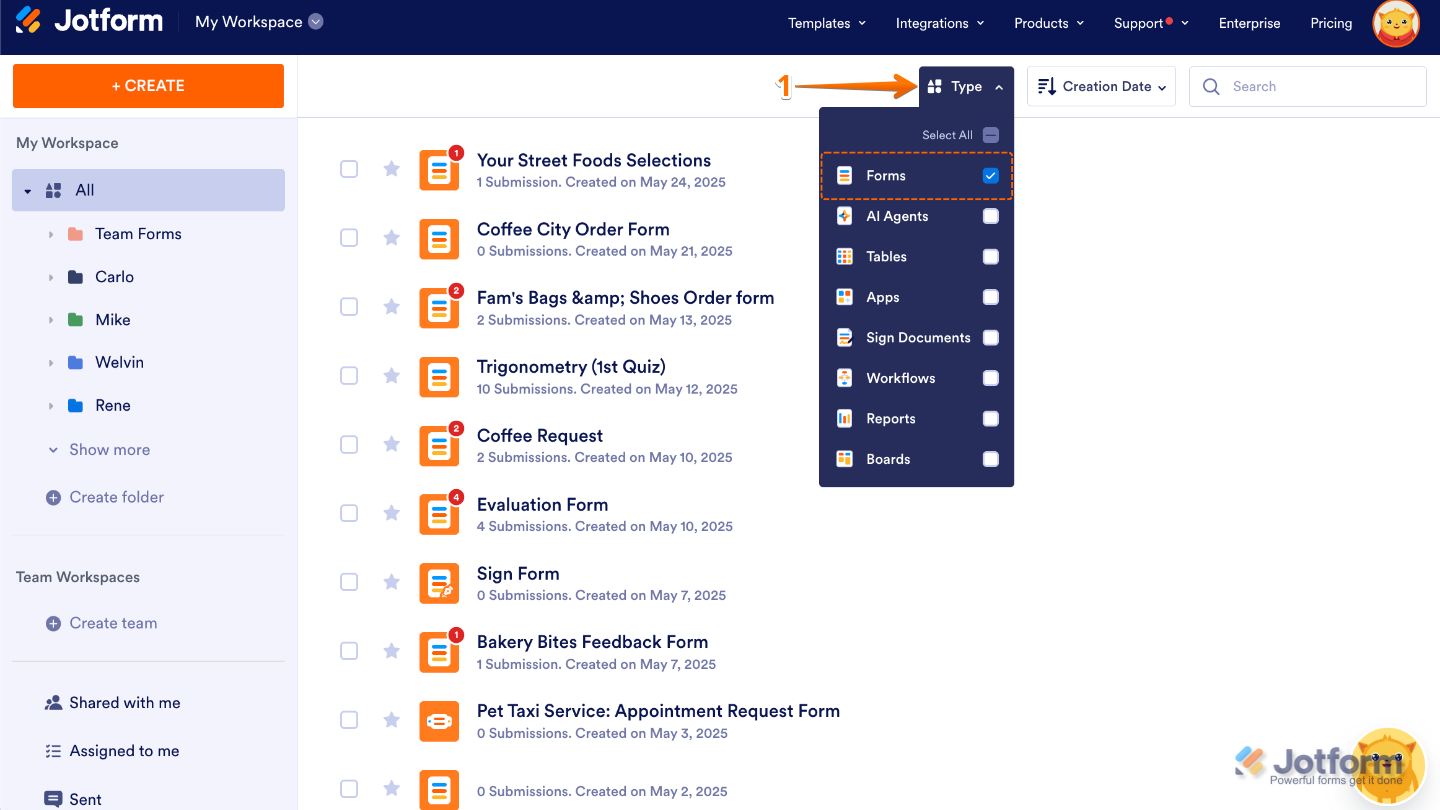
- On your Workspace page, click on Type at the top and in the Dropdown menu that opens, uncheck the boxes next to all the assets except Forms, so only they’ll be shown on the page.
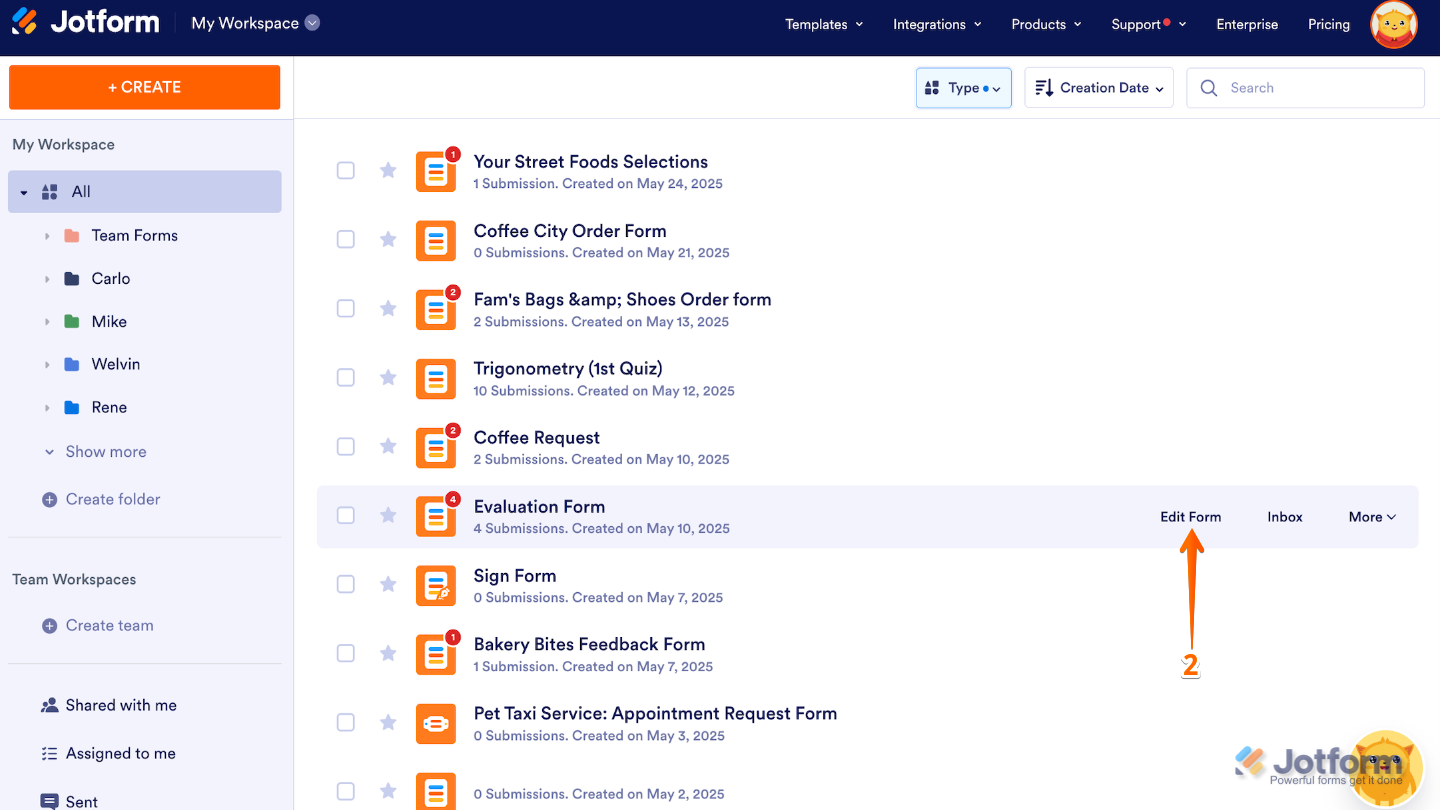
- Now, hover your mouse over the form you want to manage, and click on Edit Form on the right side of the page.
Since we’re working with a Classic Form Layout, we’ll start by adding a Page Break element to split the form into multiple pages. This is what turns your form into a multi-page experience. If you’d like a deeper walkthrough, feel free to check out our guide on How to Create a Multi-Page Form.
If you’re using the Card Form Layout instead, no worries—you can skip this step entirely and jump straight to setting up your conditions.
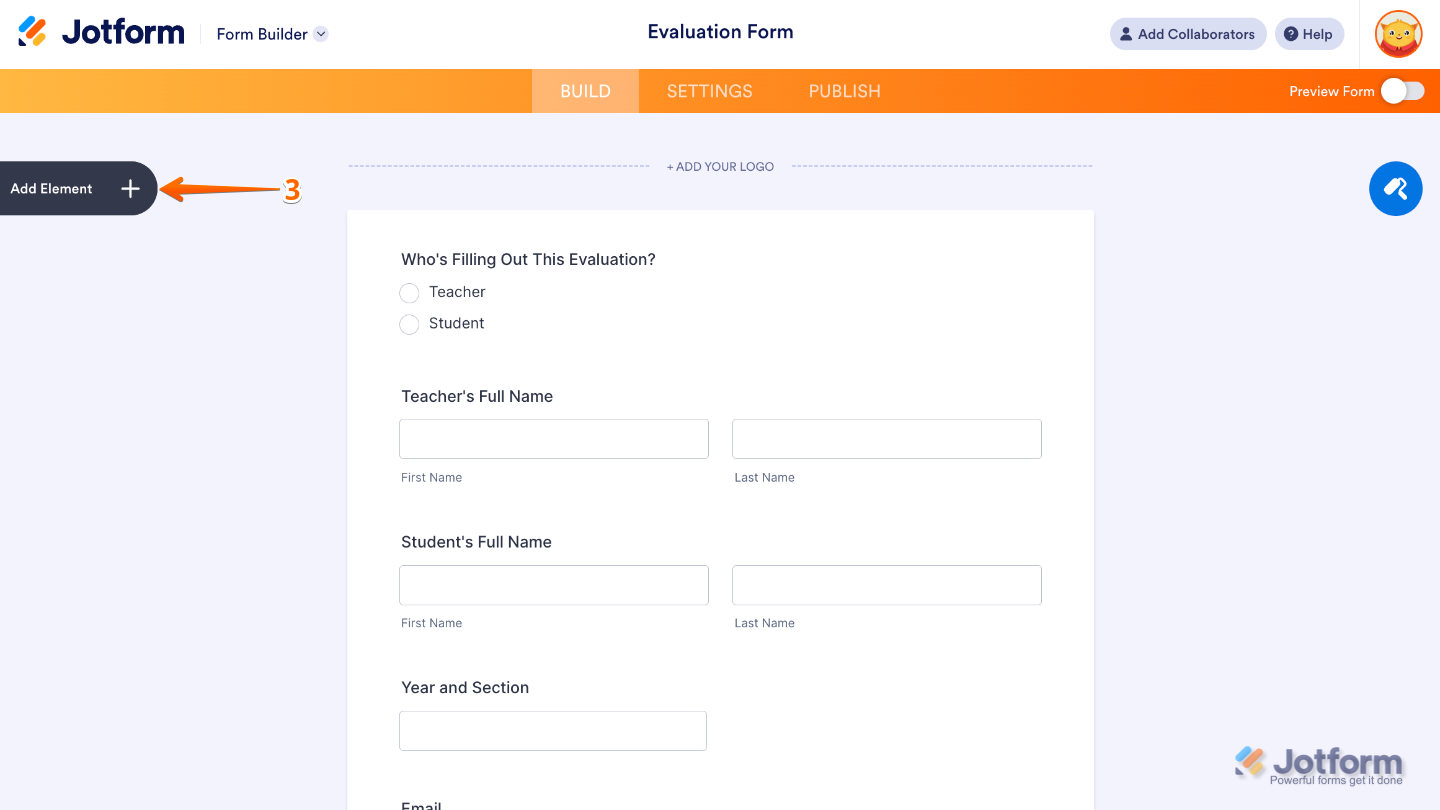
- Next, in Form Builder, click on Add Element on the left side of the page.
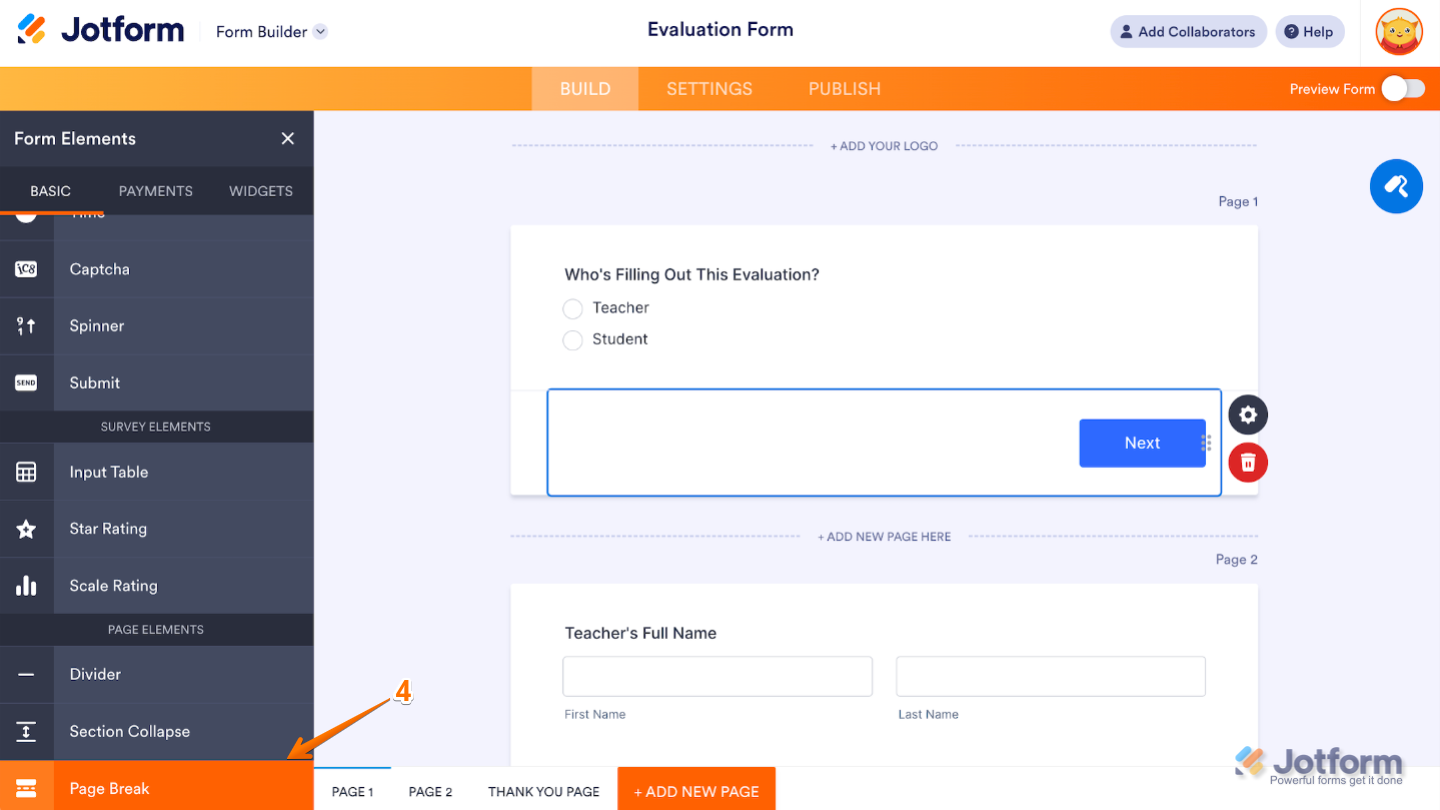
- Under the Basic tab in the Form Elements menu, scroll down to see the Page Break element and then click on it. Or, just drag and drop it to where you want it to be on your form.
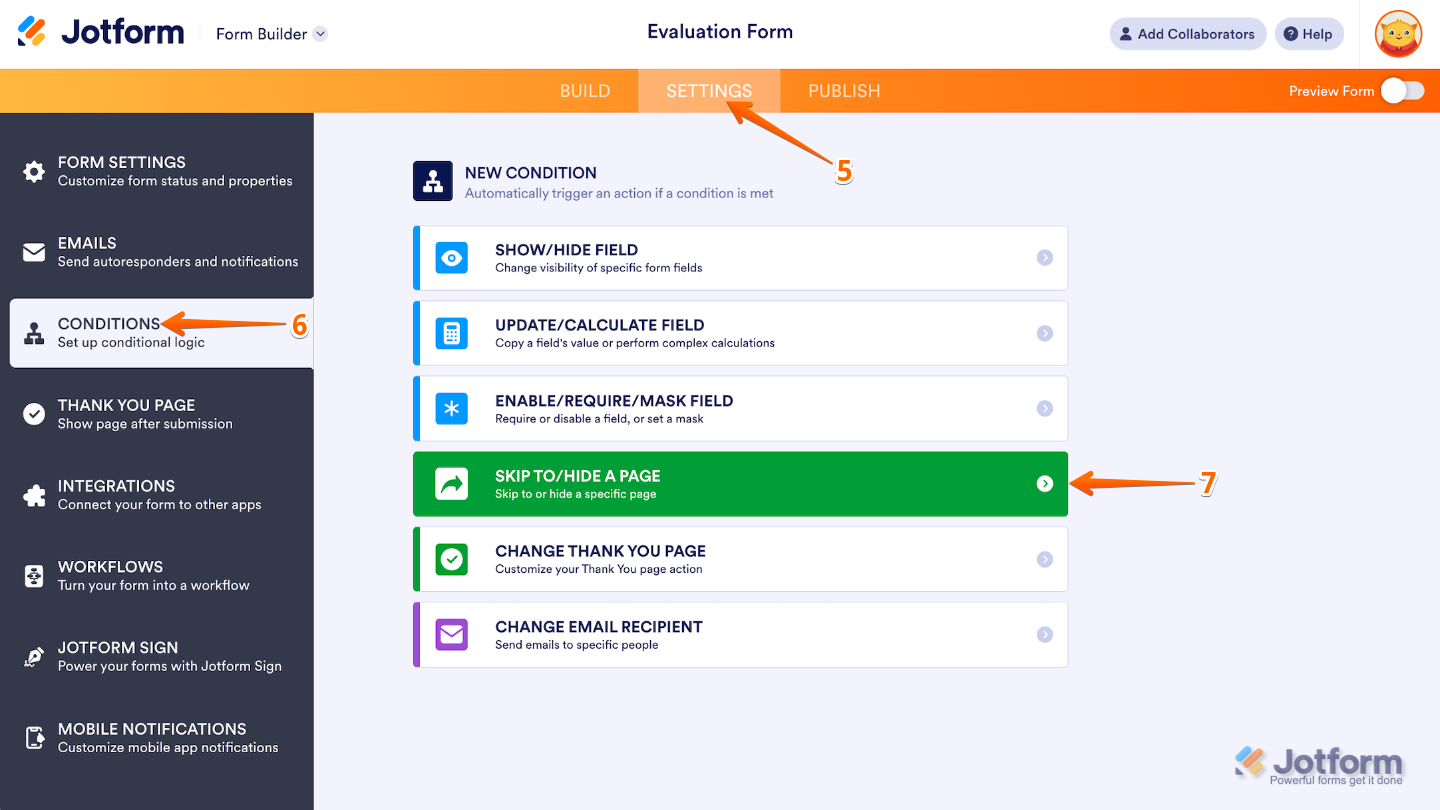
- Once done, in the orange navigation bar at the top of the page, click on Settings.
- In the menu on the left side of the page, click on Conditions.
- Then, in the New Condition menu, click on Skip To/Hide a Page.
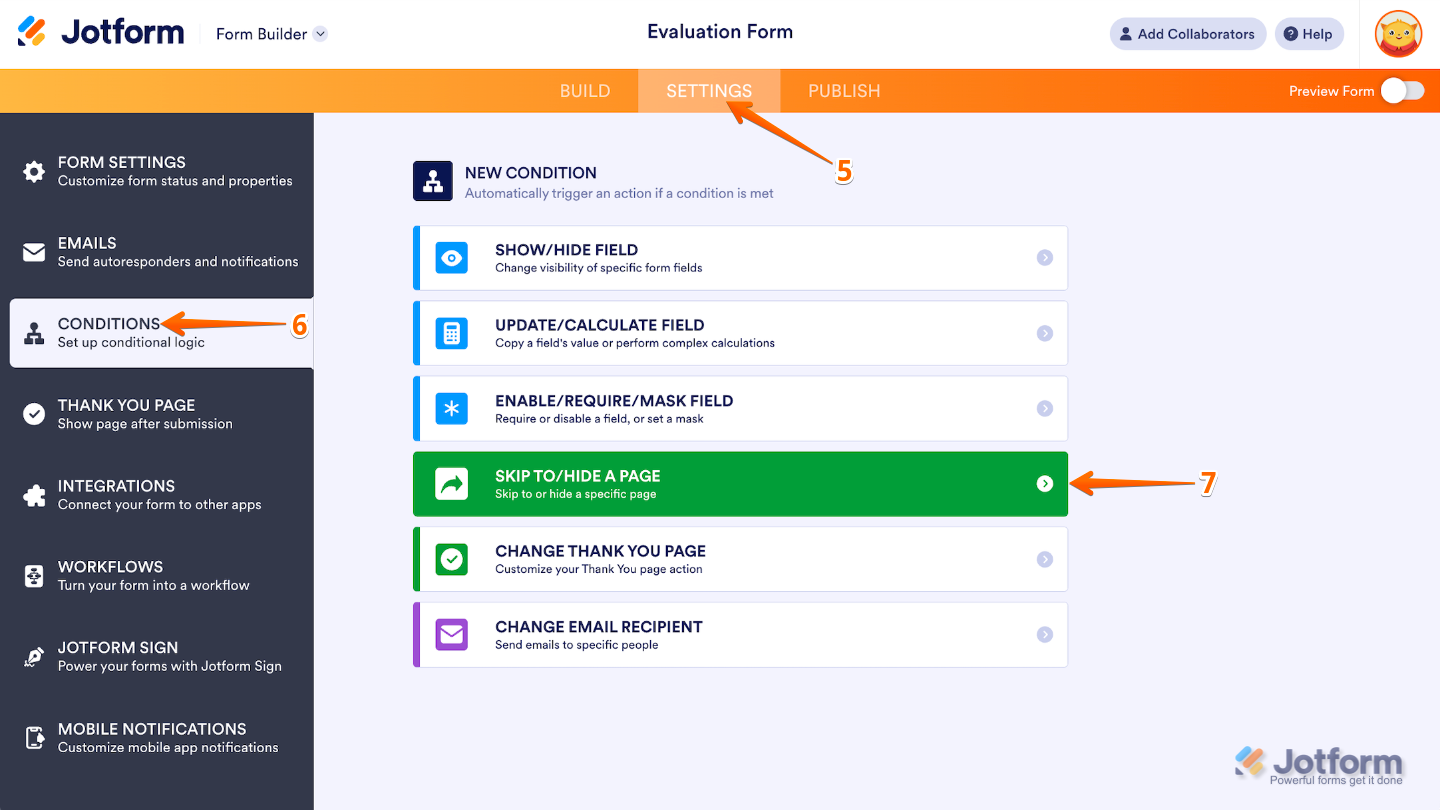
- Configure your condition rules, and then set Do to Skip a Page to the selected Page.
- After that, click on Save.
Here’s a clearer breakdown:
- Condition (IF statement): This is set to check the value selected in the Skip To dropdown.
- Action (DO statement): If the condition is met, the form will automatically jump to the page you’ve specified.
- Repeat for other pages: Apply the same steps to the remaining pages, depending on how you want your form to guide users through their personalized path.
Pro Tip
- Keep your conditions straightforward and easy to follow—this helps prevent confusion and keeps navigation smooth for your users.
- Always test your form in preview mode to make sure pages skip exactly as you intended in every scenario.
- If you’d like users to go back to a previously skipped page, double-check that your logic allows for backward navigation so nothing gets missed.



Send Comment:
9 Comments:
January 5, 2026
Has the problem with this conditional formatting been solved yet? I notice on the demo, it shows “Skip to Page on Next Button” which is not available. I need this function to work.
July 29, 2023
its not working for me either. its not skipping pages.
May 14, 2023
the skip command is not working, it makes the form tedious for users. i expect the form to skip to page 4 but no.
August 25, 2022
Hi, , I'm having trouble with skip logic.
The one of it is if the field is filled , jump to the last page.
But it's still not working.
August 6, 2022
Hi, I have 2 pages on my consultation form, and I am having trouble with skip logic.
If I check "Is consult finished," I want to jump to the 2nd page.
I have 15 of these in my form.
I said if the field is filled out, jump to page 2. It is not working. Help?!
May 30, 2022
J'adorerais pouvoir utiliser cet outil mais le fait de ne pas pouvoir dupliquer une page sans faire beaucoup de manipulation rend la tâche exténuante... je préfère abandonner et continuer à utiliser mon vieux formulaire excel... :(
May 24, 2022
It simply does not work. If I use a condition to skip page 3 if question A is answered with x, it does not skip page 3.
December 9, 2021
I have tried to add the logic but it isn't working the way I would like. If a qty of 2 is chosen for example. I would like the form to show Team member #1 options and Team Member #2 options and on Team member #2 when "next" is pressed it should go to the last page. I applied formatting and was able to make it work for team member #1 but when I tried team member #2 it never let me get past team member #1.
Basically, I need to collect the information on however many participants are selected from the drop-down and when finished entering the last persons' info in I need it to skip to the last page. Doesn't matter if this is 1, 5,8, or 10 people.
December 2, 2021
Can you tell me how to set the condition to end the survey? Right now I only have 2 pages for my survey. If an answer to a question on page 1 is NO, I want the survey to end and they do not have to click the SUBMIT button.
I did set to HIDE page 2 but it did not seem to work.
Thank you.