Jotform makes it easy for people to save their progress on a Card Form and come back later to finish. With Continue Forms Later, users can quickly pause a form, return when it’s convenient, and pick up exactly where they left off—without losing any information.
This feature helps reduce abandonment on long forms, improves completion rates, and makes the form experience smoother for everyone.
If you want to enable this feature, you can do it in just a few steps:
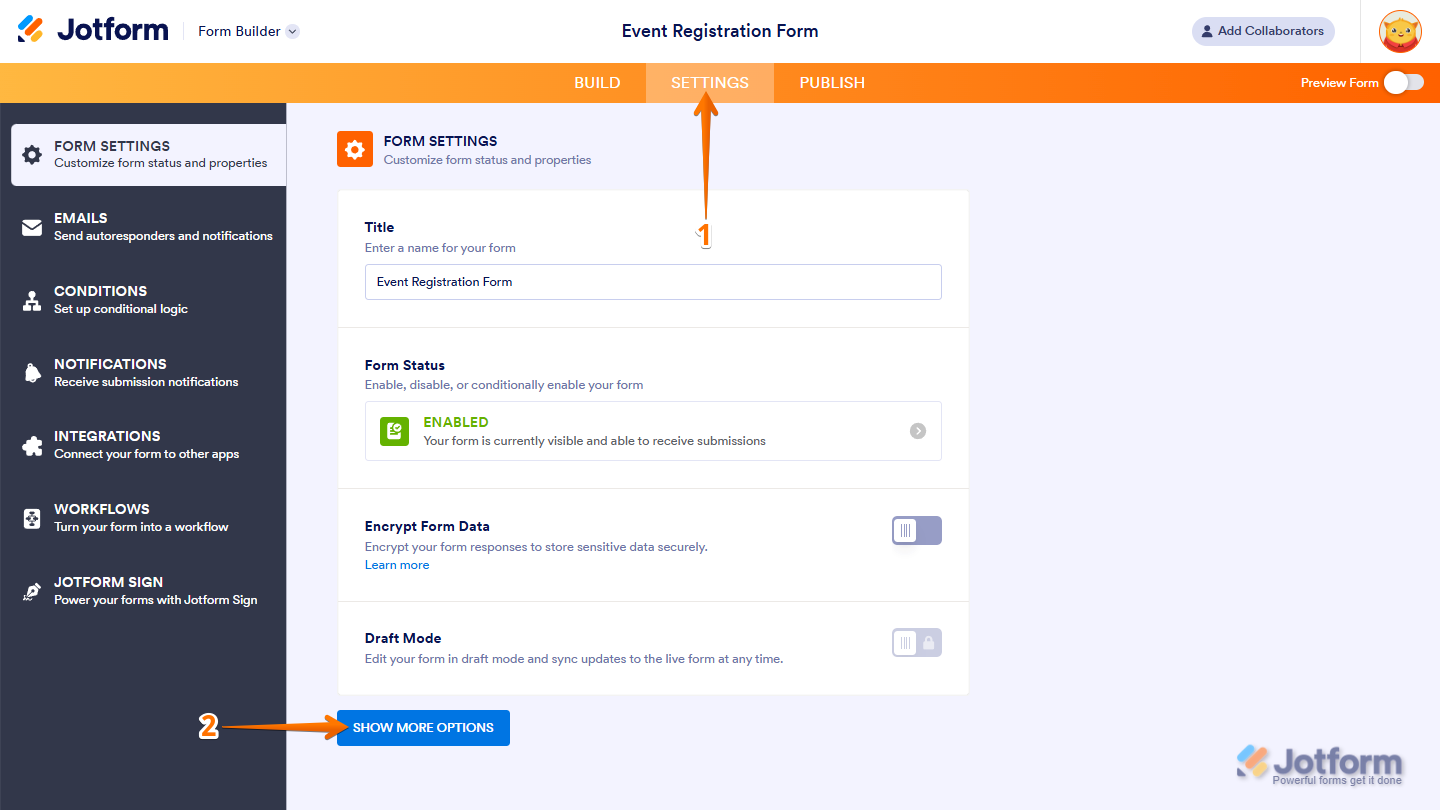
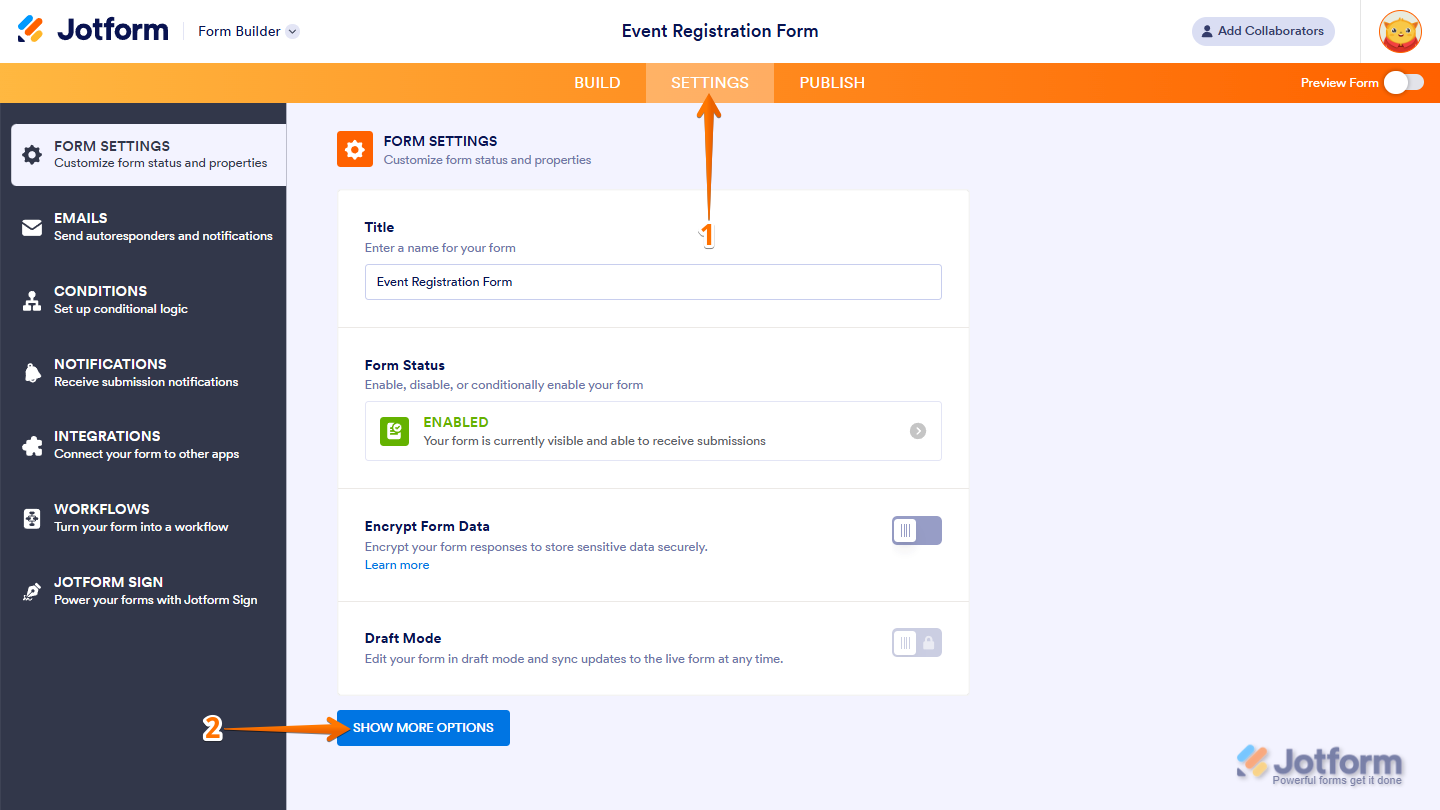
- In Form Builder, in the orange navigation bar at the top, click on Settings.
- Then, on the Form Settings page, click on Show More Options.
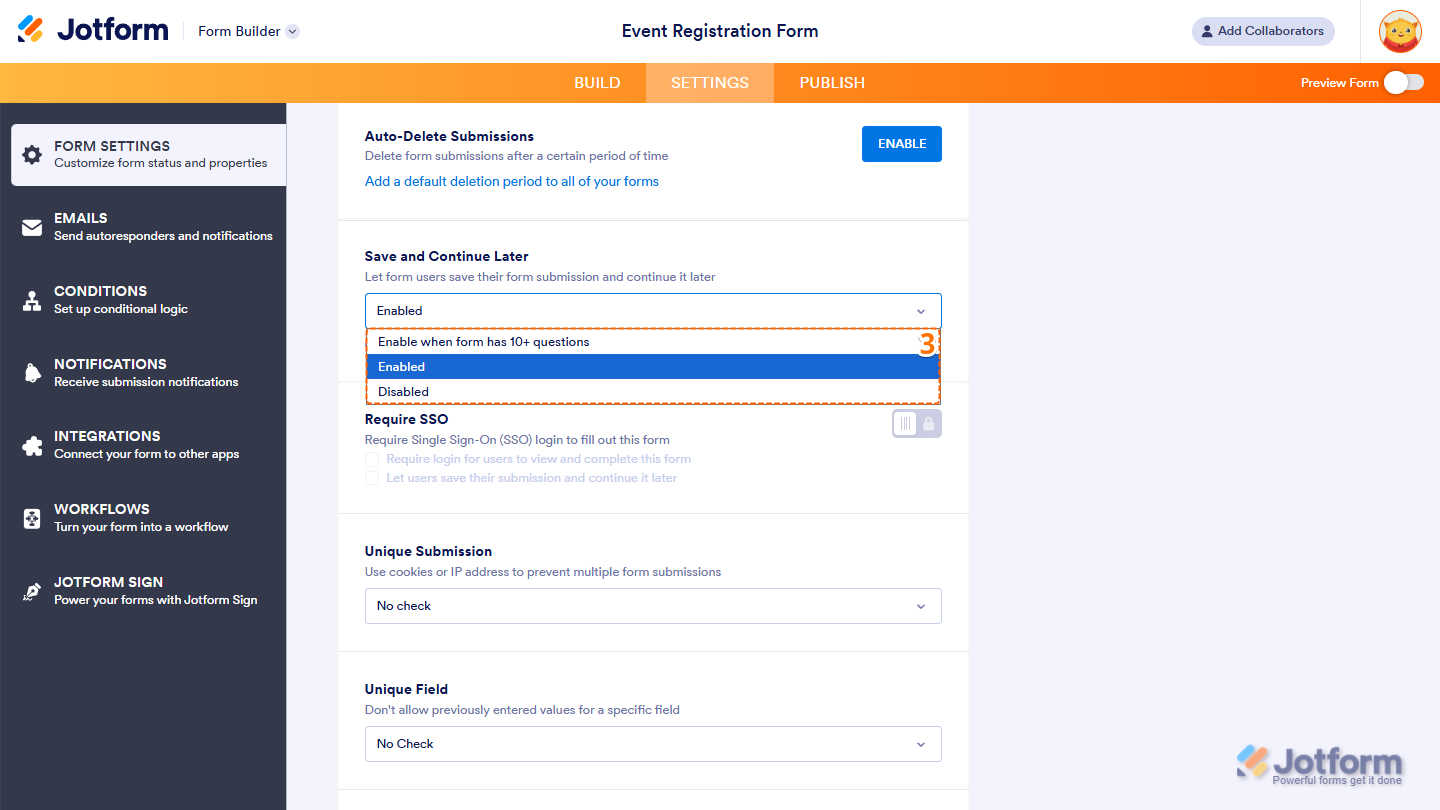
- Now, scroll down to the Save and Continue Later section, and then choose one of the following from the Dropdown menu:
- Enable when form has 10+ questions — Automatically enables the Save and Continue feature for longer forms with 10 or more questions.
- Enable — Always turns on the Save and Continue feature.
- Disable — Turns off the Save and Continue feature.
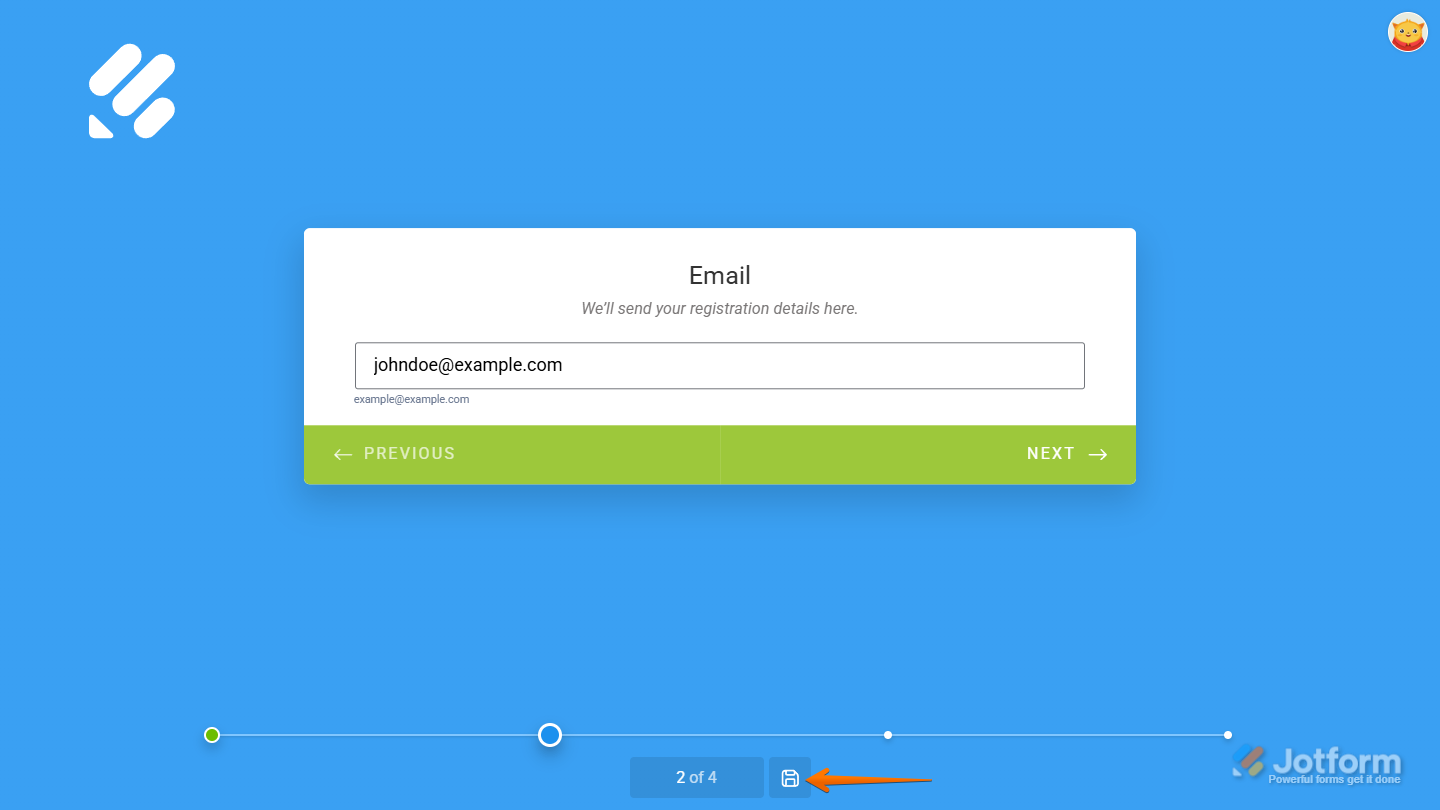
Once enabled, users will be able to save their progress and return later to complete the form.
Note
- Continue Forms Later only works on Card Forms with four or more fields.
- The save button appears after the user fills out at least one field.
- Saved sessions are listed as Incomplete Submissions in Jotform Tables.
How Does This Work?
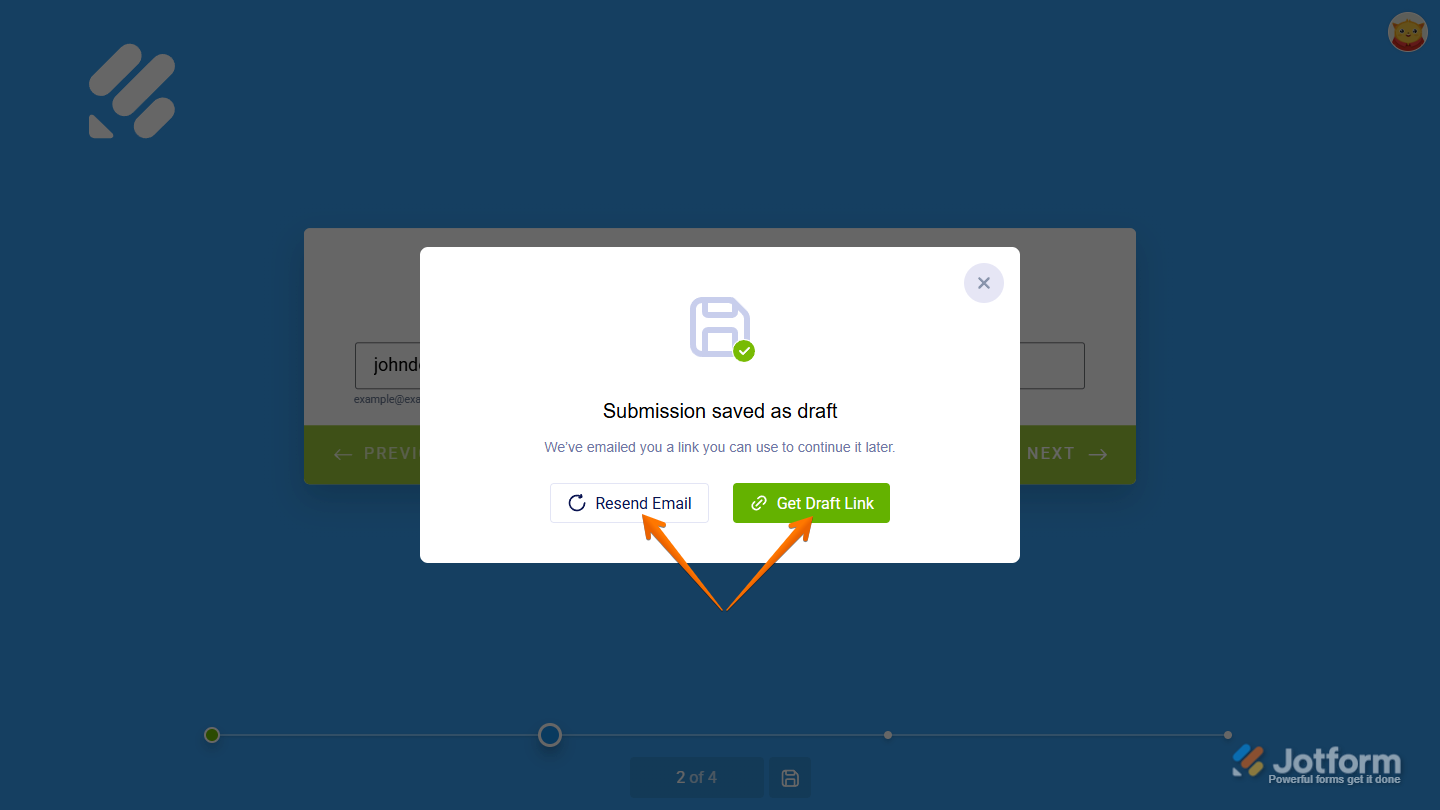
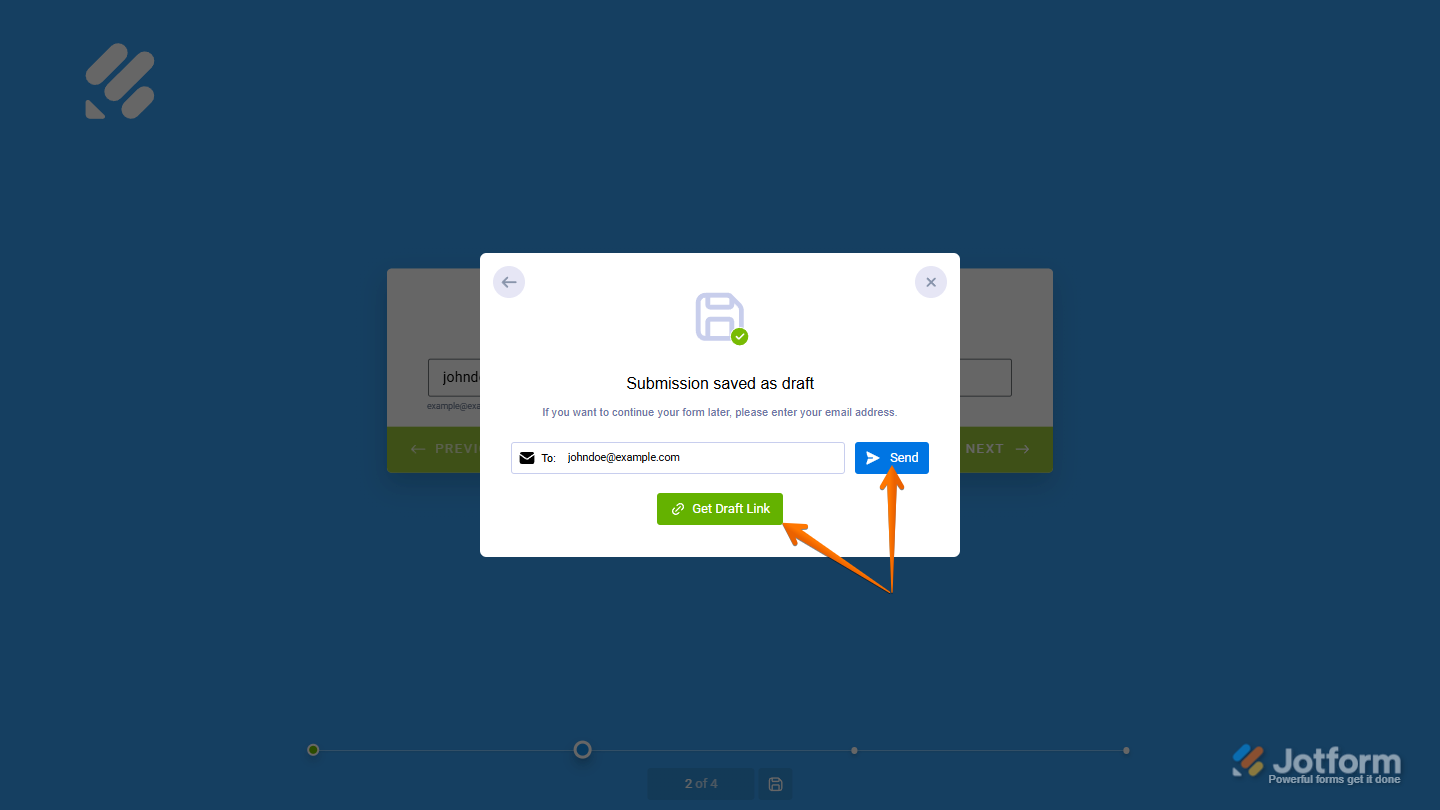
For users who are logged in to their Jotform account, selecting Save automatically sends the session link to their registered email address. A confirmation message also appears, allowing them to resend the email or copy a shareable link.
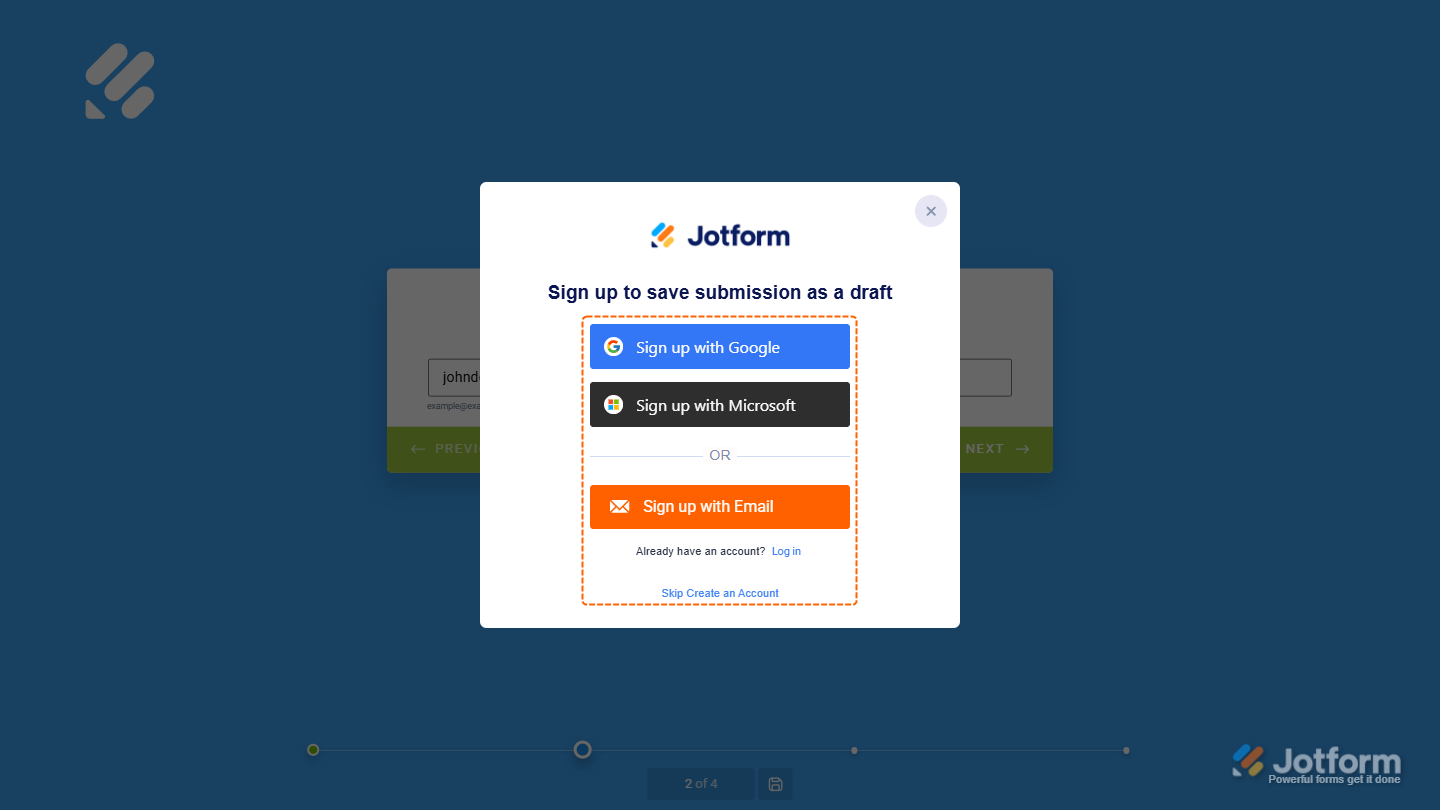
For users who are logged out or don’t have a Jotform account, selecting Save will show a window prompting them to sign up or log in to save their session link. They can also select Skip Create an Account at the bottom to get the session URL without signing up.
Selecting the Skip Create an Account link opens a window where users can choose to have the session link emailed to them or copy it directly.
Customizing the Save and Continue Later Email
When users save their progress, Jotform sends them an email with a session link so they can return and finish the form later. You can customize this email to match your form’s purpose, update the subject line, or personalize the message your users receive.This is how it’s done:
- In Form Builder, in the orange navigation bar at the top, click on Settings.
- Then, on the Form Settings page, click on Show More Options.
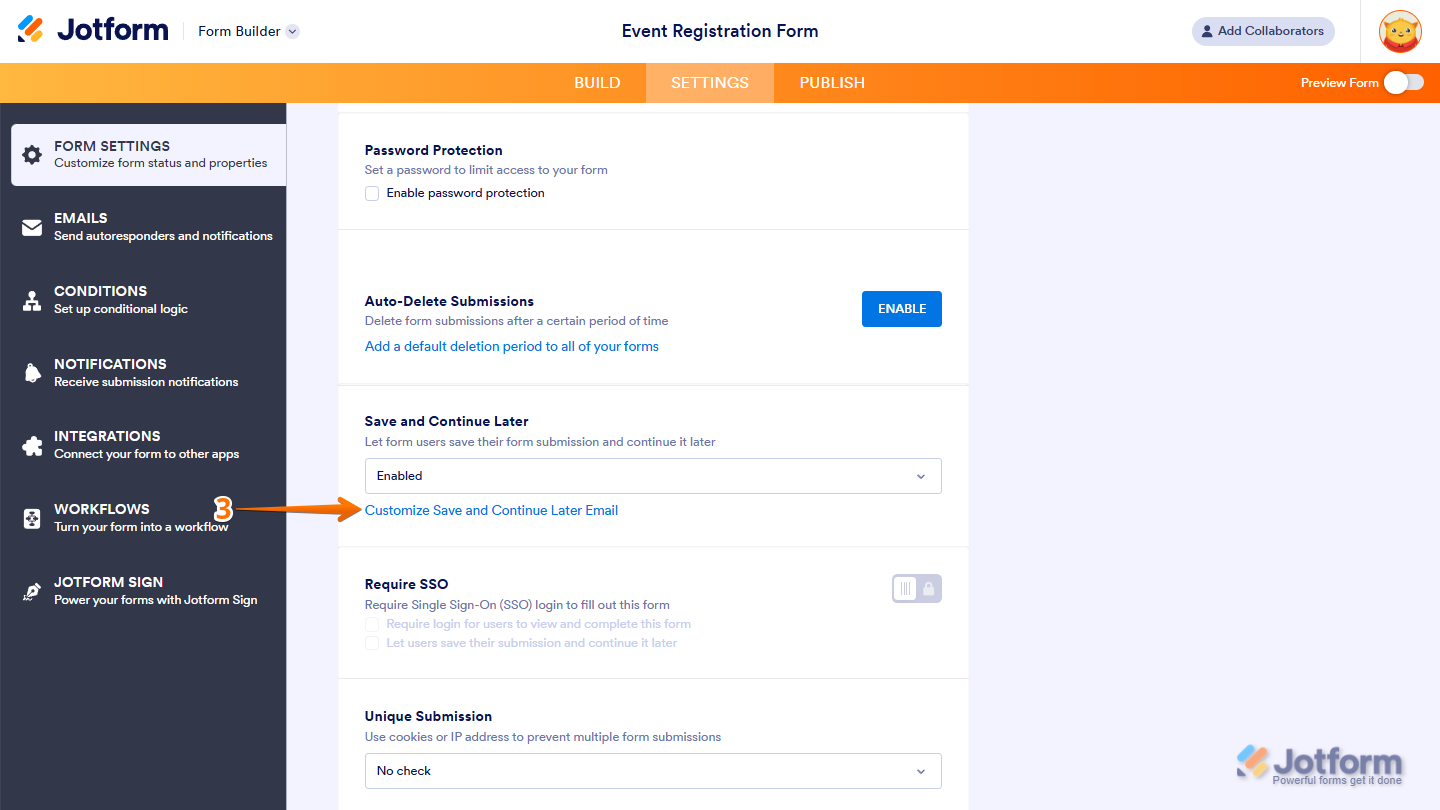
- Now, scroll down to the Save and Continue Later section, and then click on Customize Save and Continue Later Email.
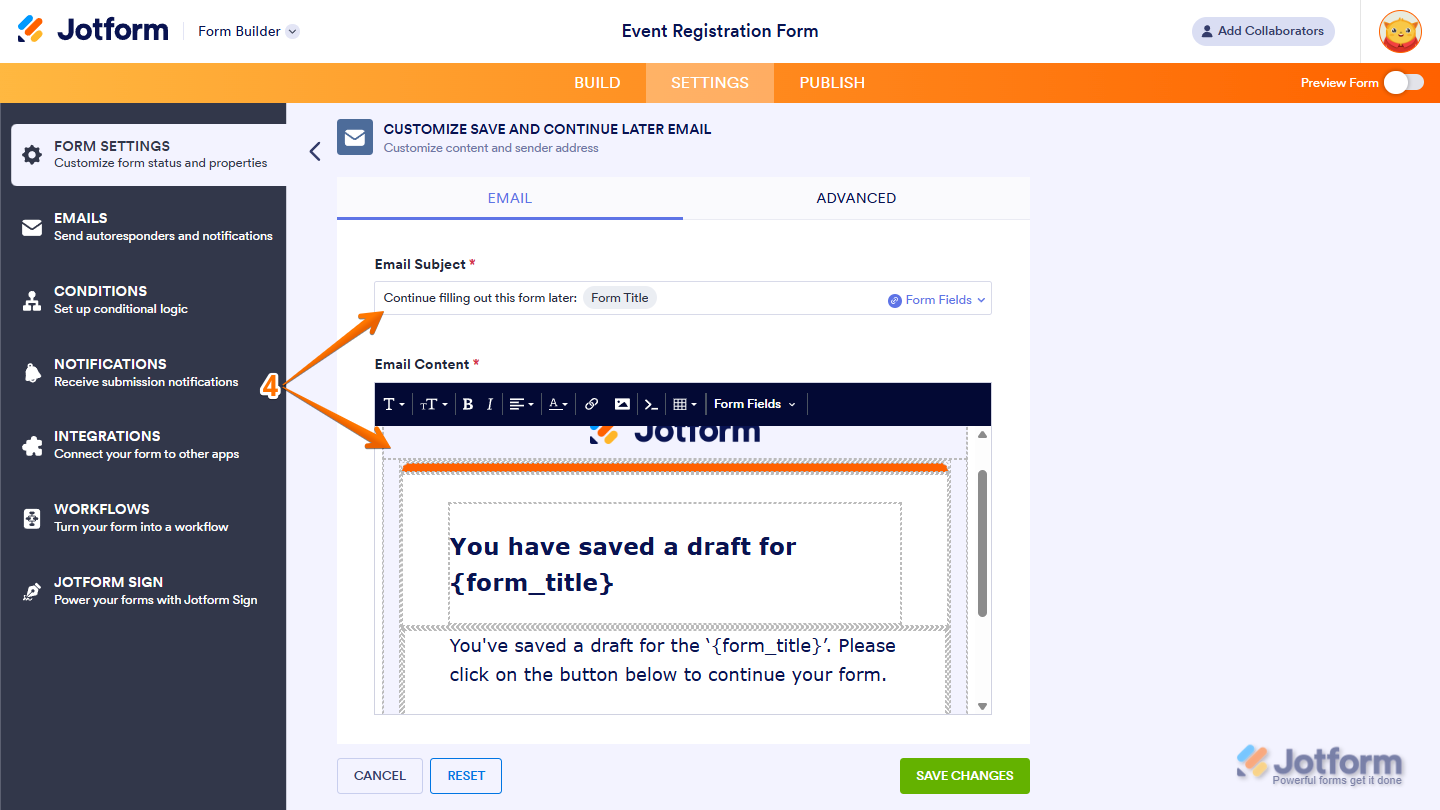
- Next, under the Email Content tab, you can customize the following:
- Email Subject — Set the subject line that appears in the recipient’s inbox.
- Email Content — Edit the body of the email, including the layout and the information shown in the message.
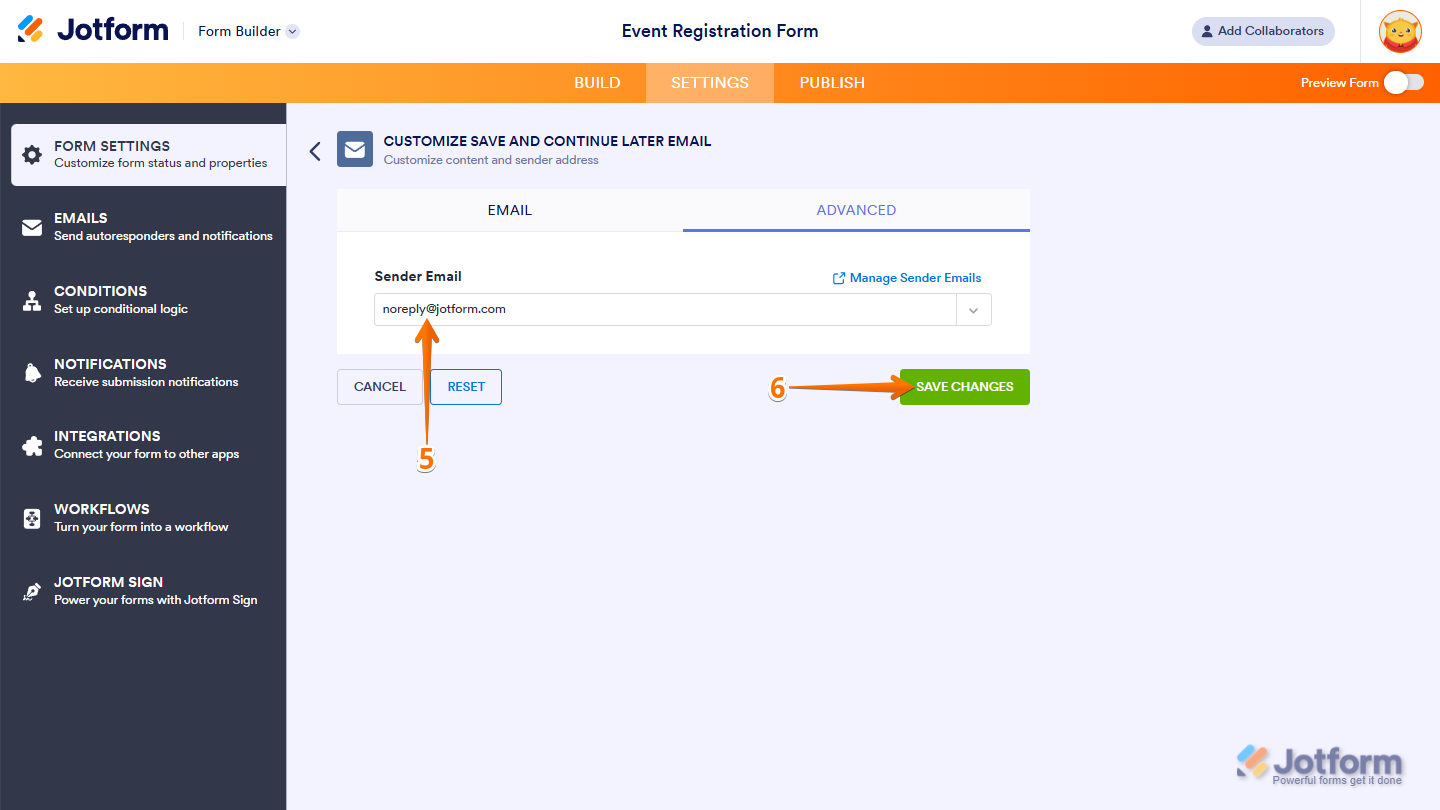
- Then, under the Advanced tab, select your Sender Email or set up your own Sender Email Address. For a full breakdown, check out our guide on How to Set Up a Custom Sender Email with SMTP
- Finally, click on Save Changes, and you’re done.
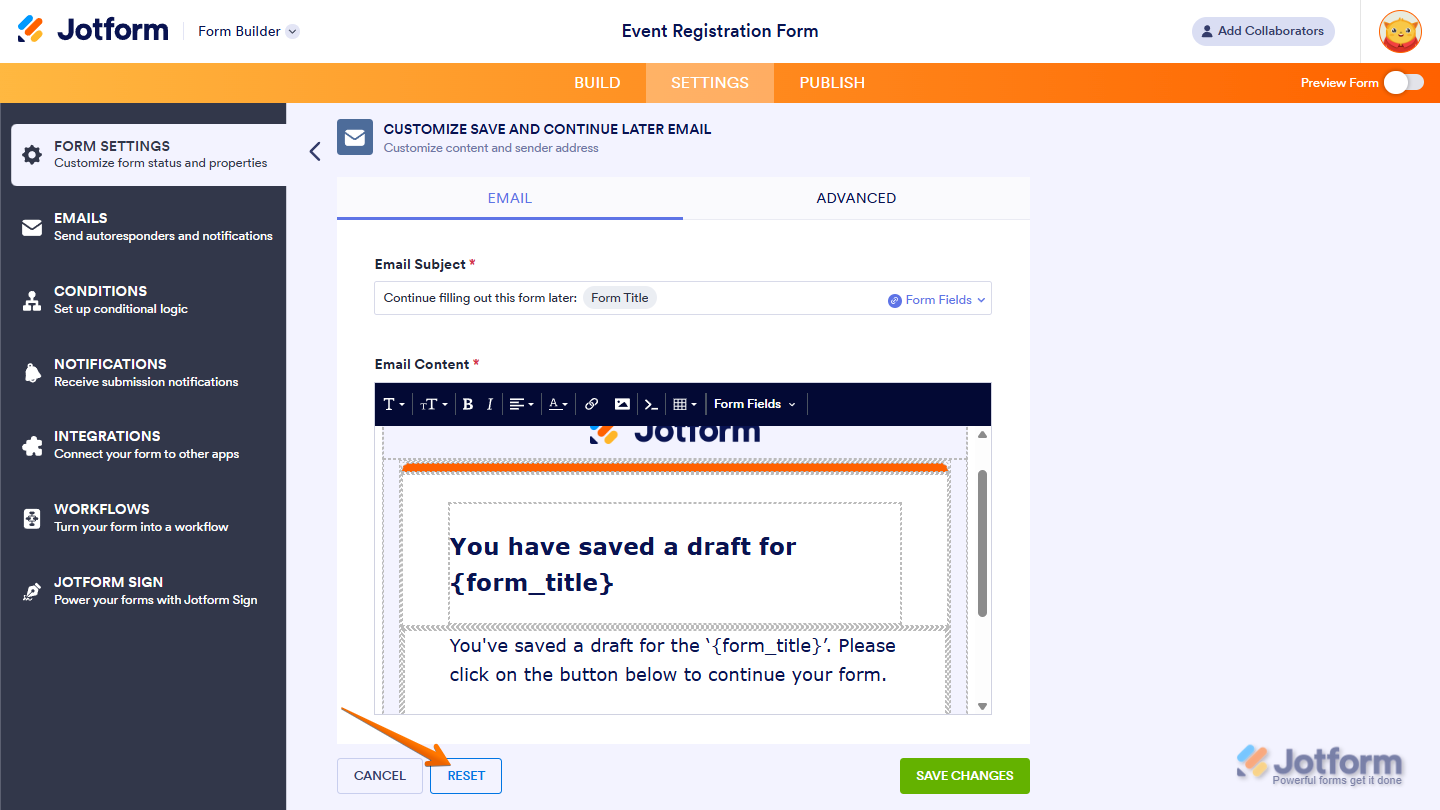
You can also click on the Reset button at the bottom of the email template to revert the message back to its default layout.
And that’s it. Enabling Continue Forms Later helps users complete longer forms at their own pace and ensures you receive more complete and accurate submissions. If you’d like to manage saved sessions, you’ll find all the steps in our guide on How to View Incomplete Submissions in Jotform Tables.

Send Comment:
4 Comments:
May 23, 2023
Is it possible to have the saved forms on a different tab under the submissions table?
February 10, 2023
How can my payment's be confirmed on company email ✉️
February 7, 2022
The "come back later" email used to be sent directly to the email field already indicated in the form. This new process is much more complicated to have to explain to people who don't want to/have time to create a new account. It would be great to have the option to go back to the old way, at least for paid accounts.
November 7, 2021
This is not as well-written as most of your articles.
Even the first sentence is not grammatically correct:
Letting respondents save the progress of their form to continue later required to set up two forms using Page Break elements.