With Jotform, you can easily add interactive commenting tools to your images using the Annotate Picture Widget. You simply upload an image to your form and let users draw, highlight, or leave notes directly on it. This works well for feedback, quizzes, and collaborative projects.
Here are a few ways to use it:
- Let students or peers leave notes directly on pictures or drawings.
- Create interactive art or photography quizzes.
- Collect clear visual feedback from professors or collaborators.
- Encourage more detailed and creative responses in assignments or reviews.
Whether you’re creating a new form or updating an existing one, you can add and set up the Annotate Picture widget in a few easy steps. Here’s how to do it:
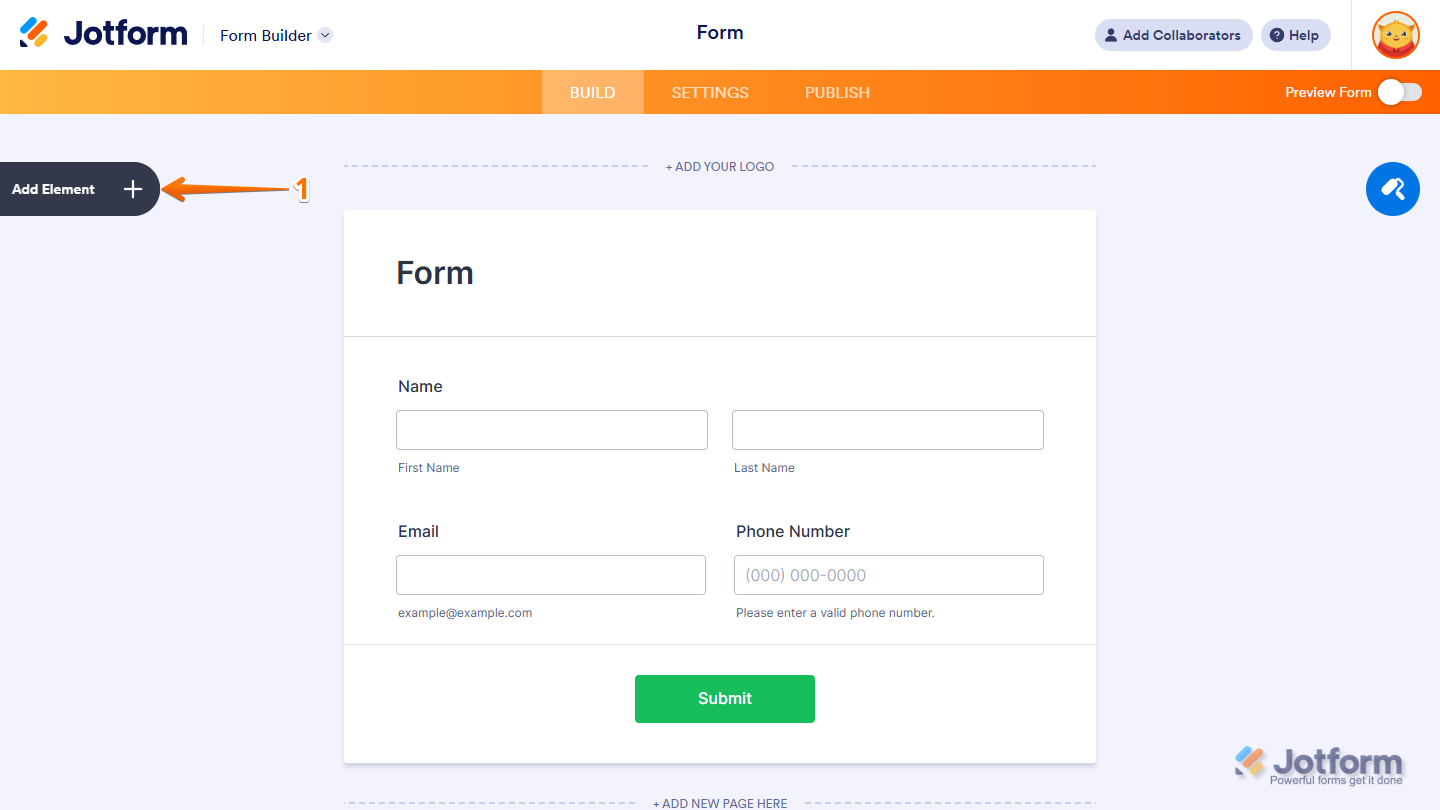
- In Form Builder, click on Add Element on the left side of the page.
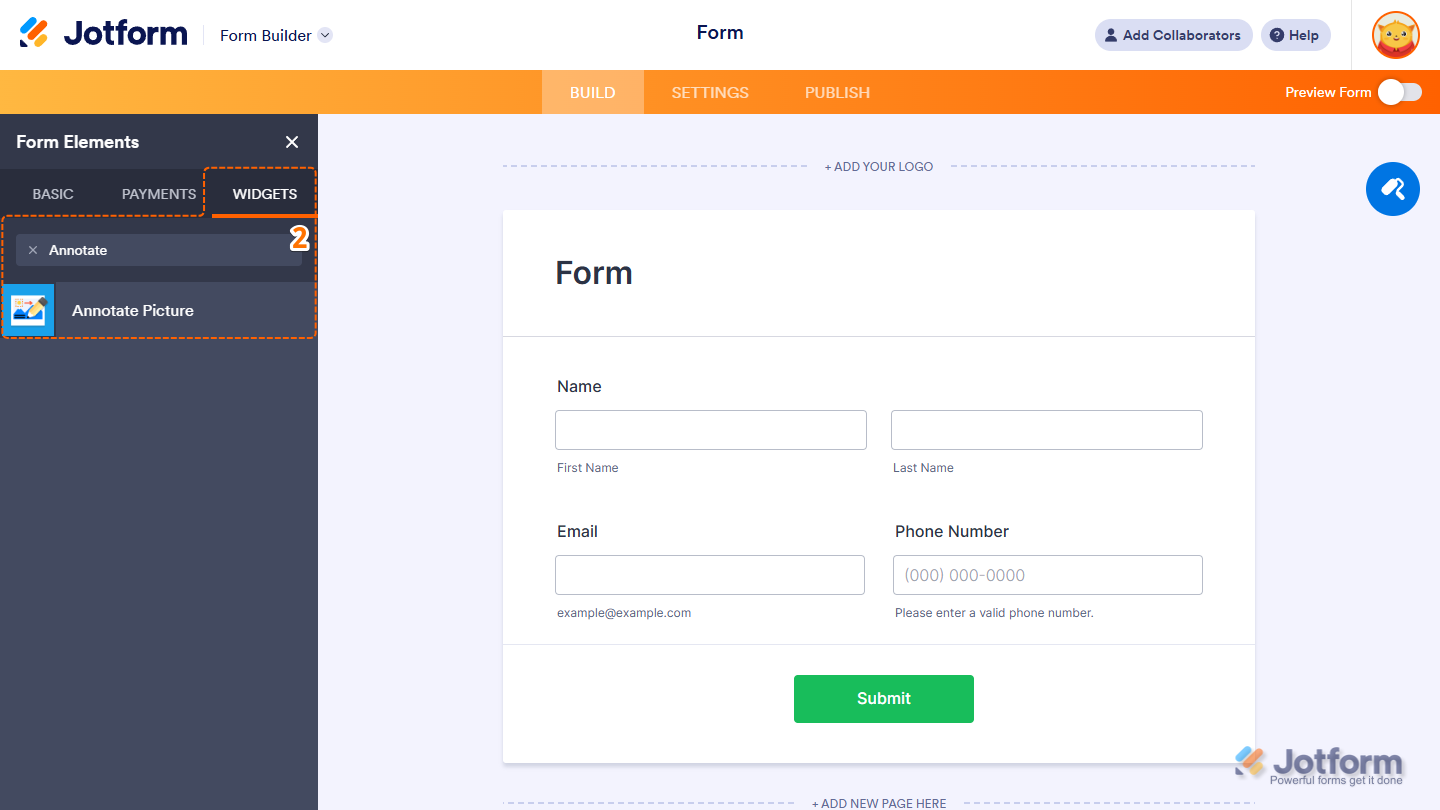
- Now, in the Form Elements menu, under the Widgets tab, search for Annotate Picture and click to add it to your form. Or, just drag and then drop it to where you want it to be on your form.
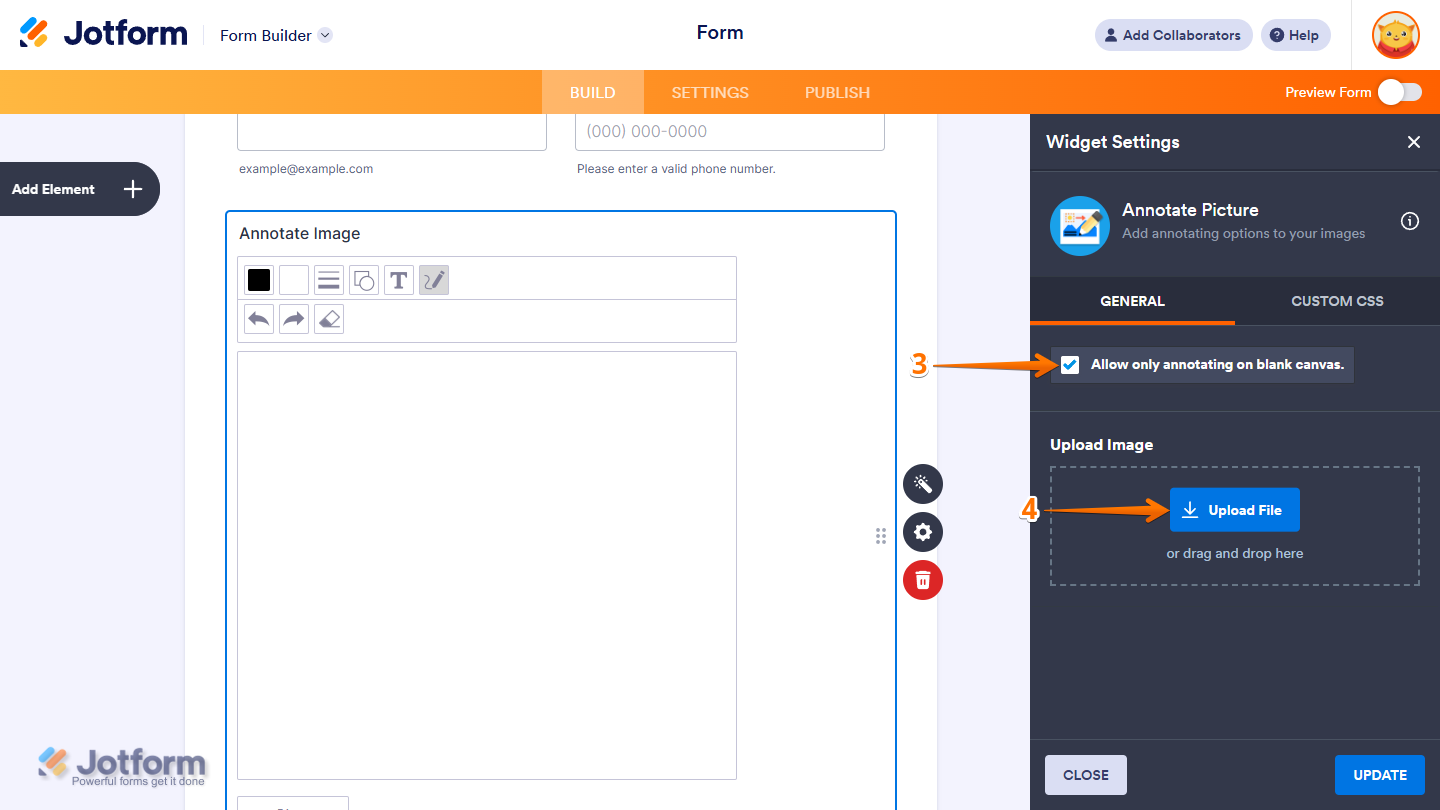
- Next, in the Widget Settings window that opens on the right side of the page, under the General tab, check the box for Allow Only Annotating on Blank Canvas if you’d like to enable this option.
- Then, click on Upload an Image to add your photo.
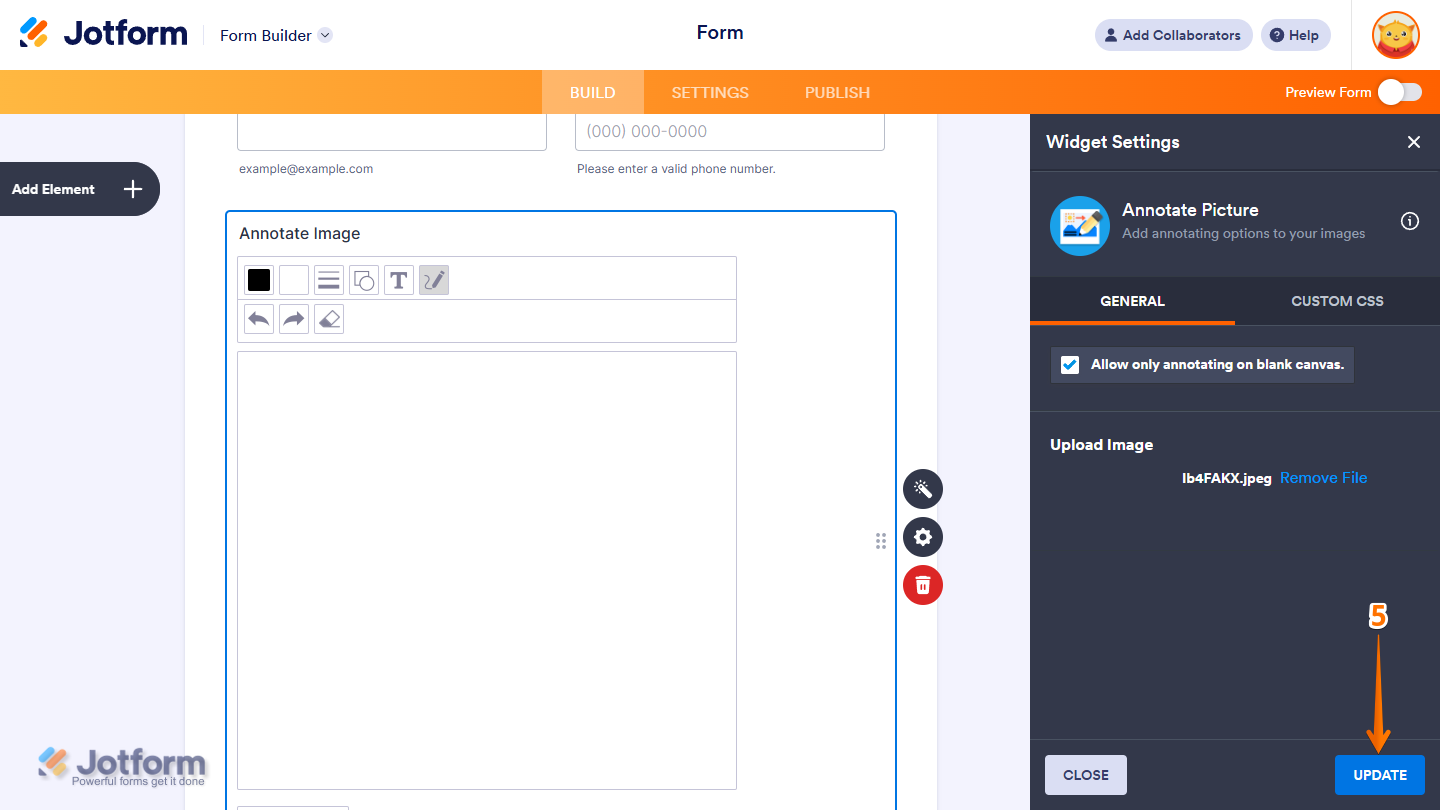
- Now, once the image has been uploaded, click on Update and you’re all set.
That’s it! You’ve successfully added and set up the Annotate Picture widget on your form.
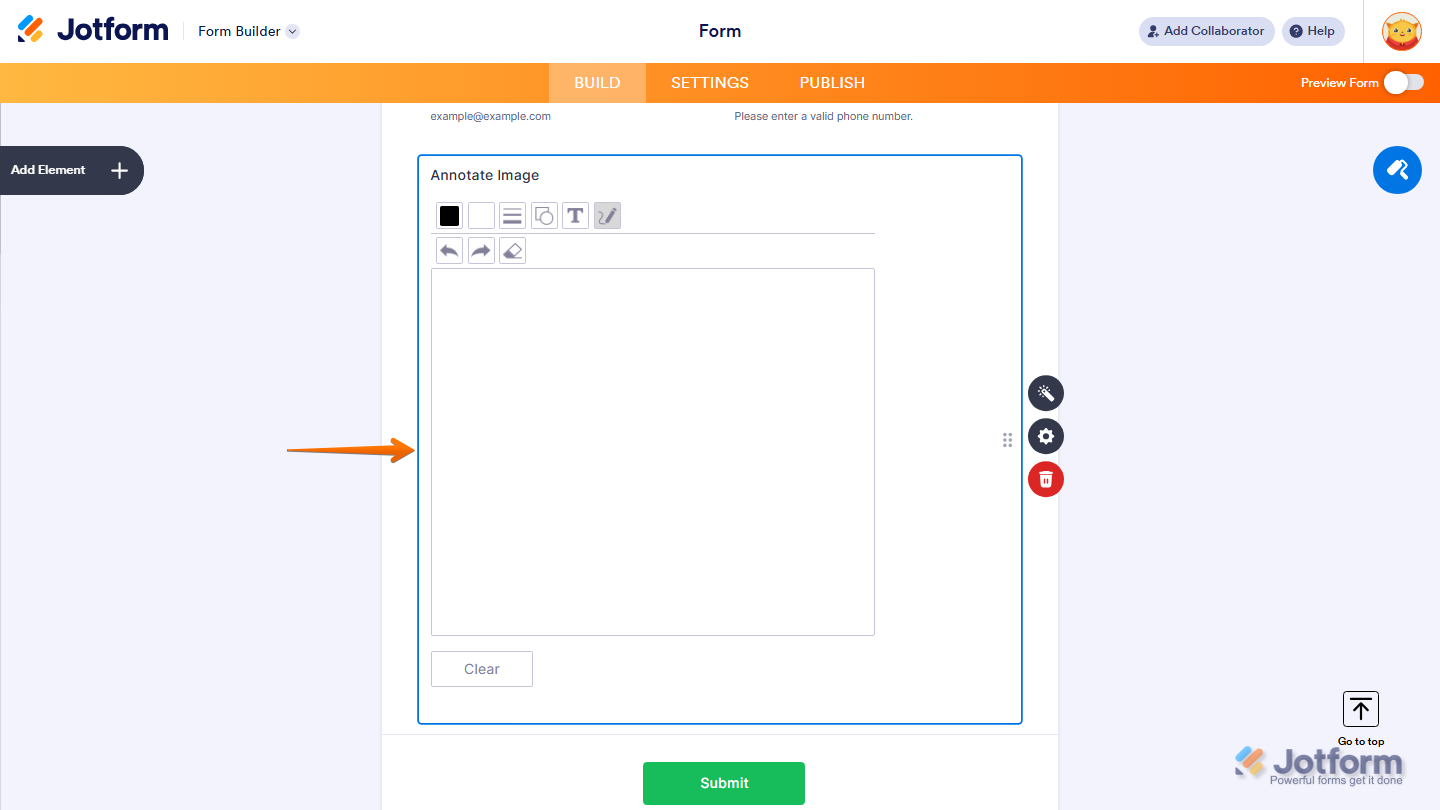
Wondering how it looks in action? Check out this Demo Form.
Note
- To style the fields and labels, you can inject custom CSS into the Custom CSS tab in the Widget Settings. To learn how it’s done, see our guide on How to Inject CSS Codes to Widgets.
- You can also configure the widget properties, like alignment, labels, size, visibility, and more, to control how it looks and behaves in your form. Check out our guide on How to Access and Configure the Question Properties of a Widget to learn more.

Send Comment: